
01Who this is for
- Founders who rely on AI chat for lead capture can see who altered an agent’s status, ensuring their sales funnel stays active.
- Agency administrators managing several client locations can audit AI changes across contacts to verify configuration compliance.
02Conversation AI activity in audit logs, explained
Conversation AI Activity captures every status change of an AI agent, including activation, deactivation, pauses, reassignments, and updates to pause times. Each entry also records what caused the change, such as a workflow, a human handover, or a direct user action, and identifies whether a person or the System performed it. The log entries are stored in the platform’s Audit Logs and are accessible either from the location wide view or from a specific contact’s conversation panel.
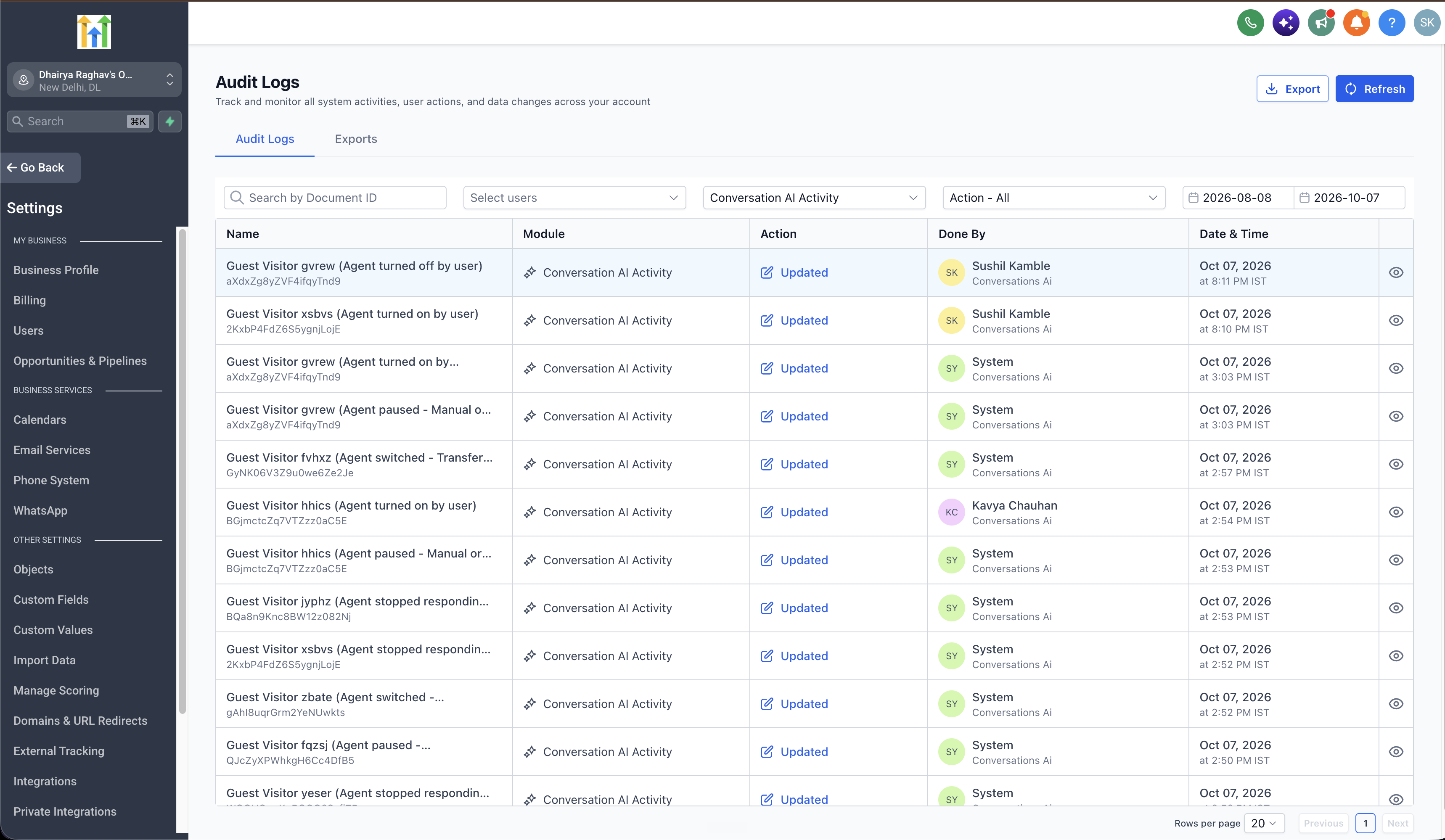
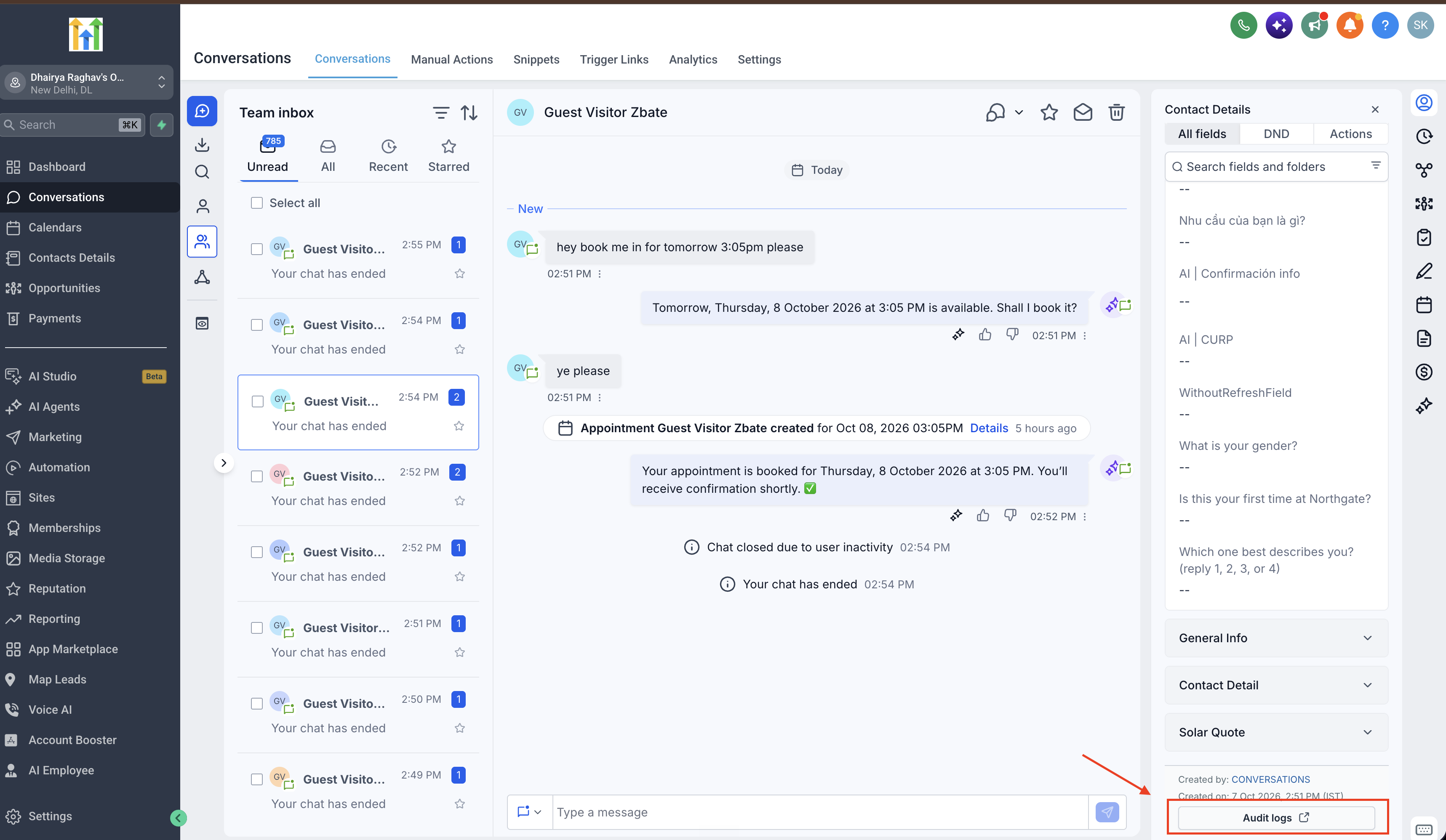
In the location view, you open Settings, go to Audit Logs, and select Conversation AI Activity as the module filter. From there you can browse all changes, apply filters for user or date range, and open an entry to read its full details. In the contact view, you open a conversation, locate the Contact Details panel, click the Audit logs button, and see only the activity that affected that contact.
03How businesses use Conversation AI activity
- Ecommerce store. The store reviews the audit log after a promotional workflow runs to confirm whether the AI bot was paused during the sale. It opens Settings > Audit Logs, selects Conversation AI Activity, and filters by the workflow name to see the pause event.
- Medical clinic. When a patient’s chat is handed over to a human receptionist, the clinic opens the patient’s conversation, clicks Audit logs, and checks the entry that shows a human handover trigger and the user who reassigned the AI.
- Real estate agency. Agents monitor weekend activity by filtering location wide audit logs for deactivation events. They select Conversation AI Activity, set the date range to Saturday Sunday, and verify which AI agents were turned off.
04Before you start
- User must have permission to view Audit Logs.
05How to set up and use Conversation AI activity in HighLevel
View location wide Conversation AI activity
- Open Settings and choose Audit Logs.
- Select Conversation AI Activity from the Module filter.
- Apply filters such as user or date range to narrow the results.
- Click an entry to display its full details.
View Conversation AI activity for a specific contact
- Open Conversations and open the desired contact’s conversation.
- Find the Contact Details panel on the right side.
- Click the Audit logs button at the bottom of that panel.
- Review the audit list that is filtered to that contact.
06What it looks like in HighLevel
07Settings that matter
- Conversation AI Activity. Filters the Audit Log view to show only changes to AI agent status and assignments.
08Things to know before you rely on it
- Audit records are kept for 60 days according to the general Audit Logs policy.
- Not every entry contains the same fields; some events include additional information such as sleepingTill.
09If something goes wrong
- Conversation AI Activity does not appear in Audit Logs. Confirm you are accessing Audit Logs in the correct location and that your user account has the required permissions. If the module is still missing, ask the account administrator for access.
10How it connects to the rest of HighLevel
- Audit logs redesign and shortcuts Audit logs redesign
- How to export audit logs as CSV Export audit logs
- HighLevel pricing and plans Pricing
Michael's take

Skipping an audit trail because you think everything works can leave you blind when an AI agent misbehaves. Without a record of who turned an agent on or off, you may waste time hunting for the cause.
When you have the logs, you can see the trigger, the user or system that made the change, and the timestamp.