
01Who this is for
- Compliance officers gain a reliable source of evidence for regulatory reporting.
- Customer support managers can verify which agent updated a contact’s email settings.
- Marketing directors see who altered subscription configurations to ensure policy adherence.
02Audit logs for email preferences and subscriptions, explained
The audit log feature captures two main categories of activity: updates to individual contact preferences such as opt in status, and modifications to subscription types made in the Preference Management Hub. For each event the system records the affected record, the user who performed the action, the timestamp, and both the original and new values.
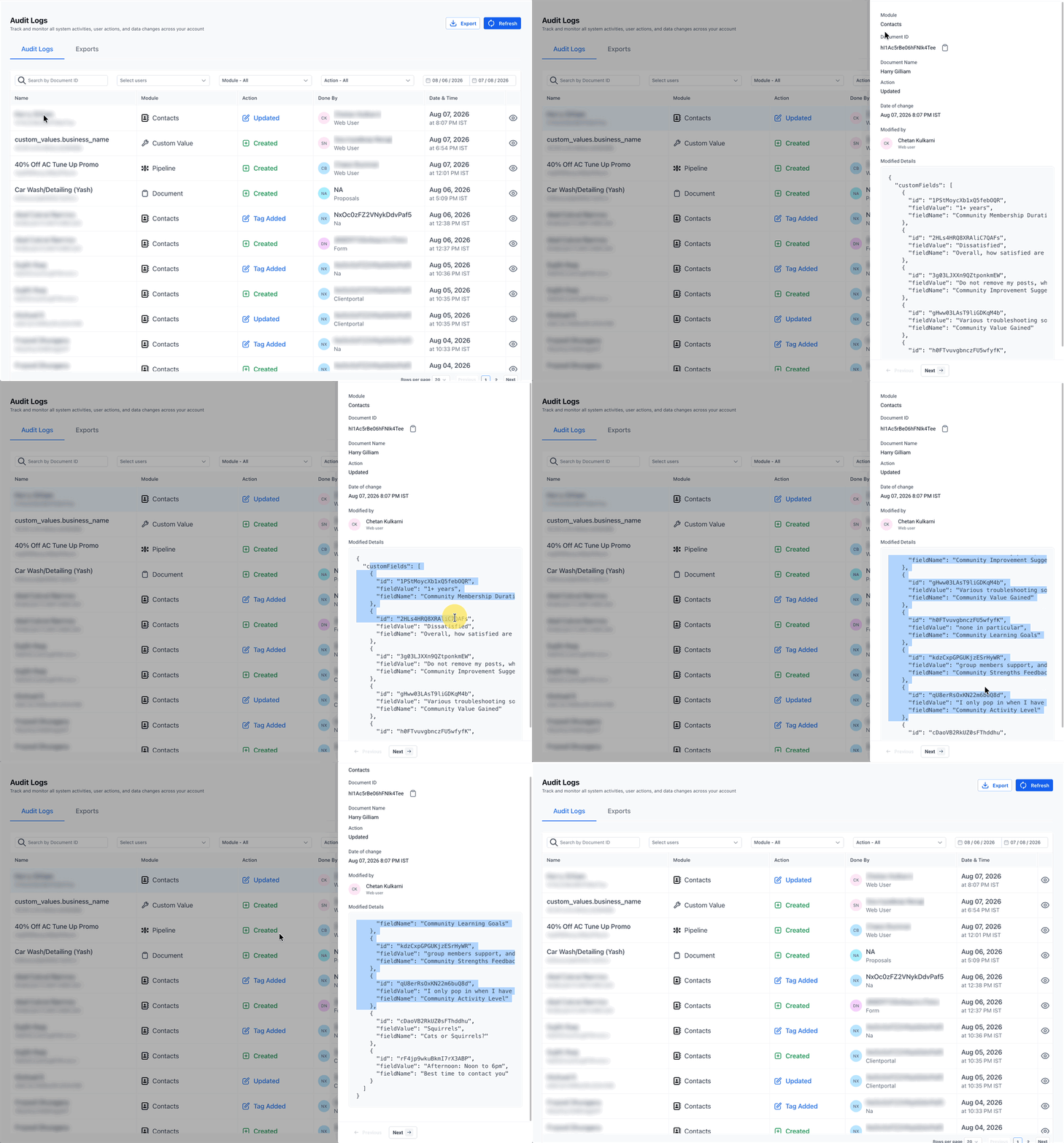
These logs are stored within the Settings area of the platform. Users with administrative rights can open the Audit Logs screen, browse entries, apply filters to narrow the view, and export the data as a CSV file for offline analysis or compliance documentation.
03How businesses use audit logs for email preferences and subscriptions
- Digital marketing agency. An agency administrator opens the Audit Logs, filters for subscription type changes, and exports the list to attach to a client compliance report. This provides a clear audit trail of who altered campaign subscription settings.
- Ecommerce retailer. The retailer’s compliance team reviews contact preference updates in the logs to confirm that opt in changes were performed by authorized staff. They use the timestamp and user details to answer data subject access requests.
- Healthcare clinic. Clinic staff with admin access view the logs to see when a patient’s email communication preferences were edited, ensuring that any changes comply with privacy regulations and internal policies.
04The numbers and rules that matter
- Entries include contact or subscription, user ID, timestamp, previous value, and updated value.
05Before you start
- User must have administrative access to the Settings section in HighLevel.
06How to set up and use audit logs for email preferences and subscriptions in HighLevel
View and export audit logs for email preferences
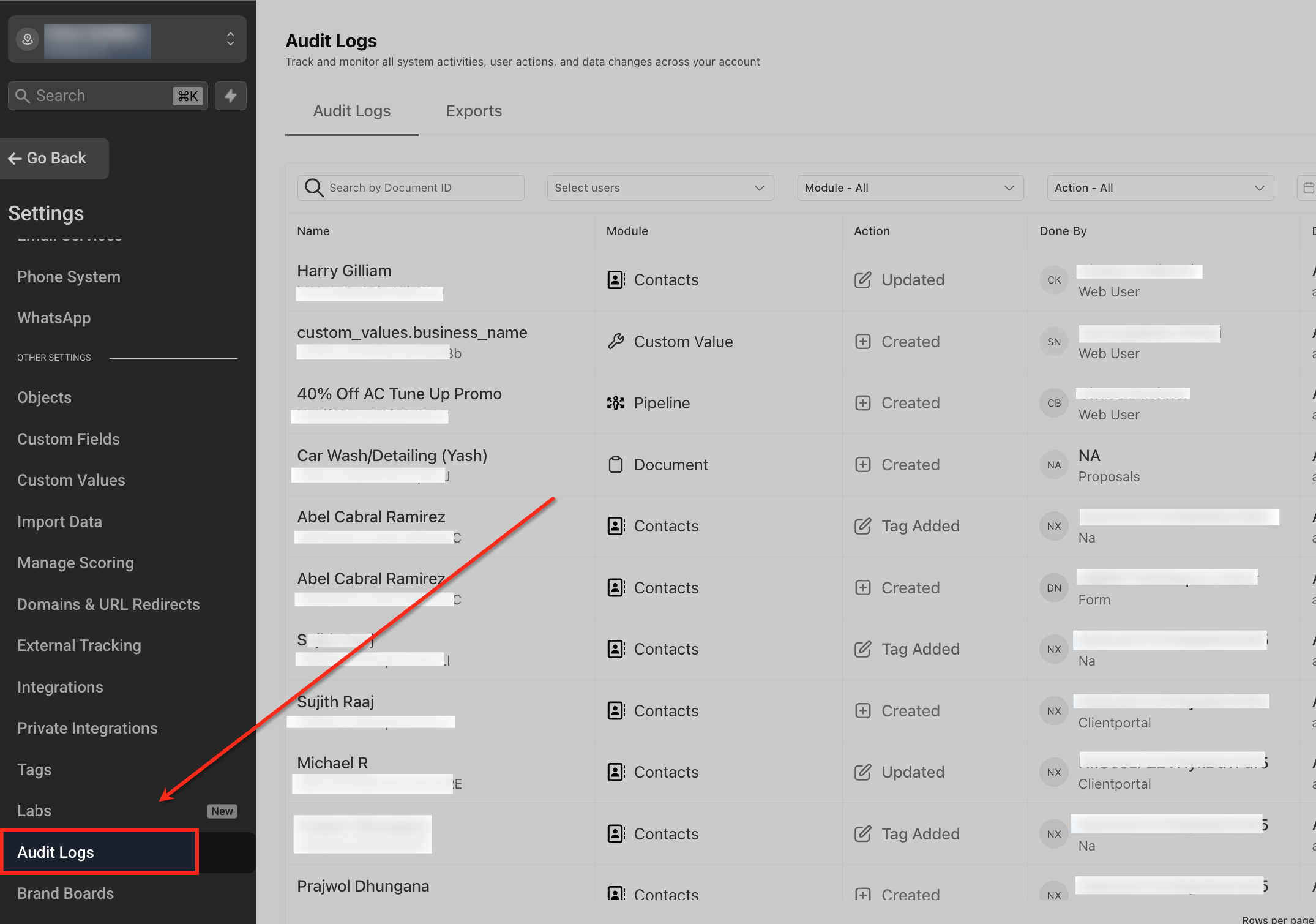
- Open Settings and select Audit Logs from the navigation menu.
- Examine each entry to see the user, record, time, and before after values for the change.
- Click the export button to download the displayed records as a CSV file.
07What it looks like in HighLevel
08Things to know before you rely on it
- A History tab for contact preferences is still under development and will be released later.
- Retention periods follow the platform’s standard data retention rules; contact an administrator for exact timelines.
09How it connects to the rest of HighLevel
- Learn about the redesigned audit logs interface Audit logs redesign
- See how to export audit logs as CSV Export audit logs
- Explore options for tracking Conversation AI activity Conversation AI audit
Michael's take

Keeping a clear record of who changed email settings solves a real pain point for any business that handles newsletters, promotions, or compliance heavy communications. The first thing I would set up is the export routine so you can pull a clean CSV whenever you need to prove a change was made.
Make sure the right people have admin rights to Settings, then give the export button a quick test run. Knowing you can pull the data without a hitch saves headaches down the line when auditors or customers ask for proof of consent changes.