
01Who this is for
- Agency Admins, need a complete view of team activity for security and compliance.
- Subaccount Admins, monitor changes within a specific location without seeing unrelated agency data.
02Audit Logs, explained
Audit Logs serve as the official record of user actions in HighLevel. Each entry includes a timestamp, the user who performed the action, the affected module, and details of what changed. The logs are accessible from Settings in either the Agency or Subaccount context, showing only the scope of that view.
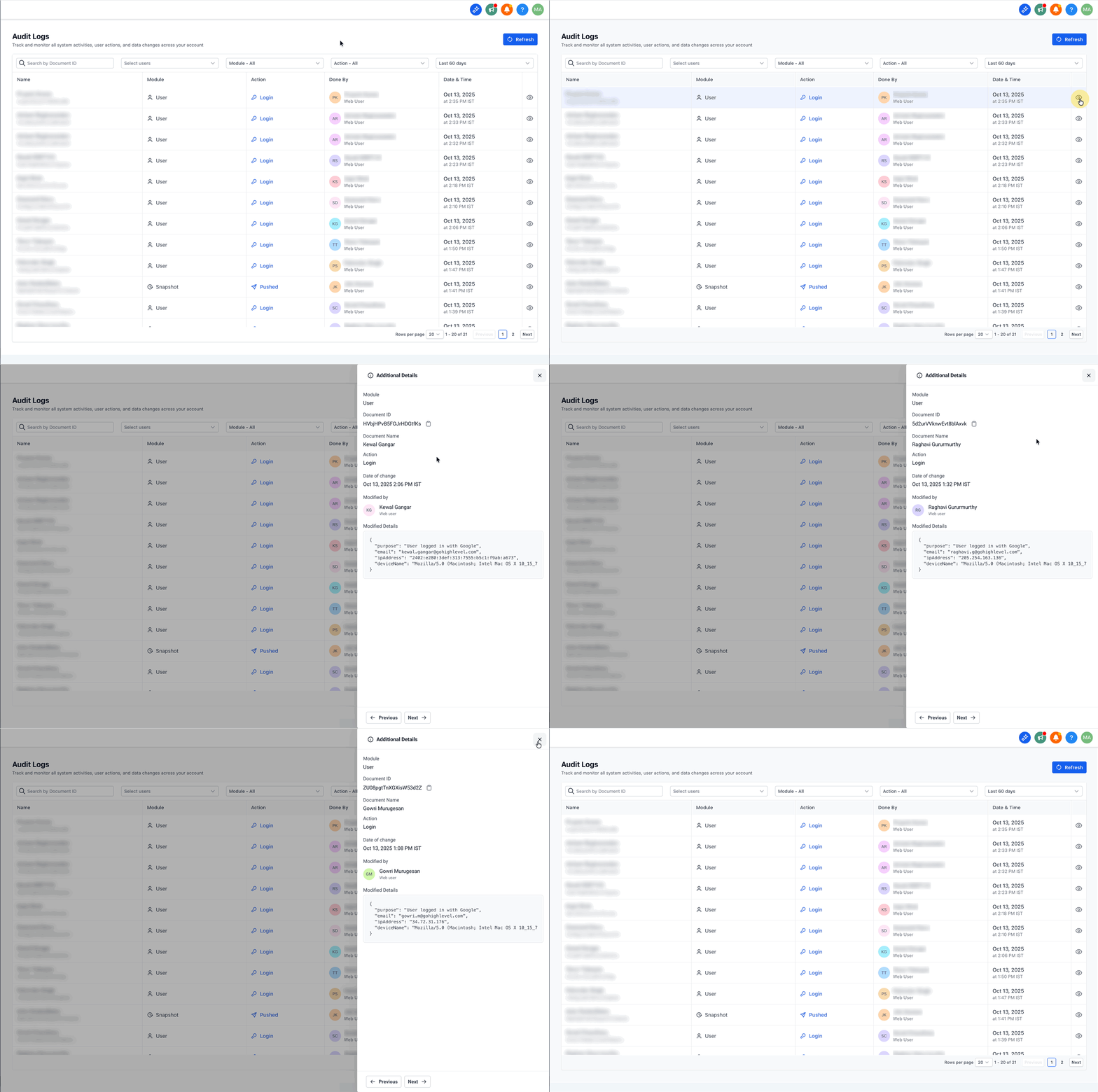
The interface now follows the New Design System. Clicking a row opens a right side drawer that displays before/after values, the user, and time without leaving the table. While the drawer remains open, left and right arrow keys move to the previous or next log entry, allowing fast scanning of many records.
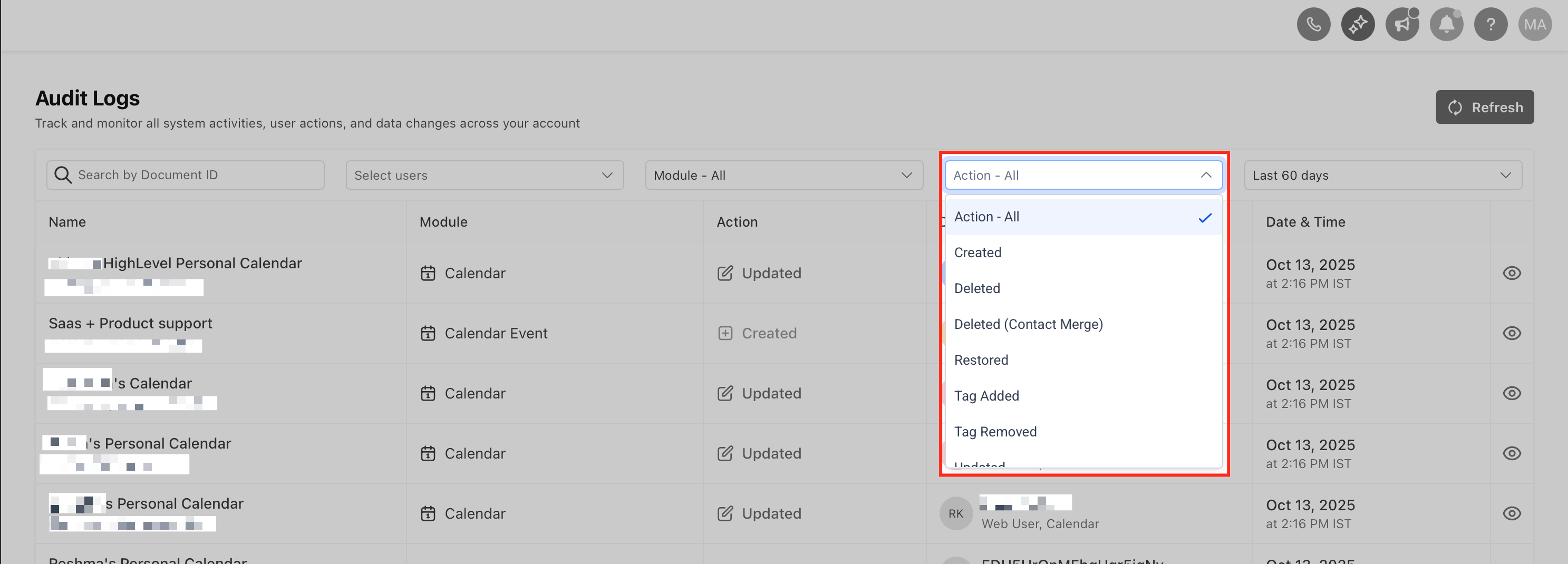
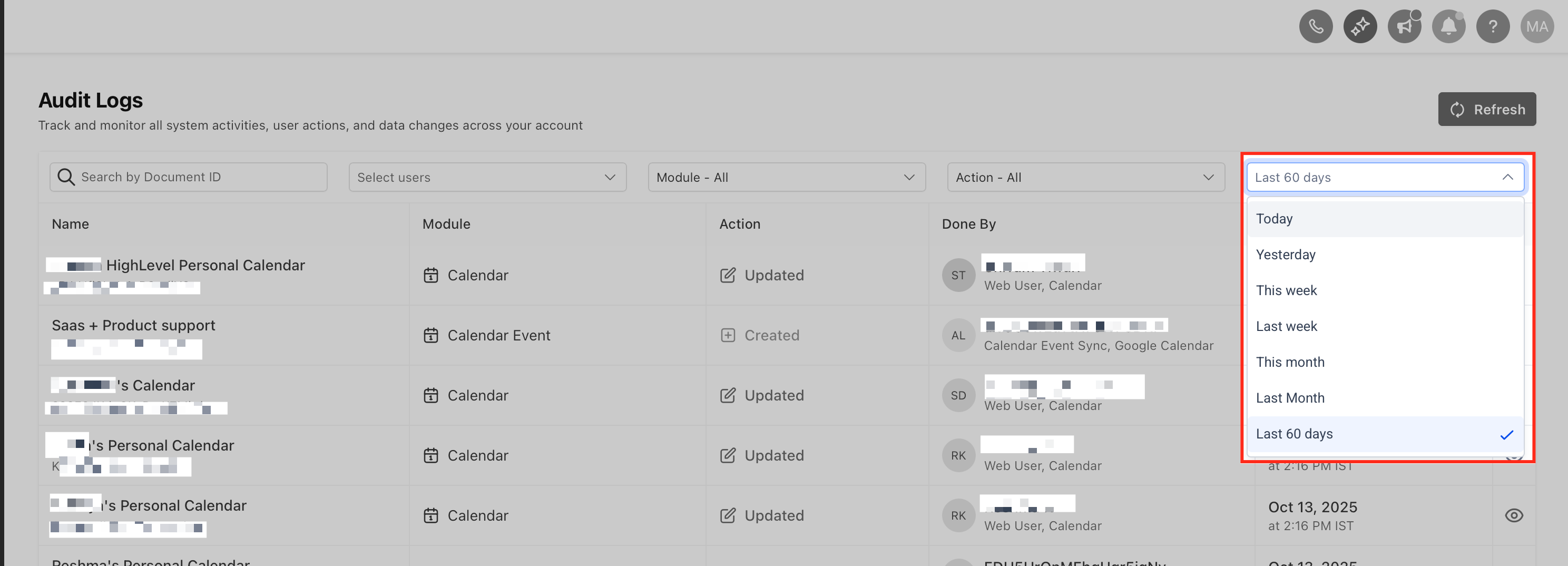
Filters let you limit the list by User, Module, Action Type, or Time Range. Exporting filtered results creates a CSV file that runs asynchronously and can be downloaded from the Exports tab.
03How businesses use audit logs
- Marketing agency. The agency admin opens Audit Logs, filters by a specific team member, and scrolls through changes using the arrow keys. If a client’s funnel is altered unexpectedly, the admin can export the filtered view to CSV for internal review.
- Real estate brokerage. A branch manager accesses the Subaccount Audit Logs, selects the Module filter for Listings, and reviews any Deleted actions. The manager can quickly identify who removed a property entry without leaving the page.
- SaaS startup. The compliance officer opens the Audit Logs, applies a Time Range of the last 7 days, and uses the Export option to download a CSV. The file is stored for the required 60 day retention period.
04The numbers and rules that matter
- Audit Log entries are retained for 60 days and then purged.
- Filters include User, Module, Action Type and Time Range.
05Before you start
- You must be an Agency Admin or an Account Admin with access to Settings.
- Navigate to the appropriate Agency or Subaccount context before opening Audit Logs.
06How to set up and use audit logs in HighLevel
Access audit logs
- Select the correct context: go to Agency > Settings > Audit Logs or Subaccount > Settings > Audit Logs.
- In the list, click the eye icon or any row to open the details drawer.
- Press the left or right arrow key to move to the previous or next record while the drawer stays open.
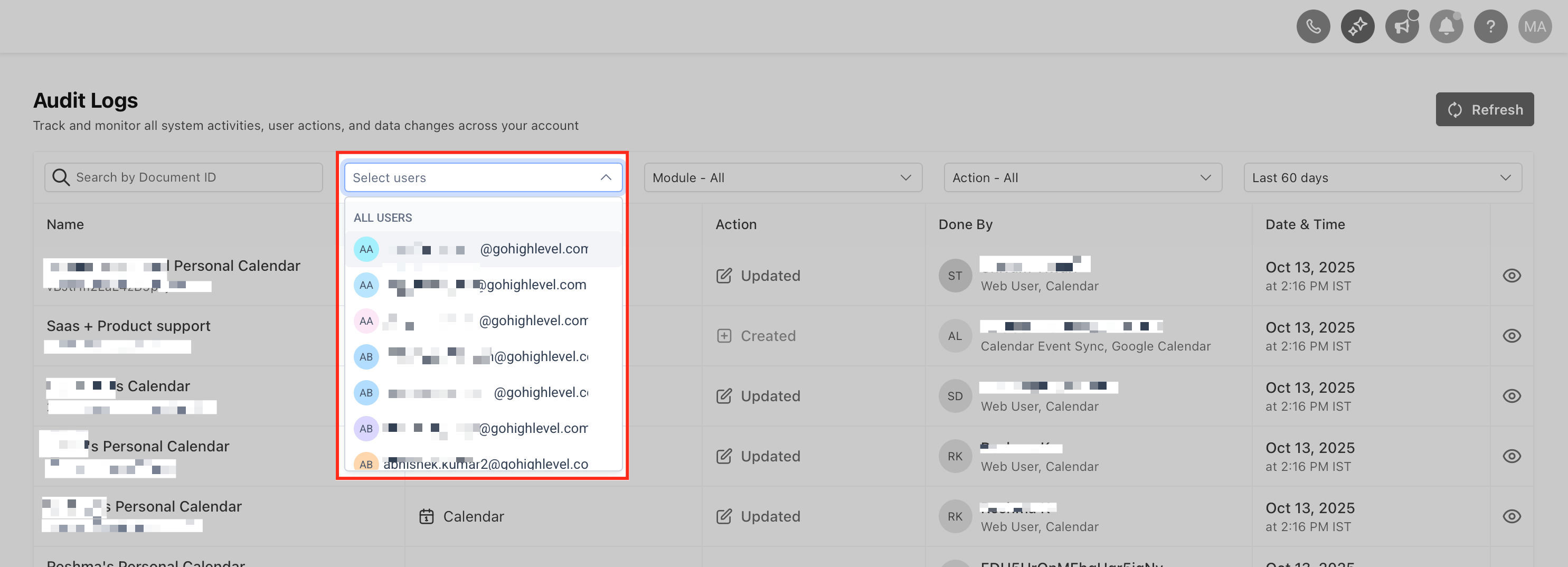
- Apply the User filter (available in both views) or other filters as needed.
Export audit logs
- Set any desired filters to narrow the log view.
- Click the Export button located at the top right of the page.
- Watch the Exports tab for progress updates while the export runs asynchronously.
- When the export finishes, download the CSV file from the Exports tab.
Navigate with drawer and keyboard
- Click any row in the audit table to open the right side drawer.
- Use the left arrow key to view the previous entry or the right arrow key for the next entry.
- Close the drawer by clicking the X icon or pressing the Esc key.
- Return to the exact position in the table after the drawer is closed.
07What it looks like in HighLevel
08Settings that matter
- User. Filters results to show only actions performed by the selected team member.
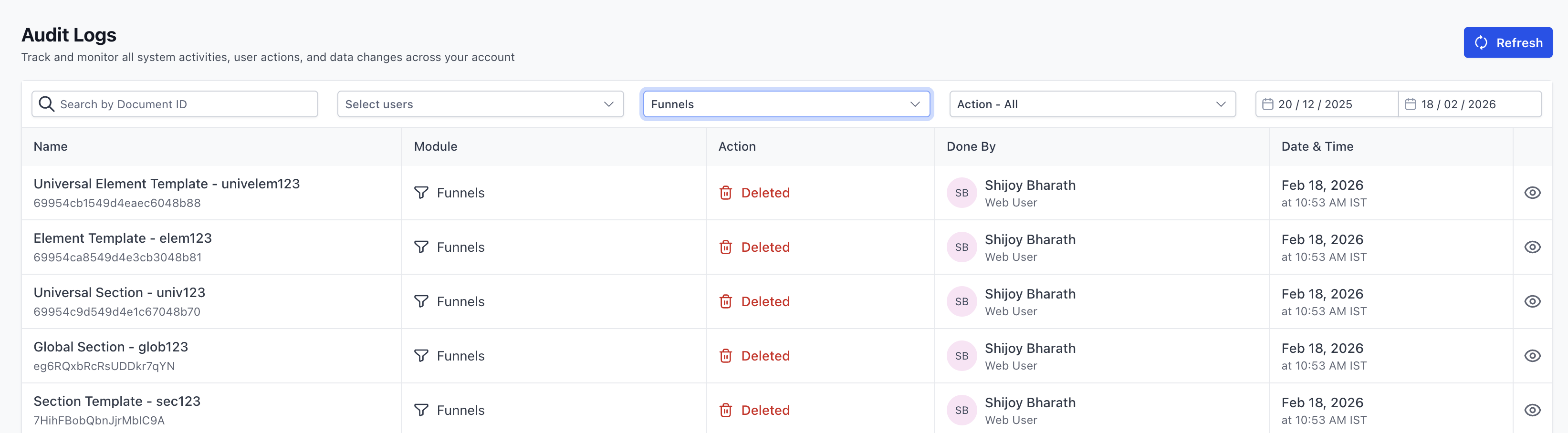
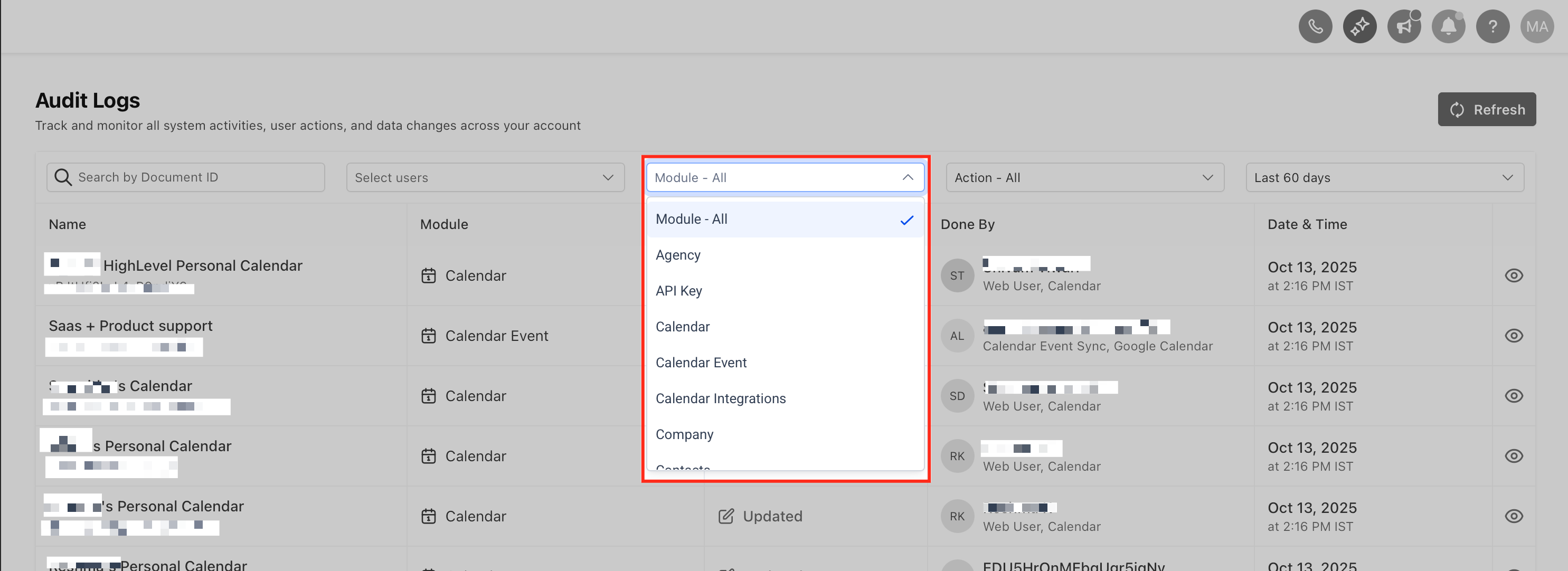
- Module. Limits entries to a specific area such as Users, Accounts, Contacts, or Conversation AI Activity.
- Action Type. Shows only Create, Update, or Delete actions depending on the selected type.
- Time Range. Restricts the log entries to a defined period, up to 60 days.
- Export Option. Initiates an asynchronous CSV download of the currently filtered audit logs.
09Things to know before you rely on it
- Log entries are kept for 60 days and then deleted.
- Deleted Page Builder assets such as Section Templates and Element Templates generate a Deleted entry.
- Notification Preferences audit details are only available in Subaccount audit logs.
- The Module and Action filters may not appear for every module.
10How it connects to the rest of HighLevel
- Export audit logs as CSV Export CSV guide
- Track Conversation AI activity in audit logs Conversation AI guide
- Explore all Settings features All Settings
Michael's take

Audit Logs can feel overwhelming at first, especially when you realize every change leaves a trail that you must monitor for compliance.
The redesigned view presents details in a drawer and lets you navigate with the keyboard, showing who changed what and when.