
01Who this is for
- Agency owners who need to provide auditors with portable records of platform activity.
- Compliance officers who must retain audit data outside the platform for investigations.
- Location managers who require a way to archive filtered logs for internal reviews.
02Audit logs export, explained
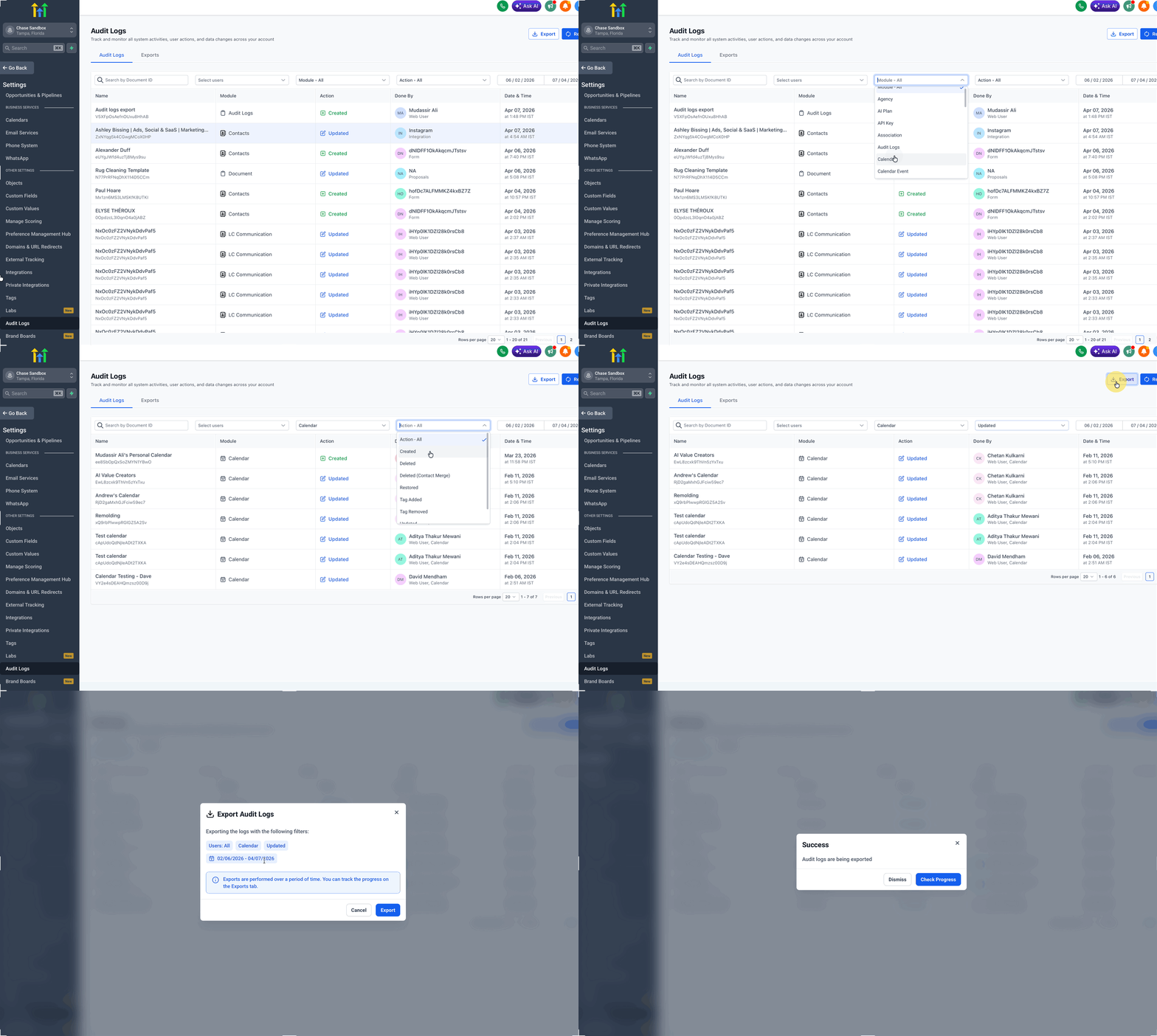
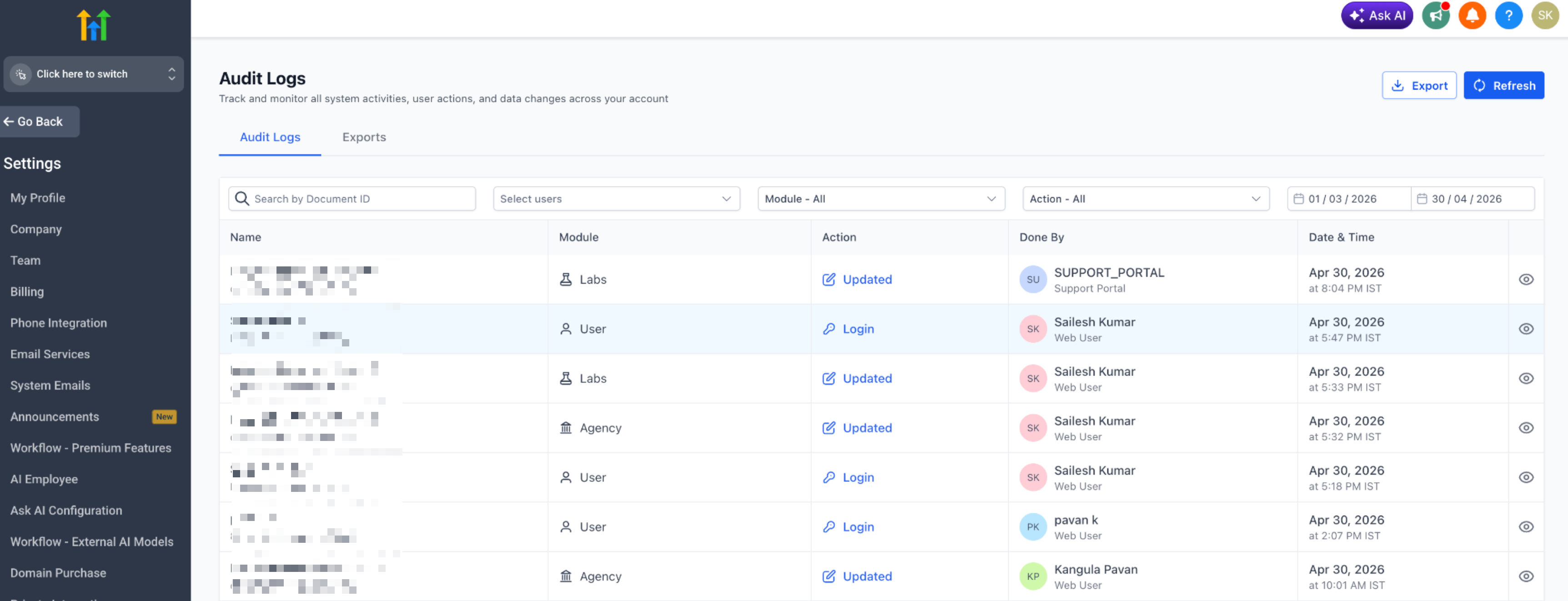
The feature adds an Exports tab to the Audit Logs page. After applying any filter on Audit Logs, a user can click Export to queue a CSV creation task. The task runs in the background, allowing work to continue while the file is prepared.
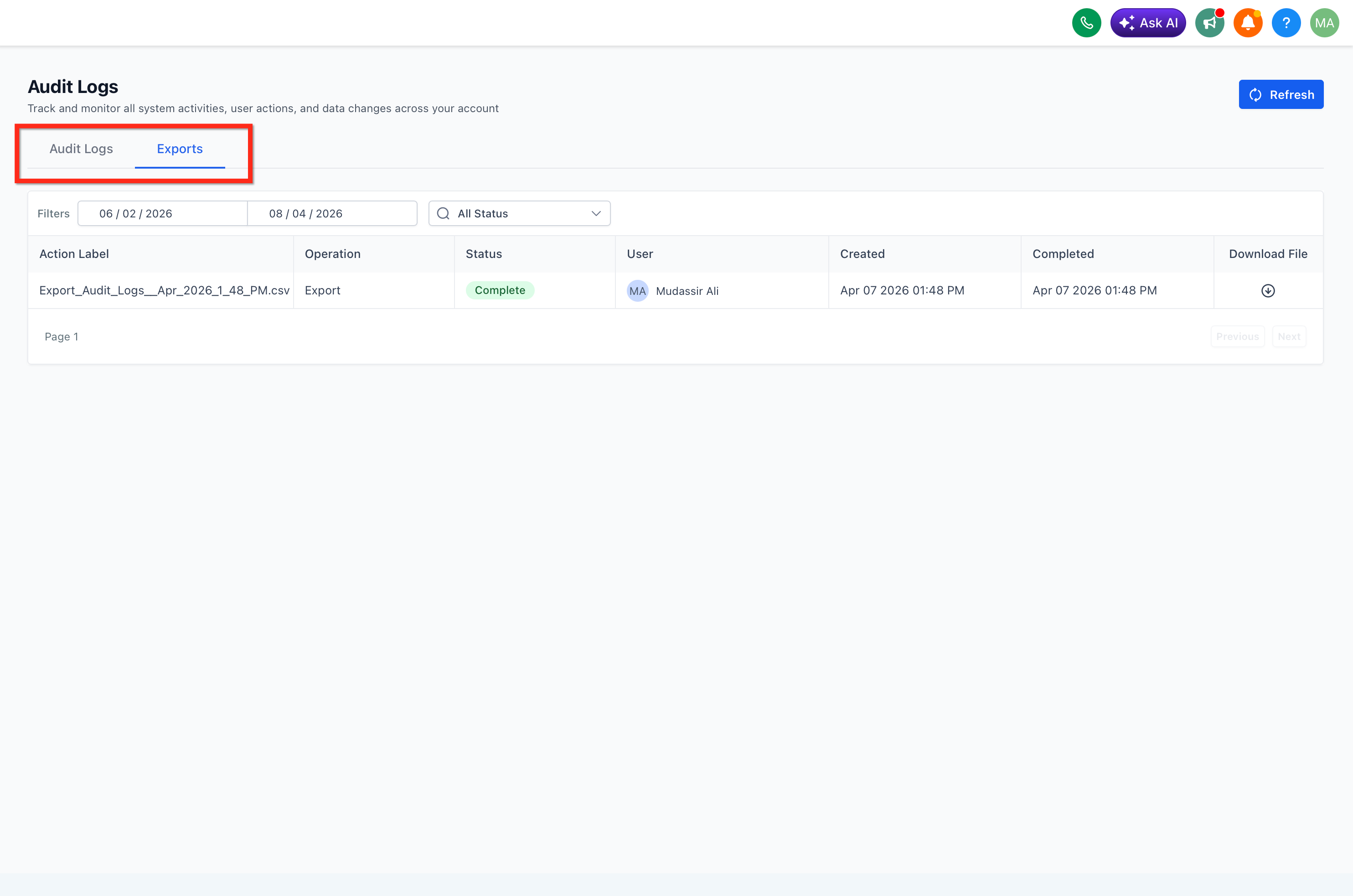
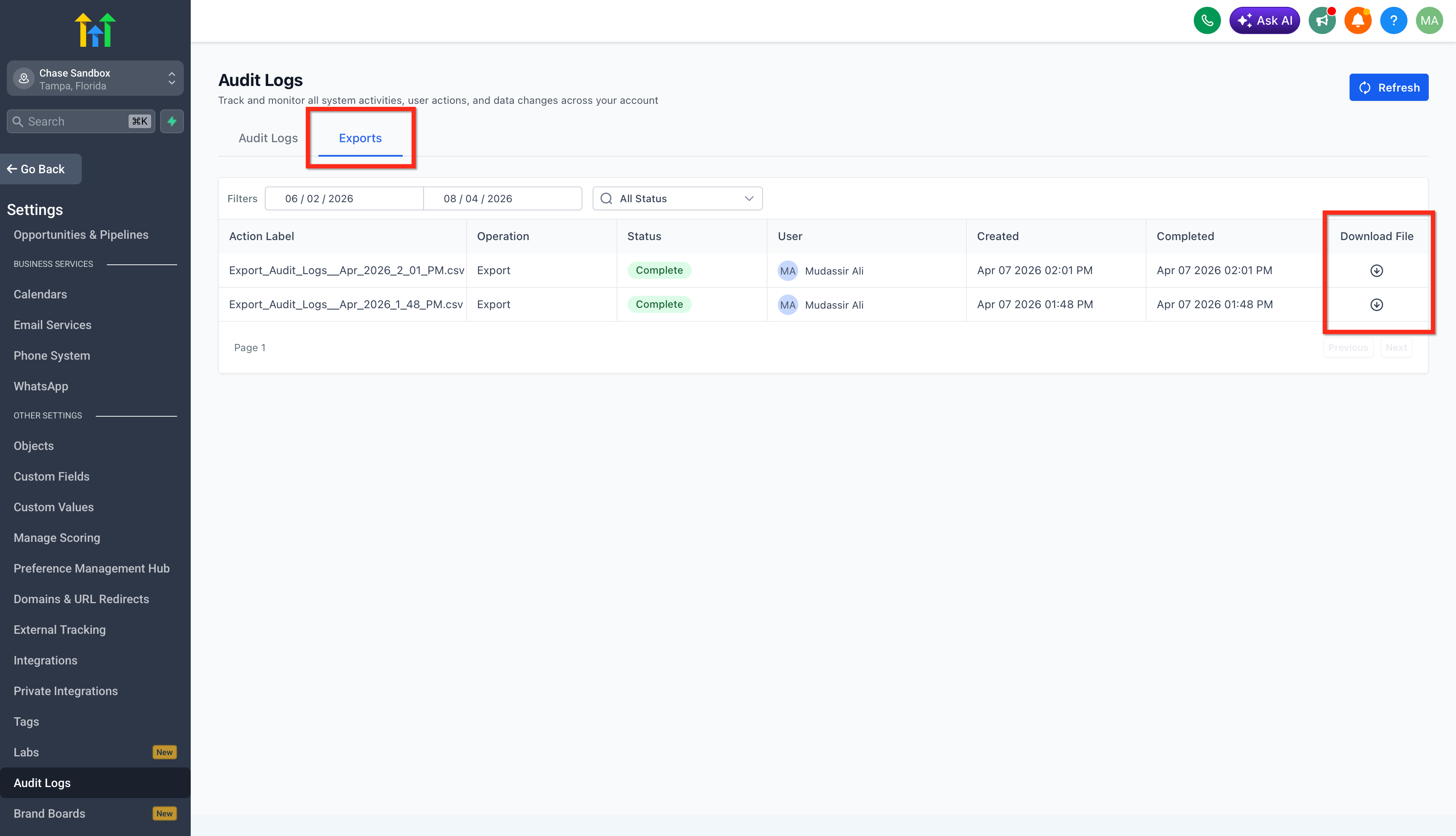
When the export finishes, the CSV appears in the Exports tab. Authorized users can download it, and the download action is itself recorded in Audit Logs. Exported files remain downloadable for 30 days. Each export may contain up to 500,000 records.
03How businesses use audit logs export
- Marketing agency. The agency filters audit entries for a client account, starts an export, and saves the CSV for the client’s monthly compliance report. The agency’s admins ensure only senior staff have the export permission.
- SaaS startup. The startup’s security team applies filters for changes to user roles, exports the results, and stores the file in their secure document repository for a quarterly security audit.
- Legal consultancy. The consultancy reviews audit logs for a dispute, exports the relevant records, and provides the CSV to counsel as evidence of platform activity.
04The numbers and rules that matter
- Maximum records per export: 500,000.
- File availability: 30 days.
- In app Audit Logs retention: 60 days.
05Before you start
- The Labs feature flag for Audit Logs Export must be enabled in Agency Settings before the tabs appear.
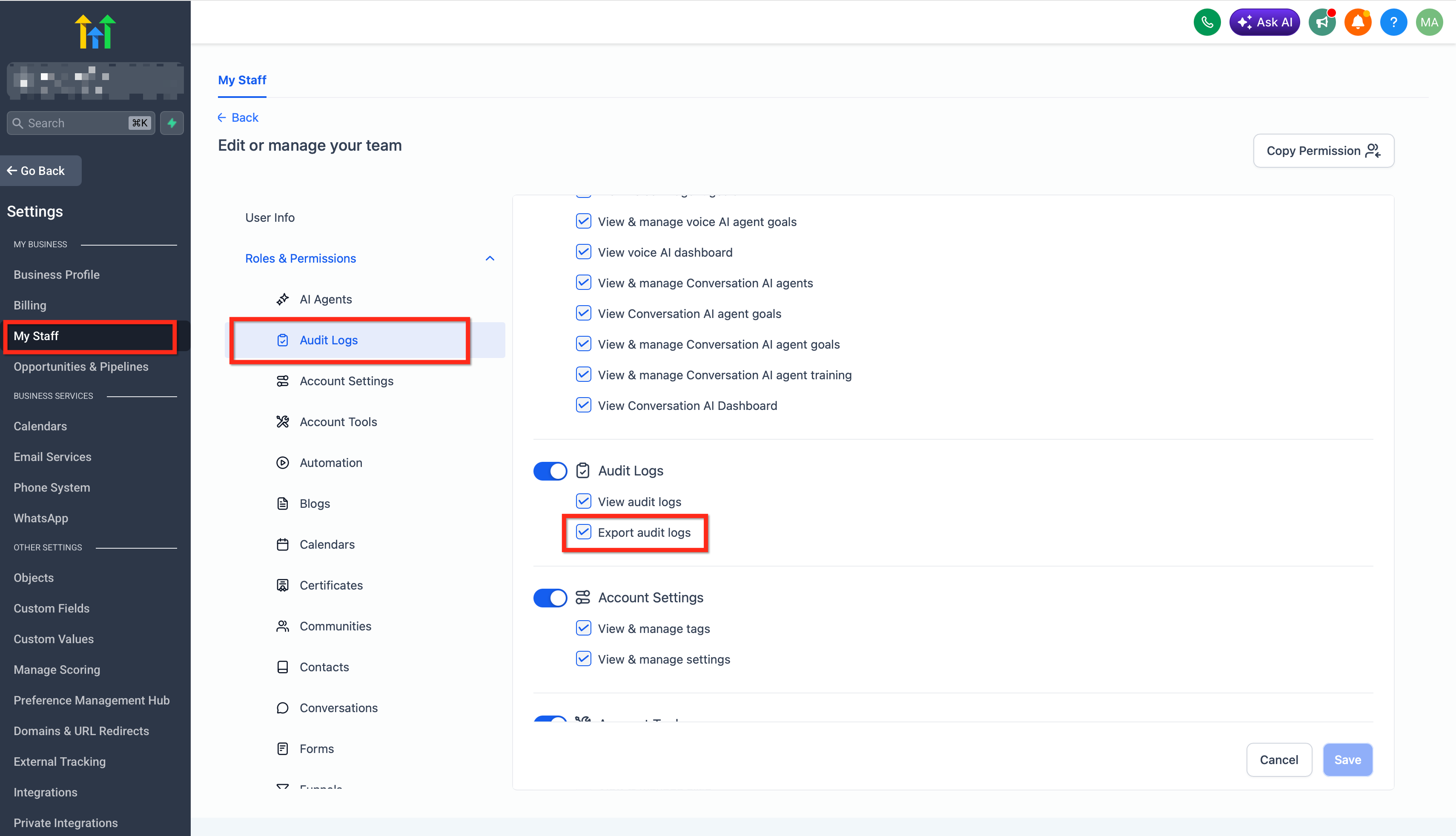
- The user must have the Export audit logs permission, which is granted only to Agency Owners, Agency Admins, or Account Admins by default.
06How to set up and use audit logs export in HighLevel
Export audit logs
- Navigate to Settings > Audit Logs, stay on the Audit Logs tab, set the desired filters, and click Export.
- Open the Exports tab, watch the job status, and download the CSV when it is marked complete.
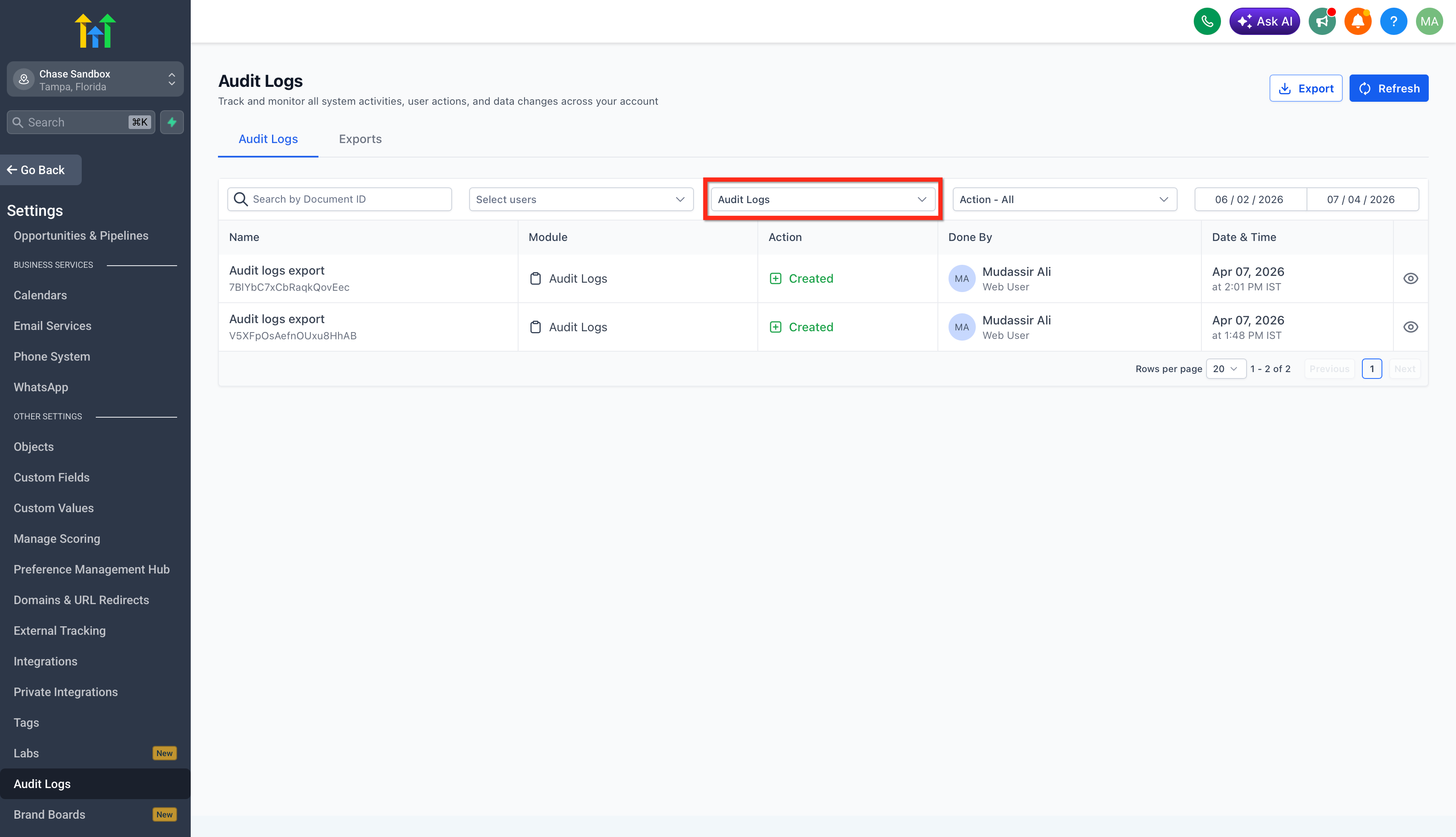
- In Audit Logs, filter Module to Audit Logs to see entries that record the export request and any download actions.
Manage export permissions
- Confirm you hold a role that can manage export access, such as Agency Owner, Agency Admin, or Account Admin.
- In Agency view, go to Settings > Team and open the user profile to review roles and permissions.
- In Subaccount view, go to Settings > My Staff and open the user profile to review roles and permissions.
07What it looks like in HighLevel
08Settings that matter
- Export audit logs permission. Controls which users can create and download CSV exports of filtered audit history.
09Things to know before you rely on it
- Each export can include up to 500,000 records.
- Export files stay available for download for 30 days after generation.
- Audit Logs themselves are retained in the platform for 60 days.
- Exports run asynchronously, so users may continue other work while the file is prepared.
10How it connects to the rest of HighLevel
- New design experience for audit logs Audit logs redesign
- Track Conversation AI activity in audit logs Conversation AI tracking
- Manage Labs feature flags in audit logs Labs feature flag logging
Michael's take

Exporting audit logs can feel risky because the data may contain sensitive operational details. Keep export permissions tightly controlled and only give access to users who truly need the downloadable records.
When the feature is on, the ability to pull a CSV snapshot of activity makes compliance checks and security reviews much less painful. The background processing means you don’t have to wait around, and the 30 day file window gives enough time to move the data into your own archives.