
01Who this is for
- Agency admins need current address info to keep invoices correct.
- Finance teams rely on the address for legal and tax documentation.
- Client facing staff use the address in communications and proposals.
02Agency address, explained
The address fields live under the Company tab in the agency Settings area. Editing them changes the location that appears on billing statements, email footers and other client visible sections of the platform.
After saving, the new address is applied across the whole account without delay. Only users with agency admin level access can perform the change, ensuring that only authorized personnel modify official details.
03How businesses use the agency address
- Marketing agency. An agency admin opens the Company tab, updates the street, city, and timezone to match the new office, then saves. The updated address will appear on client invoices and email signatures.
- Consulting firm. The firm’s finance lead switches to Agency View, navigates to Settings, edits the address fields, and saves. Billing documents now reflect the correct office location for tax compliance.
- Digital services startup. A startup Founder with admin rights changes the country and state in the Company Address section. The platform immediately uses the new address for all client communications.
04Before you start
- User must have agency admin level access.
05How to set up and use the agency address in HighLevel
Update agency address
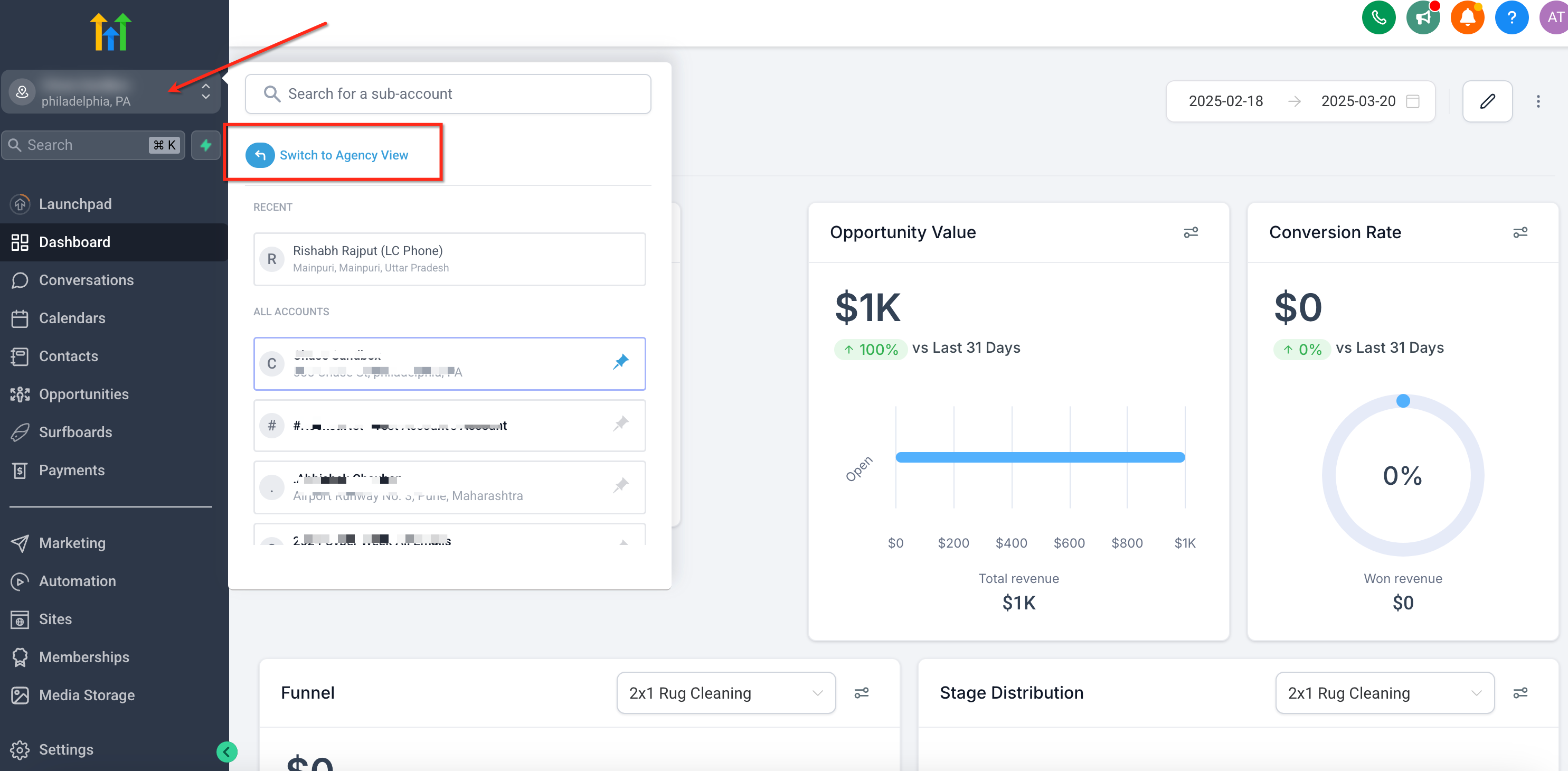
- Open the dropdown at the top left of the sidebar and choose Switch to Agency View.
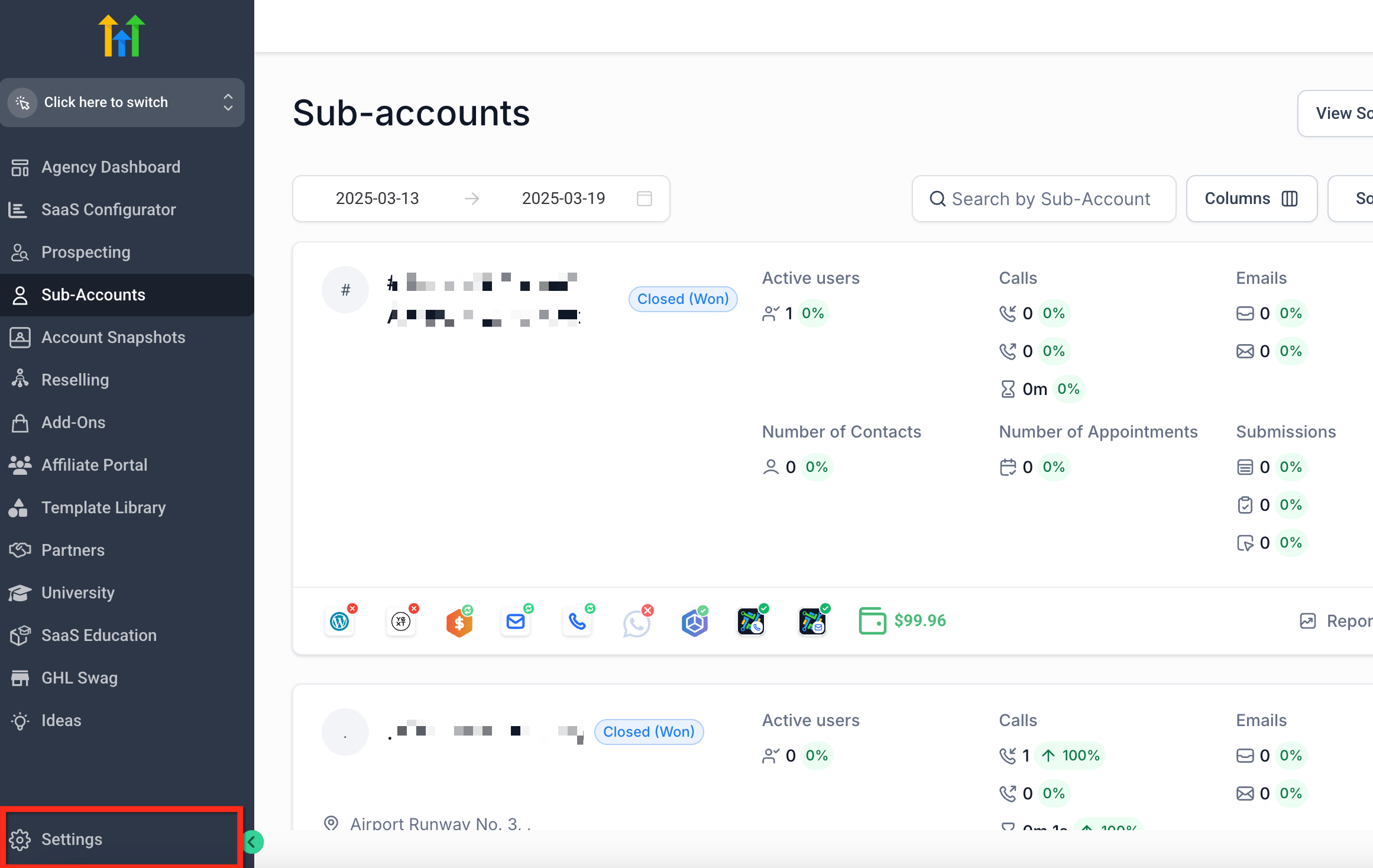
- Click the Settings icon at the bottom of the sidebar.
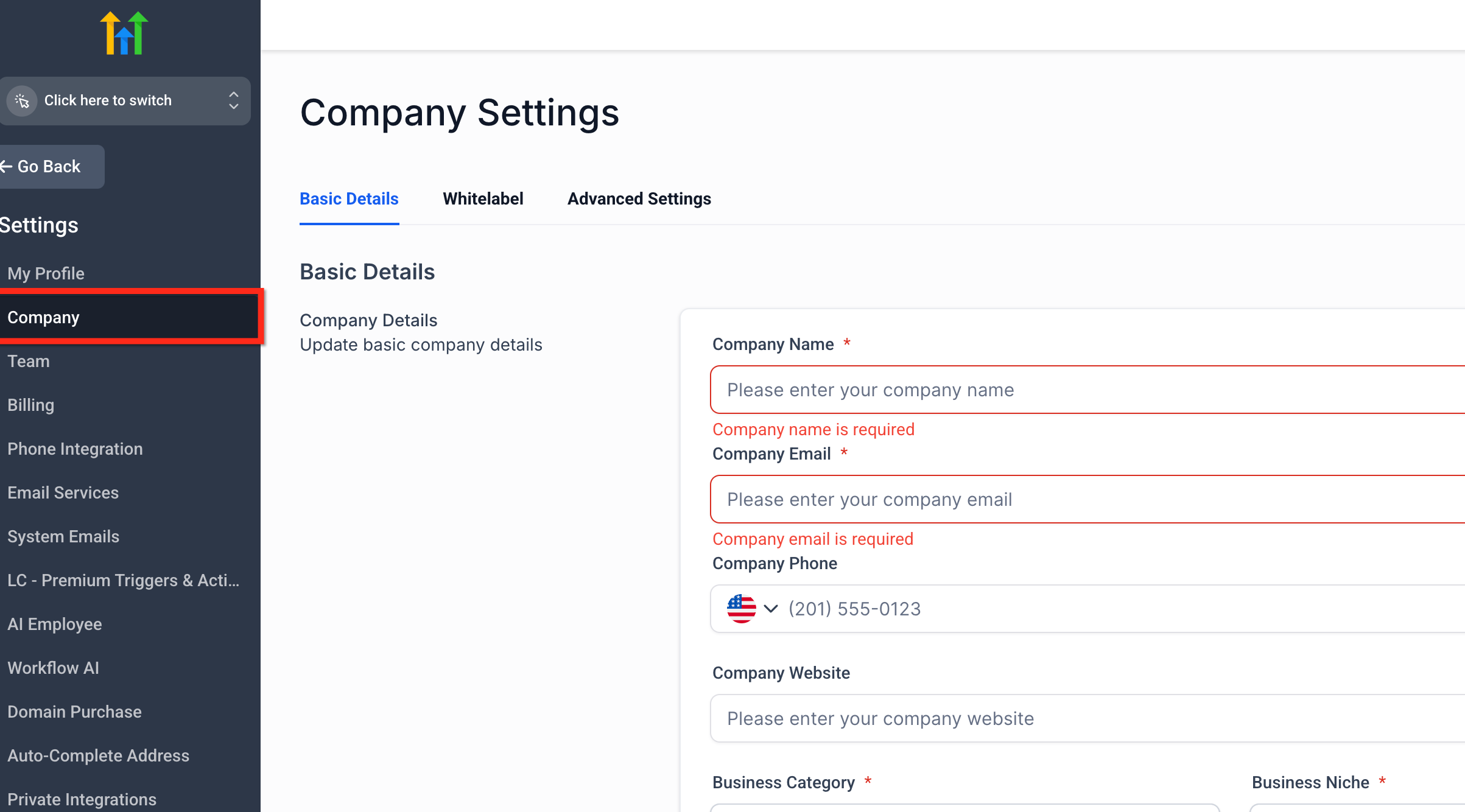
- Select the Company tab within the Settings menu.
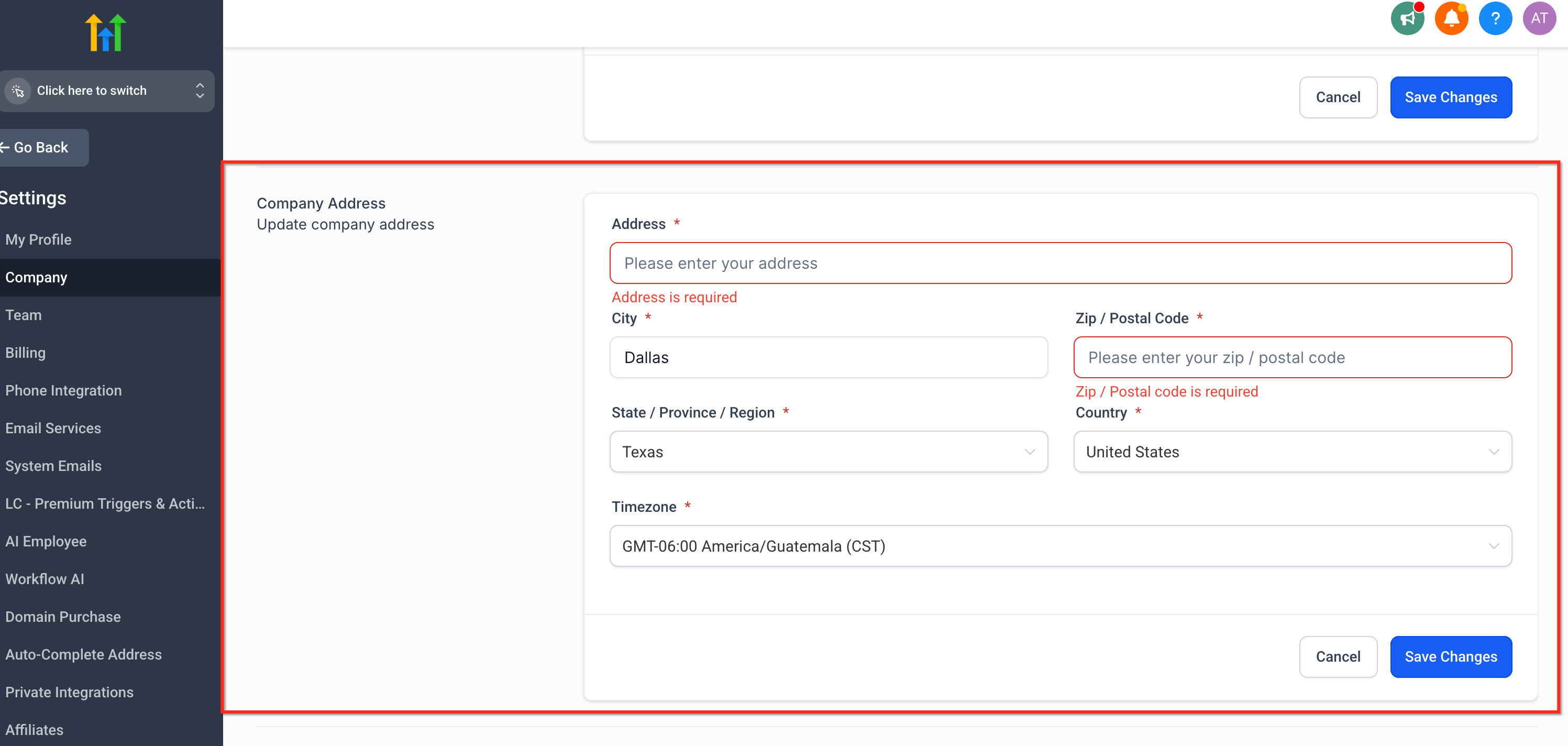
- Enter the new address, city, zip code, state, country, and timezone, then click Save Changes.
06What it looks like in HighLevel
07Settings that matter
- Company Address. Controls the street, city, zip code, state, country, and timezone shown on invoices and client facing materials.
08Things to know before you rely on it
- Only users with agency admin level permissions can modify the address.
09How it connects to the rest of HighLevel
- Explore other agency company settings such as branding and domains. Agency company settings
- Review billing questions related to agency address changes. Agency billing FAQs
- Learn about the Founder Plan and subaccount controls that may affect admin access. Founder Plan details
Michael's take

Michael ReimerFounder of CRM Pros, HighLevel Commander and Certified Admin
Keeping the agency address up to date is a quick step that helps maintain billing accuracy and compliance.
Get More InformationOpens on HighLevelPublished November 2, 2026 · Updated November 16, 2026