
01Who this is for
- Agency owners who manage multiple user accounts need each person to protect their own login without relying on SMS.
- Marketing consultants handling client subaccounts benefit from a personal authenticator that secures access to each client’s data.
- Small ecommerce businesses can reduce the risk of SIM swap attacks by using app generated codes instead of text messages.
02Authenticator app support, explained
The feature lets a logged in user attach any TOTP compatible authenticator app, such as Google Authenticator, Microsoft Authenticator or Authy, to their HighLevel account. Once linked, the app produces a six digit code that changes every 30 seconds.
During login or other protected actions, HighLevel prompts the user to select the authenticator app option and enter the current code. The platform also supplies ten one time backup codes that can be stored safely for situations where the app is unavailable.
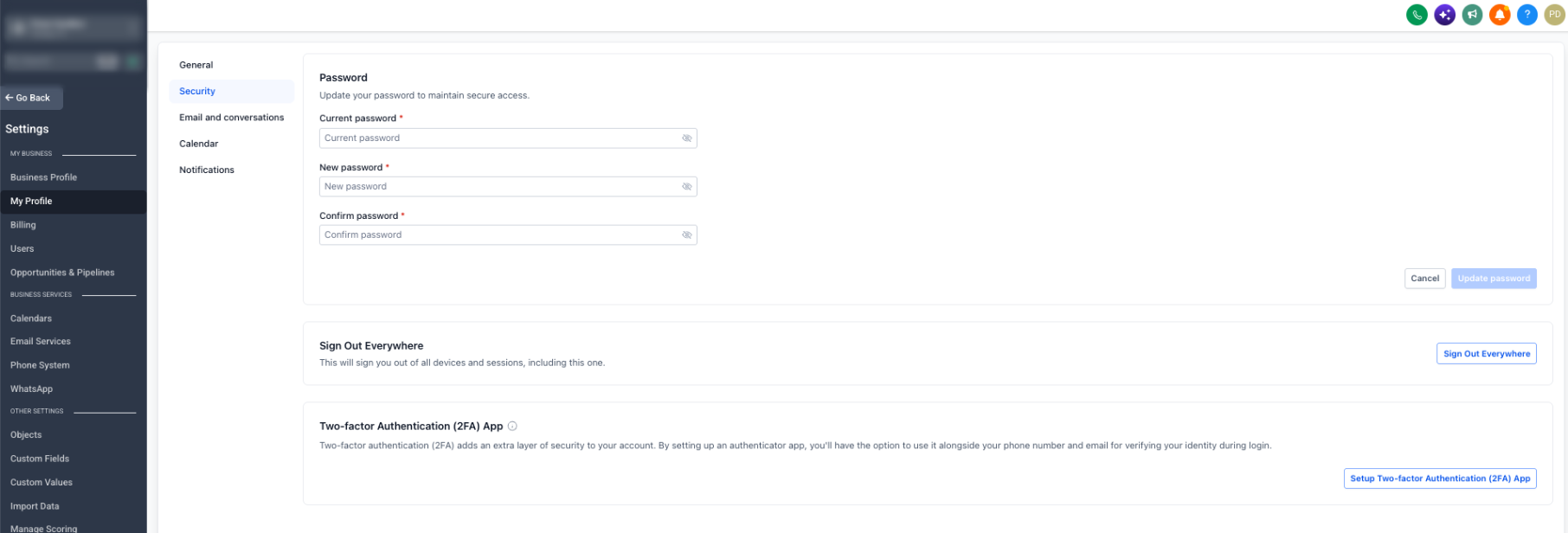
All settings are located under Settings > My Profile > Security. The Two Factor Authentication section contains the authenticator app setup and the backup code management.
03How businesses use authenticator app support
- Digital marketing agency. Each agency team member opens their own Security page, scans the QR code with their chosen authenticator app, verifies the generated code, and then saves the backup codes. The agency gains stronger login protection without sharing credentials.
- SaaS startup. Founders configure the authenticator on their personal accounts, record the backup codes in a password manager, and later use the app generated codes whenever they access the platform or update sensitive settings.
- Healthcare clinic. Clinic staff members set up an authenticator app on their phones, verify it by entering the one time code, and keep the backup codes in a locked drawer. The clinic meets higher security standards for patient data access.
04Before you start
- The user must be signed in to their own HighLevel account; an administrator cannot set up the app for another user.
05How to set up and use authenticator app support in HighLevel
Set up an authenticator app for two factor authentication
- Navigate to Settings > My Profile > Security and open the authenticator app setup area.
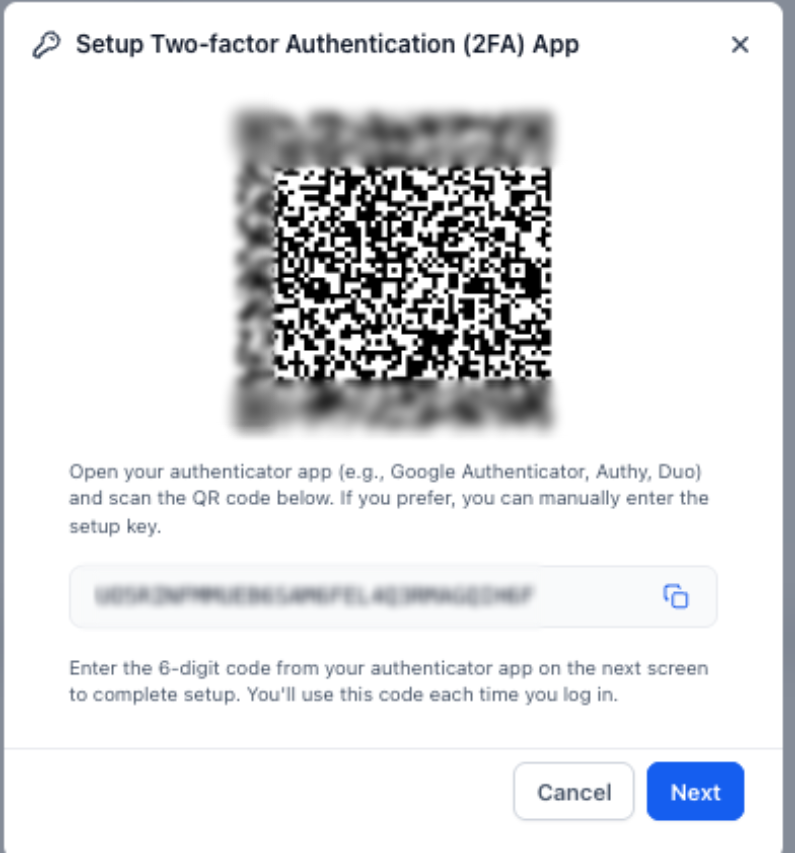
- Use the chosen authenticator app to scan the displayed QR code or manually type the provided setup key.
- Allow the app to produce a one time code, then enter that code when HighLevel asks for verification.
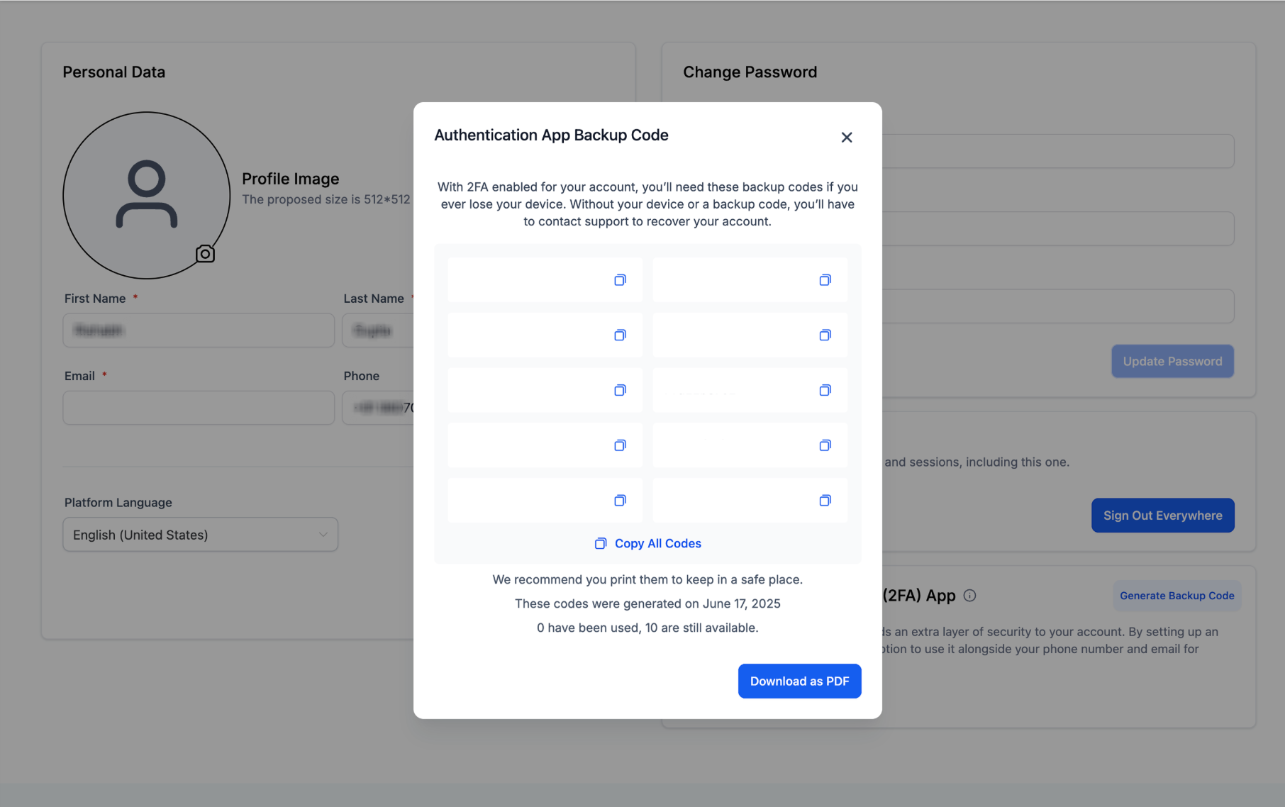
- Copy the ten backup codes shown after verification and store them in a secure place.
- If any backup code is lost, exposed or already used, return to My Profile > Security to generate a new set.
- At future logins, select the authenticator app option and type the current code displayed in the app.
06What it looks like in HighLevel
07Settings that matter
- Two Factor Authentication. Enables the extra verification step that can use an authenticator app or backup codes.
- Authenticator app setup. Allows the user to link a TOTP app by scanning a QR code or entering a manual key.
- Backup codes. Creates ten single use codes that can recover access when the authenticator app is unavailable.
08Things to know before you rely on it
- Only the currently logged in user can attach an authenticator app to their account; admins cannot configure it for another user via Login As.
- Ten backup codes are generated at a time and each can be used only once.
- The agency name may appear inside the authenticator app, tying the codes to the specific user agency combination.
- Backup codes must be stored securely and must not be shared with other users.
09How it connects to the rest of HighLevel
- Manage user roles and email security settings User access
- Review role permissions for agency and subaccount users Roles and permissions
- Help with login problems that may arise after enabling 2FA Login troubleshooting
Michael's take

I’d get the QR code link set up right away so the user can start generating codes today.
Once the app is linked, I’d make sure the backup codes are stored in a password manager so the team can recover accounts without hunting for a lost phone.