
01Who this is for
- Agency owners who resell WhatsApp services, to monitor delivery metrics for client campaigns.
- Marketing managers of small businesses, to verify that promotional messages reach contacts and identify failures.
- Customer support leads, to track pending and failed messages for response planning.
02WhatsApp statistics, explained
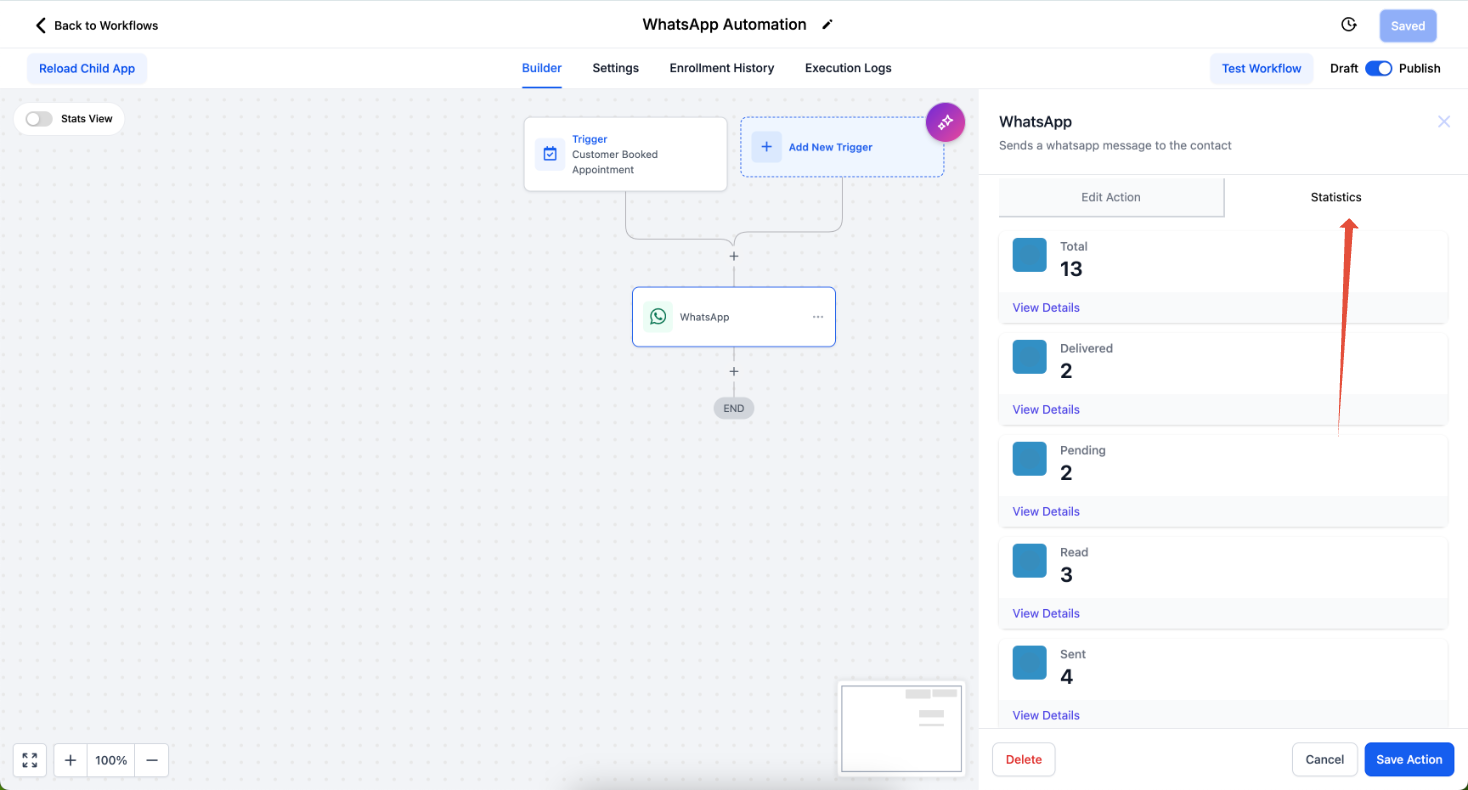
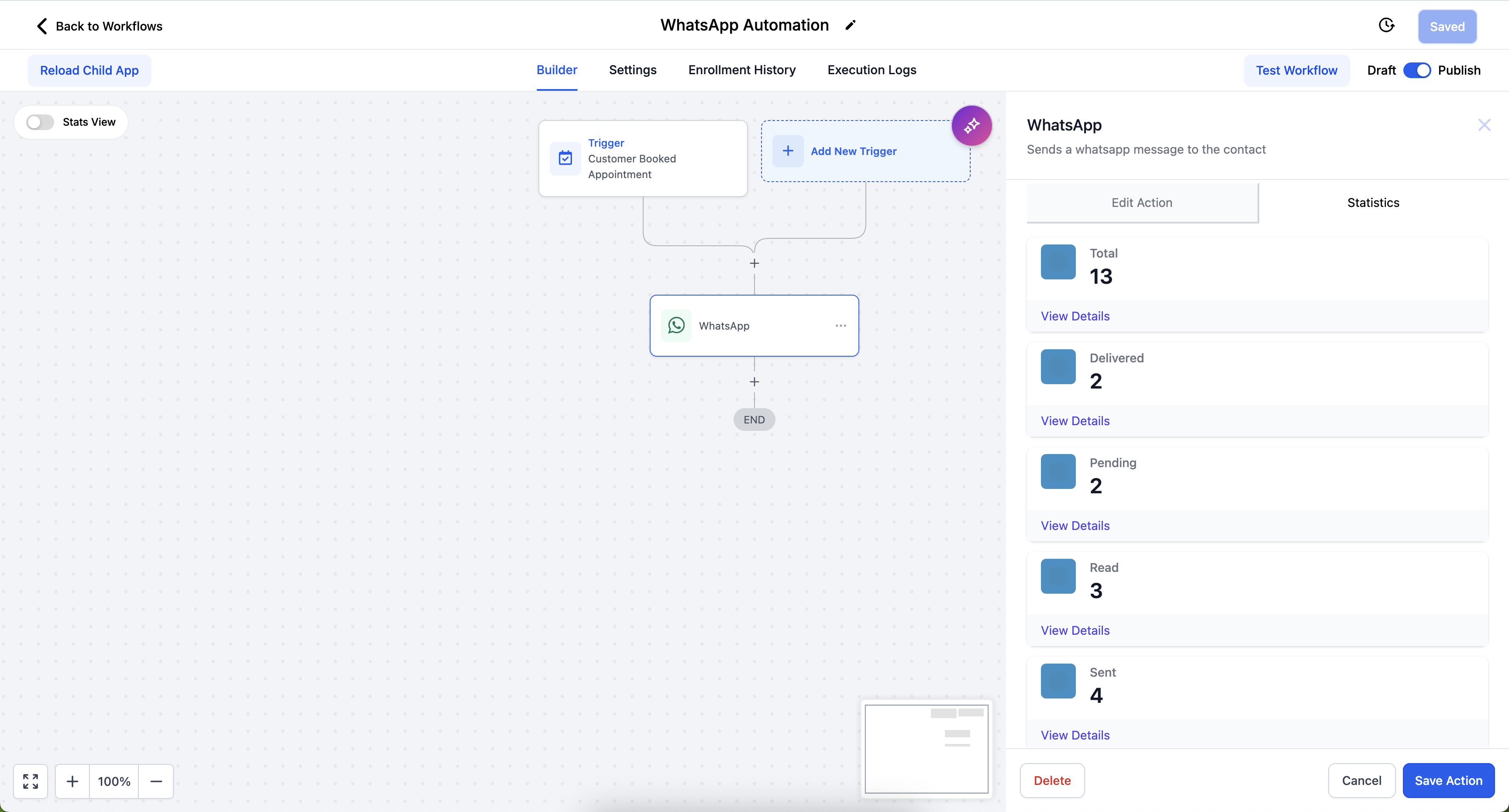
WhatsApp Statistics provides a breakdown of every message that originates from a specific WhatsApp action in a workflow. The view lists totals, pending items, those sent to WhatsApp, messages that reached the device, reads recorded by WhatsApp ticks and any failures.
The analytics live inside the workflow editor. After opening Automations, you select the workflow, click the WhatsApp action and open the Statistics tab. The panel updates based on the date range you choose and reflects the status definitions supplied by WhatsApp.
Each status follows WhatsApp’s own indicators: a single tick means the message left the system (Sent), double ticks mean it arrived on the device (Delivered), and blue ticks show it was opened (Read). Recipients who have disabled read receipts appear as Delivered, not Read, and failures can stem from invalid numbers, blacklisted templates, blocked accounts or marketing template limits.
03How businesses use WhatsApp statistics
- Digital marketing agency. Open the Statistics tab for each client’s WhatsApp action to see delivery performance, then export the CSV to include in monthly reporting packages.
- Ecommerce store. Check delivered versus read counts after sending order confirmations, and download the detailed log to keep a record of which customers received the messages.
- Real estate brokerage. Review pending and failed messages after broadcasting property listings, and export the file to follow up manually with contacts that did not receive the information.
04The numbers and rules that matter
- Failed. Messages that could not be delivered due to non WhatsApp number, blacklisted template, blocked account, or marketing template limits.
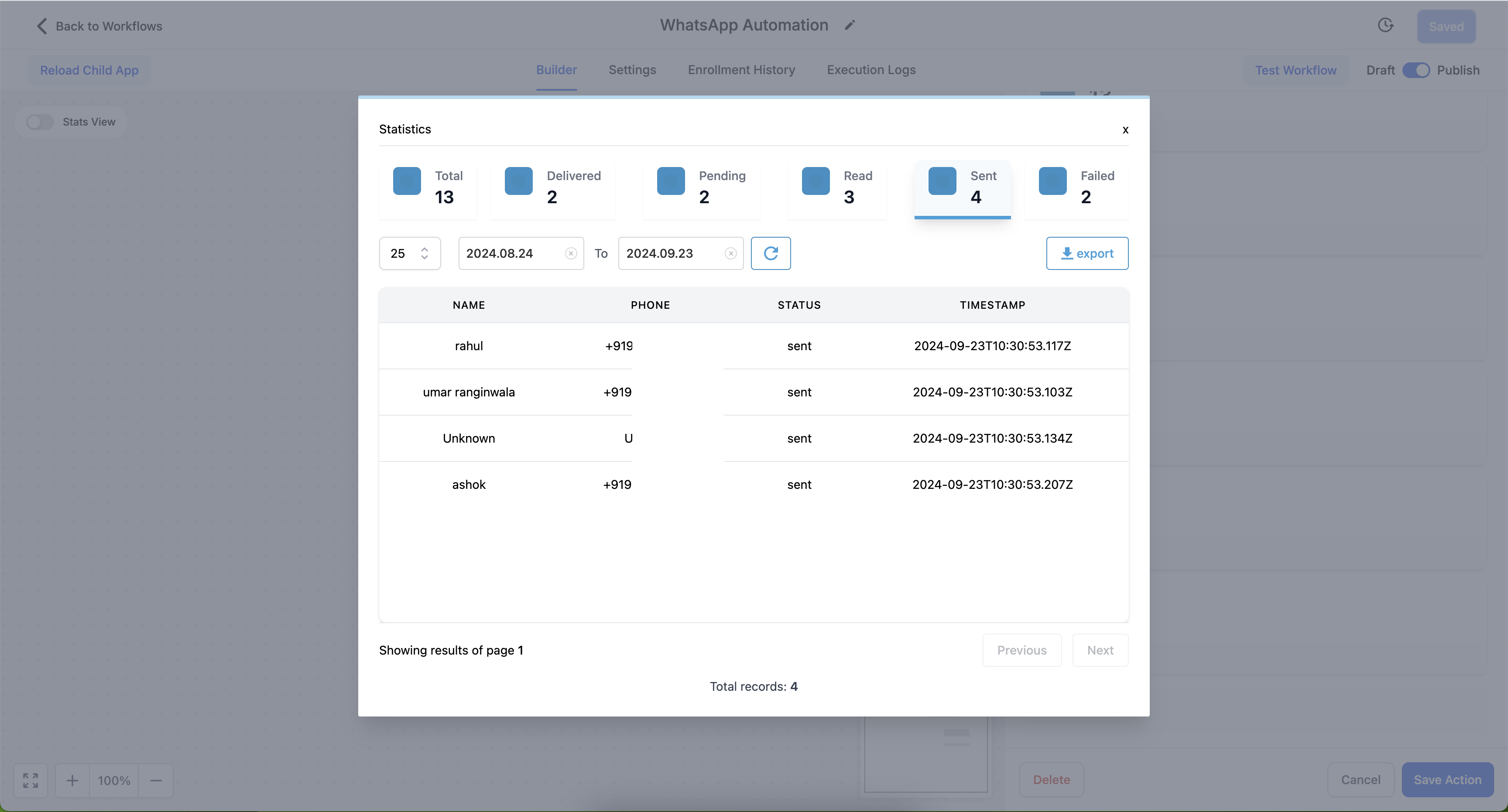
- Export file includes recipient name, phone number, status and timestamp.
05How to set up and use WhatsApp statistics in HighLevel
View WhatsApp statistics in a workflow
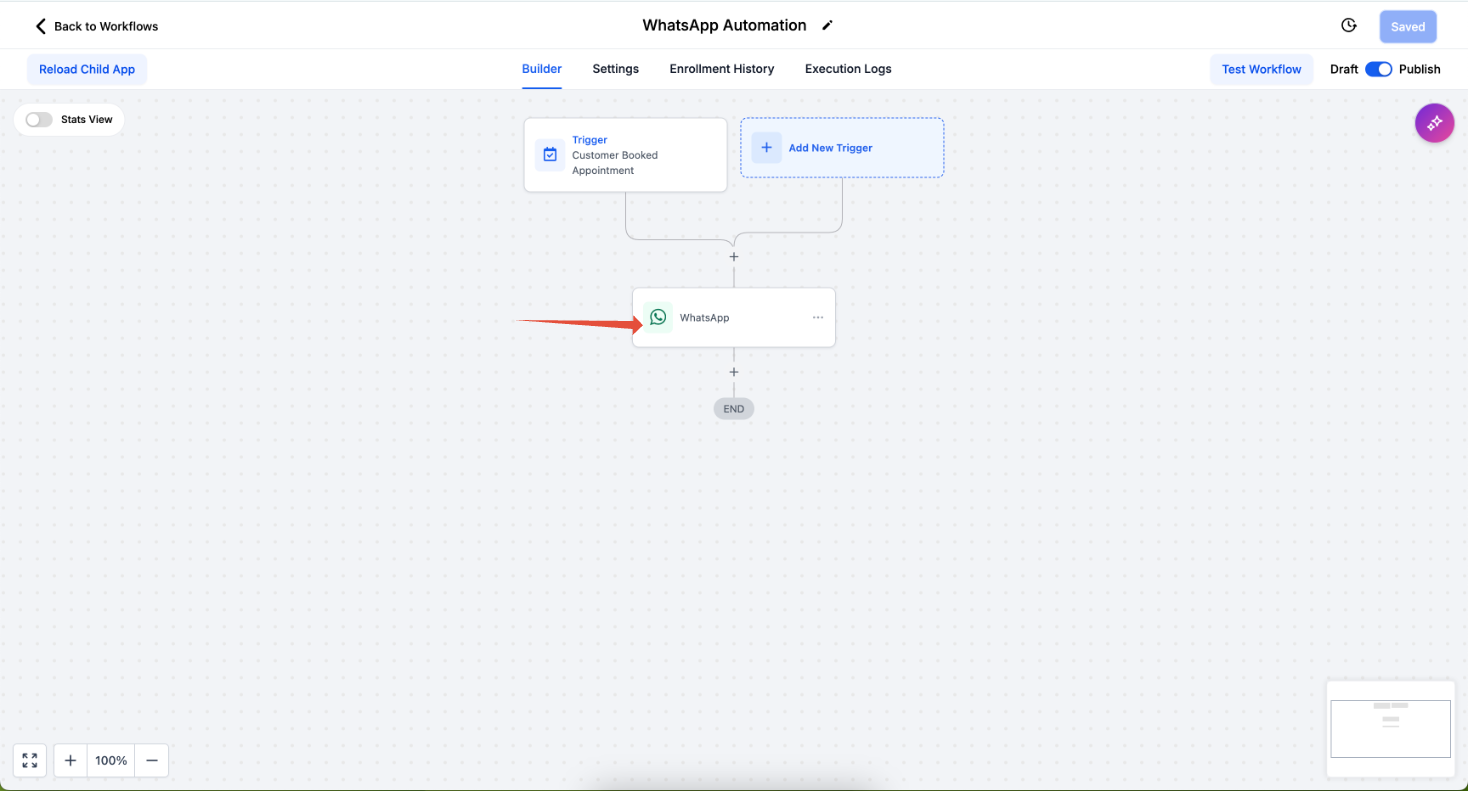
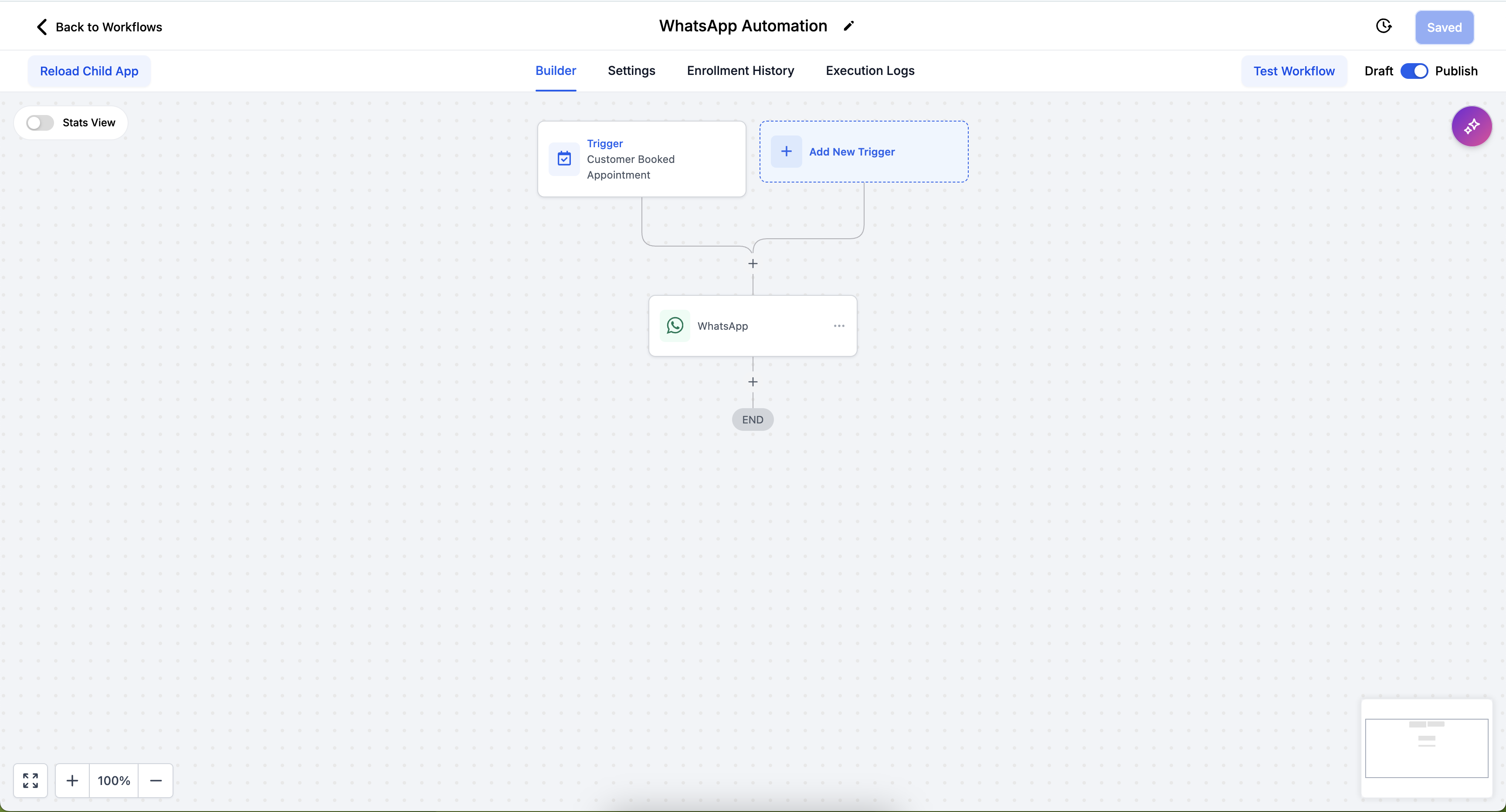
- Navigate to Automations and select the workflow that includes a WhatsApp action.
- Click on the WhatsApp action, then click Statistics.
- Select the Statistics tab to review the performance data.
Export WhatsApp statistics from a workflow
- Go to Automations > the workflow that contains a WhatsApp action.
- Click on the WhatsApp action, then click Statistics.
- View all Statistics.
- Press Export to download a CSV file.
06What it looks like in HighLevel
07Things to know before you rely on it
- If a recipient has read receipts disabled, their message will be shown under Delivered even when it is read.
- Failed status can occur because of non WhatsApp numbers, blacklisted templates, blocked accounts, or marketing template limits.
- Statistics are scoped to the date range you select for the specific WhatsApp action.
08How it connects to the rest of HighLevel
- Set up the WhatsApp actions that generate the statistics you will view. WhatsApp workflow setup
- Templates affect delivery success, influencing the Failed status in statistics. WhatsApp templates
- Access to WhatsApp actions requires a plan that includes the feature. Pricing
Michael's take

I’ll be blunt. The data can be misleading if you forget that read receipts are optional. A customer who has them off will still show up as Delivered, so you can’t assume every Delivered message was actually seen.
When you keep that caveat in mind, the stats become a clear window into how your WhatsApp outreach is performing. Exporting the CSV lets you include the numbers in your reports.