
01Who this is for
- Agency owners, they can design client specific chatbot flows without developers.
- Real estate teams, they can trigger follow up steps based on buyer responses in WhatsApp.
- Fitness studios, they can pause enrollment sequences until members answer a confirmation request.
02WhatsApp V2 Actions, explained
WhatsApp V2 Action replaces the older version with features that automatically split workflow paths when a contact taps a quick reply button. The action also monitors delivery status, so branches fire only on delivered messages. Users can decide whether the workflow should wait for a reply or continue after a set timeout.
The action is accessed from the workflow builder. After placing the WhatsApp V2 block, the user selects the type of message, a saved template, a free form text, or a flow enabled template, and then configures reply handling, timeout periods, and media URLs directly in the block’s settings. Logs show delivery outcomes and which branch each contact followed.
03How businesses use WhatsApp V2 Actions
- Digital marketing agency. The agency creates a template with promotional buttons, adds the WhatsApp V2 block to a client campaign workflow, and sets a timeout to send a reminder if the prospect does not reply. The workflow automatically routes contacts based on their button choice.
- Real estate brokerage. A broker builds a template that offers property view options as quick reply buttons, places the WhatsApp V2 action in a lead nurture workflow, and enables wait for reply so the sequence pauses until the buyer selects a time slot.
- Fitness studio. The studio designs a template that asks members to confirm class attendance, adds the WhatsApp V2 action, and configures a 24 hour timeout that triggers a reminder message if no reply is received.
04The numbers and rules that matter
- Auto Deliverability Handling: No need to use if conditions for delivery tracking, V2 does it for you.
05Before you start
- A WhatsApp template must exist in Messaging > Templates before the V2 action can reference it.
06How to set up and use WhatsApp V2 Actions in HighLevel
Create a WhatsApp template
- Open the Messaging > Templates section.
- Start a new template or pick an existing one.
- Insert any desired quick reply buttons, media files, or Meta Flow references.
Add WhatsApp V2 to a workflow
- Launch the workflow builder.
- Drag the WhatsApp V2 action onto the canvas.
- Choose the message type: template, free form, or flow enabled.
- Select reply buttons if the template includes them to generate automatic branches.
- Define a timeout length and set the fallback path.
- Turn the wait for reply option on or off according to the flow needs.
- Save the workflow and open the logs to view delivery and response details.
07What it looks like in HighLevel
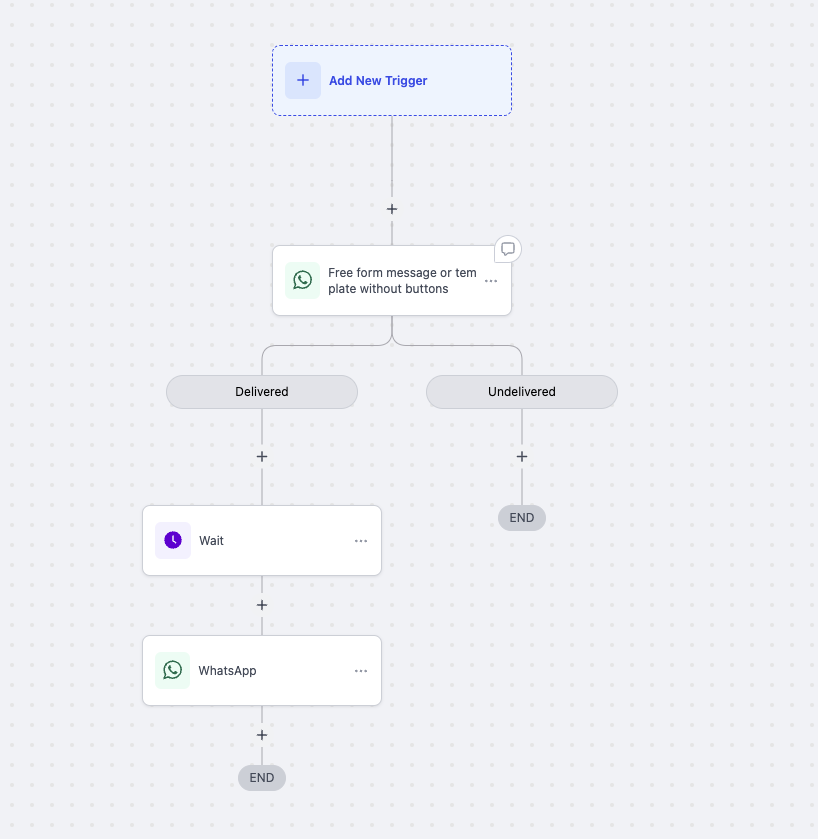
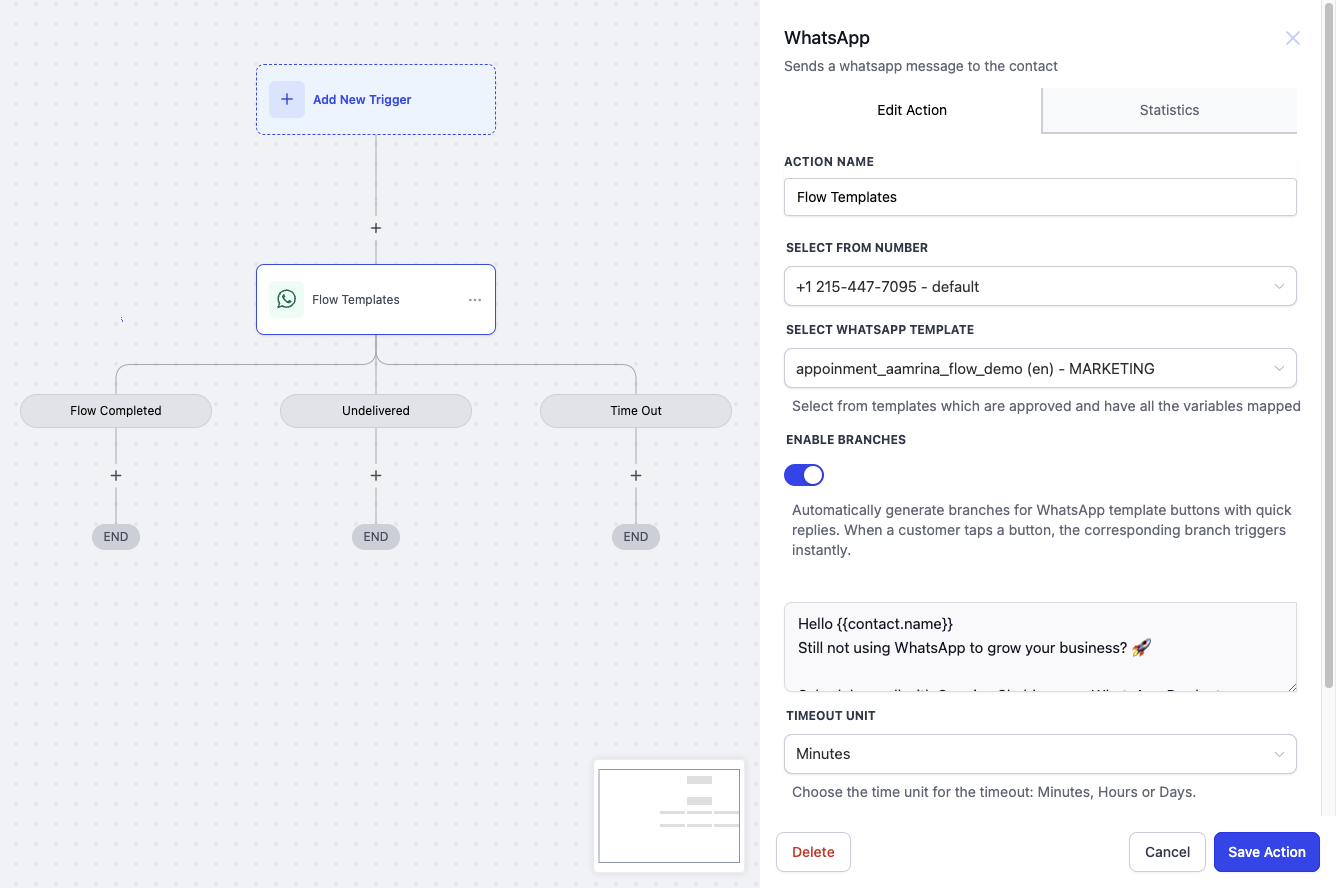
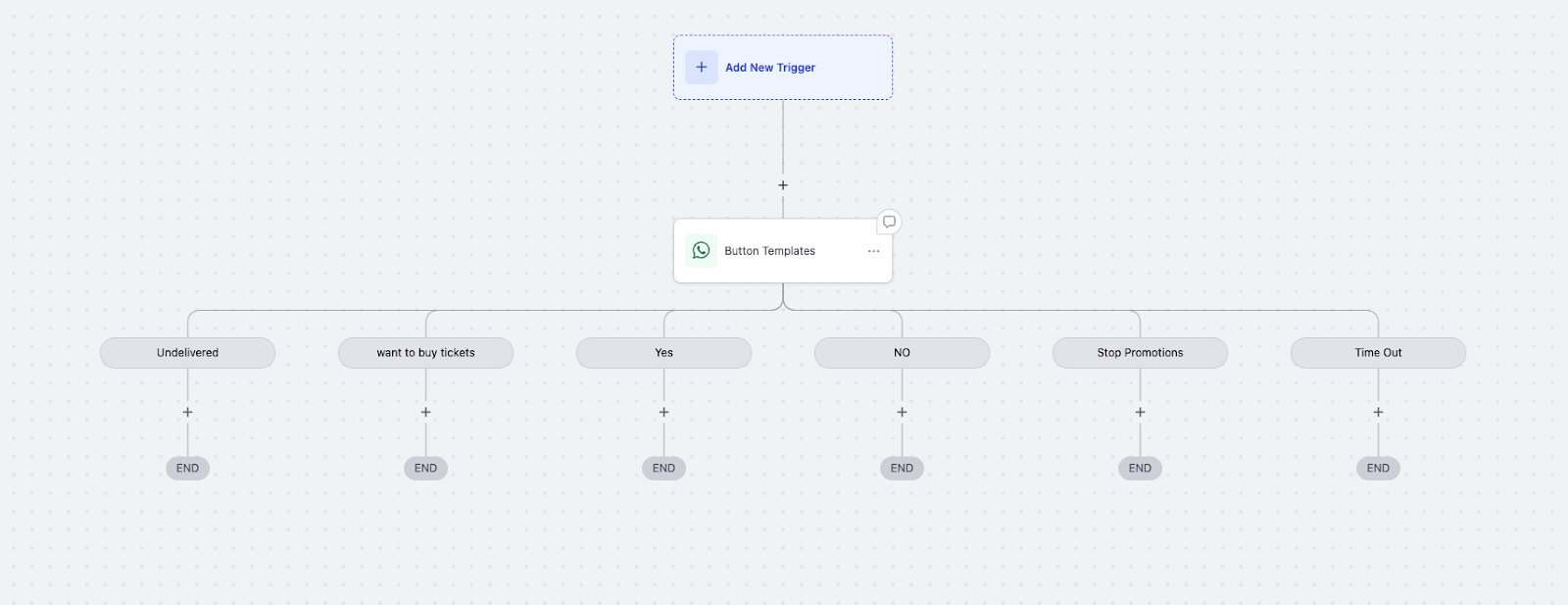
08Settings that matter
- Branch Replies toggle. Turns on or off the creation of automatic branches from quick reply buttons.
- Timeout duration. Specifies how long the system waits before executing the fallback action when no reply arrives.
- Wait for Reply option. Determines whether the workflow pauses until the contact answers, after the message is delivered.
- Message type selector. Lets the user pick between a saved template, a free form text, or a flow enabled template for the outbound WhatsApp message.
09Things to know before you rely on it
- Smart branching works only when the template contains quick reply buttons.
- The wait for reply pause activates solely after the message has been delivered.
10How it connects to the rest of HighLevel
- Create and manage WhatsApp templates WhatsApp templates guide
- Set up WhatsApp automation workflows Workflow integration guide
- WhatsApp reselling guide for agencies Agency reselling guide
Michael's take

Wondering if you really need another WhatsApp tool to keep conversations flowing? The answer is yes if you want replies to drive the next step without building separate conditions for each button.
I’d set up a simple template with two quick reply buttons, turn on smart branching, and watch the workflow split automatically. Test the timeout path once to be sure you’re catching silent contacts before moving on.