
01Who this is for
- Agency administrators who need to limit which staff can edit or delete WhatsApp templates and flows.
- Subaccount managers who want to grant specific users the ability to add phone numbers or update the business profile.
- Support personnel who require view only access while preventing configuration changes.
02WhatsApp user permissions, explained
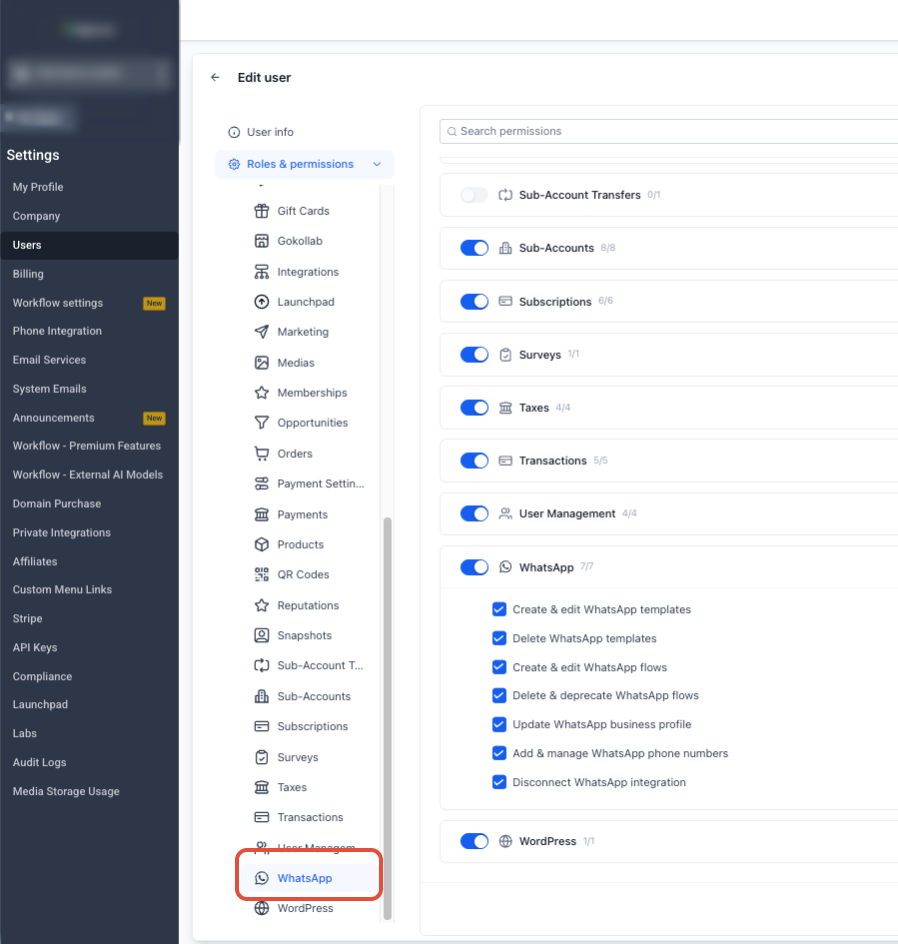
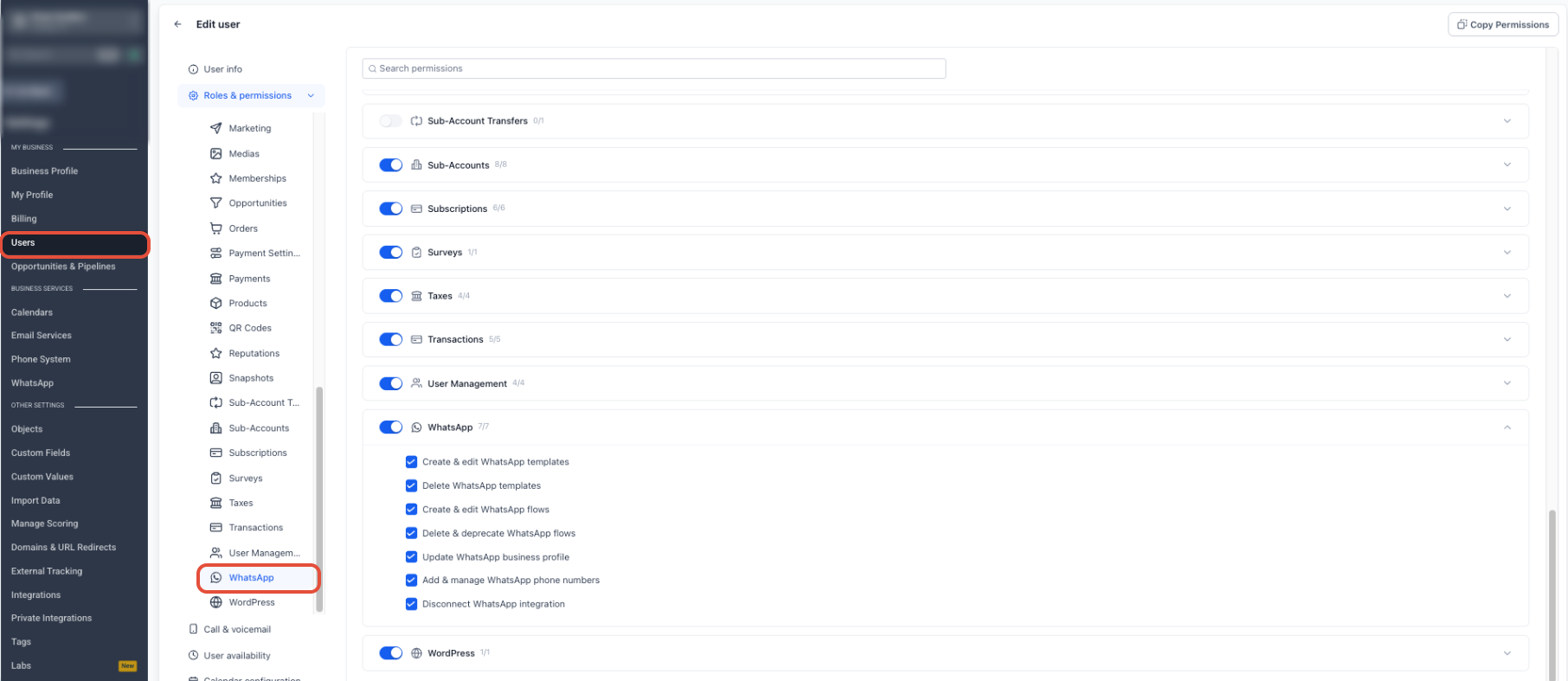
The permission set consists of seven toggles. Each toggle enables or blocks a specific configuration action such as creating templates, deleting flows, updating the business profile, adding phone numbers, or disconnecting the integration. The controls apply only to the actions listed; read only access remains governed by the broader WhatsApp module permissions.
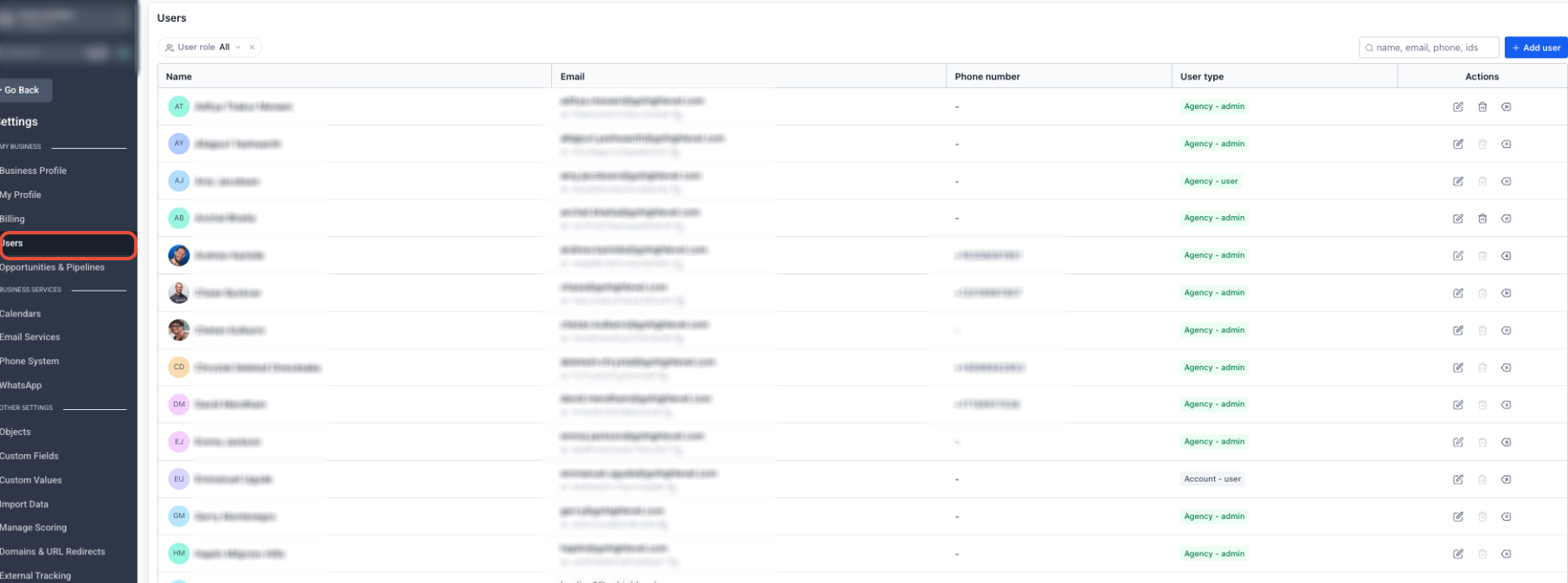
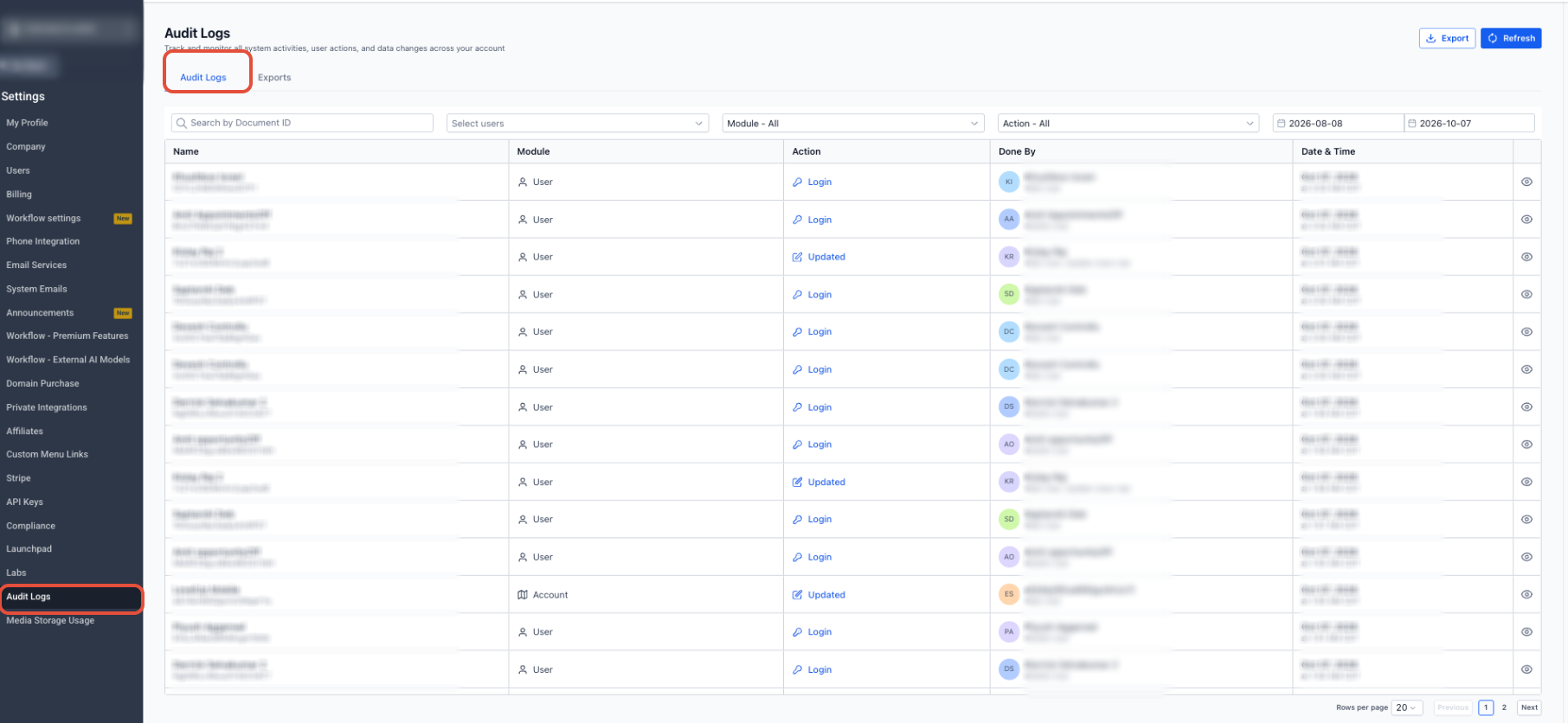
Permissions are managed per user from the Users screen that matches the user's scope. Agency admins work from Agency View > Settings > Users, while subaccount admins access Subaccount > Settings > Users. Changes are saved to the individual user record and logged for audit.
The system rolls out permissions with an opt out model, so existing users retain their current rights until an admin disables a toggle. If a disabled permission is attempted, the interface blocks the action and may show a contextual warning. Direct API calls that violate a permission return a 403 Forbidden response.
03How businesses use WhatsApp user permissions
- Digital marketing agency. An agency admin opens Agency View > Settings > Users, selects a team member, and turns on the Create/edit WhatsApp templates toggle while leaving Delete WhatsApp templates off. This lets the user build new templates without the risk of accidental deletion.
- Real estate brokerage. A subaccount manager navigates to Subaccount > Settings > Users, picks an agent, and enables Add/manage WhatsApp phone numbers. The agent can then link a new business line to the brokerage's WhatsApp account without altering other settings.
- Health care clinic. The clinic’s admin accesses the user’s Roles & Permissions, disables Disconnect WhatsApp integration, and enables Update WhatsApp business profile. The staff member can keep profile information current while being prevented from disconnecting the service.
04The numbers and rules that matter
- Seven individual permissions are available: Create/edit WhatsApp templates, Delete WhatsApp templates, Create/edit WhatsApp Flows, Delete/deprecate WhatsApp Flows, Update WhatsApp business profile, Add/manage WhatsApp phone numbers, Disconnect WhatsApp integration.
- Supported direct API requests for unauthorized actions return a 403 Forbidden response.
05How to set up and use WhatsApp user permissions in HighLevel
Set up agency user permissions
- From Agency View, go to Settings > Users.
- Select the user whose permissions need adjustment.
- Open the Roles & Permissions panel.
- Scroll to the WhatsApp permissions section.
- Switch each toggle on or off according to the user's duties.
- Confirm the remaining module and granular permissions are correct.
- Click Save to apply the changes.
Set up subaccount user permissions
- Open the required Subaccount.
- Navigate to Settings > Users.
- Choose the user to edit.
- Enter the Roles & Permissions area.
- Locate the WhatsApp permissions section.
- Enable or disable each toggle based on needed actions.
- Save the updates.
06What it looks like in HighLevel
07Settings that matter
- Create/edit WhatsApp templates. Allows the user to build new templates and modify supported existing ones.
- Delete WhatsApp templates. Lets the user remove templates where deletion is supported.
- Create/edit WhatsApp Flows. Enables creation of new Flows and editing of supported existing Flows.
- Delete/deprecate WhatsApp Flows. Permits supported deletion or deprecation of existing Flows.
- Update WhatsApp business profile. Grants the ability to change supported Business Profile fields.
- Add/manage WhatsApp phone numbers. Allows adding new numbers and managing those already linked to WhatsApp.
- Disconnect WhatsApp integration. Provides the option to disconnect the WhatsApp integration (does not cancel the subscription).
08Things to know before you rely on it
- Permissions roll out with an opt out model; existing users keep current rights until an admin disables a toggle.
- Permissions are user scoped; changes affect only the selected user, not a group profile.
- The permission toggles stay visible even when WhatsApp reselling is turned off.
- Disconnecting the integration does not cancel the WhatsApp subscription.
- Unsupported API mutation attempts return a 403 Forbidden response.
09How it connects to the rest of HighLevel
- Full WhatsApp reselling guide for agencies Agency reselling guide
- WhatsApp subaccount setup and migration instructions Subaccount setup guide
- Guide to creating WhatsApp automation workflows Workflow integration guide
Michael's take

WhatsApp user permissions are a small convenience that can become a real shift for agencies that need tight control over who can touch templates, flows or phone numbers. By toggling each permission separately you keep the team productive while stopping accidental changes that could affect client messaging.
A digital marketing agency that runs WhatsApp campaigns for multiple clients will find this useful. I would first lock down template deletion for junior staff while still letting senior strategists create and edit. A quick check of the audit log after a change gives peace of mind that the right hands made the update.