
01Who this is for
- Agency owners who resell WhatsApp messaging can keep client templates approved and avoid unnecessary rejections.
- Ecommerce managers can monitor template quality to maintain reliable order notifications.
- Customer support leaders can quickly locate rejected templates and edit them for faster approval.
02WhatsApp template statuses, explained
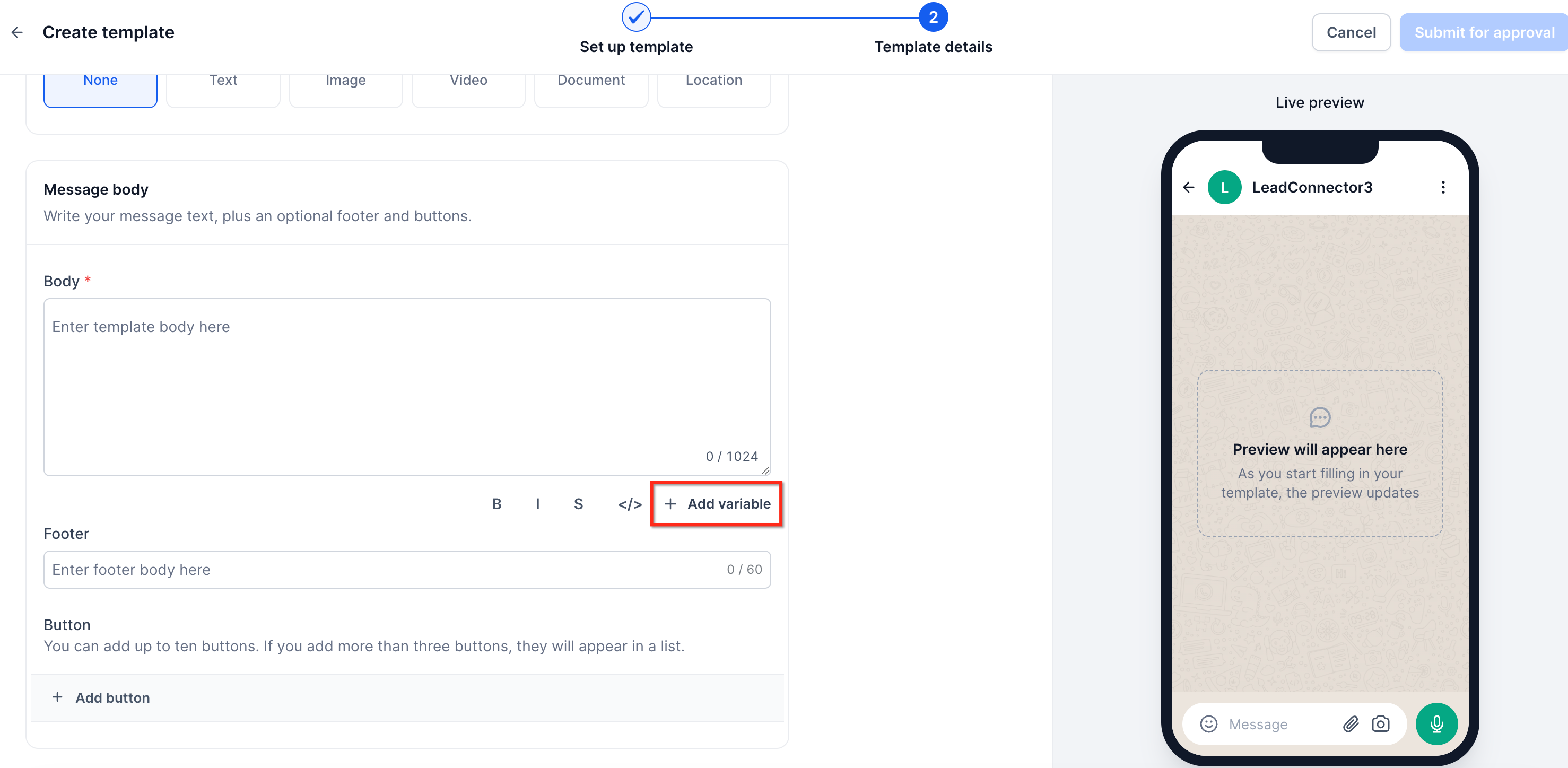
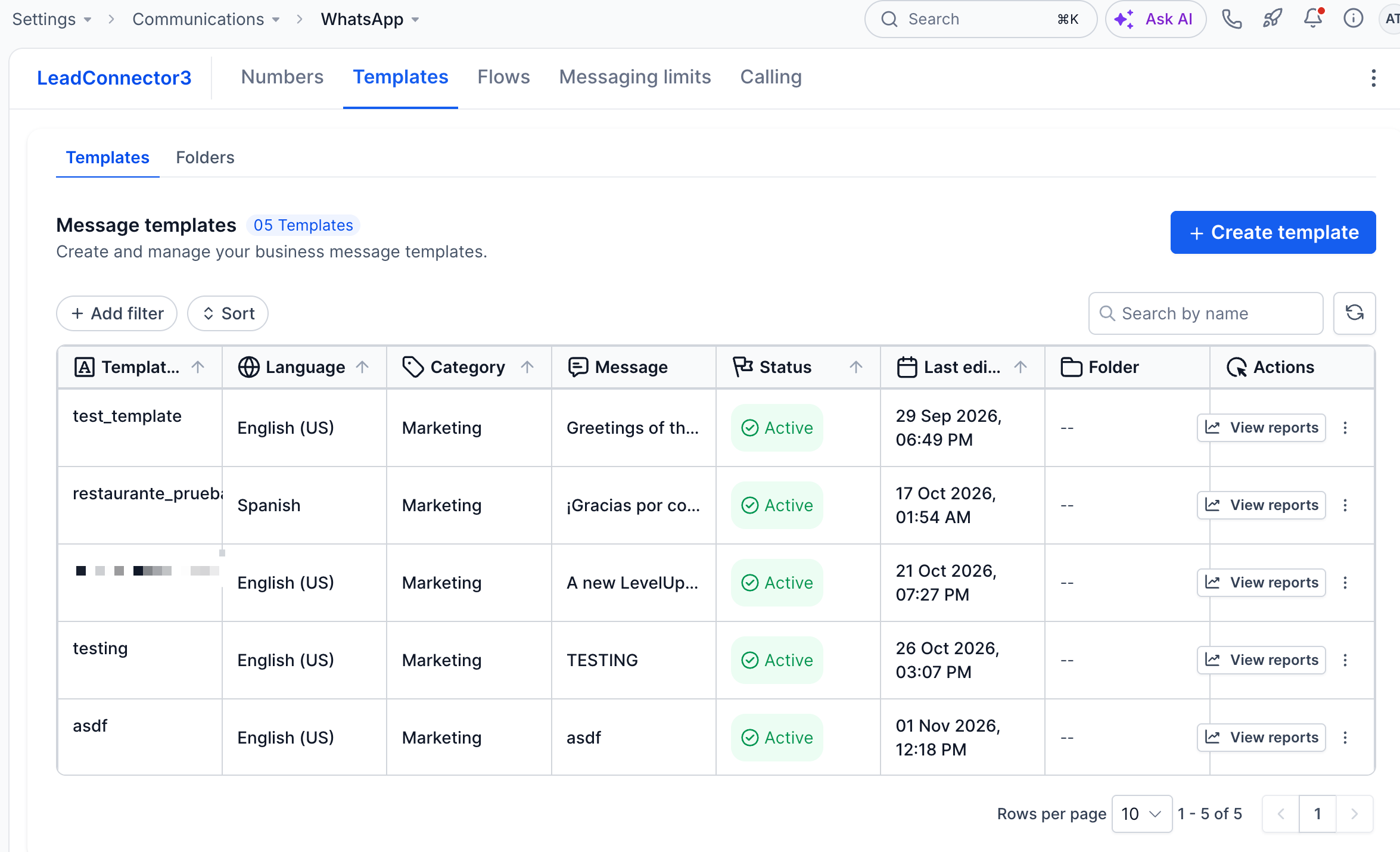
The WhatsApp template manager lives under Settings > WhatsApp > Templates. It shows every template created or imported from Meta, along with a status badge that reflects the latest approval or quality state. The list also provides inline warnings for variable formatting errors in the Header or Body fields.
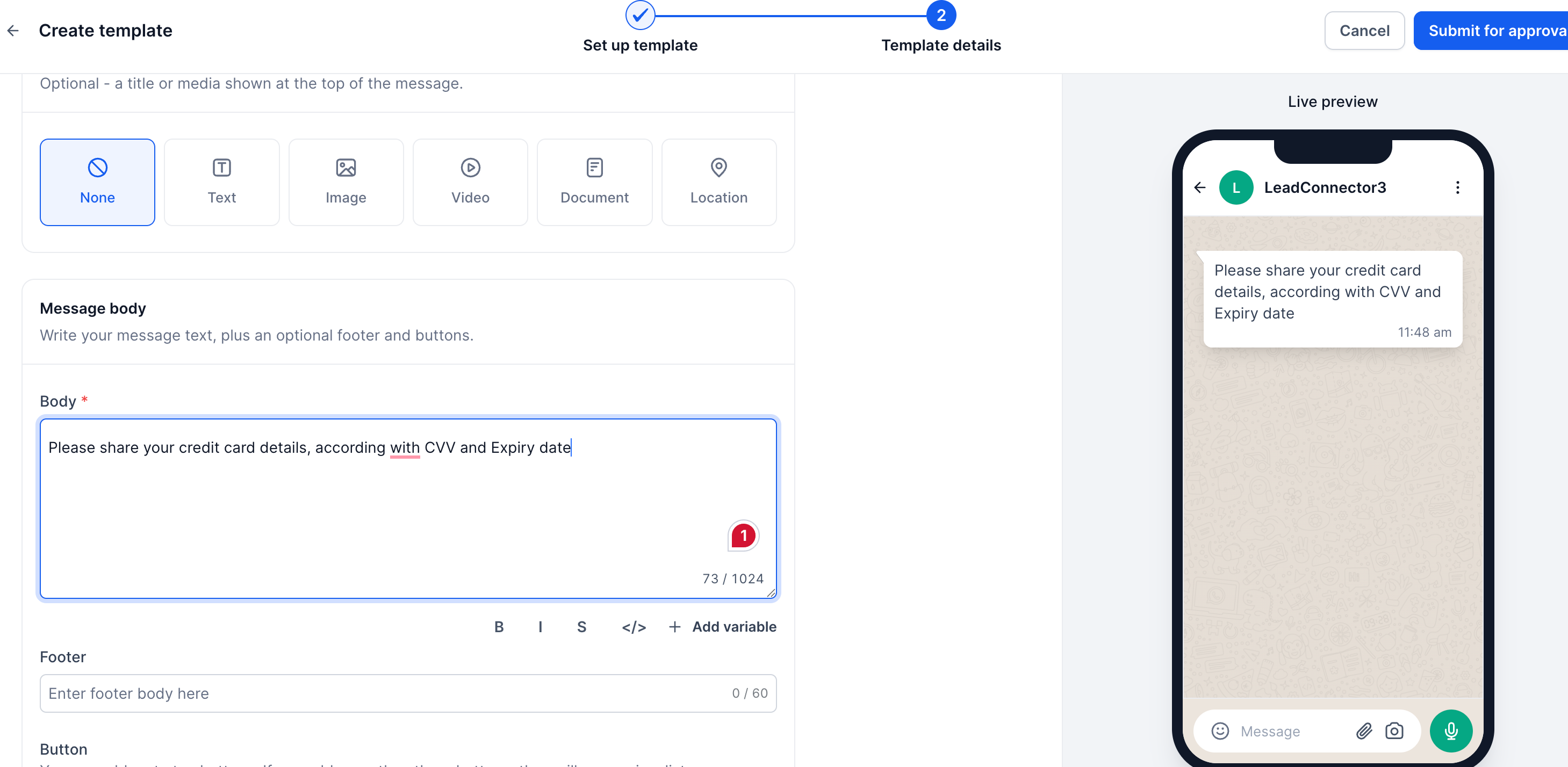
When you open the Templates page you can select a single template to see its status, edit it, or view a Meta provided rejection reason. The system validates numbered placeholders, balanced braces, and body placement rules while you type, blocking the save button until the issue is fixed. After Meta approves a template, the status changes to Active (Quality Pending) and later updates based on feedback.
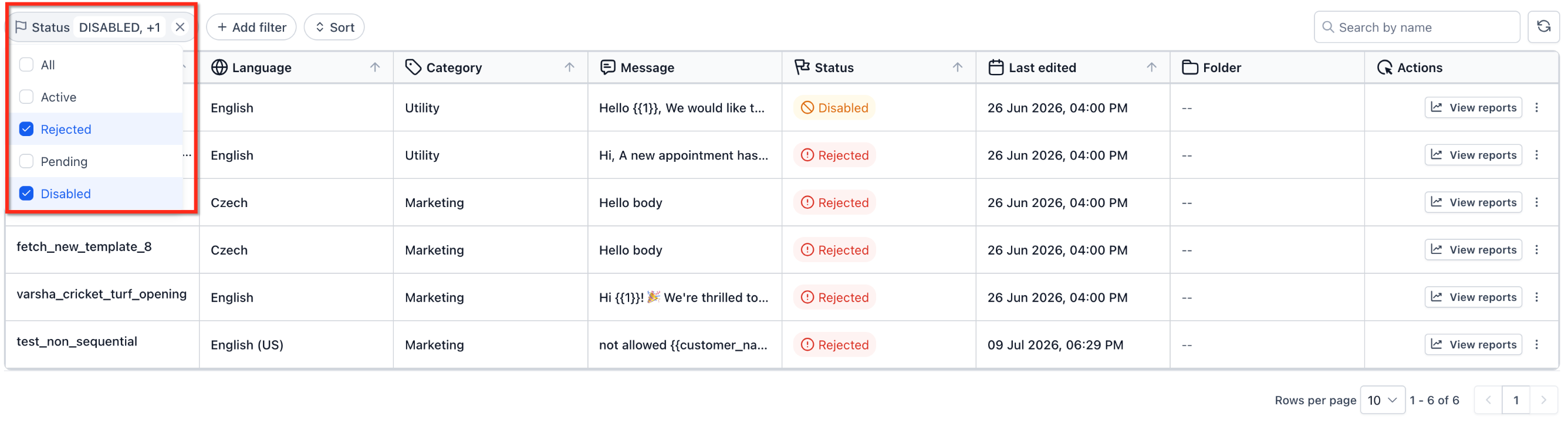
You can narrow the view by applying a filter on the Status column. This lets you isolate templates that are Rejected, Disabled, Paused, or any other quality tier, making it easier to prioritize edits or appeals.
03How businesses use WhatsApp template statuses
- Digital marketing agency. The agency opens Settings > WhatsApp > Templates, filters for Rejected templates, reviews the Meta rejection notes, updates the content to meet policy, and resubmits. This keeps client campaigns running without manual spreadsheet tracking.
- Online retailer. The retailer checks the Templates list for Active (High Quality) status before adding a template to an order confirmation workflow. If a template shows Low Quality, the retailer modifies the message or pauses usage until quality improves.
- Appointment based service. The service provider creates a new reminder template, watches the inline validation for variable errors, saves it, and then monitors the status badge to confirm it becomes Active (Quality Pending) before scheduling reminders in automation.
04The numbers and rules that matter
- Use numbered variables like {{1}}, {{2}}.
05Before you start
- A WhatsApp Business Account must be connected to HighLevel.
- Existing Meta templates are imported only during the initial onboarding; new templates should be created inside HighLevel.
06How to set up and use WhatsApp template statuses in HighLevel
Review and manage WhatsApp templates
- Open Settings > WhatsApp > Templates.
- Find the template you want to examine.
- Read the status badge to see its current state.
- If editing, fix any inline Header or Body variable warnings before saving.
- If the template is Rejected, open the rejection reason and adjust the content accordingly.
- After a template is approved, keep an eye on its quality status as it is used.
Filter templates by status
- Open Settings > WhatsApp > Templates.
- Locate the template list.
- Click Add filter and choose Status.
- Select the desired status such as Rejected or Disabled to filter the view.
07What it looks like in HighLevel

08Settings that matter
- Status. Shows the current approval or quality state of each template in the Templates list.
- Add filter. Allows you to narrow the template list by selecting a specific status value.
09Things to know before you rely on it
- Inline variable validation catches formatting errors before saving but does not guarantee Meta approval.
- Template quality can change over time; a template that is Active may later move to Paused or Disabled based on feedback.
- Headers and Bodies must follow the numbered placeholder and balanced brace rules; any deviation blocks the save action.
10If something goes wrong
- Cannot save a WhatsApp template. Check the Header and Body for inline variable errors such as unbalanced braces, unsupported characters, or a Body that starts or ends with a variable, then correct them.
- Template rejected despite no variable error. Review the Meta rejection reason for content, category, policy, duplicate, or other formatting issues and edit the template accordingly.
- Active template moves to Low Quality or Paused. Review the message content and audience relevance, reduce actions that generate negative feedback, and keep monitoring the template’s quality status.
11How it connects to the rest of HighLevel
- How to create and manage WhatsApp templates in HighLevel Create templates
- How to set up WhatsApp automation workflows in HighLevel Automation workflows
- HighLevel pricing and plans Pricing
Michael's take

In my experience, being able to see a template’s current status helps me quickly know if it’s still approved or if quality is decreasing. The inline validation catches easy formatting bugs that used to require back and forth with Meta, reducing the time I spend fixing templates.
If you send WhatsApp messages only occasionally or stay within the 24 hour window, you might find the additional monitoring less useful. Templates that stay in Active, Quality Pending may not provide much insight, so you may prefer focusing on other channels.