
01Who this is for
- Agency owners who manage multiple client WhatsApp campaigns and need to compare template performance.
- Ecommerce sellers who use marketing templates with URL buttons to drive traffic and want to measure click rates.
- Service businesses that rely on Quick Reply opt out buttons and require read receipt metrics to improve communication.
02Template level analytics, explained
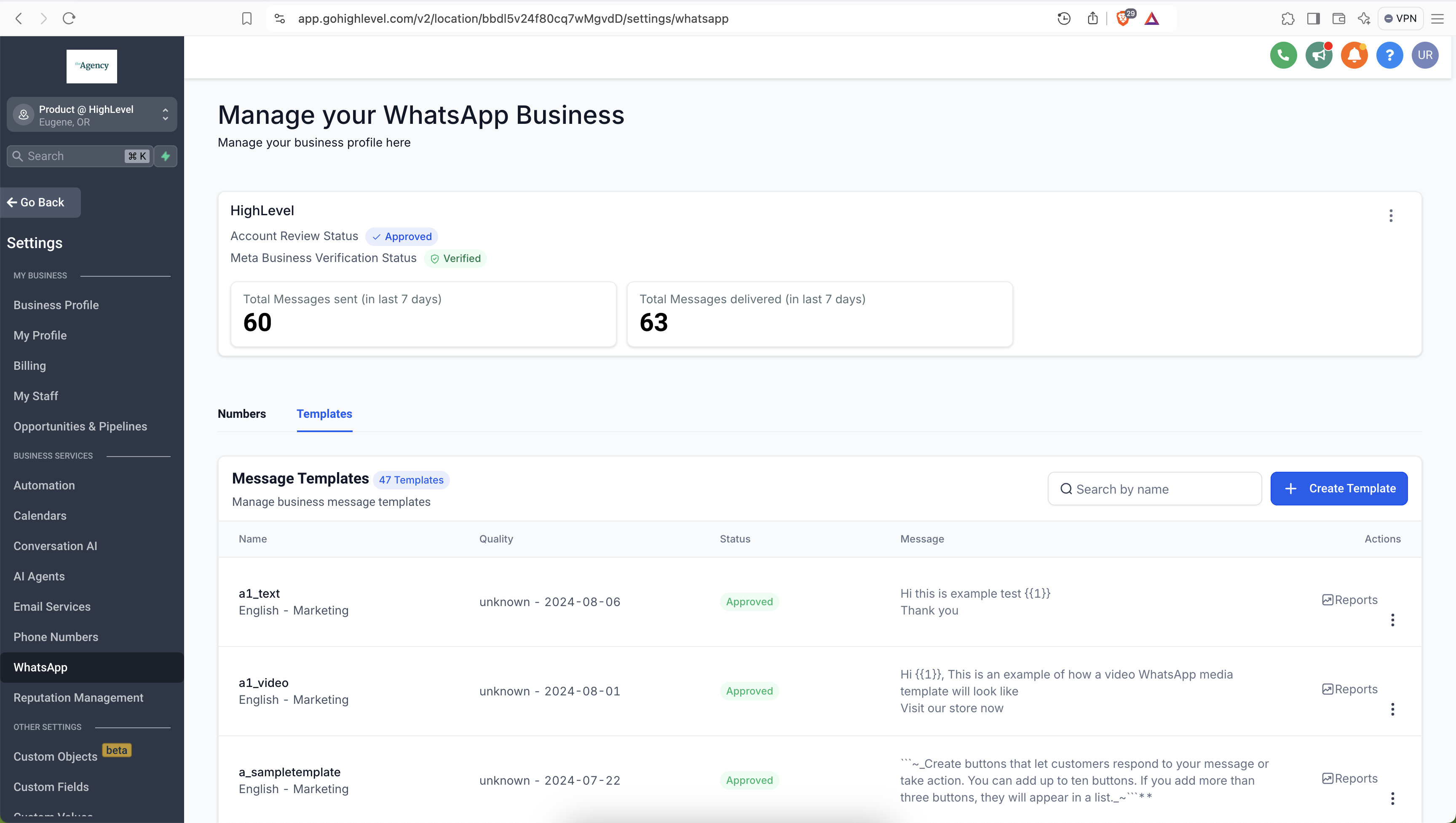
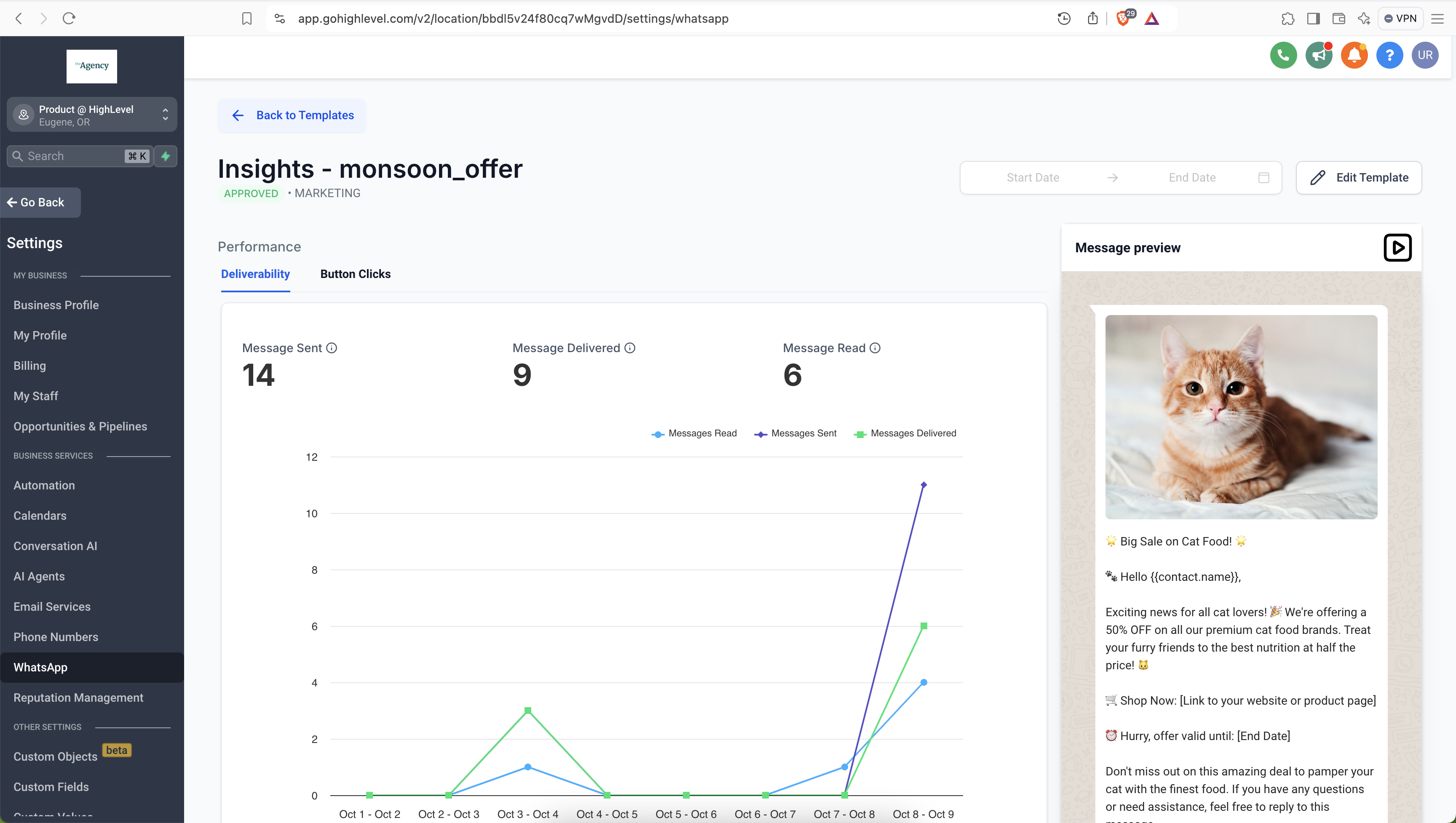
The feature lives inside the WhatsApp section of HighLevel Settings. Each template you create gets its own analytics view, breaking down total messages sent, delivered and read. A separate report shows button click counts for URL and Quick Reply buttons when the template is classified as MARKETING or UTILITY.
Analytics are refreshed daily and can be filtered by any date range you choose. The Deliverability tab displays the three delivery metrics, while the Button Clicks view reports interaction counts for the allowed button types. Templates that use the Coex integration do not generate these reports, and templates owned by Meta accounts in the EU, UK or Japan are excluded from button click tracking.
03How businesses use template level analytics
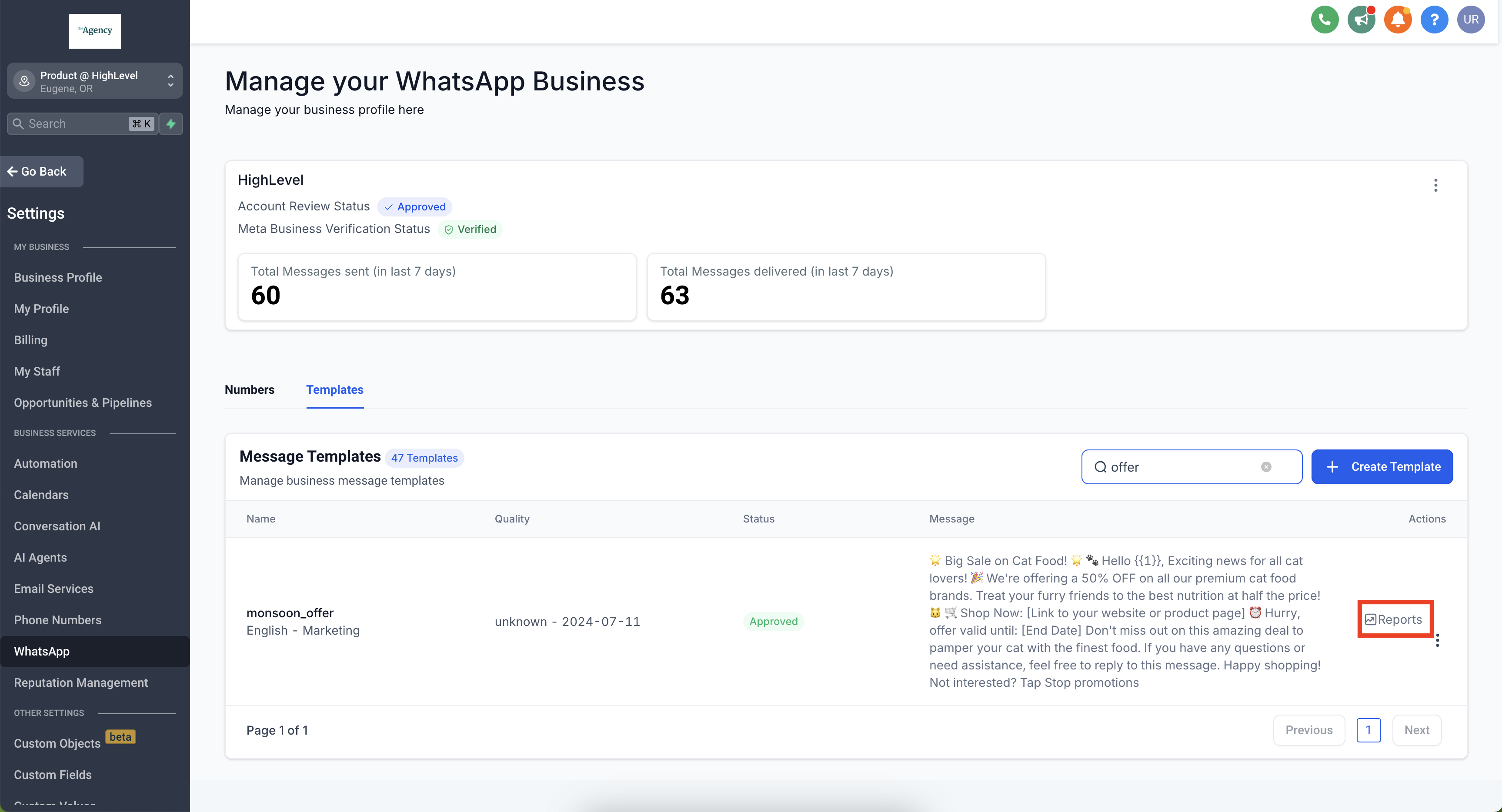
- Digital marketing agency. The agency opens Settings > WhatsApp > Templates, searches a client’s marketing template and clicks Reports. In the Deliverability tab it selects a start and end date to see how many messages were read versus delivered, then uses the data to advise the client on template tweaks.
- Online retailer. The retailer navigates to Settings > WhatsApp > Templates, finds a promotional template with URL buttons, opens Reports and selects Button Clicks. The retailer reviews the click counts to understand which product links generate the most traffic.
- Healthcare provider. The provider locates a reminder template in Settings > WhatsApp > Templates, opens Reports, and checks the Deliverability tab for read receipts. This lets the provider confirm patients are seeing appointment reminders.
04The numbers and rules that matter
- Templates are limited to 10 Quick Reply buttons.
- Quick Reply buttons must be grouped separately from other button types; valid groupings include Quick Reply, Quick Reply and Quick Reply, Quick Reply, URL, Phone.
05Before you start
- The template must be created in HighLevel before analytics can be viewed.
- Button click data is only generated for templates categorized as MARKETING or UTILITY.
- Analytics are unavailable for the Coex integration.
06How to set up and use template level analytics in HighLevel
View WhatsApp template insights
- Open Settings > WhatsApp > Templates.
- Search for the desired template and click Reports.
- Select the Deliverability tab.
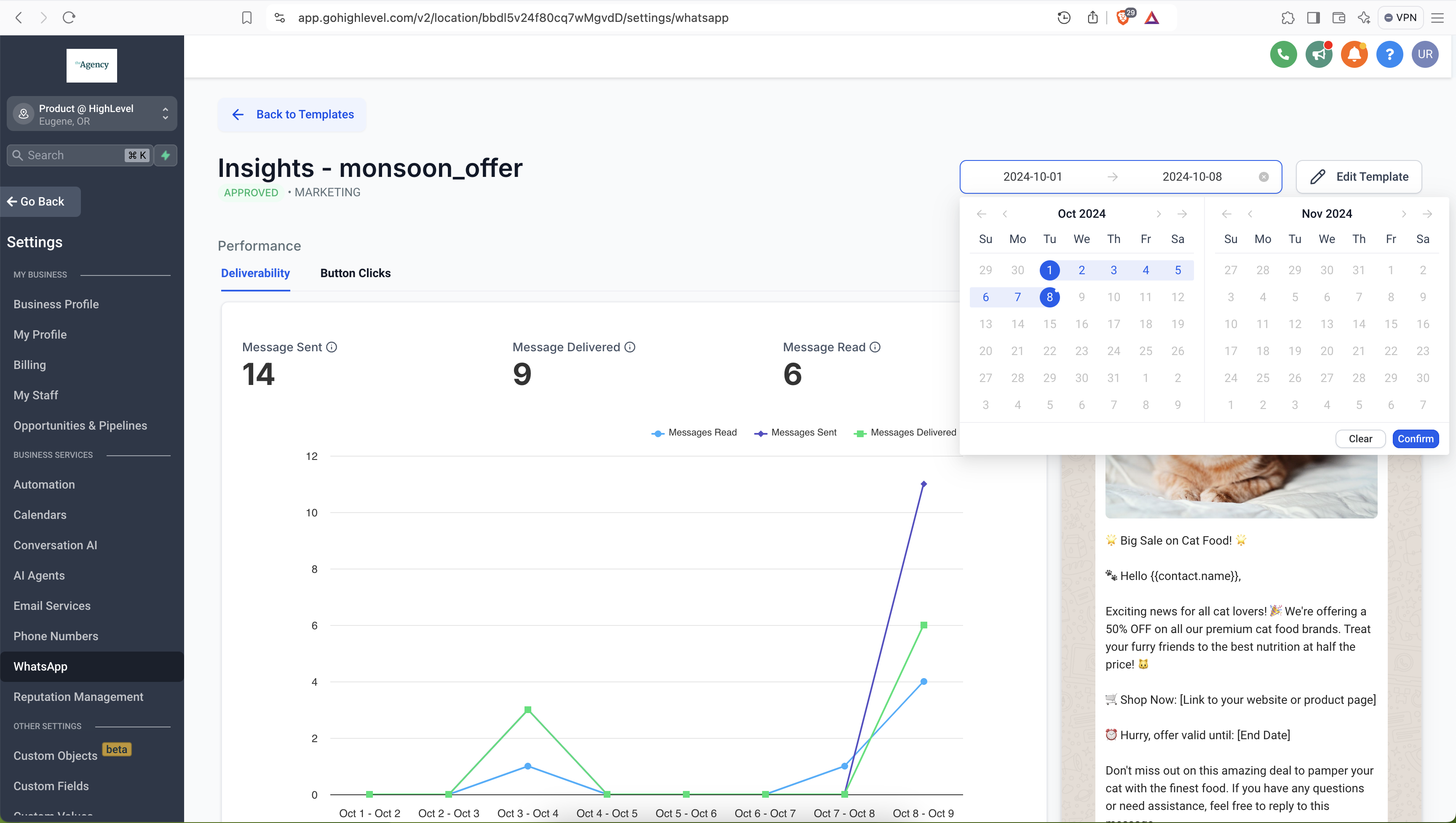
- Pick a start date and an end date for the report.
View WhatsApp template button clicks
- Open Settings > WhatsApp > Templates.
- Search for the desired template and click Reports.
- Click the Button Clicks option.
07What it looks like in HighLevel
08Settings that matter
- Deliverability tab. Shows the number of messages sent, delivered and read for the selected template.
- Button Clicks. Displays how many times each URL or Quick Reply button in the template was tapped.
- Start Date. Defines the beginning of the date range for which analytics are calculated.
- End Date. Defines the end of the date range for which analytics are calculated.
09Things to know before you rely on it
- Analytics are not available for the Coex integration.
- Button click tracking works only for templates marked as MARKETING or UTILITY.
- Templates that belong to Meta Business Accounts in the EU, United Kingdom or Japan do not support button click analytics.
- A template can contain up to two URL buttons and up to ten Quick Reply buttons.
- Quick Reply buttons must be grouped separately from other button types; improper grouping causes an API error.
10How it connects to the rest of HighLevel
- Create and manage WhatsApp templates in HighLevel WhatsApp template creation
- Set up WhatsApp automation workflows WhatsApp workflow integration
- Guide for WhatsApp subaccount setup and migration WhatsApp subaccount guide
Michael's take

Template level analytics feels like a small convenience that can become a real shift for anyone who relies on WhatsApp messaging. It gives you the numbers you need to see which words and buttons actually move your audience.
A local restaurant chain that sends daily specials via WhatsApp could compare two promotional templates, see which one gets more reads, and which button gets more clicks, allowing them to adjust copy and call to action without guessing.