
01Who this is for
- Agency owners who manage WhatsApp campaigns for multiple clients, they need templates that comply with Meta rules.
- Ecommerce retailers sending order confirmations, they require per customer links without breaking template approval.
02WhatsApp template errors, explained
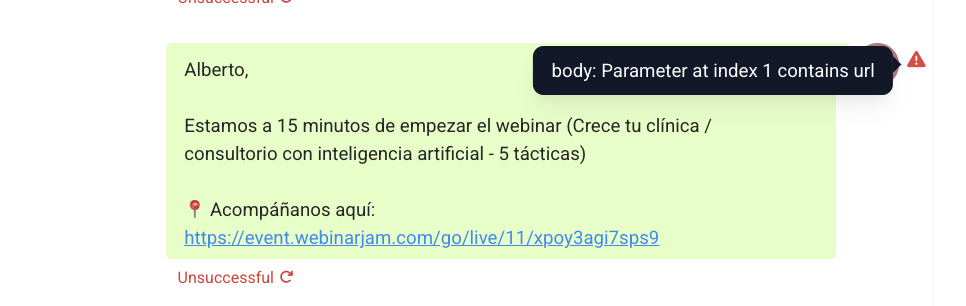
The feature concerns the validation of WhatsApp message templates on the platform. When a template’s body contains placeholders, Meta expects only plain text such as names or dates. If a full URL is supplied at send time, the system returns the "body: Parameter at index contains URL" error. The platform does not rewrite the URL; it simply enforces the rule.
The fix options are built into the template design area. One approach is to embed a complete URL directly in the approved body text, making the link identical for every recipient. The other approach adds a Call to Action button where the base address is approved, and only a unique suffix is appended when the message is sent. Both methods keep the template compliant with Meta’s anti phishing policy.
These settings are accessed when creating or editing a WhatsApp template inside HighLevel. The body and button sections of the template editor are where the static link or CTA button is defined.
03How businesses use WhatsApp template errors
- Agency that resells WhatsApp services. The agency creates a template that includes the full landing page URL in the body. Because the link is static, the template passes Meta’s review and can be sent to all client contacts without error.
- Online retailer sending purchase receipts. The retailer designs a template with a CTA website button. The button’s base URL is approved, and when the receipt is sent, a unique order ID is appended to the button URL, delivering a personalized link for each buyer.
- Service provider confirming appointments. The provider embeds a fixed calendar link directly in the message body of a template that all clients use. Since the link does not vary, the template remains compliant and avoids the URL in placeholder error.
04How to set up and use WhatsApp template errors in HighLevel
Make the link static in the body
- Select a template that already contains the full URL in its body text.
- Check that the URL appears as plain text, not inside a placeholder such as {{1}}.
- Confirm the same hyperlink will be sent to every recipient.
- Send the message using this template.
Use a CTA website button
- Open the template editor and add a Call to Action website button.
- Enter the base address for the button, for example https://example.com/order/.
- Set the button label, such as "View Order".
- Make sure the base URL is part of the approved template.
- When sending, attach the unique suffix (order ID, contact ID, etc.) to the base URL.
05What it looks like in HighLevel
06Things to know before you rely on it
- Meta does not allow full URLs inside body placeholders; they must be placed in the template text or a button.
- Using URL shorteners inside placeholders is often blocked.
07How it connects to the rest of HighLevel
- Step by step instructions for creating and managing WhatsApp templates. Create WhatsApp templates
- How to integrate WhatsApp templates into automation workflows. WhatsApp workflow integration
- Using WhatsApp alongside a Business App for dual platform messaging. WhatsApp coexistence
Michael's take

In my experience, dealing with WhatsApp template errors can be frustrating.