
01Who this is for
- Agency owners who resell WhatsApp messaging can manage templates centrally and avoid repeated Meta approvals.
- Small business Founders who need to send personalized invoices or tickets can use one template for all customers.
02WhatsApp template builder, explained
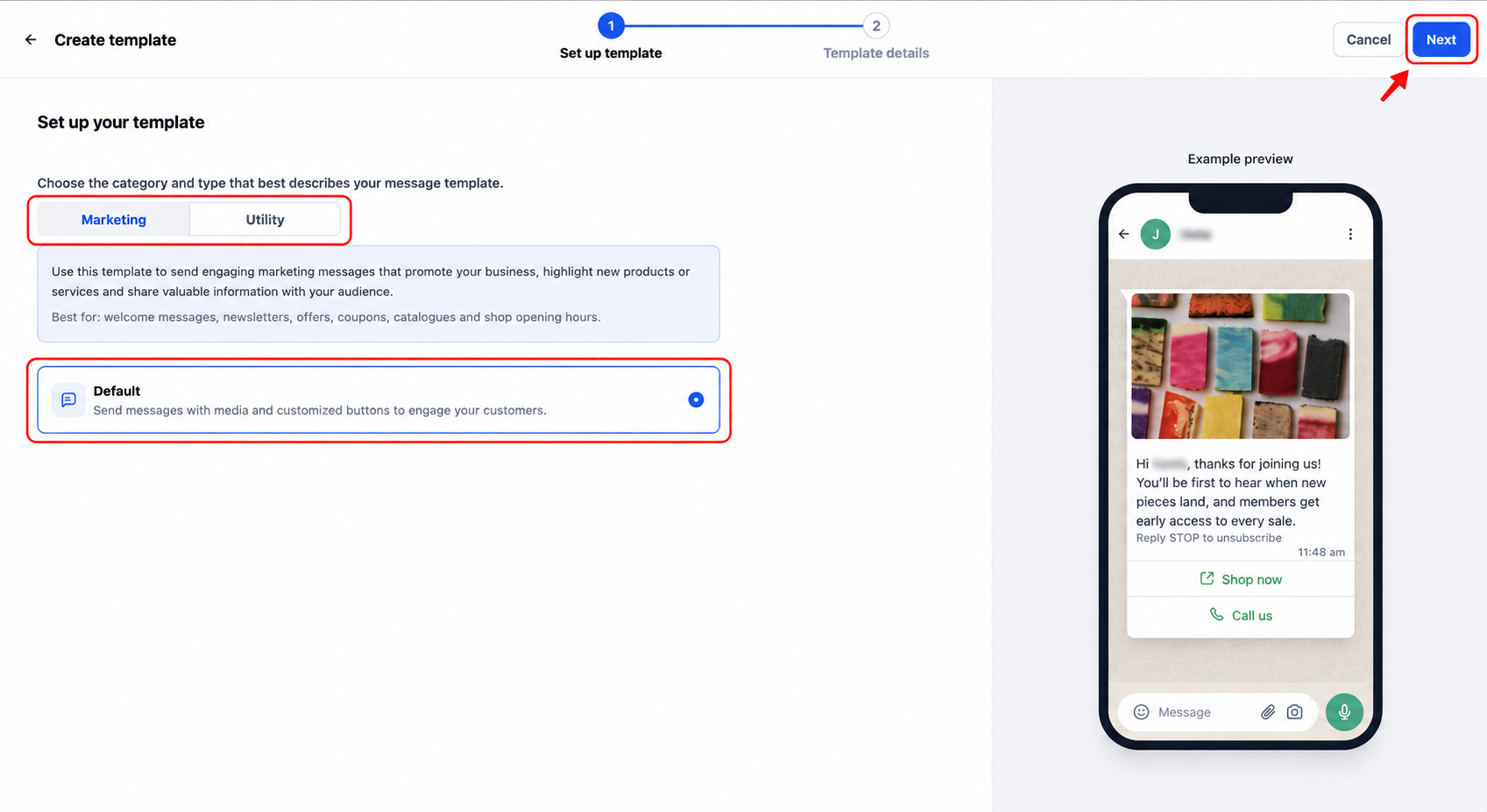
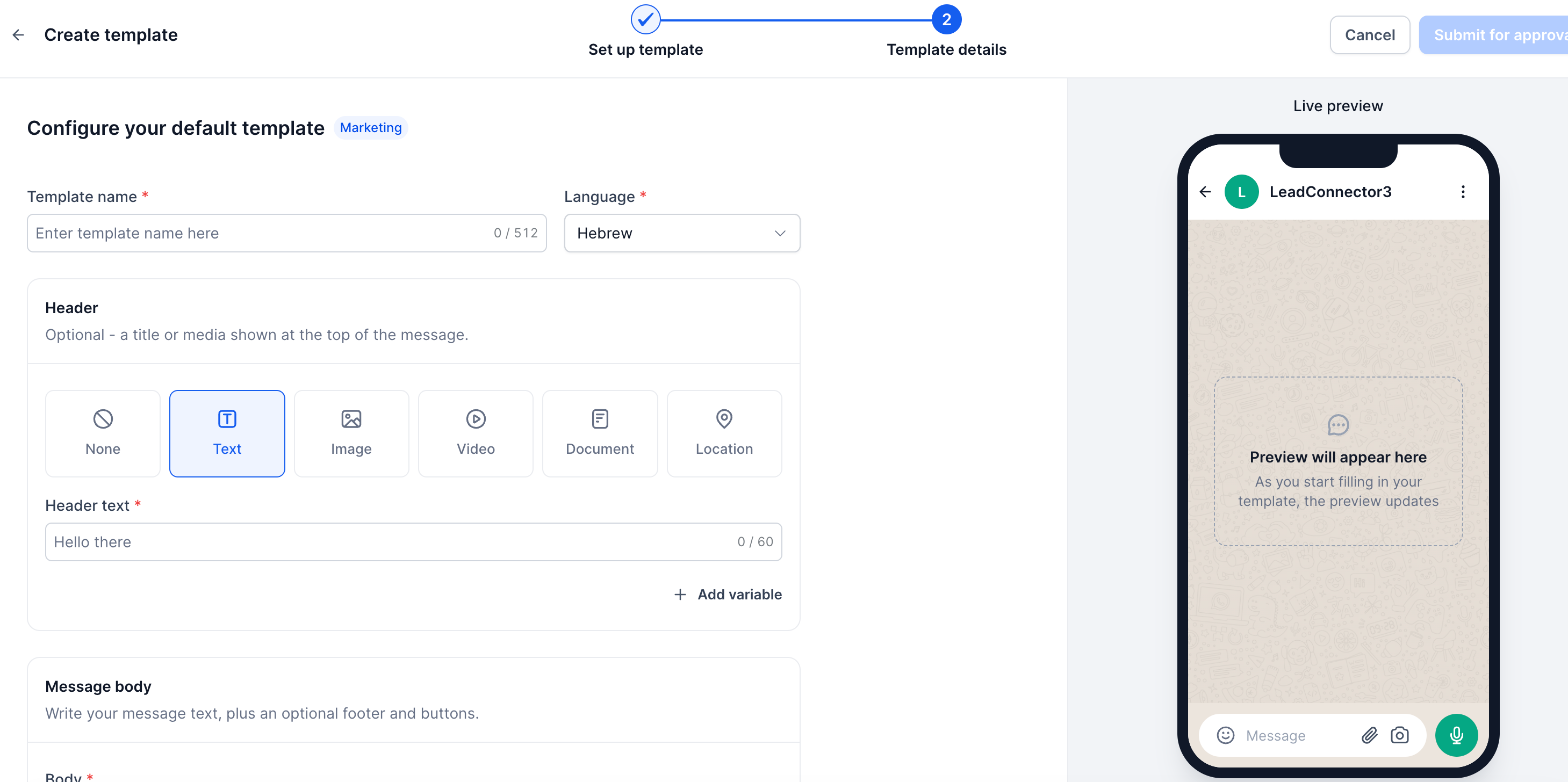
The builder guides you through two steps: first you set the category and type, then you fill in the template name, language, header, body, variables and optional buttons. While you work, a live phone preview shows exactly how the message will appear on WhatsApp before Meta reviews it.
Dynamic media URLs replace static links in the header. You enter a public HTTPS URL containing a placeholder such as {{1}} and map that placeholder to a contact custom field. At send time the platform resolves the placeholder for each contact, delivering a unique image, video or document with a single approved template.
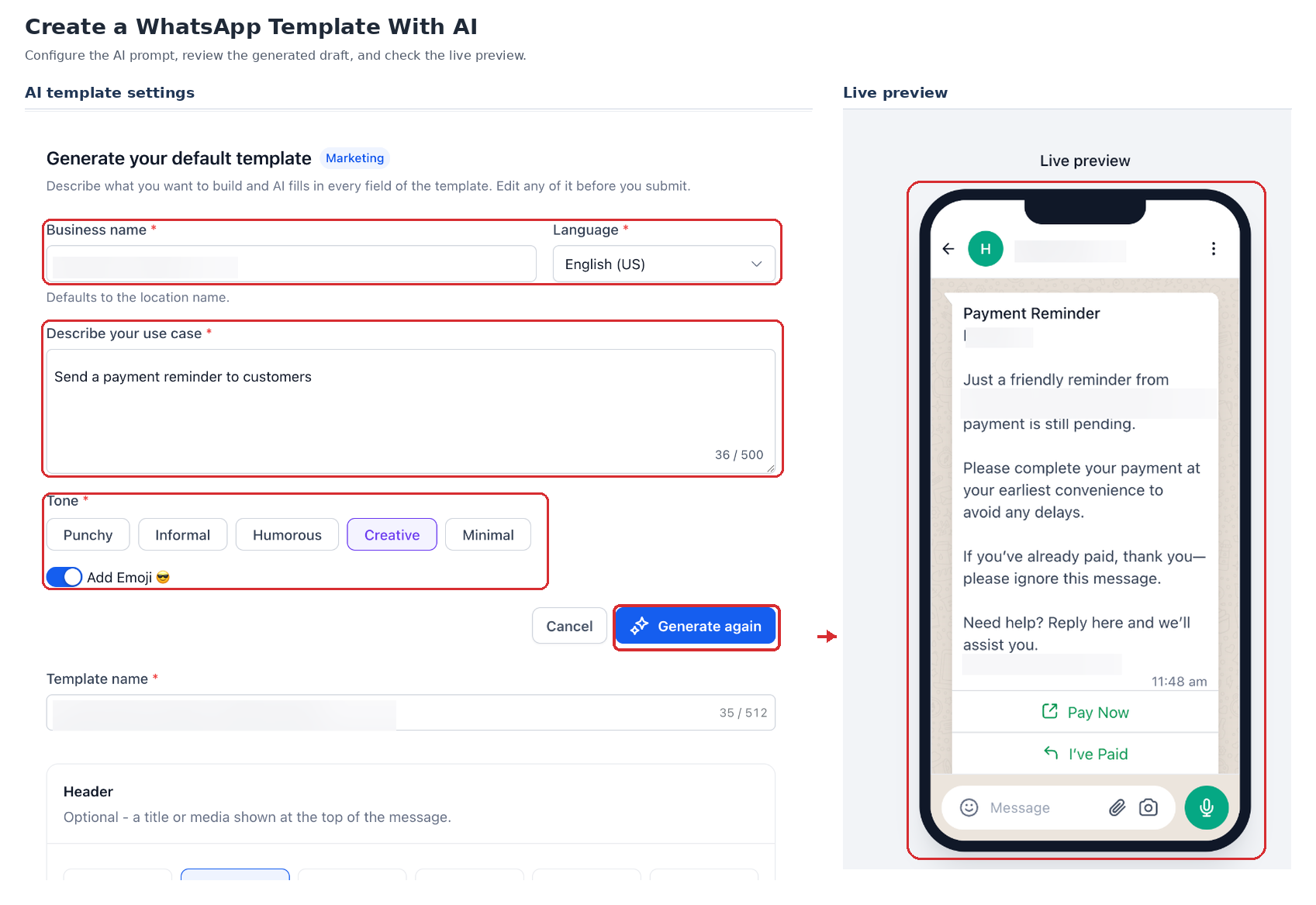
The builder lives under Settings > WhatsApp > Templates in each subaccount. It is also reachable from the AI template creator and from Reputation request settings.
03How businesses use the WhatsApp template builder
- Ecommerce store. The store creates a single WhatsApp template with a document header. Using a custom field that stores each order’s invoice link, the store maps the placeholder in the Media URL to that field. When a workflow sends the template, every buyer receives their own invoice without extra templates.
- Event management company. The company designs a ticket image in an external service with a name placeholder. It adds the generated image URL as a dynamic Media URL in a template and maps the placeholder to the contact’s ticket ID field. A bulk action sends the template so each attendee gets a personalized ticket image.
- Coaching business. The coach builds a certificate image URL that includes the client’s name. The URL is placed in a template’s Media URL field and linked to the contact’s name custom field. During a workflow that runs after course completion, each client receives a custom certificate via WhatsApp.
04The numbers and rules that matter
- Supported sending surfaces: Workflows, Conversations, Bulk Actions, Calendar Appointments, Reputation Review Requests, Missed Call Text Back.
05Before you start
- A HighLevel subaccount with WhatsApp enabled must exist.
06How to set up and use the WhatsApp template builder in HighLevel
Create a WhatsApp template
- Navigate to Settings > WhatsApp > Templates in the subaccount.
- Click Create Template and then select Blank Template.
- Choose the desired category and template type, then click Next.
- Enter the template name and select its language.
- Configure the header, body, variables and any optional buttons.
- Provide sample values for any required variables.
- Review the live preview and fix any validation errors shown.
- Click Submit for approval.
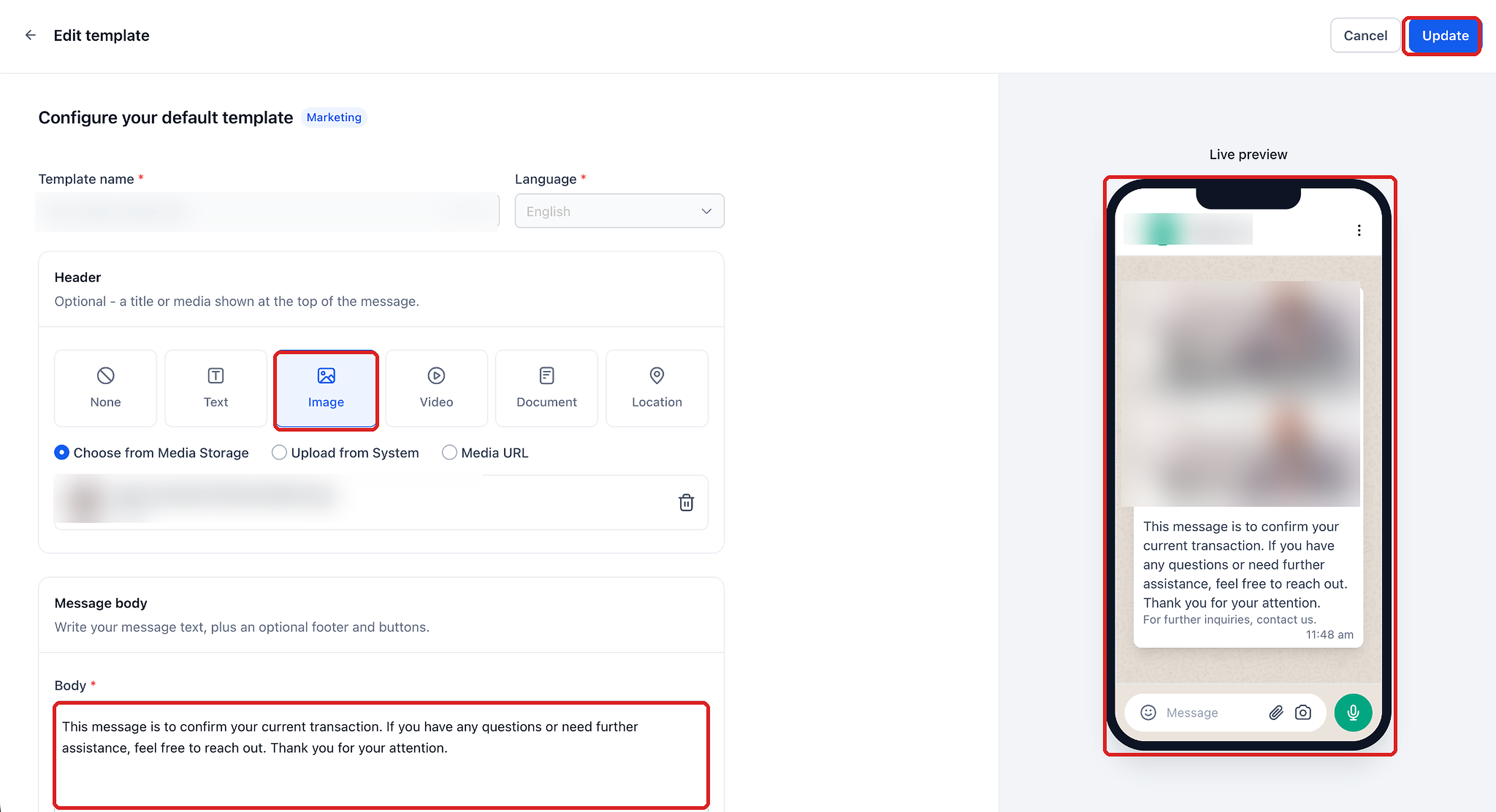
Edit a WhatsApp template
- From the subaccount go to Settings > WhatsApp > Templates.
- Locate the template and open its three dot menu.
- Choose Edit template if the option is available.
- Modify the editable fields and watch the live preview update.
- Click Update to save the changes.
Use a dynamic media URL in the builder
- Open Settings > WhatsApp > Templates in the subaccount.
- Create a new template and proceed to the Template details screen.
- In the Header section, pick Image, Video, or Document as needed.
- Select Media URL as the header content type.
- Enter a public HTTPS URL that includes a numbered placeholder such as {{1}}.
- Map the placeholder to a contact custom field using the variable mapping control.
- Enter a sample value for the placeholder and check the live preview.
- Finish the template and click Submit for approval.
07What it looks like in HighLevel
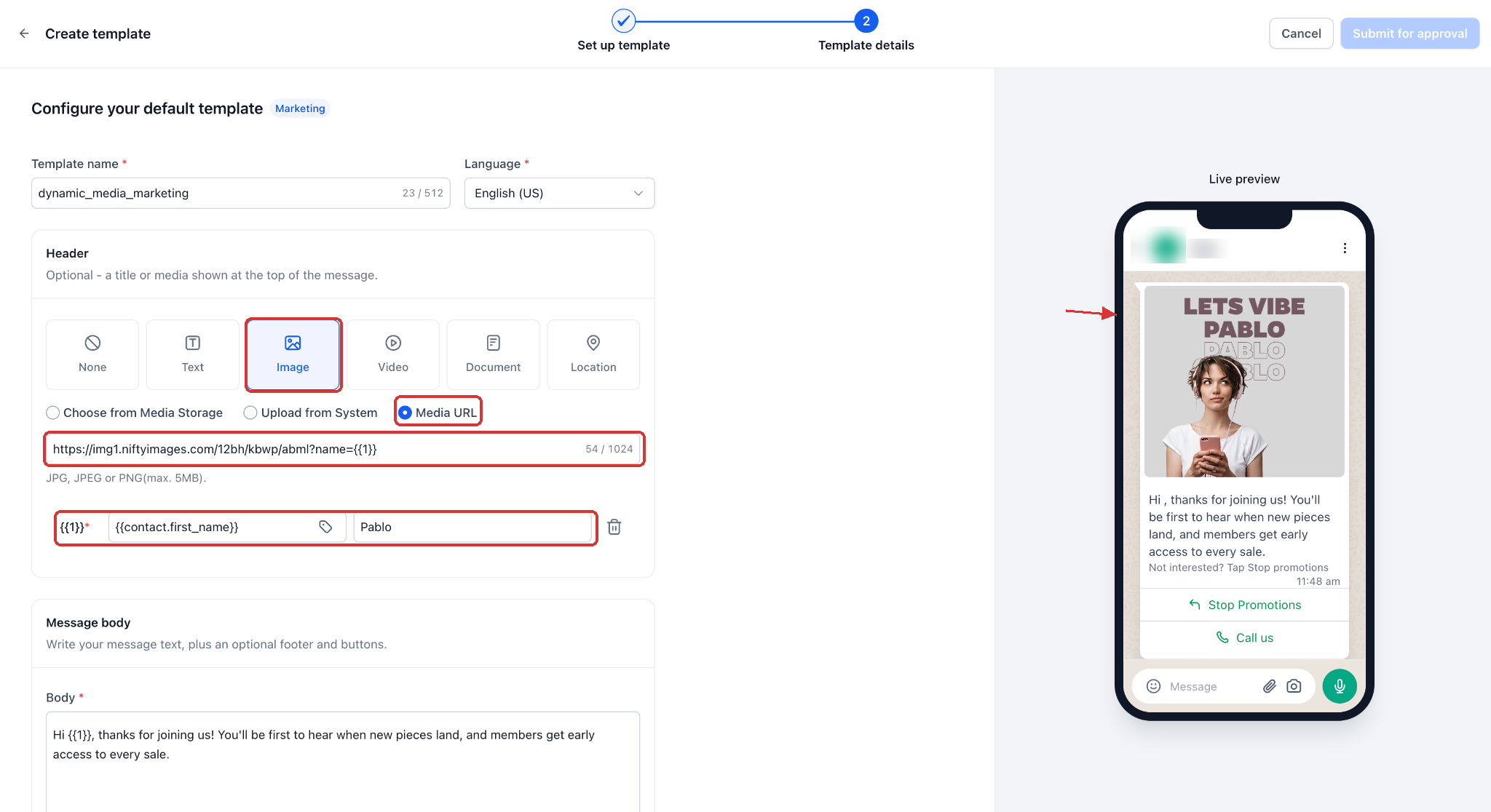
08Settings that matter
- Category. Defines the overall purpose of the template, such as marketing or authentication.
- Template type. Specifies the structure of the template, for example whether it contains media or only text.
- Header. Determines the type of media (image, video, document) that appears at the top of the WhatsApp message.
- Media URL. Holds the link to the media asset; can include dynamic placeholders that resolve per contact.
- Variable mapping control. Links a placeholder inside a Media URL to a contact custom field so the URL resolves uniquely for each recipient.
- Sample values. Provides example data for variables so the live preview can display realistic content.
09Things to know before you rely on it
- Dynamic media URLs must be publicly reachable HTTPS links; private Drive links or URLs that require authentication will cause the message to fail.
- An empty or invalid resolved value results in a clear failure instead of sending incorrect media.
- Dynamic media URLs are supported only in sending surfaces that accept media header values, such as workflows, conversations, bulk actions, calendar appointments, reputation review requests, and missed call text back.
10If something goes wrong
- Live preview appears blank or does not update. Confirm you are using the updated builder by navigating to Settings > WhatsApp > Templates > Create / Edit.
- Message fails with an error about a missing or invalid URL. Check that the resolved media URL is a public HTTPS link, that it is not empty, and that it points to a supported media file type.
11How it connects to the rest of HighLevel
- Create a WhatsApp template in HighLevel WhatsApp template guide
- WhatsApp reselling guide for agencies Agency reselling guide
- Activate WhatsApp rebilling for agencies Rebilling guide
Michael's take

Most people clone a new template for every different image or document, then wait for Meta to approve each copy. That adds up quickly and stalls campaigns. Instead, use a single template with a dynamic media URL so the URL resolves to a contact specific file at send time. It eliminates the need for multiple templates and keeps your automations clean.
If I were setting up a personalized invoice campaign, I’d store the public URL in a contact custom field, map that field to the media header, and send the template from a workflow. The live preview lets me verify the layout before I ever hit submit, so I can avoid a failed approval later.