
01Who this is for
- Customer support teams, they can reply quickly with consistent language during an active conversation.
- Marketing agencies, they can use approved templates for campaign blasts while still customizing images on the fly.
- Sales reps, they can insert prepared snippets during live chats to maintain speed and accuracy.
02WhatsApp snippets and templates, explained
Snippets are saved text or multimedia blocks you can insert into an active WhatsApp conversation while the 24 hour response window is open. WhatsApp Templates are pre approved messages that can be sent when no recent inbound message exists. Both are accessible from the conversation composer and the Bulk Actions panel.
When a template includes an image, document, or video, HighLevel shows a placeholder and a Replace media button. Clicking it opens a file browser, letting the user select a local file that replaces the original media for that specific send only. The preview of the template, including its category (for example Marketing) and language, appears right away, so users can verify content before sending.
These capabilities live under Marketing > Templates (Snippets) for creation, the Conversations screen for individual sends, and the Automation and Bulk Actions sections for automated or mass messaging.
03How businesses use WhatsApp snippets and templates
- Real estate agency. Agents create snippets for common property details and insert them during live WhatsApp chats with prospects. When a lead is older than 24 hours, the agent selects a pre approved template, previews it, swaps the property photo, and sends the message.
- Fitness studio. Trainers store class schedules as snippets to quickly answer member inquiries. For re engagement campaigns, they pick a template, verify the category and language in the preview, replace the promotional video, and dispatch the broadcast.
- Ecommerce store. Support staff use snippets for order status updates within the active window. For shipping notifications outside that window, they trigger a workflow that picks a template, previews it, swaps the tracking screenshot, and sends it automatically.
04The numbers and rules that matter
- Snippets can only be sent when the contact has an open 24 hour conversation window.
05Before you start
- An inbound message from the contact must have arrived within the last 24 hours to use a snippet.
- If the new UI is not visible, enable it under Subaccount > Labs.
06How to set up and use WhatsApp snippets and templates in HighLevel
Prepare snippet or template
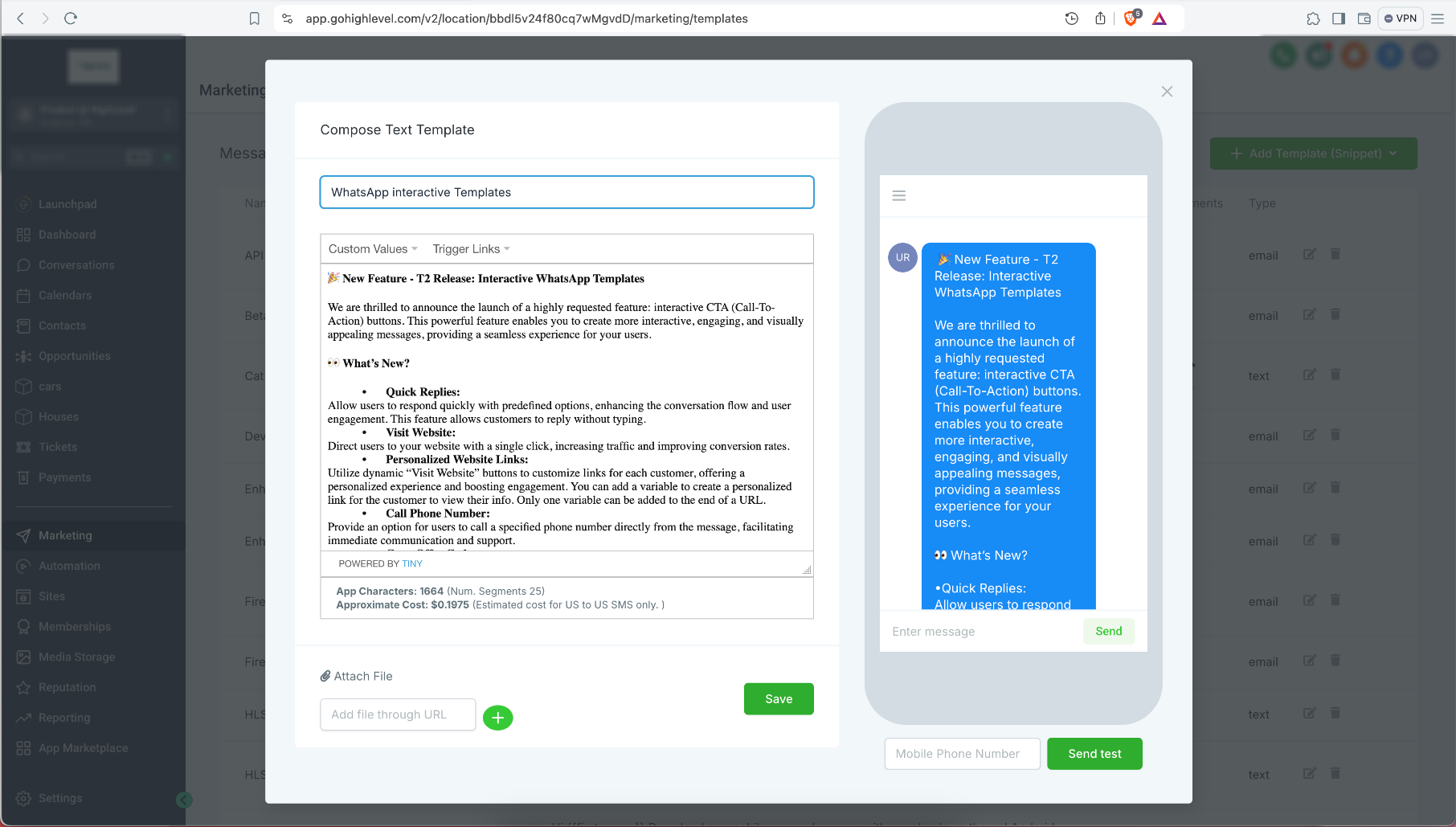
- Open Marketing > Templates (Snippets).
- Choose Add Template (Snippet) > Add Text Template (Snippet) to start a new snippet or edit an existing one.
- Give the snippet a clear name and save it.
Send a snippet from conversations
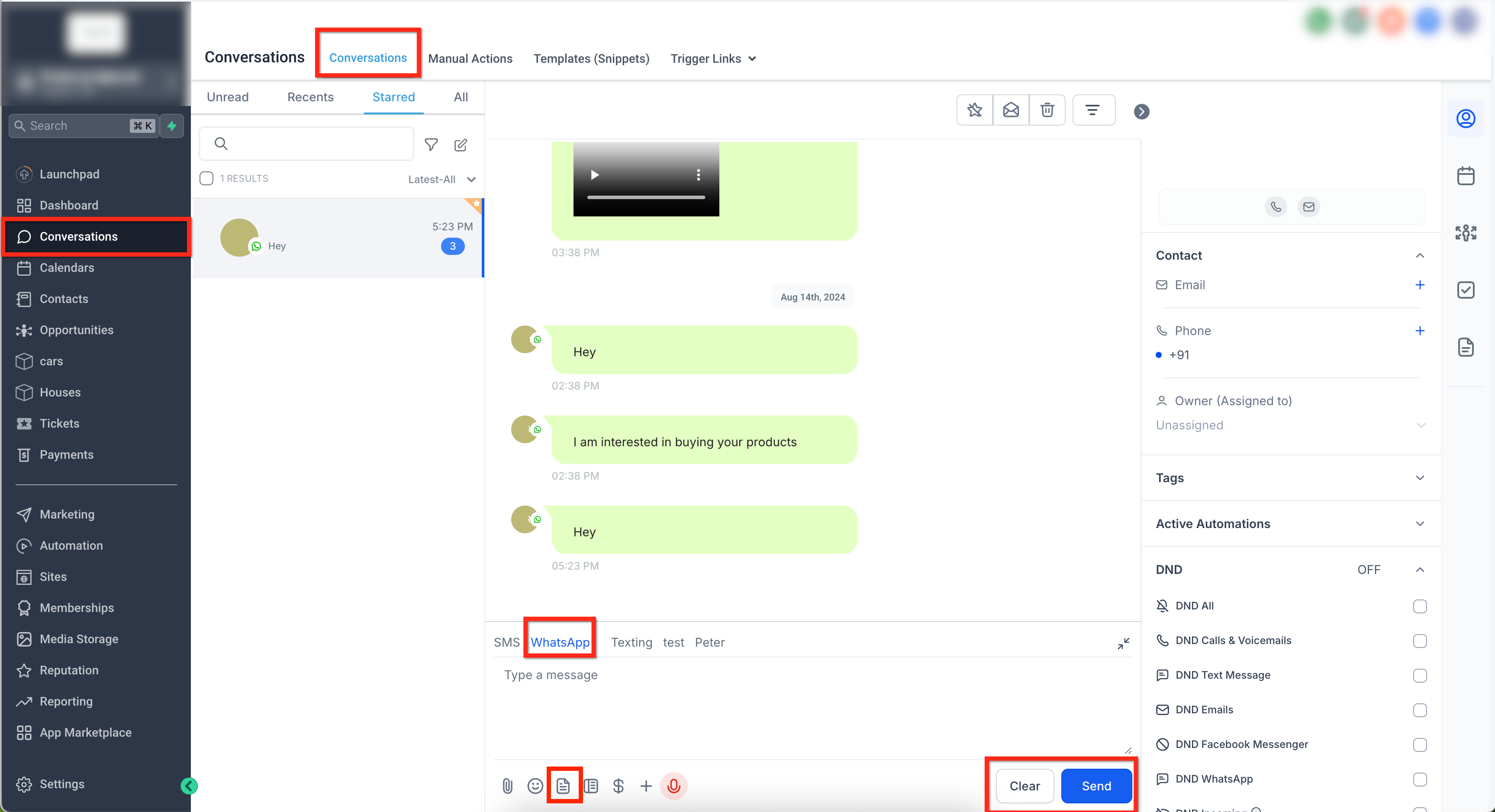
- Navigate to Conversations.
- Open a WhatsApp chat where the contact has messaged within the past 24 hours.
- Confirm that WhatsApp is the selected channel.
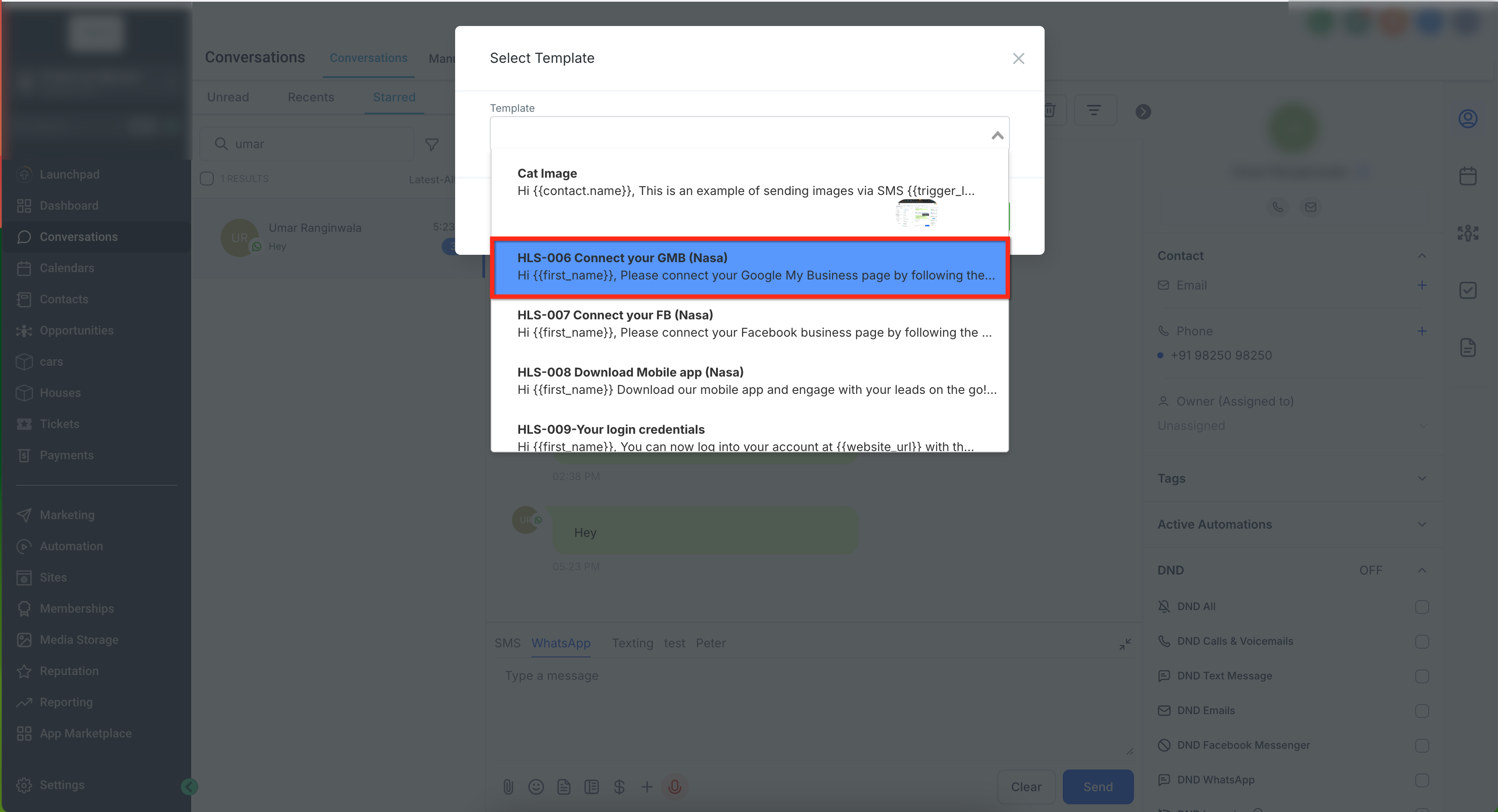
- Click the Insert Snippets icon in the message composer.
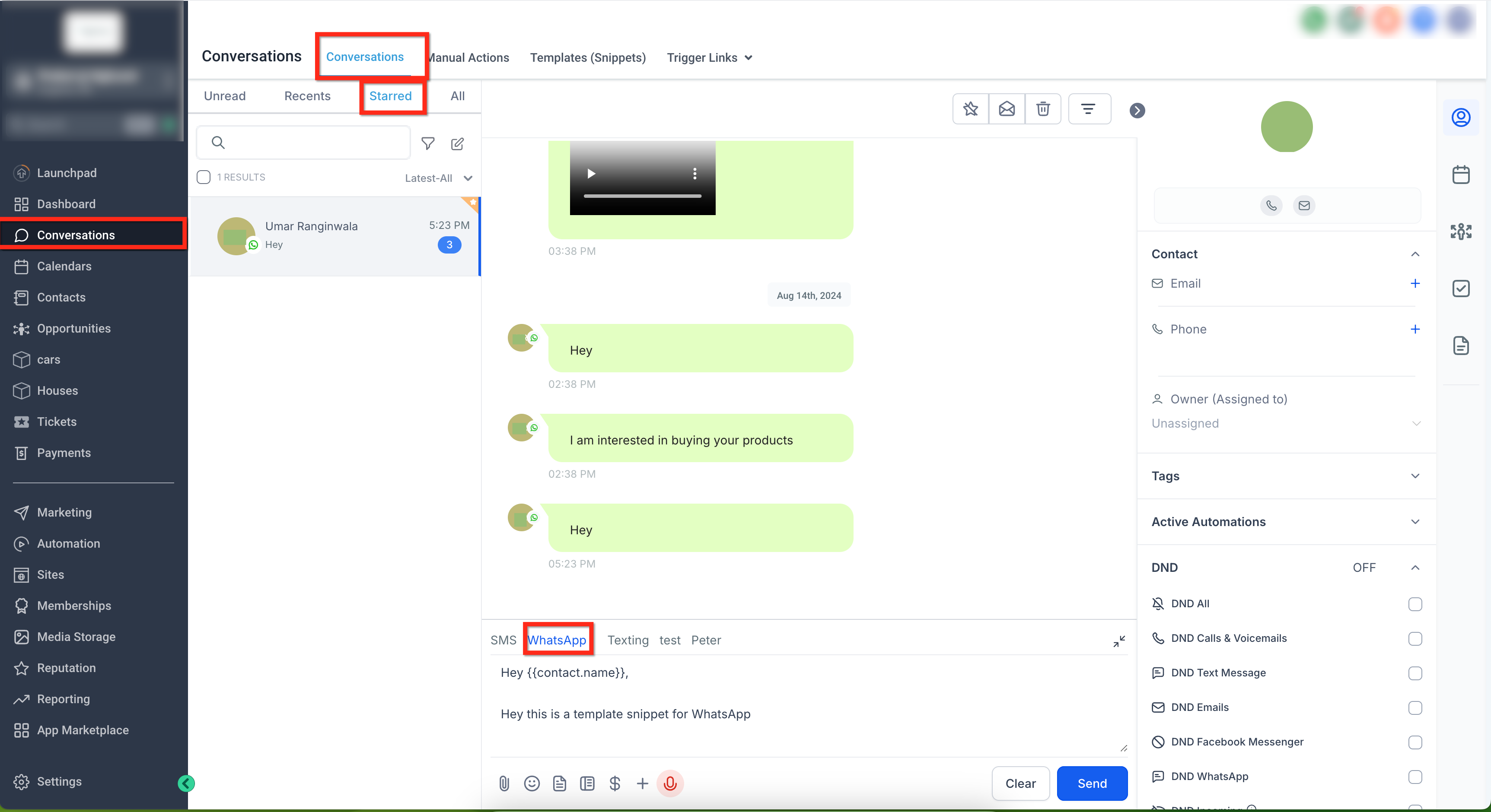
- Pick the desired snippet; it fills the composer automatically.
- Modify the snippet text if needed, using custom values or trigger links.
- Press Send.
Preview WhatsApp templates at send time
- In the composer or in Bulk Actions, select WhatsApp Template instead of a free form message.
- View the instant preview that appears with the template content.
- Check the displayed category and language next to the template name.
- Confirm the choice and proceed to send or schedule.
Replace media in a WhatsApp template
- When the chosen template shows a media placeholder, locate the Replace media option.
- Click Replace media.
- Select a file from the local device in the file browser.
- The chosen file swaps the original media in the preview.
- Review the final message and send it.
Send snippets or templates via workflows
- Go to Automation > Create Workflow or open an existing workflow.
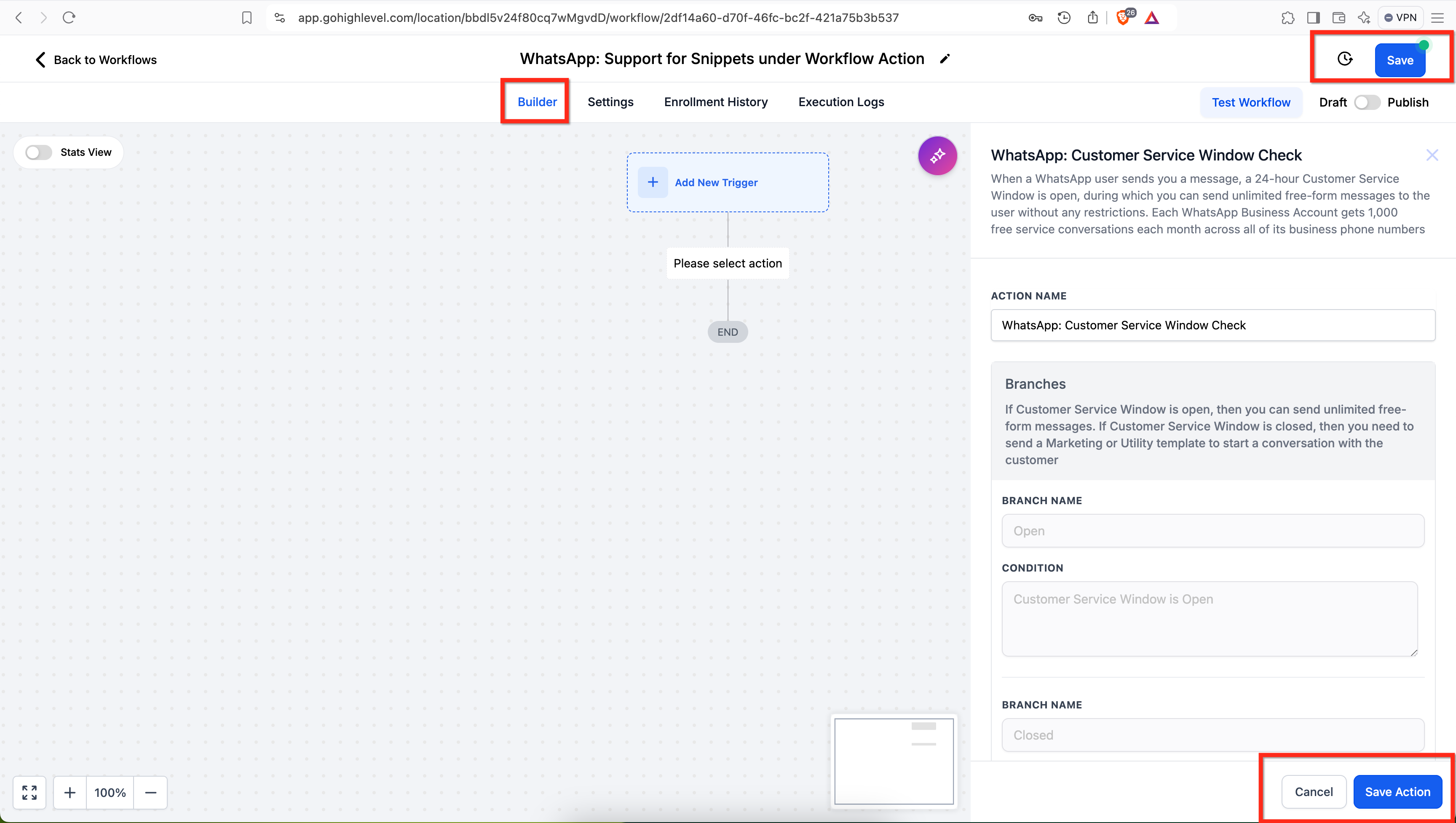
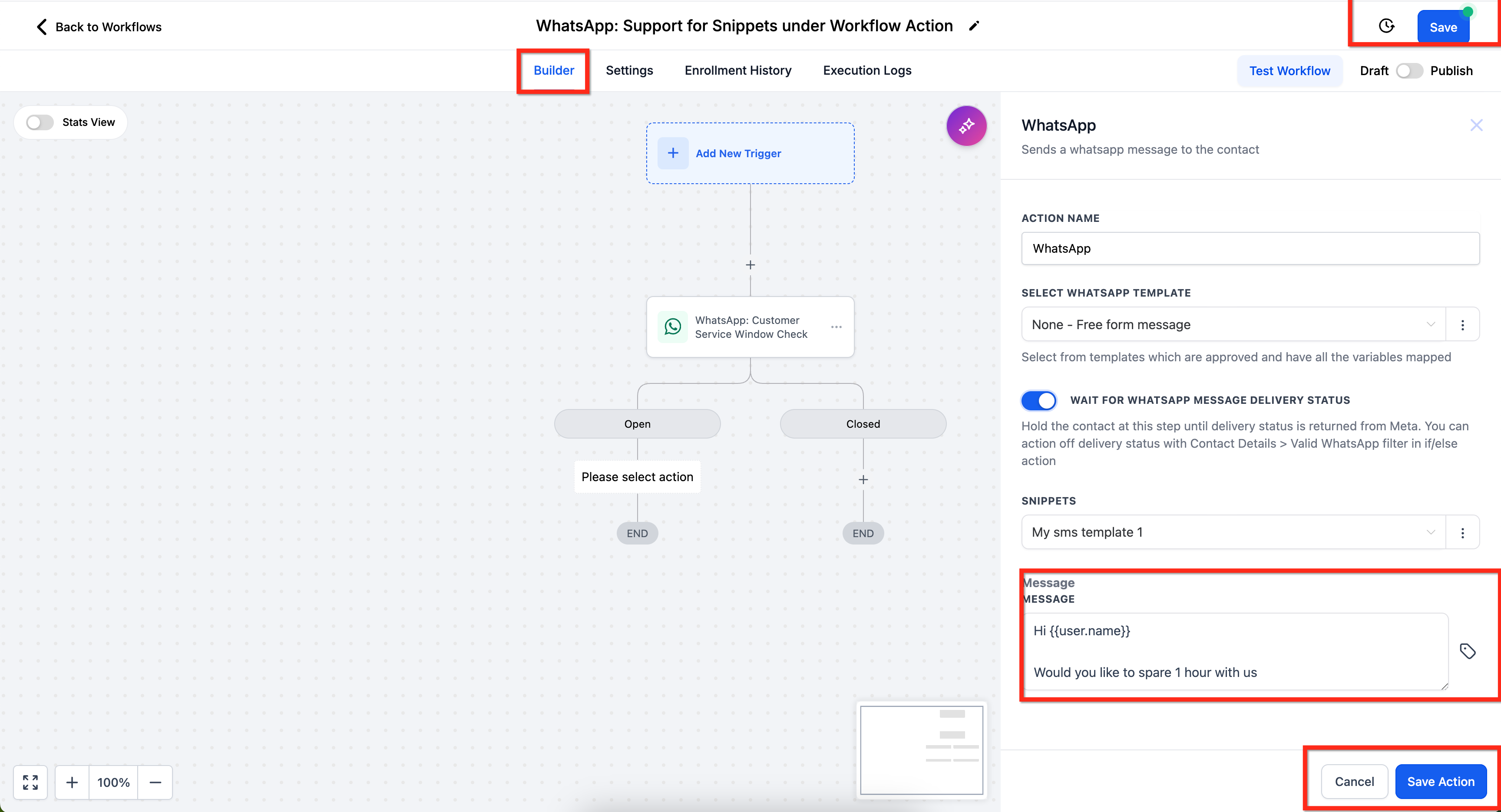
- Add a trigger, then include the action WhatsApp: Customer Service Window Check to ensure the 24 hour window is open.
- Under the Open branch of that check, add a WhatsApp action.
- Choose WhatsApp Template for outbound messages or select None, Free form message and insert snippet content programmatically.
- If a template is chosen, use the preview and media replace controls that appear in the workflow composer.
- Save the workflow and publish it.
Bulk actions: Send templates and replace media
- Open Contacts (or the area where Bulk Actions are available) and select the target contacts.
- Choose Bulk Action > Send WhatsApp.
- Select a WhatsApp Template and verify its preview, category and language.
- If the template contains media, click Replace media and upload a local file.
- Confirm the settings and launch the bulk send.
07What it looks like in HighLevel
08Settings that matter
- Labs. Controls whether the new UI features for template preview and media replacement are shown to the user.
09Things to know before you rely on it
- The preview and one click media replace features may appear only when the Labs option is enabled.
- Snippets can be sent only while an inbound message exists within the last 24 hours.
- Templates must be pre approved by Meta; replacing media does not alter the approved template itself.
10If something goes wrong
- Template preview or replace media button does not appear.. Refresh the conversation UI and verify that the Labs setting is turned on.
- Media replacement fails.. Check that the selected file meets WhatsApp’s allowed type and size limits.
11How it connects to the rest of HighLevel
- Step by step guide for creating and managing WhatsApp templates. Create WhatsApp templates
- Learn how to automate WhatsApp messaging within workflows. WhatsApp workflow integration
- Information on using a Business App alongside HighLevel for dual messaging. WhatsApp coexistence
Michael's take

Want to know if you should waste time building a library of canned replies or jump straight to templates? The answer is both. Snippets let you answer quickly while a contact is still chatting, and templates let you reach out later with Meta approved messages. Use them together for a smooth, compliant workflow.
If I were setting this up, I’d start by creating a few high frequency snippets for common questions, then test a template preview to make sure the category and language match what you need. Check the Labs toggle if the new UI isn’t shown, and confirm the media you plan to swap meets WhatsApp’s size limits before you go live.