
01Who this is for
- Agency owners who manage multiple client campaigns benefit from quick folder navigation and clear organization.
- Marketing teams can group templates by department or use case, making it easier to locate the right message.
- Customer support centers gain faster access to standard reply templates by sorting and filtering within folders.
02WhatsApp template folders, explained
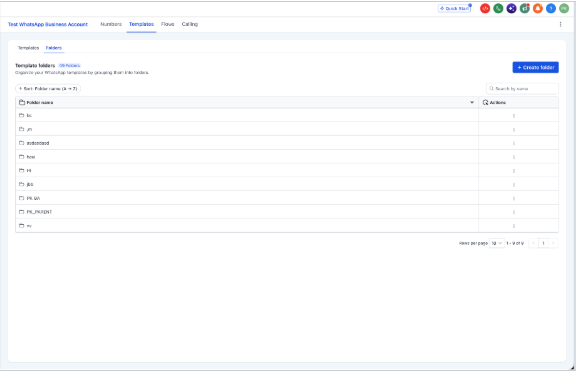
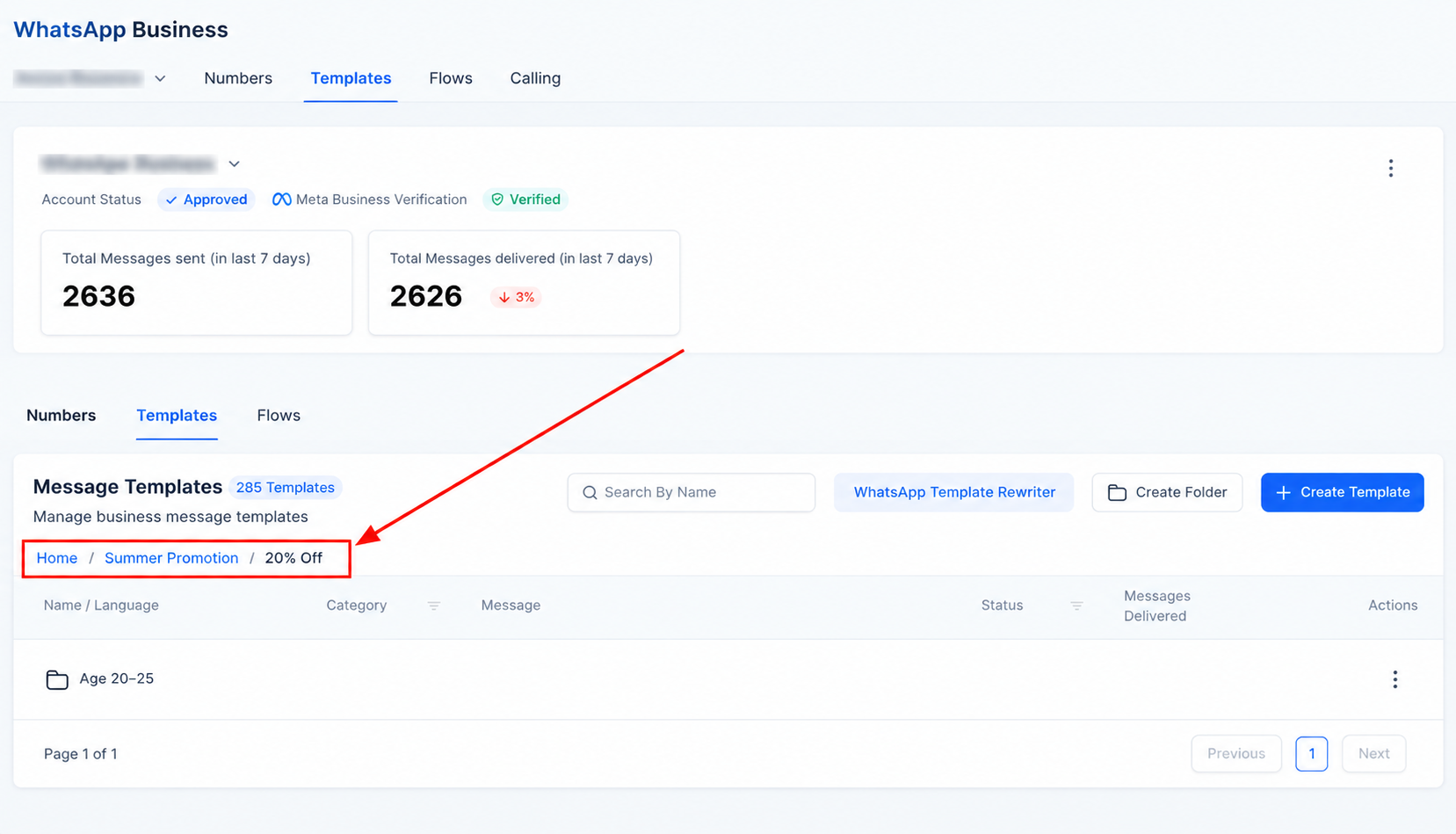
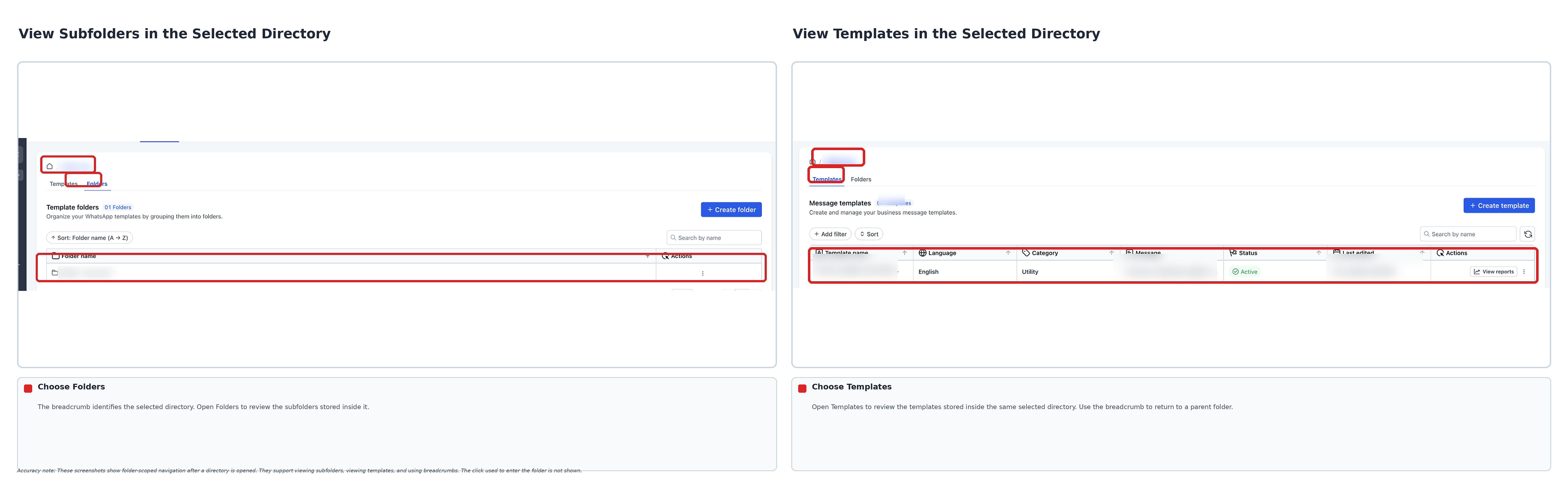
WhatsApp Template Folders are a feature inside the Settings area of a HighLevel Subaccount. They let you create folders and subfolders to classify your WhatsApp message templates by campaign, department, language or any structure you need. The redesigned Highrise interface adds a Folder column, breadcrumb navigation, and scoped views so you see only the items inside the selected folder.
The folder system does not alter a template’s message body or its Meta approval status. Filters and sorting affect only how the list appears; they do not change template content. Within each folder you can switch between the Templates and Folders tabs to see templates or subfolders, and you can move items between any levels using the three dot Action menus.
03How businesses use WhatsApp template folders
- Digital marketing agency. The agency creates a top level folder for each client and subfolders for individual campaigns. Templates are placed in the appropriate subfolder, and the team uses filters to show only English templates when preparing copy.
- Ecommerce store. The store sets up folders for order confirmations, shipping updates, and promotional messages. By sorting templates alphabetically, staff can locate the correct order status template quickly during high volume periods.
- Healthcare clinic. The clinic builds department folders for appointments, reminders, and follow ups. Using the filter by category, staff narrow the list to only reminder templates when scheduling patient outreach.
04Before you start
- The Subaccount must have access to its WhatsApp Templates area.
- Your user account needs the appropriate WhatsApp management permissions.
05How to set up and use WhatsApp template folders in HighLevel
Navigate to WhatsApp template settings
- Open the relevant HighLevel Subaccount and select Settings.
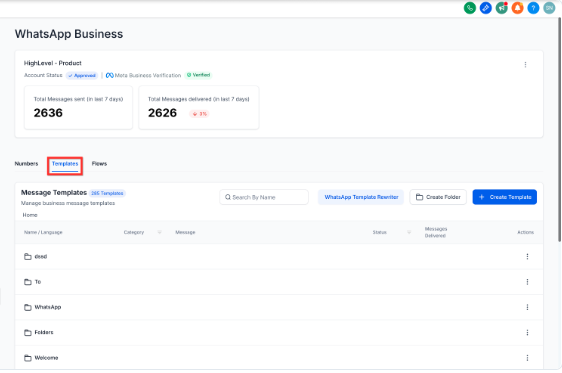
- Click the WhatsApp option and then open the Templates tab at the top level.
- Switch between the Templates and Folders inner tabs to view the template list or folder structure.
Create a new folder
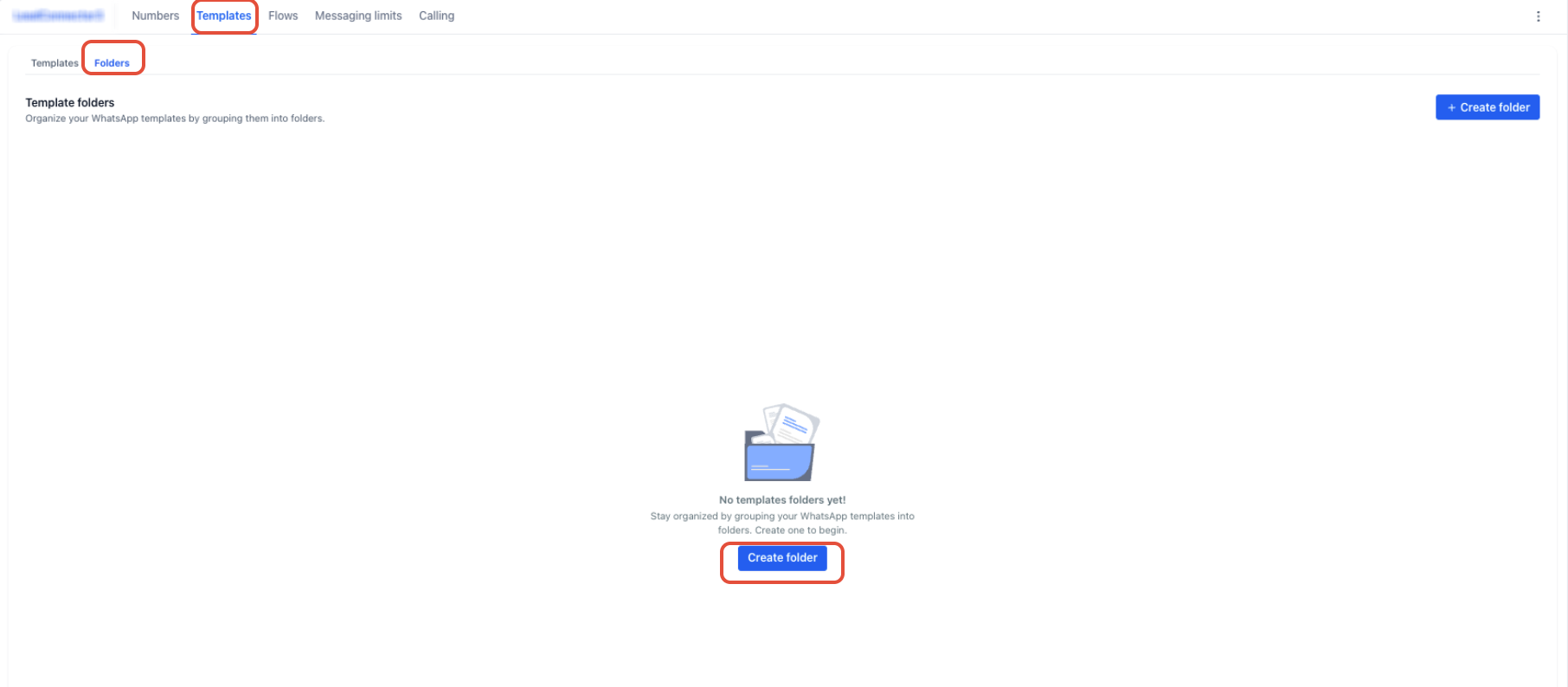
- Within Settings > WhatsApp > Templates, choose the inner Folders tab.
- Press the Create folder button.
- Type the desired name for the folder.
- Confirm by clicking Create to add the folder.
Create subfolders
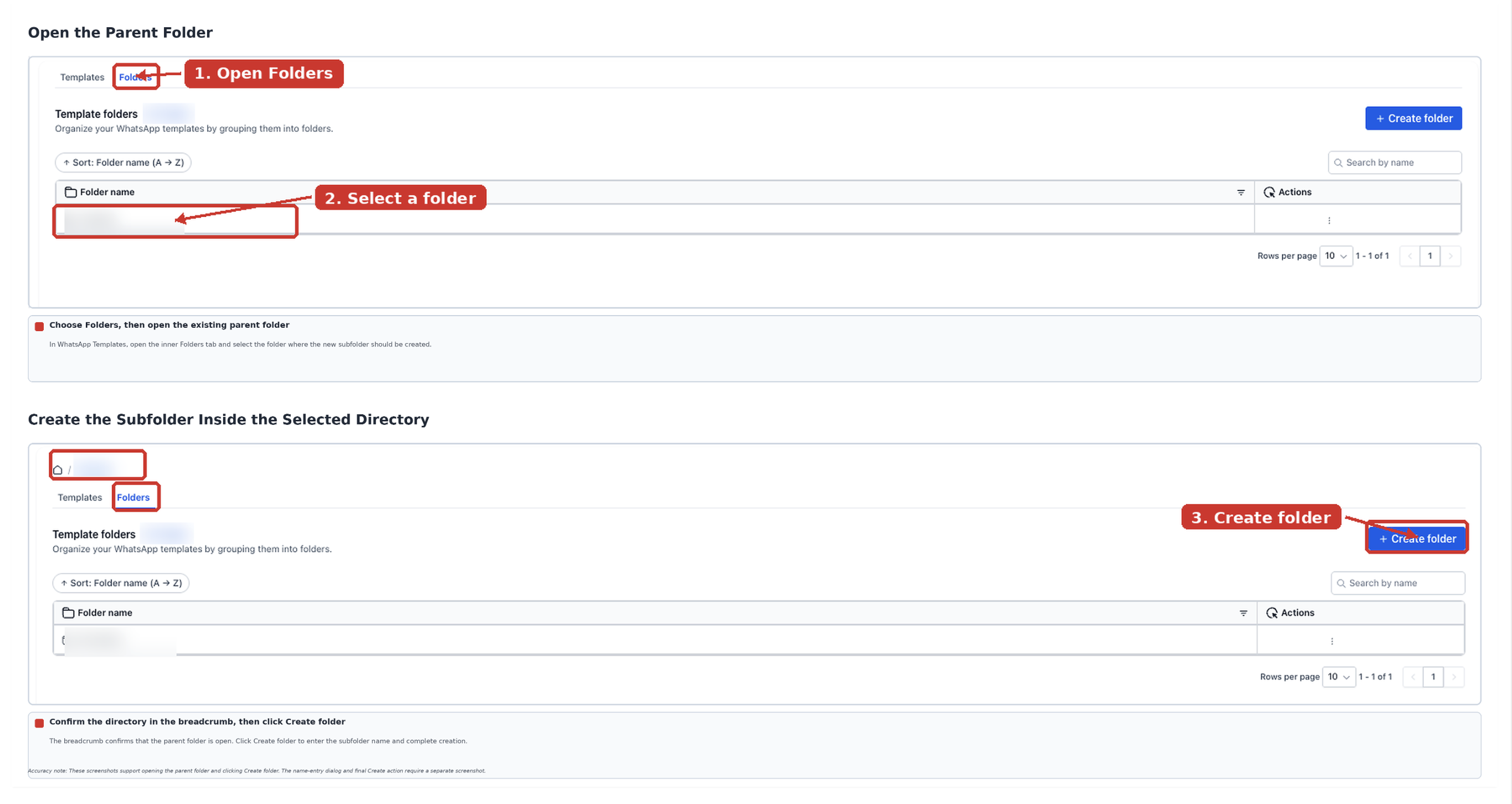
- Navigate to Settings > WhatsApp > Templates > Folders.
- Select an existing folder name to open its contents.
- Click Create folder inside the opened folder.
- Enter a name for the subfolder.
- Save the subfolder by clicking Create.
Filter WhatsApp templates
- Open the appropriate HighLevel Subaccount.
- Go to Settings > WhatsApp > Templates.
- Select the inner Templates tab.
- Press the + Add filter button.
- Choose the filter field you wish to apply.
- Pick the criteria for that field to narrow the displayed templates.
Sort WhatsApp templates
- Open the relevant HighLevel Subaccount.
- Navigate to Settings > WhatsApp > Templates.
- Open the inner Templates tab.
- Click the Sort control above the template list.
- Select the column you want to sort by.
- Verify the sort direction shown in the menu.
Move a template into a folder
- From the Subaccount, go to Settings > WhatsApp > Templates.
- Open the inner Templates tab.
- Find the template either in the main view or inside its current folder.
- Open the three dot Actions menu for that template.
- Choose Move to Folder.
- Select the destination folder or subfolder.
- Click Move to finish relocating the template.
Move folders into other folders or parent levels
- From the Subaccount, go to Settings > WhatsApp > Templates.
- Open the inner Folders tab.
- Locate the folder you want to reposition.
- Open the three dot Actions menu for that folder.
- Select Move Folder.
- In the dialog, pick the target destination folder.
- Confirm the move by clicking Move.
View template performance metrics
- From the Subaccount, go to Settings > WhatsApp > Templates.
- Find the template you want to analyze and click View reports under Actions.
- Use the report controls to inspect delivery, read and engagement data for the chosen period.
06What it looks like in HighLevel
07Settings that matter
- WhatsApp. Enables access to WhatsApp specific configuration, including template management, within the Settings menu.
- Templates. Shows the list of WhatsApp message templates and provides actions such as filtering, sorting and moving.
- Folders. Displays the folder hierarchy used to organize templates and lets you create, rename, or move folders.
- + Add filter. Opens the filter menu so you can narrow the template list by category, language, status or date.
- Sort. Changes the order of templates in the list based on selected fields like name, language, category, status or last edited.
- Move to Folder. Moves a selected template from its current location into a chosen folder or subfolder.
- Move Folder. Relocates an entire folder to another folder or back toward a parent level.
- View reports. Opens the analytics page for a specific template, showing sent, delivered, read and button click metrics.
08Things to know before you rely on it
- Folder organization does not modify a template’s message content or its Meta approval status.
- Filters and sorting affect only the displayed list, not the underlying template data.
- Access to WhatsApp template management is limited to Subaccounts that have the WhatsApp feature enabled and to users with the proper permissions.
- Template analytics may have regional or availability restrictions.
09How it connects to the rest of HighLevel
- Learn how to create and manage WhatsApp templates in HighLevel. Create WhatsApp templates
- Read the guide for setting up WhatsApp in a HighLevel subaccount. Subaccount WhatsApp setup
- Explore pricing options for agencies that resell WhatsApp. HighLevel pricing
Michael's take

In my experience, setting up a top level folder for each major use case and using the breadcrumb trail helps keep the template hierarchy organized.
I would begin with creating a simple hierarchy: A campaign folder, then subfolders for each audience segment. Once the structure is in place, I move existing templates into their proper spots and use the filters to verify nothing is misplaced.