
01Who this is for
- Agency owners who resell WhatsApp services need a clean onboarding path for each client.
- Small business Founders using WhatsApp for customer communication must avoid duplicate billing conflicts.
- Marketing teams that manage multiple locations can resolve account clashes quickly.
02WhatsApp onboarding errors, explained
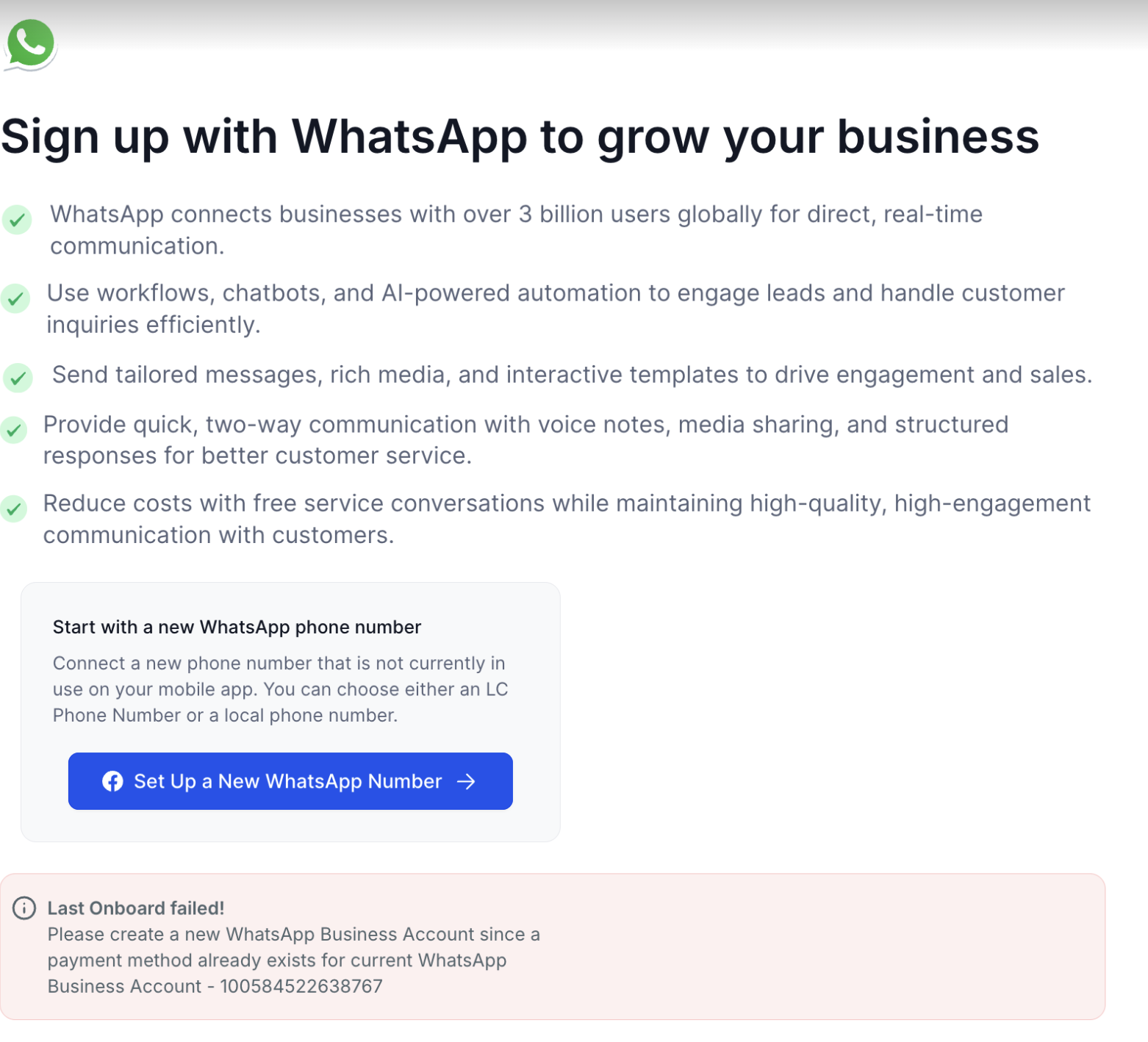
The feature explains that Meta prevents a WhatsApp Business Account with an existing payment method from being linked to another Business Solution Provider. When that situation is detected, HighLevel stops the onboarding flow and shows an error. The required fix is to create a new WABA inside the same Meta Business Manager and select it during onboarding.
03How businesses use WhatsApp onboarding errors
- Digital marketing agency. The agency creates a new WABA for each client to keep billing separate. In HighLevel they open the onboarding flow, select the freshly created account, and finish the setup without error.
- Ecommerce store owner. When the store tries to add WhatsApp messaging and receives the payment method error, the owner adds a new WABA in Meta, returns to HighLevel, picks the new account, and completes the integration.
- Local service business with multiple locations. If a location shows that its WABA is already linked elsewhere, the manager notes the Location ID, disconnects the account from the other location in HighLevel, then re onboards using a newly created WABA.
04Before you start
- You must have access to the Meta Business Settings with the Facebook account that controls your business assets.
- A Meta Business Manager must already exist for your organization.
05How to set up and use WhatsApp onboarding errors in HighLevel
Create a new WhatsApp Business Account
- Open Meta Business Settings and sign in with the Facebook account that manages your business assets.
- In the left hand menu choose Accounts > WhatsApp Accounts.
- Click the + Add button.
- Select Create a New WhatsApp Business Account.
- Enter a unique name for the new account, for example YourBusinessName New.
- Follow the prompts to finish the setup and save the new WABA.
Return to HighLevel onboarding flow
- Go back to your HighLevel WhatsApp onboarding screen.
- When prompted to select a WhatsApp Business Account, choose the newly created WABA.
- Continue the onboarding process as usual.
Disconnect an already connected WABA
- Record the Location ID shown in the error message.
- Find the HighLevel Location where that WABA is currently attached.
- Disconnect the WABA from that Location.
- Return to the intended Location and restart the WhatsApp onboarding flow.
06What it looks like in HighLevel
07Settings that matter
- Meta Payment Settings. Shows the billing method attached to a WhatsApp Business Account inside Meta, helping you verify whether a WABA can be linked to HighLevel.
08Things to know before you rely on it
- Meta blocks a WABA that already has a payment method from being linked to another Business Solution Provider.
- Creating a new WABA does not always require a new phone number, but the number must not be linked elsewhere.
- If the new WABA still fails, the issue may be a phone number that is already connected to WhatsApp, WhatsApp Business, or another provider.
09If something goes wrong
- Payment method already exists error during onboarding. Create a new WhatsApp Business Account in Meta and select it in the HighLevel onboarding flow.
- New WABA still fails after creation. Verify that the phone number is not linked to another WhatsApp service, double check the onboarding path, and retry phone verification.
10How it connects to the rest of HighLevel
- Full WhatsApp reselling guide for agencies WhatsApp reselling guide
- WhatsApp subaccount setup and migration details Subaccount migration guide
- Activate WhatsApp rebilling for agencies Rebilling guide
Michael's take

Michael ReimerFounder of CRM Pros, HighLevel Commander and Certified Admin
The quickest way to unblock the flow is to make sure the WABA you point HighLevel to has no existing billing setup. I would first verify that the account I’m about to use is brand new in Meta’s Business Settings.
If the new WABA still trips, I’d double check the phone number and make sure it isn’t already tied to another provider.
Get More InformationOpens on HighLevelPublished November 2, 2026 · Updated November 17, 2026