
01Who this is for
- Marketing managers benefit because they can embed product images or videos in approved messages for campaigns.
- Customer support teams gain a quick way to share guides or PDFs without drafting new messages each time.
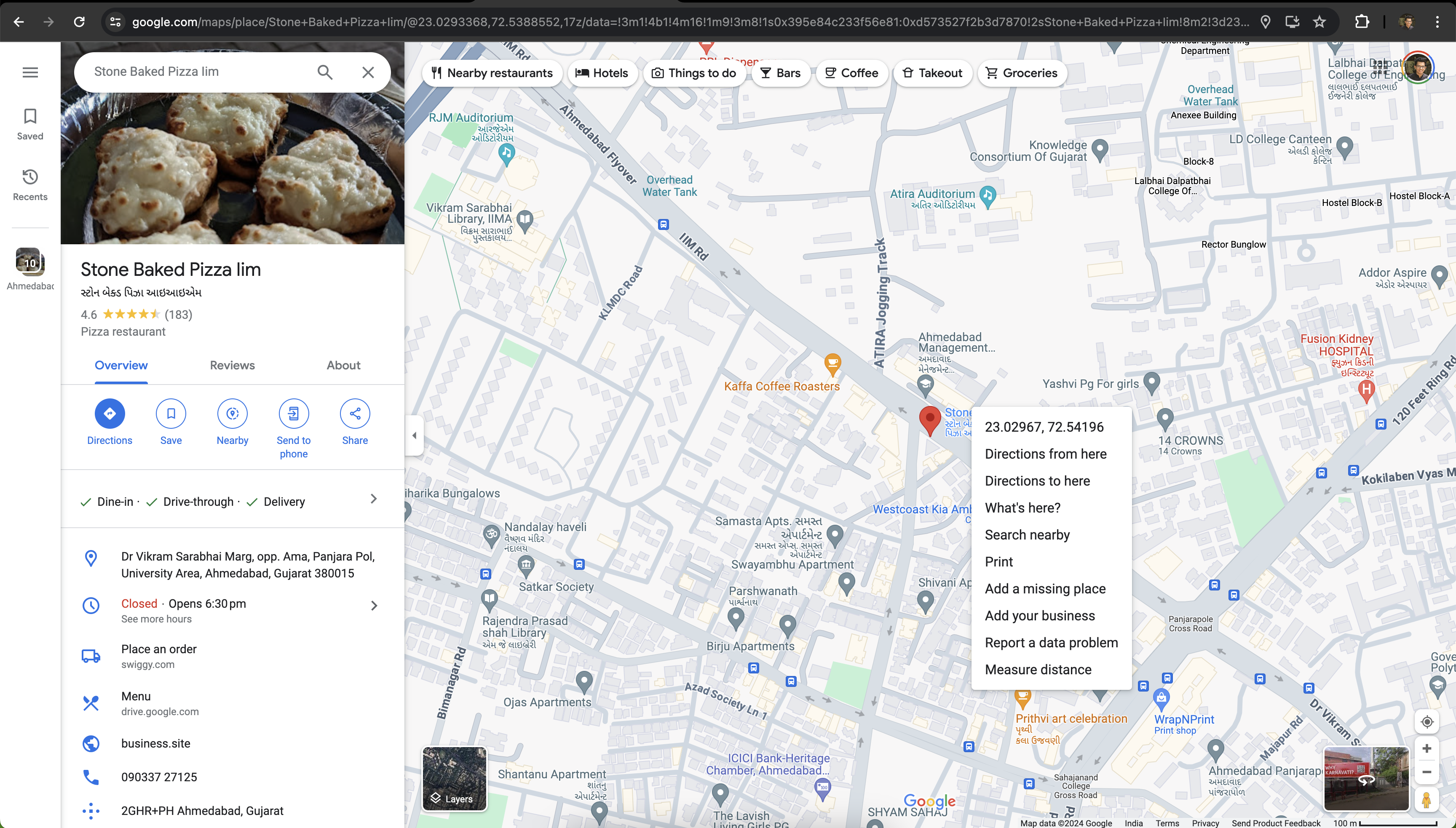
- Event coordinators can include map coordinates to simplify directions for attendees.
02WhatsApp media templates, explained
The feature lets you create WhatsApp templates that include images, videos, documents, or location data. Each template is submitted to Meta for approval before it can be used. Once approved, the template appears in the selection list for WhatsApp actions, and the platform enforces the required file types and size limits.
03How businesses use WhatsApp media templates
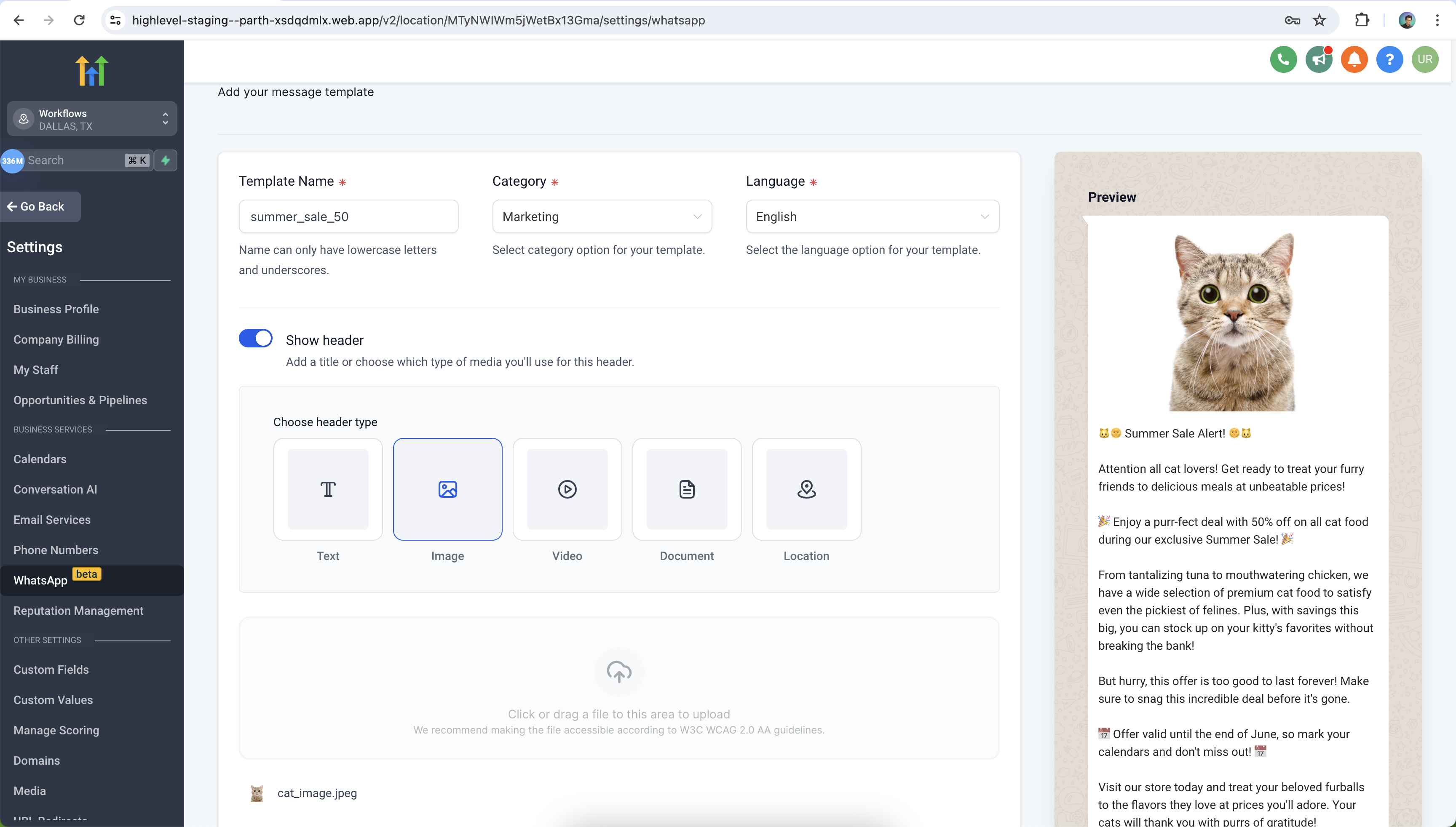
- Ecommerce store. Create an image template that showcases a new product. Add the template to a bulk WhatsApp broadcast to all customers in a recent purchase list. Recipients receive the product photo directly in the chat.
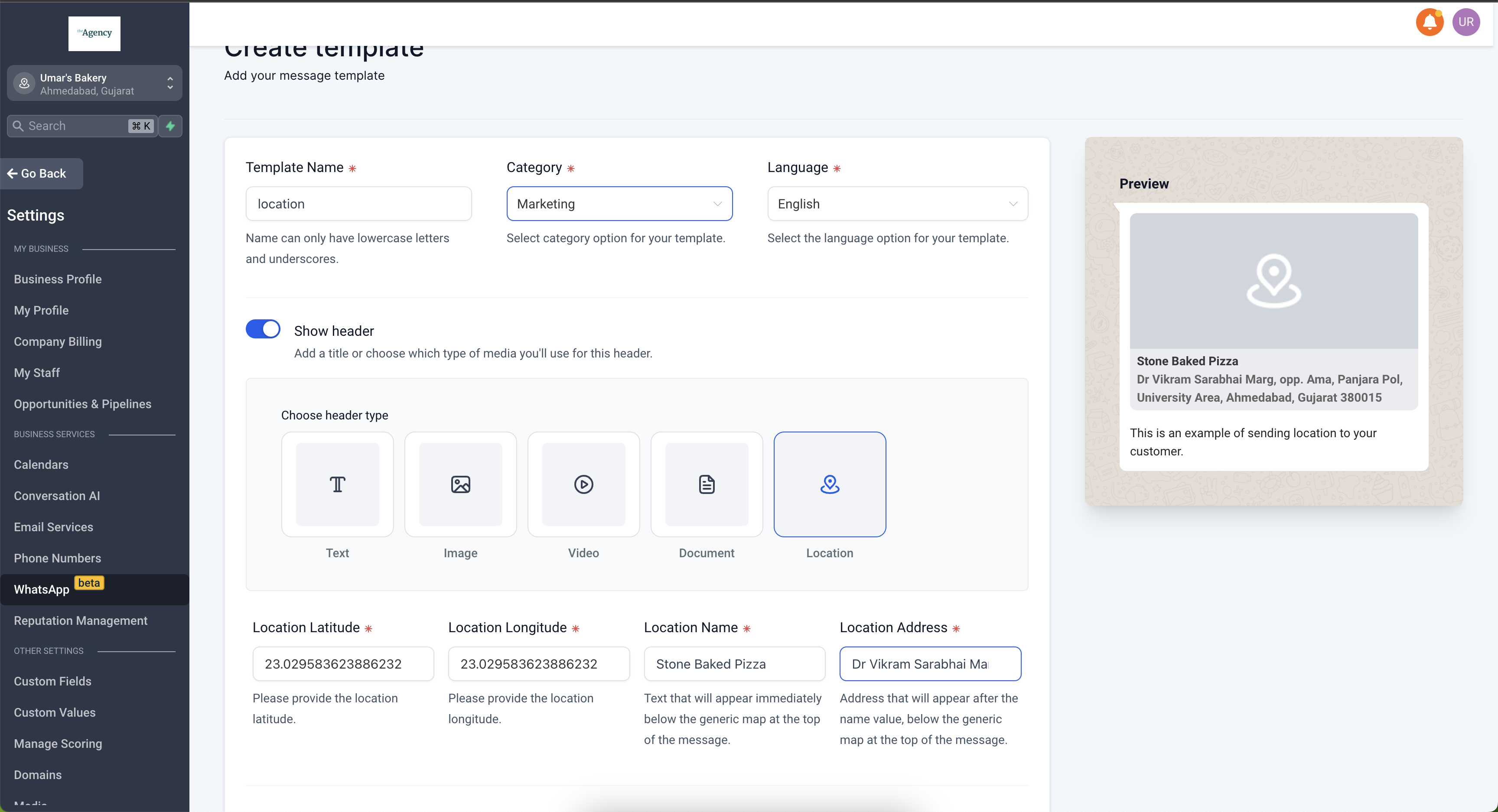
- Real estate agency. Build a location template with the property’s latitude, longitude, name and address. Attach the template to a workflow that triggers when a lead requests a showing. The client receives a map pin that opens in WhatsApp.
- Healthcare clinic. Upload a PDF guide as a document template. Use an automated workflow that fires after an appointment is booked. The template delivers the pre visit instructions to the patient’s WhatsApp number.
04The numbers and rules that matter
- Document: Application/PDF, 100 MB.
- Image: Image/jpeg, image/png (must be 8 bit, RGB, or RGBA), 5 MB.
- Video: Video/mp4, 16 MB.
05Before you start
- The media file must match the allowed type and be within the size limit.
- A public URL for the media is required when editing the template.
- All templates must receive approval from Meta before they can be sent.
06How to set up and use WhatsApp media templates in HighLevel
Create a WhatsApp media template
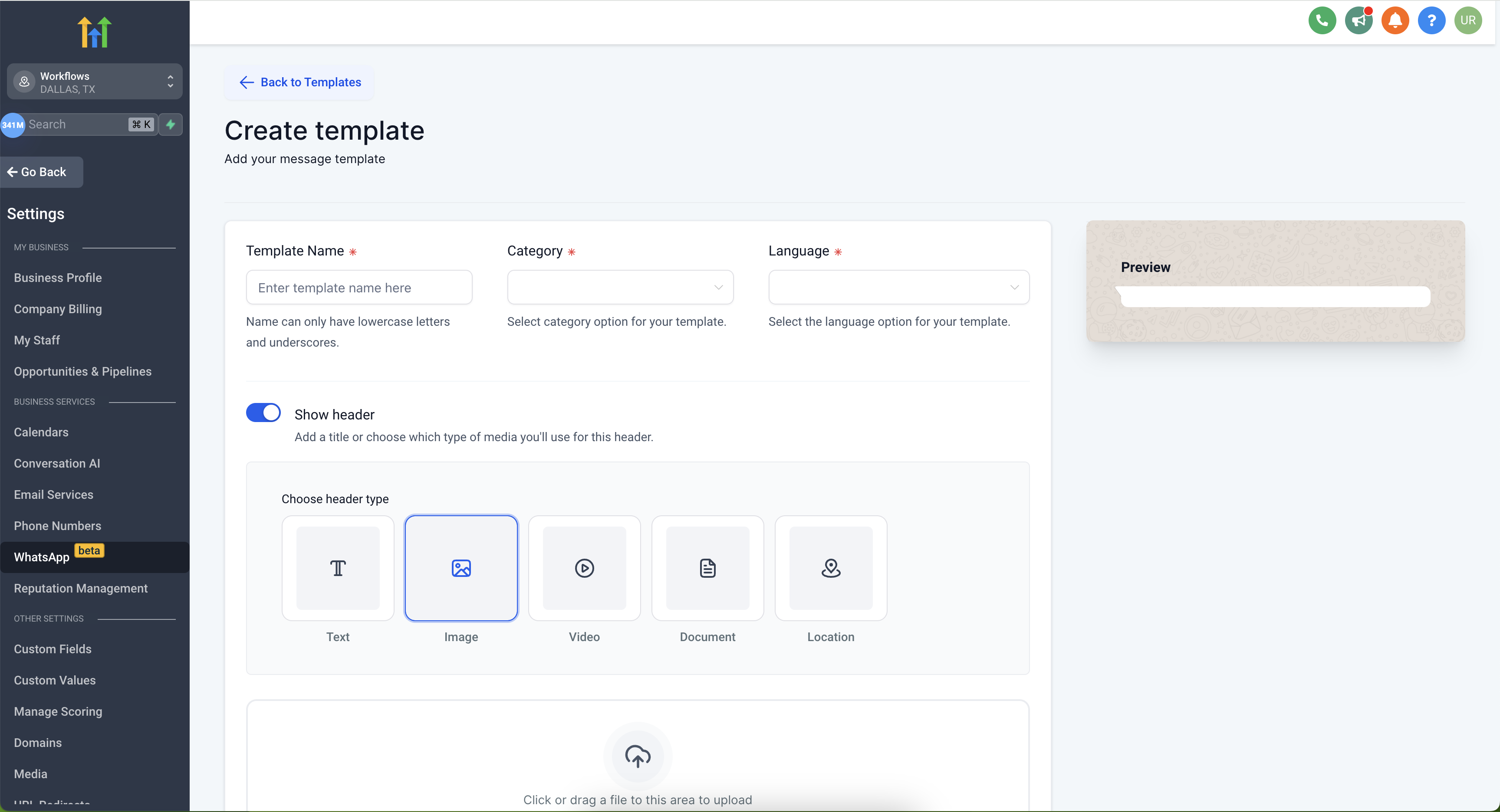
- Open Settings then WhatsApp then Templates and click Create Template.
- Enter a name, choose a category and language, then open the header area and select Media.
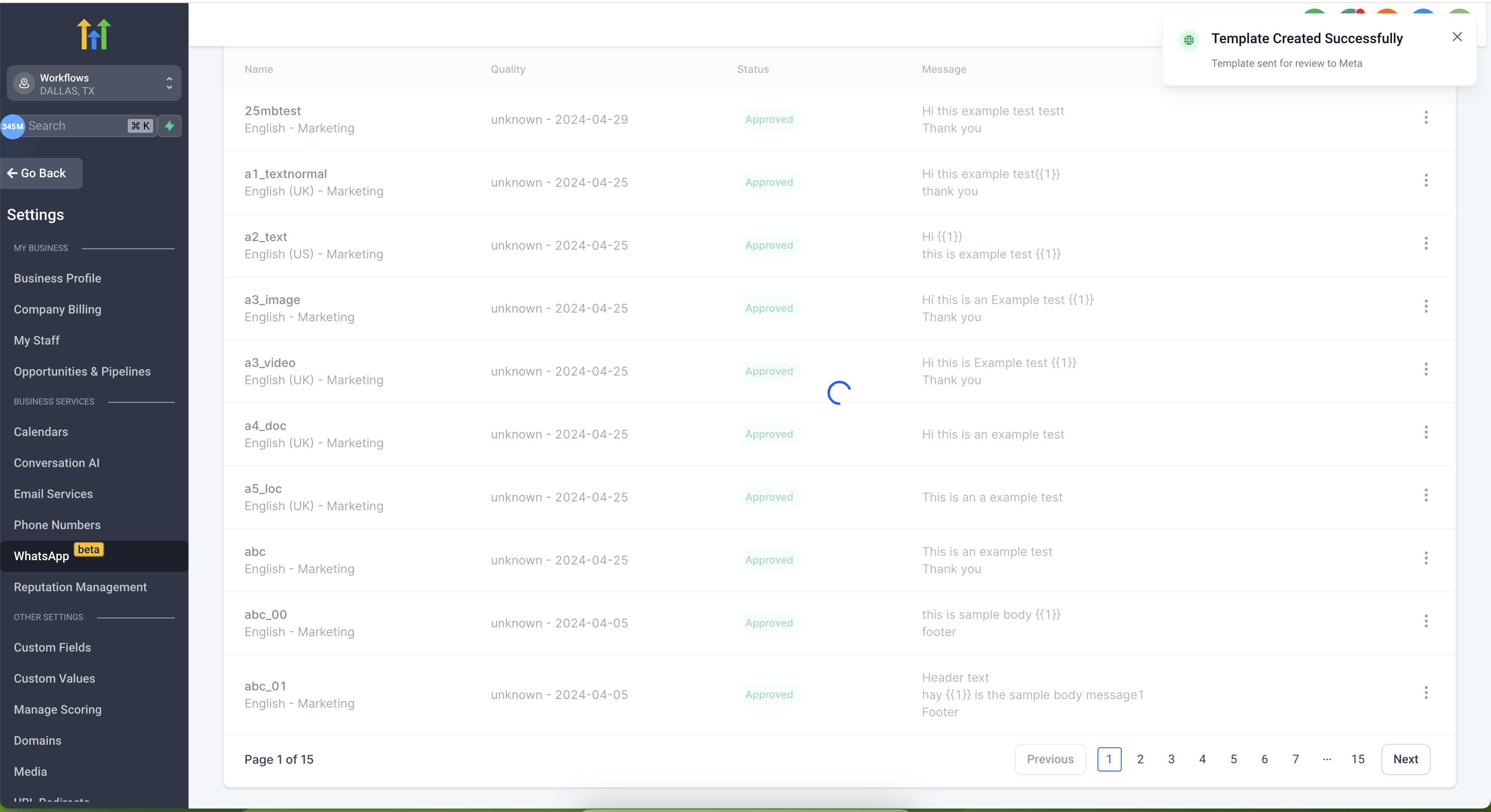
- Upload the chosen file and press Create to submit the template for Meta approval.
Create a location WhatsApp template
- Navigate to Settings > WhatsApp > Templates and start a new template.
- Select the Location option for the template type.
- Enter the latitude and longitude values for the place.
- Provide the location name and its address.
Send media templates from bulk action
- Go to Contacts and open the smart list you want to message.
- Choose all contacts, press the WhatsApp icon, pick a template and give the action a name.
- Open Show Stats, click Processed and review the bulk action results.
Send media templates from workflows
- Enter Automations, create a new workflow and start from a blank canvas.
- Add a trigger that fits the desired condition.
- Insert a WhatsApp action, select the prepared media template and save the workflow.
07What it looks like in HighLevel
08Settings that matter
- Templates. Controls the list of pre approved WhatsApp messages that contain media or location data.
09Things to know before you rely on it
- Document templates accept PDF files up to 100 megabytes.
- Image templates support JPEG or PNG files up to 5 megabytes and must be 8 bit RGB or RGBA.
- Video templates allow MP4 files up to 16 megabytes.
- Uploading a file that exceeds these limits triggers an error message.
10If something goes wrong
- File size is larger than the allowed limit. Resize or compress the media so it fits within the maximum size for its type.
- Media type does not match the template category. Choose a file format that matches the template, for example use an image file for an Image template.
11How it connects to the rest of HighLevel
- Full guide on creating WhatsApp templates Create templates
- How to add WhatsApp actions in automations Workflow integration
- Pricing information for WhatsApp features Pricing
Michael's take

WhatsApp media templates feel like a small convenience that can turn a bland text only outreach into a visual hook. The ability to attach product photos or a map pin lets a business stand out without rebuilding their entire messaging flow.
A boutique ecommerce shop that sends launch teasers and order confirmations benefits quickly. I would draft a single image template, get it approved, and then fire it off in a bulk campaign to announce a new collection.