
01Who this is for
- Marketing teams can showcase multiple products in a single WhatsApp message and trigger workflows based on customer clicks.
- Ecommerce managers can display product categories and automate tag based follow up when contacts interact with specific cards.
02Media card carousel templates, explained
A Media Card Carousel template combines an introductory text with up to ten horizontally scrollable cards. Each card holds a media header, a short description, and up to two buttons that can open URLs, send quick replies, or start a call. The template is classified as a Marketing template and must be approved by Meta before use.
Inside HighLevel, the template lives under Settings > WhatsApp > Templates. After approval, you can send it through workflows, bulk actions, or individual conversations. Button clicks are recorded as Trigger Link events, which can launch any workflow you configure.
Trigger Links are separate records that map a name to a static or dynamic URL. When a contact clicks a button that references a saved Trigger Link, HighLevel logs the click and can start automation such as applying tags or notifying sales.
03How businesses use media card carousel templates
- Furniture retailer. Create a Trigger Link for each furniture category, build a carousel with images of sofas, tables and beds, then set up a workflow that tags contacts based on the clicked button and alerts the sales team.
- Ecommerce manager. Add Trigger Links that point to individual product pages, design a carousel showing product previews, and configure automation to add tags or start nurture sequences when a specific product button is clicked.
- Service provider. Upload videos of service packages, attach URL Trigger Links to schedule appointments, and create a workflow that sends a confirmation tag and notifies the service manager when a client selects a package.
04The numbers and rules that matter
- Introductory message: Up to 1,024 characters.
- Carousel cards: Up to 10 cards.
- Image file size: Maximum 5 MB per image.
- Video file size: Maximum 16 MB per video.
- Card description: Up to 160 characters, including variables.
- Action buttons: Up to 2 per card.
- Supported button types: Quick Reply, Phone Number, URL.
05Before you start
- Prepare media files for each card (image up to 5 MB or video up to 16 MB).
- Write card descriptions and determine the destination URLs.
- Plan the follow up actions that each tracked button will start.
- Confirm the WhatsApp sending number is connected and you have access to template and workflow settings.
06How to set up and use media card carousel templates in HighLevel
Create trigger links
- Navigate to Marketing > Trigger Links > Links.
- Click Add Link.
- Enter a descriptive name and the destination URL.
- Click Save.
Create carousel template
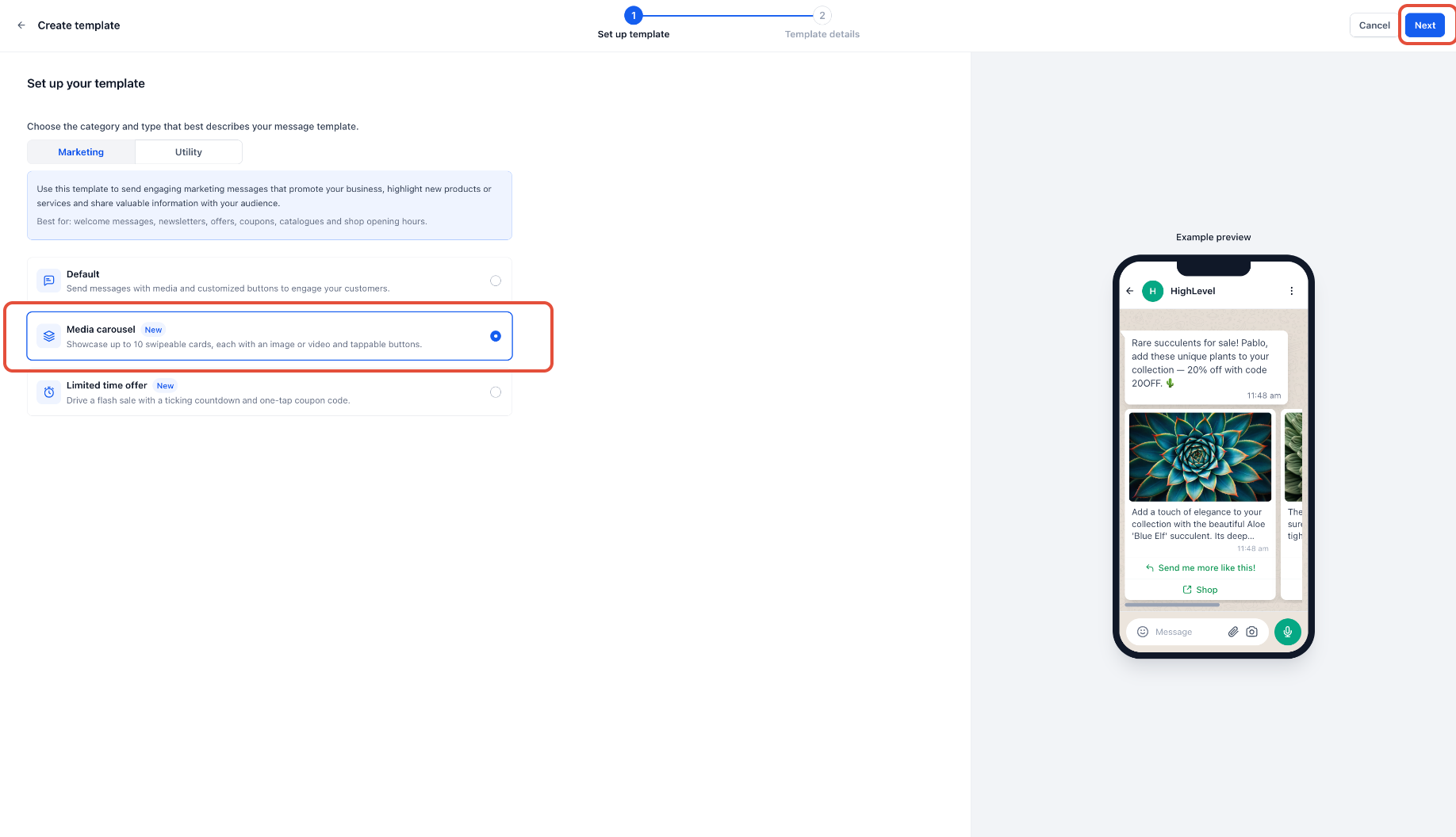
- Go to Settings > WhatsApp > Templates and click Create Template.
- Enter a template name, choose a language, set the category to Marketing, and enable carousel mode.
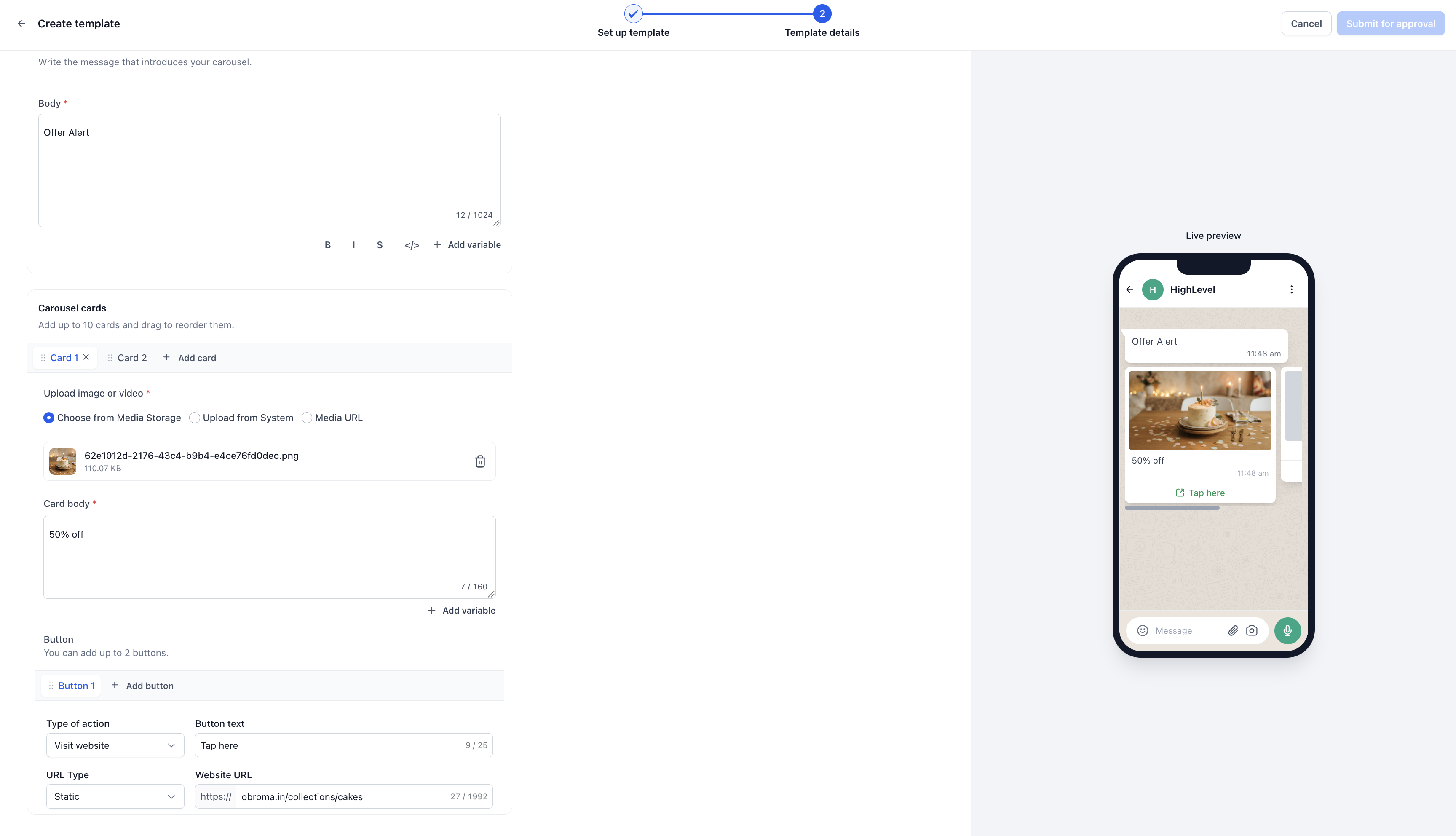
- Write the introductory message and map any variables.
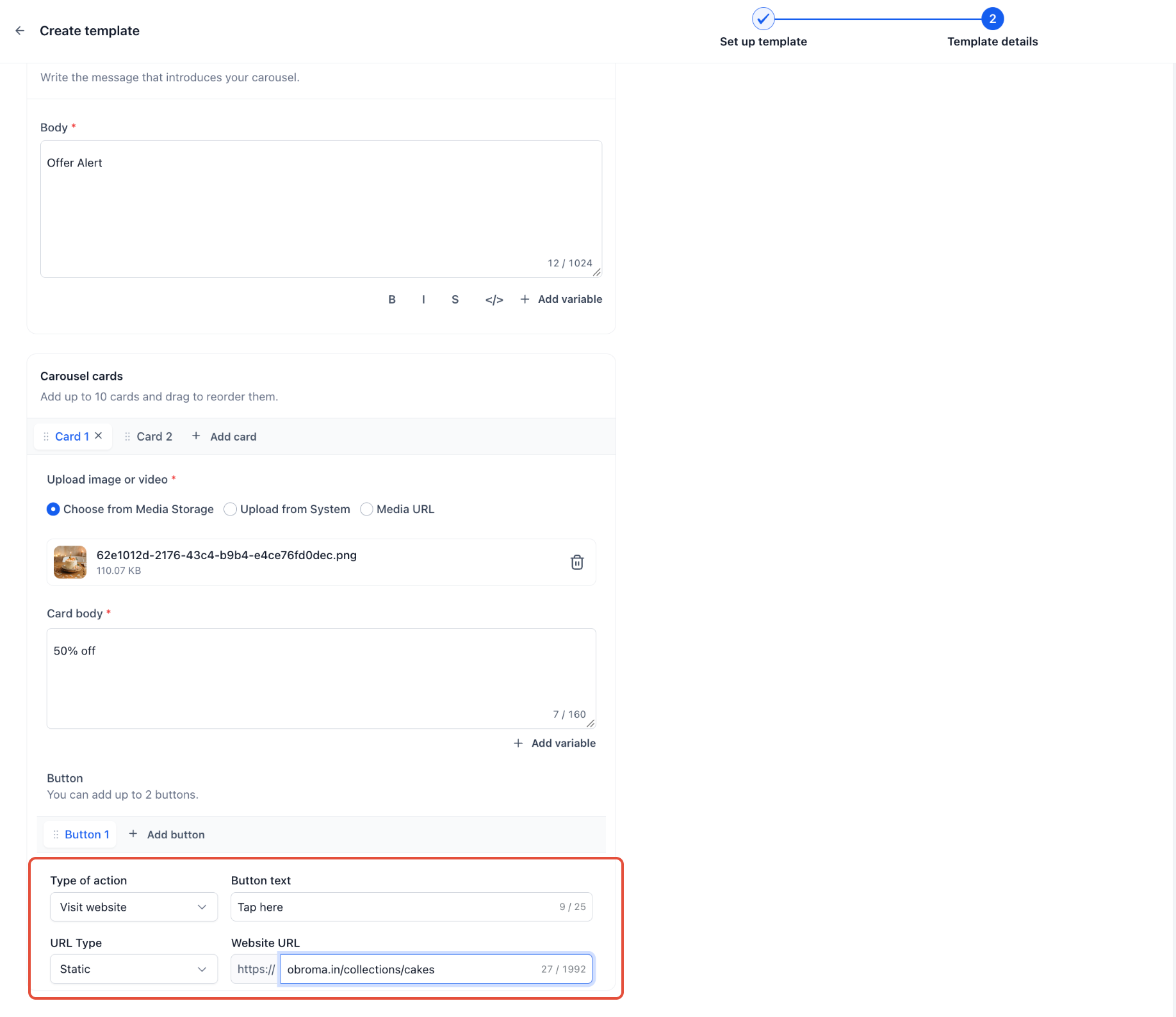
- For each card, upload the media, type the description, and add up to two action buttons.
- Select the saved Trigger Link for any URL button you want to track.
- Review the entire template and submit it for Meta approval.
Configure click based automation
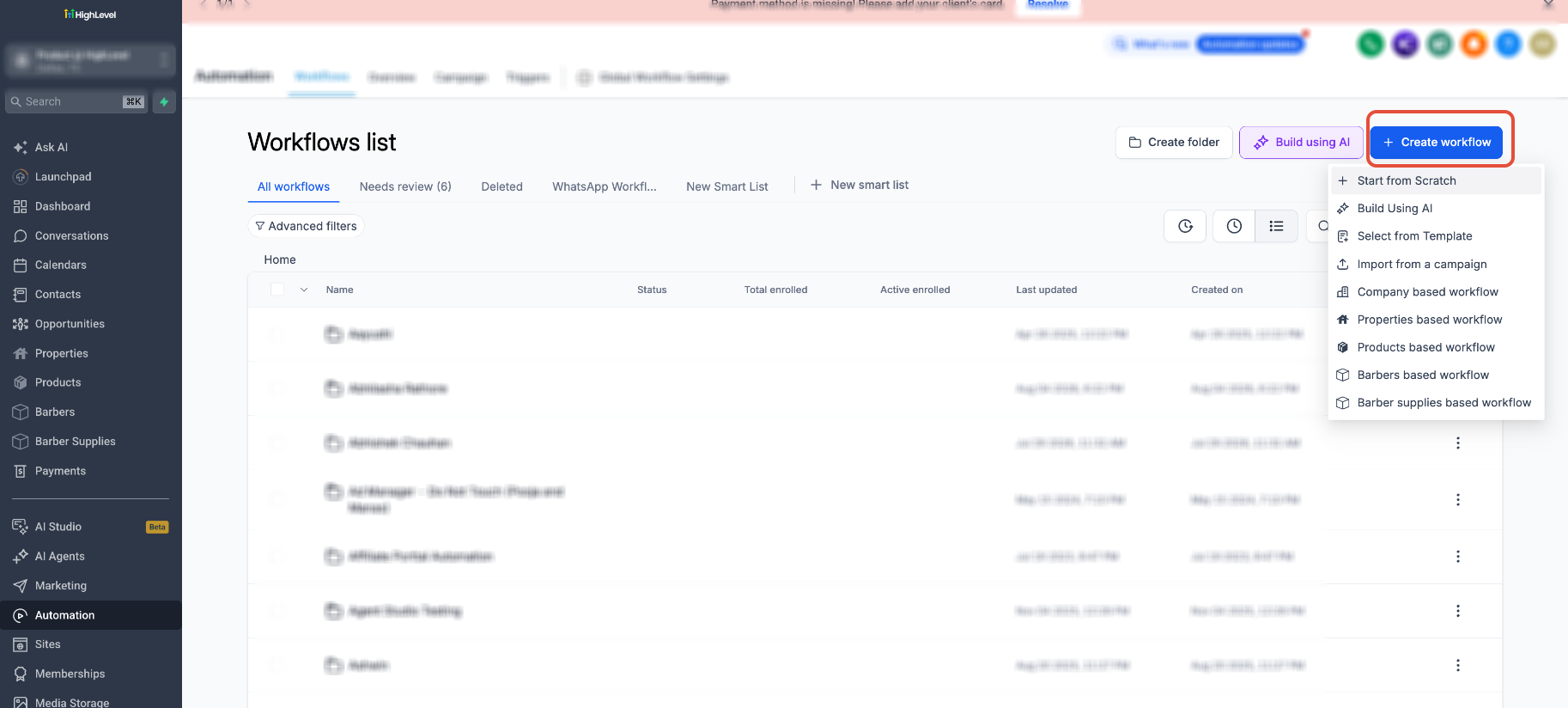
- Open Automation > Workflows and create or edit a workflow.
- Add a Trigger Link filter and set the channel to WhatsApp.
- Select the carousel template that contains the Trigger Links.
- Create branches that correspond to each Trigger Link.
- Save and publish the workflow.
Send your approved carousel
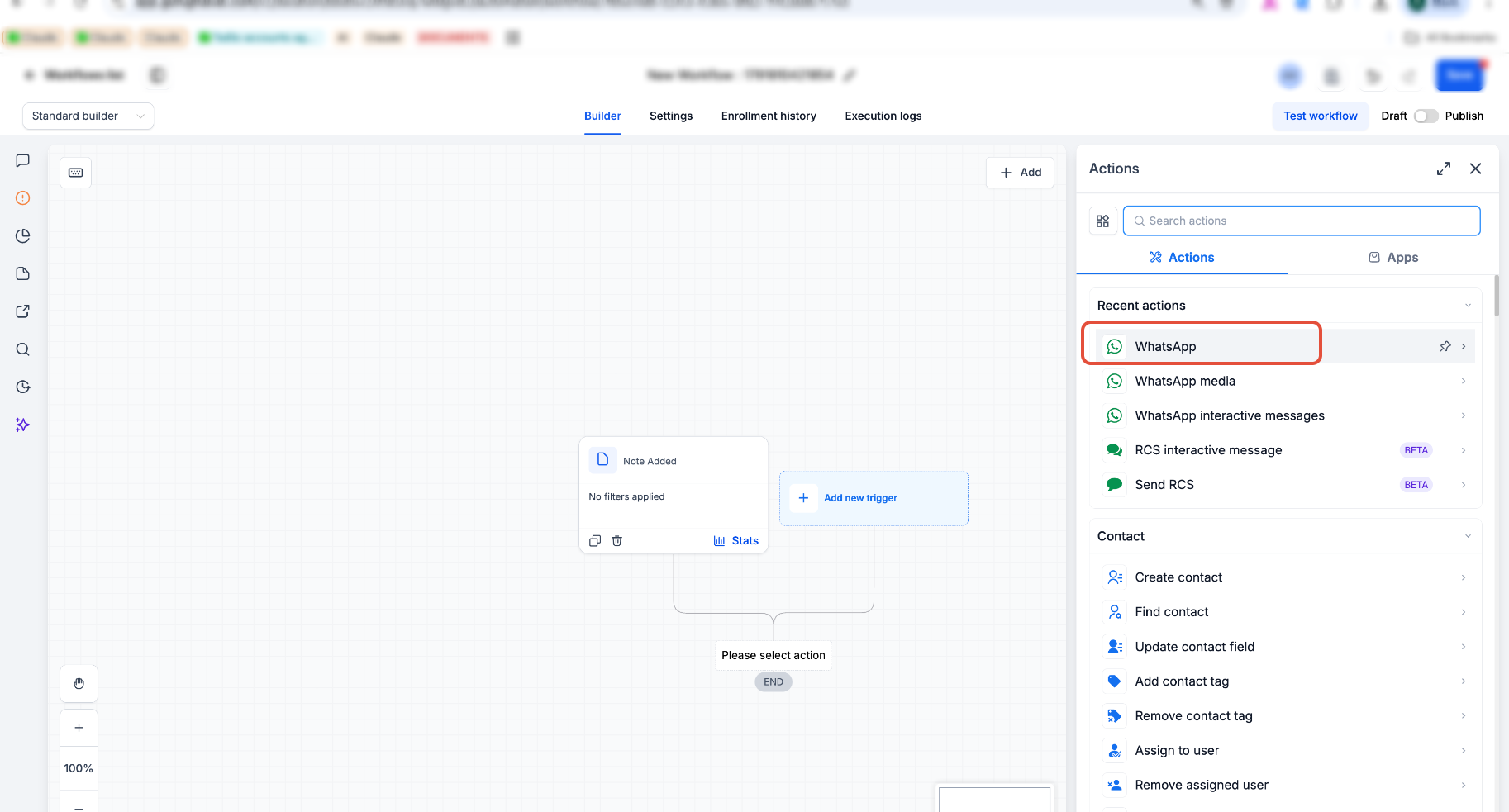
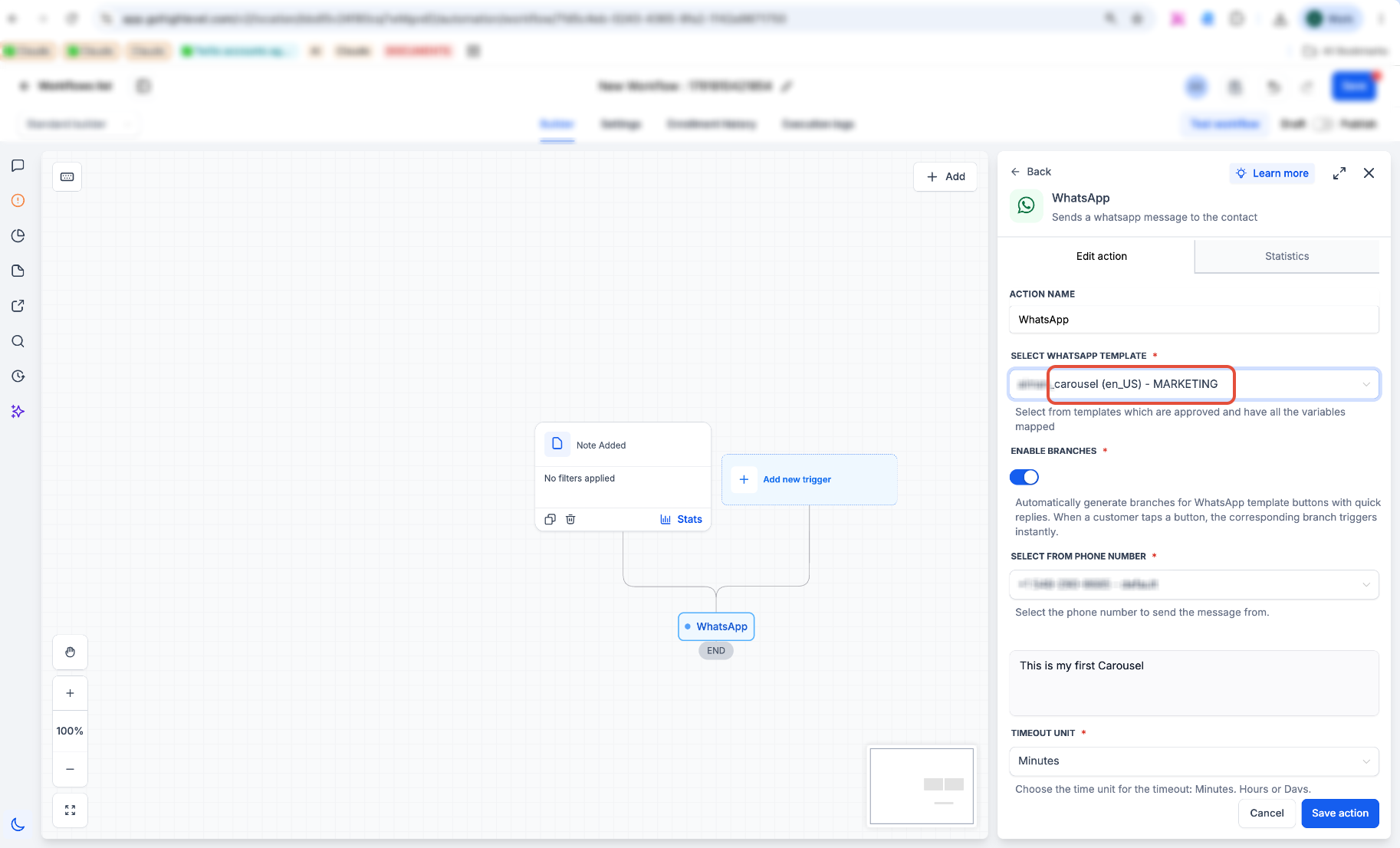
- In a workflow, add a WhatsApp action, choose the connected sending number, and select the approved carousel template.
- Map any required variables and verify the configuration.
- Publish or schedule the workflow to deliver the carousel.
07What it looks like in HighLevel
08Settings that matter
- Marketing → Trigger Links → Links. Stores the name and URL for each clickable button, enabling the platform to record clicks and start automated workflows.
- Settings → WhatsApp → Templates. Where you build, submit and review Media Card Carousel templates, including media uploads and button configuration.
- Automation → Workflows. The area where you create automation that responds to Trigger Link clicks.
- Trigger Link filter. Filters workflow runs to fire only when a specific Trigger Link is clicked in a WhatsApp carousel.
09Things to know before you rely on it
- A carousel can contain up to ten cards.
- Each card header may be an image (max 5 MB) or a video (max 16 MB).
- Card descriptions are limited to 160 characters, including variable values.
- You may add up to two action buttons per card, using Quick Reply, Phone Number or URL types.
- The introductory message may be up to 1,024 characters.
- All cards must share the same header format and button arrangement.
10If something goes wrong
- Carousel option is missing. Ask Support to verify carousel availability for the subaccount and the sending channel you are using.
- Template is rejected. Review Meta's rejection reason, then check card structure, content limits, media size, button setup and sample variable values before resubmitting.
- Media will not upload. Confirm the file format is accepted and that the image or video does not exceed the size limits.
- Personalization is blank or incorrect. Verify the variable mapping and ensure the selected contact or custom value contains the expected data.
- Link opens but workflow does not run. Make sure the button uses the saved Trigger Link, not just a raw URL, and confirm the workflow is published with a matching filter.
- Bulk message fails or is skipped. Check the campaign details for template issues, account restrictions, messaging limits, missing phone numbers or Do Not Disturb settings.
11How it connects to the rest of HighLevel
- Create and manage WhatsApp templates in HighLevel WhatsApp templates
- Set up WhatsApp automation workflows in HighLevel WhatsApp workflows
- Start a 30 day HighLevel trial Free trial
Michael's take

Businesses that need to show several products or services in a single WhatsApp message often struggle with limited space. Media card carousel templates let you scroll through cards, each with its own image, description and a button you can track.
The first thing I would get right is the Trigger Links. Make sure each button you want to measure has its own saved link so the follow up workflow fires correctly.
Once the links are set, I would test the whole flow with an internal contact. Open every card, tap each button, watch the destination open, and verify that the tag or notification appears in the workflow.