
01Who this is for
- Ecommerce owners can display a flash sale deadline to push quick purchases.
- Salon or clinic managers can promote same day appointment discounts with a visible timer.
- Online course providers can alert students to early bird pricing that ends at a set time.
02Limited time offer templates, explained
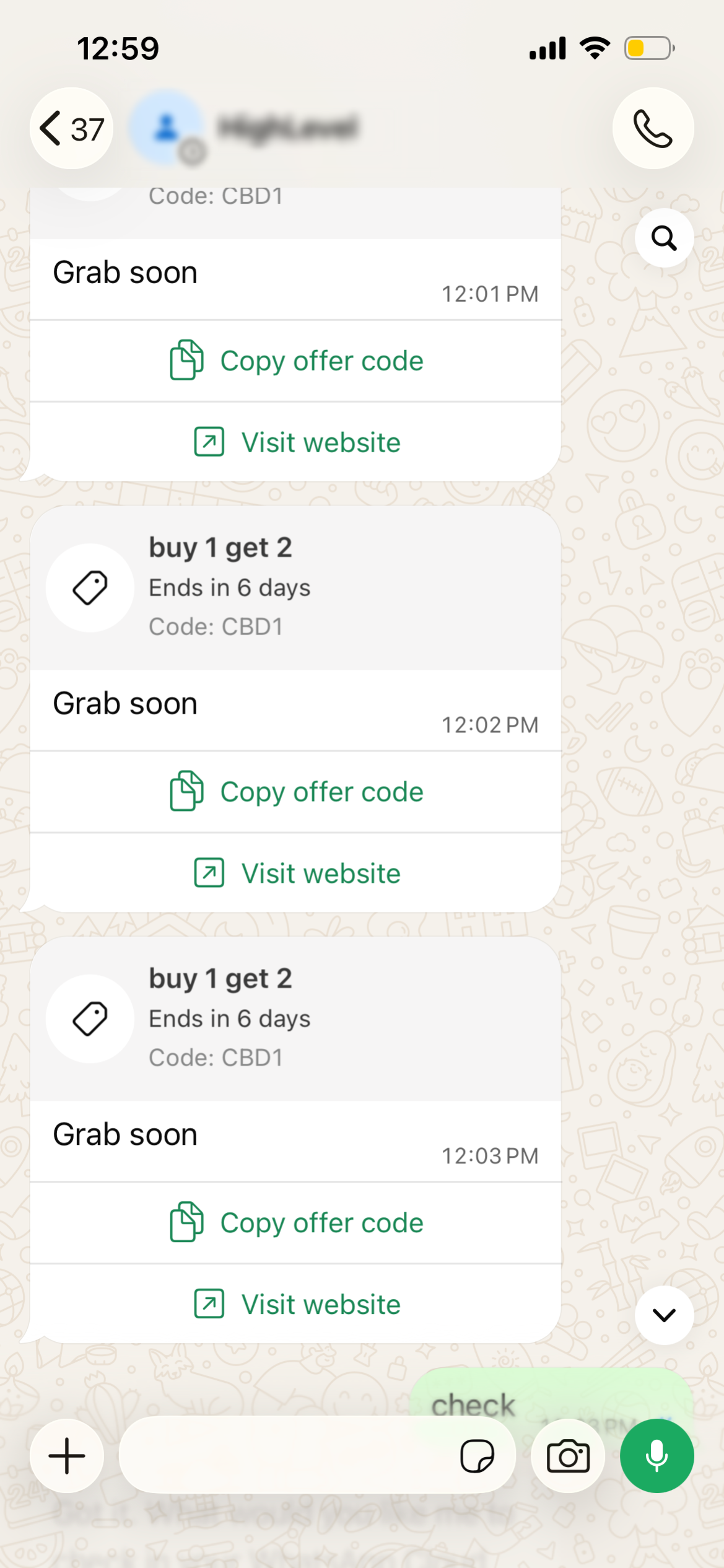
Limited Time Offer templates belong to the Marketing category in the WhatsApp template builder. After Meta approval, the template shows an image or video header, a body that can include personalization variables, and two required buttons, one to copy a promo code and one to open a URL. The countdown timer appears only on WhatsApp for iOS and Android, turning red in the final hour.
The template lives under Settings > WhatsApp > Templates in each subaccount. While the template itself stays static, the expiration date and promotional code are provided each time the message is sent, allowing the same approved template to be reused for different campaigns.
03How businesses use limited time offer templates
- Ecommerce store. Create an LTO template that advertises a 4 hour flash sale. When a shopper abandons a cart, select the template from the conversation composer, verify the promotion code and deadline, and send it to encourage checkout.
- Hair salon. Build a template that offers a discounted same day slot. During the daily schedule review, open the client’s conversation, pick the approved LTO template, confirm the end of day expiration, and send the message.
- Online course platform. Design an LTO template for an early bird enrollment discount. In the conversation with a prospective student, choose the template, replace the header image if needed, ensure the correct promo code and deadline, then deliver the offer.
04The numbers and rules that matter
- Messages sent outside the 24 hour customer service window count toward Meta messaging tier limits.
05Before you start
- The subaccount must have an active WhatsApp subscription and completed onboarding.
- You need the Create/Edit WhatsApp Templates permission in Roles & Permissions.
- All offer details, text, code, expiration date and header media, must be prepared.
- Contacts must have opted in to receive WhatsApp messages.
- If the Limited Time Offer type is missing, open Settings > Labs in the subaccount and enable WhatsApp Limited Time Offers.
06How to set up and use limited time offer templates in HighLevel
Create an LTO template
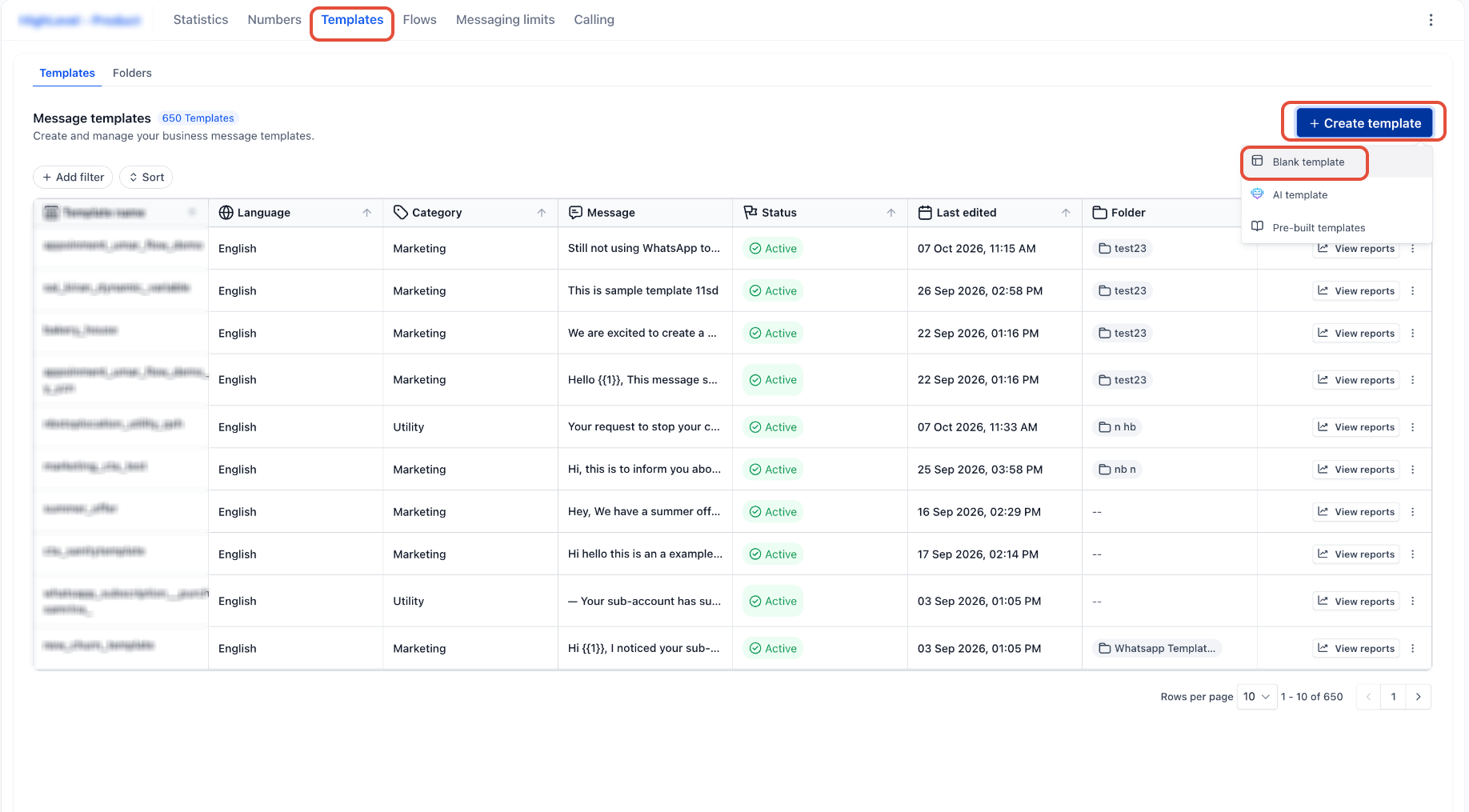
- Open Settings > WhatsApp > Templates in the subaccount.
- Click Create Template and select Blank Template.
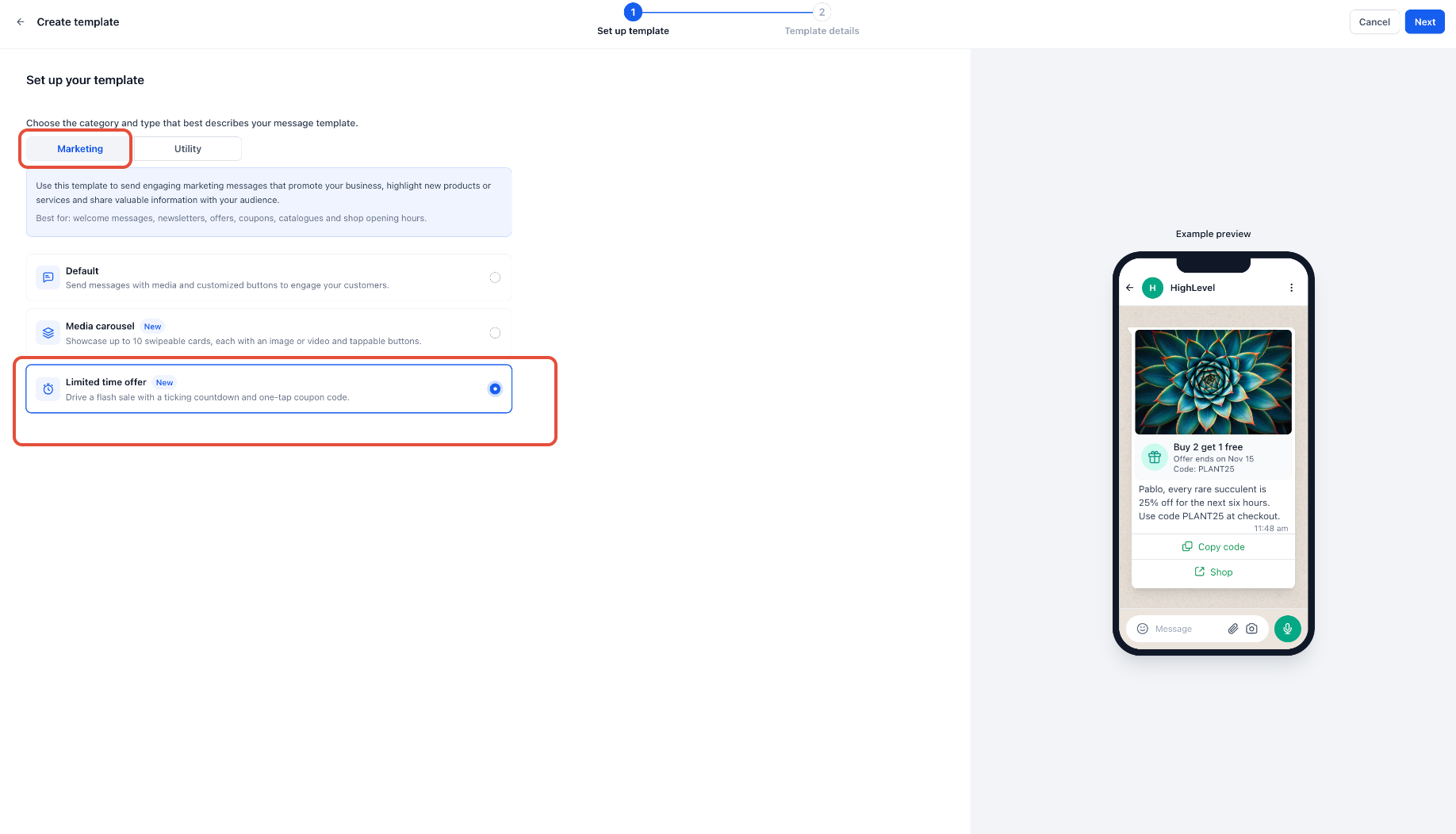
- Choose Marketing as the category, pick Limited time offer, then continue.
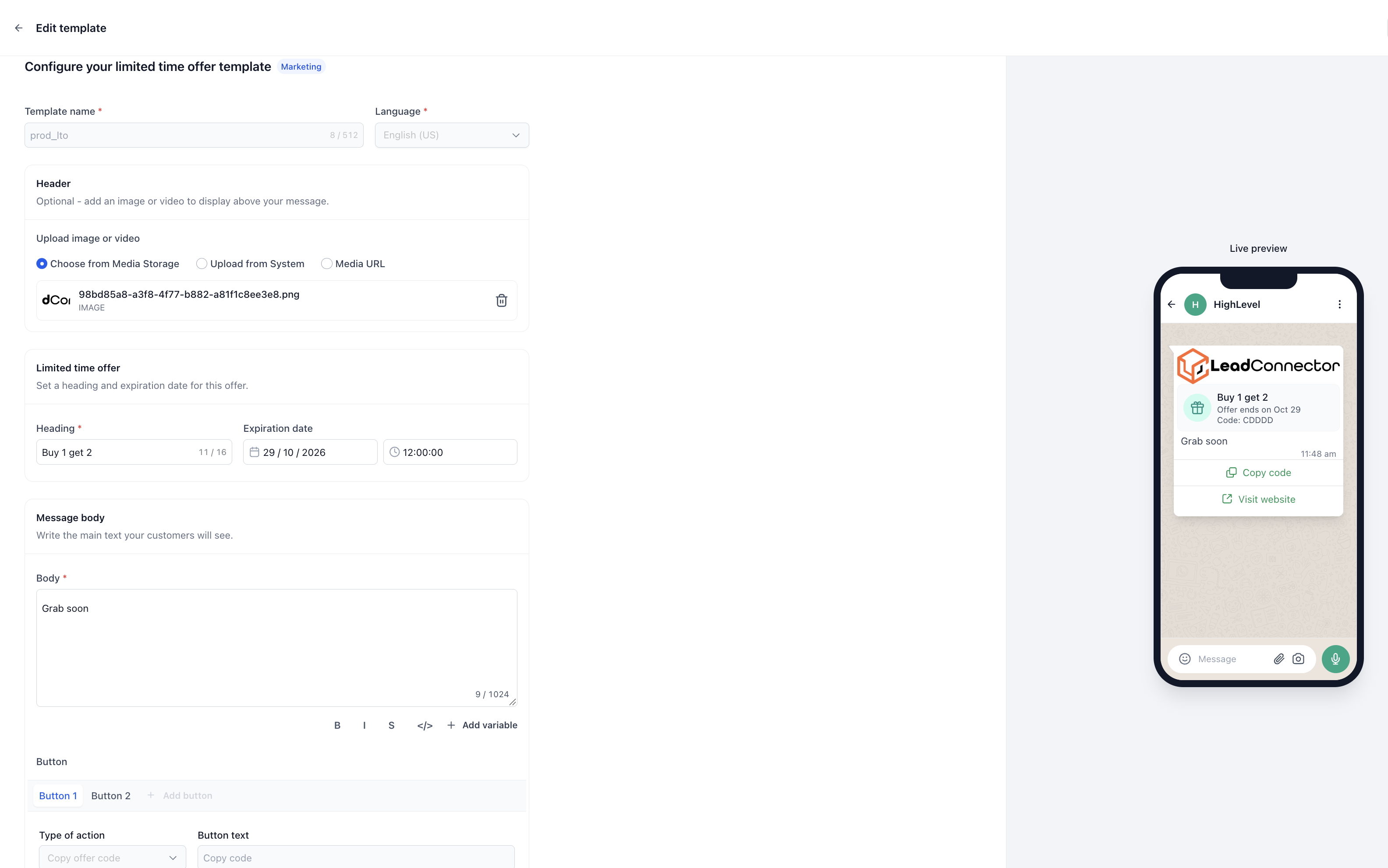
- Enter a template name and select the language.
- Upload a header image or video if desired.
- Fill in the offer heading and set the expiration date and time.
- Write the body message, inserting {{1}} for the customer name and {{2}} for the promo code, and provide realistic sample values.
- Add the required Copy code button details.
- Add the required URL button details.
- Review the live preview, resolve any validation errors, and click Submit for approval.
- Return to Settings > WhatsApp > Templates to monitor the approval status and re submit if rejected.
Send an LTO template from a conversation
- Open Conversations in the subaccount.
- Select the contact’s conversation and switch the channel to WhatsApp.
- Click the template icon in the message composer.
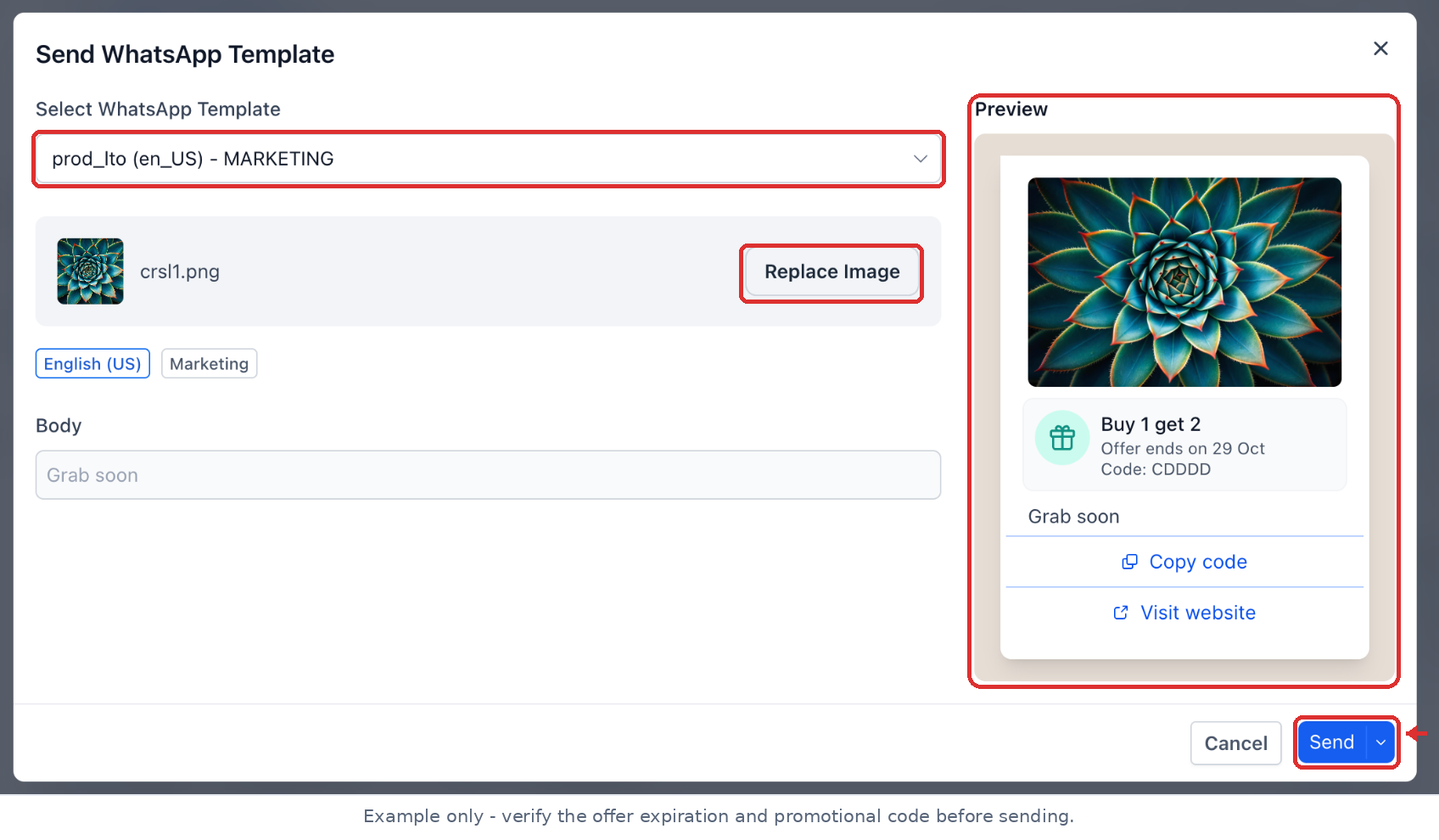
- Choose Send WhatsApp Template and select the approved LTO template.
- Review the preview, media and message content.
- If needed, click Replace Image to change the header image.
- Confirm the expiration deadline and promotional code displayed.
- Press Send to deliver the message.
07What it looks like in HighLevel
08Settings that matter
- Create/Edit WhatsApp Templates permission. Controls whether a user can build or modify WhatsApp templates, including Limited Time Offer types.
- WhatsApp Limited Time Offers (Labs). Enables the Limited Time Offer template type if the Labs feature is available in the subaccount.
09Things to know before you rely on it
- Only the Marketing category supports Limited Time Offer templates; Utility or Authentication categories cannot be used.
- Templates cannot include a footer component; adding one causes Meta rejection.
- Both Copy code and URL buttons are mandatory and cannot be removed.
- The countdown timer is visible only on WhatsApp for iOS and Android; desktop clients may show an unsupported message notice.
- Meta currently blocks Marketing template delivery to U.S. phone numbers.
- Each send counts toward your Meta messaging tier limits when outside the 24 hour service window.
10How it connects to the rest of HighLevel
- Full guide on creating and managing WhatsApp templates WhatsApp template guide
- Set up WhatsApp for a subaccount and enable Labs features Subaccount WhatsApp setup
- HighLevel pricing and plans for WhatsApp add ons Pricing page
Michael's take

Limited time offer templates feel like a small convenience that can turn a regular promotion into a real shift in response rates. The visible countdown and one tap copy code give customers a clear reason to act now.
A retail store running flash sales benefits most. The timer shows shoppers exactly how much time they have left, while the copy code button removes friction. If I were setting one up, I’d start with a single template, test approval, and verify the timer works on iOS before using it in a bulk campaign.