
01Who this is for
- Health clinics, allow patients to schedule visits directly within WhatsApp, avoiding external booking pages.
- Freelance service providers, enable instant consultation scheduling during a chat to speed up lead conversion.
- Retail appointment services, let customers book in store fittings or demos without leaving the messaging app.
02WhatsApp flows, explained
WhatsApp Flows are interactive chat sequences that collect required booking information and confirm appointments without leaving the WhatsApp messenger. A flow pulls data from a HighLevel calendar, fills in default fields such as name, email, phone and time zone, and presents the user with a guided step by step experience.
The feature is accessed through Settings > WhatsApp > Flows for creation, and can be delivered either by attaching it to a WhatsApp template button or by triggering it inside an open conversation via a workflow. Flow content, including header, body, footer and button text, must be defined before publishing. Ask AI can also manage the entire flow lifecycle through conversational prompts.
03How businesses use WhatsApp flows
- Dental practice. The practice creates a Flow linked to its appointment calendar, then adds a button to a reminder template. When a patient receives the template, tapping the button opens the booking Flow inside WhatsApp, allowing the patient to choose a time slot.
- Personal trainer. The trainer builds a Flow for session bookings and includes the Flow action in a workflow that runs when a client opens a service conversation. The trainer’s workflow sends the Flow automatically, letting the client pick a training slot without leaving the chat.
- Real estate agency. Agents set up a Flow for property showing appointments, then embed a Flow button in a WhatsApp template sent to prospects. Prospects click the button, complete the guided booking, and the appointment is recorded on the agency’s calendar.
04The numbers and rules that matter
- The first 1,000 service conversations for appointment booking are free each month.
05Before you start
- A HighLevel calendar must exist for the appointment bookings.
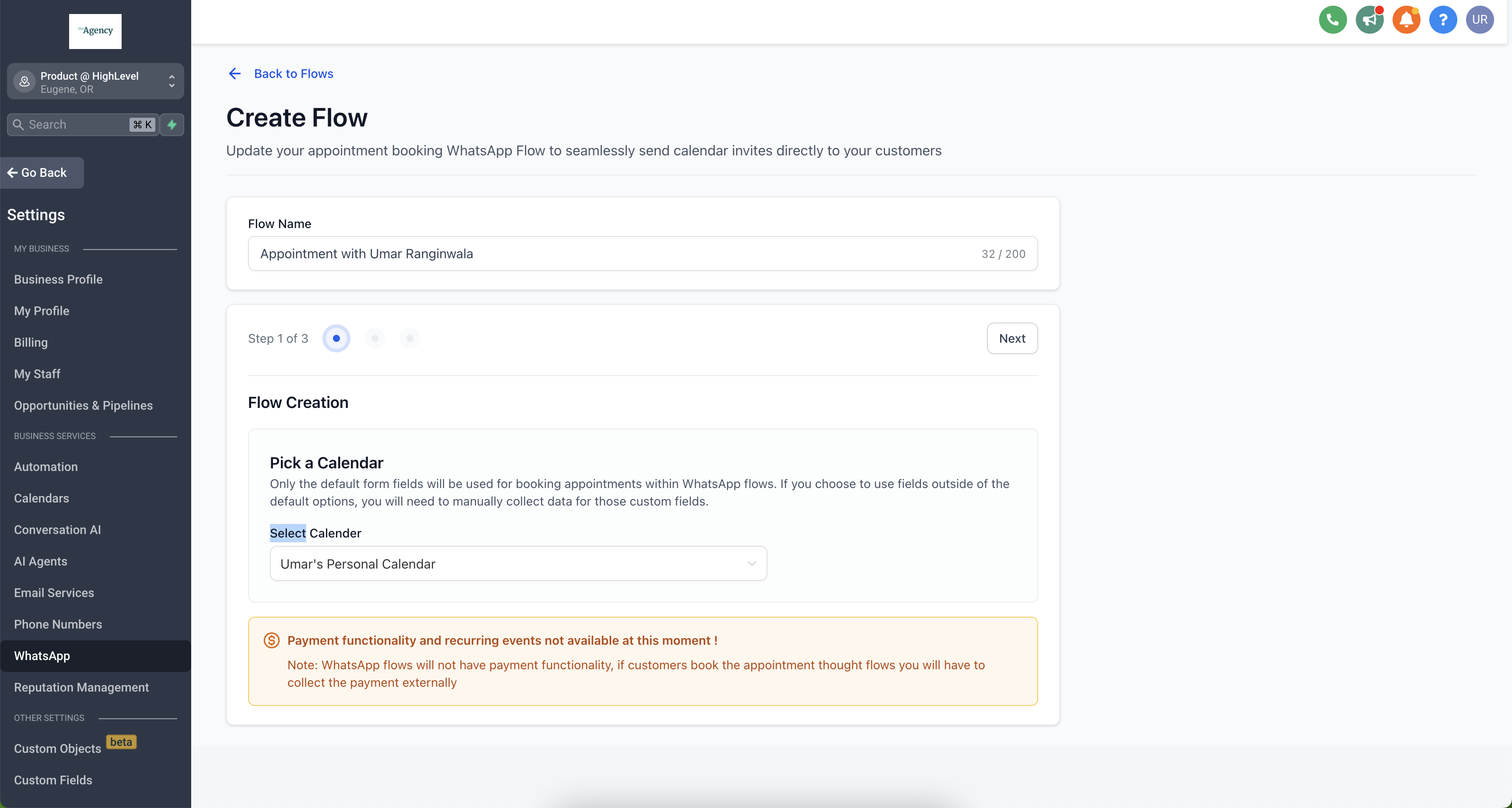
- The selected calendar cannot have payments enabled.
- Recurring calendar events are not supported by WhatsApp Flows.
06How to set up and use WhatsApp flows in HighLevel
Create an appointment booking flow
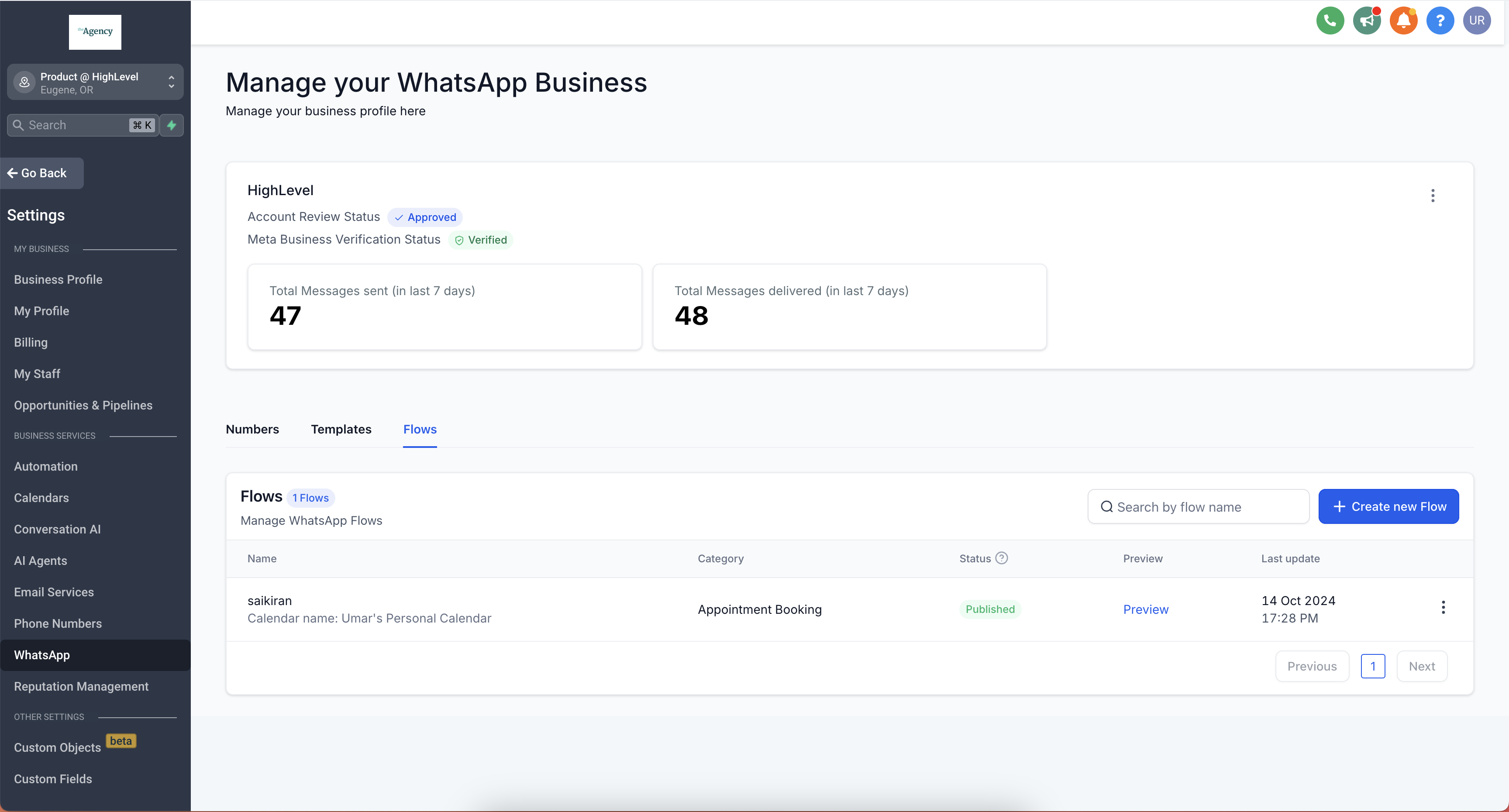
- Navigate to Settings > WhatsApp > Flows.
- Click Create new Flow, enter a flow name, pick the calendar for appointments, and click Next.
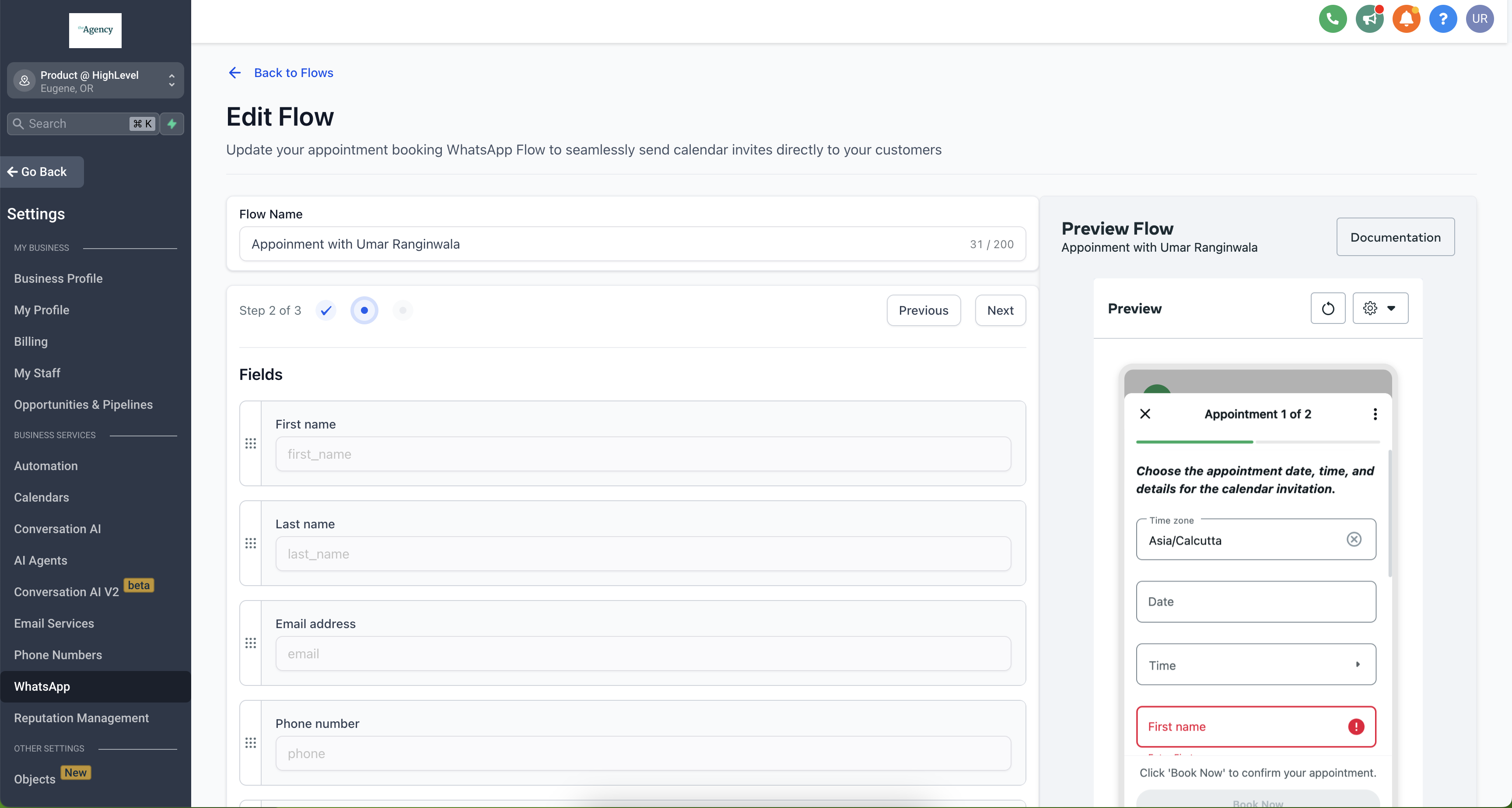
- Arrange the default form fields in the desired order.
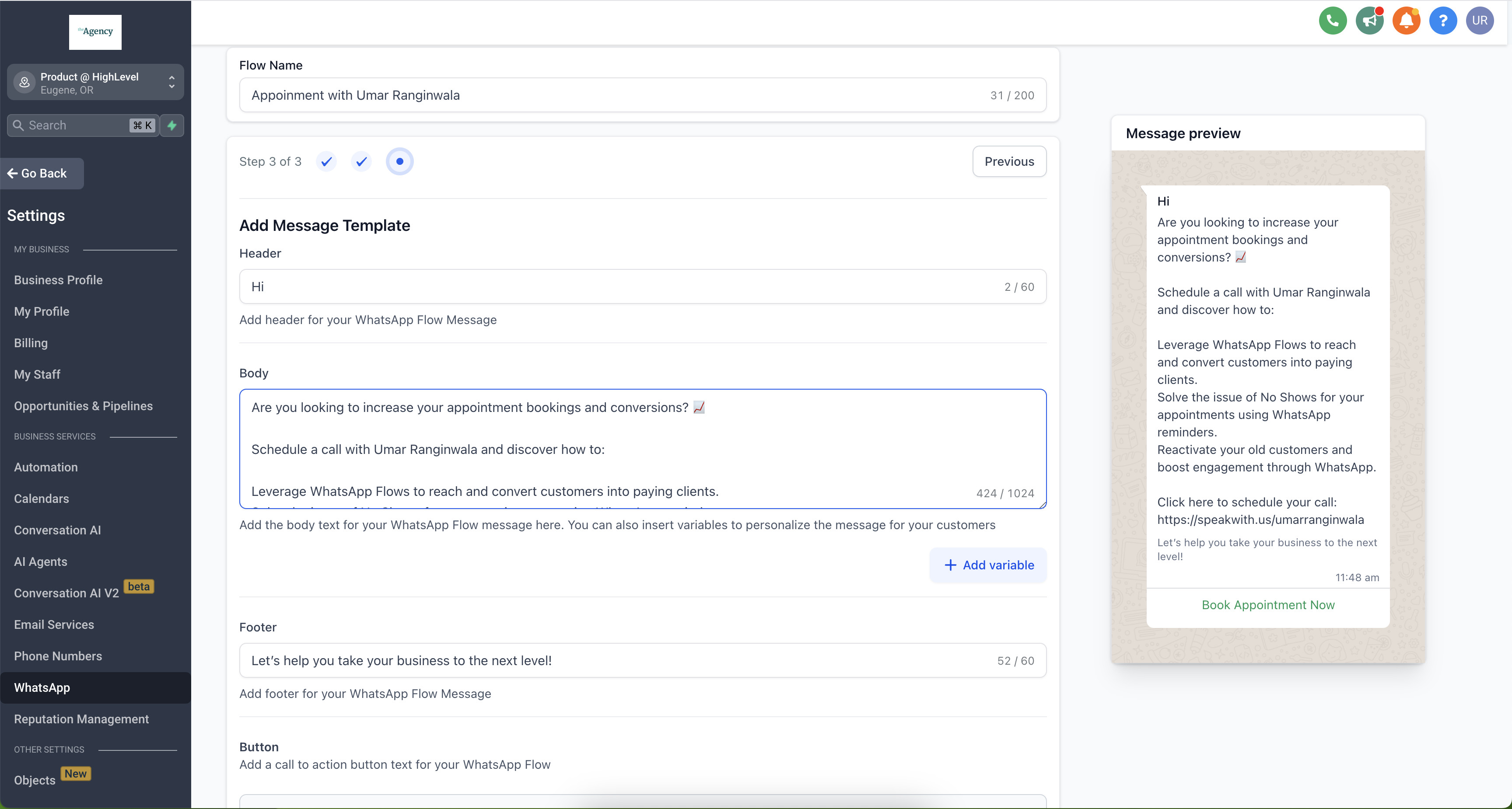
- Add Header, Body, Footer and Button text, then click Publish.
- Note: Calendars with payments enabled are not supported because WhatsApp does not process payments.
Send a flow through a template
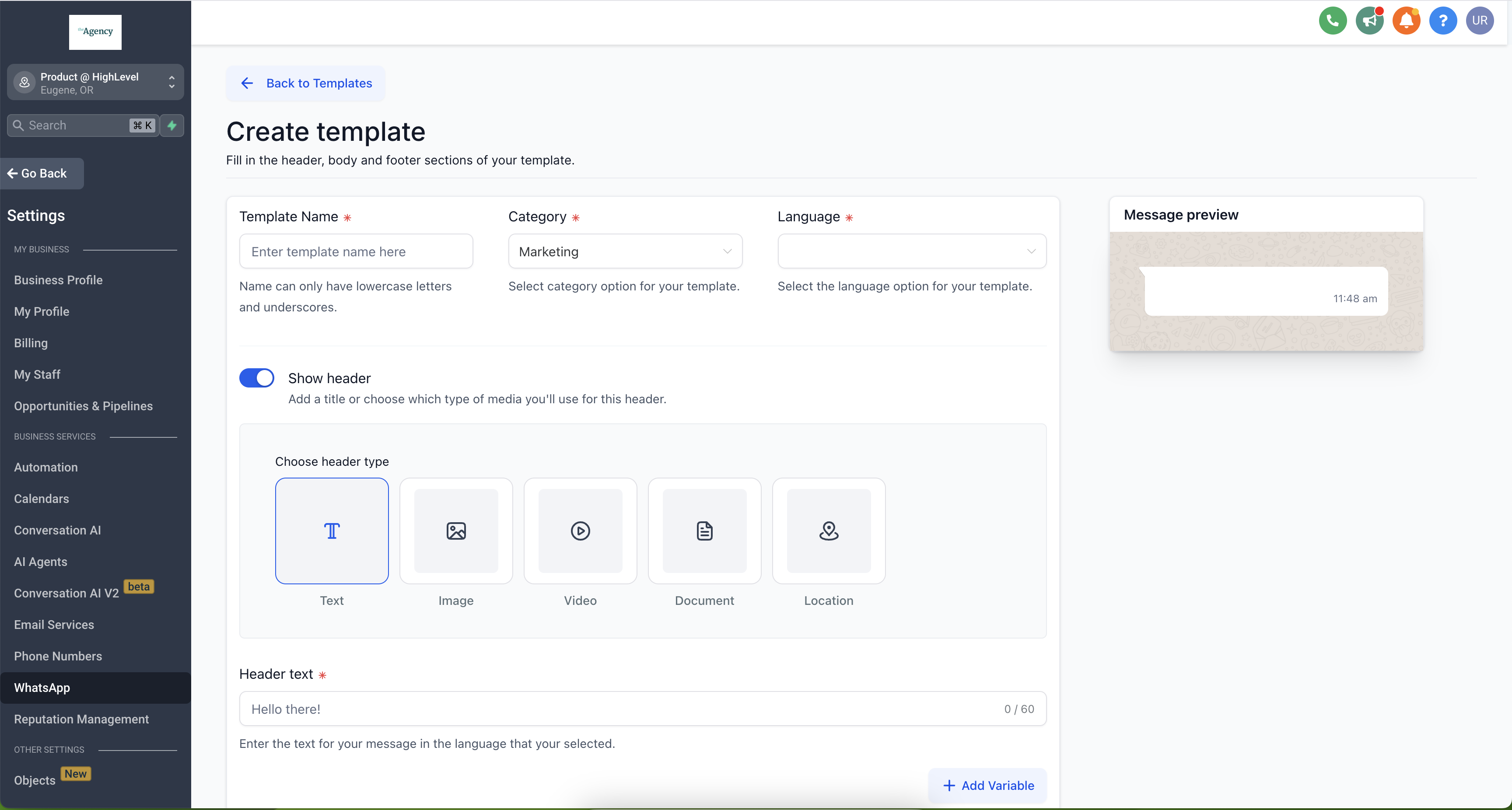
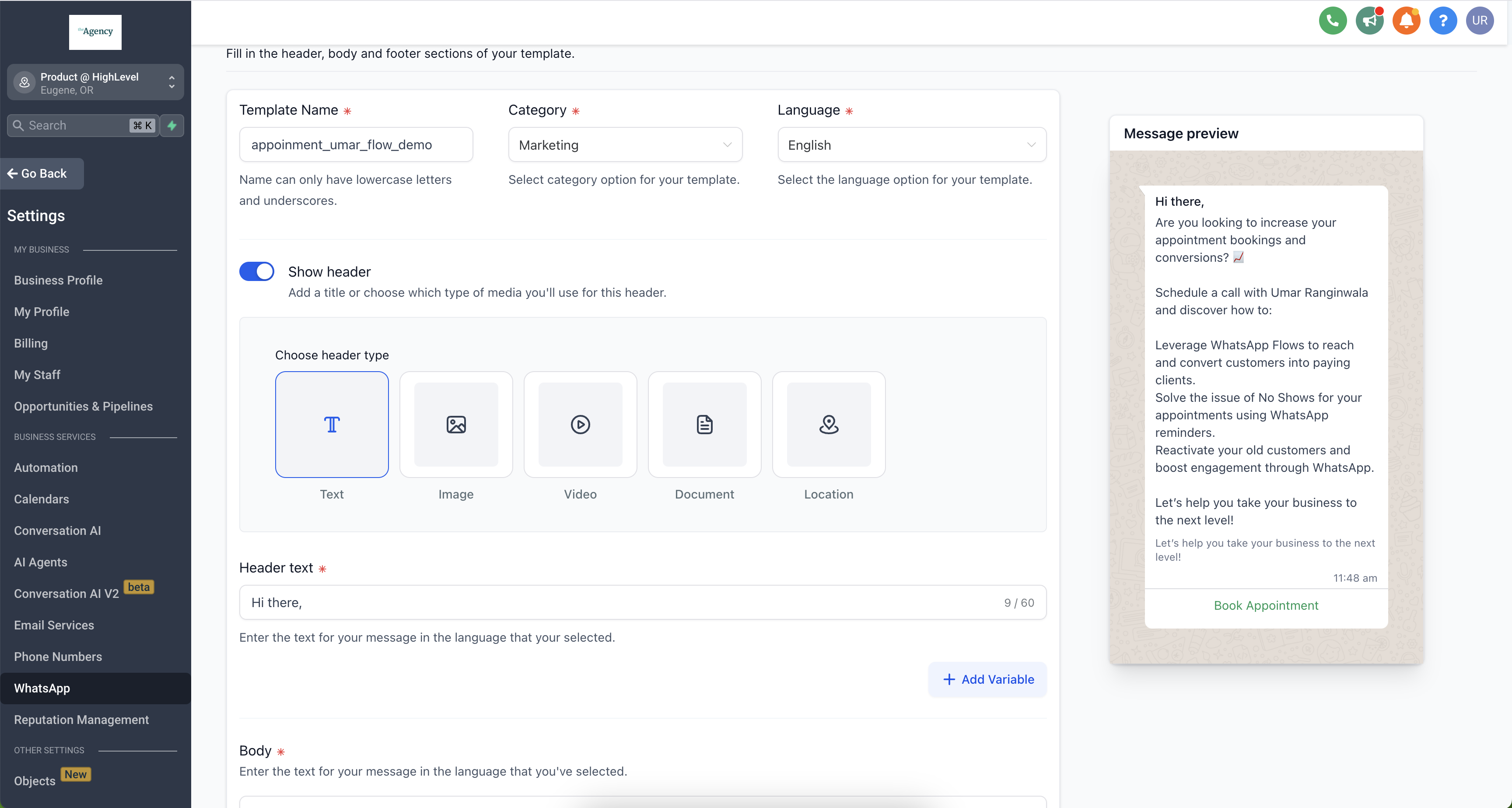
- Navigate to WhatsApp > Templates > Create Template.
- Add the template name, category, language, header text, body and footer.
- Add a button, set its type to Flow, and link it to the desired WhatsApp Flow.
Send a WhatsApp Flow inside an open conversation (Option 2)
- Create a new workflow from Automations > Create Workflow > Start from Scratch.
- Add the WhatsApp: Customer Service Window Check action and save it.
- Under the Open branch, add the WhatsApp: Send Flows action and select the Flow to send.
- Click Save Action to finish configuring the workflow.
Manage flows with Ask AI
- Open Ask AI for WhatsApp and type a prompt to create a new appointment booking Flow, specifying the calendar to use.
- Enter a prompt to update, publish or deprecate an existing Flow, such as changing a question or availability rule.
- Use a prompt to delete a Flow when it is no longer needed.
07What it looks like in HighLevel
08Settings that matter
- Header. Defines the top line of text shown to the user at the start of the Flow.
- Body. Provides the main message displayed within the Flow before form fields appear.
- Footer. Shows supplemental text at the bottom of the Flow, often for legal or contact info.
- Button text. Sets the label of the call to action button that users tap to submit the Flow.
- Default form fields. Controls which standard fields (name, email, phone, time zone) are presented for the booking.
09Things to know before you rely on it
- Calendars with payment options cannot be used because WhatsApp does not support payments.
- Recurring calendar events are not supported for WhatsApp Flows.
- Only the default form fields are available; custom fields must be managed manually.
- Guest booking functionality is not available within the Flow.
- The first 1,000 service conversations for appointment booking are free each month; additional usage follows WhatsApp pricing.
- Flows are not supported when the subaccount uses a Coex WhatsApp integration, as Meta does not allow Flows for Coex.
10How it connects to the rest of HighLevel
- Set up WhatsApp automation workflows to trigger flows from other actions. WhatsApp workflow integration
- Create and manage WhatsApp templates that can include Flow buttons. WhatsApp template guide
- Configure WhatsApp for a subaccount before using Flows. WhatsApp subaccount setup
Michael's take

WhatsApp flows turn a casual chat into a booking engine, which can help small businesses that rely on appointments.
The free 1,000 monthly conversations let you test the impact without spending a dime.
WhatsApp can’t process payments, so you can’t sell paid services through a flow.