
01Who this is for
- Businesses that use HighLevel can manage WhatsApp messaging costs by sending free form replies while the service window is active.
- Teams that need to respond to inbound customer messages within 24 hours can rely on the condition to avoid template fees.
02WhatsApp customer service windows, explained
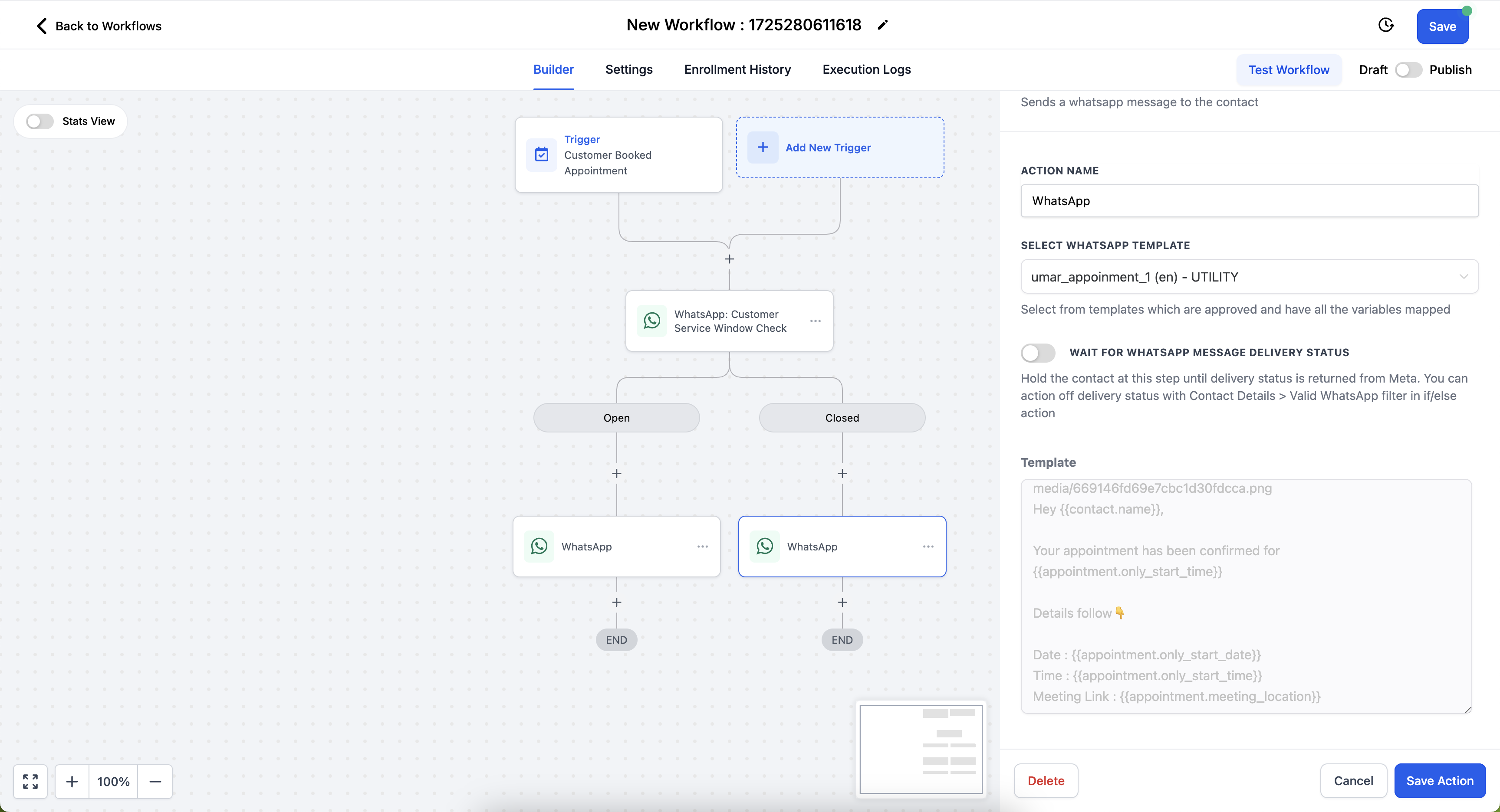
The WhatsApp: Customer Service Window Check is a workflow condition that determines if a 24 hour customer service window is currently open between your business and a contact. It is available in the Automations > Workflows area.
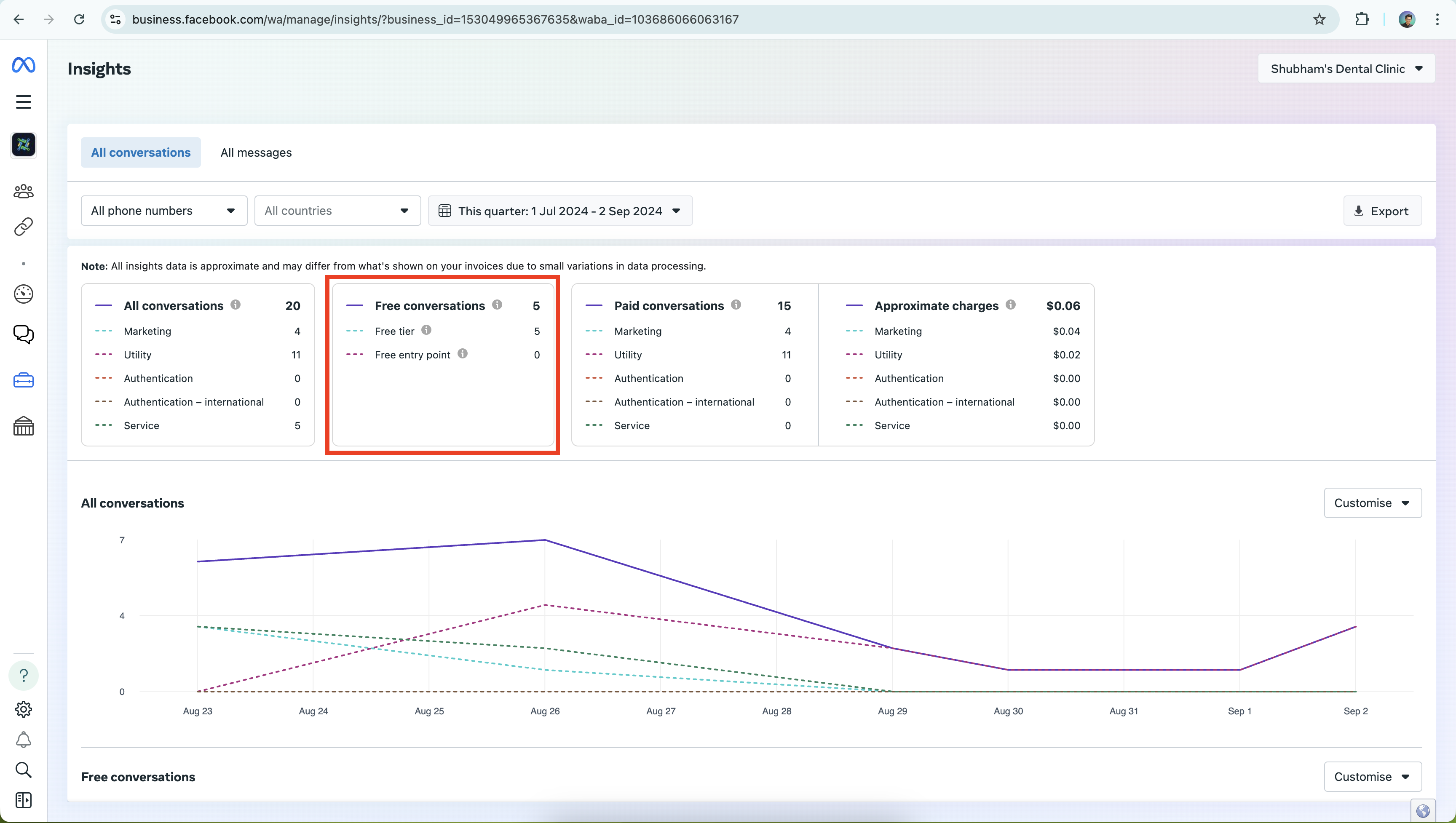
When the window is open, you may send free form WhatsApp messages at no charge. Each WhatsApp Business Account receives 1,000 free service conversations per month; after that, standard charges apply.
If the window is closed, only approved marketing or utility templates can start a new conversation. The condition lets you branch actions based on the window status.
03How businesses use WhatsApp customer service windows
- Digital marketing agency. The agency creates a workflow that checks the service window before sending client specific free form messages. If the window is open, the workflow sends the message directly; if closed, it falls back to a marketing template.
- Online retailer. The retailer builds an order status workflow that first verifies the window. Within the open window, the retailer can answer customer questions about shipping with free form texts, avoiding template fees.
- Appointment based service. The service provider sets up a reminder workflow that uses the window check. When a client replies to a reminder, the open window allows the provider to send follow up details as free form messages.
04The numbers and rules that matter
- Each WhatsApp Business Account gets 1,000 free service conversations each month.
05Before you start
- WhatsApp must be subscribed and enabled on the location account.
- If you plan to send business initiated messages, an approved WhatsApp template must exist.
06How to set up and use WhatsApp customer service windows in HighLevel
Set up WhatsApp: Customer Service Window Check
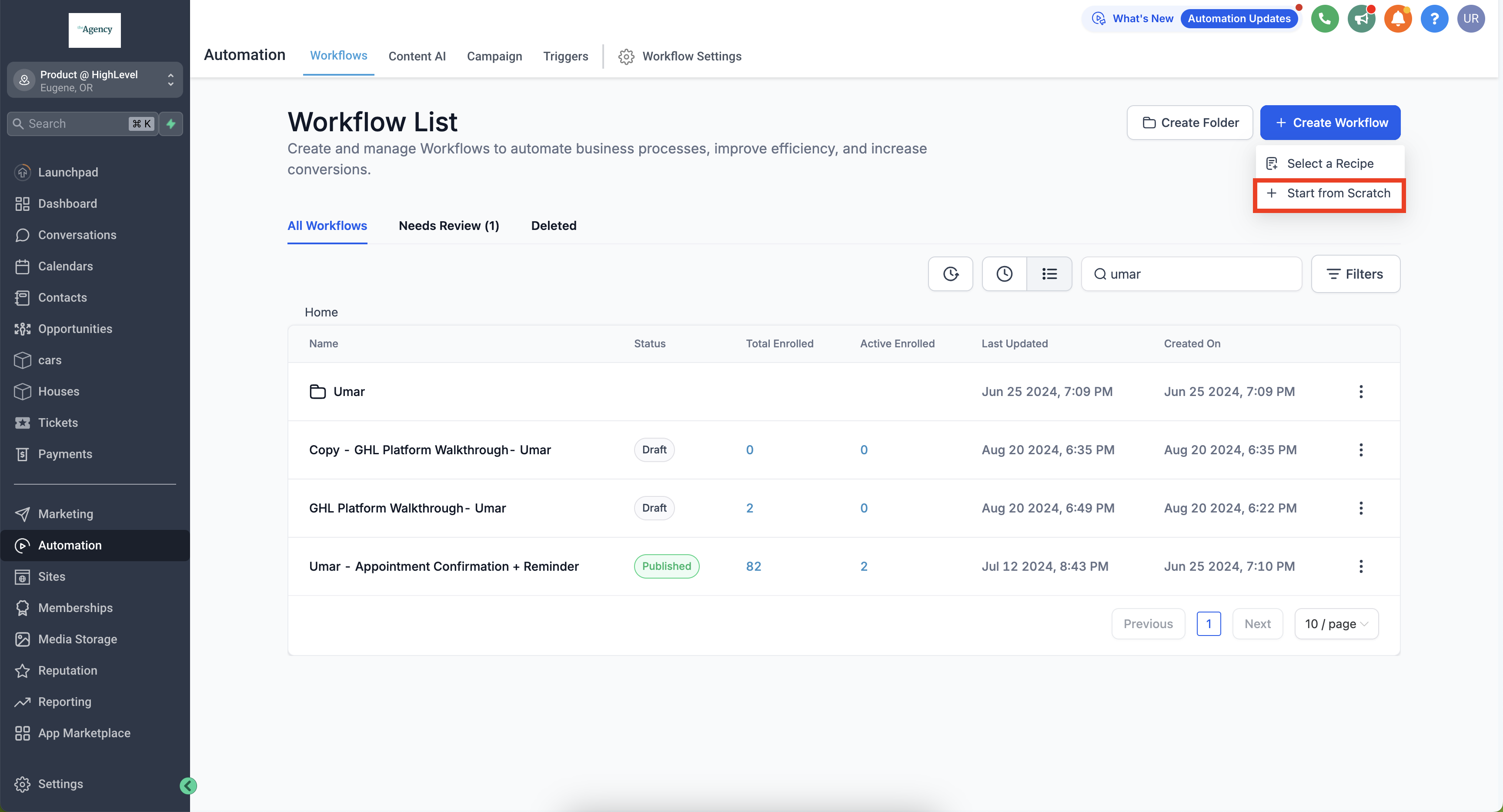
- Go to Automations > Workflows > Create Workflow > Start from Scratch.
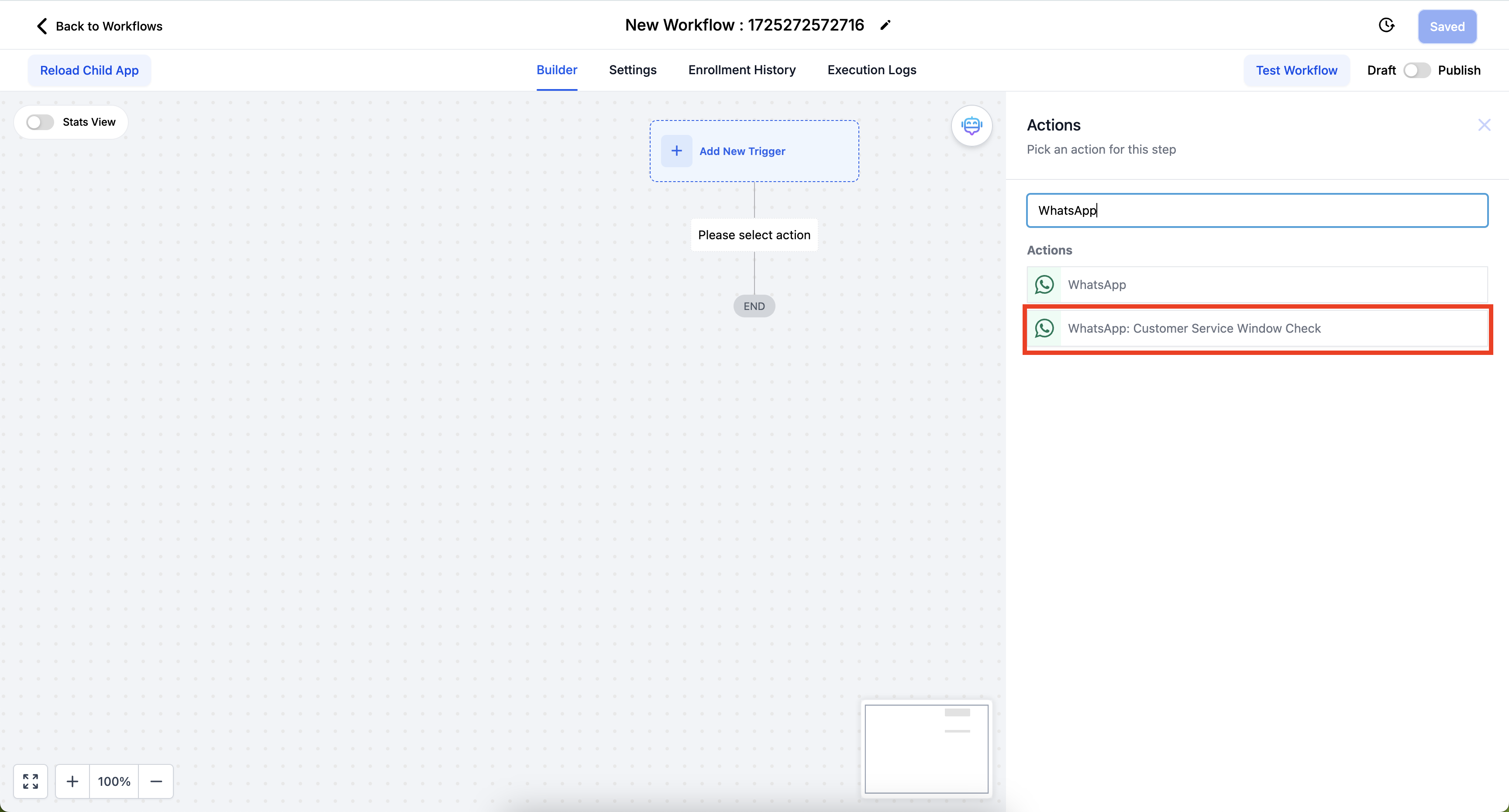
- Press the plus button, add an action, and select WhatsApp: Customer Service Window Check.
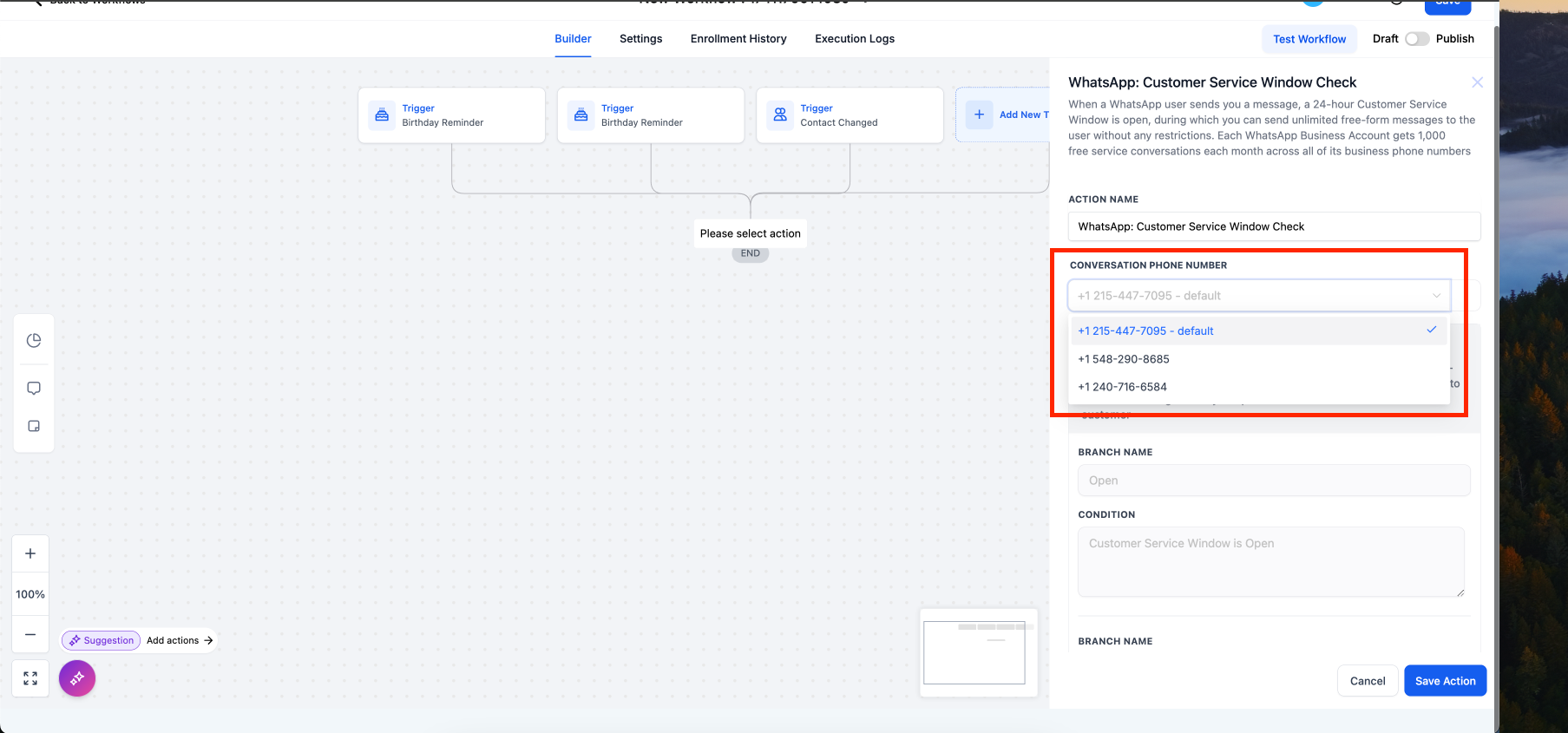
- Choose the phone number that will be used for the conversation.
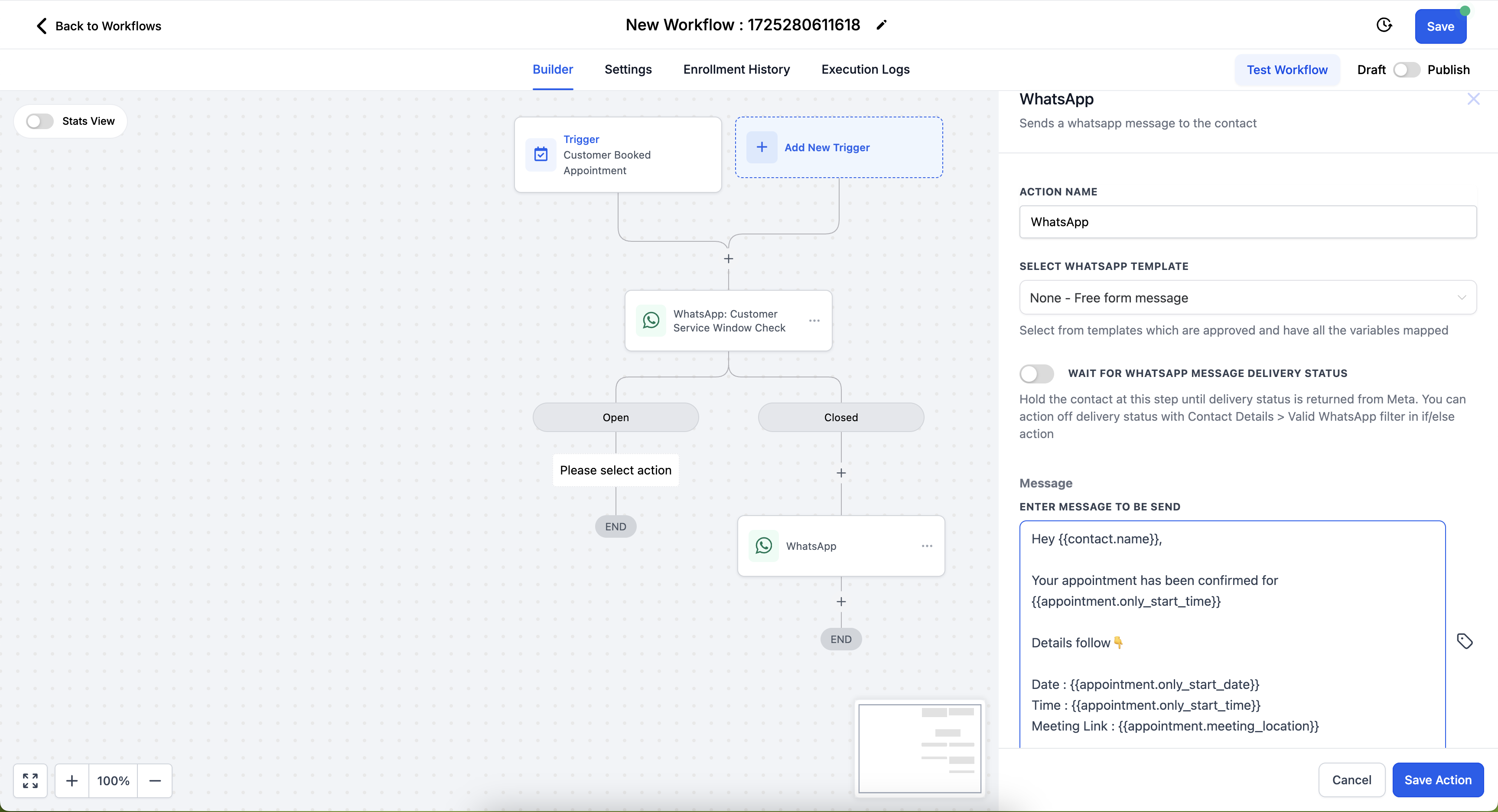
- In the Open branch, add a WhatsApp action and set the template to None, Free form message.
- In the Closed branch, add a WhatsApp action and pick a marketing or utility template to start the conversation.
07What it looks like in HighLevel
08Settings that matter
- conversation's phone number. Specifies which WhatsApp number will be used to send the message.
- template to None, Free form message. Indicates that the message is a free form text, allowed only while the service window is open.
09Things to know before you rely on it
- Each WhatsApp Business Account receives 1,000 free service conversations each month across all its numbers.
- The free tier resets at the start of each calendar month based on the account’s time zone.
- Marketing, utility, and authentication conversations are not included in the free tier.
10How it connects to the rest of HighLevel
- Set up WhatsApp on a subaccount WhatsApp subaccount guide
- Create approved WhatsApp templates WhatsApp template guide
- Understand WhatsApp pricing and rebilling WhatsApp pricing guide
Michael's take

WhatsApp customer service windows can feel like a safety net, but remember the free tier caps at 1,000 service conversations each month. Once you exceed that, each message will cost you, so watch your usage.
When the window is open, you can reply freely and keep support costs low. I’d start by mapping the most common inbound queries to this condition and let the workflow handle the replies without worrying about per message fees.