
01Who this is for
- Marketing agencies can reach multiple client audiences with a single approved template, saving time on repetitive messaging.
- Ecommerce retailers can notify thousands of shoppers about order updates or promotions without manual effort.
- Service based businesses such as clinics can alert appointment reminders to all patients in one go.
02WhatsApp bulk actions, explained
WhatsApp Bulk Action is a tool inside the Contacts section that lets you push an approved WhatsApp template to a group of contacts selected from a list or a Smart List. After you pick the contacts, you start a bulk action, choose a template, and decide whether the messages are sent immediately, scheduled for later, or released gradually in drip mode.
The feature shows a live preview of the selected template, including its category and language. You can optionally replace any media attached to the template with a file from your computer; this change applies only to the current campaign. Once you confirm, the platform processes the messages and records detailed statistics for each stage of delivery.
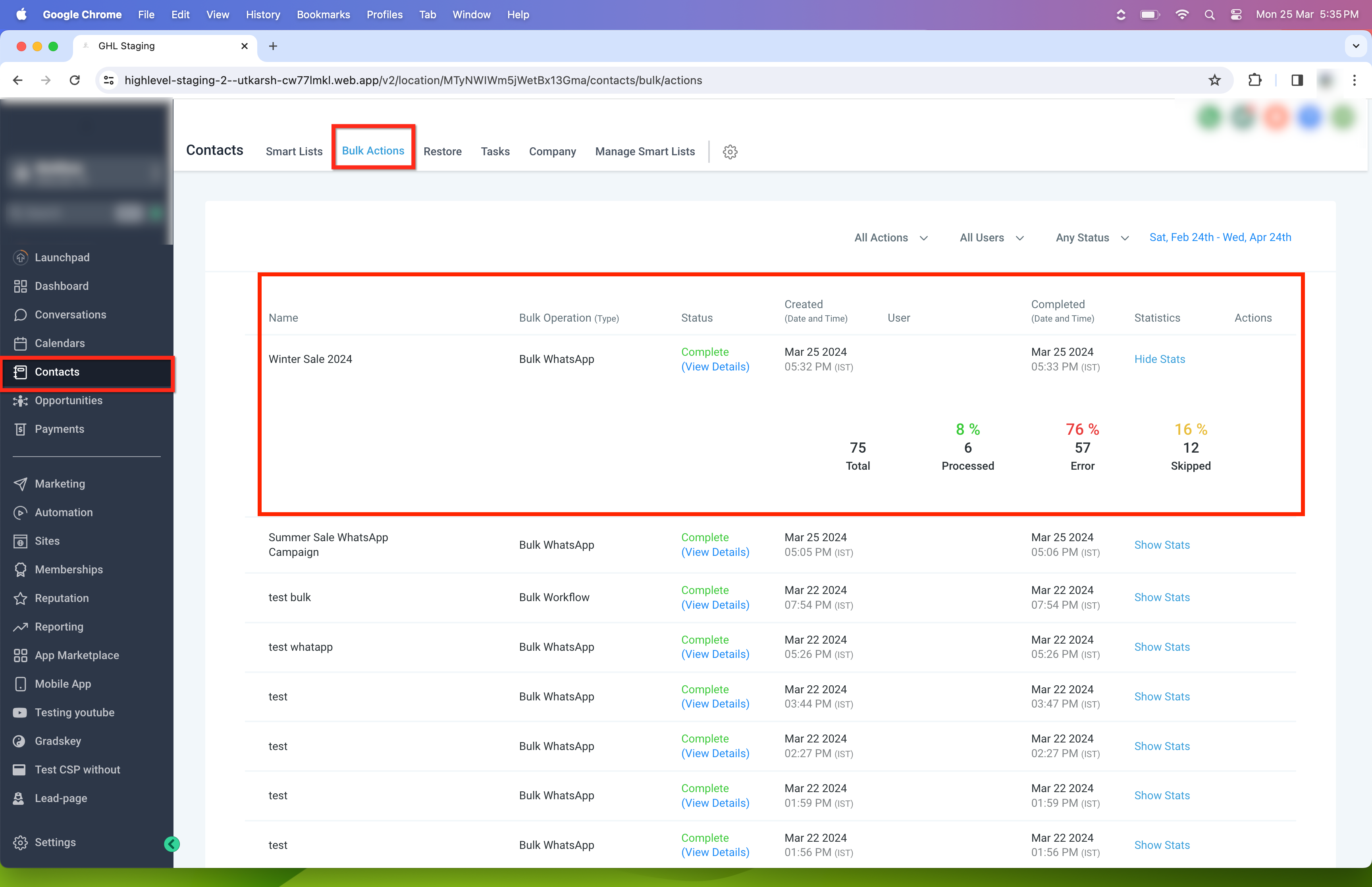
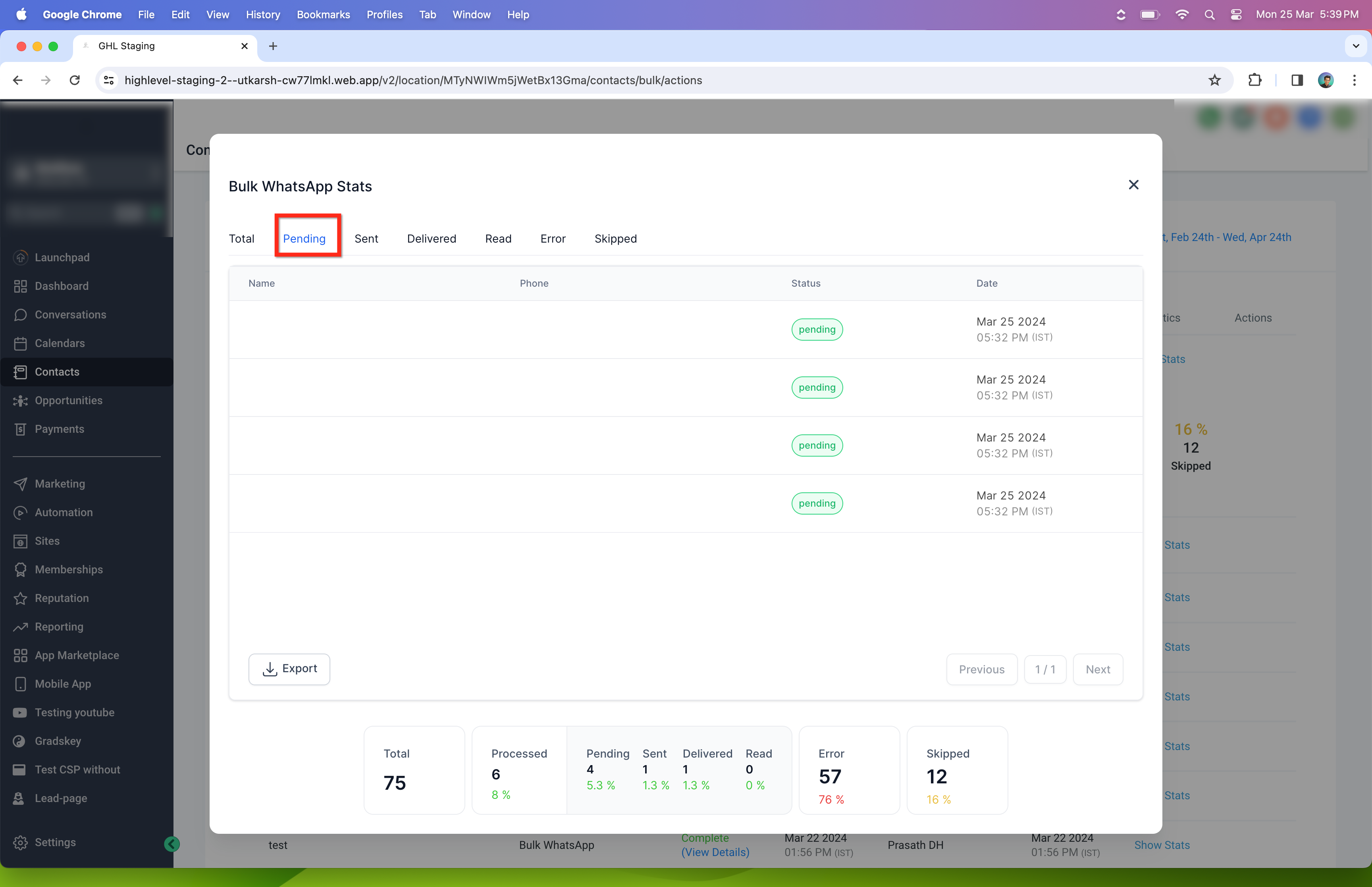
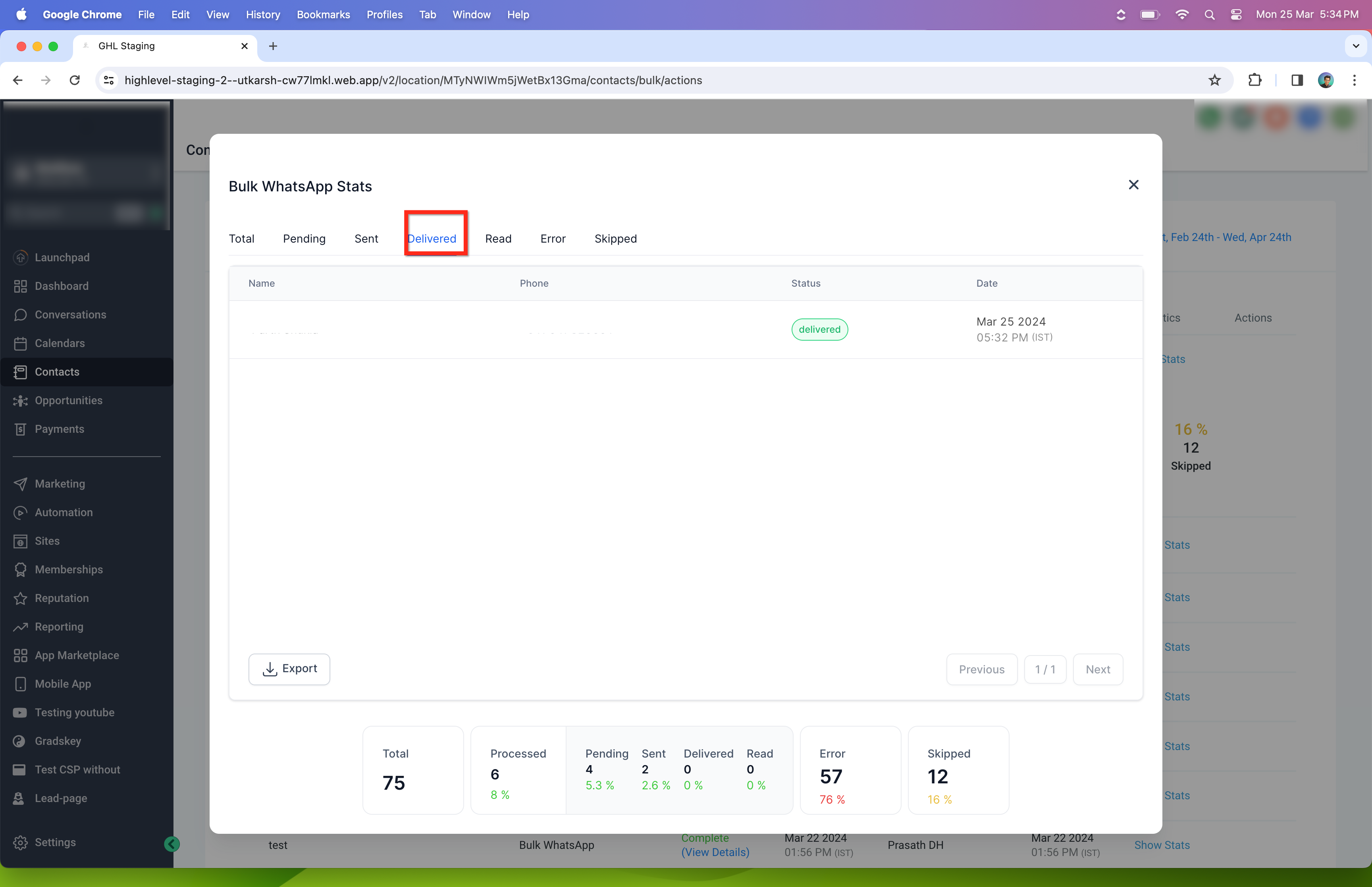
All bulk campaigns are accessible via Contacts > Bulk Actions, where you can view or export the campaign statistics. Only templates that have been approved by Meta appear for selection, and the system respects Meta’s messaging limits and WhatsApp policies.
03How businesses use WhatsApp bulk action
- Digital marketing agency. The agency selects a Smart List of client leads, picks an approved promotional template, and launches an immediate bulk WhatsApp blast. The platform then provides delivery and read metrics for each lead.
- Online retailer. The retailer filters contacts who have recent purchases, schedules a bulk WhatsApp template announcing a flash sale, and monitors the stats to see how many customers received and opened the message.
- Health clinic. The clinic creates a Smart List of upcoming appointments, uses a reminder template, and sends the messages in drip mode to avoid overwhelming patients. The clinic checks the error and skip counts for any issues.
04The numbers and rules that matter
- Messages are sent at a rate of up to 1,000 messages per hour, subject to Meta limits.
- Meta messaging limits control how many new business initiated conversations you can start within a rolling 24 hour period.
- Quality rating reflects customer feedback over a seven day period and can reduce messaging limits.
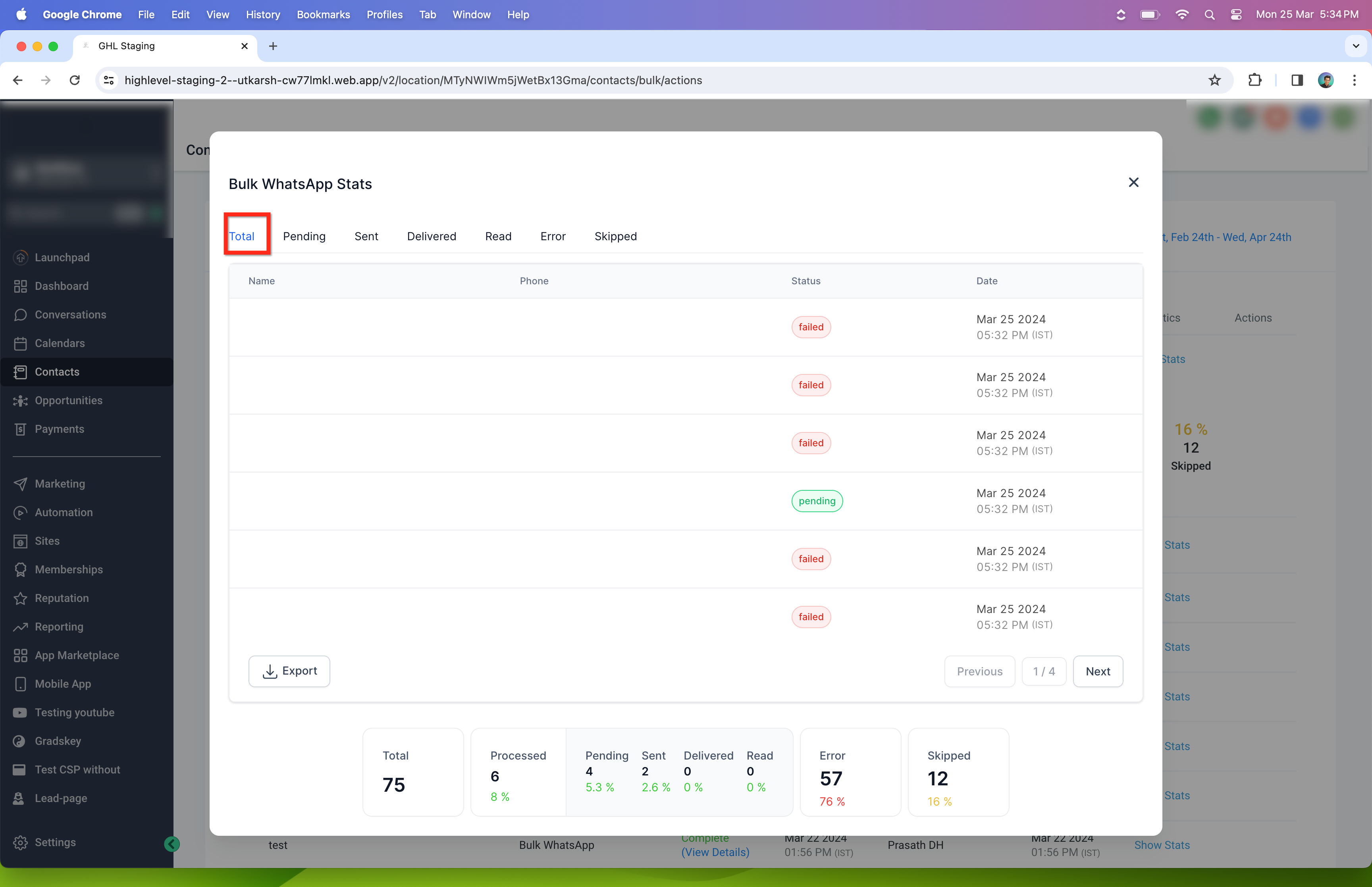
- Errors can occur for contacts not on WhatsApp, template issues, Meta limit exceeded, or account restrictions.
- Skipped contacts include those with DND settings, missing phone numbers, or messaging restrictions.
05Before you start
- Create at least one WhatsApp template and have it approved by Meta.
- Ensure you have permission to message the selected contacts according to WhatsApp policies.
06How to set up and use WhatsApp bulk action in HighLevel
send bulk WhatsApp messages
- Open the Contacts area in HighLevel.
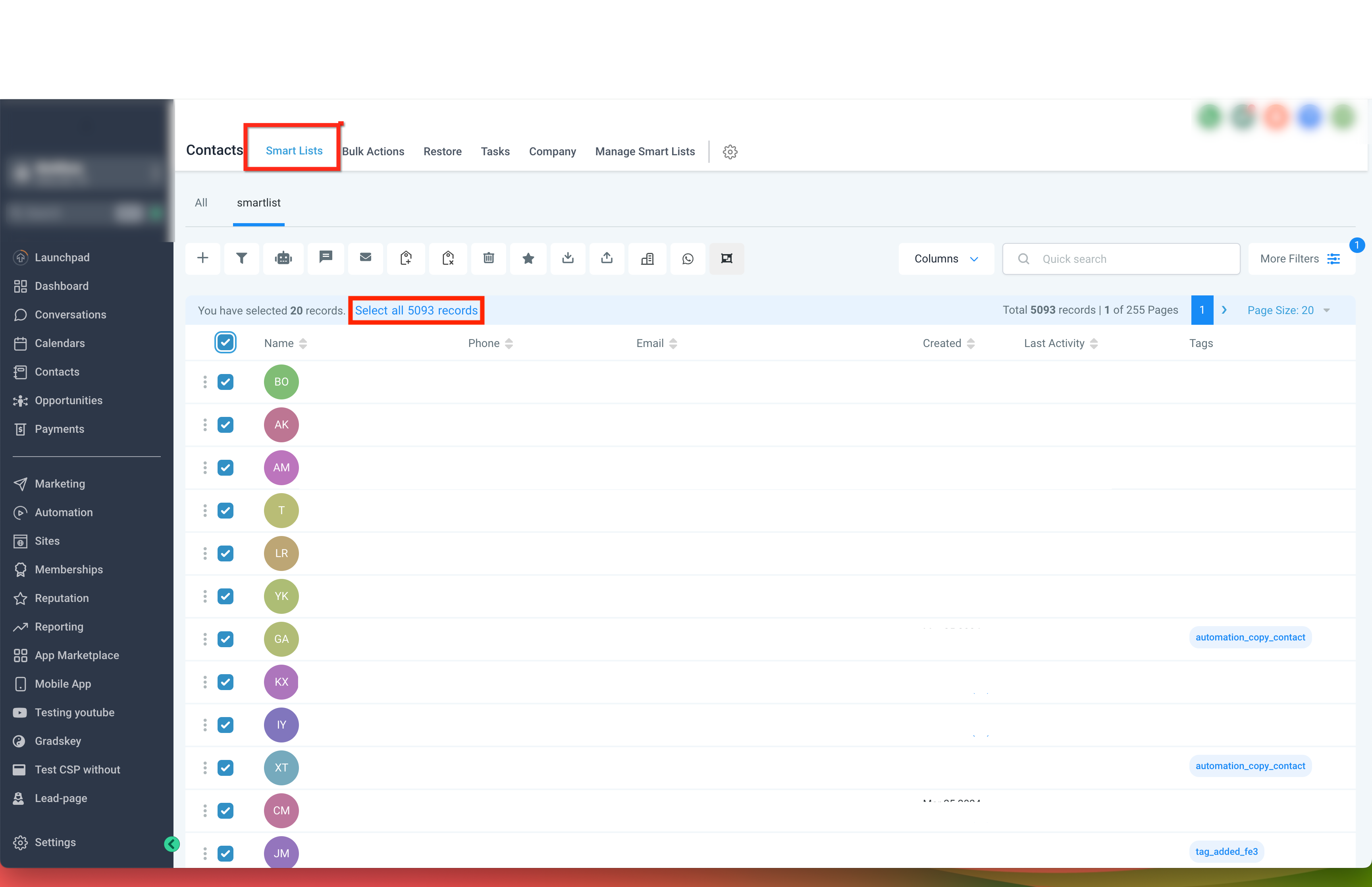
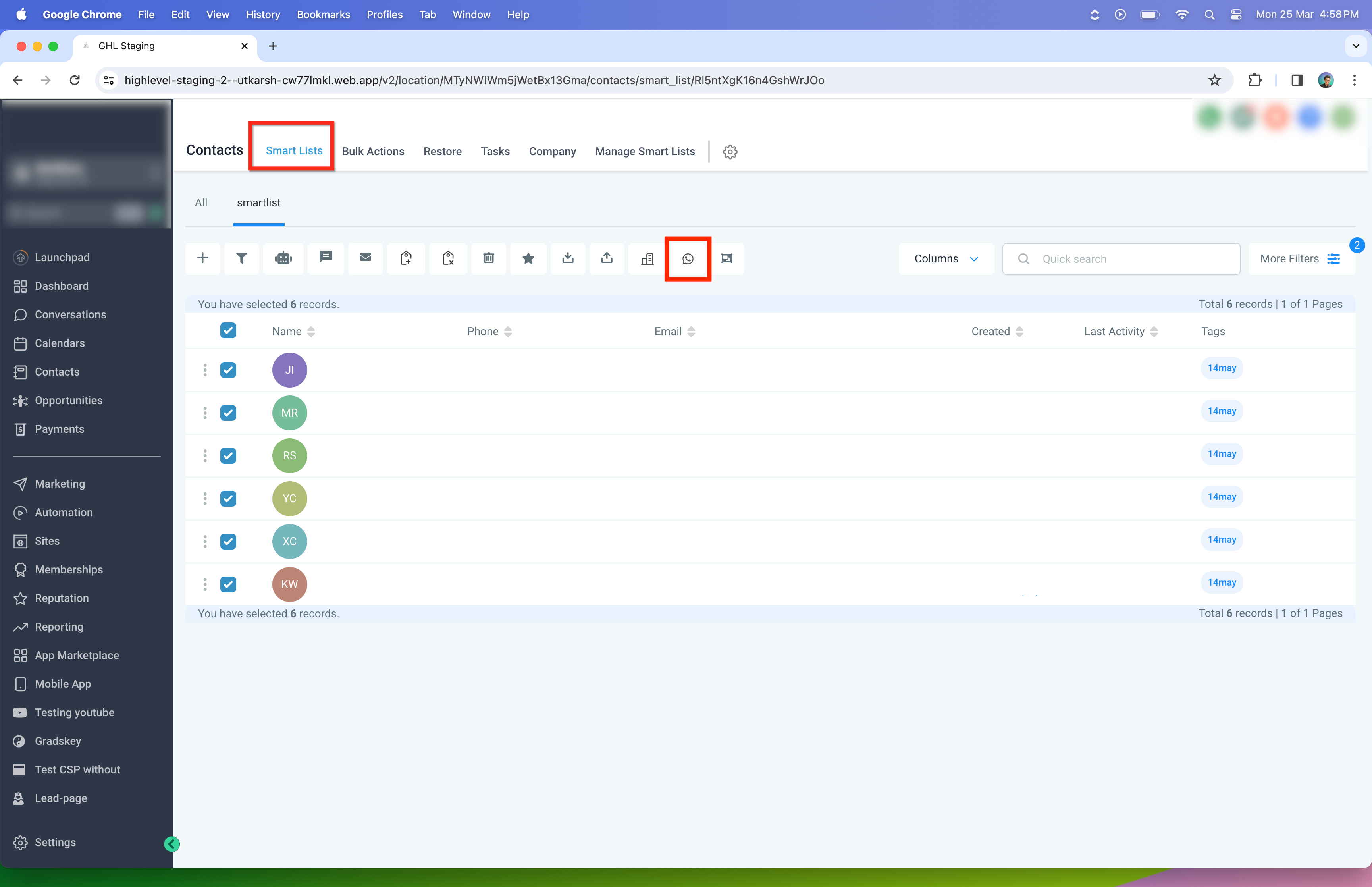
- Apply filters or open a Smart List to locate the target contacts.
- Select the desired contacts individually or click Select all records.
- Click the WhatsApp icon on the Bulk Actions toolbar.
- Choose Send WhatsApp to start a new bulk campaign.
- Pick an approved WhatsApp template from the list; only approved templates are shown.
- Review the live preview, note the category and language, enter an Action Name, and select the send mode (immediate, scheduled, or drip).
- If the template contains media, click Replace media, choose a local file, and confirm the change (optional).
- Review the campaign details and confirm to launch.
- The system begins processing the bulk WhatsApp messages.
- Monitor progress by going to Contacts > Bulk Actions, locating the campaign, and clicking View Details or Show Stats.
- Export the campaign statistics if needed for reporting.
07What it looks like in HighLevel
08Settings that matter
- Action Name. The label you assign to the bulk campaign for later reference.
- Send mode. Controls whether messages are sent immediately, scheduled for a later time, or released gradually in drip mode.
- Replace media. Allows you to swap the media file in a template for this campaign only, without changing the approved template.
09Things to know before you rely on it
- Only WhatsApp templates that have been approved by Meta appear for selection.
- Messages are sent at a maximum rate of up to 1,000 per hour, subject to Meta limits.
- Meta messaging limits restrict the total number of new business initiated conversations within a rolling 24 hour period.
- Contacts may be excluded and shown as Skipped if they have DND settings, missing phone numbers, or other messaging restrictions.
10How it connects to the rest of HighLevel
- Create and manage WhatsApp templates WhatsApp template guide
- Set up WhatsApp automation workflows Workflow integration
- HighLevel pricing and plans Pricing overview
Michael's take

Businesses that need to reach many WhatsApp contacts at once often get stuck juggling manual sends and missing delivery data. The bulk action feature solves that by letting you fire off approved templates to whole lists and then see exactly who got the message, who read it, and who ran into errors.
The first thing I would get right is the template preview. Make sure the language and category match what you intend to send before you launch.