
01Who this is for
- Agency owners can onboard client WhatsApp accounts without manual number porting.
- Small business Founders can keep using the WhatsApp Business App while gaining HighLevel conversation tools.
- Marketing teams that rely on existing templates can preserve them during a BSP migration.
02WhatsApp onboarding experiences, explained
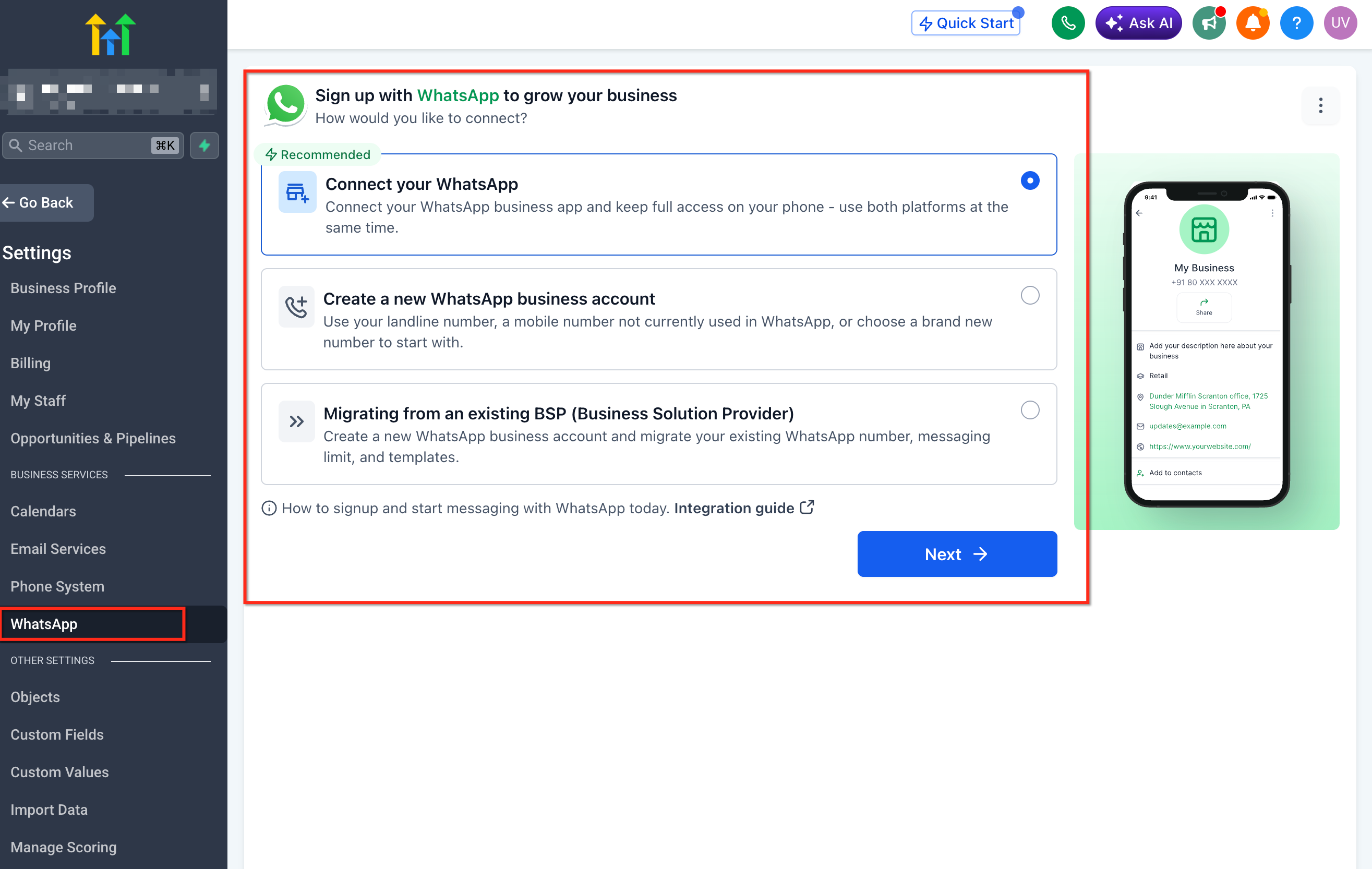
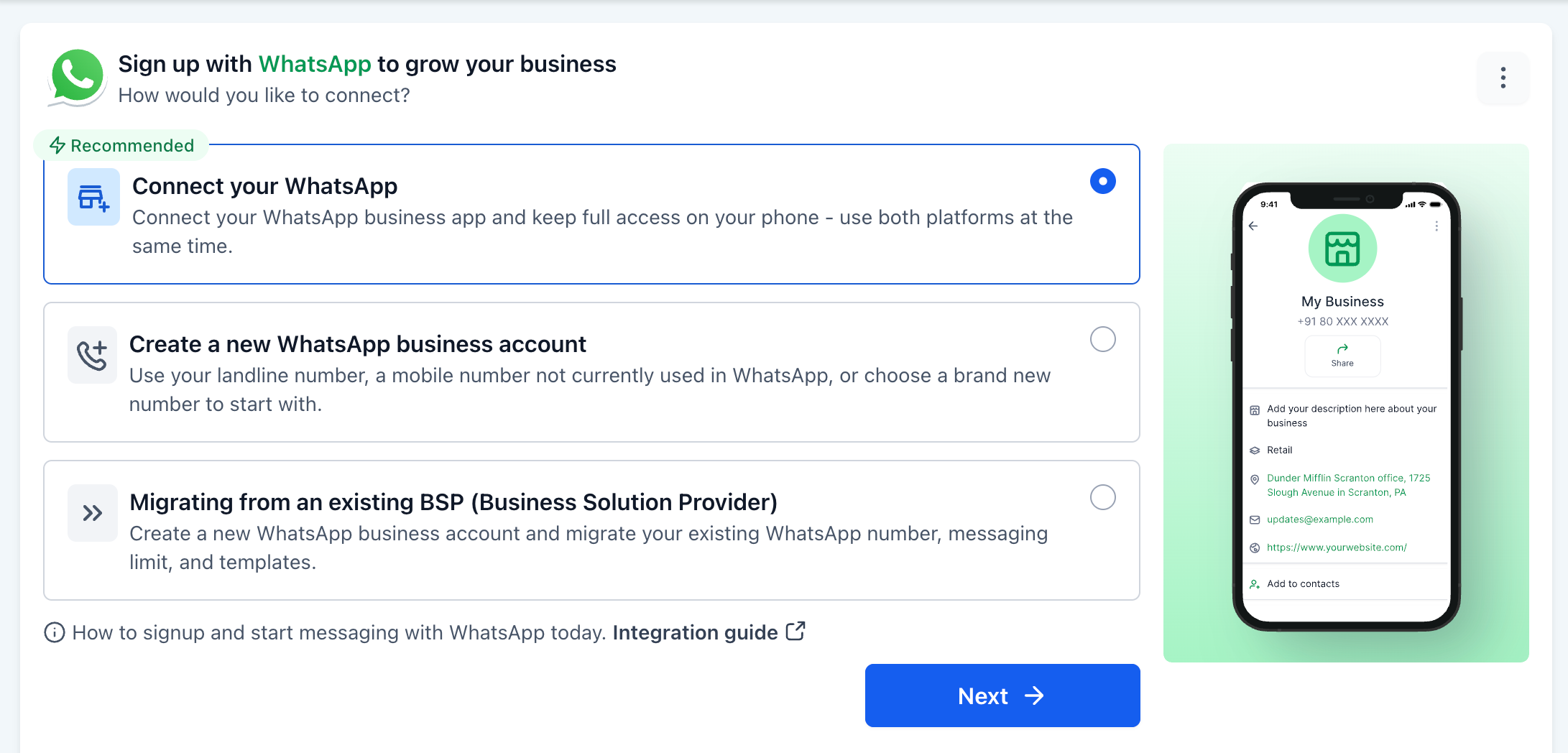
The feature adds a three option onboarding flow inside HighLevel. Users choose the path that reflects their present WhatsApp situation: keep an existing Business App with Coexistence, start a brand new Business Account, or move a current account from another Business Solution Provider. Each option guides the user through the required preparations and then connects the number to HighLevel via Meta’s Embedded Signup flow.
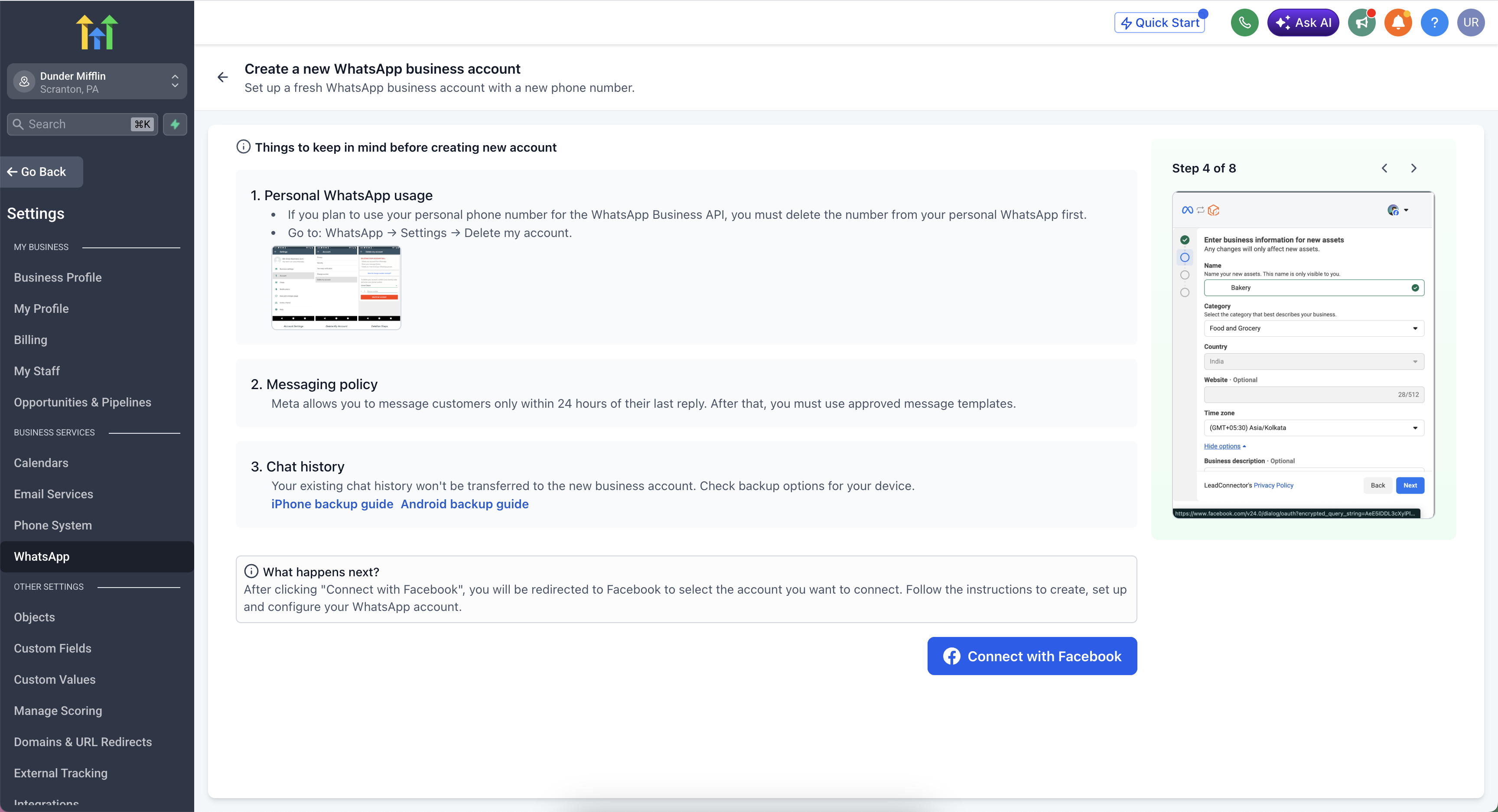
The onboarding controls are accessed per subaccount. Inside the subaccount go to Settings ► WhatsApp, review the three paths, complete the prerequisites, click Connect with Facebook, finish the Meta signup steps, and then verify the number or display name. After the flow finishes, the WhatsApp settings, templates and conversation behavior are visible inside HighLevel.
03How businesses use WhatsApp onboarding experience
- Digital marketing agency. The agency selects the Coexistence path to keep a client’s existing WhatsApp Business App active on a phone, sync up to six months of chat history, and manage all client conversations from HighLevel.
- Local retail store. The store creates a new WhatsApp Business Account using an eligible +1 to 555 business number, which is auto verified, then begins messaging customers through HighLevel’s conversation tools.
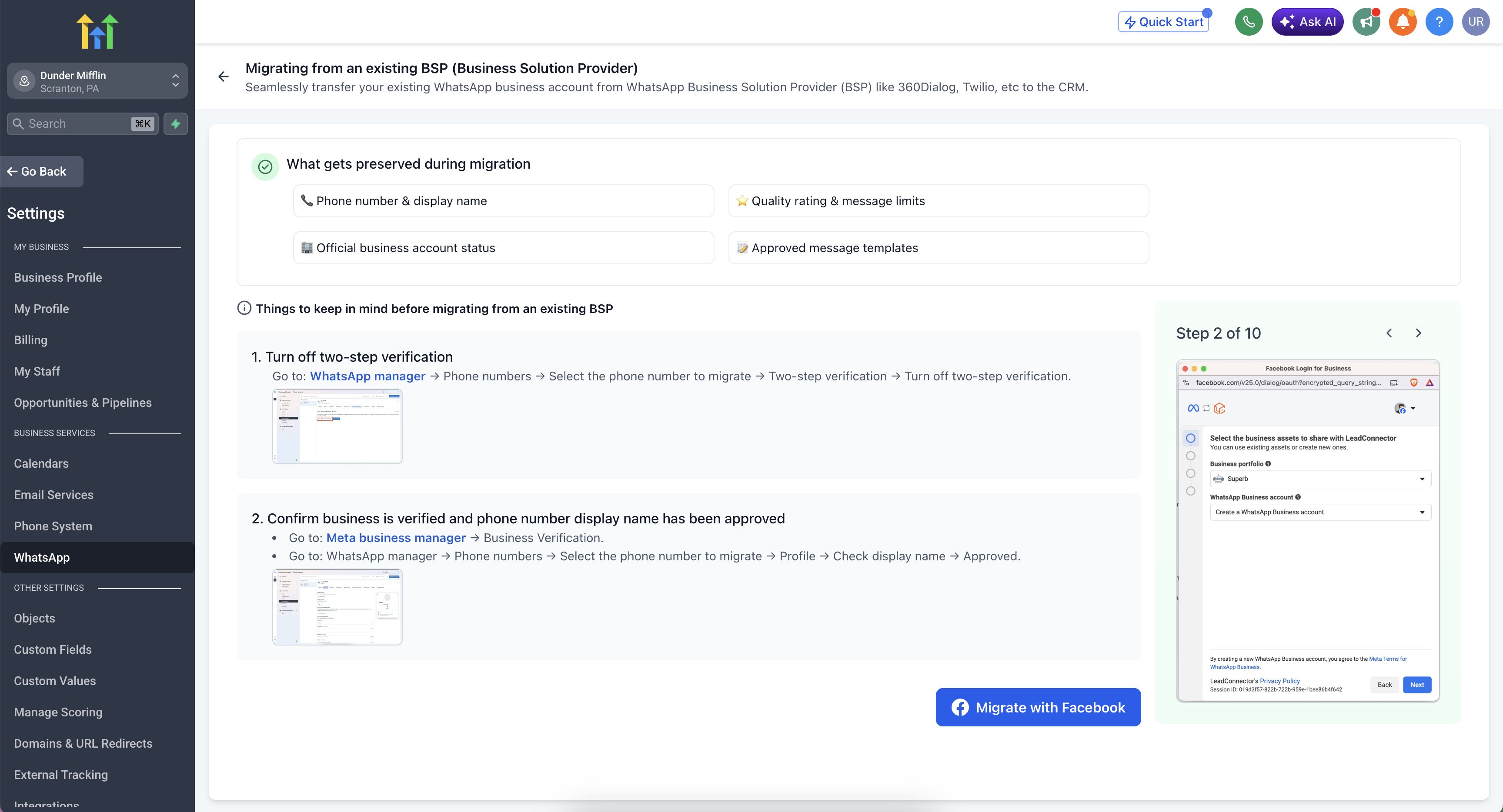
- SaaS startup using another BSP. The startup turns off two step verification, confirms business verification in Meta Business Manager, and runs the BSP migration path to move its existing WhatsApp Business Account and approved templates into HighLevel.
04The numbers and rules that matter
- Chat history sync up to six months with Coexistence.
- Asset preservation includes phone number, display name, quality rating, messaging limits, Official Business Account status, and approved templates.
- Eligible subaccounts can claim up to two free +1 to 555 business numbers during onboarding.
- 555 numbers are automatically verified; only display name approval is required.
05Before you start
- Access the subaccount in HighLevel where WhatsApp will be connected.
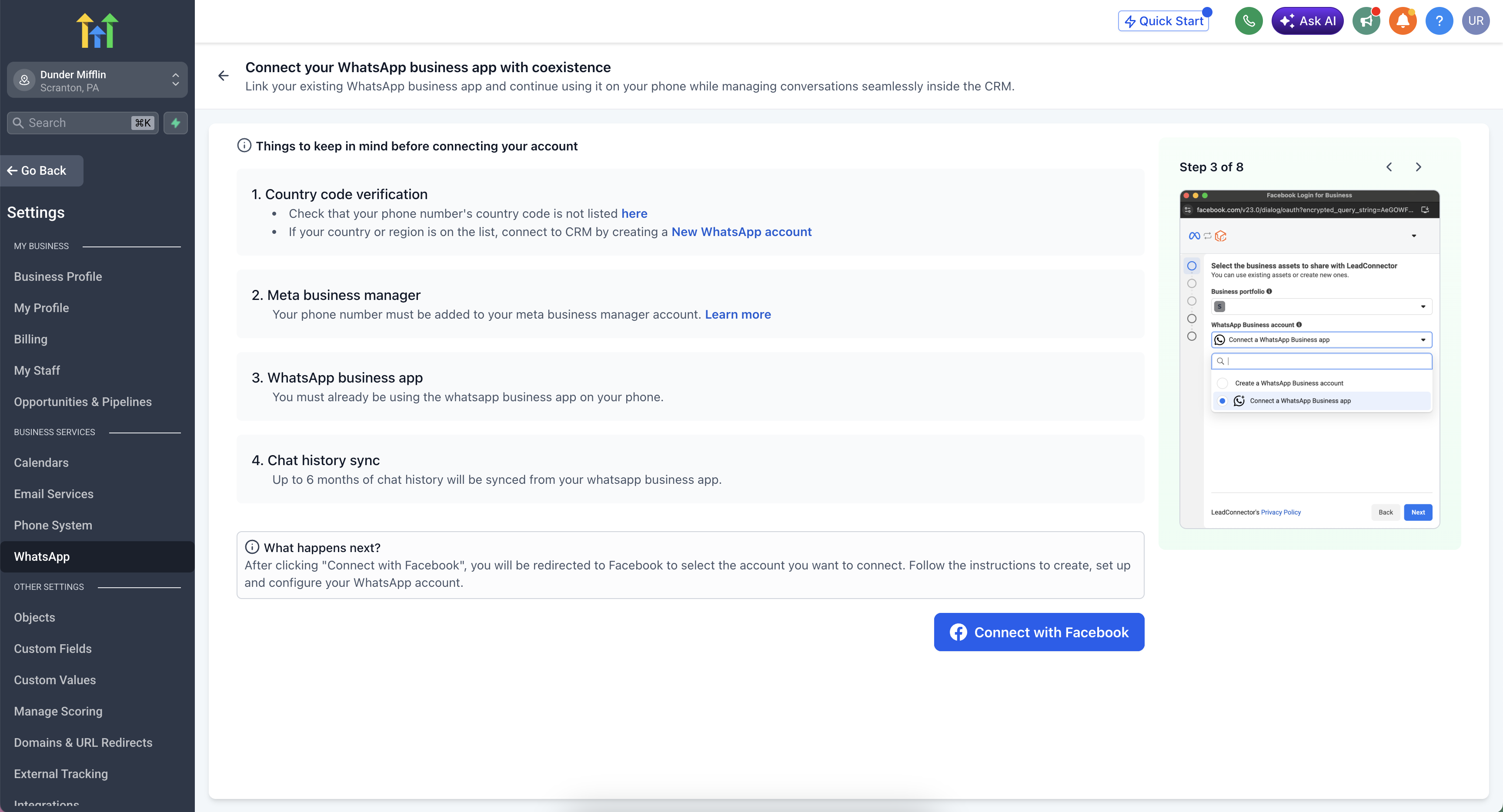
- For Coexistence, verify the country code, confirm the number in Meta Business Manager, ensure the WhatsApp Business App is installed, and confirm the app is available on the device.
- For a new account, remove the number from any personal WhatsApp or WhatsApp Business App, back up chats, and confirm the number can receive SMS or voice verification unless using an eligible auto verified 555 number.
- For BSP migration, turn off two step verification, confirm business verification in Meta Business Manager, and have display name approval before proceeding.
06How to set up and use WhatsApp onboarding experience in HighLevel
Set up the redesigned WhatsApp onboarding experience
- Open the subaccount in HighLevel where the WhatsApp connection is needed.
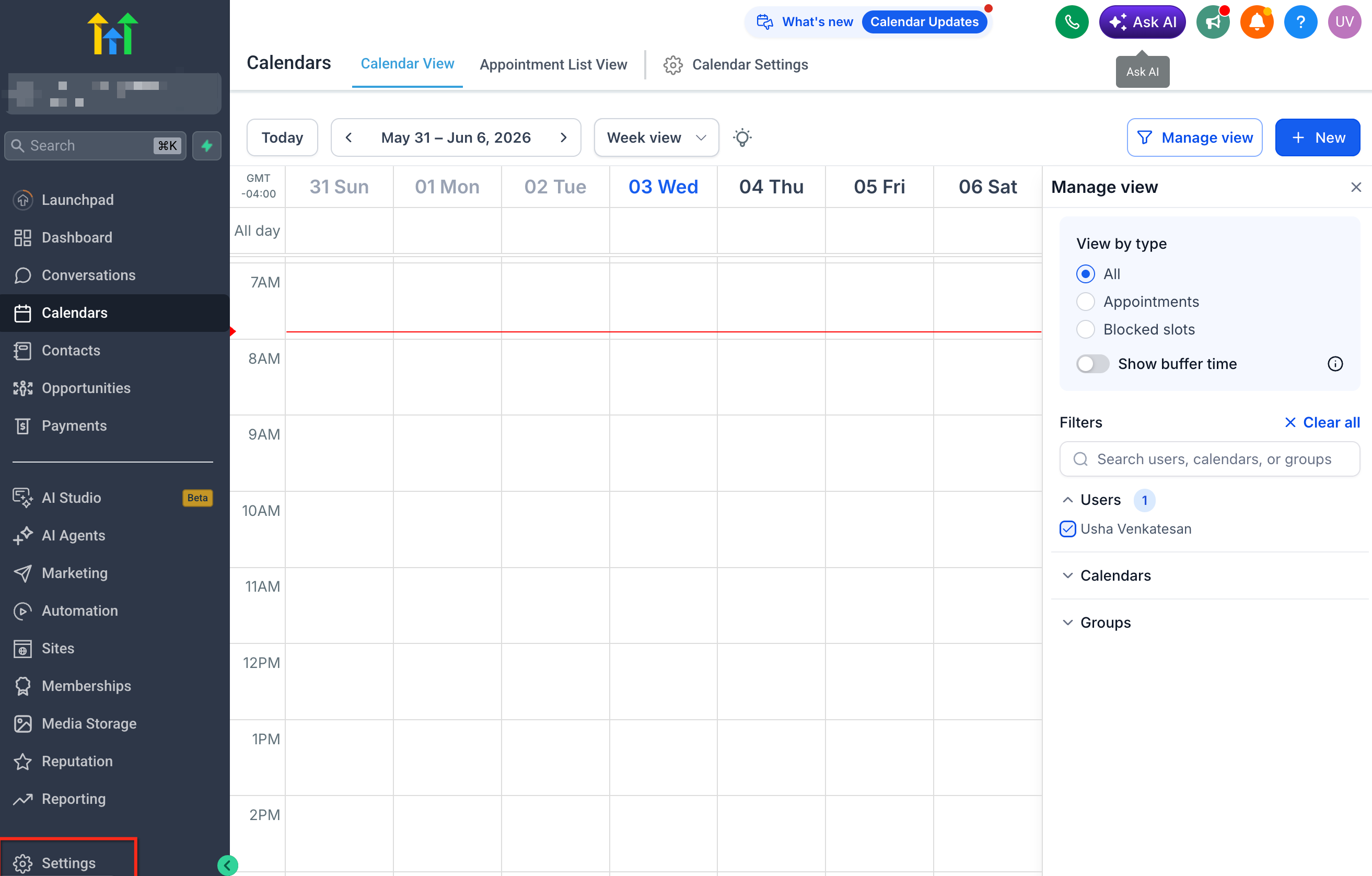
- Select Settings from the left hand menu.
- Choose the WhatsApp option and view the three onboarding paths.
- Pick the path that matches the business’s current WhatsApp situation: Coexistence, New Business Account, or BSP migration.
- Read the prerequisites shown for the selected path.
- Complete the required preparation steps for that path.
- Press the Connect with Facebook button.
- Follow the Meta Embedded Signup flow to finish the connection.
- Answer the remaining prompts until the WhatsApp account is linked to HighLevel.
- When onboarding ends, review the WhatsApp settings, templates, phone number and conversation behavior inside the platform.
07What it looks like in HighLevel
08Settings that matter
- WhatsApp. Controls which onboarding path is selected and starts the connection flow to link a WhatsApp number with HighLevel.
09Things to know before you rely on it
- Coexistence can sync up to six months of WhatsApp chat history into HighLevel.
- Eligible subaccounts may claim up to two free +1 to 555 business numbers during onboarding.
- 555 numbers are automatically verified but cannot be migrated to another WABA or used outside the WhatsApp Business Platform.
- Display name approval is required before the WhatsApp account becomes fully usable.
- BSP migration preserves the phone number, display name, quality rating, messaging limits, Official Business Account status, and approved templates.
10How it connects to the rest of HighLevel
- Full guide for agencies on setting up WhatsApp reselling in HighLevel WhatsApp reselling guide
- Step by step subaccount setup and migration instructions Subaccount setup guide
- How to integrate WhatsApp with automation workflows in HighLevel Automation workflows
Michael's take

The onboarding flow can feel tempting, but jumping in without checking which path matches your current WhatsApp setup can cause avoidable delays and even risk losing assets. Make sure you know whether you’re still using the WhatsApp Business App, need a fresh number, or are coming from another provider before you click anything.
When you pick the right path, the process speeds up, preserves your phone number and templates, and even lets you bring months of chat history into HighLevel. For agencies, the free 555 numbers can shave off the hassle of finding a dedicated line when you’re onboarding a new client.