
01Who this is for
- Customer support teams benefit because predefined buttons reduce typing errors and speed up replies.
- Marketers gain by sending list menus that direct contacts to specific offers without manual data entry.
- Appointment schedulers use location cards to share venue details right away, avoiding follow up clarification.
02Interactive WhatsApp messages, explained
The Interactive WhatsApp Messages action lives inside the Automation module of HighLevel. Once added to a workflow, it lets you choose an interactive type, quick reply buttons, location, contact, list, or a website button, and fill the required fields. The message is sent from a selected WhatsApp number.
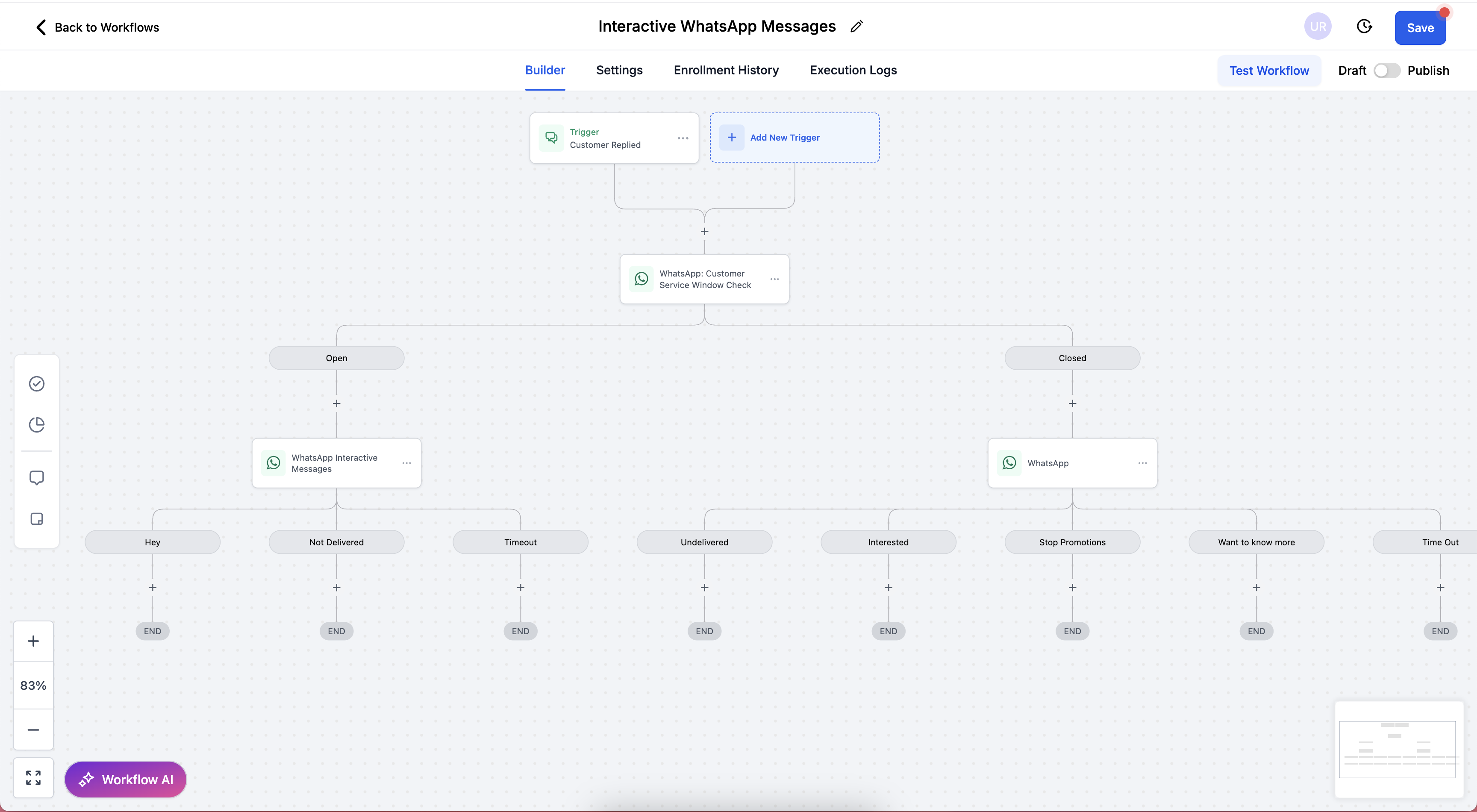
When the 24 hour Customer Service Window is active, the message incurs no extra charge and can be sent unlimited times. Each interactive element can have a timeout that defines how long the buttons or list remain active. After the timeout, the element becomes inactive and you can branch the workflow on a timeout outcome.
03How businesses use Interactive WhatsApp messages
- Dental practice. The practice adds a quick reply button action to confirm appointment times. Patients tap a button that records their choice, triggering a follow up confirmation branch.
- Real estate agency. Agents configure a list message with sections for property types. Prospects select a row that routes them to a dedicated agent workflow.
- Event organizer. A location message is set up with the venue address and coordinates, allowing attendees to open the map directly from WhatsApp.
04The numbers and rules that matter
- Up to 3 quick reply buttons per message.
- Button title limit: 20 characters.
- Footer text limit: 60 characters.
- Body text limit for CTA button: 1024 characters.
- Timeout range: Minimum 5 minutes, maximum 2 days.
- Customer Service Window length: 24 hours.
- Contact messages support one contact card per message.
- CTA button text limit: 20 characters.
05Before you start
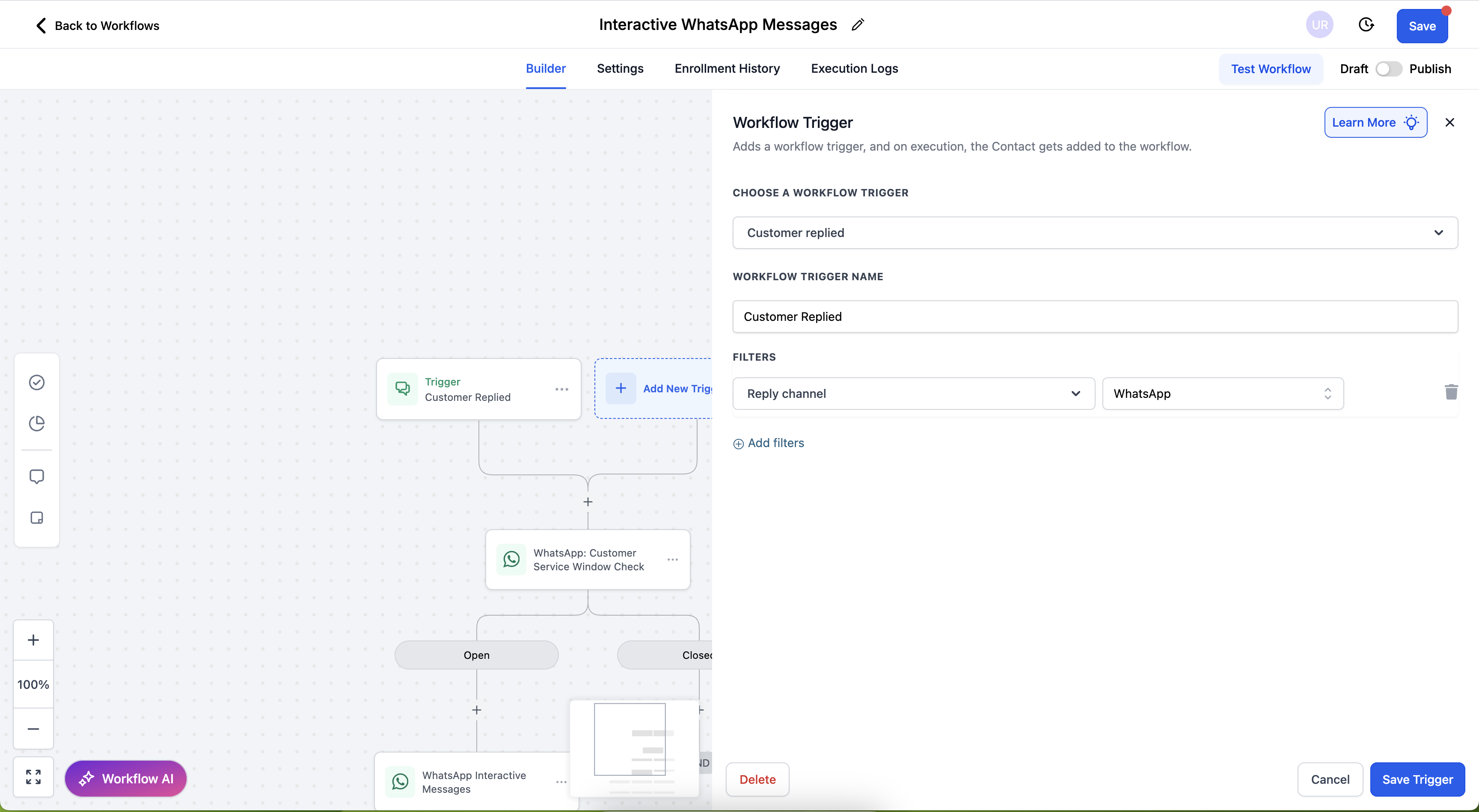
- Confirm that the 24 hour Customer Service Window is open, either by using the Customer Replied trigger or the WhatsApp: Customer Service Window Check action.
06How to set up and use Interactive WhatsApp messages in HighLevel
Add WhatsApp interactive messages action
- Open the workflow you want to edit.
- Click the Add Action (+) button.
- Select WhatsApp Interactive Messages from the list.
- Optionally rename the action for clarity.
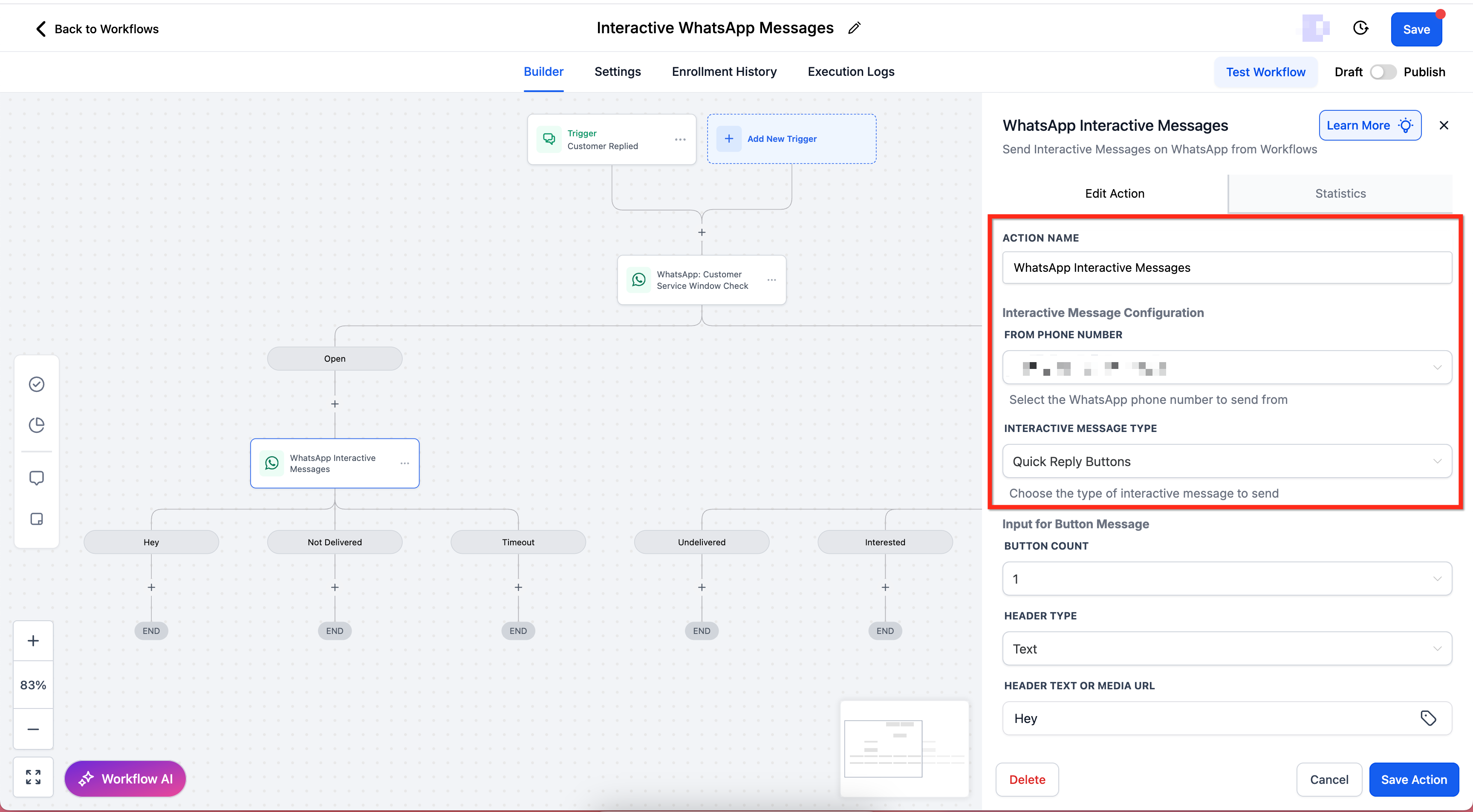
- In the configuration area, choose the From Phone Number and pick an Interactive Message Type.
- Save and test the workflow.
- If the Customer Service Window is closed, send a Marketing or Utility Template message first.
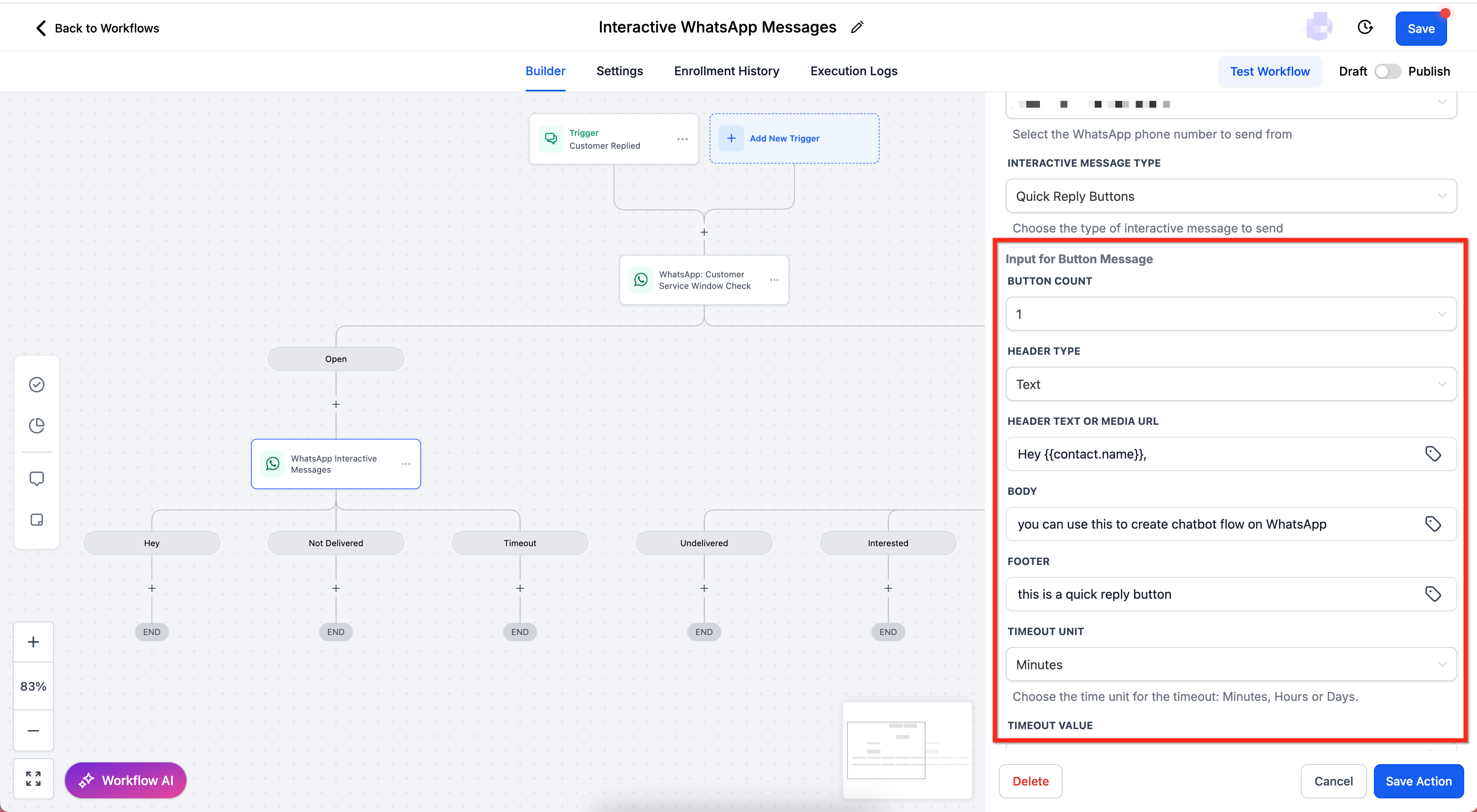
Configure quick reply buttons
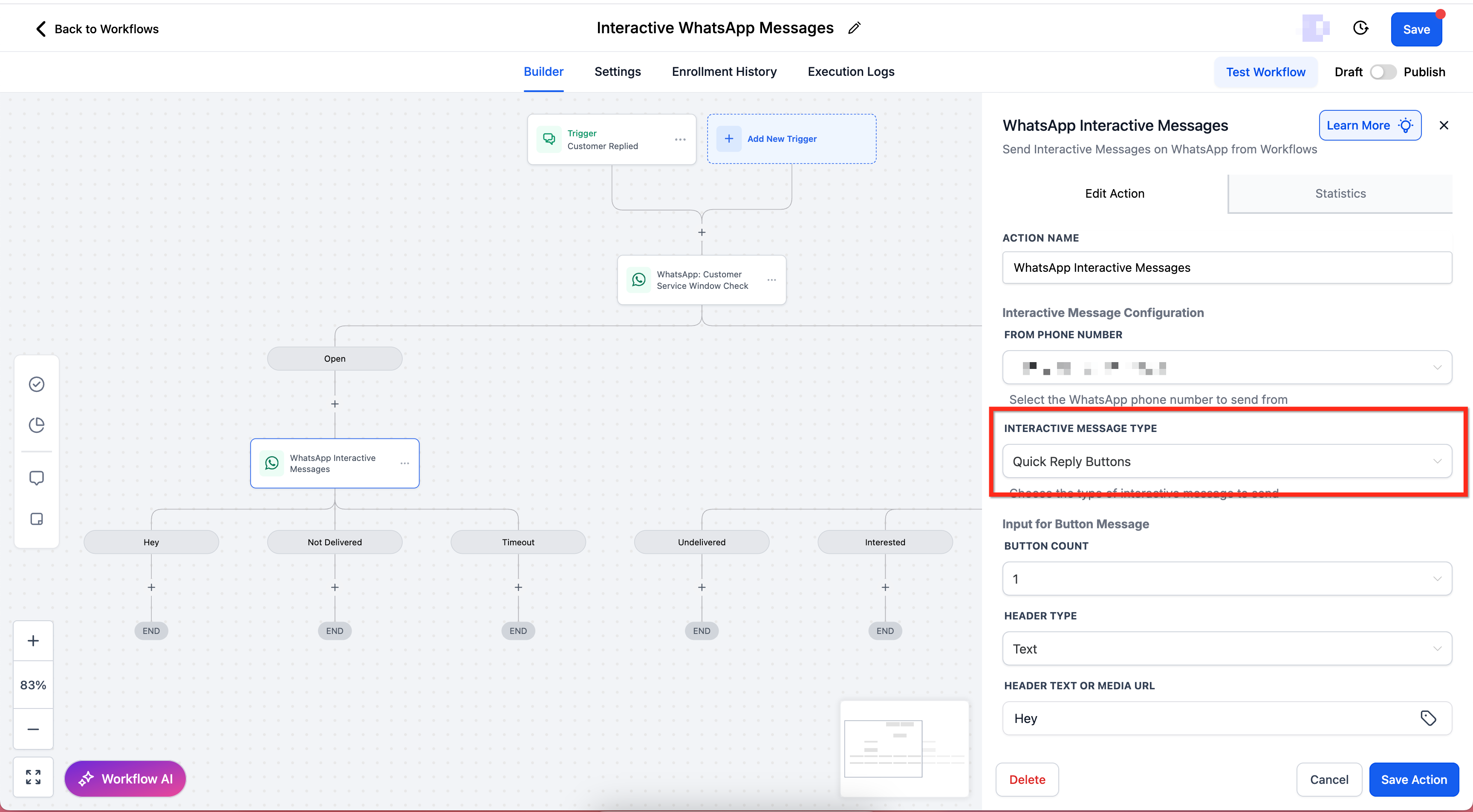
- Set Interactive Message Type to Quick Reply Buttons.
- Enter the main prompt in Input for Button Message.
- Choose the number of buttons (up to 3) in Button Count.
- Select Header Type, Text, Image, Video, or Document.
- Provide Header Text or Media URL as needed.
- Fill in the Body field with the message body.
- Optionally add supporting text in Footer.
- Choose a Timeout Unit (Minutes, Hours, or Days) and set a Timeout Value.
- Add a label for each button in Button Titles.
- Save and test your workflow.
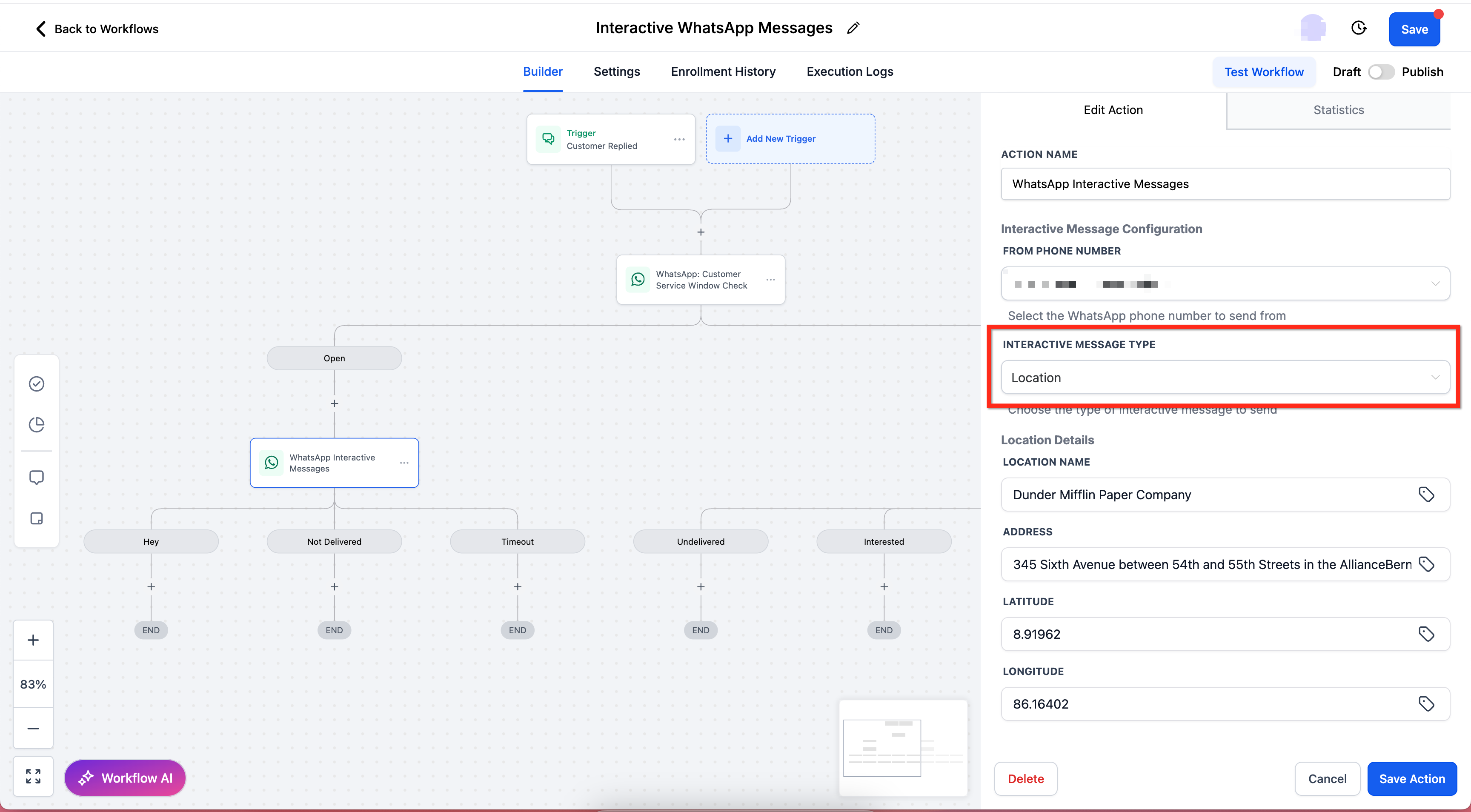
Configure location message
- Set Interactive Message Type to Location.
- Enter a Location Name.
- Provide the Address.
- Enter the Latitude coordinate.
- Enter the Longitude coordinate.
- Save and test the message to verify the map renders.
Configure contact message
- Set Interactive Message Type to Contact.
- Enter Contact Name, first and last.
- Add Phone Number and select Phone Type.
- Optionally include Email and Email Type.
- Save and test the contact card.
Configure list message
- Set Interactive Message Type to List.
- Enter the prompt in Input for Button Message.
- Choose how many sections you need in Section Count.
- Optionally add Header Text.
- Enter the Body text.
- Optionally add Footer text.
- Set List Button Text that opens the list.
- Choose Timeout Unit and enter Timeout Value.
- For each section, type a Section Title.
- Specify Row Count for the section.
- For each row, add Row Title and optional Row Description.
- Save and test to confirm the menu appears and selections trigger the correct branches.
Configure CTA URL button message
- Set Interactive Message Type to Visit Website Button.
- Select Header Type, Text, Image, Video, or Document.
- Provide Header Text or Media URL.
- Enter the Body text (max 1024 characters).
- Optionally add Footer text (max 60 characters).
- Enter the destination URL.
- Set the Button Text (max 20 characters).
- Choose Timeout Unit and enter Timeout Value (5 minutes to 2 days).
- Save and test with a sample contact to confirm the button displays correctly and links open in the browser.
07What it looks like in HighLevel
08Settings that matter
- Interactive Message Type. Determines which interactive format, quick reply buttons, location, contact, list, or website button, is sent.
- Input for Button Message. Holds the main prompt text displayed above the interactive element.
- Button Count. Specifies how many quick reply buttons to include, up to three.
- Header Type. Chooses the media format (Text, Image, Video, Document) shown above the message.
- Header Text or Media URL. Provides the actual text or link to the media selected in Header Type.
- Body. Contains the core message body for the interactive send.
- Footer. Adds optional short supporting text (max 60 characters).
- Timeout Unit. Sets the unit of time, Minutes, Hours, or Days, used for the message timeout.
- Timeout Value. Defines the numeric amount of the selected Timeout Unit.
- Button Titles. Labels for each quick reply button, each limited to 20 characters.
- Location Name. Label displayed on the location card.
- Address. Street address shown with the location card.
09Things to know before you rely on it
- Quick reply buttons are limited to three per message; each label can be up to 20 characters.
- Headers can only be Text, Image, Video, or Document.
- Footer text cannot exceed 60 characters.
- Timeouts must be set between 5 minutes and 2 days.
- Only one interactive message type may be sent in a single WhatsApp message.
- Location messages depend on accurate latitude and longitude; wrong coordinates place the pin incorrectly.
- Contact messages support only a single contact card per action.
- Interactive messages are free only while the 24 hour Customer Service Window is open; otherwise a template message is required first.
10How it connects to the rest of HighLevel
- Full guide for agencies on setting up WhatsApp with HighLevel WhatsApp agency setup
- How to integrate WhatsApp actions into HighLevel automation workflows Workflow integration
- View pricing and plan options for HighLevel features Pricing plans
Michael's take

Businesses often lose momentum when a contact has to type a response. Interactive WhatsApp messages solve that by giving a single tap option. Whether it’s a quick reply button, a list of services, or a clean URL button. The first thing I would get right is making sure the 24 hour Customer Service Window is open, because without it the interactive content won’t be free.
Once the window is open, I’d focus on the quick reply buttons because they boost reply rates and keep HighLevel data tidy. Test each button path, confirm the branches fire.