
01Who this is for
- Agency owners who manage client messaging can confirm each client's number to activate WhatsApp Business channels.
- Small retailers can verify their own contact number to enable direct WhatsApp communication with customers.
02Phone number verification, explained
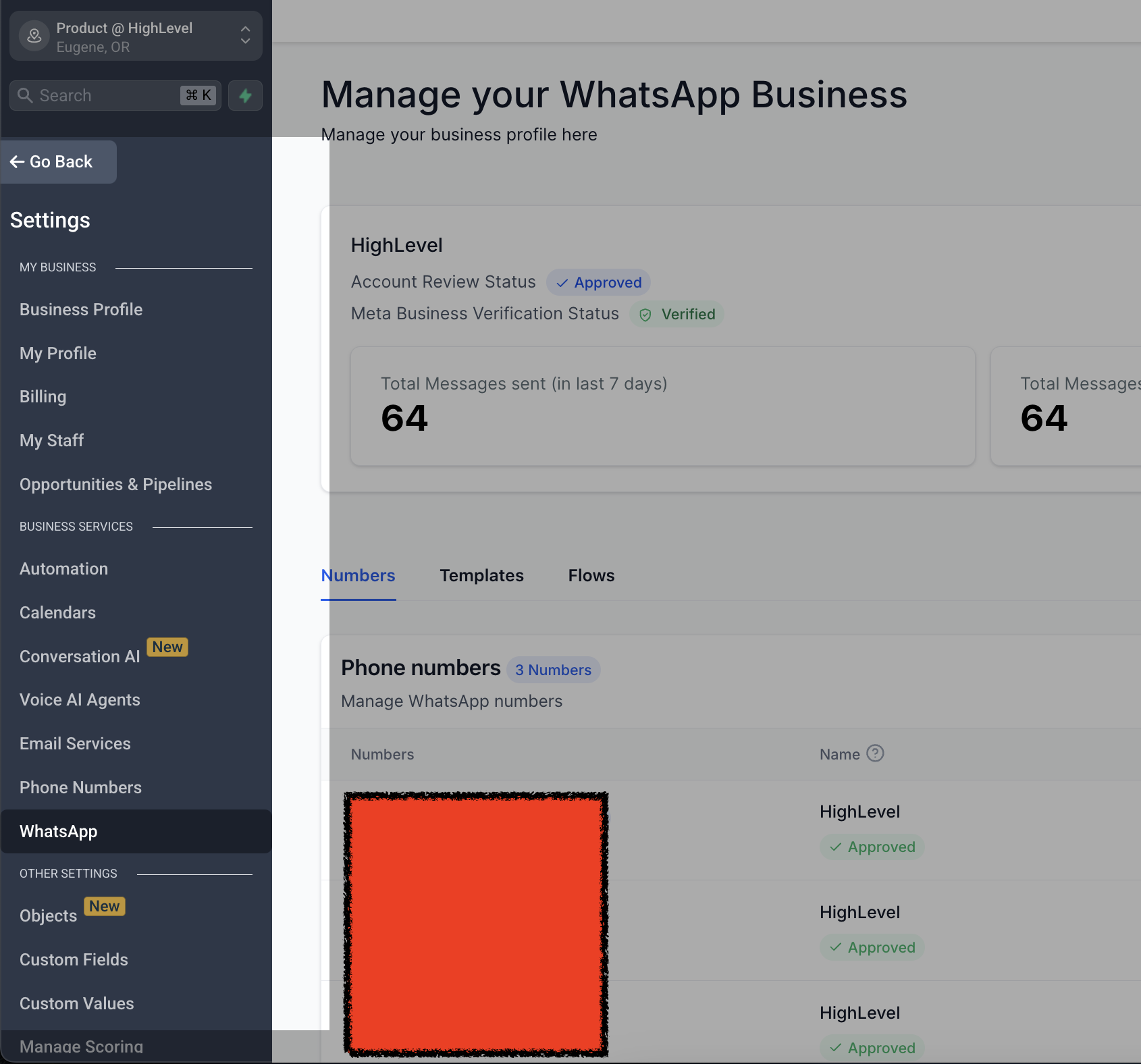
The verification feature checks that the phone number you provide belongs to your business. When the number is confirmed, WhatsApp Business allows inbound and outbound messaging for that account. The verification flow is accessed from the WhatsApp section of the platform’s settings. In HighLevel, the feature lives under Settings > WhatsApp. From there you start the verification, select how you want the one time password (OTP) delivered, and input the code. Successful entry marks the number as verified and ready for use.
03How businesses use phone number verification
- Marketing agency. The agency opens Settings > WhatsApp, clicks Verify Phone Number, chooses SMS or voice for the OTP, and enters the code. Once verified, the agency can provision WhatsApp Business numbers for client campaigns.
- Local retailer. The retailer navigates to Settings > WhatsApp, initiates verification, selects a text message for the OTP, and types the code received. After verification, the retailer can reply to customer inquiries via WhatsApp.
- Online coach. The coach goes to Settings > WhatsApp, starts the verification process, picks a voice call for the OTP, and inputs the spoken code. With the number verified, the coach can schedule appointments and chat with clients on WhatsApp.
04Before you start
- The business phone number must be entered correctly in the WhatsApp settings before starting the verification.
05How to set up and use phone number verification in HighLevel
Verify phone number for WhatsApp Business
- Open Settings in the platform.
- Select the WhatsApp option.
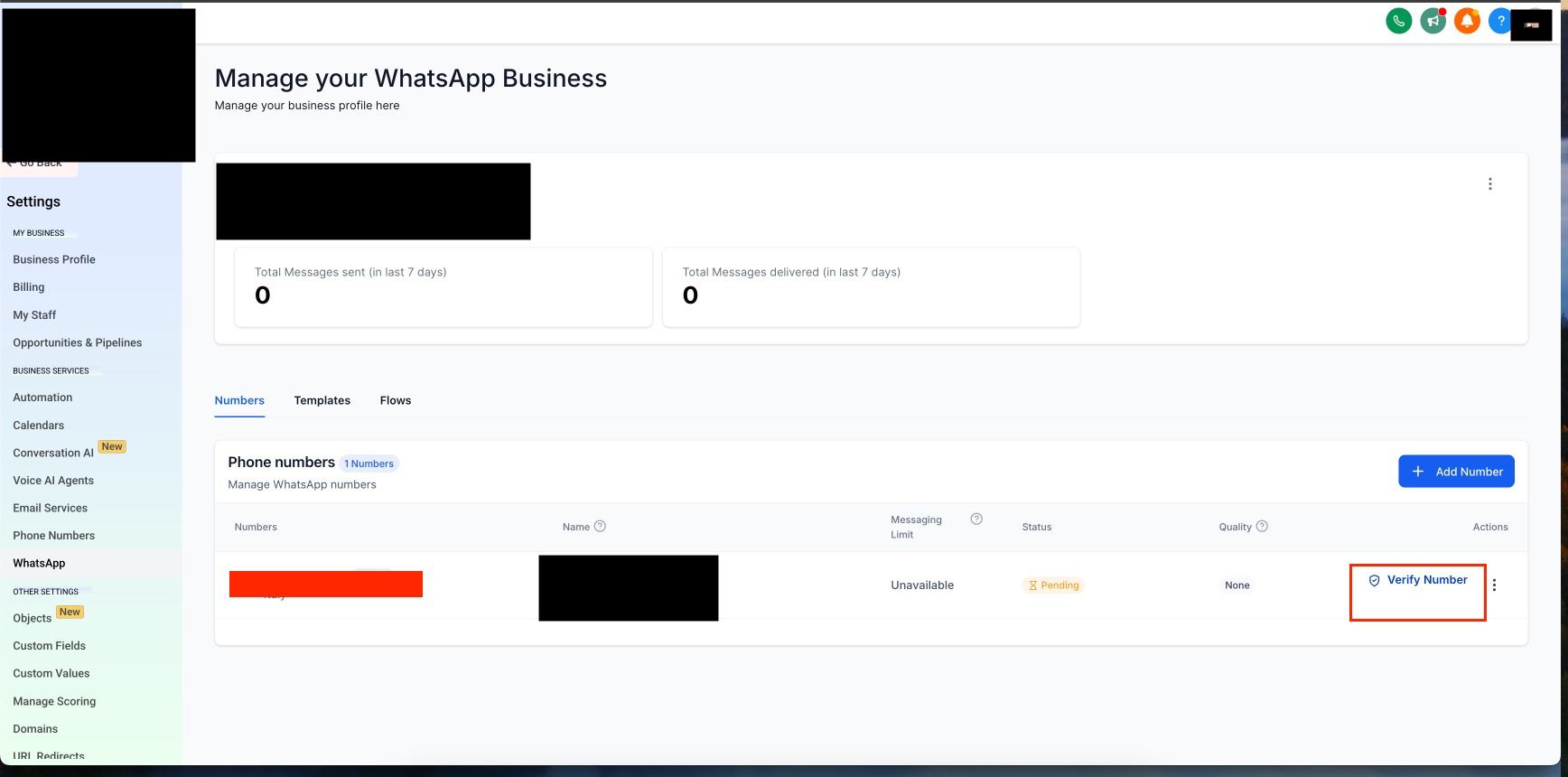
- Click the Verify Phone Number button.
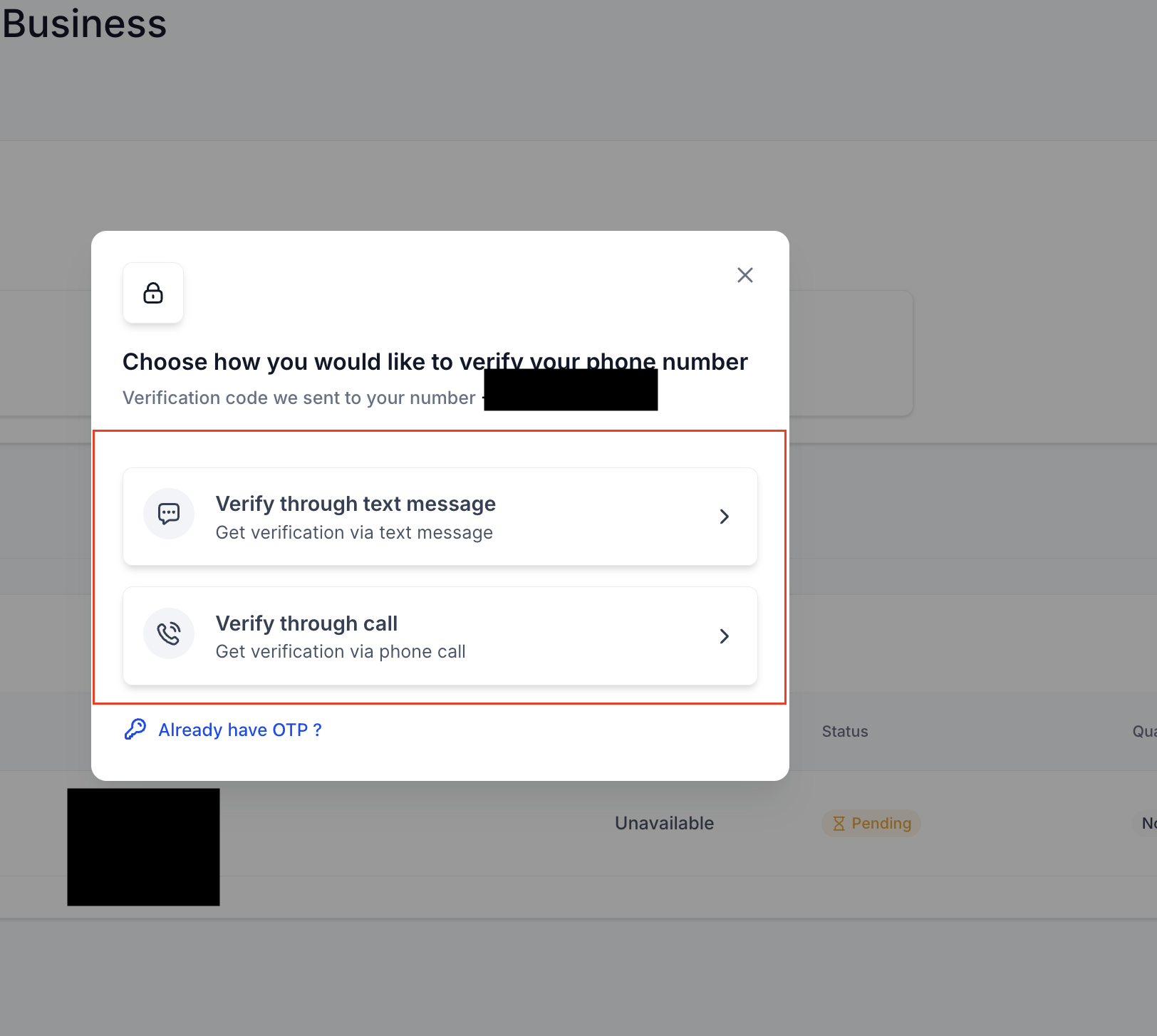
- Choose whether the OTP will be sent by a voice call or a text message.
- Enter the received OTP into the prompt.
- Confirm that the number is verified after the correct code is entered.
06What it looks like in HighLevel
07Settings that matter
- Verify Phone Number. Starts the OTP process that confirms the business phone number for WhatsApp Business.
08Things to know before you rely on it
- A phone number can only be active on WhatsApp Business or WhatsApp Messenger, not both at the same time.
- If network conditions are poor, the OTP may be delayed or not arrive.
- Verification may fail if the entered number is incorrect.
09If something goes wrong
- Did not receive the OTP. Check that the phone number is entered correctly, verify network connectivity, click Get another code to resend, and restart the phone before trying again.
- Verification fails. Confirm the phone number is correct, ensure a stable internet connection, and request the OTP again.
10How it connects to the rest of HighLevel
- Set up WhatsApp automation workflows in HighLevel WhatsApp workflow integration
- Guide for WhatsApp subaccount setup and migration Subaccount setup guide
- Use your Business App alongside HighLevel WhatsApp coexistence
Michael's take

Michael ReimerFounder of CRM Pros, HighLevel Commander and Certified Admin
Verifying the number is a necessary step to start using WhatsApp Business for communication.
Get More InformationOpens on HighLevelPublished November 2, 2026 · Updated November 16, 2026