
01Who this is for
- Agency owners who resell WhatsApp services can capture phone numbers for leads without breaking user privacy.
- Small business managers using WhatsApp for support can request numbers at the exact point in a customer journey.
- Marketing teams that send template campaigns can embed a one tap share button to gather contacts safely.
02Usernames in interactive messages, explained
Request Contact Info is a feature that asks a WhatsApp username contact to share their phone number. The request can appear as a Share contact info button inside a Marketing or Utility template, or as an interactive message placed in a workflow. When the user taps the button or responds to the interactive message, WhatsApp opens its native contact sharing screen.
HighLevel checks the number against existing contacts. If no other contact holds that phone number, it is added to the username based record. If the number already belongs to another contact, HighLevel leaves the username contact unchanged, avoiding duplicate assignments. The captured number can then be used by any applicable phone based HighLevel workflows.
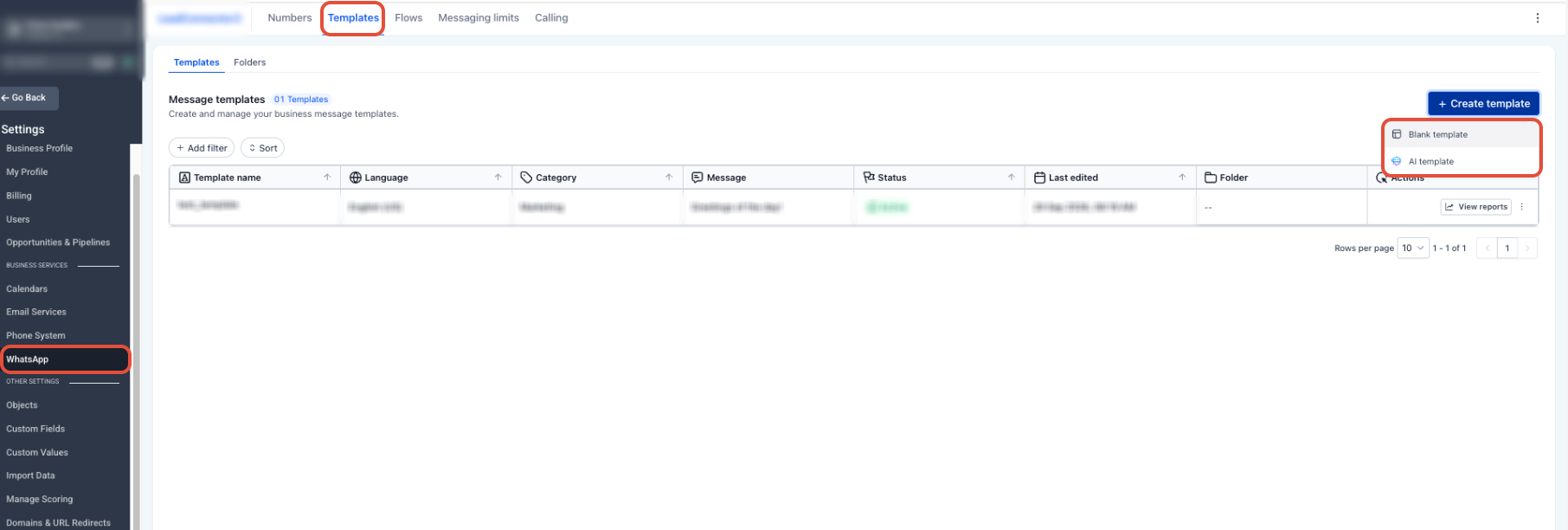
Both methods live under the WhatsApp settings of a subaccount. Templates are managed via Settings > WhatsApp > Templates, while workflow requests are built in Automation > Workflows using the WhatsApp Interactive Messages action.
03How businesses use usernames in interactive messages
- Digital marketing agency. The agency adds a Share contact info button to its approved Marketing template. After Meta approval, the template is sent to campaign recipients, allowing them to share their phone numbers with a single tap.
- Ecommerce store. The store includes a Request Contact Info action in the order confirmation workflow. When the 24 hour Customer Service Window is open, the workflow automatically asks buyers to share their numbers for shipping updates.
- Local service provider. The provider creates a workflow that runs after a booking is made. The workflow uses the Request Contact Info interactive message to collect the client’s phone number for follow up calls.
04The numbers and rules that matter
- Workflow based requests require an open 24 hour Customer Service Window.
05Before you start
- The subaccount must have WhatsApp connected and configured.
- A username based contact must already exist in the account.
- For workflow requests, the 24 hour Customer Service Window must be open.
- Any template used must be approved through Meta’s standard approval process.
06How to set up and use usernames in interactive messages in HighLevel
Add Share contact info to a WhatsApp template
- From the Subaccount View, open Settings.
- Select WhatsApp.
- Open Templates.
- Create a new template or edit an existing one.
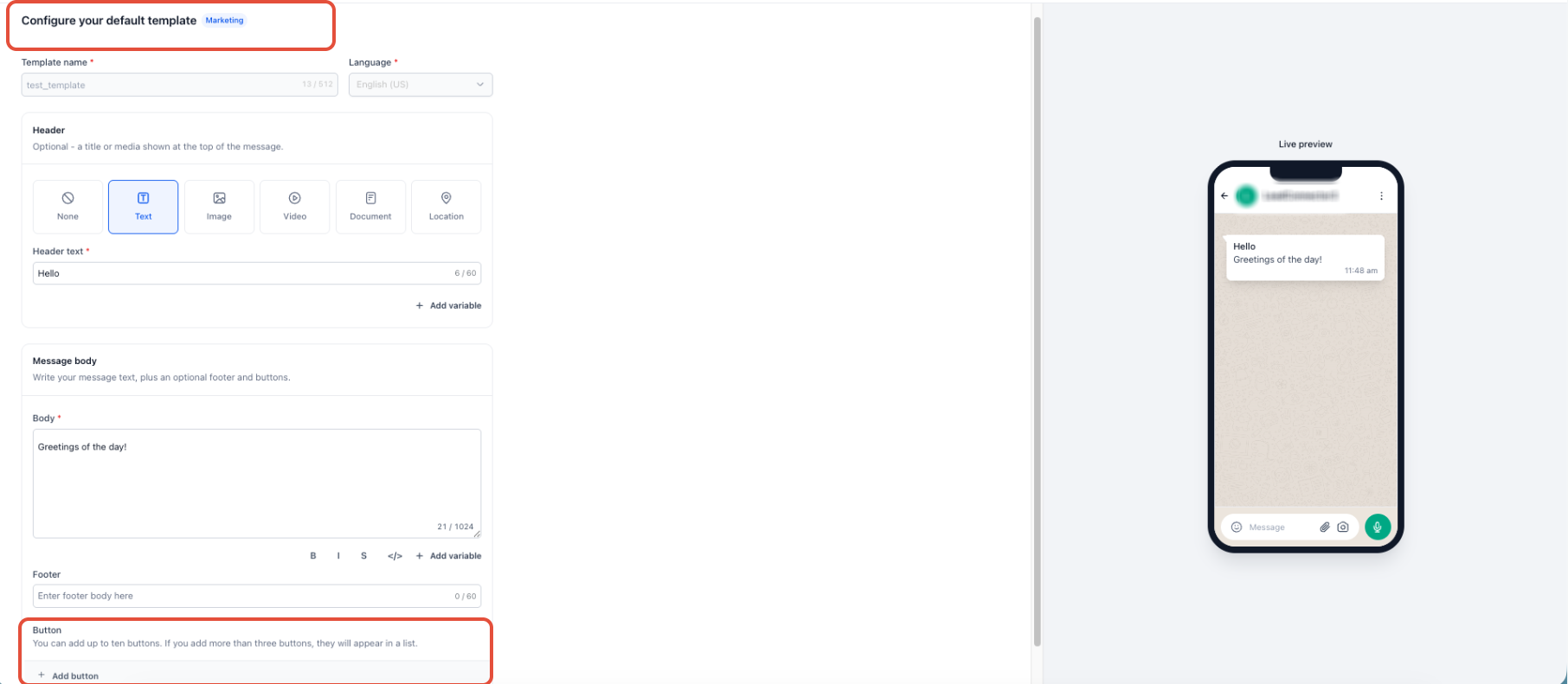
- Choose a supported category, Marketing or Utility.
- Enter the template text.
- Optionally add a Button element.
- Set the button action to Share contact info.
- Complete the remaining template configuration.
- Submit the template for Meta approval.
- After approval, send the template to the username contact.
Request Contact Info from a workflow
- From the Subaccount View, go to Automation.
- Open the workflow where the request is needed.
- Confirm that the 24 hour WhatsApp Customer Service Window is open before sending the interactive request.
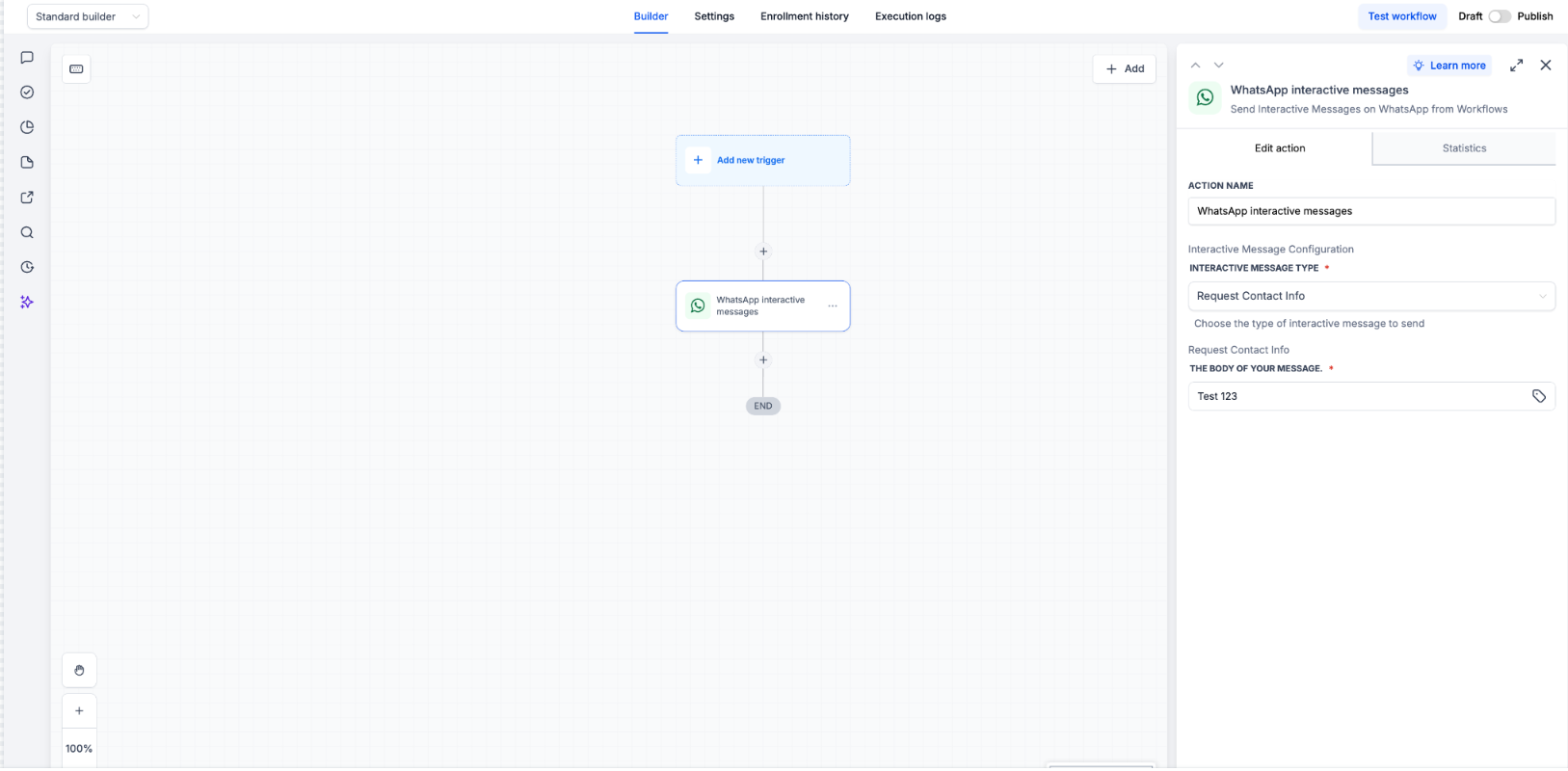
- Click Add Action (+).
- Select WhatsApp Interactive Messages.
- Choose the From Phone Number to send from.
- Open the Interactive Message Type menu.
- Select Request Contact Info.
- Enter a message explaining why the phone number is requested.
- Save the action.
- Finish any remaining workflow settings.
- Publish the workflow and run a test.
07What it looks like in HighLevel
08Settings that matter
- Share contact info. Controls the button action in a template that lets a WhatsApp user share their phone number with the business.
- Request Contact Info. Defines the interactive message type used in a workflow to ask a username contact for their phone number.
- From Phone Number. Specifies which phone number the interactive message is sent from when using Request Contact Info.
09Things to know before you rely on it
- Works only if the subaccount already has WhatsApp connected and a username contact exists.
- Template requests require a Meta approved Marketing or Utility template.
- Workflow requests can be sent only while the 24 hour Customer Service Window is open; otherwise a template must be used.
- The feature never automatically reveals a phone number or merges duplicate contacts; duplicate numbers are ignored.
- Availability depends on Meta’s rollout of WhatsApp usernames and on WhatsApp Calling eligibility.
10How it connects to the rest of HighLevel
- Guide to creating and managing WhatsApp templates WhatsApp template guide
- How to set up WhatsApp automation workflows WhatsApp workflow integration
- WhatsApp Calling for username contacts WhatsApp Calling feature
Michael's take

Beware that requesting a phone number from a WhatsApp username contact adds a step where the customer must choose to share, and the system won’t automerge duplicates. That means you need to keep an eye on duplicate handling if you rely on the number for other flows.
When it works, the feature lets you capture phone numbers with a single tap, either via a template button or a workflow action, and HighLevel protects against assigning the same number to multiple contacts. It’s a clean way to enrich your records without forcing the customer to type anything.