
01WhatsApp media messages, explained
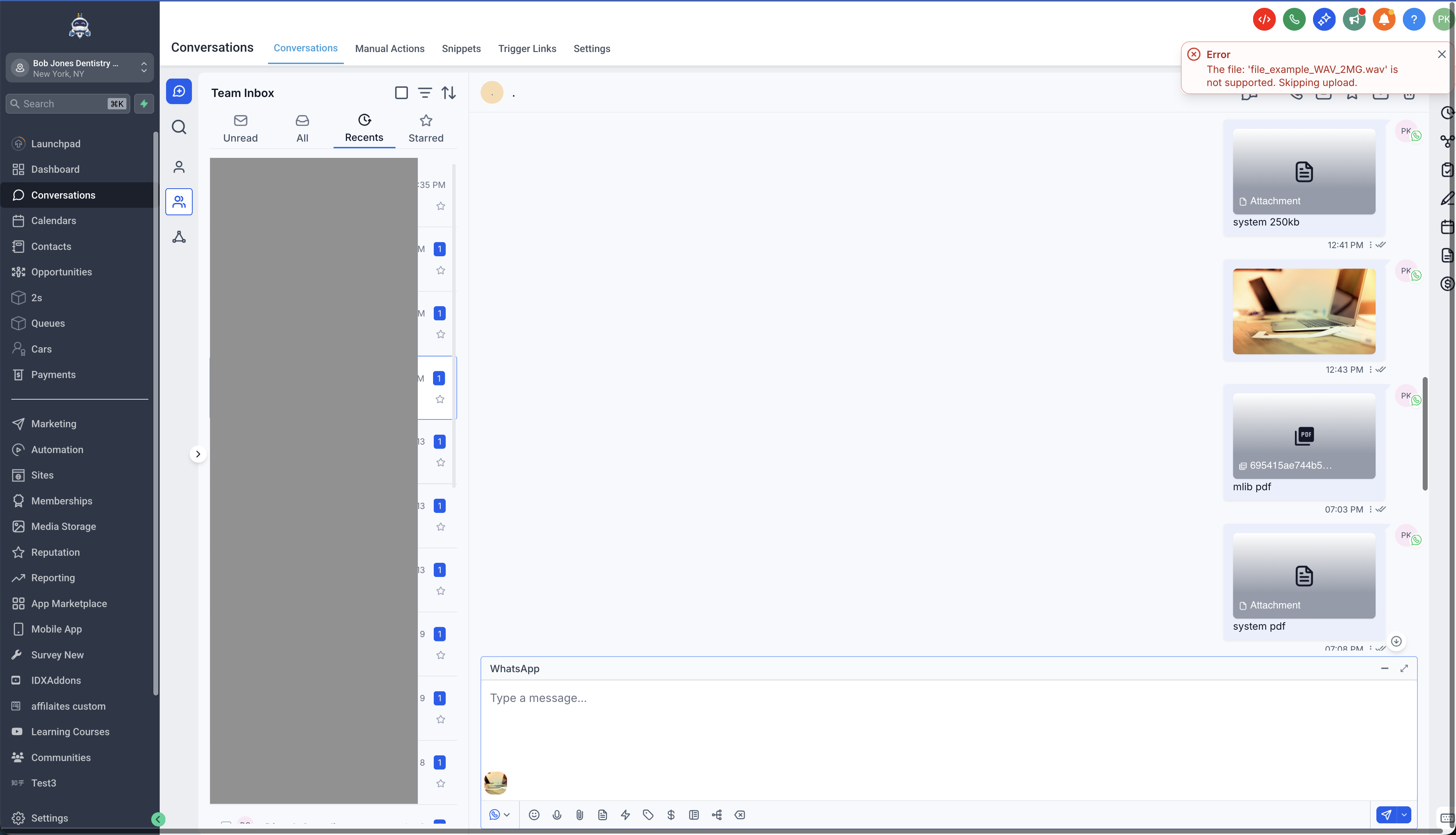
Rich WhatsApp Media Messaging lets users send supported images, videos, audio files, and documents through WhatsApp conversations inside HighLevel. Files can be uploaded from the composer or pulled from Media Storage, and a caption can be added to give the recipient context.
The feature is part of the New Conversations UI in Labs and works only when a WhatsApp channel is connected and active. Captions are applied automatically when text is entered in the composer, and media can be saved to the Documents tab for long term access.
02How businesses use WhatsApp media messages
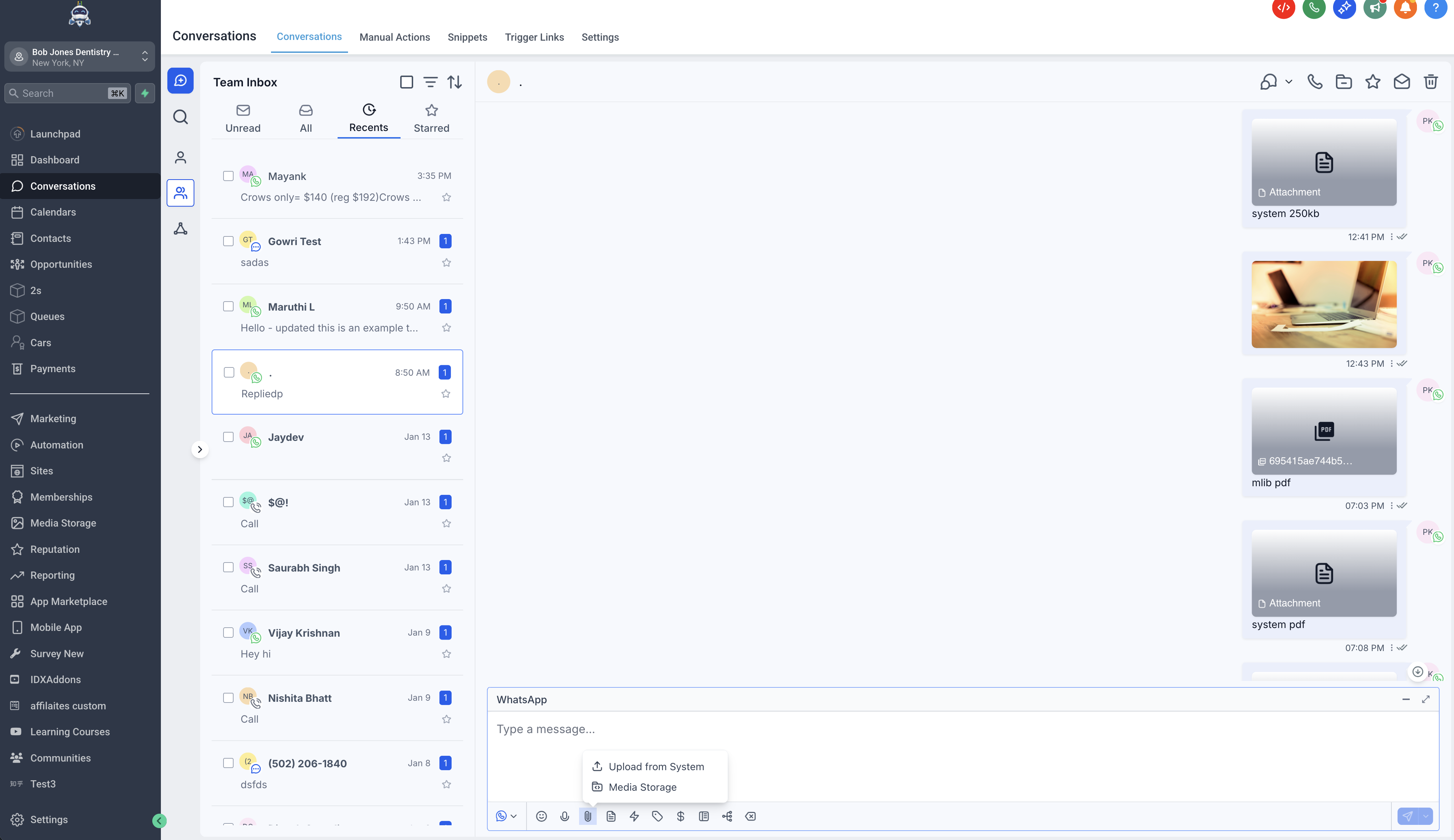
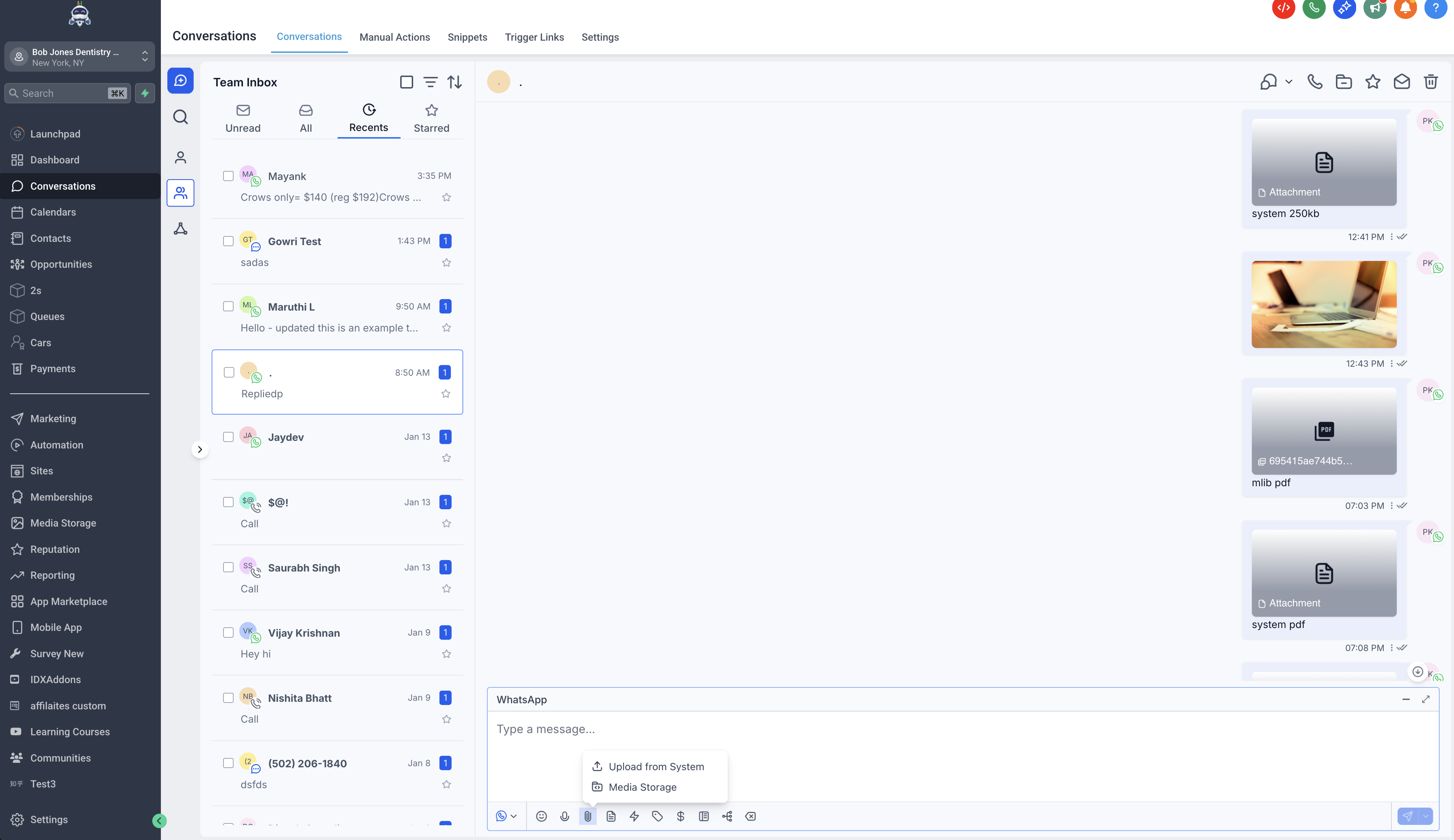
- Send media from the composer. Open a WhatsApp conversation, confirm WhatsApp is the active channel, click the attachment icon, upload a supported file, add optional text as a caption, and send. The text becomes the caption instead of a separate message.
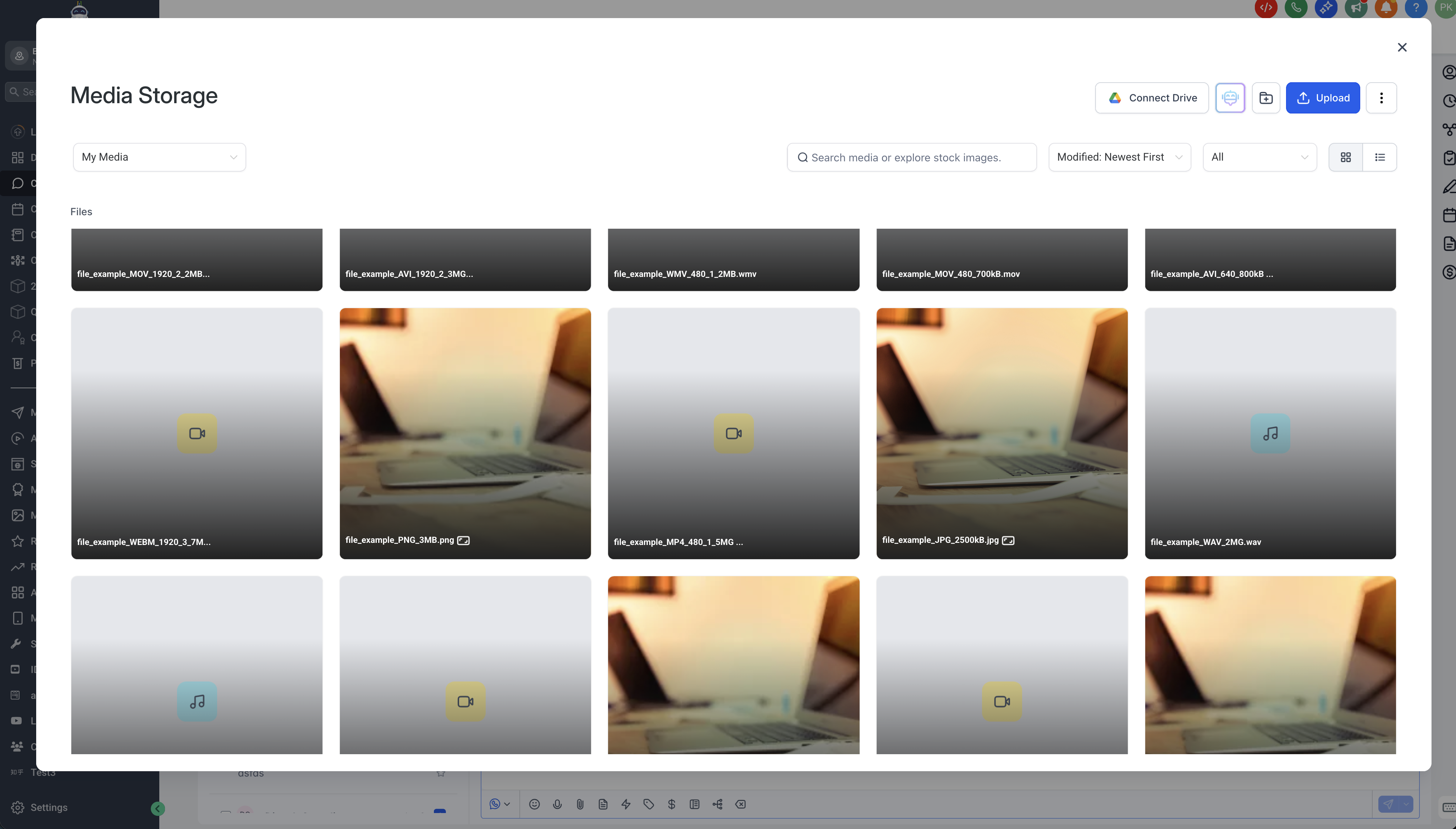
- Reuse media from Media Storage. Within a WhatsApp conversation, open the Media Storage option, browse or search for a preuploaded file, select one or more supported files, add optional caption text, and send. This avoids reuploading the same asset.
- Add captions to media. When sending either composer uploads or Media Storage files, type any message text before hitting send. That text is used as the caption for each attachment, keeping the media and explanation together.
- Save media to Documents. After receiving a media attachment, open the three dot menu next to the message, choose Add to Documents, and confirm. The file then appears in the contact’s Documents tab for future reference.
03The numbers and rules that matter
- WhatsApp media can only be sent inside the 24 hour customer service window.
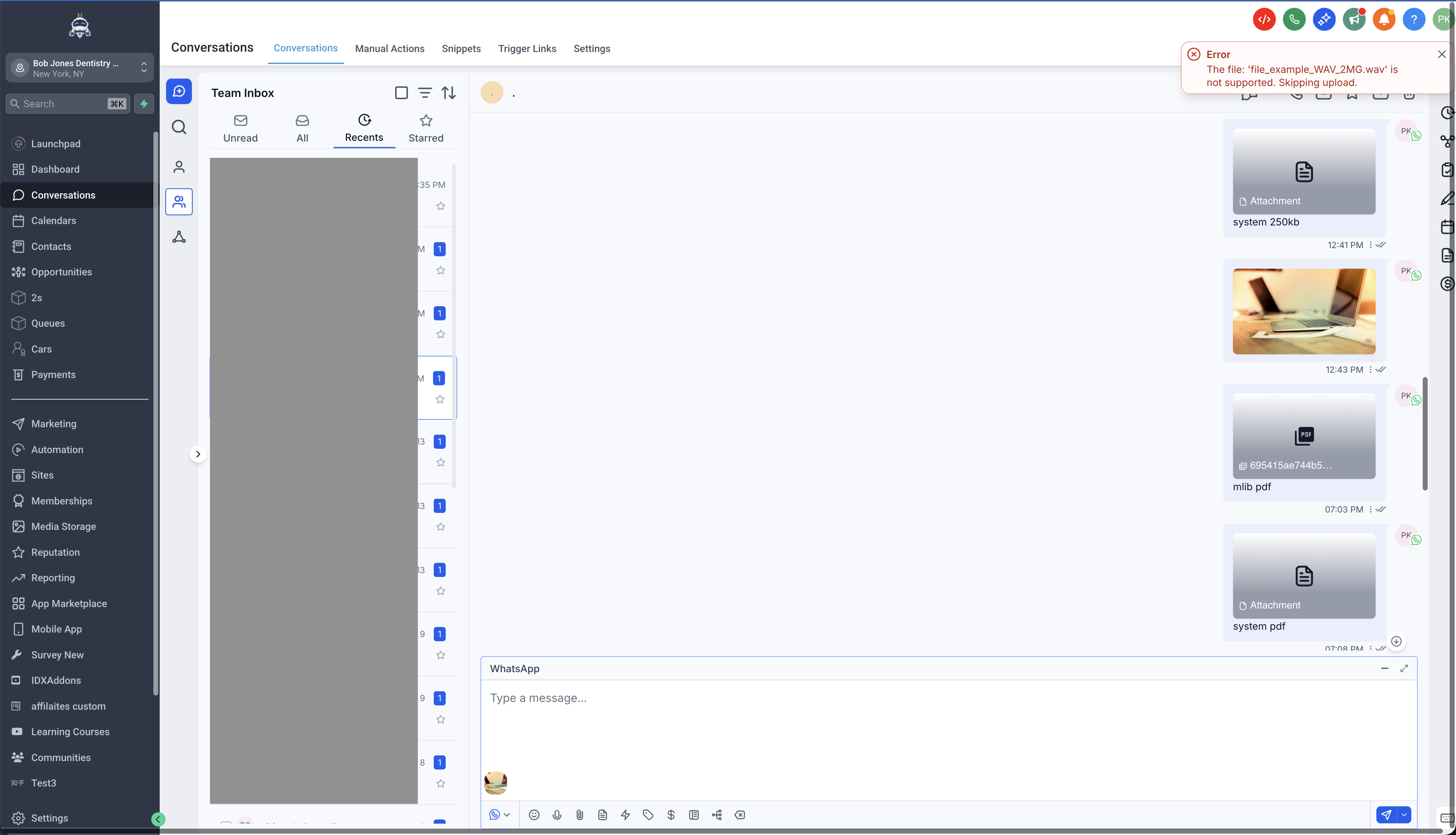
- Images: PNG, JPG, JPEG. Max 5 MB.
- Videos: MP4, 3GP. Max 16 MB.
- Audio: AAC, AMR, MP3, M4A. Max 16 MB.
- Documents: TXT, PDF, DOC, DOCX, XLS, XLSX, PPT, PPTX. Max 100 MB.
04Before you start
- Use the New Conversations UI in Labs.
- Connect a WhatsApp channel to the CRM account.
- Select WhatsApp as the active conversation channel.
05How to set up and use WhatsApp media messages in HighLevel
Send WhatsApp media from the composer
- Open Conversations in CRM.
- Open the contact's WhatsApp conversation.
- Confirm that WhatsApp is selected as the message channel.
- Click the attachment option in the composer.
- Upload a supported file from your device.
- Enter message text if you want to include a caption.
- Send the message.
Send WhatsApp media from Media Storage
- Open Conversations in CRM.
- Open the contact's WhatsApp conversation.
- Confirm that WhatsApp is selected as the message channel.
- Open the attachment or Media Storage option in the composer.
- Browse or search for the file you want to send.
- Select one or more supported files.
- Add text in the composer if you want to include a caption.
- Send the message.
Save WhatsApp media to Documents
- Open the WhatsApp conversation that contains the media attachment.
- Locate the message with the attachment.
- Click the three dot menu next to the message or attachment.
- Select Add to Documents.
- Confirm that the file is available in the contact's Documents area.
06What it looks like in HighLevel
07Things to know before you rely on it
- Captions are supported for media sent through Composer uploads and Media Storage.
- When multiple attachments are sent, the composer text is automatically used as the caption across all attachment messages.
- WhatsApp template rules may still apply when messaging outside an active WhatsApp conversation window.
- Successfully sent attachment messages may display a generic attachment icon in the CRM. This is expected behavior.
08If something goes wrong
- Feature not visible in Conversations. Ensure you are using the New Conversations UI in Labs; users not on this UI will not see the updated WhatsApp media behavior.
- Generic attachment icon appears after sending media. This is the current expected behavior in the CRM.
Michael's take

Sending media without context can leave clients confused and force you to follow up with extra messages. Adding captions directly to WhatsApp images, videos, audio or documents keeps the conversation clear.
When the New Conversations UI is active, you can pull files from Media Storage or upload them on the fly, add a short note, and send. All in one step. The option to save any important attachment to Documents also protects you from losing files when WhatsApp expires them.