
01Who this is for
- Agency owners who manage client WhatsApp numbers can automate media delivery without manual effort.
- Ecommerce retailers can share product photos or spec sheets right away after a customer inquiry.
02WhatsApp media actions, explained
The WhatsApp Media Action is a workflow step that sends a media file, image, video, document or audio, through a connected WhatsApp number. It works only while the 24 hour customer service window is active, which starts whenever a contact messages the business.
In a workflow, you first check the window status with the WhatsApp: Customer Service Window Check action. If the window is open, you add the WhatsApp Media action on the Open branch. You choose the media type, upload a compatible file, and optionally add a caption for images, videos and documents. Audio files are sent without captions.
The action integrates with other workflow elements such as triggers, conditions and additional messaging steps, allowing you to build complete automated communication sequences.
03How businesses use WhatsApp media action
- Ecommerce store. Add the WhatsApp Media action after a purchase trigger. Upload a product image or PDF receipt and include a short caption. The file is sent automatically while the customer’s service window is open.
- Online course provider. When a student completes a lesson trigger, place a WhatsApp Media action that sends a video tutorial. Choose the video file, ensure it meets the MP4 format and size limits, and add a caption with a brief summary.
- Real estate agency. After a lead requests a property brochure, the workflow adds a WhatsApp Media action that delivers a PDF document. The document is uploaded, a caption with the property address is added, and the file is sent within the active service window.
04The numbers and rules that matter
- Image formats: JPEG, PNG. Max 5 MB. Captions supported.
- Video formats: MP4, 3GP. Max 16 MB. Captions supported. Must use H.264 video and AAC audio encoding.
- Document formats: PDF, DOC, DOCX, TXT, PPT, PPTX, XLS, XLSX. Max 100 MB. Captions supported.
- Audio formats: AAC, AMR, MP3, M4A, OGG (OPUS). Max 16 MB. Captions not supported.
- Regular media messages require an open 24 hour customer service window.
05Before you start
- WhatsApp must be connected to the HighLevel subaccount.
- A WhatsApp From Number must be assigned to the subaccount.
06How to set up and use WhatsApp media action in HighLevel
Set up the WhatsApp Media Action
- Open Automation > Workflows.
- Click Create Workflow > Start from Scratch (or open an existing workflow).
- Add and configure the workflow trigger.
- Click the + icon to add a new action.
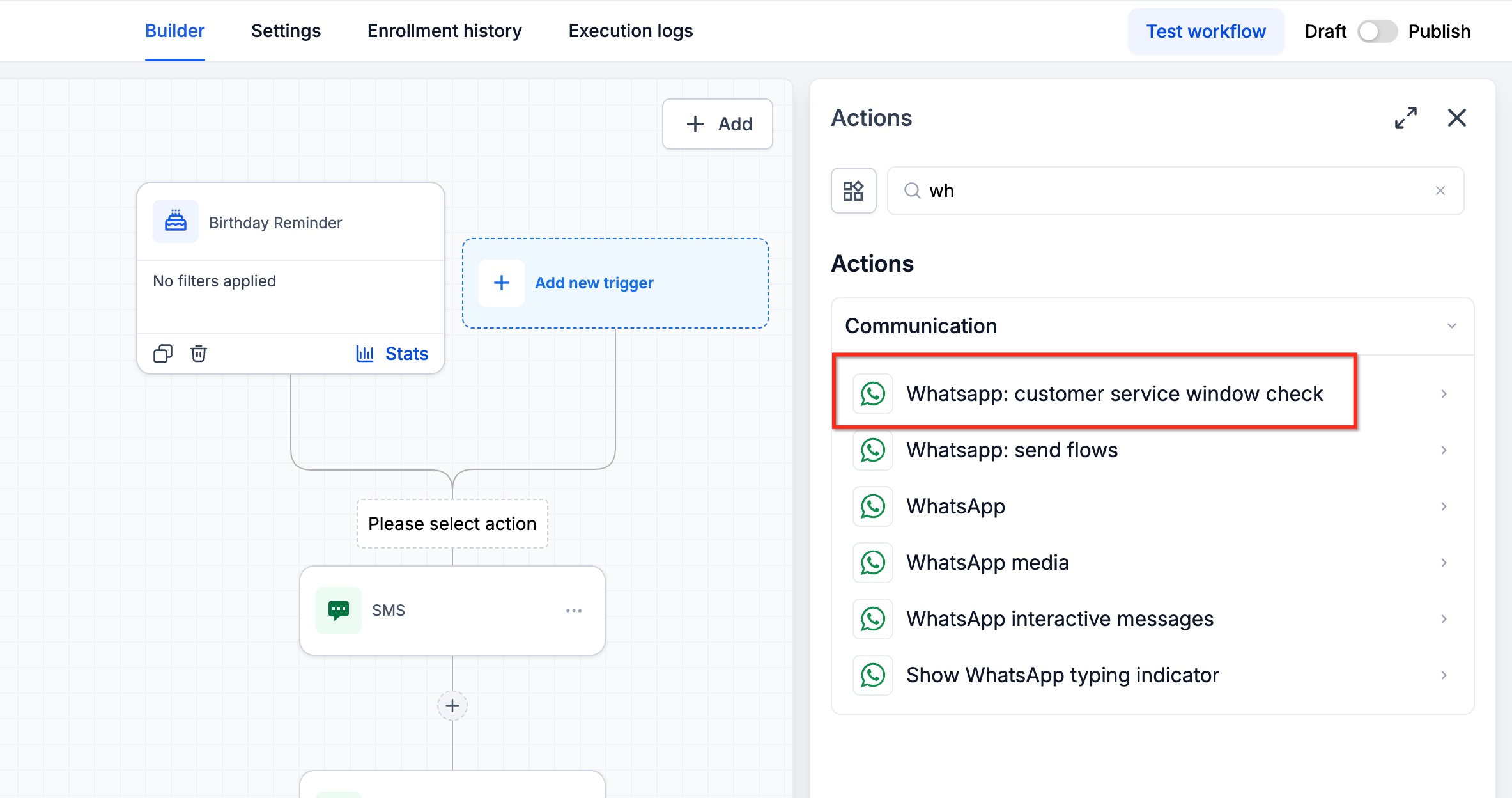
- Search for WhatsApp: Customer Service Window Check.
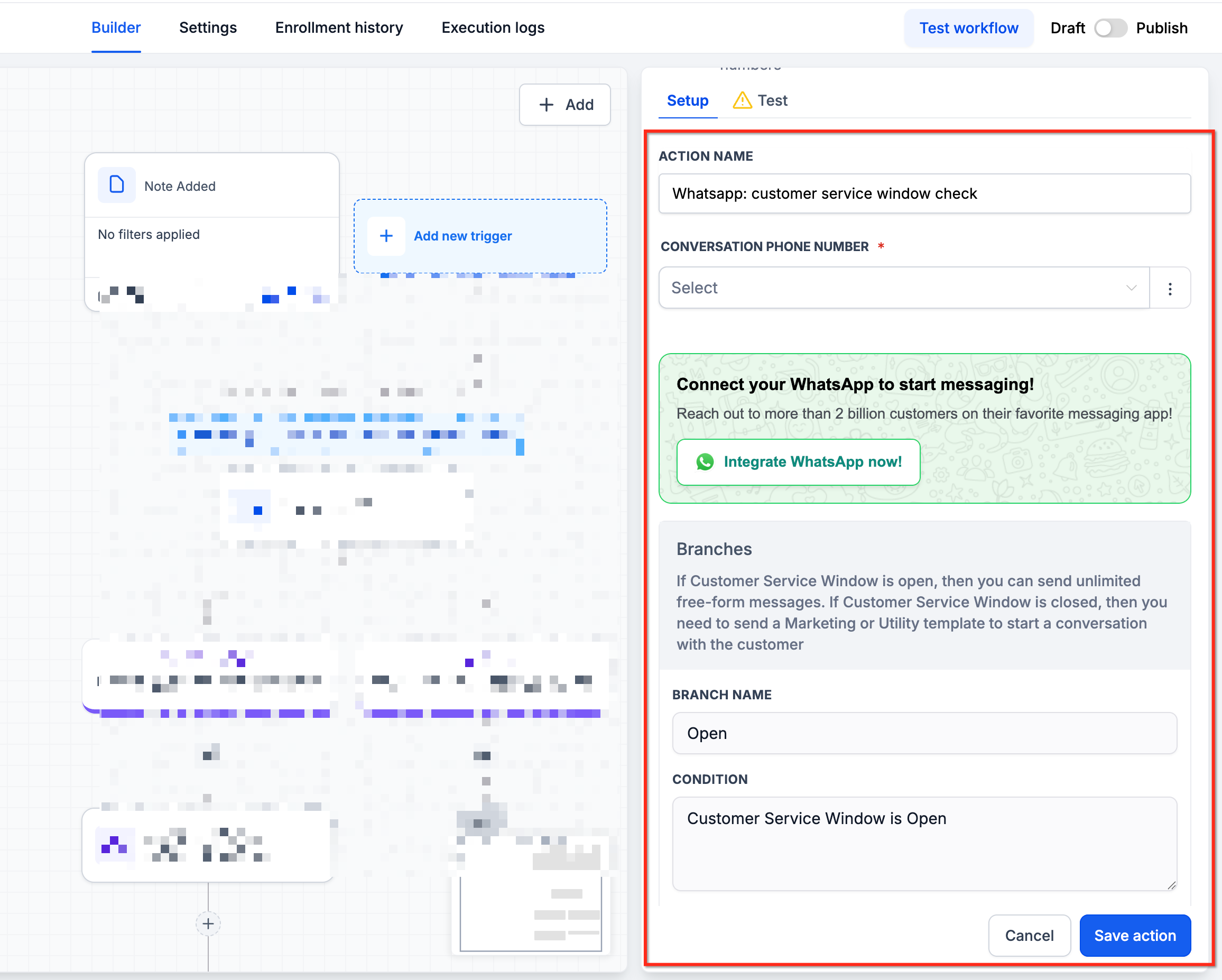
- Select the action and set the WhatsApp number to use.
- Save the Customer Service Window Check action.
- Under the Open branch, click the + icon again.
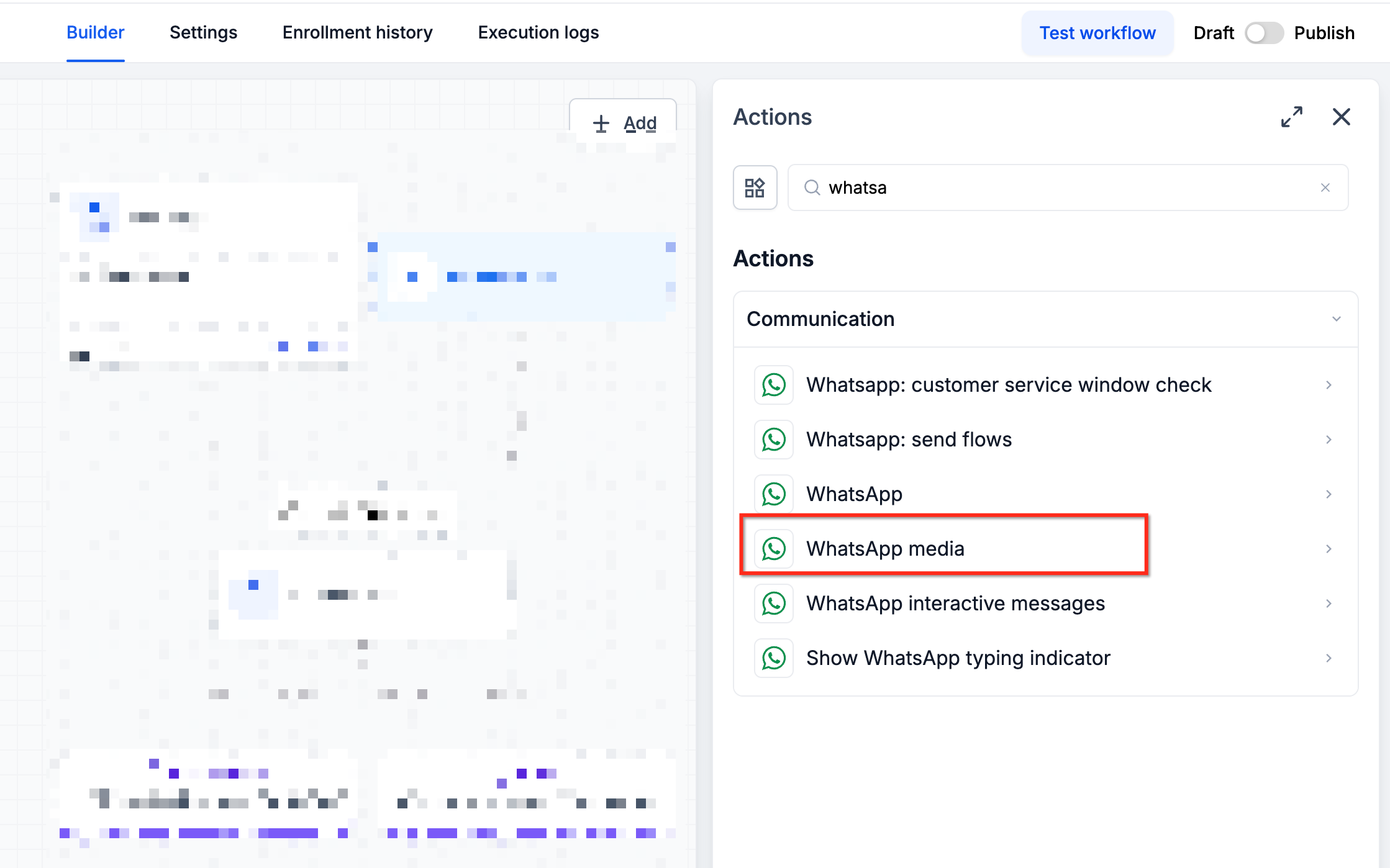
- Search for and select WhatsApp Media.
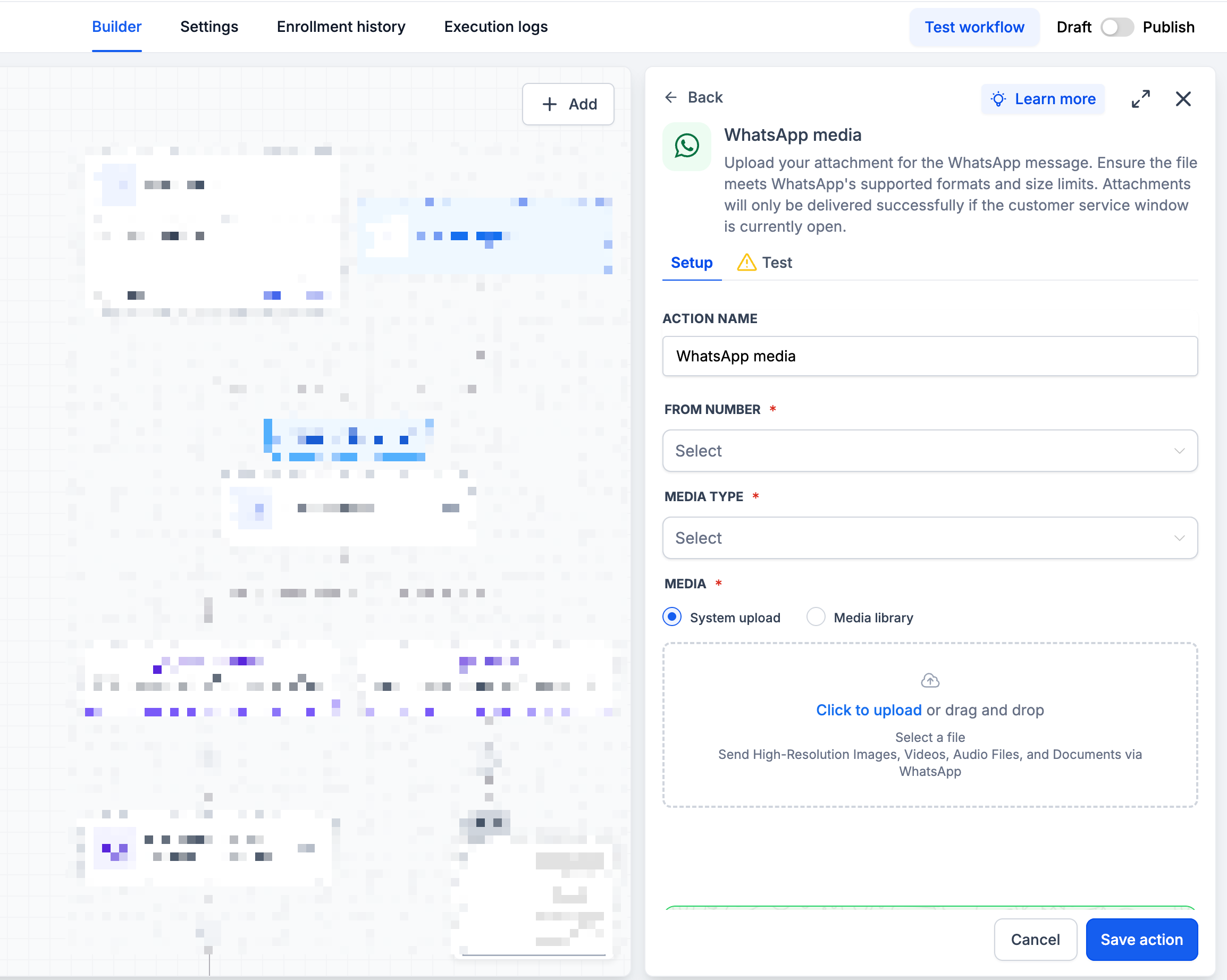
- Choose the connected WhatsApp From Number.
- Set the Media Type (Image, Video, Document, or Audio).
- Upload the media file and add an optional caption if supported.
- Click Save Action, then publish the workflow and test with a contact in an open service window.
07What it looks like in HighLevel
08Settings that matter
- Media Type. Determines whether the message sends an image, video, document or audio file.
- WhatsApp From Number. Specifies which connected WhatsApp number is used to deliver the media.
- Caption. Adds optional text to images, videos and documents; ignored for audio files.
09Things to know before you rely on it
- Images may be JPEG or PNG and cannot exceed 5 MB.
- Videos must be MP4 or 3GP, use H.264 video and AAC audio, and stay under 16 MB.
- Documents are limited to PDF, DOC, DOCX, TXT, PPT, PPTX, XLS, XLSX and cannot exceed 100 MB.
- Audio files can be AAC, AMR, MP3, M4A, OGG (OPUS) and must stay under 16 MB; captions are not supported.
- Media can be sent only while the 24 hour customer service window is open.
10If something goes wrong
- Media not delivered. Verify that the 24 hour window is open.
- Unsupported file. Check the file type and size limits.
- Missing audio caption. Audio captions are not supported; remove any caption text.
- Video upload failure. Confirm the video uses supported H.264 video and AAC audio encoding.
- Media upload error 131053. Ensure the file is not invalid, corrupted, or oversized.
11How it connects to the rest of HighLevel
- Set up a WhatsApp subaccount before using the media action. WhatsApp subaccount setup
- Learn how to add WhatsApp actions to automation workflows. WhatsApp workflow integration
- Create and manage WhatsApp templates for messages outside the service window. WhatsApp templates
Michael's take

In my experience, the WhatsApp Media Action lets me automate sending files while staying within the active service window.
The first setting I would lock down is the Customer Service Window Check, because the window must be open for regular media messages; otherwise a template is needed.