
01Who this is for
- Agency owners who manage client messaging need the number to qualify for API access, so they can offer WhatsApp services.
- Small business Founders that rely on WhatsApp for customer support must prove active usage before the platform accepts their number.
02WhatsApp business platform eligibility errors, explained
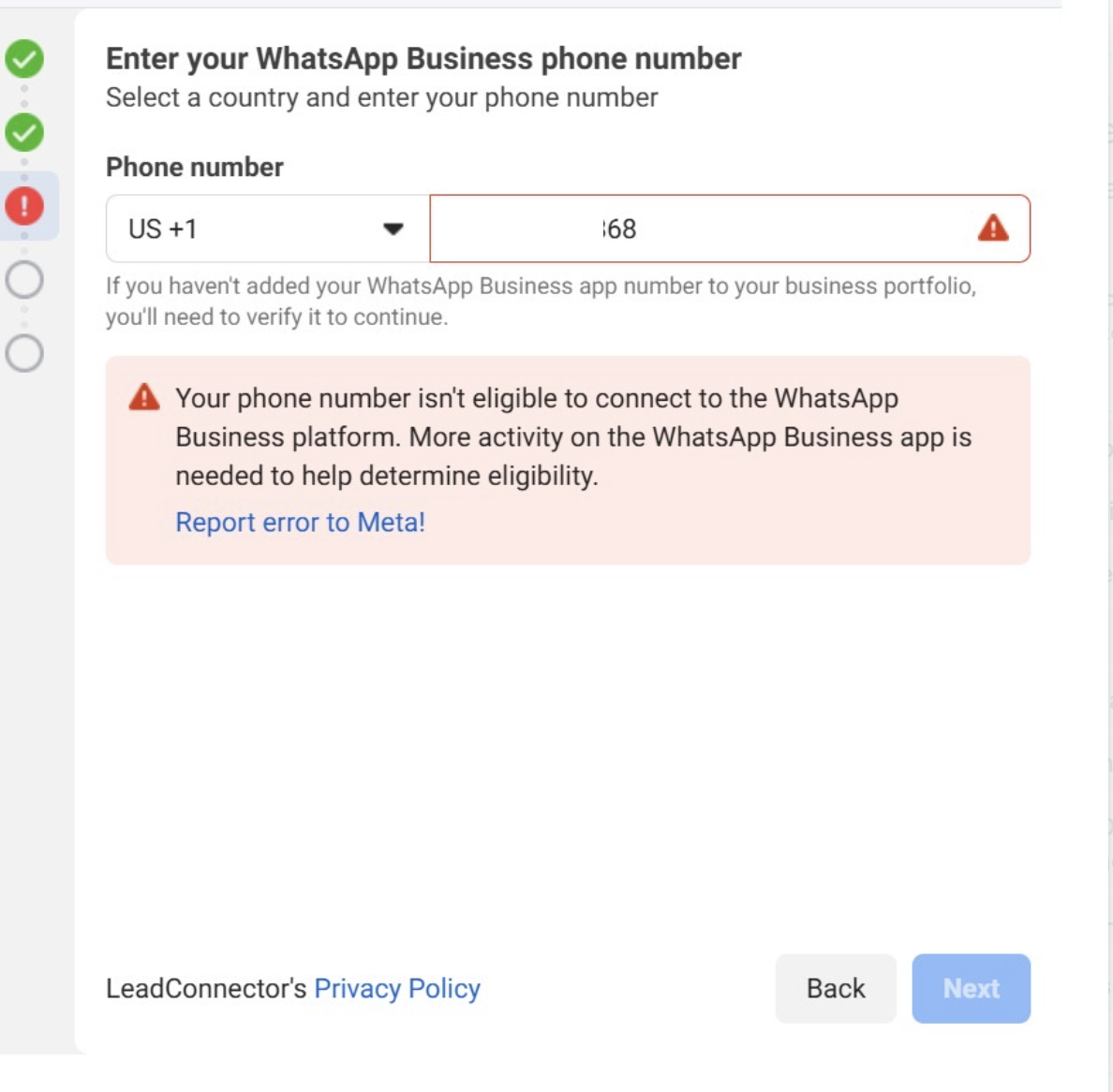
WhatsApp checks a phone number for authentic business usage before allowing it to connect to the Business Platform. If the number has little or no activity, HighLevel displays an eligibility error during onboarding. The check occurs when you attempt to link the number via the CRM > WhatsApp section. The platform expects recent inbound and outbound messages, use of quick replies, labels, greeting messages, and various content types. To satisfy the check, you must create genuine conversations for a sustained period, then retry the onboarding step. The process is part of the WhatsApp coexistence (Coex) feature, which lets the WhatsApp Business App and HighLevel work together.
03How businesses use the WhatsApp business platform eligibility error
- Real estate agency. The agency sends property details, images, and contracts to prospective buyers using the WhatsApp Business App. After a month of daily chats, they return to CRM > WhatsApp and retry onboarding the agency's number to enable API messaging.
- Fitness studio. The studio uses quick replies for class schedules and shares PDFs of workout plans with members. Once a month of active exchanges is recorded, the studio revisits the onboarding screen and reconnects the studio's number.
- Ecommerce retailer. The retailer engages customers with order confirmations, photos of products, and shipping documents. After maintaining conversation activity for several weeks, the retailer goes back to the onboarding tool and attempts the connection again.
04Before you start
- The phone number must be registered on the WhatsApp Business App.
- The number should have existing inbound and outbound messages before onboarding.
- Do not delete the WhatsApp Business App until the onboarding succeeds.
05How to set up and use the WhatsApp business platform eligibility error in HighLevel
Start engaging in real conversations
- Send and receive messages with real customers or internal testers.
- Use quick replies, labels, and greeting messages inside the WhatsApp Business App.
- Share different content types such as text, images, and documents.
- Reply promptly to keep each conversation active.
- Maintain daily messaging activity for about a month.
Retry the onboarding process
- Open the onboarding tool at CRM > WhatsApp.
- Attempt to connect the phone number again.
- Confirm that the number links without the eligibility error.
06What it looks like in HighLevel
07Things to know before you rely on it
- WhatsApp only accepts numbers that show genuine business use.
- Fresh or unused numbers will continue to generate the eligibility error.
- Numbers removed from the WhatsApp Business App too early may not qualify.
08If something goes wrong
- Error: phone number isn’t eligible to connect to the WhatsApp Business Platform.. Engage the number in real conversations for several weeks, then retry onboarding.
- Using a brand new number results in the same error.. Select a different number that already has activity on the WhatsApp Business App.
09How it connects to the rest of HighLevel
- Learn how the coexistence feature lets the WhatsApp Business App work with HighLevel. WhatsApp coexistence
- Set up WhatsApp for a subaccount and migrate existing numbers. Subaccount setup
- Start a trial to explore WhatsApp onboarding in HighLevel. 30 day trial
Michael's take

If I were in that spot, I’d make sure the number is registered in the WhatsApp Business App and then start a handful of genuine conversations right away. Let those chats run daily, then go back to CRM > WhatsApp in HighLevel and give the onboarding another try.