
01Who this is for
- Agency admins, need authority to stop billing and manage subscriptions.
- Agency owners, must control financial exposure of WhatsApp services.
- Reselling agencies, require the ability to end client WhatsApp plans when contracts finish.
02WhatsApp subscriptions, explained
The cancellation feature lets an agency remove an active WhatsApp subscription from its HighLevel account. Doing so ends recurring charges and may reduce or disable WhatsApp Business capabilities tied to the plan.
When a cancellation is submitted, the system calculates a prorated refund based on the unused days of the billing period. The refund is issued within seven to eight working days (per HighLevel's help center, checked November 2026).
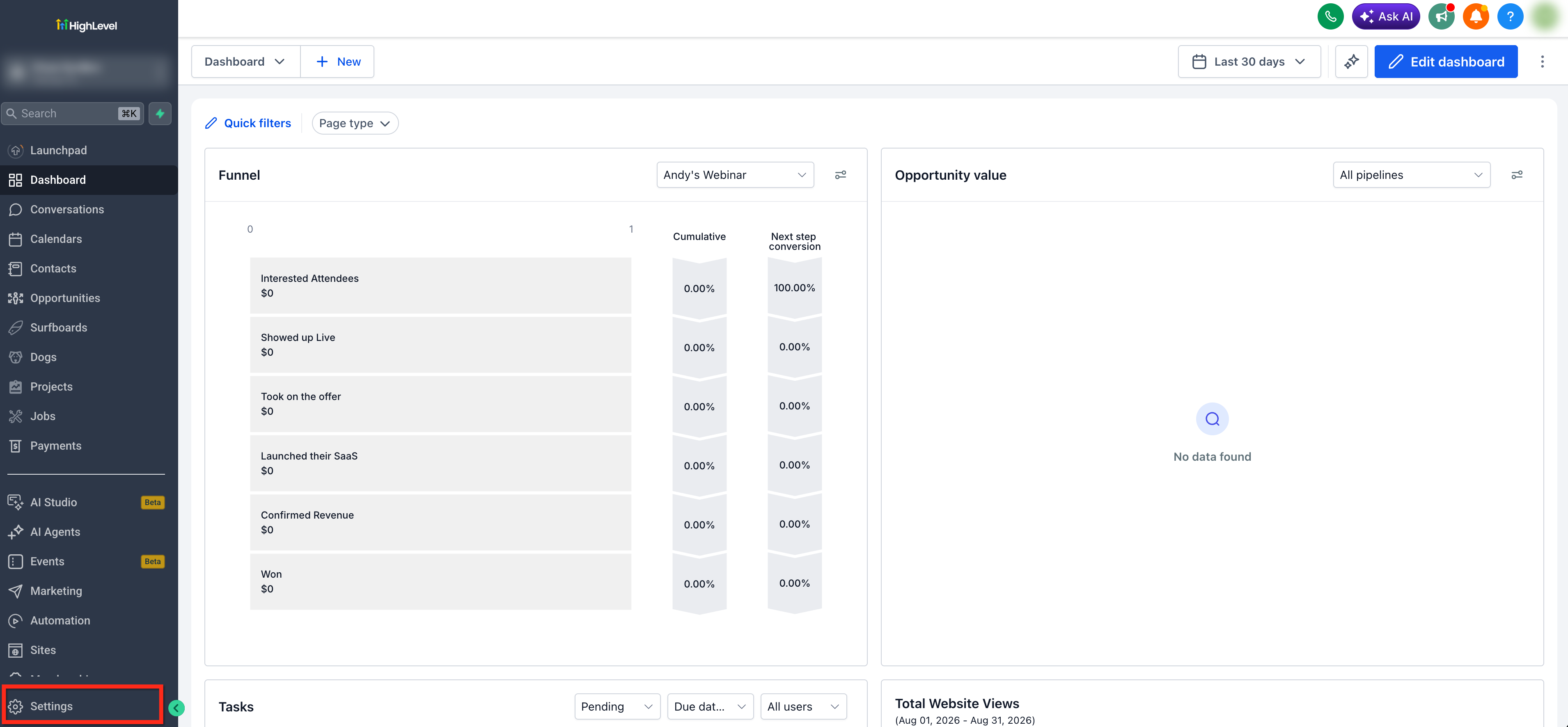
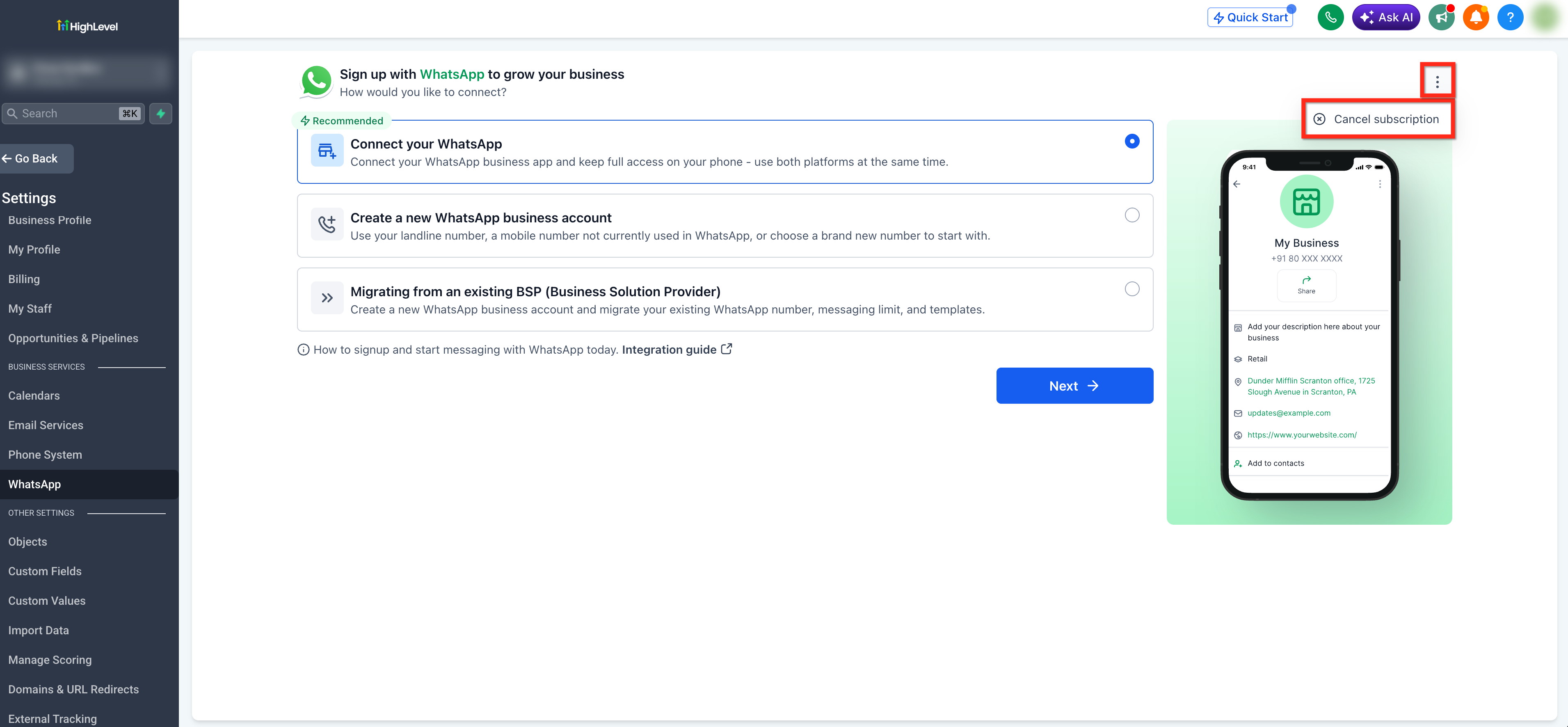
The option to cancel is found under Settings > WhatsApp. After opening the WhatsApp page, tap the three dot menu and choose Cancel Subscription to start the workflow.
03How businesses use WhatsApp subscription
- Digital marketing agency. When a client ends their contract, the agency admin opens Settings > WhatsApp, selects the three dot menu, and follows the cancellation steps to stop billing and retain the client’s message templates for future use.
- SaaS platform offering WhatsApp as an add on. The platform owner uses the cancellation flow to discontinue a subscriber’s WhatsApp add on, ensuring the subscriber receives a prorated refund while keeping their existing templates intact.
- Consulting firm using WhatsApp for client communication. If the firm decides to pause WhatsApp services, an owner navigates to Settings > WhatsApp, initiates cancellation, selects a reason, and finalizes the process, preserving all historical data.
04The numbers and rules that matter
- A prorated refund will be issued based on the number of unused days remaining in your subscription period, within 7 to 8 working days.
05Before you start
- You must be logged in as an Agency Admin or Owner.
06How to set up and use WhatsApp subscription in HighLevel
Cancel a WhatsApp subscription
- Open Settings and choose WhatsApp.
- Tap the three dot icon and select Cancel Subscription.
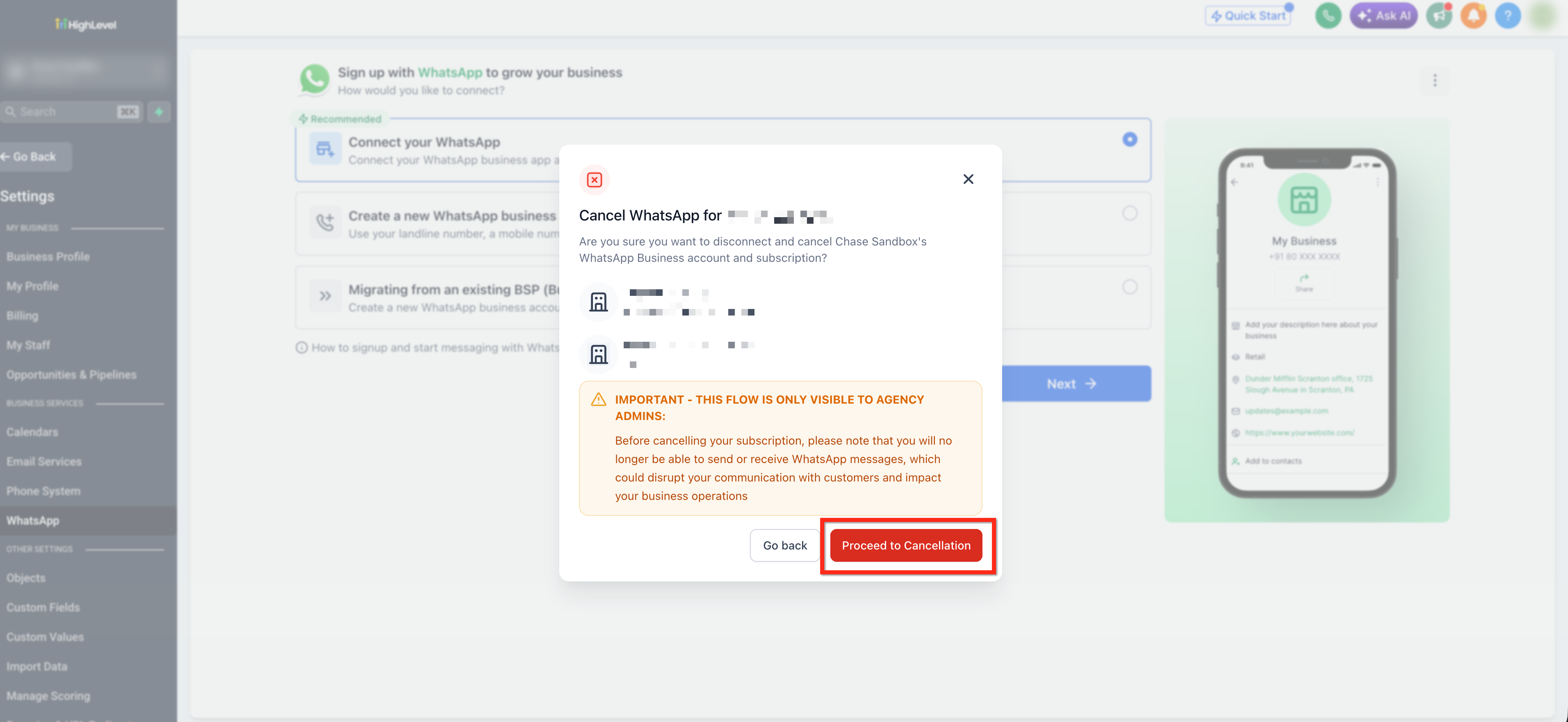
- Click Proceed to Cancellation.
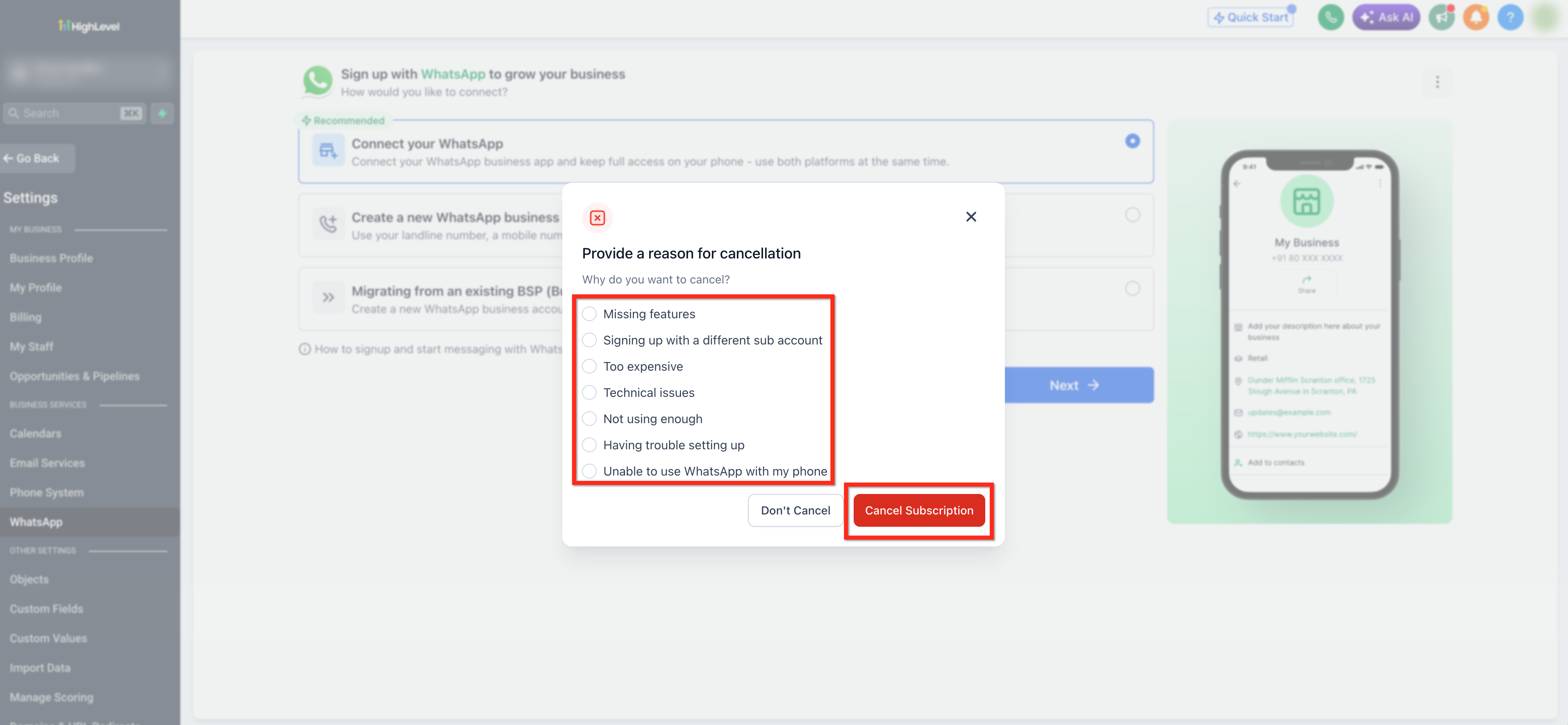
- Pick a reason for canceling and tap Cancel Subscription to finish.
07What it looks like in HighLevel
08Settings that matter
- Cancel Subscription. Triggers the workflow that ends the current WhatsApp subscription, calculates a prorated refund, and removes future billing.
09Things to know before you rely on it
- Only Agency Admins and Owners can perform the cancellation.
- A prorated refund is issued within seven to eight working days based on unused days (per HighLevel's help center, checked November 2026).
- After cancellation, WhatsApp Business features may be limited or disabled depending on the prior plan.
10How it connects to the rest of HighLevel
- Learn how to create and manage WhatsApp templates before canceling. WhatsApp templates guide
- Review the WhatsApp subaccount setup process to understand how subscriptions are linked. Subaccount setup guide
- Check pricing and plan options if you need to resubscribe after canceling. HighLevel pricing
Michael's take

Most people think any team member can pull the plug on a WhatsApp subscription, but only Agency Admins and Owners have that power. Jumping straight to the settings without checking your role will just land you at a dead end.
If I were in charge, I'd verify I have the right permission first, then follow the four step cancellation flow. I’d also note the refund window of 7 to 8 working days and keep my templates handy for a quick resubscription if needed.