
01Who this is for
- Agency owners who set up WhatsApp for clients need a clean number to avoid onboarding blocks.
- Founders reselling WhatsApp services must ensure each number is free before offering it to a new customer.
- Business managers who control multiple Meta Business accounts require a clear process to release numbers.
02This number is registered to an existing WhatsApp account, explained
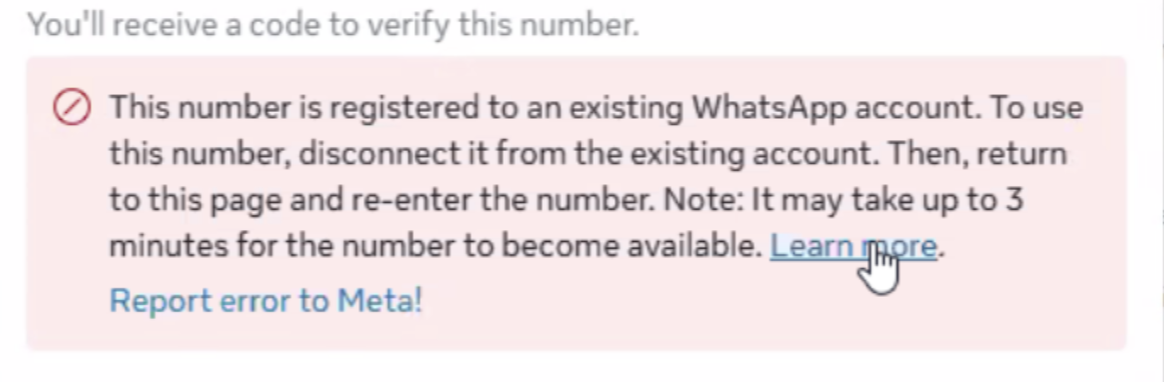
The platform checks whether a submitted phone number is already tied to an active WhatsApp account. If it is, HighLevel returns an error message that stops the onboarding flow. The number can be linked to a consumer app, a Business App, or remain in a cooldown period after a recent migration. To move forward, the number must be completely deleted from WhatsApp's own settings, then given time for WhatsApp's systems to release it. After the release, the number can be re entered on the onboarding page and verified with a new OTP.
03How businesses use this number is registered to an existing WhatsApp account
- Digital marketing agency. An agency opens WhatsApp on the client’s phone, deletes the existing account, waits for the release period, then re enters the number in HighLevel to finish onboarding a new campaign.
- SaaS Founder offering WhatsApp as a service. The Founder accesses the device where the reused number resides, removes the old account, pauses as required, and uses HighLevel’s onboarding form to add the number for a new subscriber.
- Ecommerce store manager. The manager logs into the store’s WhatsApp Business app, deletes the account linked to the old number, waits, and then registers the same number in HighLevel to enable automated order notifications.
04The numbers and rules that matter
- After deleting the account, wait up to 3 minutes for WhatsApp to fully release the number.
- If the error persists, wait 10, 15 minutes and retry.
05Before you start
- Access to the phone that currently holds the WhatsApp registration for the number.
- The phone number must be entered in international format during the onboarding attempt.
06How to set up and use this number is registered to an existing WhatsApp account in HighLevel
Remove the number from the existing WhatsApp account
- Open WhatsApp or WhatsApp Business on the device that uses the phone number.
- Go to Settings > Account.
- Select Delete my account.
- Enter the phone number, confirm, and complete the deletion.
- Important: simply uninstalling the app is not sufficient; the account must be deleted from WhatsApp settings.
Wait for WhatsApp to release the number
- After deleting the account, wait up to 3 minutes for WhatsApp to fully release the number.
- In some cases the release may take slightly longer depending on WhatsApp’s systems.
Retry onboarding
- Return to the HighLevel onboarding screen.
- Enter the same phone number again.
- Request a new OTP and verify the code.
If the error still persists
- Check that the number is not signed in on any other device.
- Make sure the number is not linked to another Meta Business Manager or WhatsApp Business Account.
- Wait ten to fifteen minutes before attempting onboarding again.
- Contact HighLevel support with the full phone number (including country code), a screenshot of the error, and the Business Manager ID if applicable.
07What it looks like in HighLevel
08Things to know before you rely on it
- A phone number can be active on only one WhatsApp account at a time.
- Uninstalling the app does not free the number; the account must be deleted from WhatsApp settings.
09If something goes wrong
- Error continues after following the removal steps. Verify no other device has the number active, ensure it is not attached to another Meta Business Manager, wait the recommended time, and then submit a support request with the required details.
10How it connects to the rest of HighLevel
- Full guide for agencies setting up WhatsApp in HighLevel WhatsApp reselling guide
- How to configure WhatsApp for a subaccount in HighLevel Subaccount setup
- Pricing and rebilling details for WhatsApp resellers WhatsApp billing guide
Get More InformationOpens on HighLevelPublished November 2, 2026 · Updated November 17, 2026