
01Who this is for
- Marketing managers at multi location retailers can view overall sentiment across stores without manual aggregation.
- Operations directors in restaurant chains can filter reviews by specific outlet and timeframe to spot service trends.
- Customer experience leaders at service firms can refresh summaries after new reviews arrive to keep insights current.
02AI Powered Review Summaries, explained
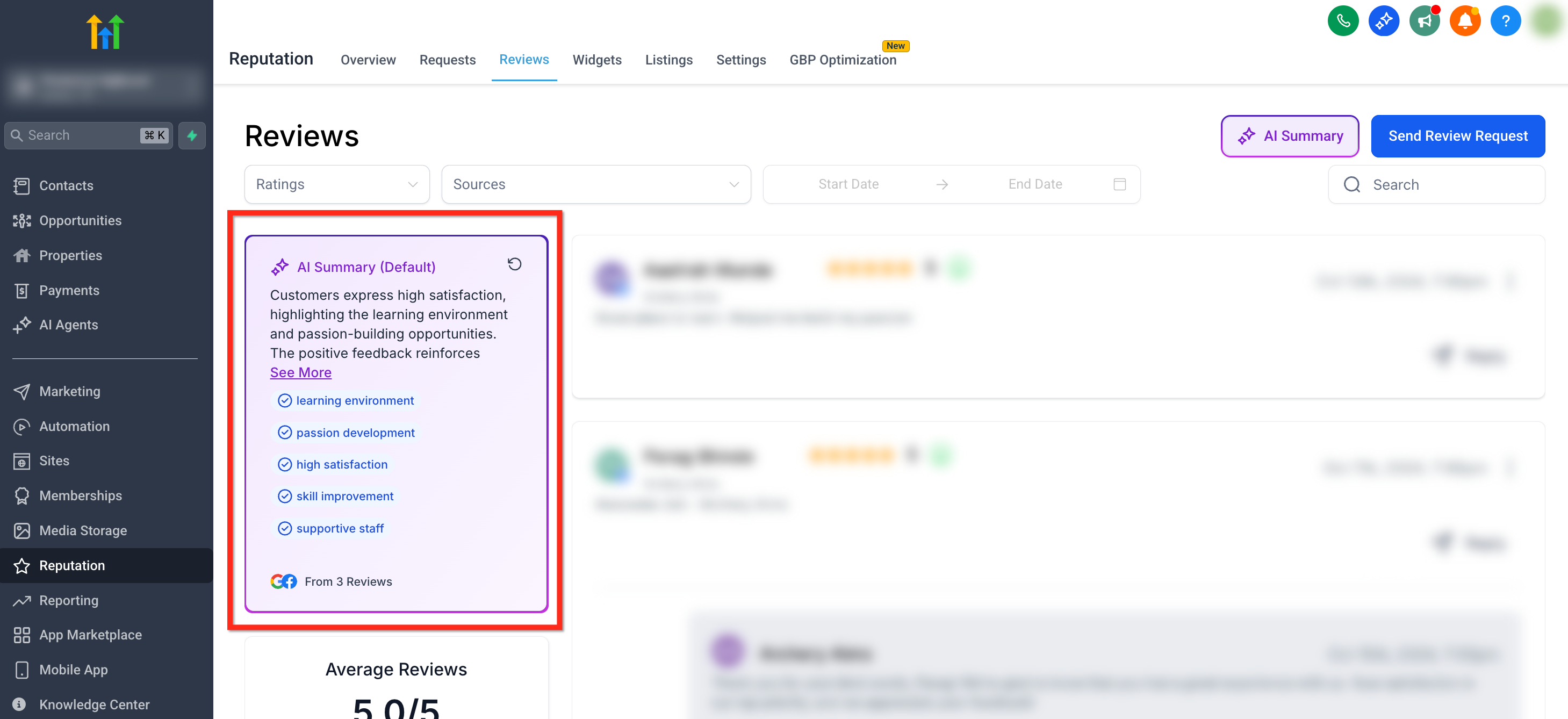
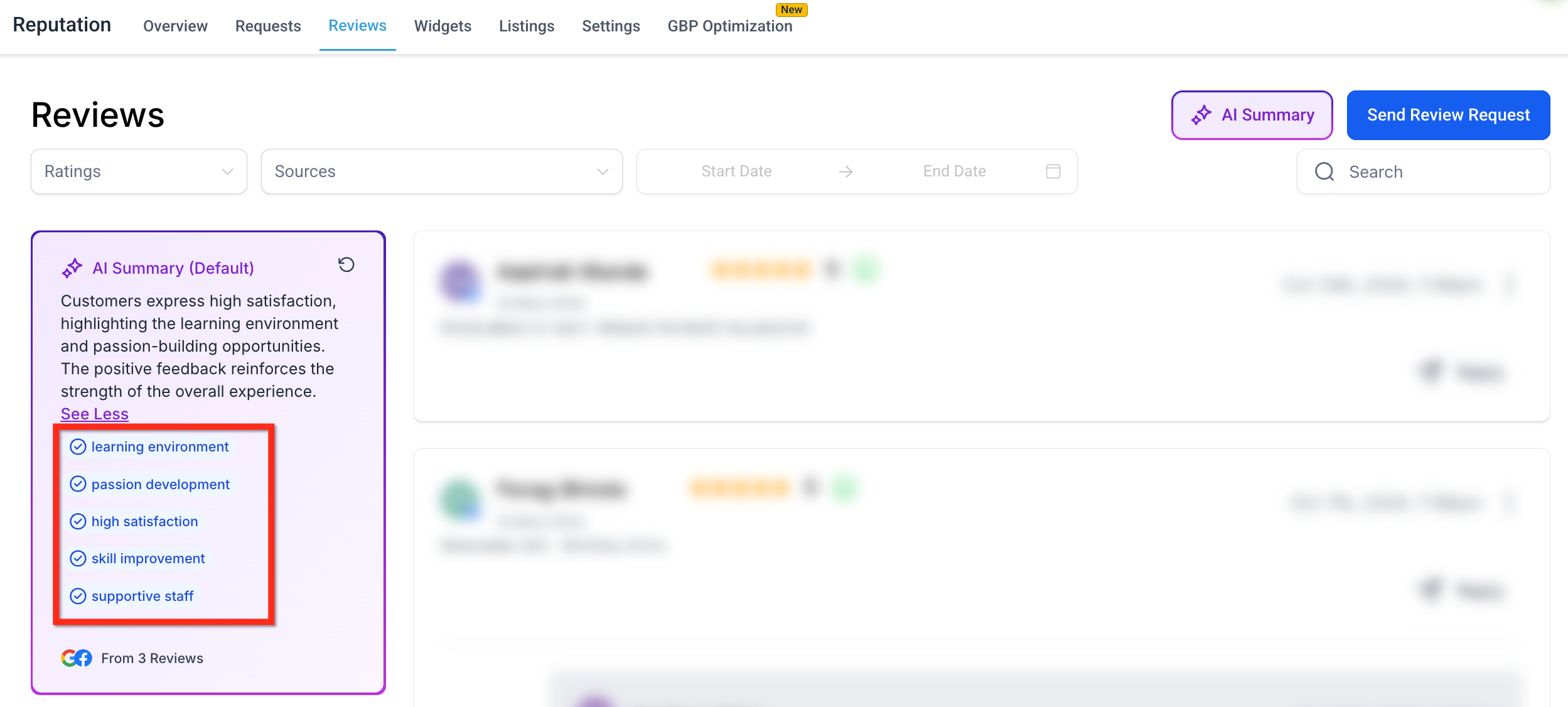
The AI Powered Review Summary creates an auto generated card that rolls up feedback from every connected review page into a single paragraph. It shows overall sentiment, the most frequent themes and a set of highlight tags such as "great staff" or "slow service".
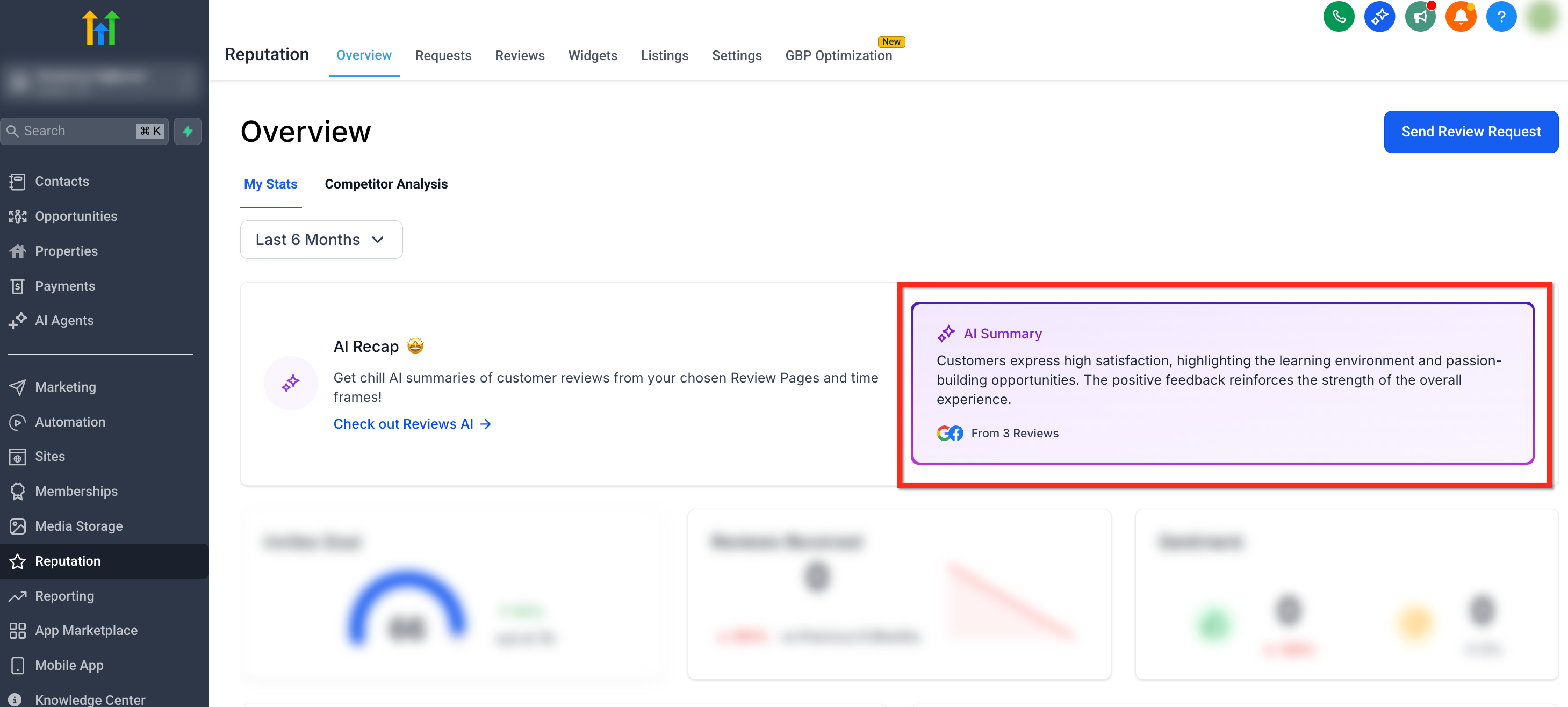
The card appears in two places inside Reputation: on the right side of the Overview tab and on the left side of the Reviews tab. You can narrow the data shown by applying location and date filters, and you can refresh the card at any time to incorporate the latest reviews.
03How businesses use AI Powered Review Summaries
- Dental practice. Open the Reviews tab, click the AI Summary button, select the clinic's location and a recent date range, then view the summary and tags to understand patient feedback.
- Hotel chain. Go to the Overview tab, locate the AI Summary card, set the date range for the last quarter, refresh the card, and read the sentiment and highlight tags to gauge guest experience.
- Auto dealership group. In the Reviews tab, choose multiple dealership locations, apply a custom date filter, click refresh, and review the combined sentiment and top themes such as "great staff" or "slow service".
04Before you start
- You must have at least one connected review location.
05How to set up and use AI Powered Review Summaries in HighLevel
Filter AI summary by location and time
- Open the Reviews tab.
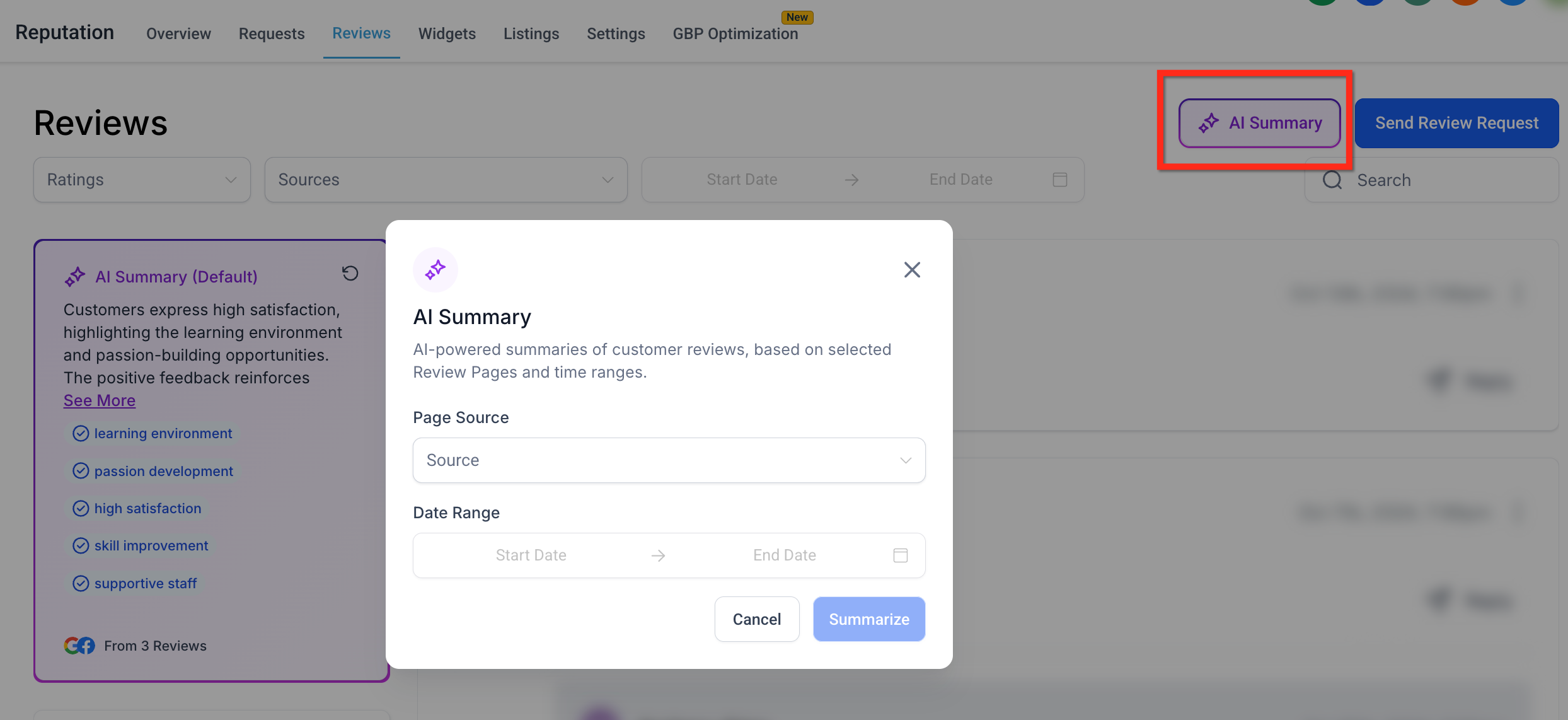
- Click the purple AI Summary button in the upper right corner.
- Select one or more pages in the Location filter.
- Set a custom date range in the Date filter.
Refresh the AI summary
- Click the Refresh icon next to the summary title.
- Wait while the AI regenerates the summary.
- Observe the updated highlight tags and sentiment.
06What it looks like in HighLevel
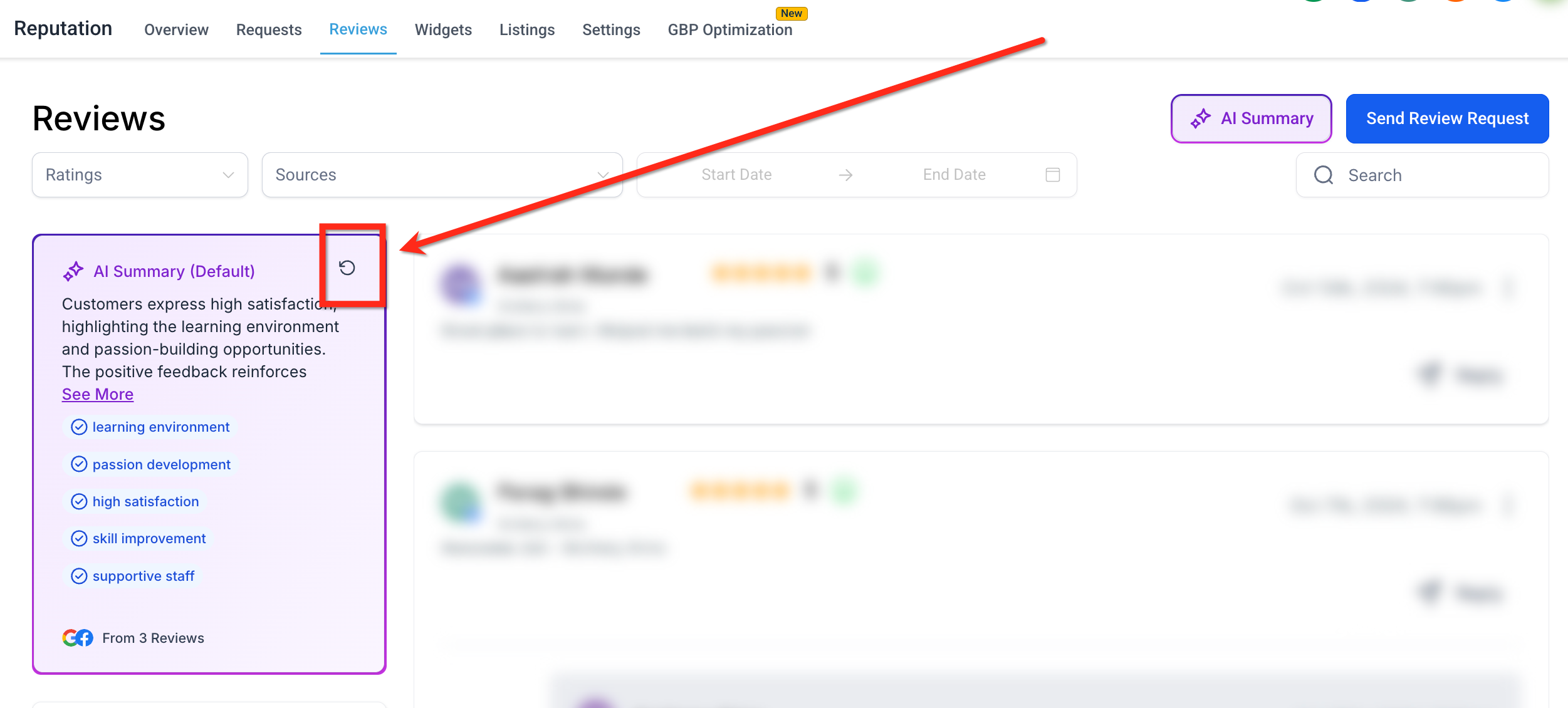
07Settings that matter
- Location Filter. Controls which review pages (locations) are included in the AI summary.
- Date Filter. Sets the timeframe for reviews that the AI summary will analyze.
08Things to know before you rely on it
- The AI summary card appears only for users with at least one connected review location.
- The card is displayed on the right side of the Overview tab and on the left side of the Reviews tab.
09How it connects to the rest of HighLevel
- Customize review request messages Customize review requests
- Send review requests manually or via workflow Send review requests
- View the Reputation overview dashboard Reputation overview dashboard
Michael's take

AI Powered Review Summaries can feel a bit overwhelming if you aren’t used to letting a machine read every comment for you. The autogenerated tags and sentiment paragraph might look generic at first, so it’s worth checking that the filters you set truly reflect the locations or dates you need to focus on.