
01Who this is for
- Marketing managers who need consistent brand messaging in automated review outreach.
- Customer success teams looking to keep follow up emails varied and engaging.
02Custom email templates, explained
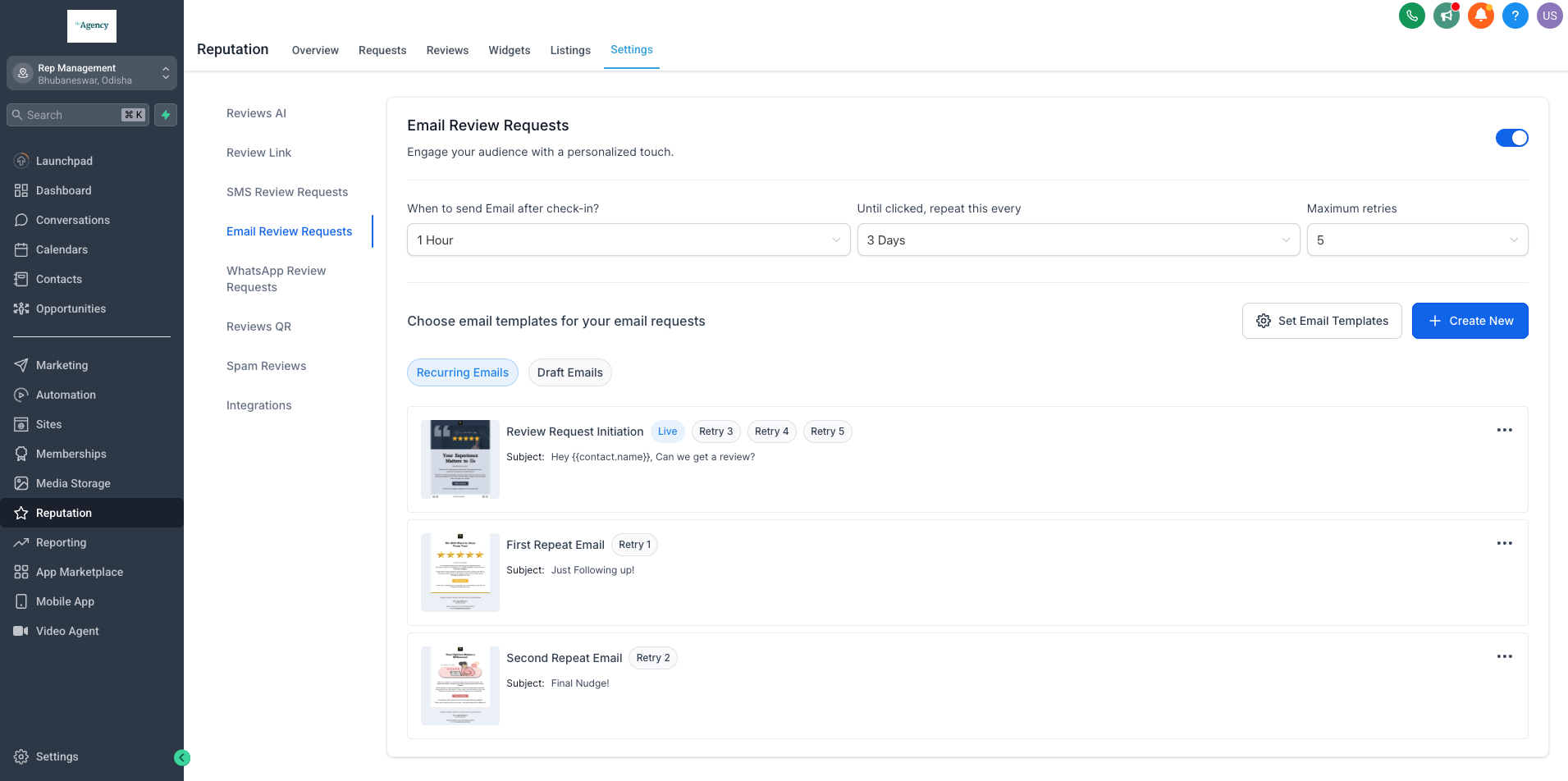
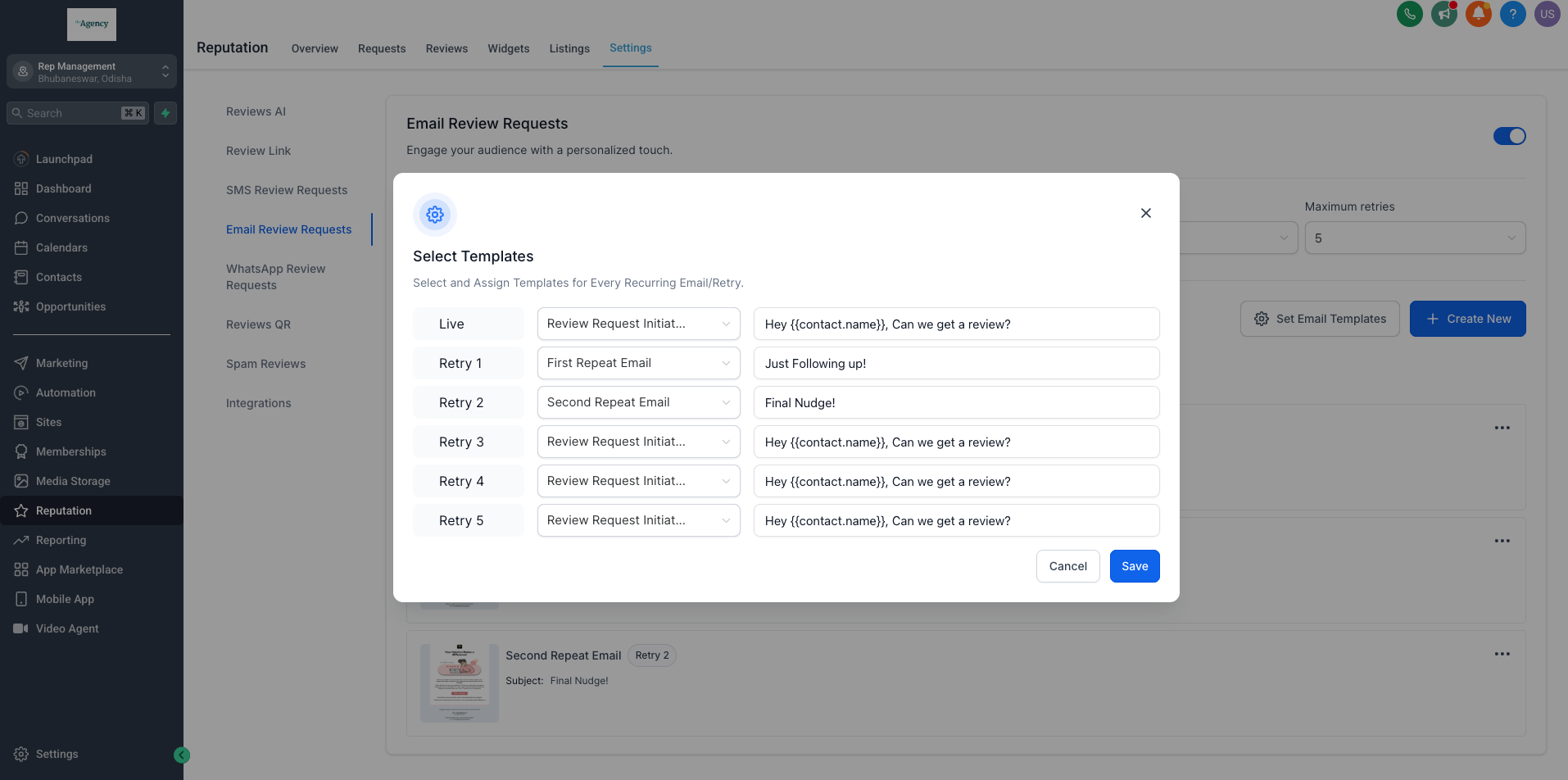
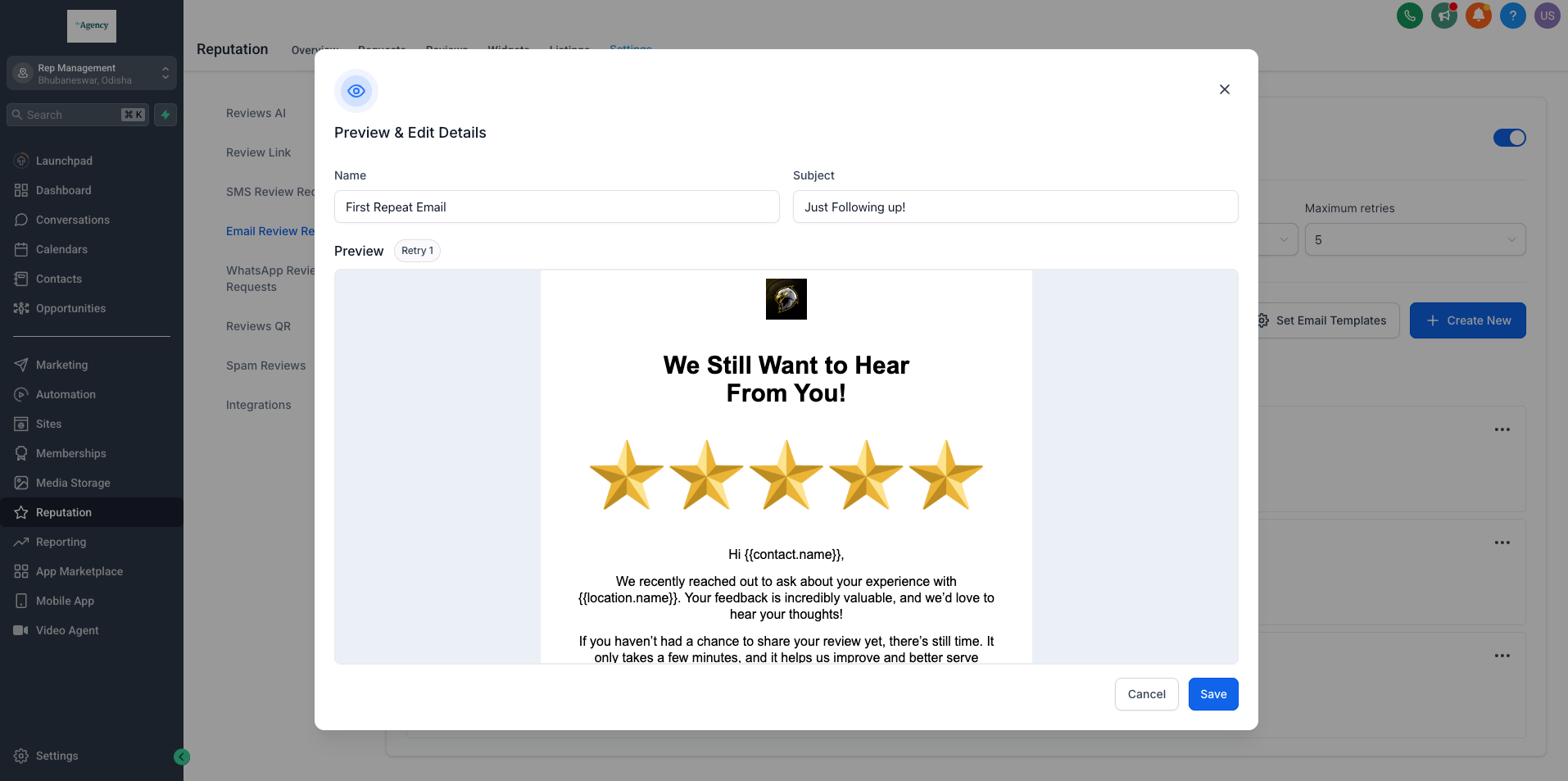
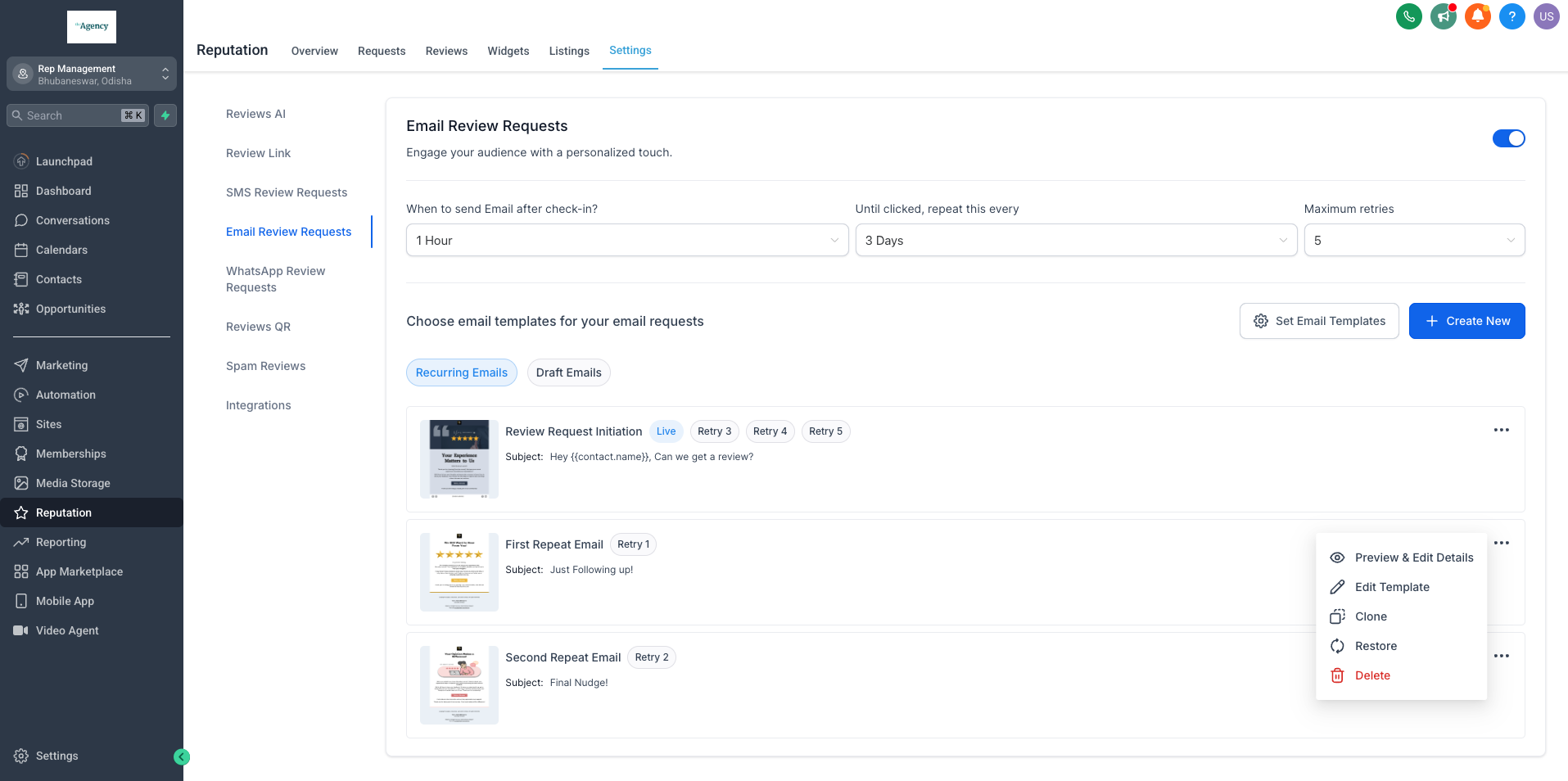
The feature lets you assign different email templates to each step of a recurring review request sequence. You can pick from a library of professionally designed layouts or edit the content to reflect your own voice.
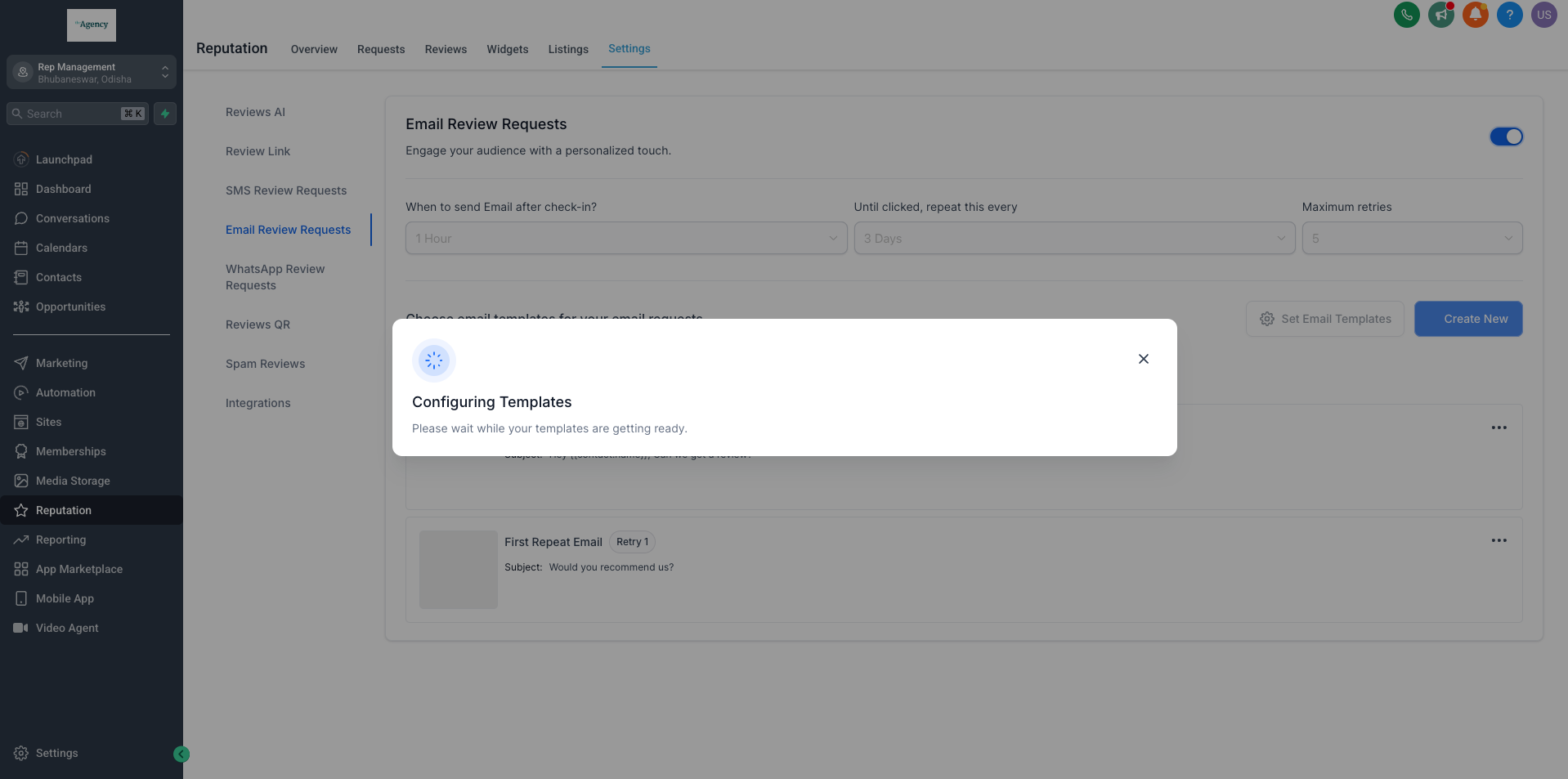
When recurring requests are enabled, the platform sends emails on the schedule you set, using the selected template for each follow up. You can preview the email before it activates to ensure branding matches expectations.
All settings are found under Reputation Management > Email Review Requests in the HighLevel dashboard.
03How businesses use custom email templates
- Dental practice. A dental office enables recurring review emails, sets the repeat interval, chooses a friendly template for the first follow up and a reminder template for later attempts, then saves the configuration to automate patient feedback collection.
- Real estate agency. The agency turns on recurrence, defines how often to resend until a client clicks, picks a polished property sale template for the initial request and a different one for subsequent reminders, and activates the flow to gather testimonials.
- SaaS startup. The startup activates recurring review emails, configures the maximum number of retries, assigns a brand aligned onboarding template for the first email and a feature highlight template for later contacts, and saves the settings to run automatically.
04The numbers and rules that matter
- "Maximum retries" field limits how many follow ups are sent.
05How to set up and use custom email templates in HighLevel
Set up personalized recurring review emails
- Navigate to Reputation Management > Email Review Requests in the dashboard.
- Enable recurring review requests.
- Enter the desired interval in the “Until clicked, repeat this every” field.
- Set a value for “Maximum retries”.
- Choose a different email template for each follow up, using a pre designed option or a customized version.
- Confirm your selections and save the configuration to activate the automated emails.
06What it looks like in HighLevel
07Settings that matter
- Enable Recurring Review Requests. Turns on the automatic sending of review request emails on a repeated schedule.
- Until clicked, repeat this every. Determines how often the platform resends the review request until the recipient clicks.
- Maximum retries. Limits the number of times the system will attempt to send the review request.
08How it connects to the rest of HighLevel
- Customize the content of review request SMS and email messages Customize review messages
- Learn manual and workflow options for sending review requests Send review requests
- Review HighLevel pricing and plans for feature access HighLevel pricing
Michael's take

Michael ReimerFounder of CRM Pros, HighLevel Commander and Certified Admin
Custom email templates are worth the effort for anyone who wants review requests that feel personal.
If you don’t need brand specific wording or send only a single review email, you can skip it.
Get More InformationOpens on HighLevelPublished November 2, 2026 · Updated November 17, 2026