
01Who this is for
- Marketing managers can present customers with their preferred review sites, increasing the chance a review is submitted.
- Customer service teams benefit from a single template that covers all supported platforms, reducing manual copy pasting.
02Multiple review links, explained
In HighLevel’s Reputation Management area you can embed a component that lists every review source you have linked, such as Google or Facebook. The component automatically checks each URL for correctness, so broken links are caught before the email leaves the system.
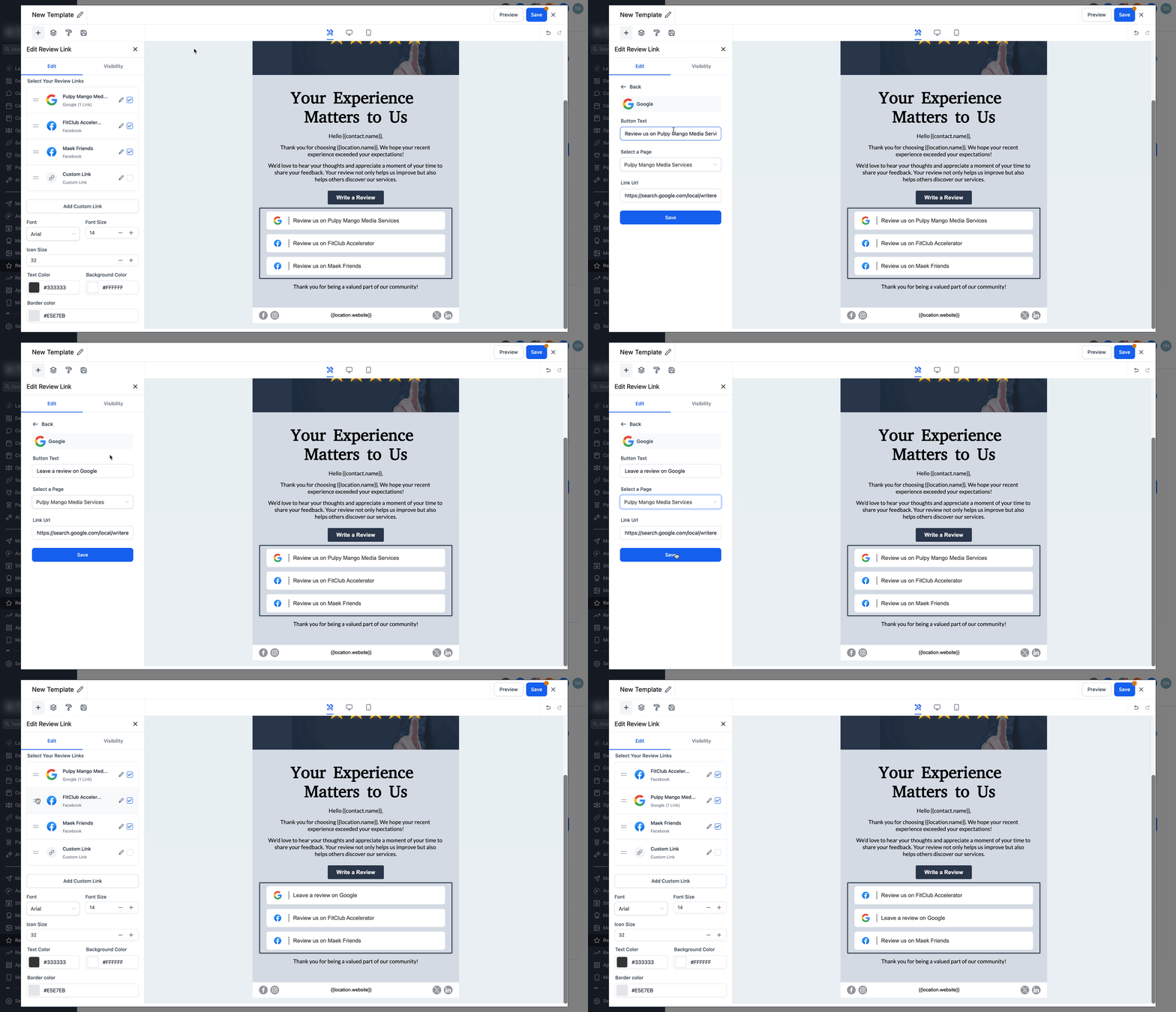
The element lives inside the email builder accessed from Reputation > Settings > Email Requests. Once placed, you can edit each link’s label, hide or show individual platforms, and rearrange the order by dragging. The completed template can be saved and reused in manual sends or workflow automations.
03How businesses use multiple review links
- Dental practice. A dental office adds Google, Yelp and Facebook links to its post appointment email, editing each label to match its brand voice. The office can hide a platform for a specific location by deselecting it, then reuse the template for recurring patient reminders.
- Home services company. A plumbing service connects multiple Google Business Profiles and includes the appropriate location link in the email template. The technician selects the correct profile for each job, orders the links for prominence, and sends the email after each service.
- Fitness studio. The studio creates an email that lists review options on Google, Apple Maps and its own site. It customizes the call to action text for each link, checks that no validation errors appear, and then triggers the email through an automation after each class.
04Before you start
- Review platforms must be connected in Reputation > Settings > Integrations.
- Access to Reputation > Settings > Email Requests is required.
05How to set up and use multiple review links in HighLevel
Add multiple review links to an email template
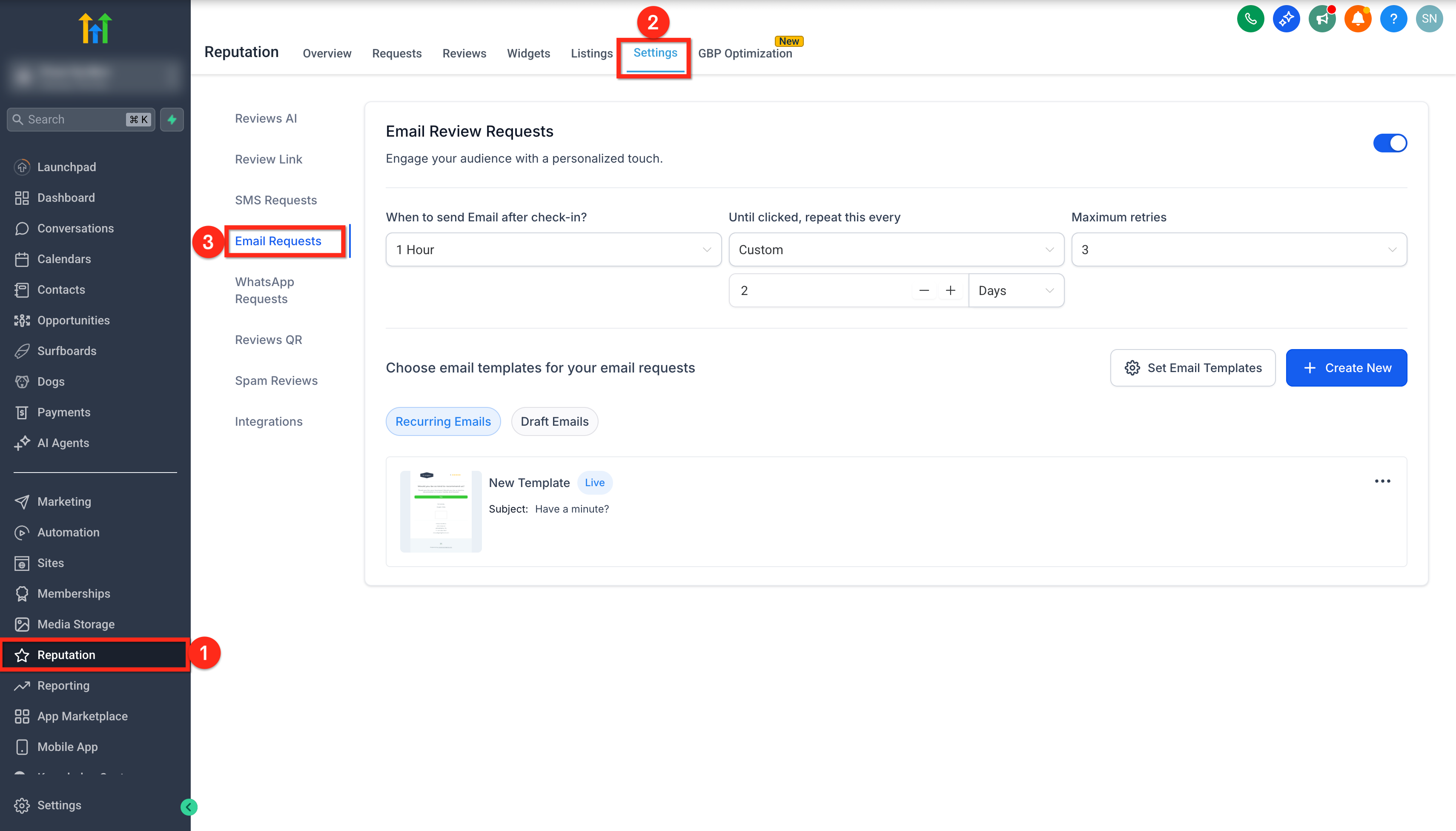
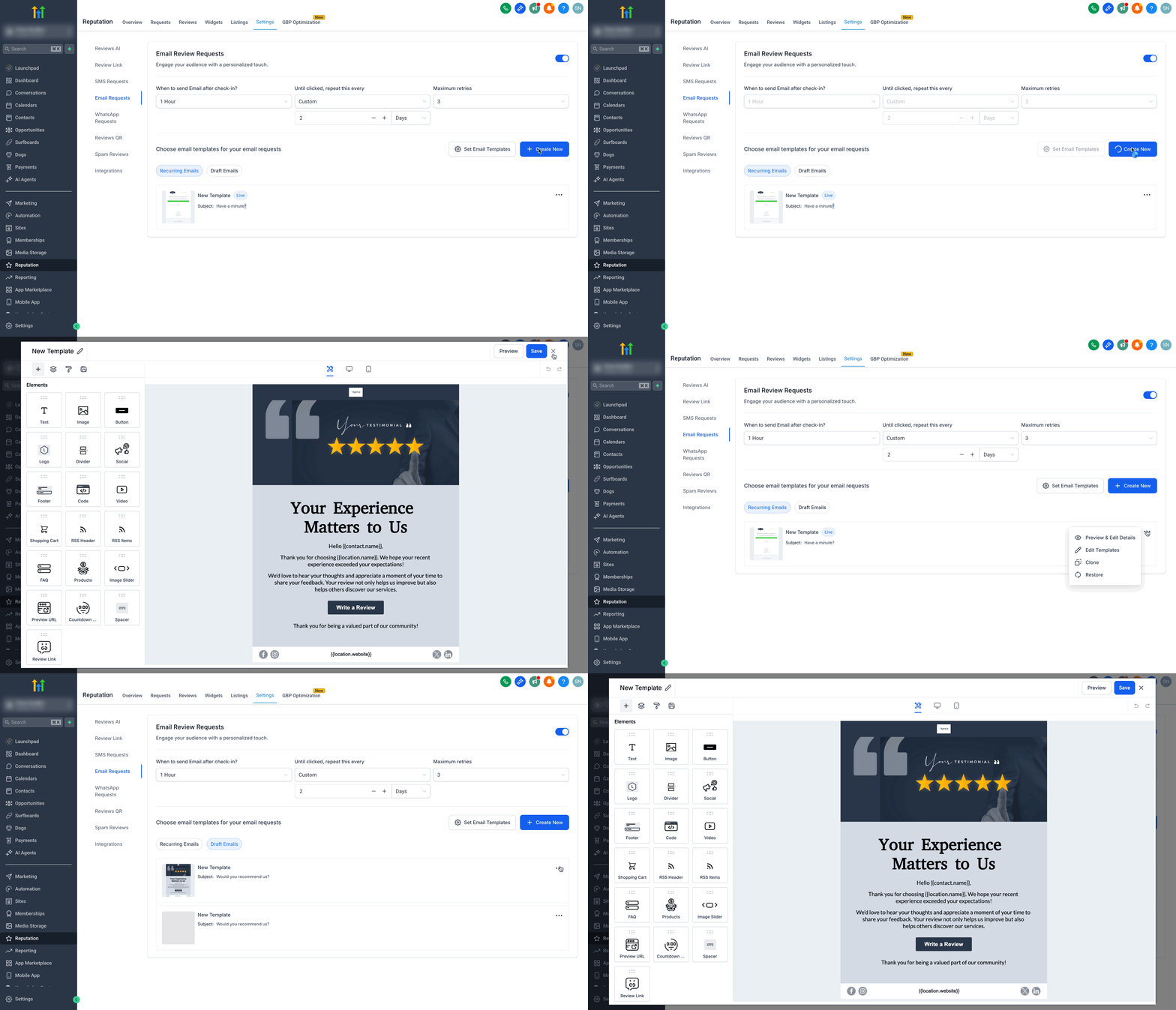
- Open Reputation, go to Settings, then choose Email Requests.
- Press the button to create a new template or edit an existing one.
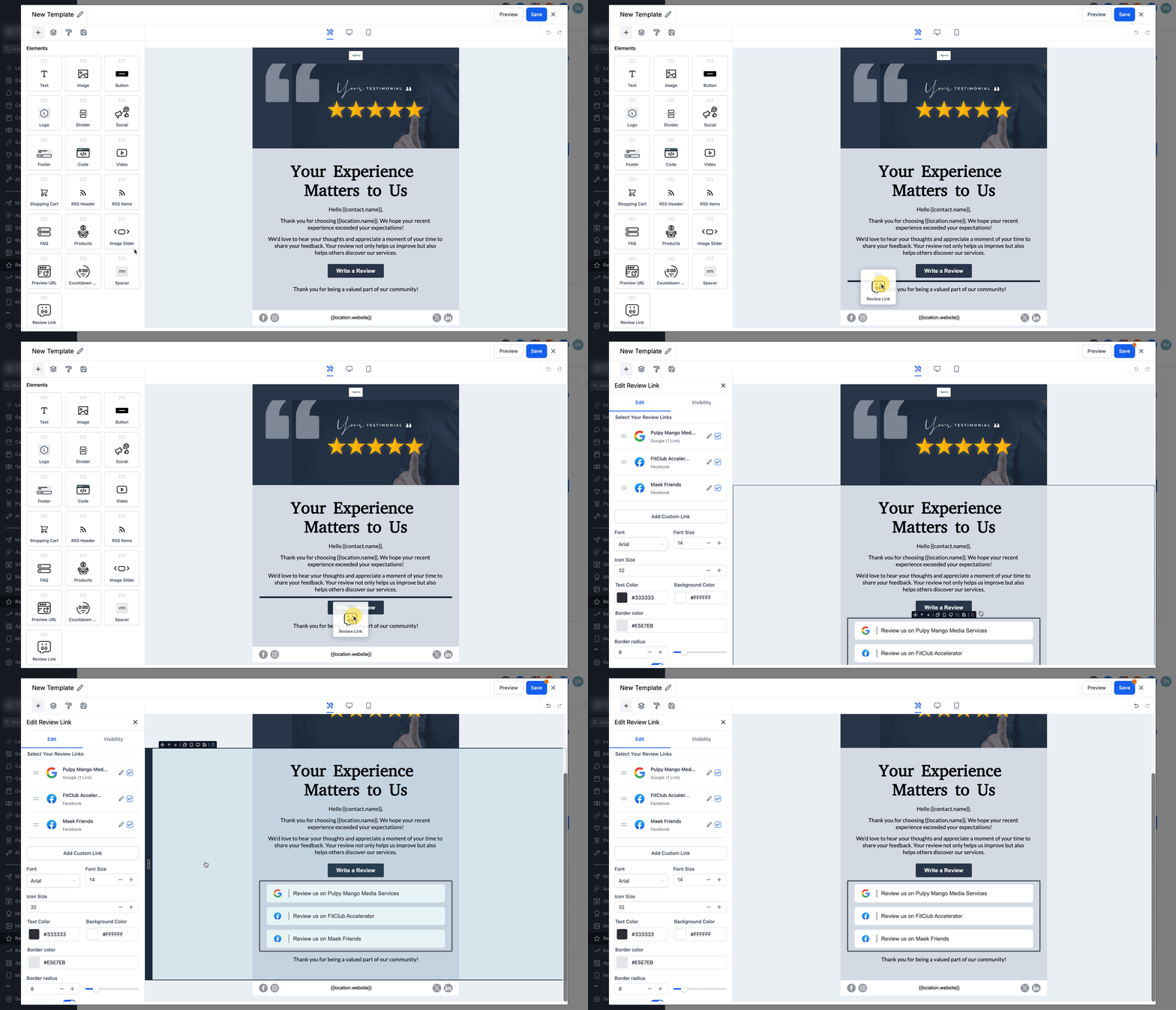
- Insert the Review Links element by dragging it into the email canvas; the element auto fills with any connected platforms.
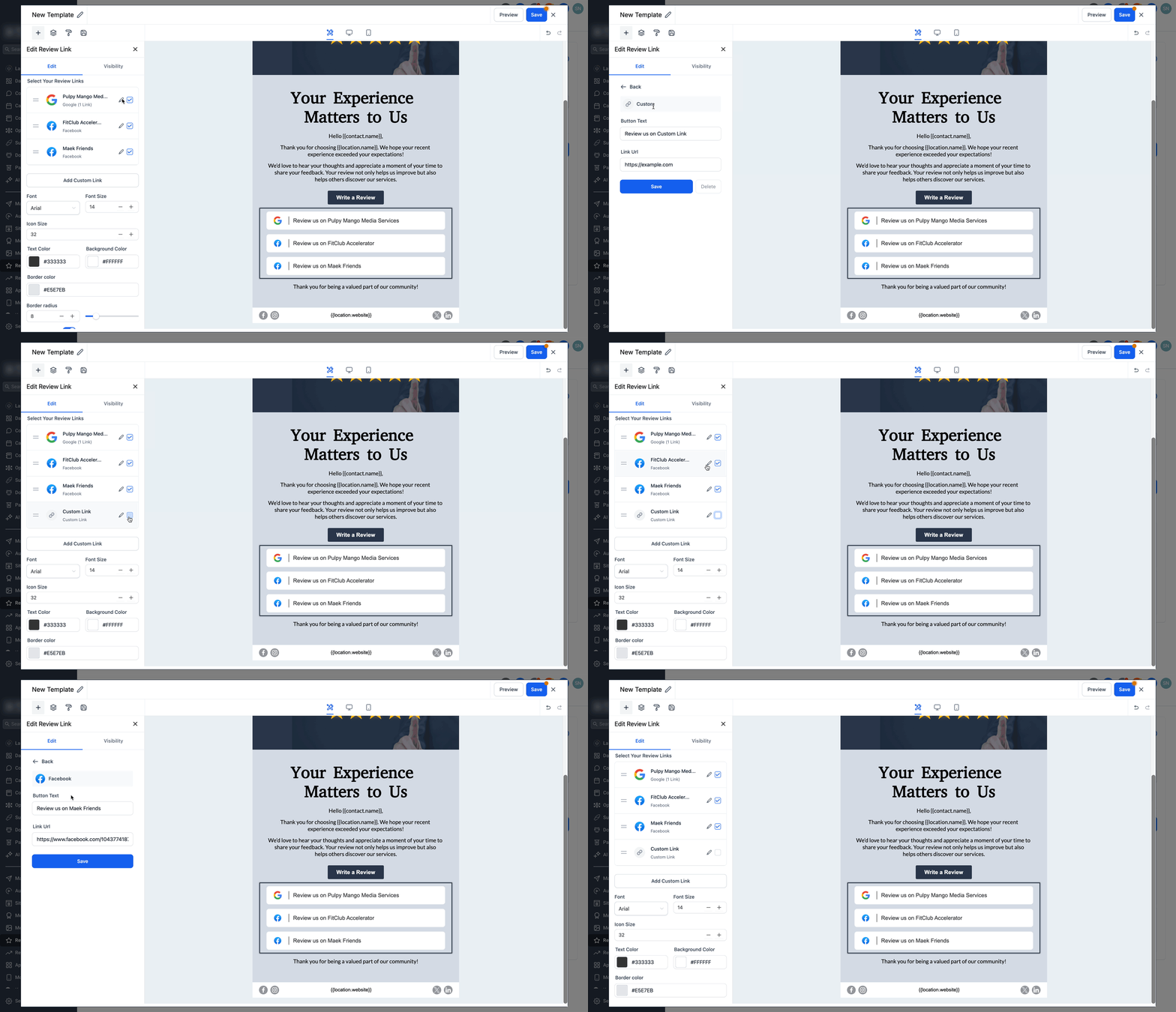
- Enter new URLs, modify existing ones, or uncheck platforms you do not want to appear.
- Edit the visible text for each link to match your brand messaging.
- If several Google Business Profiles are linked, pick the location you want to display for that email.
- Change the order of the links by dragging them into the desired sequence.
- Verify that the validation indicator shows no errors for any link.
- Save the template, preview it, and use it for manual sends or within automated review workflows.
06What it looks like in HighLevel

07Settings that matter
- Review Links element. Controls which review platform URLs appear in the email, their displayed text, order and visibility.
08Things to know before you rely on it
- There is no fixed maximum number of links, but keeping the list concise improves readability.
- The feature appears automatically once review platforms are connected; no extra activation is required.
09If something goes wrong
- No platforms appear in the Review Links component. Connect the desired review platforms in Reputation > Settings > Integrations, then return to the email builder and reopen the Review Links element.
10How it connects to the rest of HighLevel
- Learn how to send review requests manually or via workflows Send review requests
- Customize the text and style of review request SMS and email messages Customize review messages
- View pricing options and trial availability for HighLevel HighLevel pricing
Michael's take

Adding multiple review links is a small convenience that can feel like a real shift in how you collect feedback. It removes the guesswork for customers who might otherwise click a dead end link, and it keeps your email building process tidy.
A local service provider that asks clients for reviews on Google, Facebook, and Yelp will find this handy. They can drop in all three links, tailor each call to action, and let the autovalidation catch any typo before the email goes out.