
01Who this is for
- Marketing teams that need a single place for all customer feedback, including offline sources, to keep their reputation data complete.
- Operations managers migrating legacy testimonials into the platform, so historic wins stay visible alongside new reviews.
02Manual reviews, explained
Manual Reviews adds a structured entry form inside Reputation > Reviews where you can type in feedback collected outside of connected platforms. The feature stores common fields such as rating, review text, customer name, date, platform and optional photos. Once entered, manual reviews appear in the Reviews list with a Manual Pages label and can be filtered by source.
The data can also be bulk uploaded using a CSV template that validates each column before import. After import, the reviews behave like any other entry and are available for AI generated summaries. You can include them in any Review Widget by selecting Manual as the Review Source, allowing you to display offline praise on websites, funnels or WordPress sites.
03How businesses use manual reviews
- Dental practice. The office staff enters patient testimonials collected on paper forms into the Manual Review form. They then add these entries to a widget on the practice’s website, ensuring prospective patients see both online and offline praise.
- Real estate agency. Agents export client feedback from a spreadsheet, upload the CSV through the Bulk Import option, and then display the imported reviews in a widget on property listing pages.
- Online retailer. Customer service logs phone call compliments as manual reviews, chooses a custom platform name, and configures a widget to show only those high rating manual entries on the checkout page.
04The numbers and rules that matter
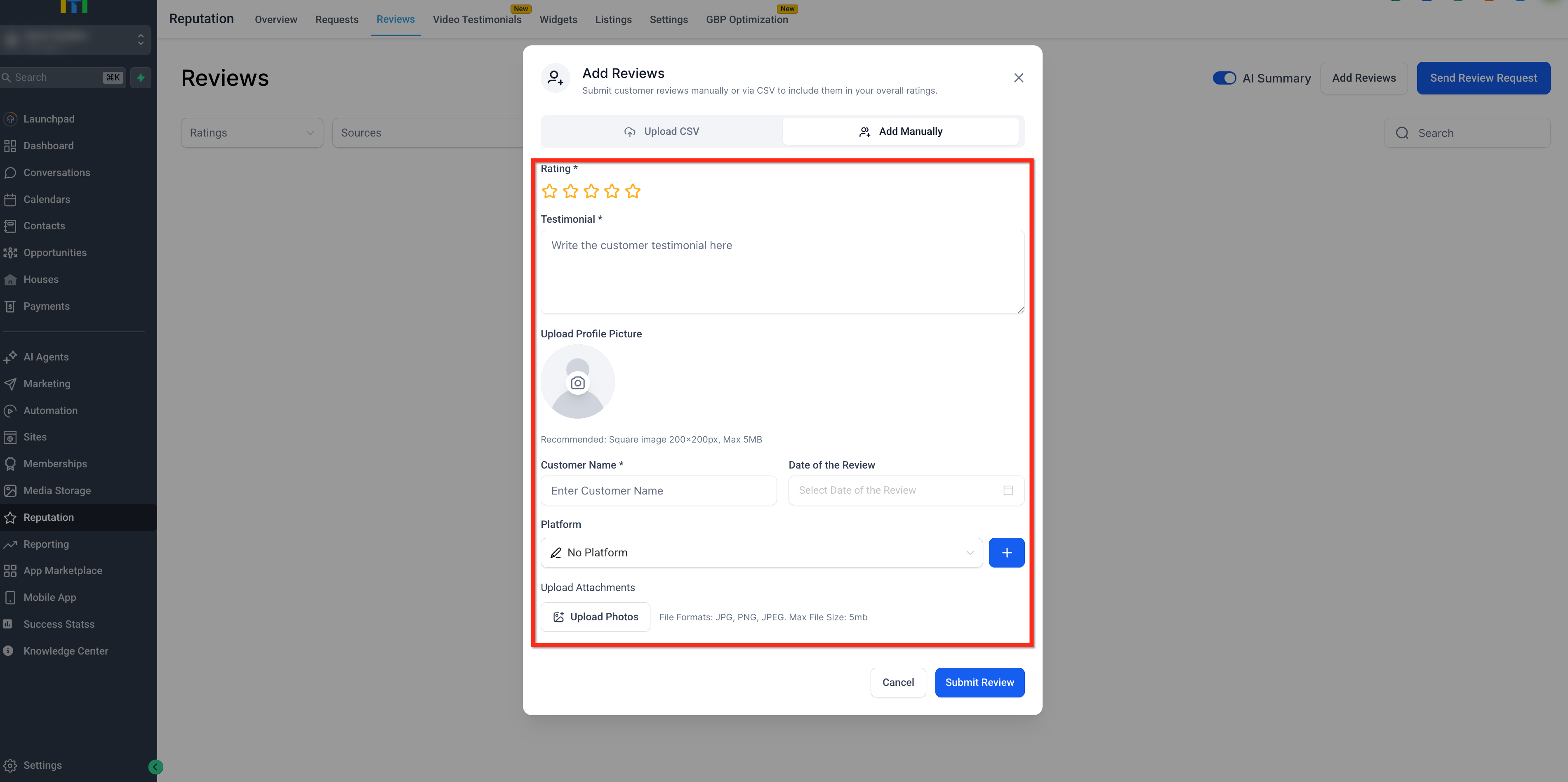
- Available fields: Customer Name, Rating, Review Text, Date, Platform/Source, Profile Picture, Photo Attachments.
05Before you start
- Enable Manual Reviews in Labs for the account.
06How to set up and use manual reviews in HighLevel
Add a manual review
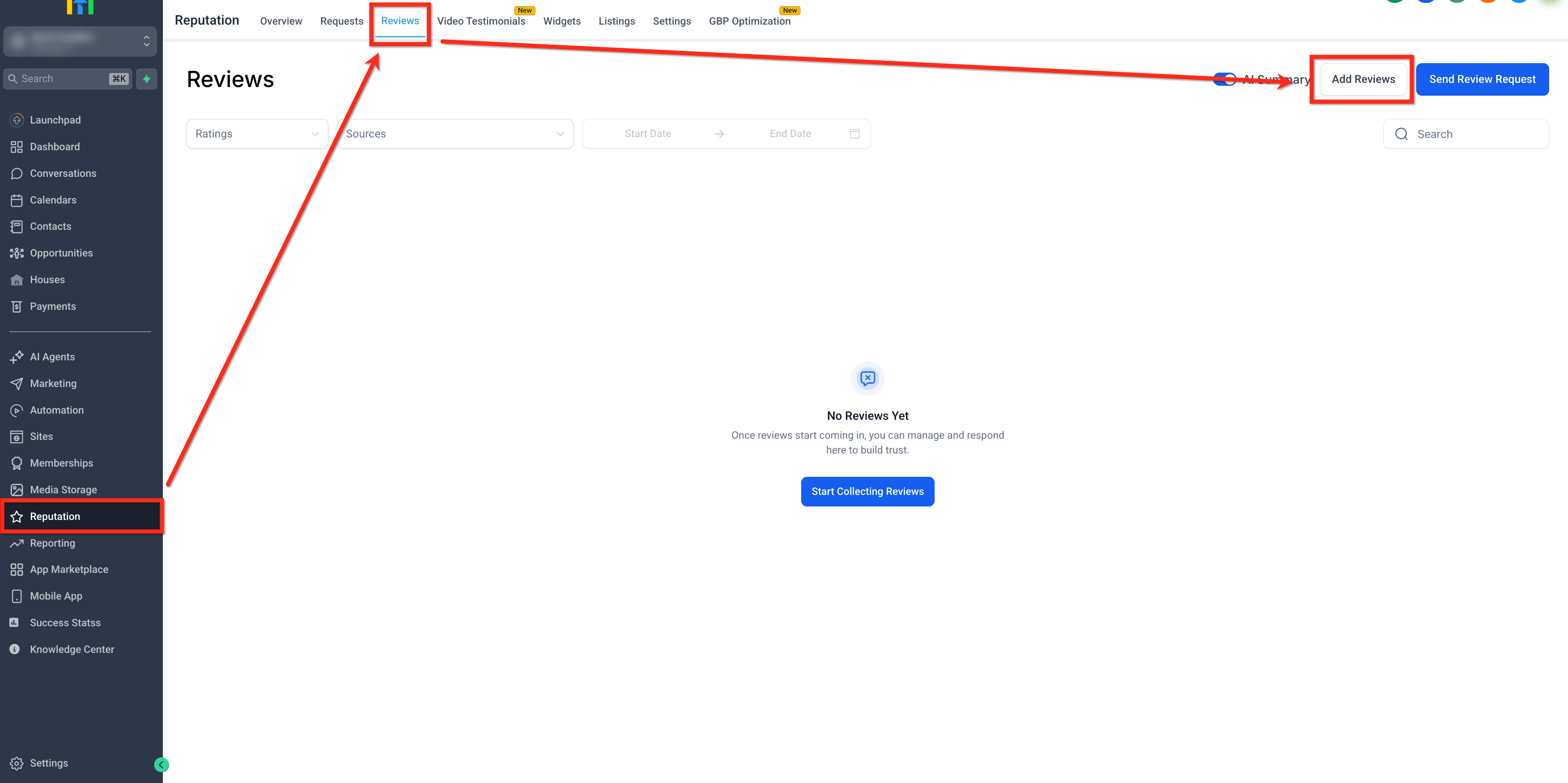
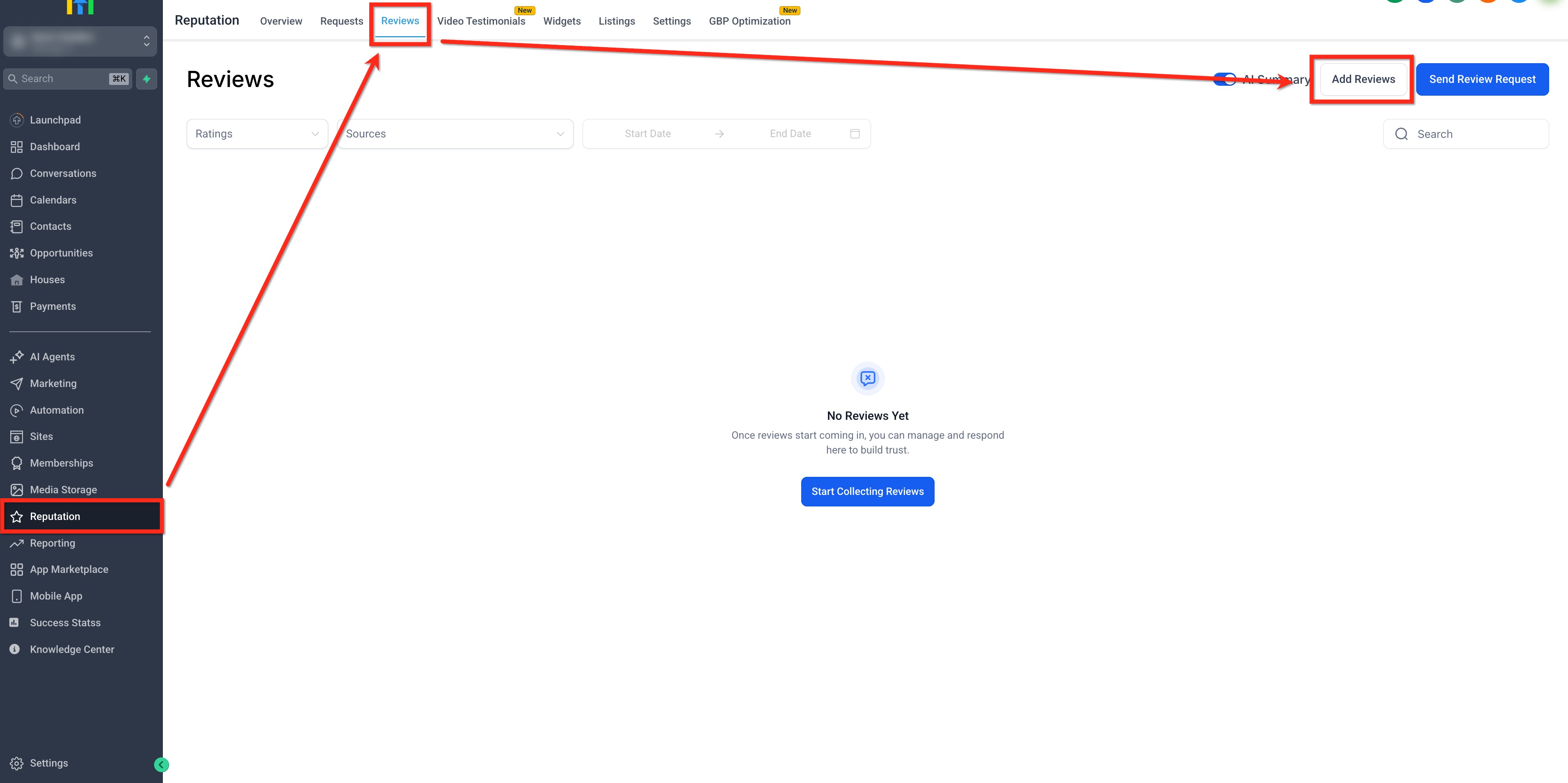
- Open Reputation, go to the Reviews tab and click Add Reviews.
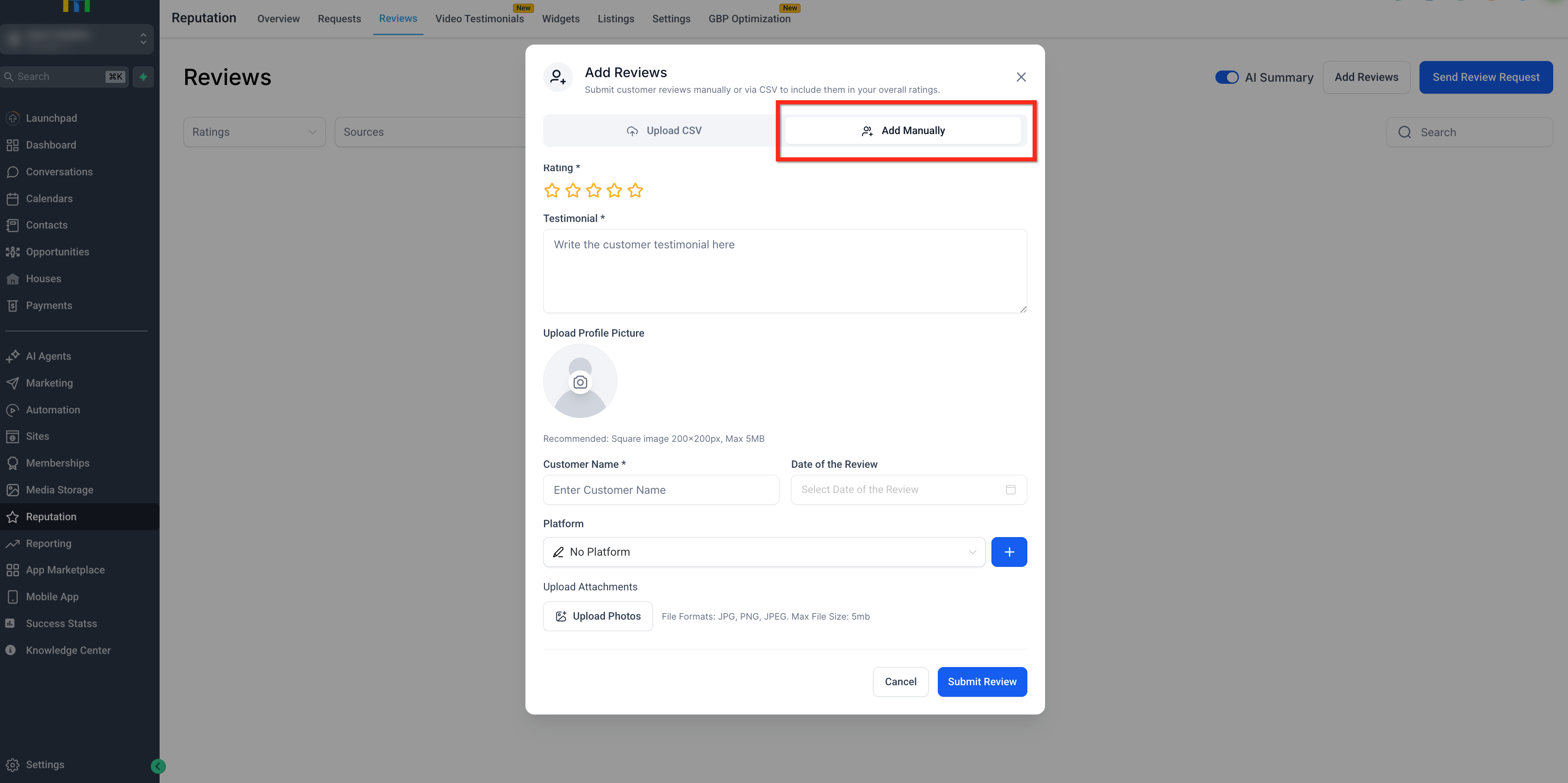
- Select the Add Manually tab.
- Enter the desired fields such as rating, testimonial, date, platform, profile picture and customer name.
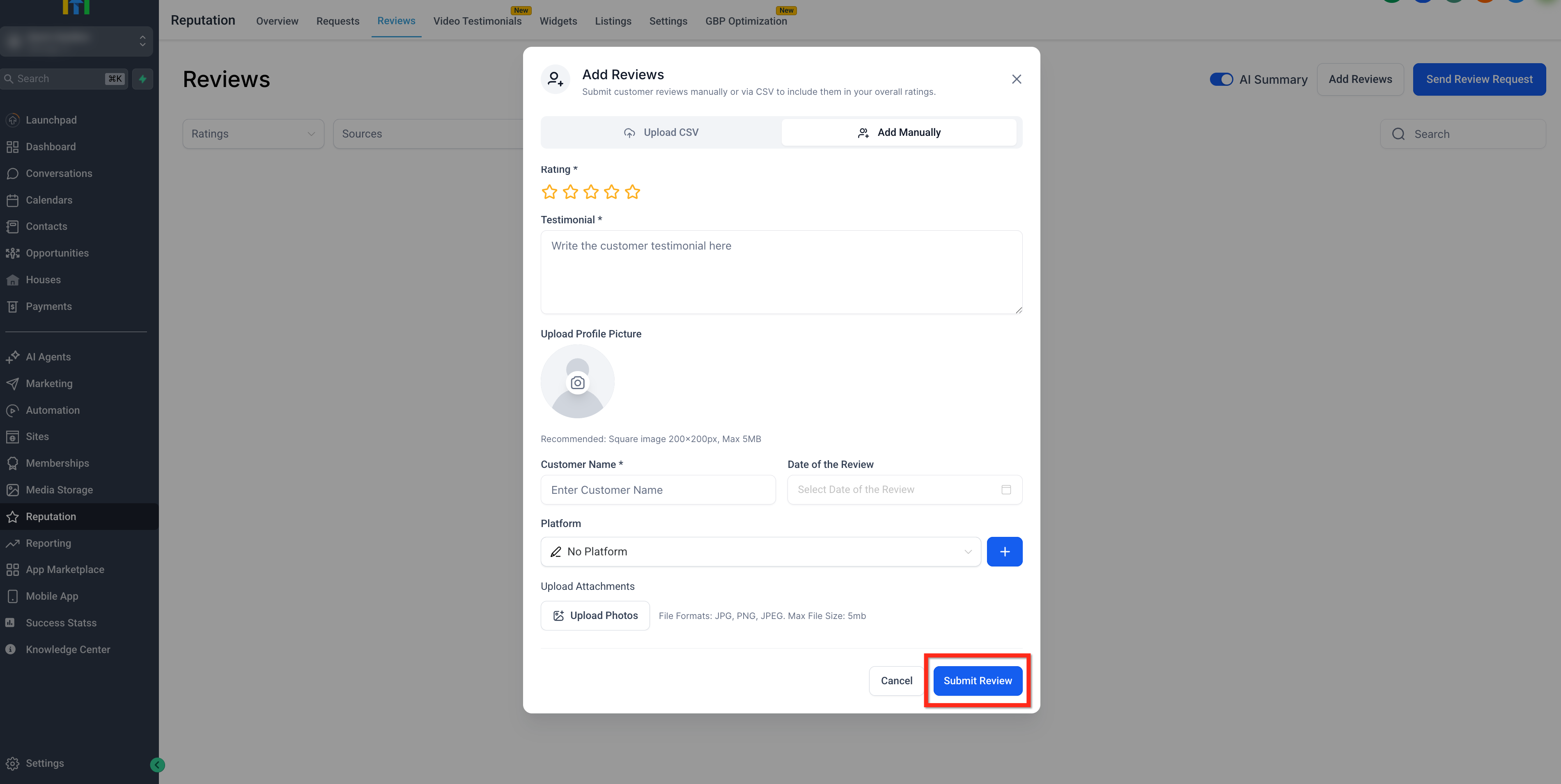
- Press Submit Review to save the entry.
Bulk import reviews via CSV
- Open Reputation, navigate to the Reviews tab and click Add Reviews.
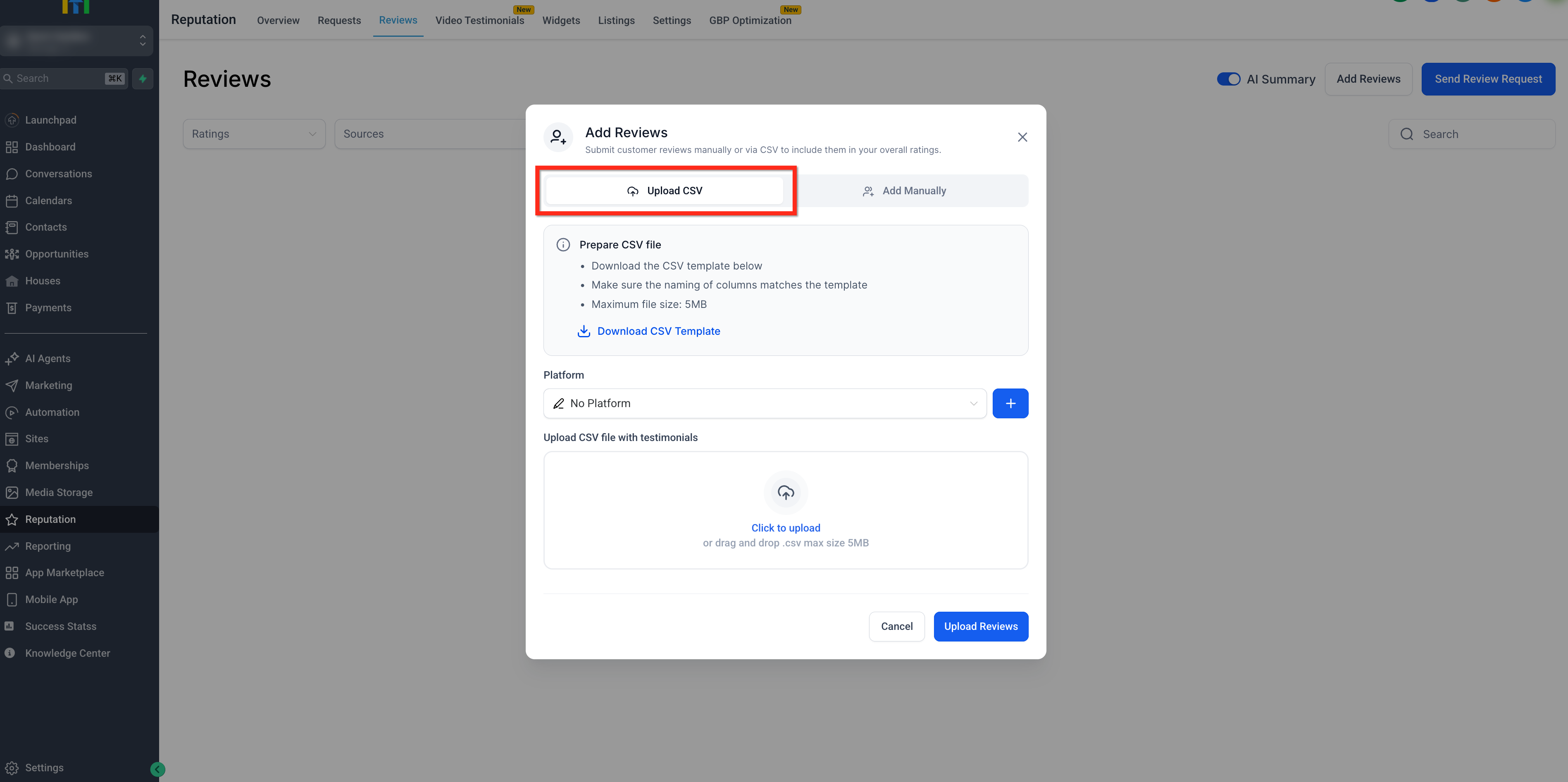
- Choose the Upload CSV tab.
- Download the template, fill it with your historical feedback, and save it.
- Pick the platform you want to associate and upload the completed CSV file.
- Click Upload Reviews to add all records.
Showcase manual reviews in widgets
- Go to Reputation > Widgets and create or edit a widget.
- In the Review Source setting, select Manual.
- Select a layout and adjust options such as maximum count or minimum rating.
- Copy the widget code and embed it on the desired site, funnel or WordPress page.
07What it looks like in HighLevel
08Settings that matter
- Review Source. Controls which review origins appear in a widget; choosing Manual shows only manually entered feedback.
- Platform. Labels the source of a manual review; you can pick an existing platform, add a custom one, or leave it as No Platform.
- Write a Review link. Allows you to replace the default link in a widget with a custom destination of your choice.
09Things to know before you rely on it
- Manual Reviews must be enabled in Labs before any entries can be created or imported.
- CSV uploads run field validation; rows with invalid data are rejected.
- Imported or manually added reviews appear with a Manual Pages label and are filterable by source.
10How it connects to the rest of HighLevel
- Customize the text of review request messages sent by SMS or email. Customize review requests
- Learn the options for sending review requests manually or through automated workflows. Send review requests
- Step by step guide to customizing and embedding review widgets on your site. Review widget guide
Michael's take

Manual reviews are worth the effort for any small business that still gets happy customers via paper forms, phone calls or email, because they let you keep that proof in the same place as your Google and Facebook reviews and show it on your site. The mistake to avoid is forgetting to enable the feature in Labs before you start adding entries.