
01Who this is for
- Agencies that manage reputation for several clients can monitor all listings from one subaccount.
- Multi location businesses can track each branch’s reviews without separate setups.
- Franchise owners can oversee brand wide feedback across dozens of locations.
02Multiple review platforms, explained
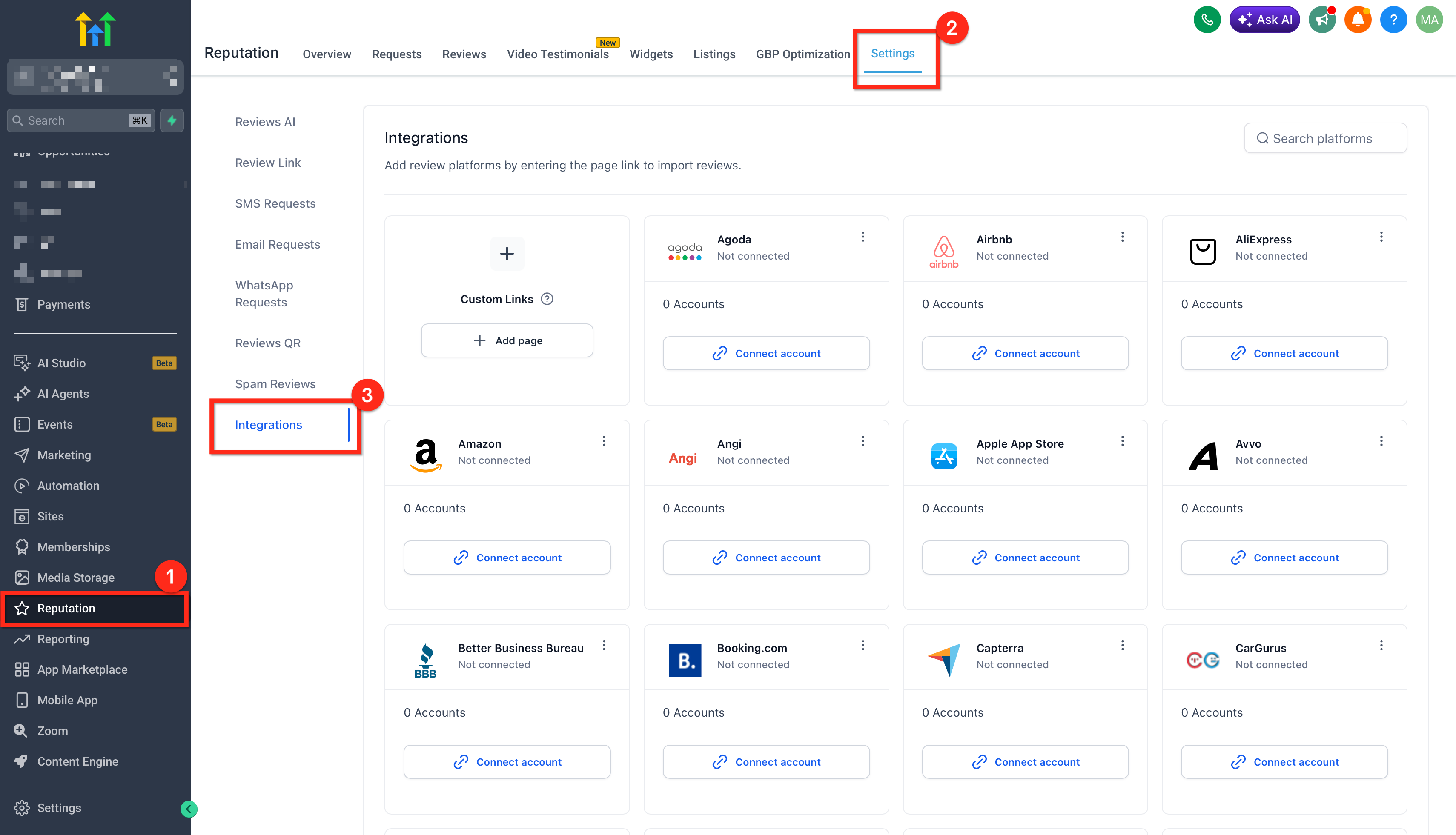
The integration feature lives in the Reputation area. Under Reputation > Settings > Integrations you can see every supported platform and add connections. Each connection requires the public facing URL of the review page.
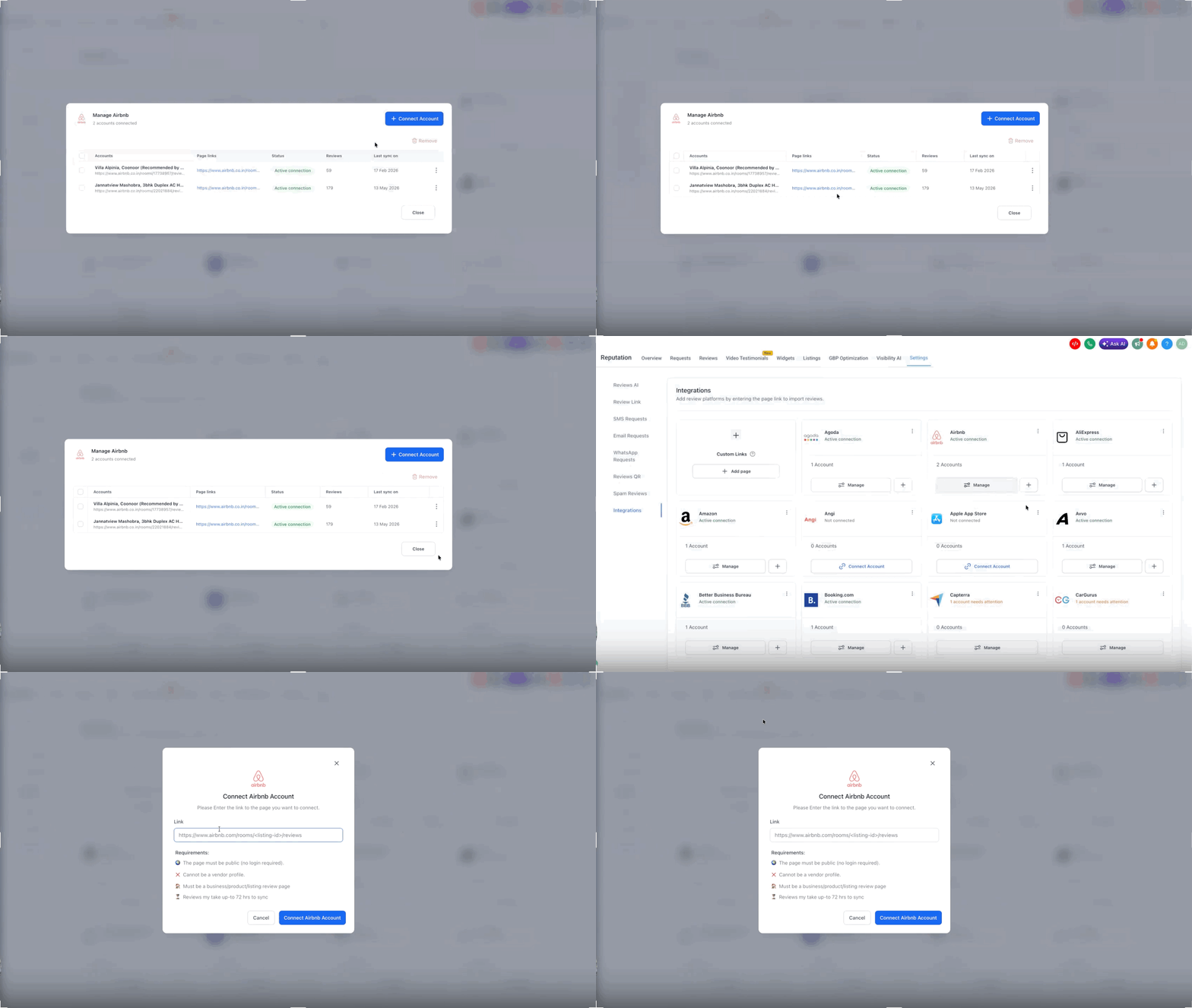
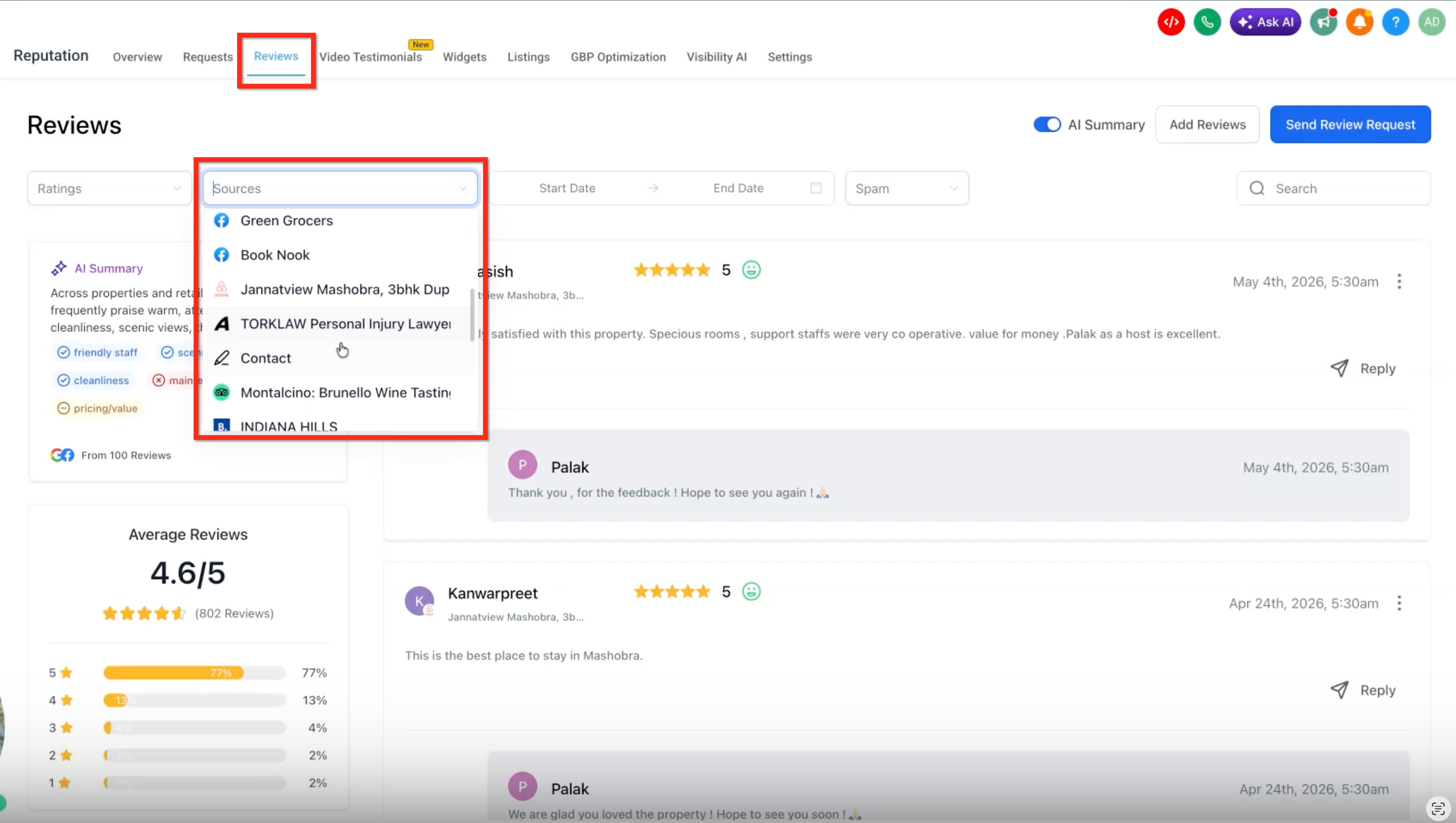
When a page is linked, HighLevel pulls its reviews into the dashboard. The Reviews tab lets you filter by individual pages or select multiple sources, showing combined feedback without leaving the view.
Page level visibility displays the page reference, connection status, review count, and last sync time, helping you confirm that data is coming from the correct listing.
03How businesses use multiple review platforms
- Dental practice. The practice adds its Google Business Profile and Yelp pages under Integrations. Staff then use the Sources dropdown in the Reviews tab to view feedback from both sites at once, ensuring no patient comment is missed.
- Real estate agency. The agency connects each office’s Zillow and Realtor.com listings. Agents filter reviews by office location, allowing them to address local client concerns directly from the centralized dashboard.
- Restaurant chain. Each restaurant location’s TripAdvisor and Yelp pages are linked. Managers select multiple locations in the Reviews view to compare sentiment across the chain and respond efficiently.
04The numbers and rules that matter
- No page connection limit.
- 52 supported review platforms.
- MultiPage Integrations allow more than one business page per platform.
05How to set up and use multiple review platforms in HighLevel
Integrate a review platform
- Open the Reputation section from the left side menu.
- Click Settings in the top navigation bar.
- Select the Integrations tab.
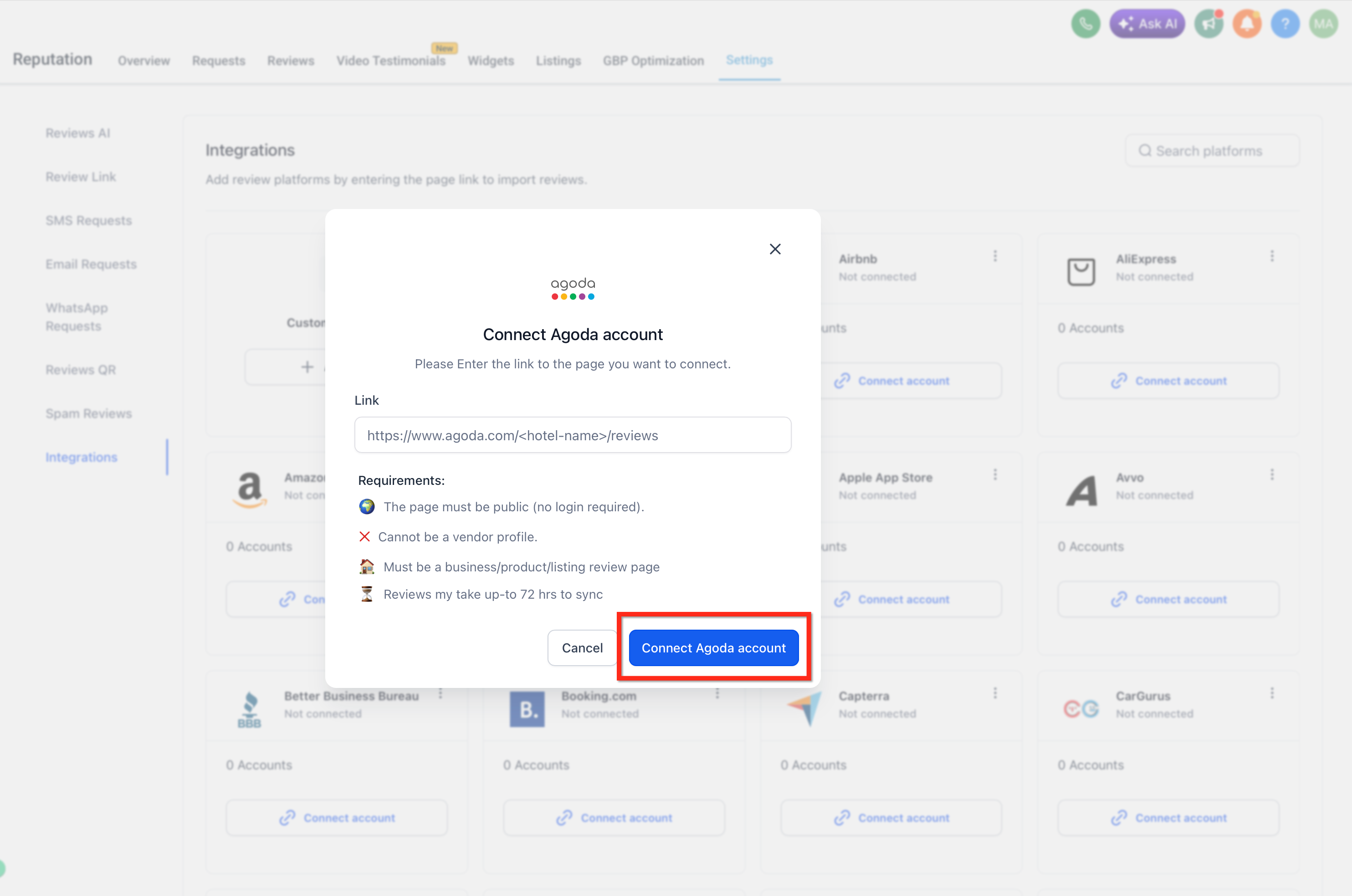
- Press Connect account on the desired platform.
- Enter the public review page URL for the business listing.
- Click Connect to finish the integration.
06What it looks like in HighLevel
07Settings that matter
- Integrations. Controls which external review platforms are linked to the account and manages each connected page’s URL, status, and sync information.
08Things to know before you rely on it
- There is no limit on the number of pages you can connect under a single platform.
- HighLevel supports integration with up to 52 review platforms.
- Each platform connection requires a valid public facing review page URL.
- Newly added pages may take time to sync before reviews appear.
09If something goes wrong
- Reviews do not appear after adding a new page. Check that the URL points to a public review page, verify you have access permissions, and wait for the sync to complete.
- Integration fails to connect. Confirm the URL is correct, ensure your account can access the page, and clear your browser cache before trying again.
10How it connects to the rest of HighLevel
- Reputation overview dashboard Reputation Overview
- Sending review requests in HighLevel Review Requests
- All Reputation Management & Reviews features Reputation Features
Michael's take

Linking all your review sources in HighLevel saves you the headache of hopping between dozens of sites and lets you answer customers fast, which is a big help for any small business that lives on its reputation.
Don’t forget to double check that each URL points to a public review page before you hit Connect.