
01Who this is for
- Founders running email marketing campaigns who need to verify how messages appear across popular inboxes.
- Marketing managers responsible for brand consistency in outbound newsletters and promotional emails.
- Small business owners who want to prevent formatting glitches that could affect customer perception.
02Inbox preview, explained
Inbox Preview is a feature located in the Email Builder that creates client specific renders of your email. Unlike the standard desktop, tablet and mobile previews, it shows how Gmail, Outlook, Apple Mail and other supported platforms display the content.
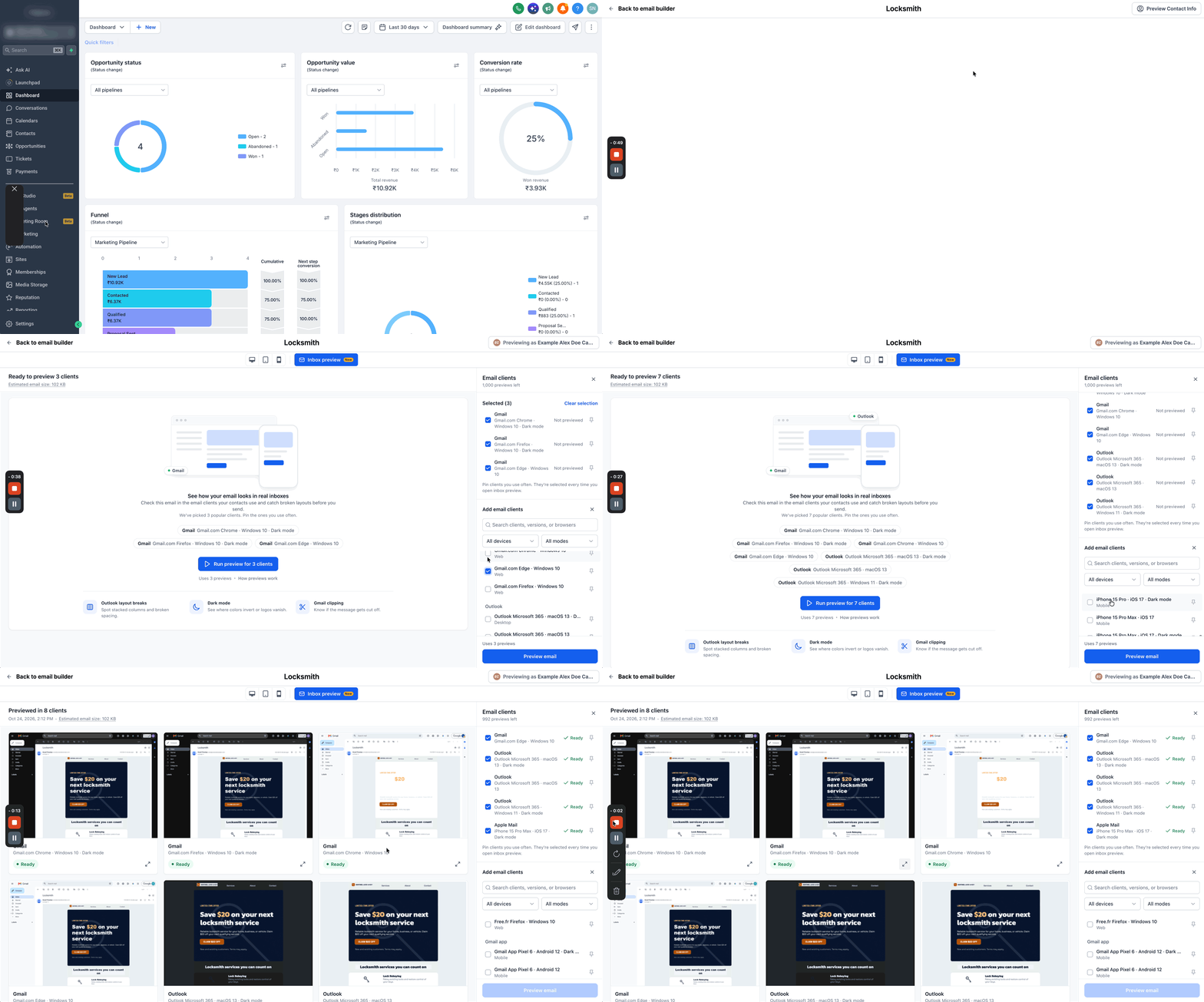
When you run a preview, the platform generates one preview per selected client, showing the email in the chosen device type, version and light or dark mode. You can open each preview at full size to examine layout, clipping, dark mode contrast and other rendering details.
The preview controls live under Marketing > Emails > Campaigns and are accessed by clicking the Inbox preview button inside the Email Builder.
03How businesses use inbox preview
- Dental practice. The practice selects Gmail and Outlook in the preview list, runs the previews, and checks each result for broken appointment reminder formatting before the emails are sent to patients.
- Online boutique. The boutique adds Apple Mail dark mode to the client list, generates the preview, and reviews the full size view to ensure promotional graphics display correctly for customers using dark themes.
- Real estate agency. The agency runs previews for multiple devices, compares how property listing details are rendered, and edits any clipping issues spotted before launching the email blast.
04The numbers and rules that matter
- Supported email clients: Gmail, Outlook, Apple Mail, and other supported inboxes.
05How to set up and use inbox preview in HighLevel
Generate inbox previews
- Open the Marketing > Emails > Campaigns section.
- Enter the Email Builder and click the Inbox preview button located next to Desktop, Tablet, and Mobile preview icons.
- Check the preview pane to see how many previews you have available and how many will be used.
- Review the preselected email clients or add new ones, using the search box and filters for device type or display mode.
- Press Run preview for the listed number of clients to start generating the renders.
- When the previews finish, compare the layouts across the different inboxes and open any preview to view it in full size.
- If any formatting problems appear, go back to the Email Builder, adjust the email content, and run the previews again before sending.
06What it looks like in HighLevel
07Settings that matter
- Email clients. Determines which email client, device type, version and light or dark mode previews are produced.
08Things to know before you rely on it
- Each selected email client consumes one preview from your allotted preview quota.
- The preview interface shows the total number of previews required and how many remain.
09How it connects to the rest of HighLevel
- Review pricing and plan details that affect preview quotas. HighLevel pricing and plans
- Start a free trial to test Inbox Preview before committing to a plan. 30 day trial
- Learn how to customize review request messages that can be sent alongside your email campaigns. Customize review requests
Michael's take

I find Inbox preview useful for checking client specific rendering before sending my campaigns.