
01Who this is for
- Founders of service based businesses who need a quick way for clients to leave online reviews.
- Small retailers who hand out receipts or flyers and want a scannable link to feedback forms.
- Healthcare providers that rely on patient testimonials and wish to simplify the review process.
02Digital QR codes, explained
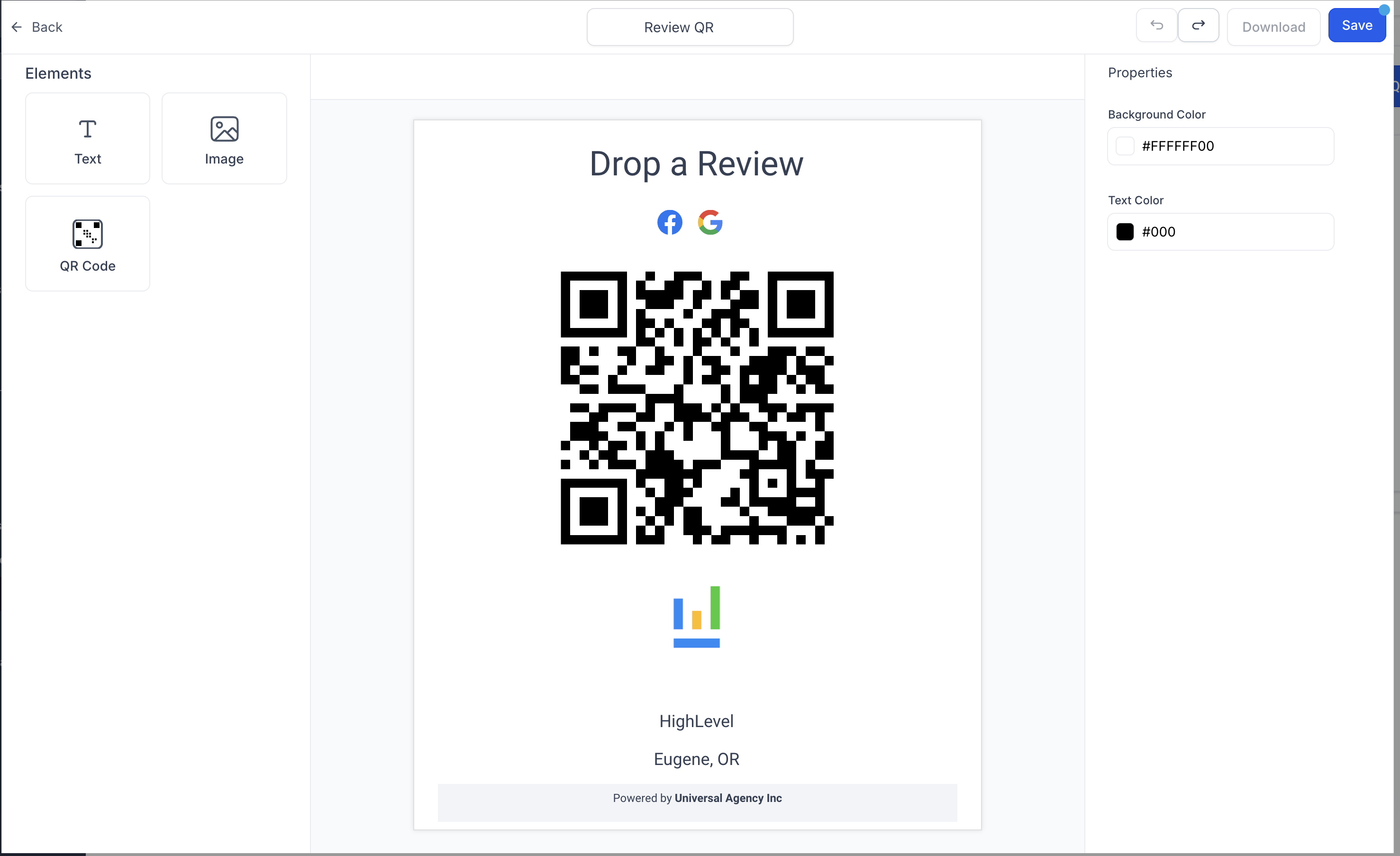
The QR code feature creates a scannable image that points directly to a chosen review page, a Google Business Profile listing, or a custom feedback form. After the code is generated, you can add a logo, change surrounding text, and download it as a PDF for any medium. Scan activity is shown in a Tracking view, letting you see how often the code is used and adjust placement or messaging accordingly. All of these options are found inside the Reputation section of HighLevel, under Settings for creation and under Tracking for monitoring.
03How businesses use digital QR codes
- Restaurant. Generate a QR code that links to the restaurant's Google review page, add the brand logo, download the PDF, and place it on menus and receipts. Then watch the scan count in the Tracking view to see which locations drive the most reviews.
- Dental practice. Create a QR code that points to a custom patient feedback form, customize the code with the practice's logo and a friendly message, embed the code in email signature and on the office website, and monitor scans to evaluate patient engagement.
- Boutique retail store. Produce a QR code for the store's Facebook review page, brand it with the shop's emblem, print it on loyalty cards and in store posters, and track scan data to decide which display spots generate the most feedback.
04How to set up and use digital QR codes in HighLevel
Create a QR code for your business
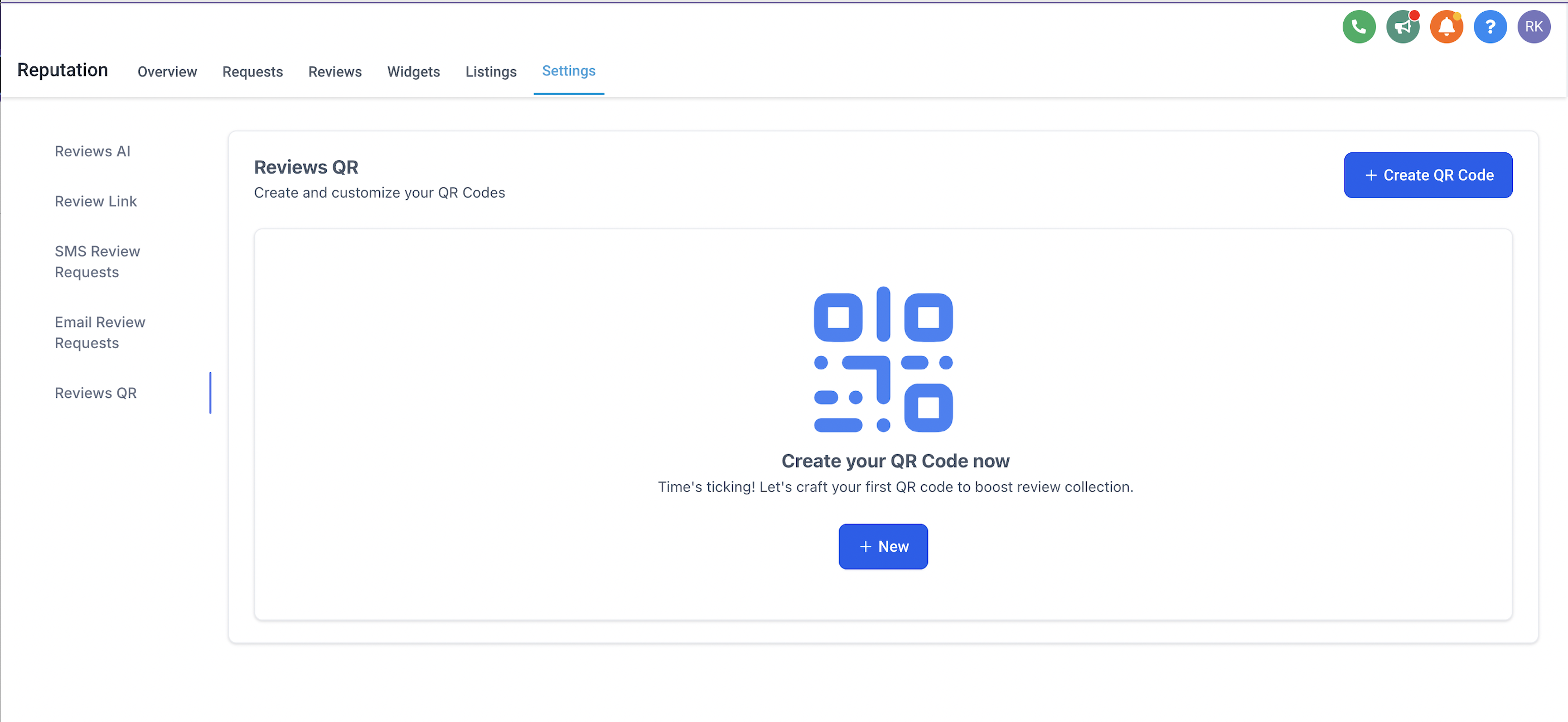
- Open Reputation, go to Settings and select the Reviews QR section.
- Pick the review page that the QR code should open for customers.
- Press the Create QR Code button to generate the scannable image.
Customise the QR code
- Upload a company logo or other image to personalize the QR code.
- Edit the text that appears with the code to add a custom message.
- Test the QR code on several devices to confirm it still scans correctly.
Display your QR code
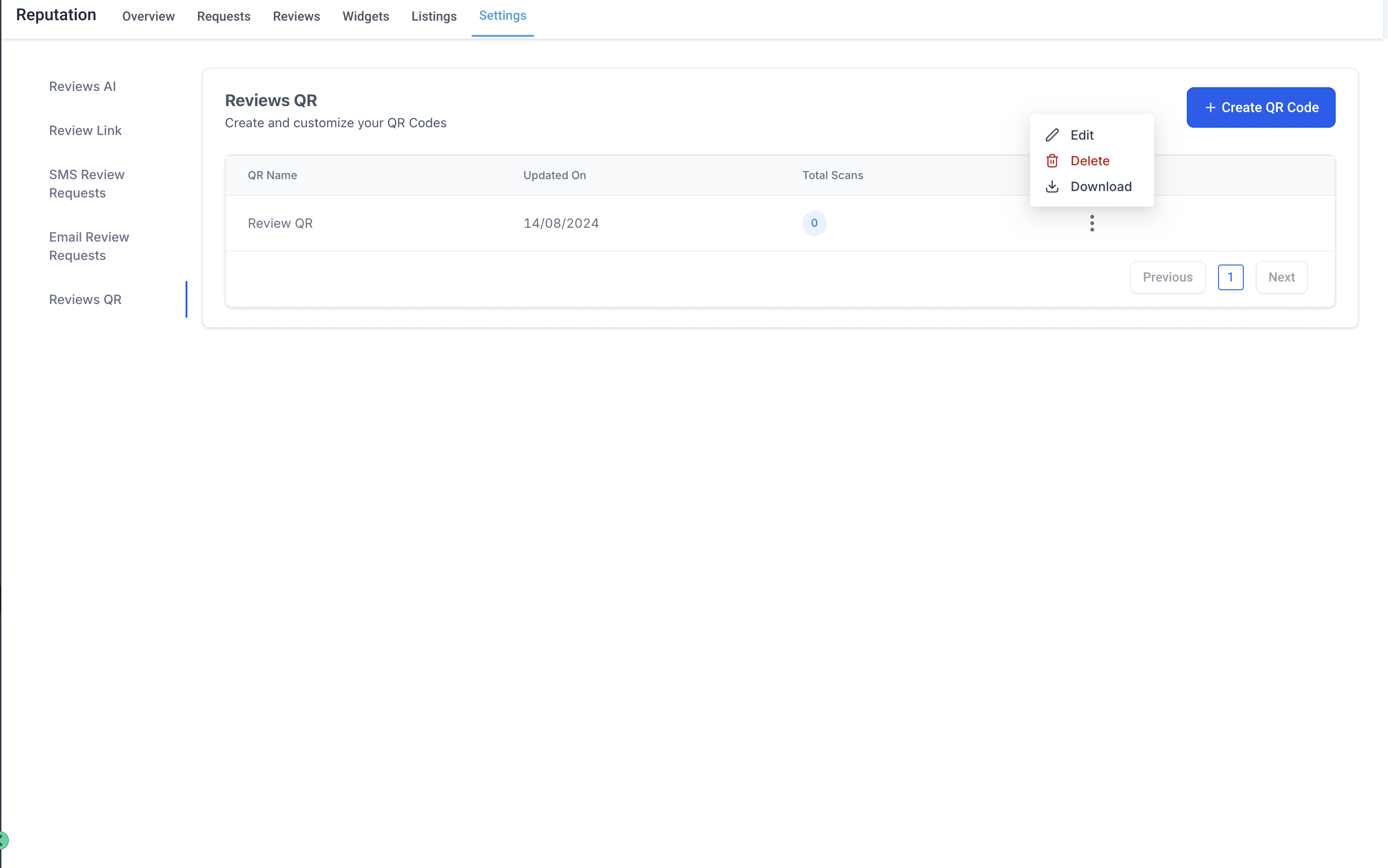
- Download the generated QR code as a PDF file.
- Add the PDF to printed items such as flyers, receipts, or business cards.
- Insert the QR code into digital channels like email signatures, social posts, or the website.
Monitor and track scans
- Open the Tracking section to view real time scan counts for the QR code.
- Analyze the scan data to understand customer engagement levels.
- Adjust the QR code’s placement or call to action based on the observed results.
05What it looks like in HighLevel
06Settings that matter
- Reviews QR. Determines which review page the generated QR code will link to and stores the code for later use.
07Things to know before you rely on it
- The QR code must stay scannable after any branding changes; test it on multiple devices to avoid unusable codes.
08How it connects to the rest of HighLevel
- See overall reputation metrics in the dashboard Reputation overview dashboard
- Learn how to send review requests manually or via workflow Sending review requests
Michael's take

Digital QR codes can feel like a novelty, but if you forget to test them after branding changes you risk ending up with an unreadable image that frustrates customers. Treat the QR as any other touchpoint. Verify it works before you hand out flyers or update your signature.
When the code works, the quick scan removes friction, making it easier for customers to leave a review.