
01Who this is for
- Marketing managers can keep outreach fresh by rotating templates for each reminder.
- Small business owners gain a hands free way to ask for reviews without manual effort.
- Reputation specialists can tailor each email to match brand tone and improve response rates.
02Recurring review request emails, explained
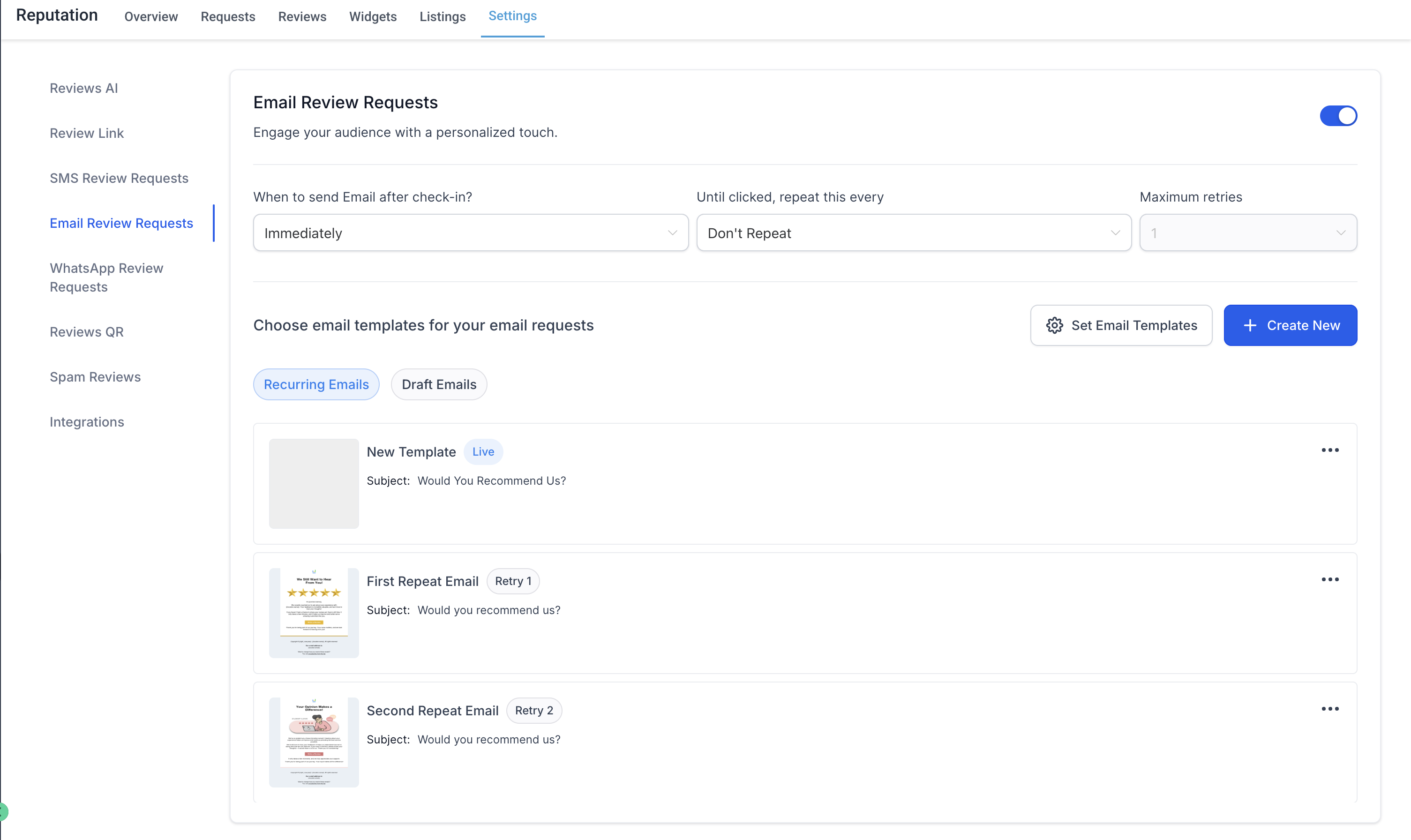
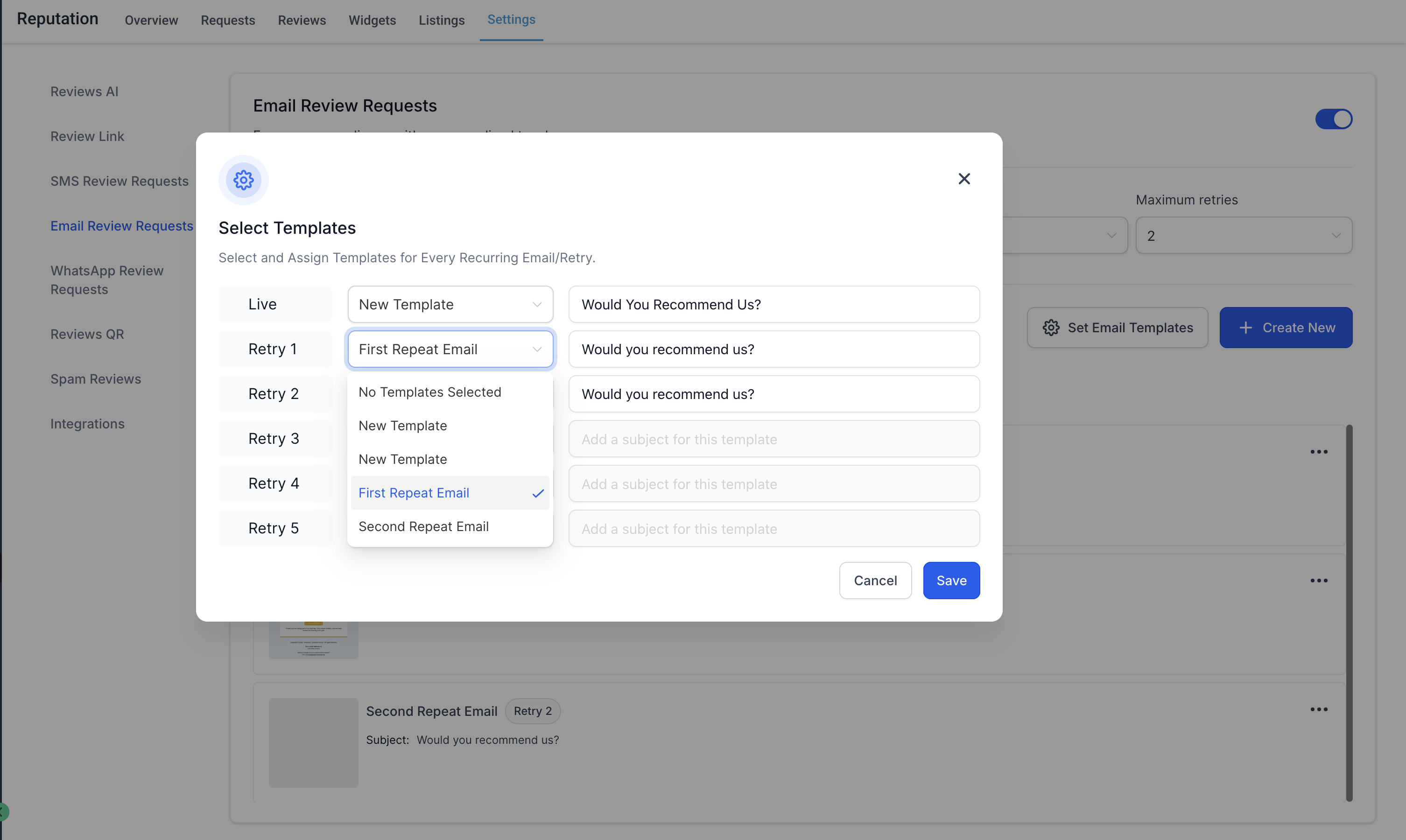
The feature lives under Reputation Management and controls the flow of review request emails. When enabled, the system sends a set of messages at intervals you define, each using the template you select. You decide the subject line for every email in the series.
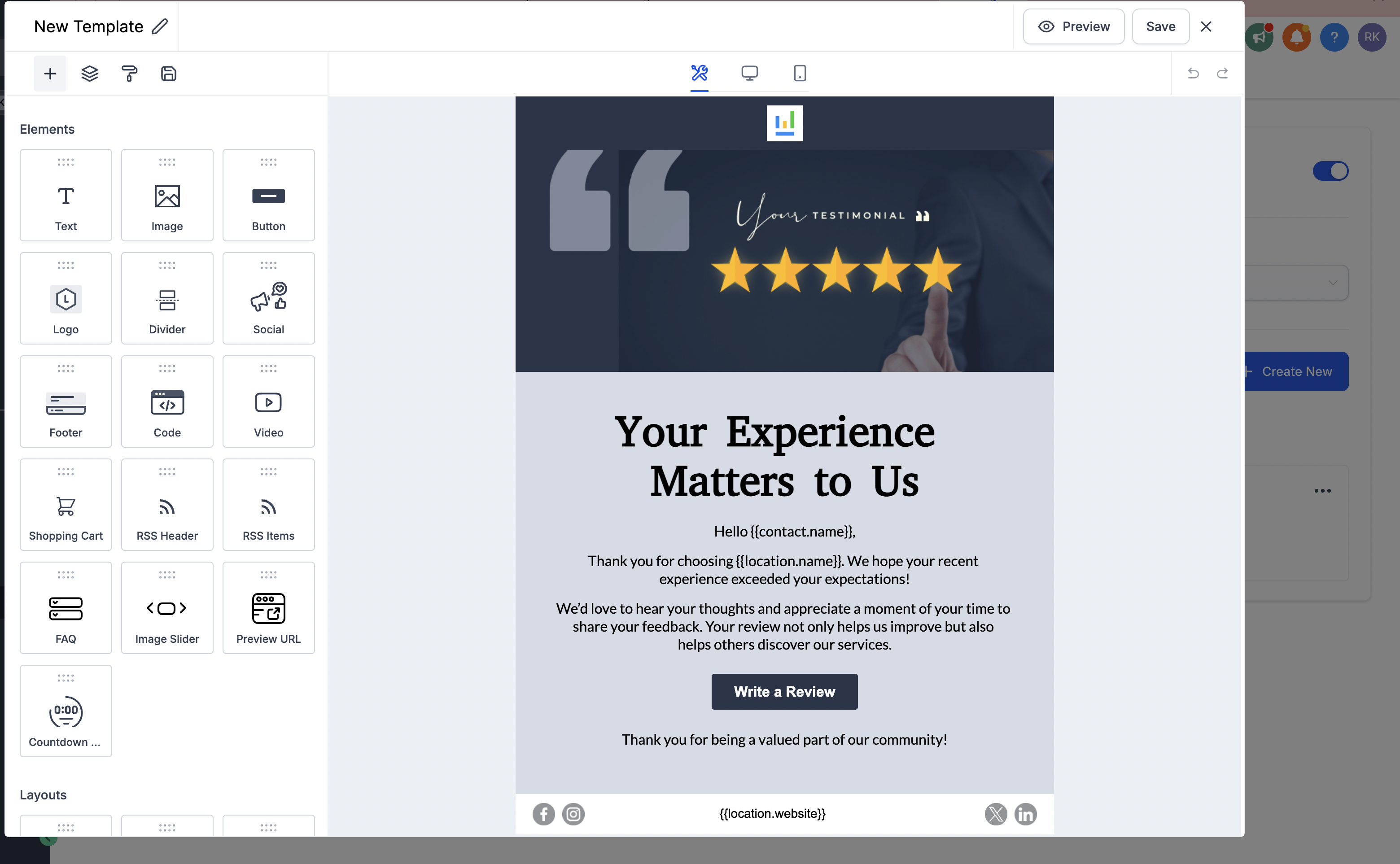
Templates are edited in the Email Builder, where you can add placeholders, branding, and any text that fits your audience. After configuring the sequence, a Save & Activate button starts the automated dispatch. The platform then handles sending without further input.
03How businesses use recurring review request emails
- Dental practice. The practice creates a first email template asking patients for a review, then a second template with a gentle reminder. Each email gets its own subject line. Once saved, the system sends both messages after a visit without manual steps.
- Fitness studio. The studio selects a pre made template for the initial outreach and designs a custom follow up that includes a personalized greeting. Both are scheduled as part of the recurring request flow and activated with one click.
- Home service contractor. The contractor picks distinct templates for post service and post follow up emails, edits the body in the Email Builder, and activates the series so customers receive the appropriate message automatically.
04The numbers and rules that matter
- "Maximum Retries" option.
05How to set up and use recurring review request emails in HighLevel
Set up recurring review request emails
- Open Reputation Management and navigate to the Email Review Requests section.
- Locate the field labeled Maximum Retries.
- Switch on the Recurring Review Requests option.
- Choose a template for the first follow up and enter its email subject.
- Choose a template for the second or additional follow up and set its subject line.
- Edit each template’s body using the Email Builder and add any personalization tokens.
- Verify the configuration and press Save & Activate to start the automated sequence.
06What it looks like in HighLevel
07Settings that matter
- Maximum Retries. Determines whether the system allows more than one review request email to be sent.
- Recurring Review Requests. Enables the automatic sending of multiple follow up emails for a single review request.
- Email Subject. Specifies the line that appears in the recipient’s inbox for each email in the series.
08How it connects to the rest of HighLevel
- Send review requests manually or via workflows Manual and workflow review requests
- Customize SMS and email templates for review requests Template customization guide
- Review HighLevel pricing and plan options Pricing page
Michael's take

Michael ReimerFounder of CRM Pros, HighLevel Commander and Certified Admin
I prefer to create a fresh template for each step, tweaking the tone and adding a new personalization token each time. That way each email feels like a new conversation, not a repeat reminder.
Get More InformationOpens on HighLevelPublished November 2, 2026 · Updated November 17, 2026