
01Who this is for
- Marketing managers can keep brand messaging uniform across automated review requests.
- Small clinic owners can personalize each SMS with patient names and images to encourage feedback.
- Service based businesses can control how often reminders are sent until a review is posted.
02Custom SMS templates, explained
Custom SMS templates are a feature inside Reputation Management that defines the exact content of the messages used in recurring review request sequences. You can embed custom tokens for contact data, attach static images or link to dynamic image URLs, and select pre built designs or build from scratch.
The system lets you schedule when the first SMS is sent after a check in, choose a repeat interval, and limit the number of retries. You can set the send delay, pick a repeat frequency such as days or hours, and cap the maximum resend attempts.
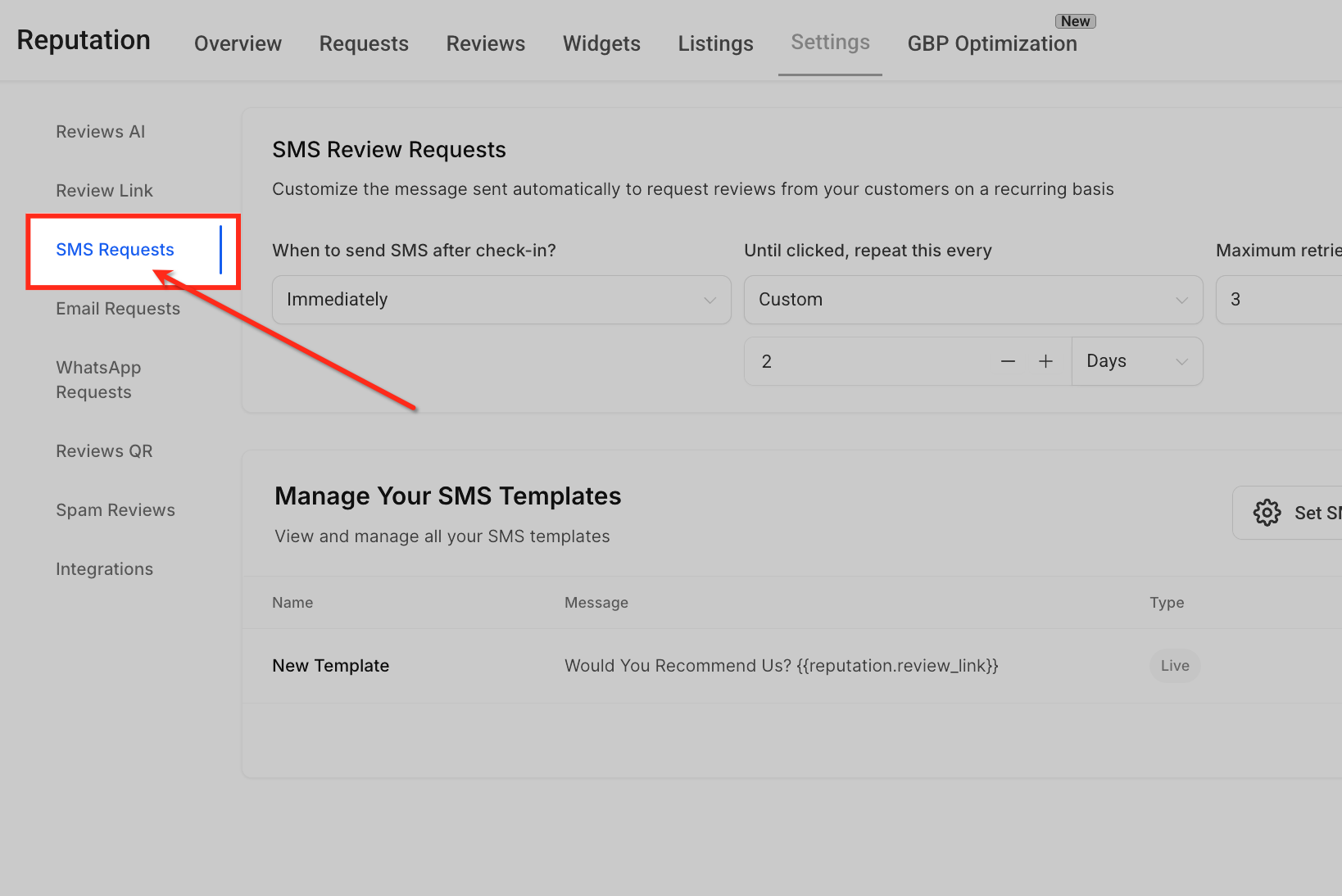
All settings are accessed through Reputation > Settings > SMS Requests. From there you enable SMS review requests, configure timing and retries, and assign specific templates to each retry step in the sequence.
03How businesses use custom SMS templates
- Dental practice. The practice creates a template that inserts the patient’s first name and a dynamic image of their logo. It then assigns this template to the first and second retry stages, ensuring each reminder feels personal and on brand.
- Fitness studio. The studio builds a template with a static image of a class schedule and includes a token for the member’s preferred workout. It sets the SMS to send one hour after check in and repeats every three days up to four times.
- Real estate agency. Agents design a template that pulls the property address via a token and adds a dynamic image showing the home. They configure the repeat interval to use hours, sending follow ups every 6 hours until the client responds.
04The numbers and rules that matter
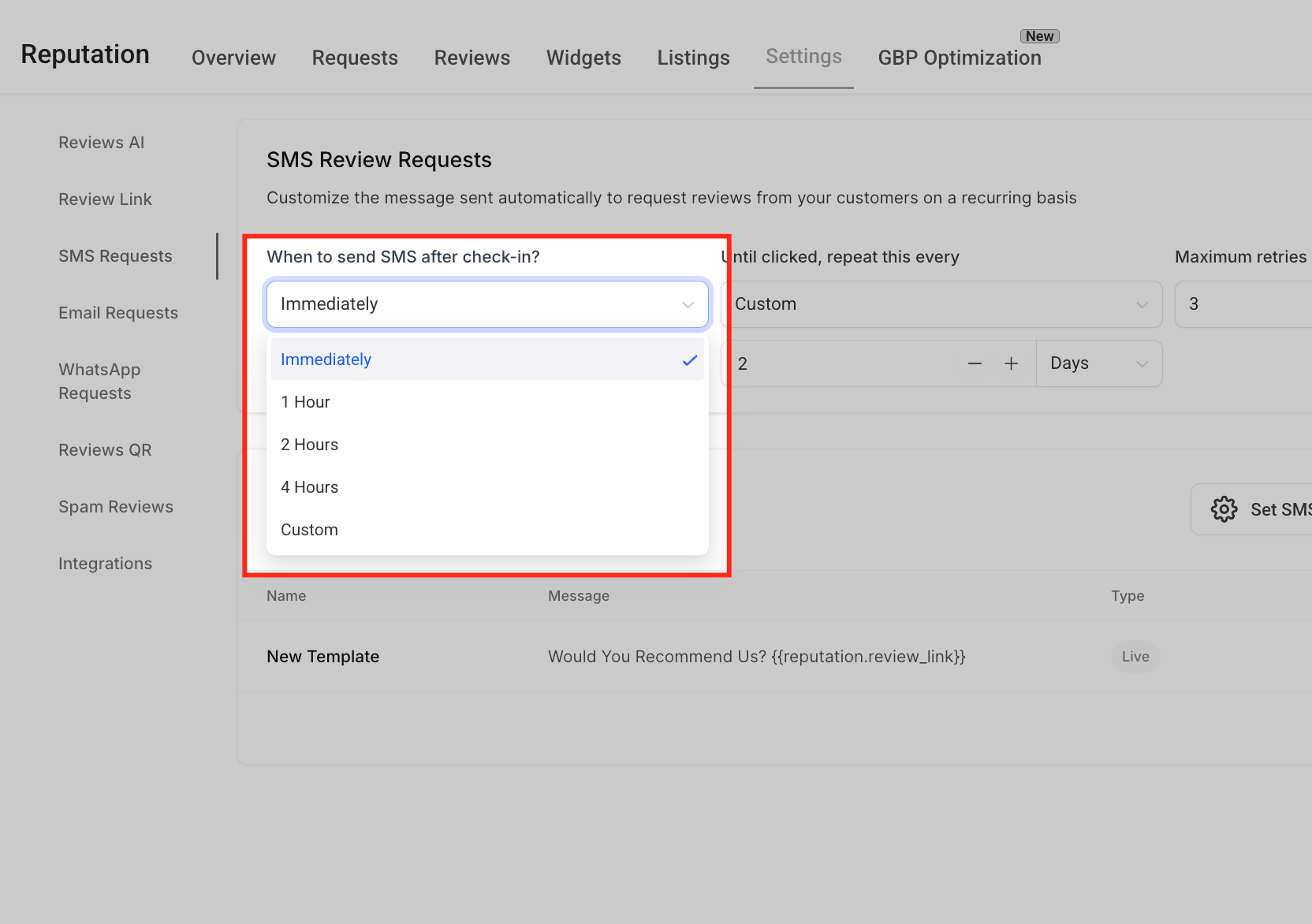
- When to send SMS after check in? dropdown. Options: Immediately, 1 Hour, 2 Hours, 4 Hours, Custom.
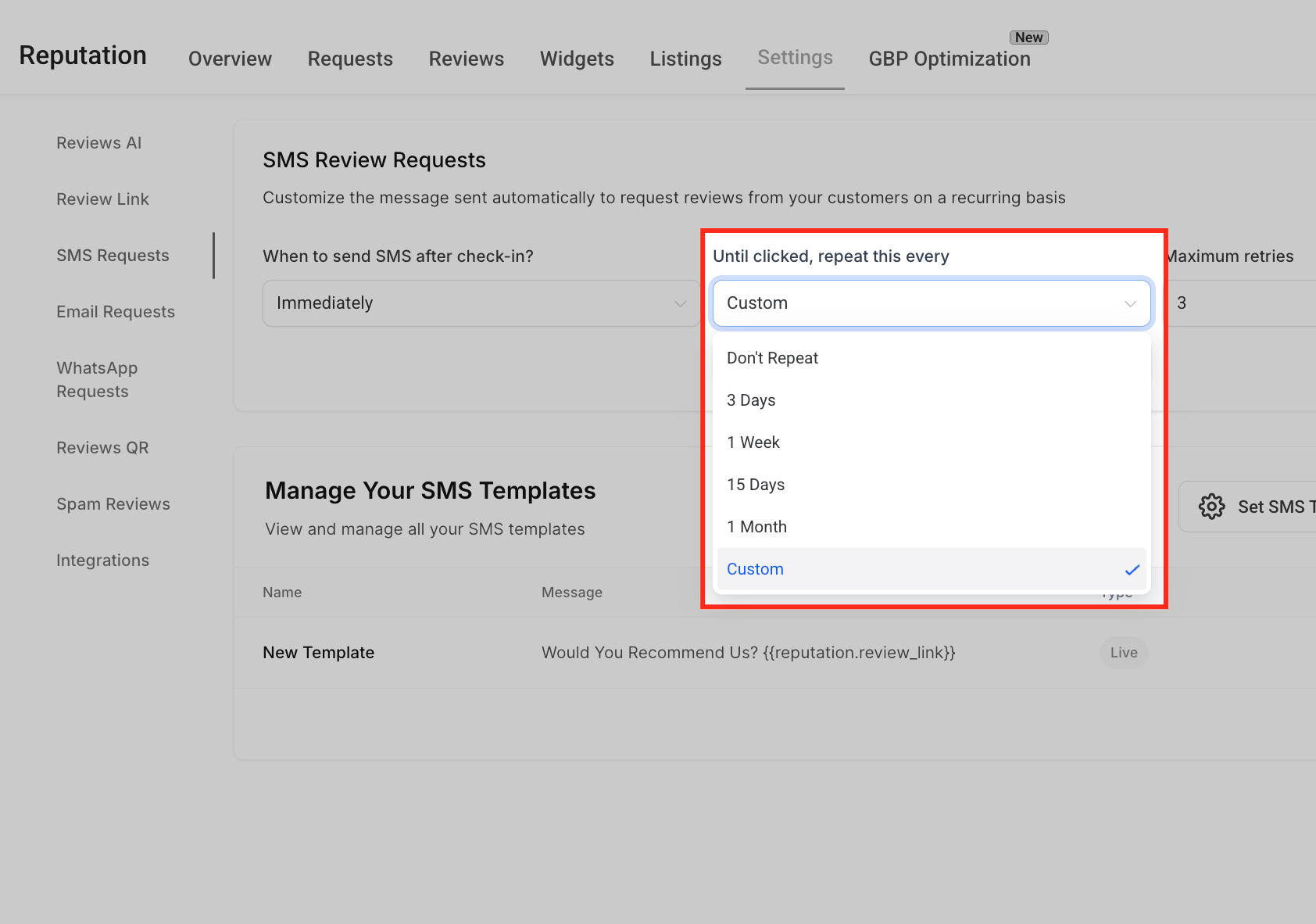
- Until clicked, repeat this every dropdown. Options: 3 Days, 1 Week, 1 Month, Custom.
- Maximum retries dropdown. Selectable values 1 to 5.
05How to set up and use custom SMS templates in HighLevel
Configure custom SMS templates for a recurring review request campaign
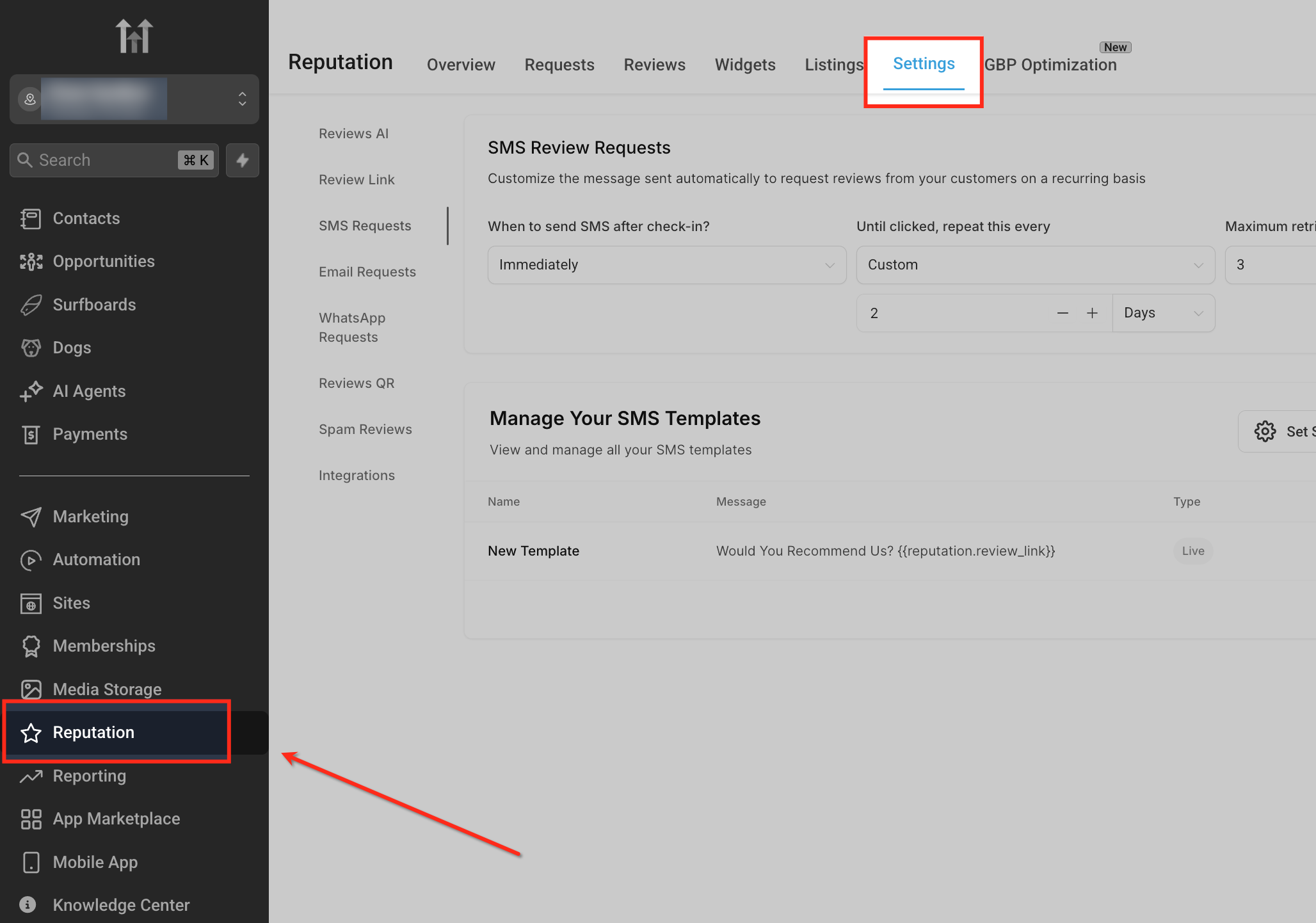
- Open the left navigation, choose Reputation, and click the Settings tab.
- In the Reputation Settings menu select SMS Requests.
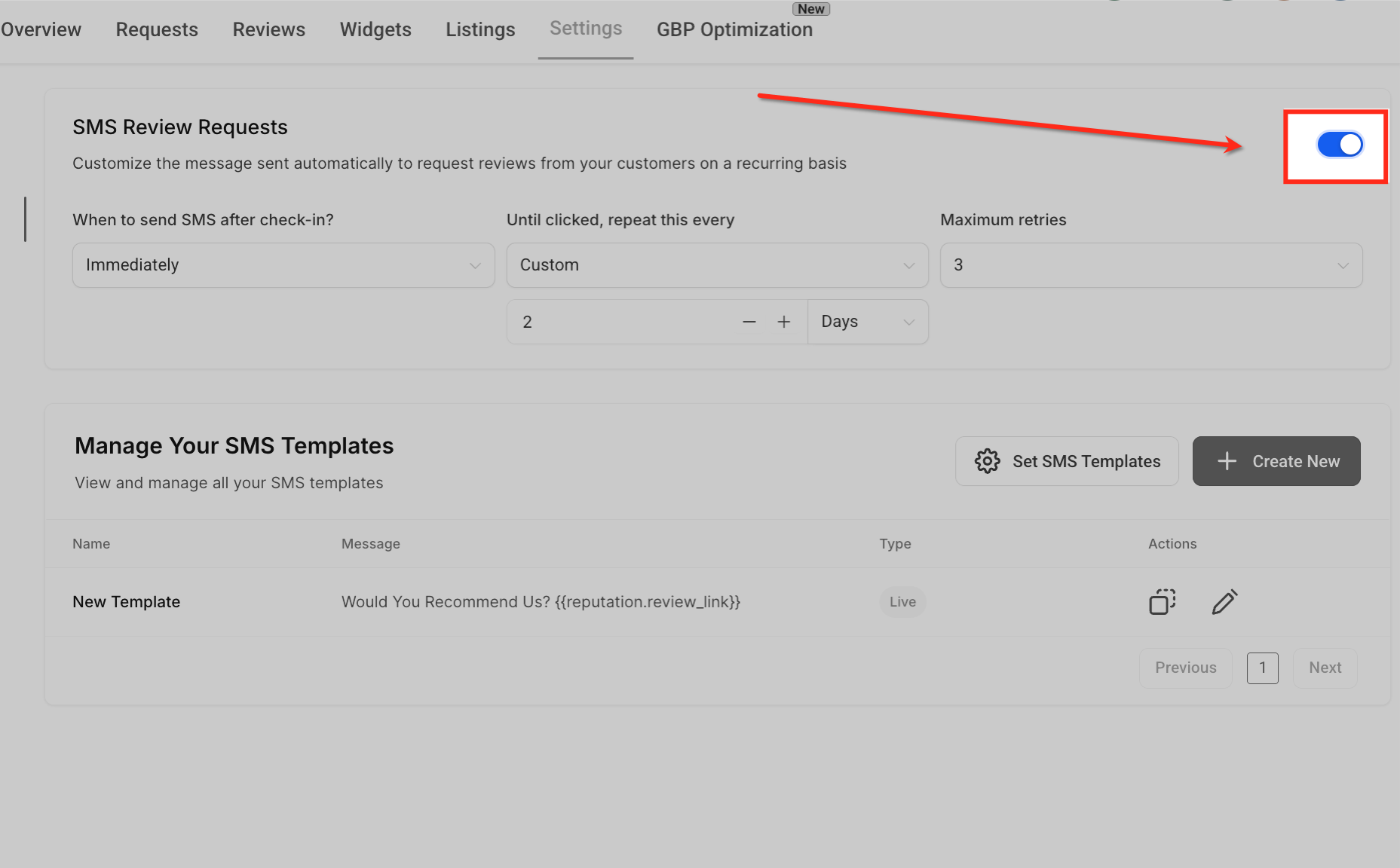
- Turn on the SMS Review Requests toggle to allow template creation.
- Pick a timing option from the When to send SMS after check in? dropdown.
- Choose a repeat option from the Until clicked, repeat this every dropdown.
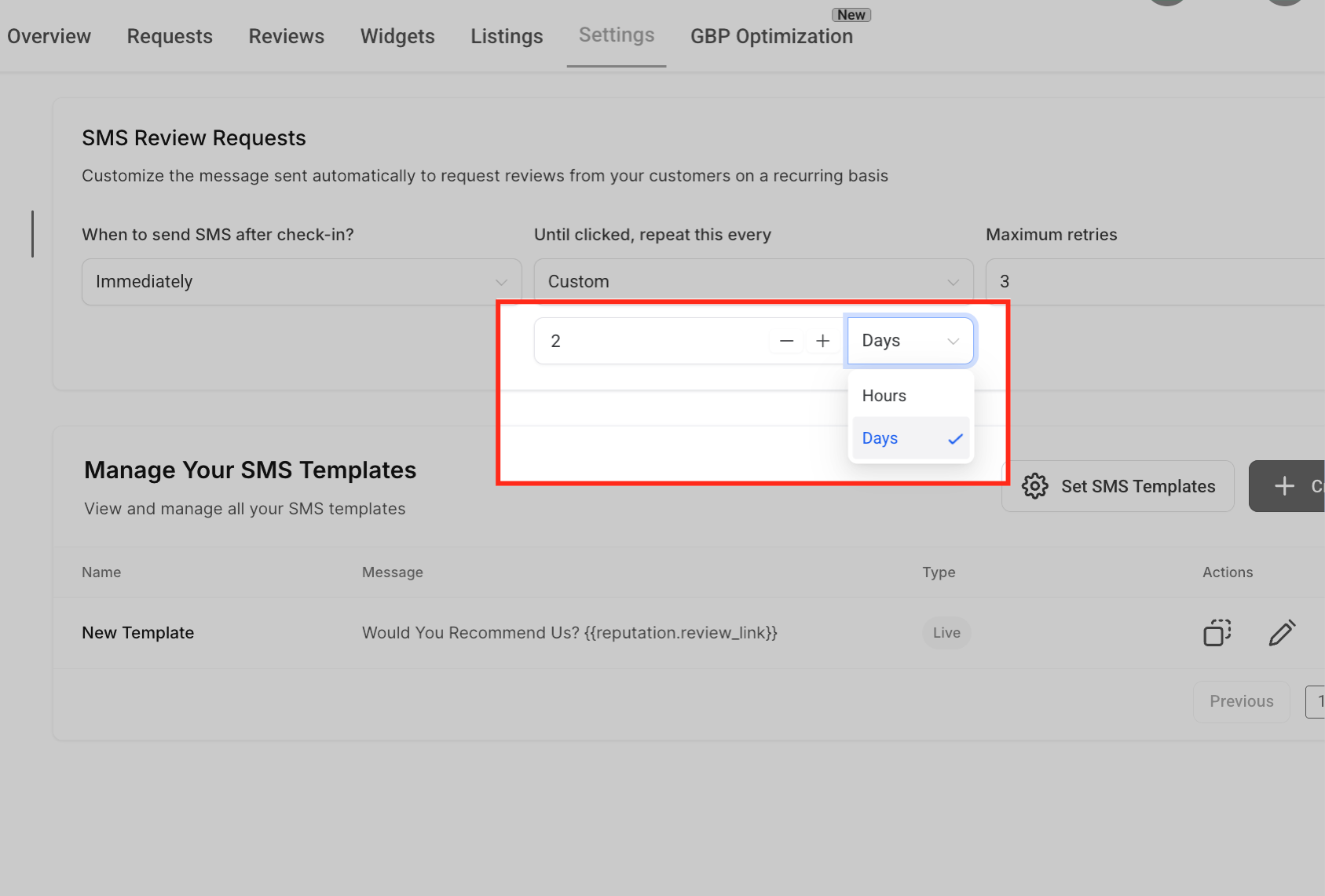
- If Custom is selected, adjust the number and select Hours or Days for the interval.
- Set the maximum number of retries using the Maximum retries dropdown.
- Click the Set SMS Templates button to open the template assignment window.
- Select a template for each retry stage and click Save to apply the settings.
Create a new SMS template
- Click the Create New button to start a fresh SMS template.
- Choose either Create New from Scratch or Select from Pre Built Templates.
- Enter a clear, descriptive name for the template.
- Toggle the Request with Image option on if an image should be included.
- Upload an SVG, PNG, or JPG file to serve as the static image.
- Paste a dynamic image URL if you want personalized visuals.
- Write the SMS message using any custom tokens, then click Save.
06What it looks like in HighLevel
07Settings that matter
- SMS Review Requests toggle. Activates the ability to create and edit SMS templates for review requests.
- When to send SMS after check in? dropdown. Defines the delay before the first review request SMS is sent after a customer checks in.
- Until clicked, repeat this every dropdown. Sets the interval at which the system resends the review request until the recipient interacts.
- Maximum retries dropdown. Limits how many times the platform will resend the SMS if there is no response.
- Request with Image toggle. Enables inclusion of a static image file in the SMS message.
- Add Custom Image URL field. Allows insertion of a hosted image link, such as a dynamic NiftyImages URL, for personalized visuals.
08Things to know before you rely on it
- Maximum retries can be set between 1 and 5 attempts.
- Custom repeat intervals may use either Hours or Days as the time unit.
- Image files are limited to SVG, PNG, or JPG formats.
- The repeat frequency dropdown includes preset options like 3 Days, 1 Week, 1 Month, or a Custom setting.
09How it connects to the rest of HighLevel
- See the full guide on customizing review request SMS and email messages. custom SMS guide
- Learn how to send review requests manually or via workflow automations. send review requests
- Review pricing options and plan eligibility for Reputation Management features. HighLevel pricing
Michael's take

Custom SMS templates are worth the effort when you need brand consistent, engaging review requests. Skip it if you don’t send SMS follow ups or lack a Reputation Management workflow.