
01Who this is for
- Marketing managers can personalize requests with project photos to reinforce the service delivered.
- Service providers such as plumbers or contractors can include before and after shots to remind clients of completed work.
- Salon owners can attach haircut images to increase credibility in client reviews.
02Images to review requests, explained
The platform allows up to five image files (JPG, PNG, JPEG) of up to 5 MB each to be attached to a review request. Images are supported on email and SMS channels, but not on WhatsApp or the mobile app. When sent, the pictures appear as attachments in the contact’s Conversations thread.
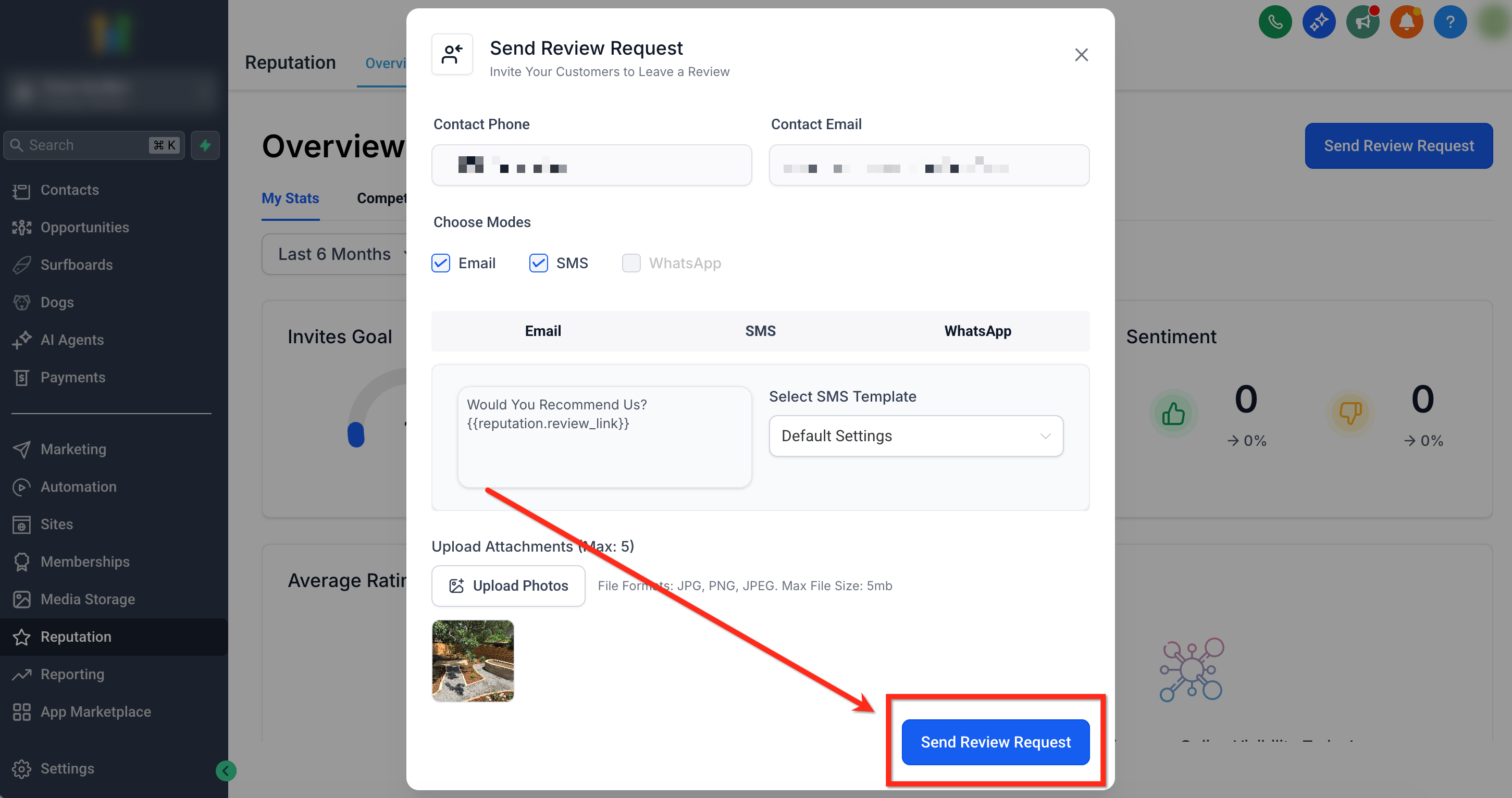
To use the feature, open the Reputation tab, click the Send Review Request button, choose the contact, select the delivery channel(s) and template, upload the photos, and then send the request. The same images are used for both email and SMS if both modes are selected.
03How businesses use attaching images to review requests
- Home renovation company. The company selects a client, chooses email and SMS, uploads before and after renovation photos, and sends the request. The client sees the images and can reference them in their review.
- Dental practice. The practice picks a patient, selects the email channel, uploads a smile makeover picture, and sends the request. The patient receives the photo and may include it when writing the review.
- Auto repair shop. The shop selects a vehicle owner, chooses SMS, attaches photos of repaired parts, and sends the request. The owner receives the images and can use them in the review.
04The numbers and rules that matter
- Supported channels: Email (Supported), SMS (Supported), WhatsApp (Not Supported).
- Max photos per request: Up to 5.
- Supported formats: JPG, PNG, JPEG.
- Max file size: 5 mb.
05Before you start
- The contact record must contain a phone number or email address for the chosen channel.
- The feature is only available in the HighLevel web application; the mobile app does not support image attachments.
06How to set up and use attaching images to review requests in HighLevel
Send a review request with attached photos
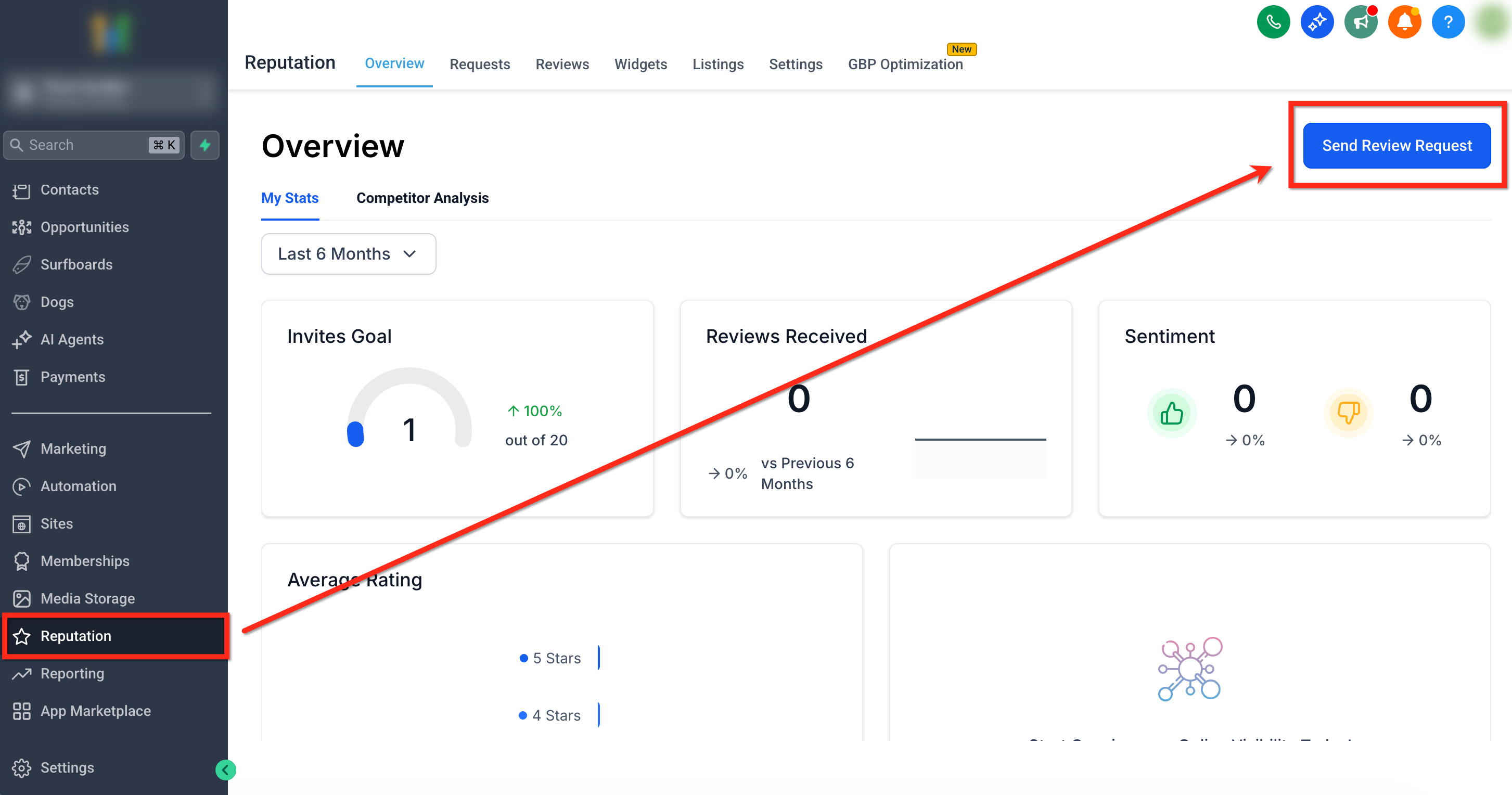
- Open the Reputation tab in your subaccount and click the blue Send Review Request button.
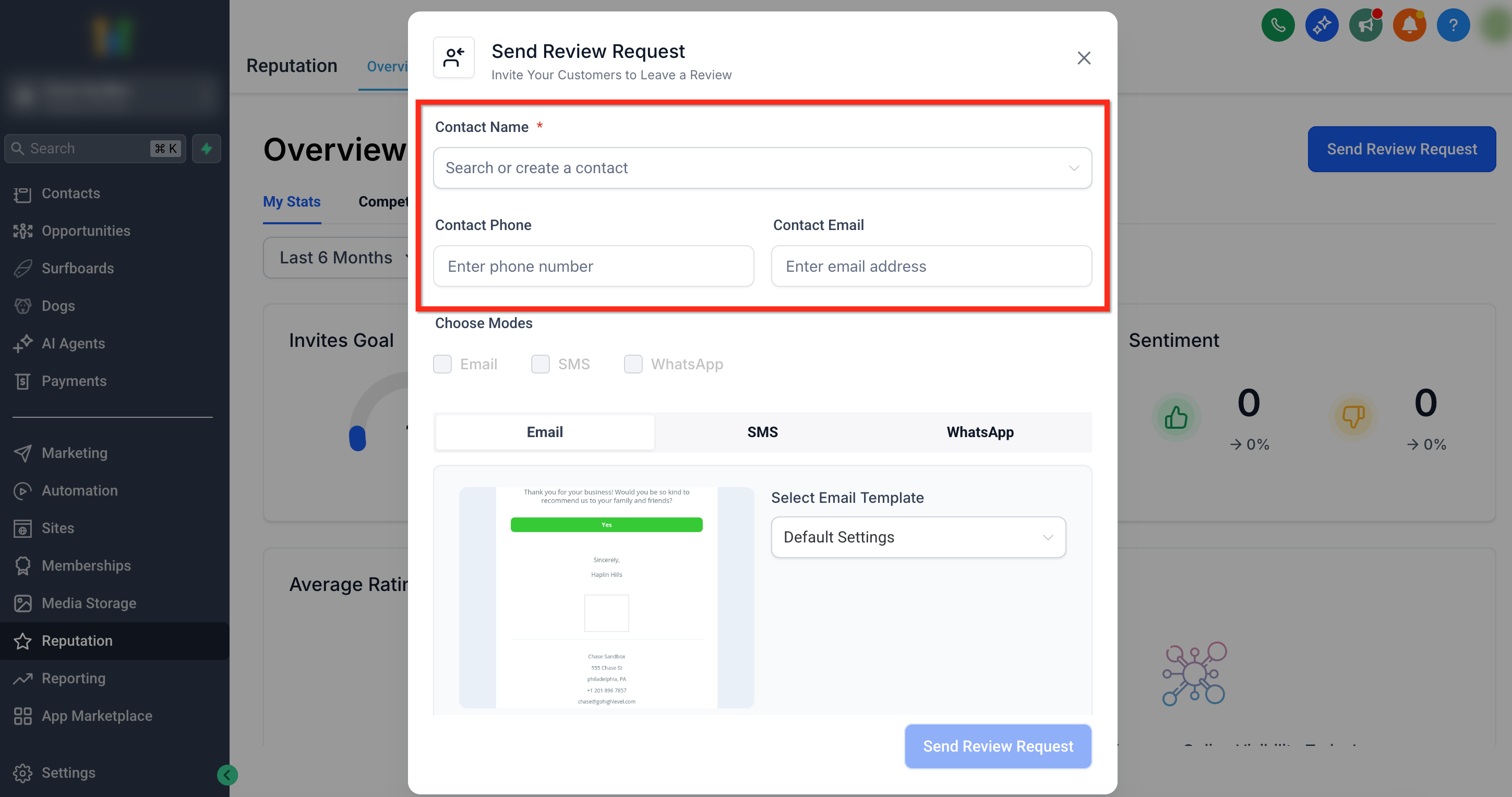
- Search for and select the desired contact, confirming the needed phone or email fields are present.
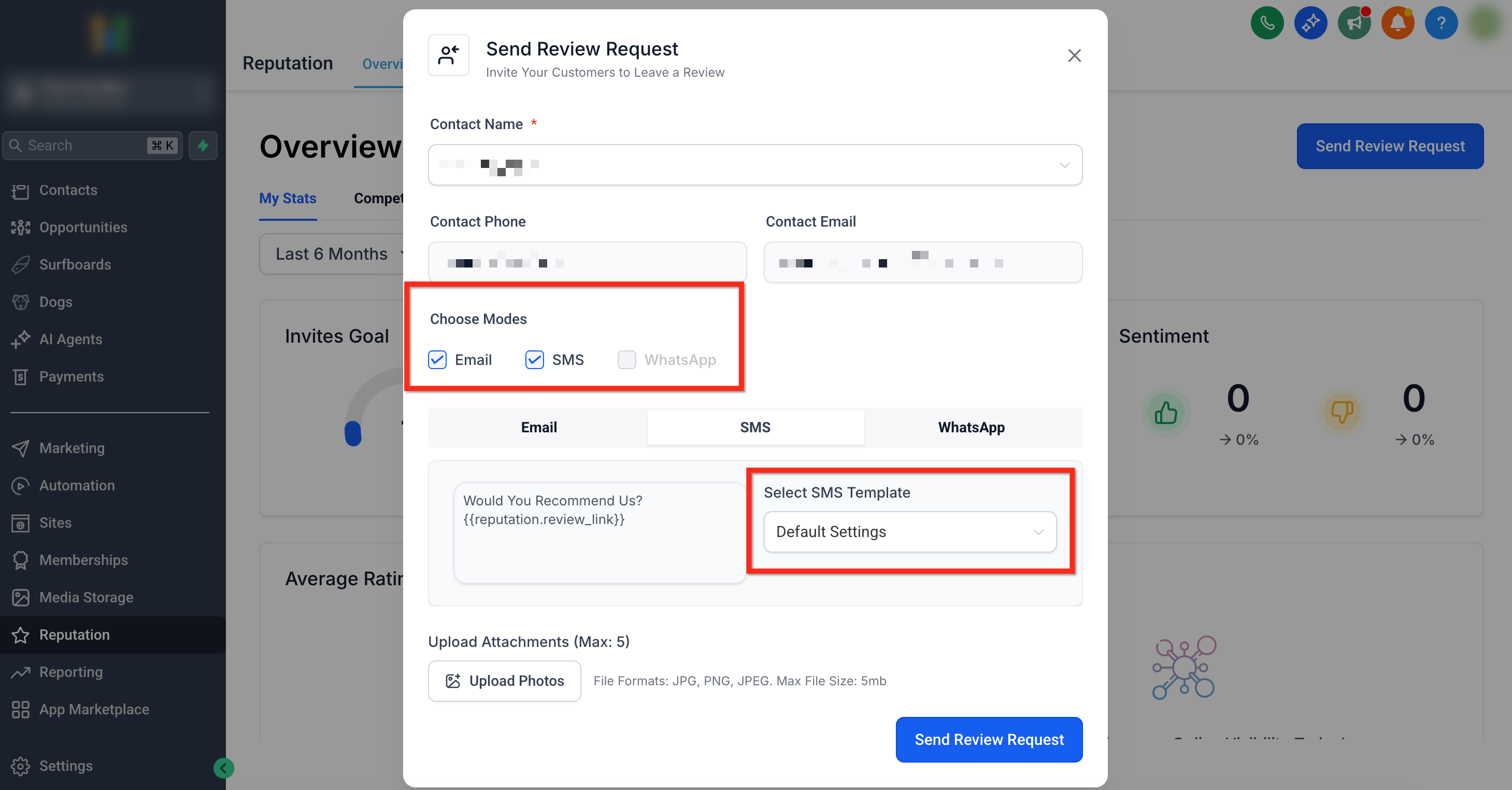
- Check the Email and/or SMS boxes under Choose Modes and pick the appropriate templates from the dropdown menus.
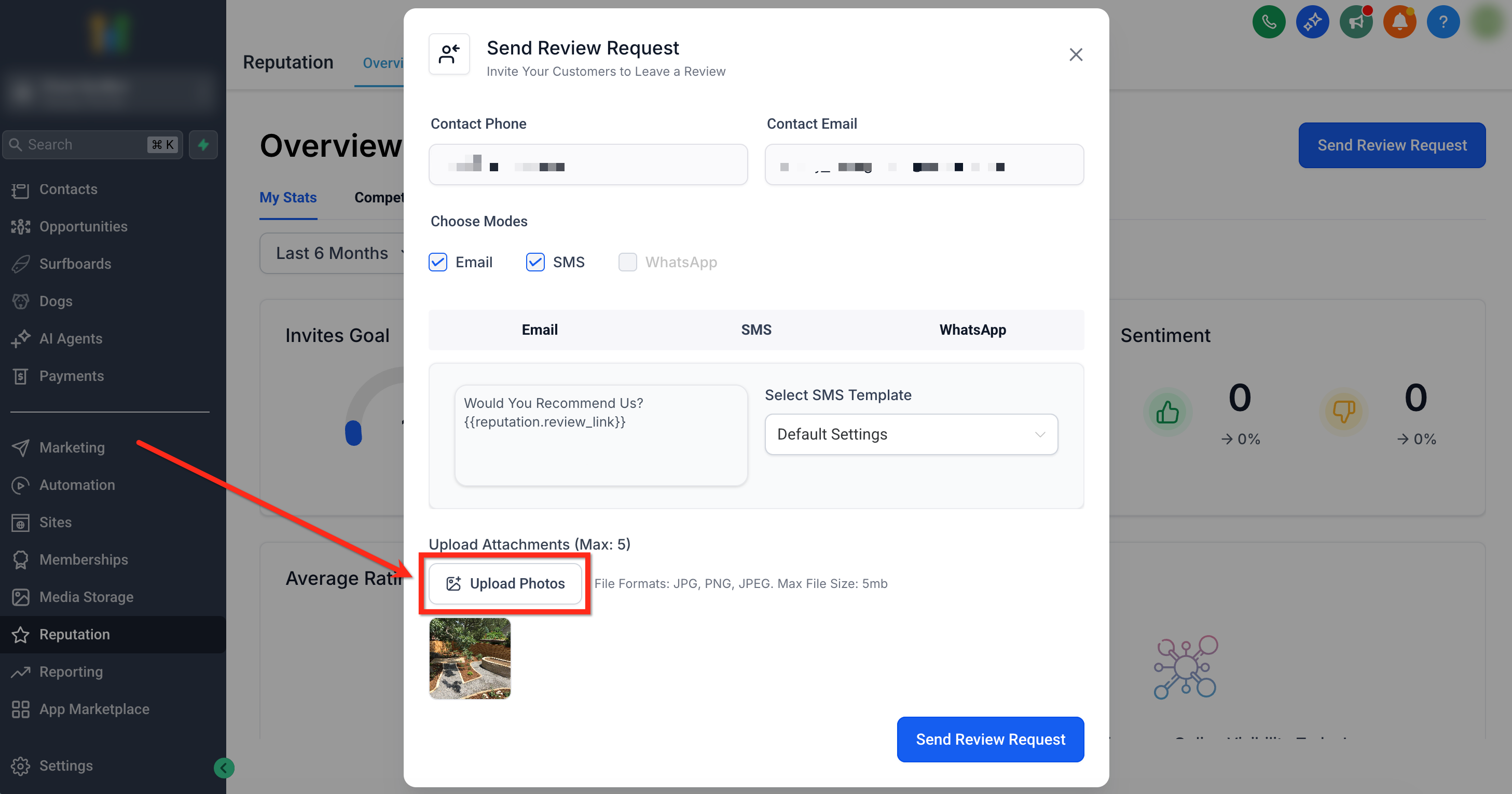
- Press the Upload Photos button, choose up to five image files, and view the preview that appears below the button.
- Click the blue Send Review Request button to deliver the request with the attached photos.
07What it looks like in HighLevel
08Settings that matter
- Choose Modes. Selects which delivery channels (Email and/or SMS) will receive the review request.
- Select Email Template. Determines which pre written email layout is used for the request.
- Select SMS Template. Determines which pre written SMS message is used for the request.
09Things to know before you rely on it
- You can attach a maximum of five photos per review request.
- Only JPG, PNG, and JPEG formats are accepted.
- Each image may not exceed 5 MB in size.
- WhatsApp does not support image attachments in review requests.
- Image attachments are not available in the HighLevel mobile app.
10How it connects to the rest of HighLevel
- How to send review requests manually and via workflows Send review requests
- Customize review request SMS and email messages Customize request messages
- HighLevel pricing and plan details Pricing
Michael's take

Michael ReimerFounder of CRM Pros, HighLevel Commander and Certified Admin
Don’t try to send images via WhatsApp or the mobile app because they won’t appear.
Get More InformationOpens on HighLevelPublished November 2, 2026 · Updated November 17, 2026