
01Who this is for
- Marketers who run multiple ad campaigns can see which platform generates the most contacts, helping them allocate spend.
- Sales teams can view a contact’s latest source to understand the most recent touchpoint before a conversion.
- Agency owners can audit client accounts for accurate source data across paid, organic and referral traffic.
02Attribution sources, explained
HighLevel captures attribution data whenever a contact completes a supported action, such as a form, survey, calendar booking, chat widget, or order form. The platform also picks up data from external DOM based forms tracked through External Tracking.
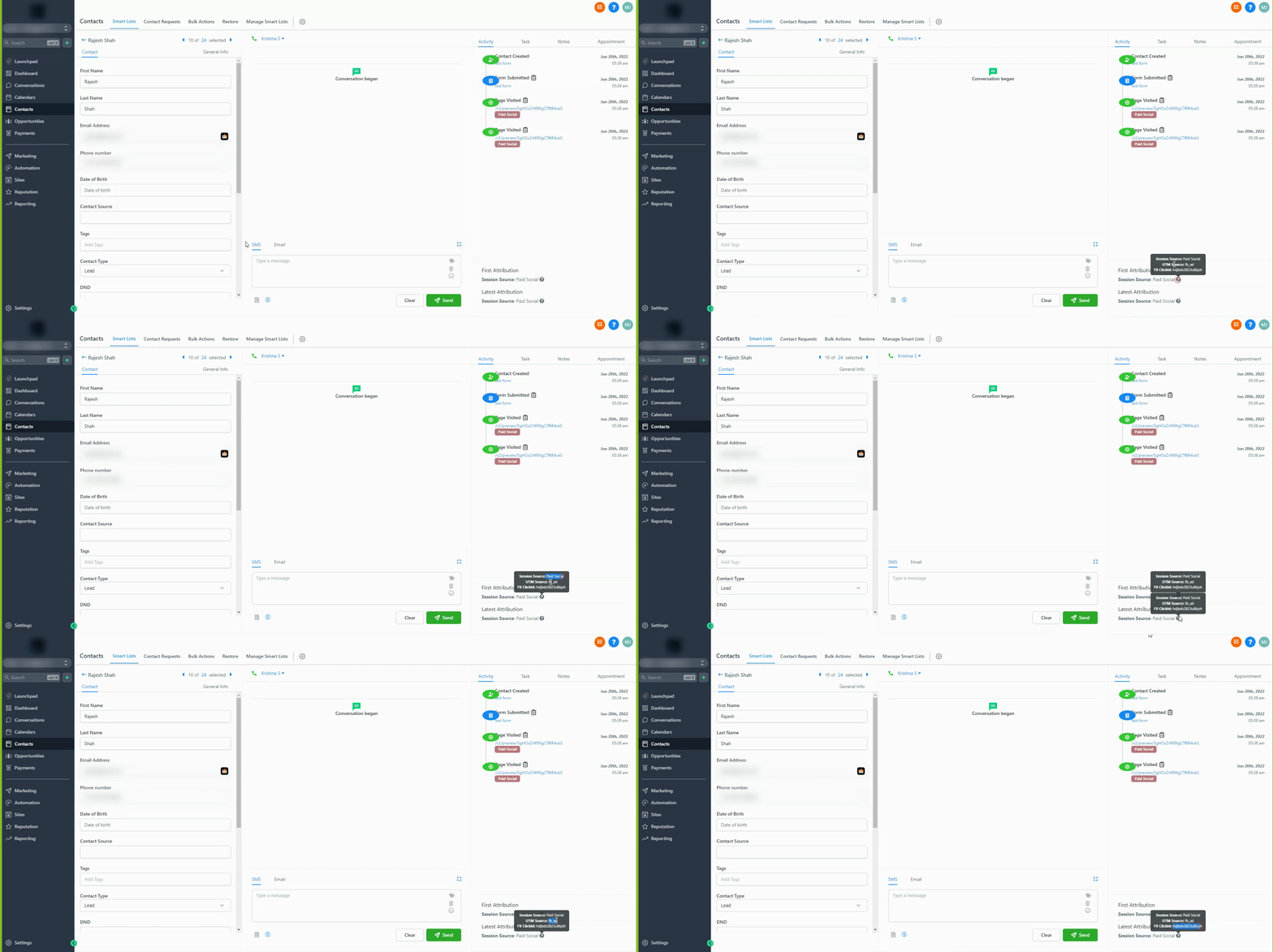
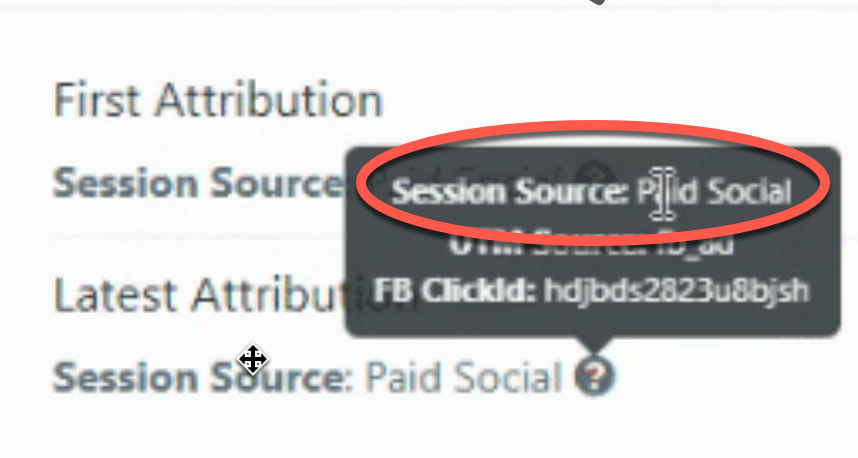
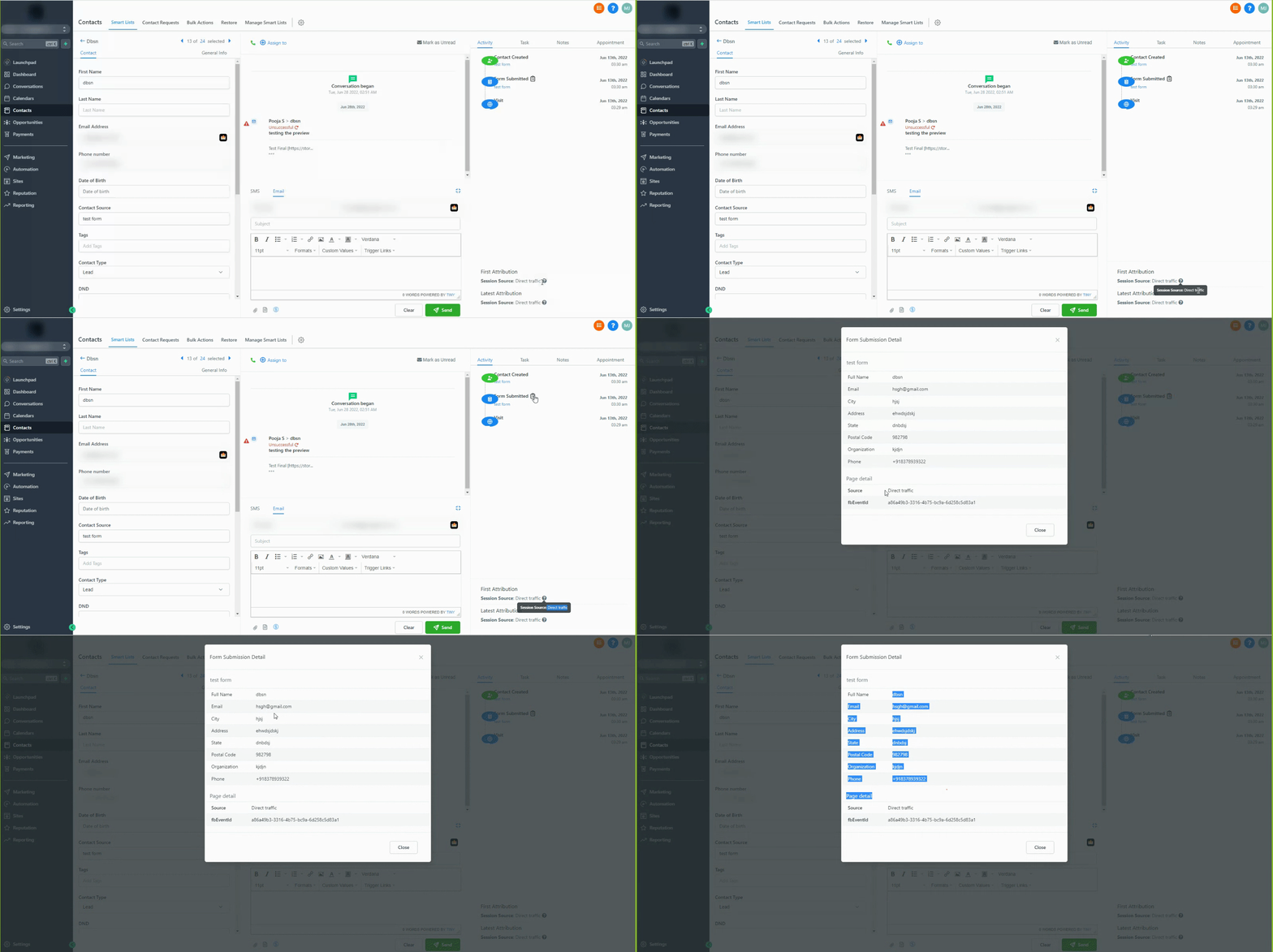
Every contact stores two values: First Attribution, which never changes after the initial interaction, and Latest Attribution, which updates with each new qualifying interaction. Both appear in the bottom right corner of a contact record under the activity tab.
Source classification follows an ordered rule set that checks URL parameters and referring domains. The rules map contacts to sources like Paid Search, Paid Social, Social Media, Organic Search, Referral, Direct Traffic, Others, CRM UI or Third Party.
03How businesses use attribution sources
- Ecommerce store. When a shopper fills out the checkout form, HighLevel records the form submission and attaches the UTM parameters from the ad that led them to the site. The store can then view the contact’s latest attribution to see which ad drove the purchase.
- Service based agency. A prospect books a discovery call via the calendar widget. HighLevel logs the calendar booking, captures the source information from the UTM parameters, and displays it on the contact record for the agency to track which campaign generated the booked call.
- Local business. A visitor messages the business through the chat widget after submitting contact details. HighLevel records the chat interaction, saves the source data, and shows it on the contact profile, allowing the business to know whether the lead came from Paid Social, Direct traffic or another channel.
04The numbers and rules that matter
- Paid Search sources include UTM_source=adwords, gclid, wbraid, gbraid, or msclkid.
- Paid Social sources include UTM_source=fb_ad, LinkedIn_ad, twitter_ad, reddit_ad, or ctwa_clid.
05Before you start
- Create UTM parameters exactly as shown in the HighLevel templates; they are case sensitive.
- Ensure the final URL where the ad points contains the form or widget that captures the submission.
- Do not add custom UTM parameters; use only the provided HighLevel UTM templates.
06How to set up and use attribution sources in HighLevel
Set up paid ads attribution tracking
- Visit the Facebook and Instagram ad reporting setup guide and follow its instructions.
- Visit the Google Ads reporting setup guide and follow its instructions.
07What it looks like in HighLevel
08Things to know before you rely on it
- UTM parameters must match the exact case shown; any typo or extra space prevents attribution.
- The source determination rules run in a fixed order; earlier rules take precedence over later ones.
- The deprecated utm_source=facebook value is no longer recognized; use utm_source=fb_ad instead.
09If something goes wrong
- UTM parameters contain spaces, misspellings, or wrong case. Copy the exact template URLs from the setup guides and paste them without alteration.
- Form or widget not on the ad’s final landing page. Keep the submission element on the landing page or use a pop up/inline form so the UTM data stays attached.
10How it connects to the rest of HighLevel
- Set up Google Ad reporting Google Ad reporting guide
- Set up Facebook ad reporting Facebook ad reporting guide
- Call reporting in HighLevel Call reporting overview
Michael's take

The data only records when a supported form, calendar, chat widget, or order form is submitted on the exact landing page. If the visitor clicks away before submitting, the attribution never reaches HighLevel. I would first verify that every lead capture element lives on the same URL the ad points to, or use a pop up to keep the submission on that page.
When the basics are solid, I’d then run a quick test ad with the official HighLevel UTM template and watch the contact record for First and Latest Attribution.