
01Who this is for
- Digital marketers who run multiple Facebook campaigns and need to differentiate performance across ads.
- Agency owners managing several client accounts and requiring consistent attribution data for each client’s leads.
02Facebook ad reporting, explained
The feature lets you attach UTM parameters to Facebook ad URLs. When a prospect clicks the ad, the parameters are passed to HighLevel and saved on the contact record, appearing as fields like {{contact.attributionSource.utmCampaign}} and {{contact.attributionSource.campaignId}}. These values are then available for reporting, custom reports and workflow triggers. The setup is performed inside Facebook Ads Manager, not within the HighLevel UI.
03How businesses use Facebook ad reporting
- Dental practice. The practice creates Facebook ads for a new teeth whitening service. By adding UTM parameters, each click attaches the campaign, ad set and ad name to the contact record. The office can later filter contacts by those fields to see which ad drove the most appointments.
- SaaS startup. The startup runs a lead gen campaign for a free trial. With UTM parameters in place, every sign up includes the exact Facebook ad that captured the address. The startup can segment users in HighLevel and trigger follow up workflows based on the ad source.
- Local restaurant. The restaurant promotes a weekend special via Facebook. Adding UTM parameters to the promotion ads lets the restaurant view, inside HighLevel, which creative generated the most reservation requests and adjust spend accordingly.
04The numbers and rules that matter
- Supported entry points: Form submissions, Survey submissions, Calendar, Directly from Facebook Lead Form, Two step order form, Chat widget, Inbounding Calls (click to call only).
- UTM fields available on the contact level: Source, Campaign Name, Adset Name, Ad Name, Campaign ID, fbclid, gclid, Referrer.
05Before you start
- If you direct traffic to a landing page, set up the Facebook pixel and Conversion API in Workflows first.
- Create a Facebook Business account and an Ads Manager account before adding UTM parameters.
06How to set up and use Facebook ad reporting in HighLevel
Add UTM parameters to Facebook ads via Ads Manager
- Open Ads Manager using the provided link and select the campaign you want to edit.
- Navigate to Manage ads, then choose Ads and click Edit for the targeted ad.
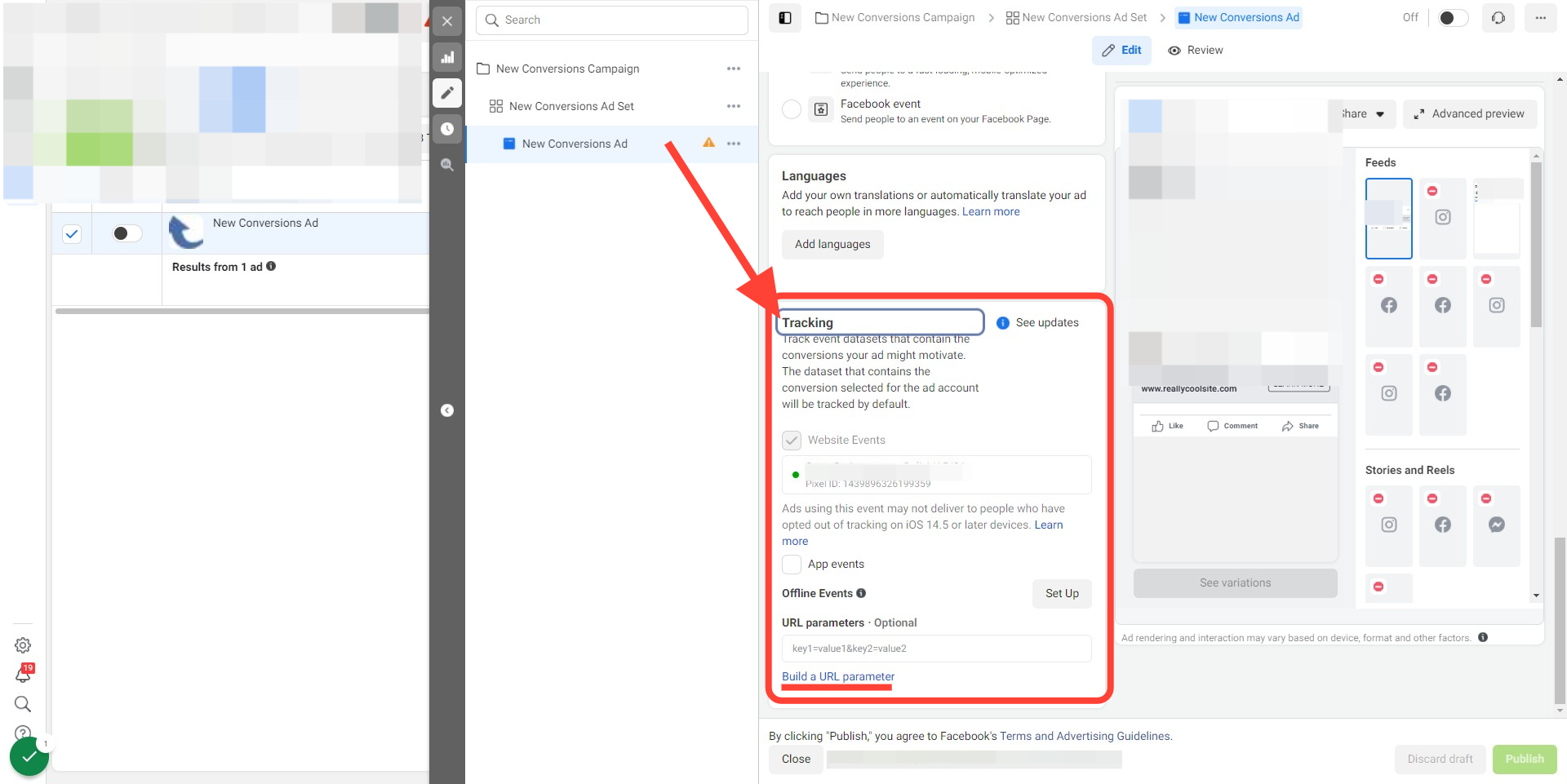
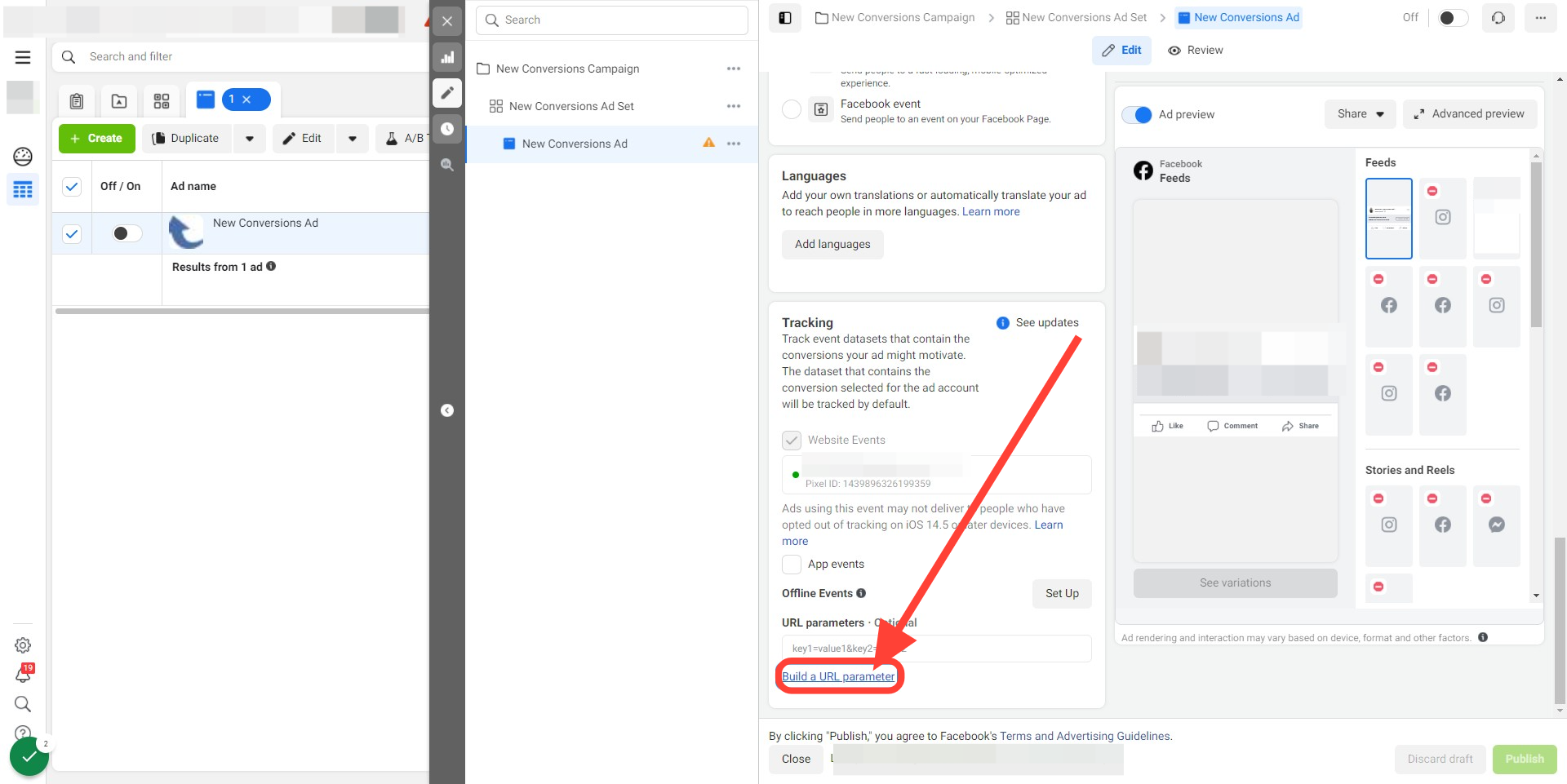
- Scroll down until you find the Tracking section.
- Click the Build a URL parameter button.
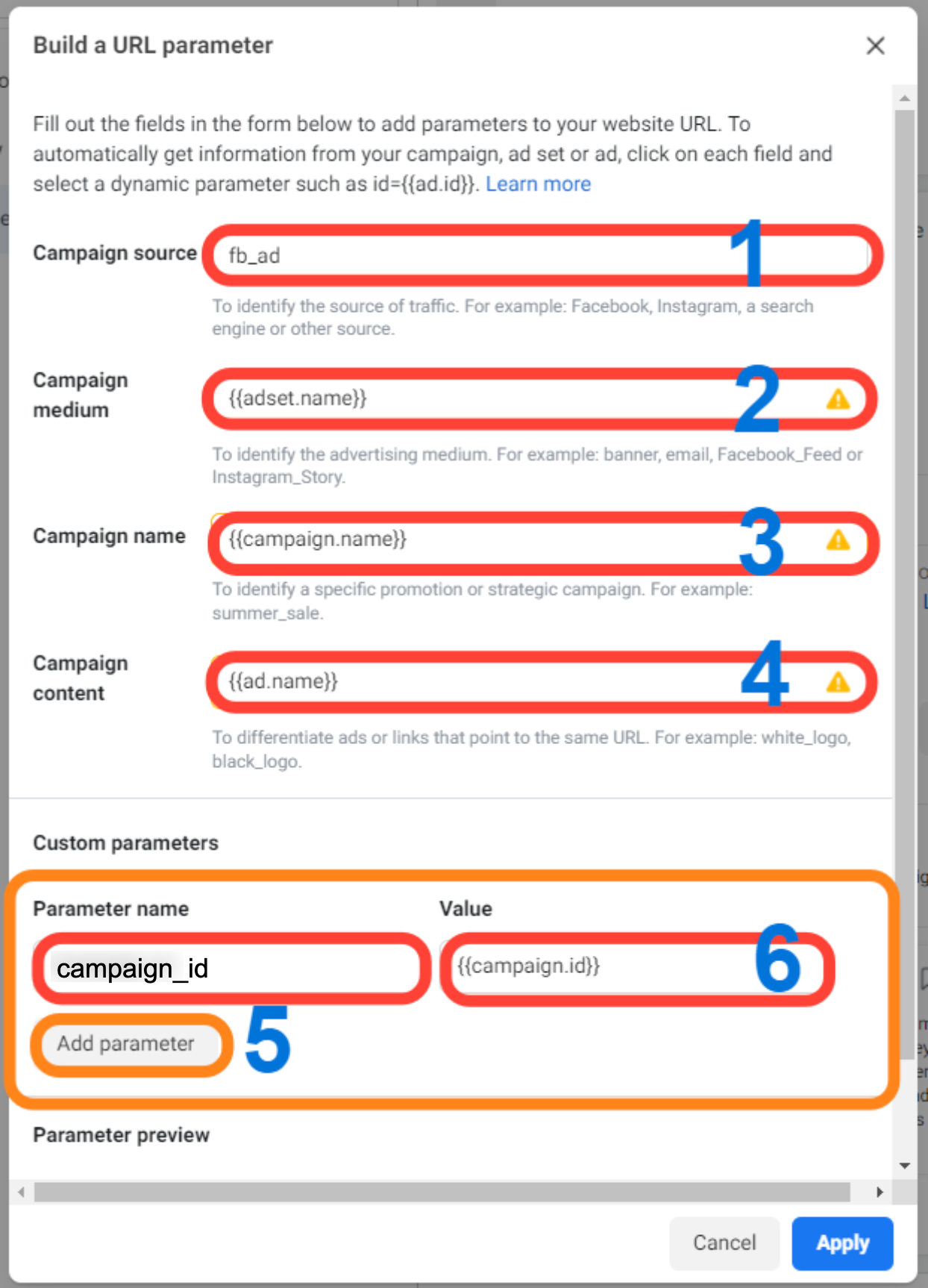
- In the Campaign Source field, type fb_ad.
- For Campaign Medium, pick the ad set name from the dropdown.
- For Campaign Name, select the campaign name from the dropdown.
- For Campaign Content, choose the ad name from the dropdown.
- Press the Add Parameter button.
- Enter campaign_id as the Parameter name and select the campaign ID value from the dropdown.
- Click Apply to save the URL parameters.
- Do not use special characters or emojis in any UTM parameter values.
- Publish the ad; Facebook may take time to verify and approve it before the parameters are active.
07What it looks like in HighLevel
08Settings that matter
- Campaign Source. Defines the source label attached to the contact, typically set to fb_ad.
- Campaign Medium. Stores the ad set name, representing the medium of the traffic.
- Campaign Name. Captures the Facebook campaign name for later reporting.
- Campaign Content. Holds the ad name, allowing you to differentiate creative variations.
- Parameter name. The name of an additional URL parameter, such as campaign_id.
- Value. The value assigned to the extra parameter, for example the Facebook campaign ID.
09Things to know before you rely on it
- Do not use special characters or emojis in any UTM parameter values.
- Facebook will not display UTM parameters when you preview an ad; they appear only after the ad is published.
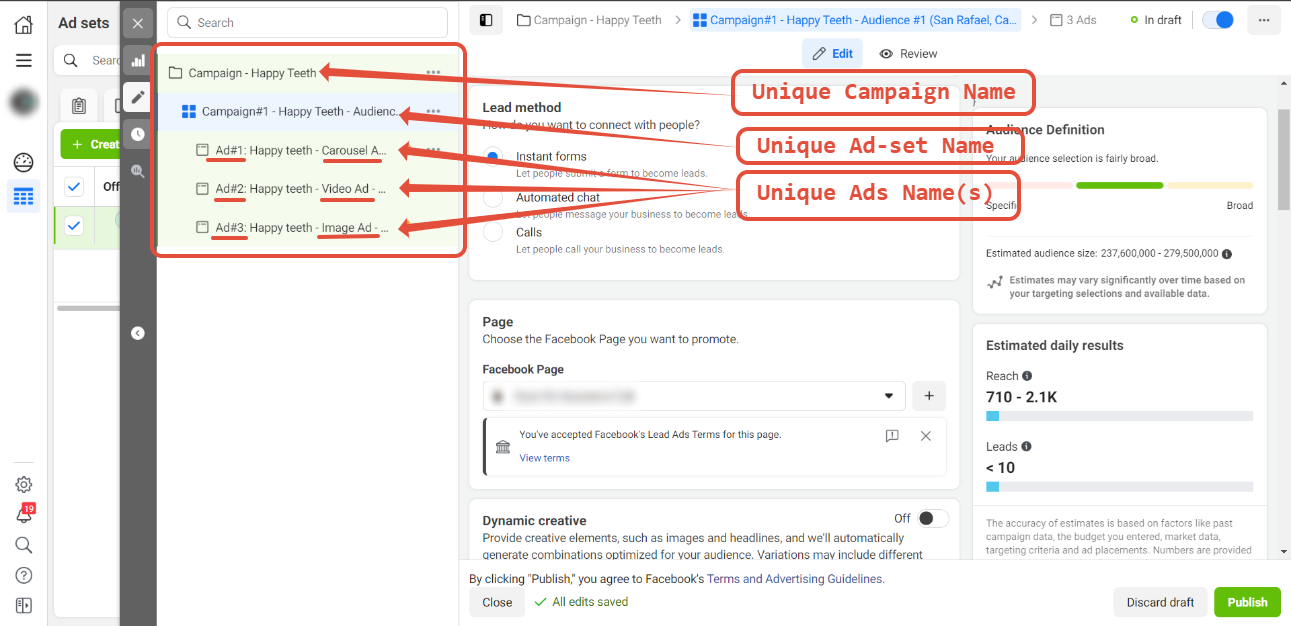
- Campaign, ad set and ad names must be unique and cannot be changed after creation; altering them requires a new campaign or ad.
- First attribution data is recorded only for contacts originating from specific entry points such as form submissions, survey submissions, calendar bookings, Facebook lead forms, two step order forms, chat widgets, or click to call scenarios.
10If something goes wrong
- UTM parameters are missing when previewing the ad in Facebook.. Facebook does not add UTM parameters to preview links; publish the ad to see the parameters in action.
- No first attribution data appears on contacts.. Only contacts coming from listed entry points generate attribution data; verify the lead source matches one of those entry points.
- Reporting shows incorrect campaign or ad information after a name change.. Campaign, ad set and ad names cannot be edited; create a new campaign or ad with the desired name instead.
- No Facebook Business or Ads Manager account available.. Create a Facebook Business Manager and an Ads Manager account before configuring UTM parameters.
- Uncertainty about needing UTM parameters for lead gen ads.. UTM parameters are still recommended for Facebook lead gen ads to improve reporting.
11How it connects to the rest of HighLevel
- Learn how attribution sources are classified in HighLevel. Attribution sources
- Explore call reporting to see source attribution for inbound calls. Call reporting
- Review HighLevel pricing and plans for any plan requirements. Pricing
Michael's take

Facebook ads can generate a lot of leads, but without clear tags you never know which creative actually works. The first thing I would lock down is the UTM set up in Ads Manager so every click carries campaign, ad set and ad names.
Once the tags are stable I’d double check that the pixel and Conversion API are live in Workflows. That gives you the full picture without having to guess.