
01Who this is for
- Anyone using HighLevel funnels or websites who wants to see visitor activity in Google Analytics.
- Marketers who need a simple way to send pageview events from HighLevel assets to GA4.
02Pageviews in ga4, explained
The feature lets you send pageview events from any HighLevel funnel or website to a Google Analytics 4 property. You first create a GA4 property, then a web data stream that represents the funnel or site. Google provides a gtag.js snippet that you place in the funnel’s or website’s header, or you can use Google Tag Manager instead. Once the snippet is live, each page load triggers a pageview event in GA4.
03How businesses use pageviews in ga4
- Track funnel traffic. Create a GA4 property, add a web data stream for the HighLevel funnel, and embed the gtag.js snippet to record each pageview.
- Monitor website visits. Set up a GA4 property and web data stream for the HighLevel website, then add the provided script to capture pageview data.
- Analyze page performance. Use the GA4 reports generated from the pageview events to see which pages attract the most visitors.
04The numbers and rules that matter
- Step 1: Log into Google Analytics.
- Step 2: Go to Admin Settings.
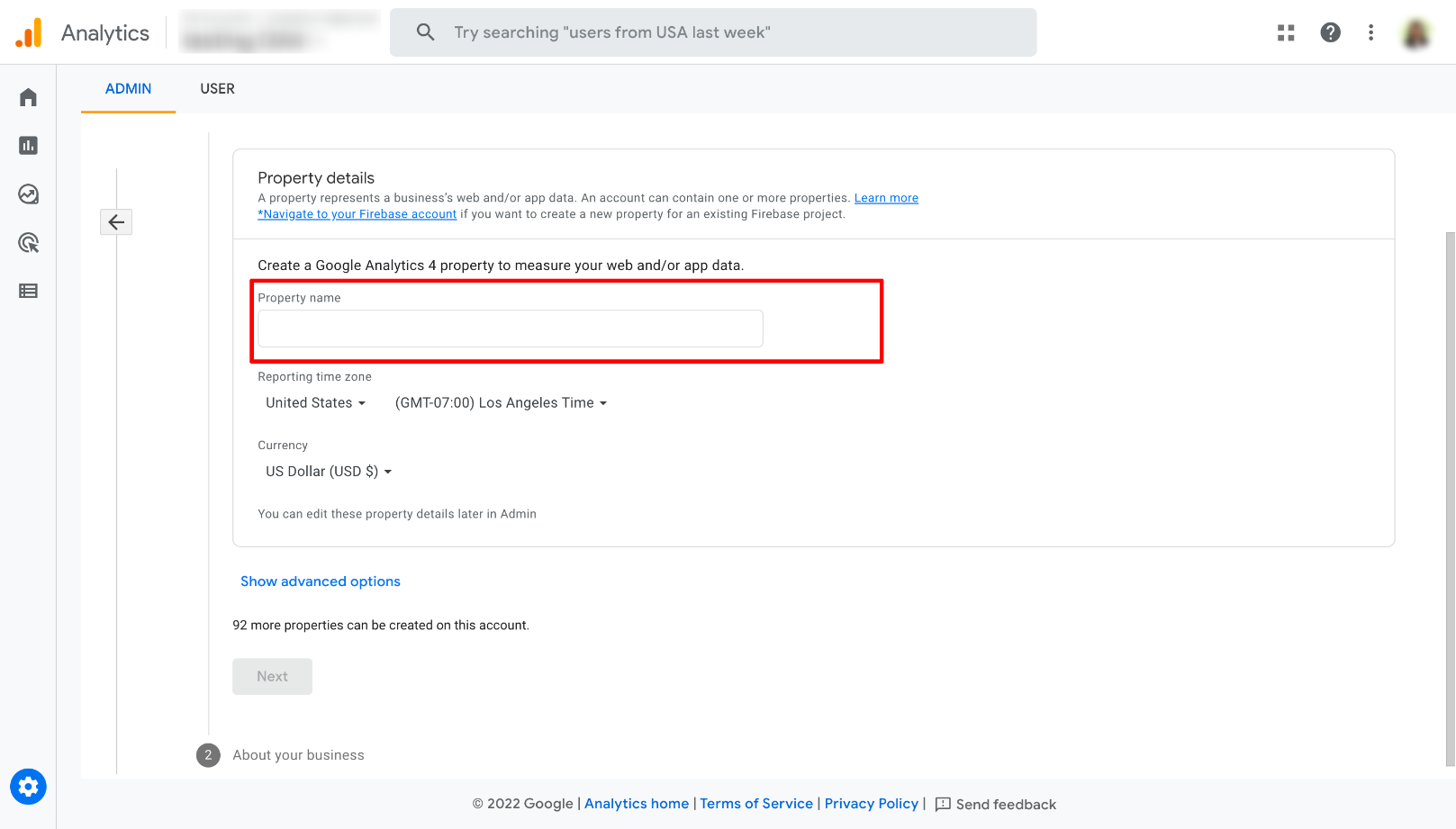
- Step 3: Click on Create Property and add the name of the property.
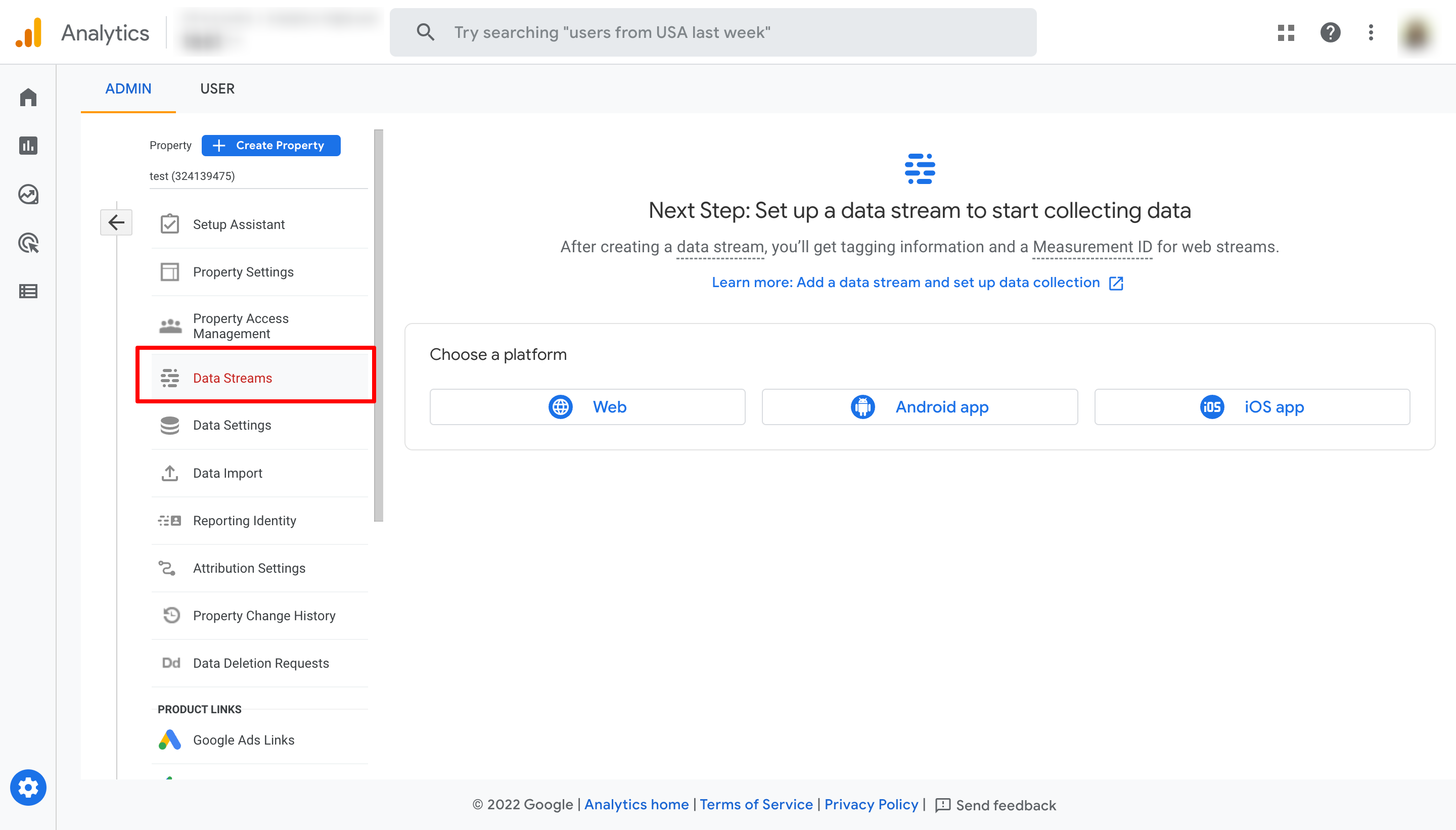
- Step 4: Go to Data Stream located within the left menu.
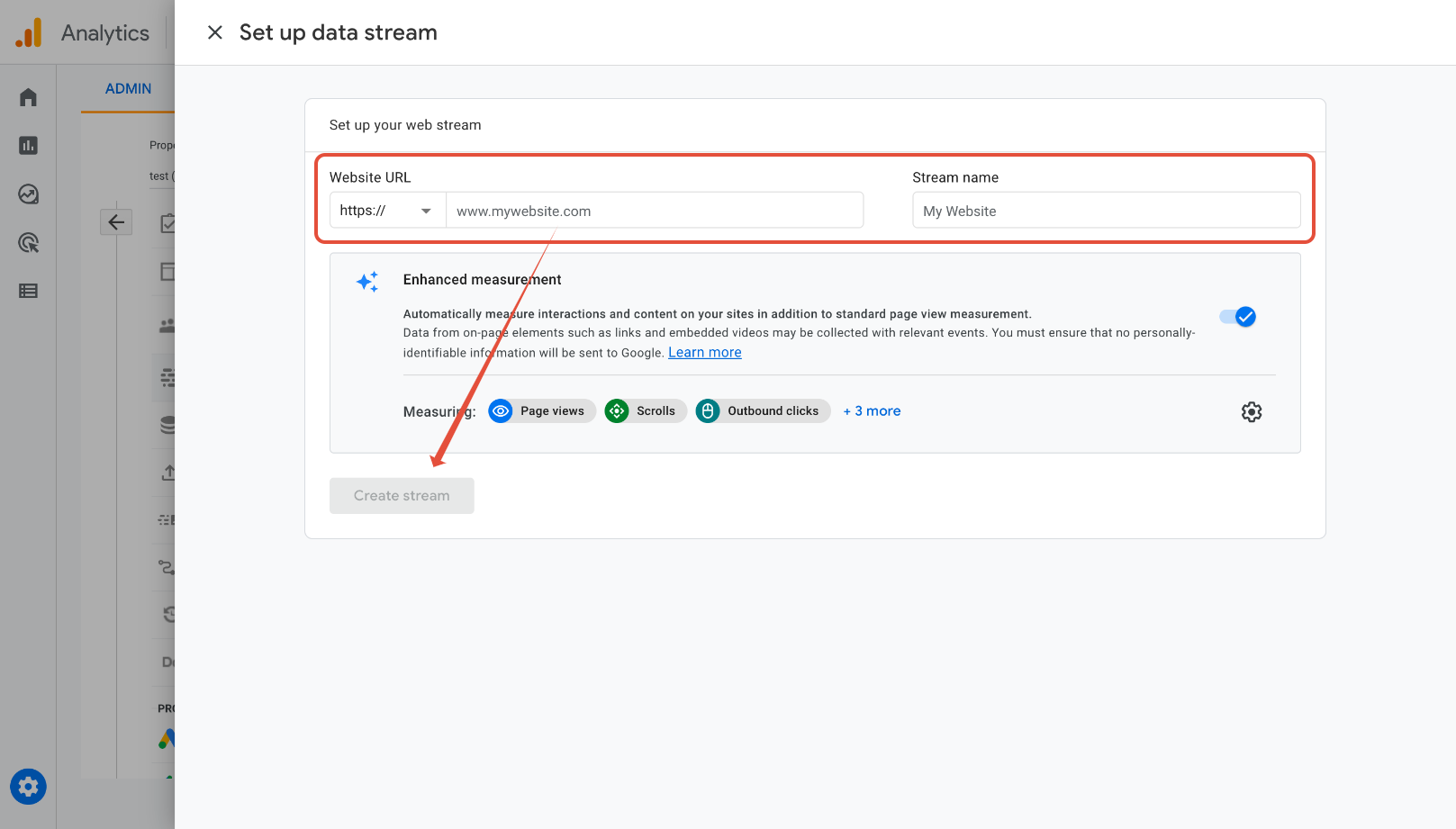
- Step 5: Choose the Web option and add the URL of the funnel/website.
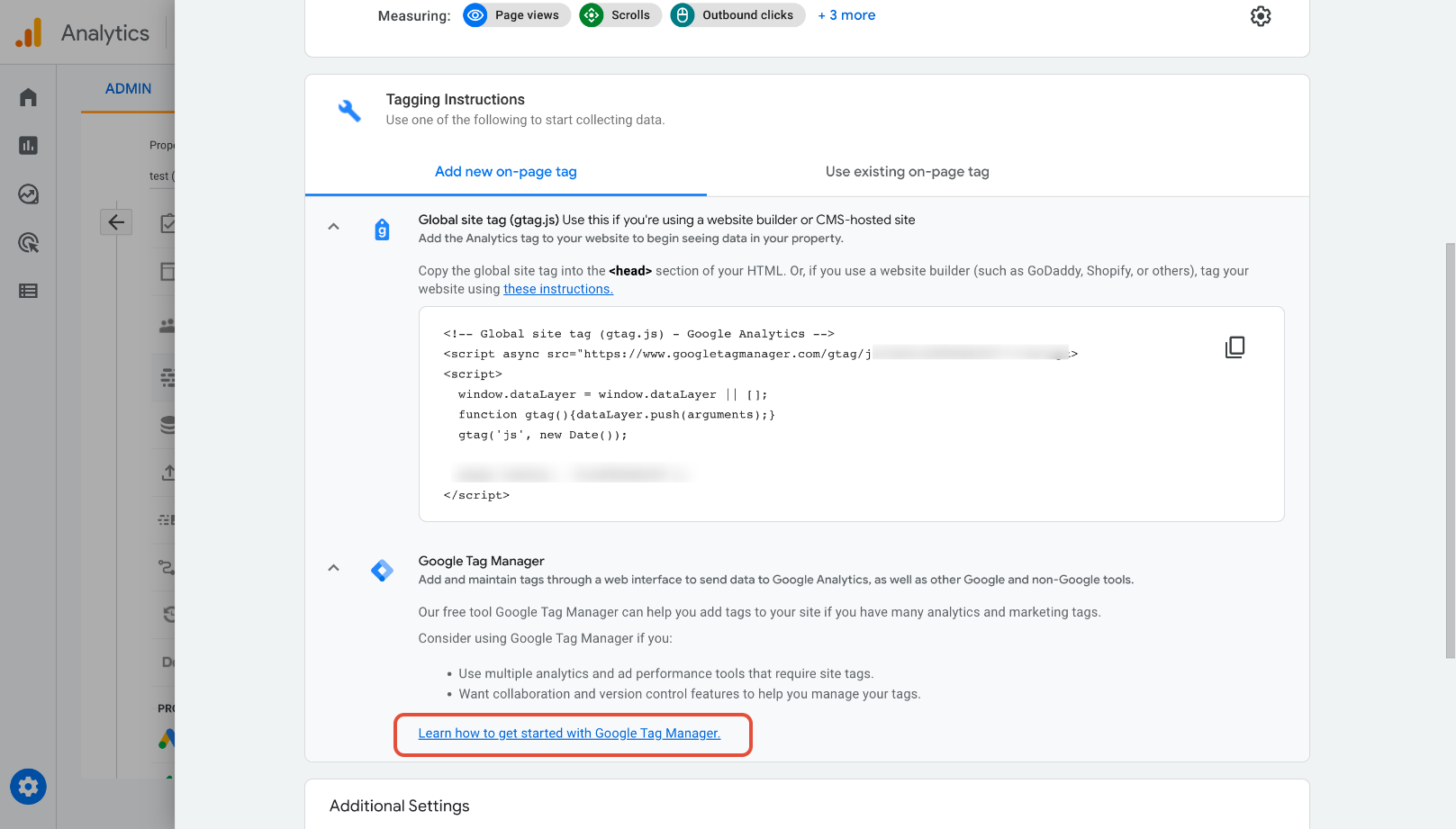
- Step 6: Add the script (gtag.js) provided by Google to the funnel/website tracking code or follow Google Tag Manager instructions.
05How to set up and use pageviews in ga4 in HighLevel
Record pageviews in GA4 for a HighLevel funnel or website
- Sign in to your Google Analytics account.
- Select the Admin Settings option from the lower left navigation.
- Click Create Property and enter a name for the new property.
- In the left menu, choose Data Streams.
- Pick the Web option and type the URL of the HighLevel funnel or website you want to track.
- Press the Create Stream button to generate the data stream.
- Copy the gtag.js script shown and paste it into the <head> section of your HighLevel funnel or website, or follow Google Tag Manager instructions instead.
06What it looks like in HighLevel
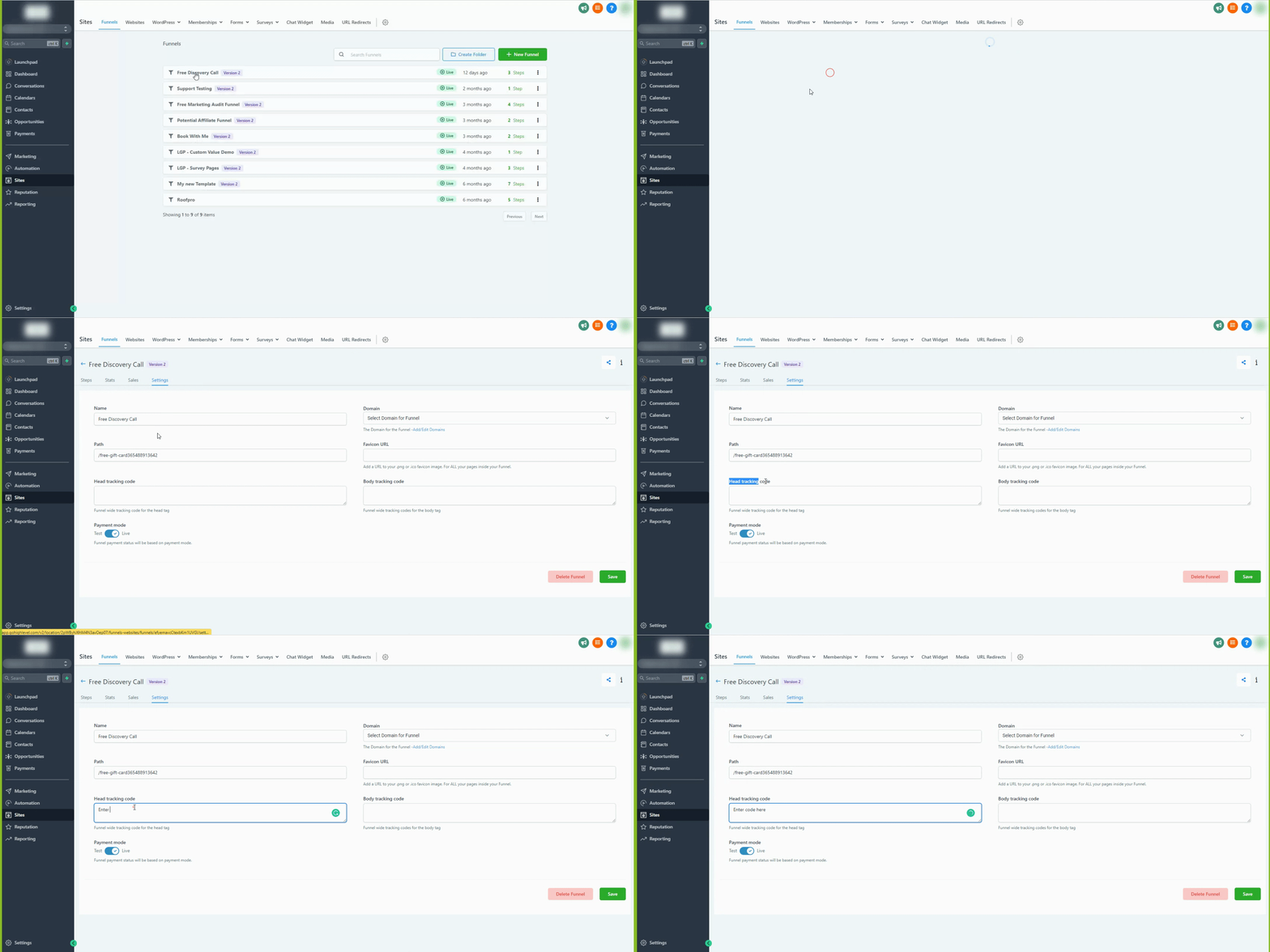
07How it connects to the rest of HighLevel
- Add GA4 tracking in a workflow GA4 workflow guide
- Set up Google Ad reporting in HighLevel Google Ads reporting
- Understanding attribution sources in HighLevel Attribution sources
Michael's take

Michael ReimerFounder of CRM Pros, HighLevel Commander and Certified Admin
People often think they can just paste a link and get pageview data. The missing step is installing the actual tracking code on the site. Without the gtag.js snippet, GA4 never receives the visit information.
Get More InformationOpens on HighLevelPublished November 2, 2026 · Updated November 16, 2026