
01Who this is for
- Digital marketing agencies need precise attribution for each client’s campaigns, so the reporting feature helps them validate spend.
- Ecommerce owners rely on UTM data to understand which ads drive traffic to product pages and can adjust budgets accordingly.
- Local service businesses use the precautionary script to ensure click data is captured even if the main UTM template fails.
02Google ad reporting, explained
The feature pulls data from linked Google Ads accounts and displays it inside HighLevel’s reporting dashboards. It works only after the correct account is connected and the user has administrator or manager permissions. The integration is located under the Integrations area of the platform.
A UTM tracking template built with ValueTrack parameters is added to the Google Ads account. The template inserts the final landing page URL and appends source, medium, campaign, ad group, keyword and other variables. HighLevel reads these parameters to attribute leads back to the originating ad.
An optional precautionary script can be installed in the Google Ads account. The script records every click and forwards it to Google Analytics, acting as a fallback if the UTM template does not capture data. The script requires a custom tracking page URL that matches the website’s endpoint.
03How businesses use Google ad reporting
- Digital marketing agency. The agency connects each client’s Google Ads manager account in Integrations, selects the appropriate MCC and client IDs, and adds the UTM template at the account level. This lets the agency view client specific performance metrics directly in HighLevel.
- Ecommerce store. The store owner links their own Google Ads account, verifies admin access, and pastes the provided UTM template into the account’s tracking settings. The UTM data then populates HighLevel reports, showing which ads generated product page visits.
- Local service business. The business adds the precautionary tracking script after setting up the UTM template. They replace the placeholder URL with their website’s tracking endpoint, ensuring clicks are still logged in Google Analytics if the primary template fails.
04The numbers and rules that matter
- User who connects the Google account must have maximum permissions (administrator) or Google Ads manager access.
05Before you start
- The Google account used for integration must have administrator or Google Ads manager permissions.
06How to set up and use Google ad reporting in HighLevel
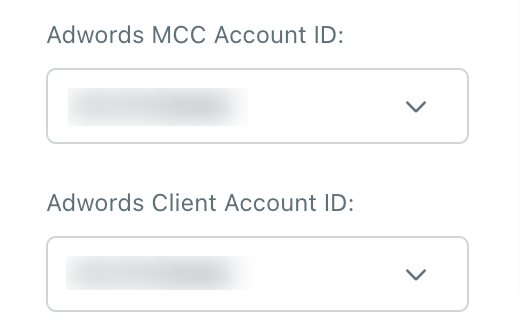
Select the correct Google Ads account for integration
- Open Integrations in HighLevel.
- Locate the connected Google account entry.
- Confirm the account user holds administrator or manager rights.
Enter the proper MCC and client account identifiers
- Log in to the Google Ads interface.
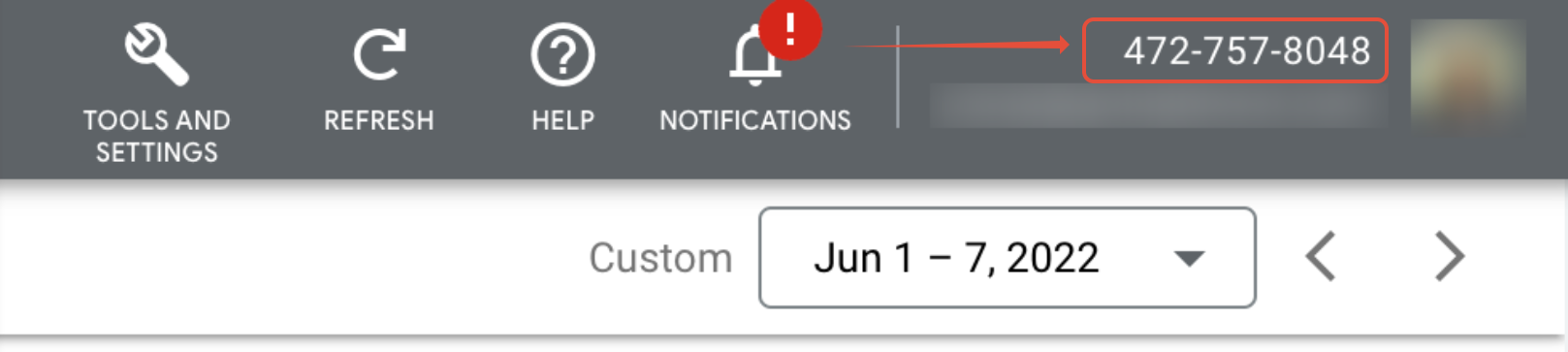
- Find the MCC ID displayed in the top right corner.
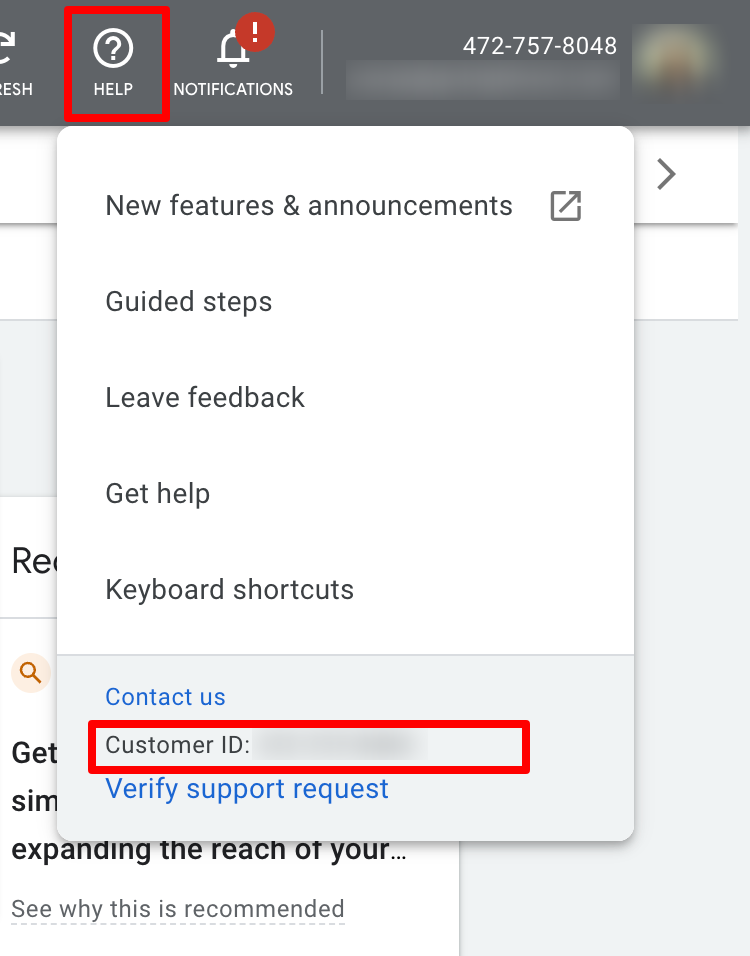
- Open the help section to view and copy the client account ID.
Add a UTM tracking template to the Google Ads account
- Sign in to the Google Ads account.
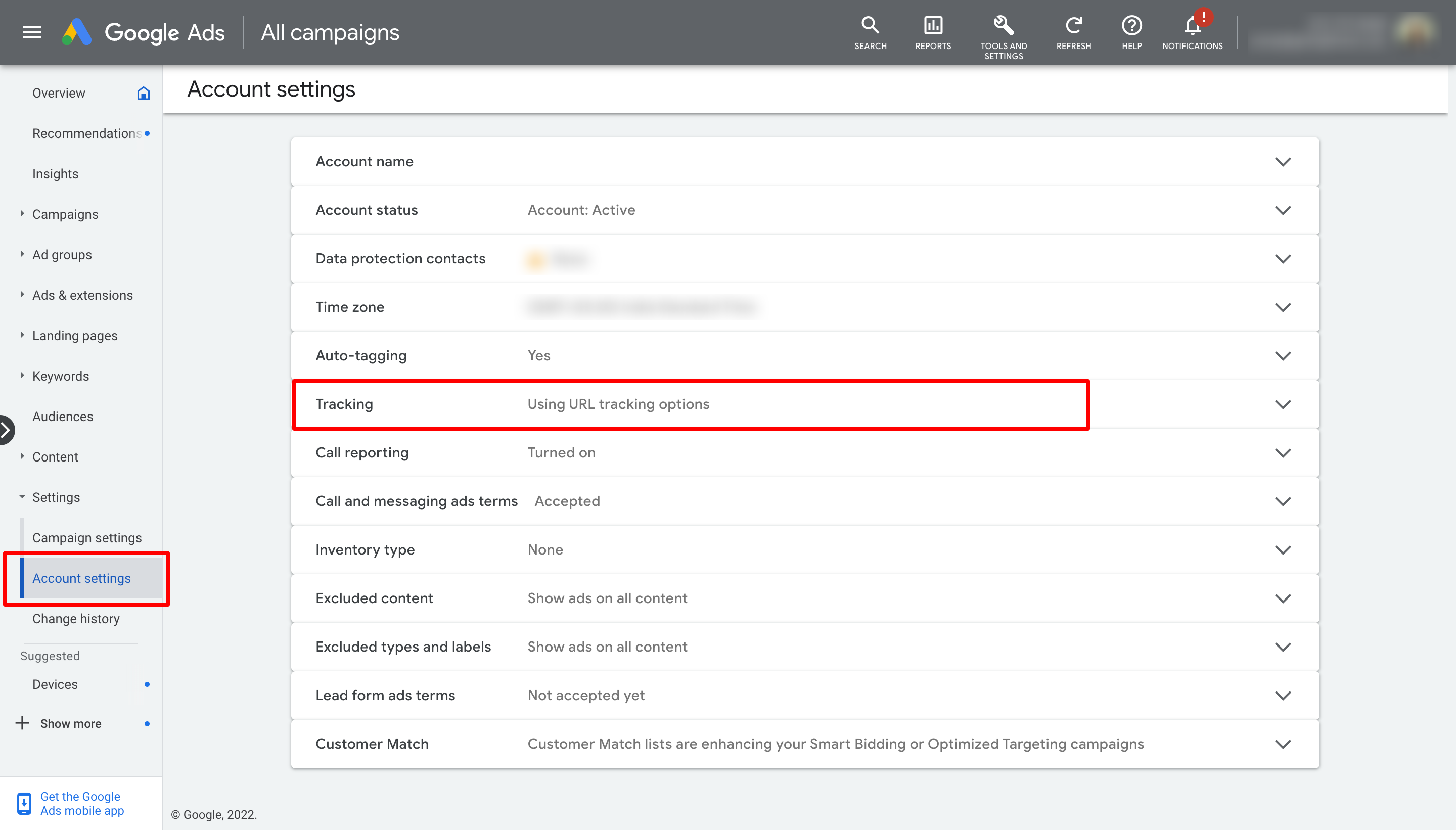
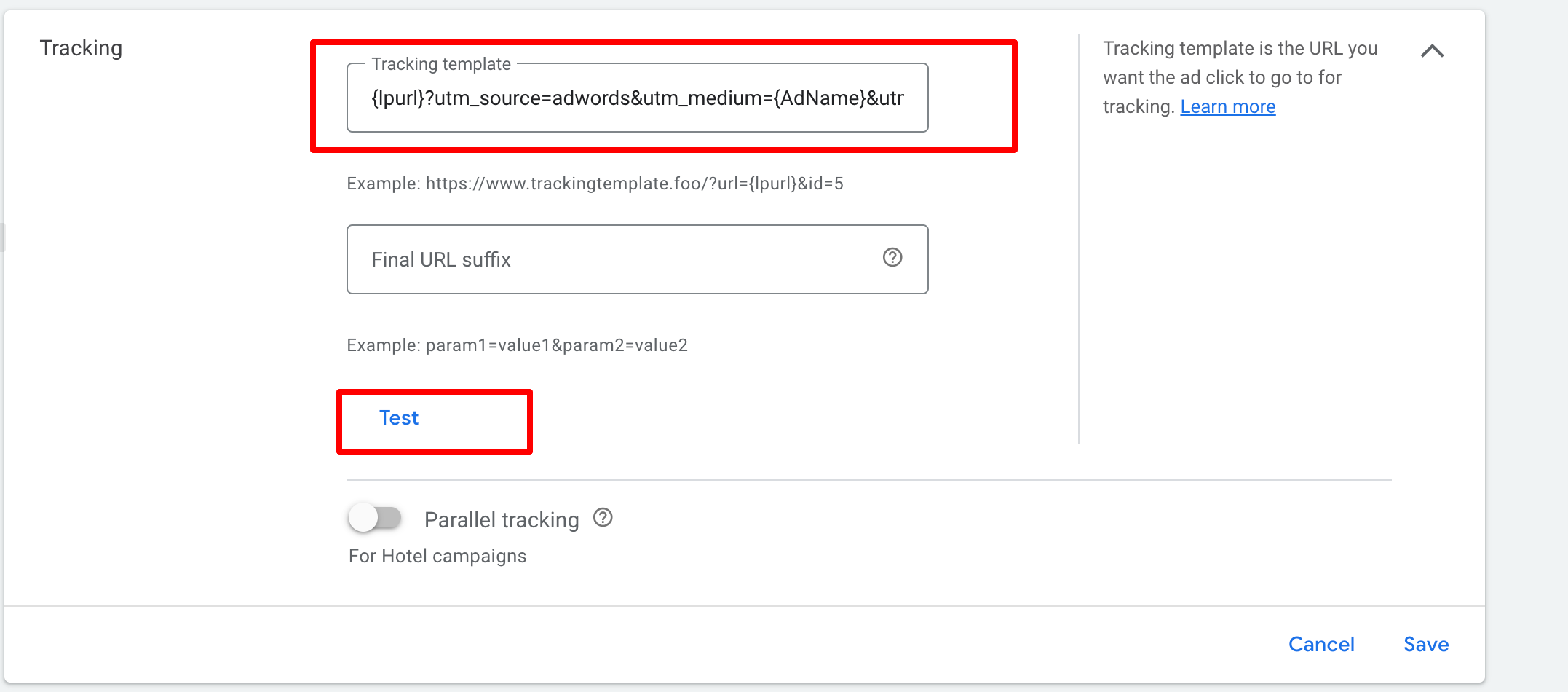
- Navigate to Account Settings > Tracking.
- Copy the full UTM tracking template string provided by HighLevel.
- Paste the string into the Tracking template field.
- Save the changes.
- Run a test click to verify the landing page loads correctly.
Install the precautionary tracking script
- Open the script editor within the Google Ads account.
- Insert the example precautionary tracking code.
- Replace the placeholder URL with the website’s tracking page URL.
- Enable the script and save the configuration.
07What it looks like in HighLevel
08Settings that matter
- Tracking template. Controls the URL parameters that are appended to every ad click, allowing HighLevel to capture source, medium, campaign and other attribution data.
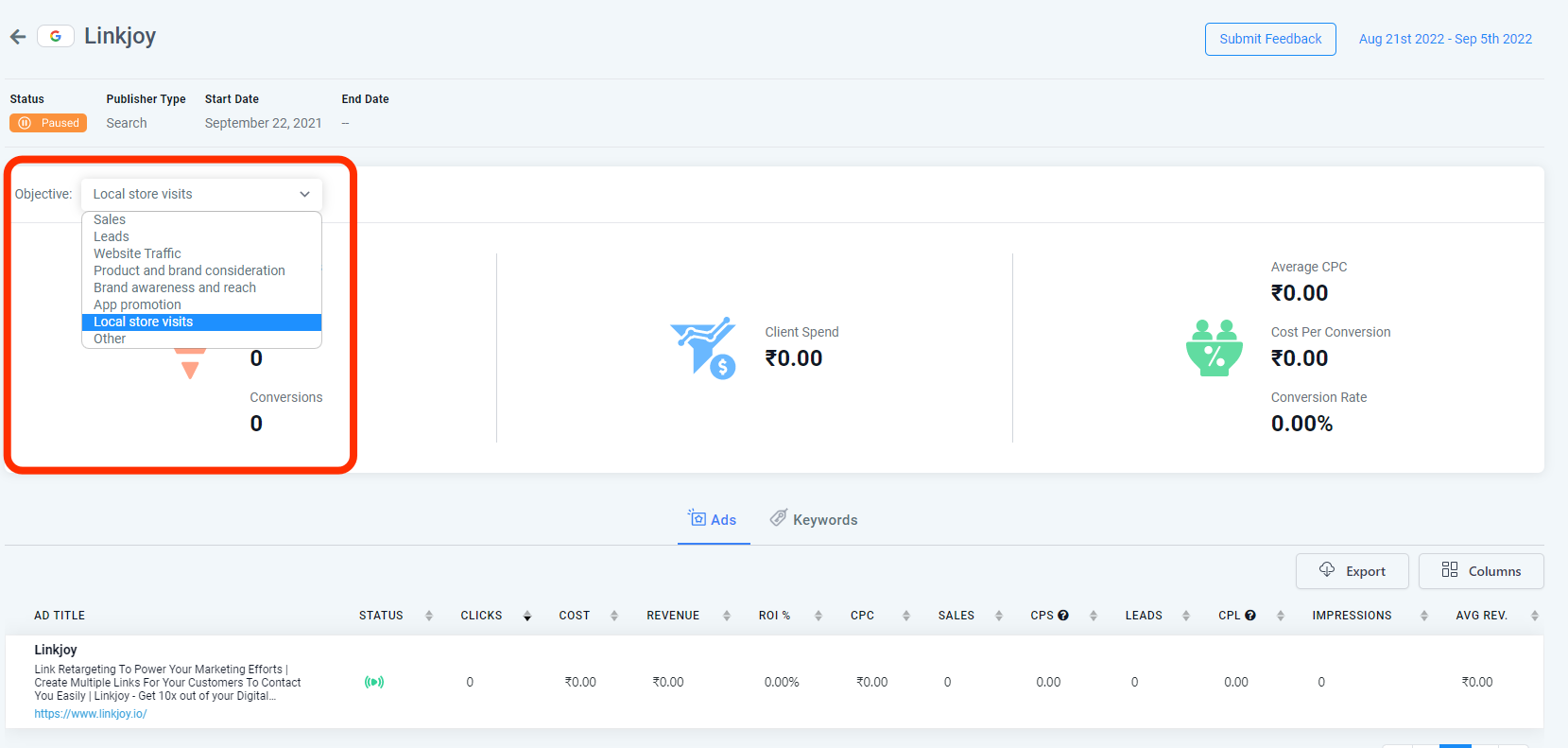
- Objectives dropdown. Lets the user define the primary goal of the ad campaign, which is stored for reporting purposes.
09Things to know before you rely on it
- The linked Google account must have the highest level of permission, otherwise the integration cannot retrieve data.
- The UTM template must contain the {lpurl} ValueTrack parameter; omitting it will break the landing page URL.
- Campaign, ad set and ad names cannot be edited after creation without creating a new entity; renaming can cause reporting mismatches.
- The previous default utm_source=google is deprecated and will no longer be recognized.
10If something goes wrong
- Landing page URL breaks after adding the tracking template. Ensure the {lpurl} placeholder is included at the start of the template and test a campaign URL.
- Reporting data shows the original campaign name after a rename. Create a new campaign with the desired name instead of editing the existing one.
11How it connects to the rest of HighLevel
- How HighLevel records attribution sources Attribution source guide
- Call reporting in HighLevel Call reporting
- Google Analytics 4 tracking in a workflow GA4 tracking
Michael's take

Google ad reporting provides live reporting and analysis for client ad campaigns, keeping click through details within HighLevel.
Don’t forget to keep your campaign names stable; renaming midflight will corrupt the reporting.