
01Who this is for
- Marketing managers can identify which campaigns drive live chat initiations, allowing better budget allocation.
- Website owners using the LeadConnector WordPress widget can still see source data for chats placed on external sites.
02Chat widget attribution, explained
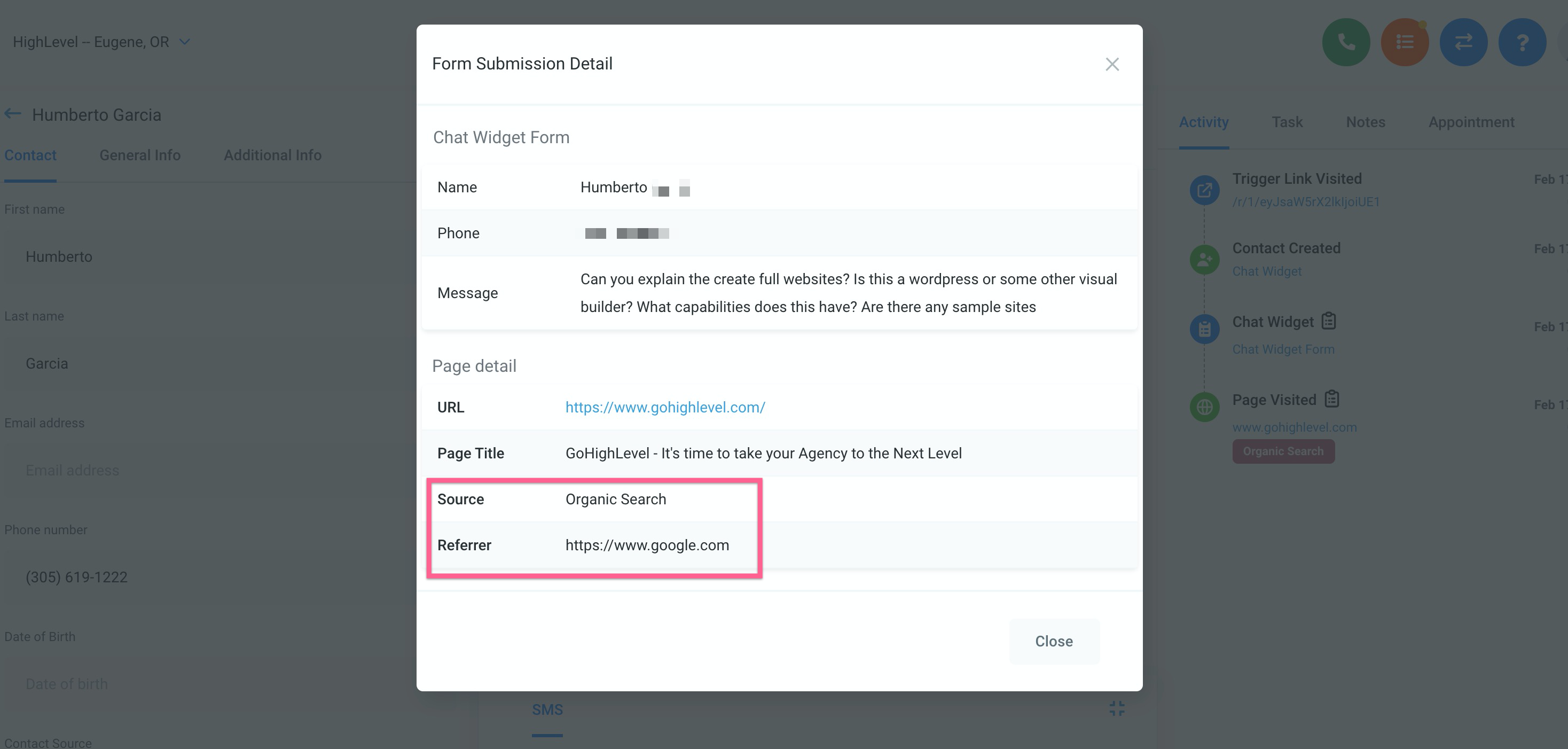
The feature captures the referral information at the moment a visitor submits the first message through a Live Chat widget. That information is stored as the traffic source, labeled with values such as Organic Search or Direct Traffic.
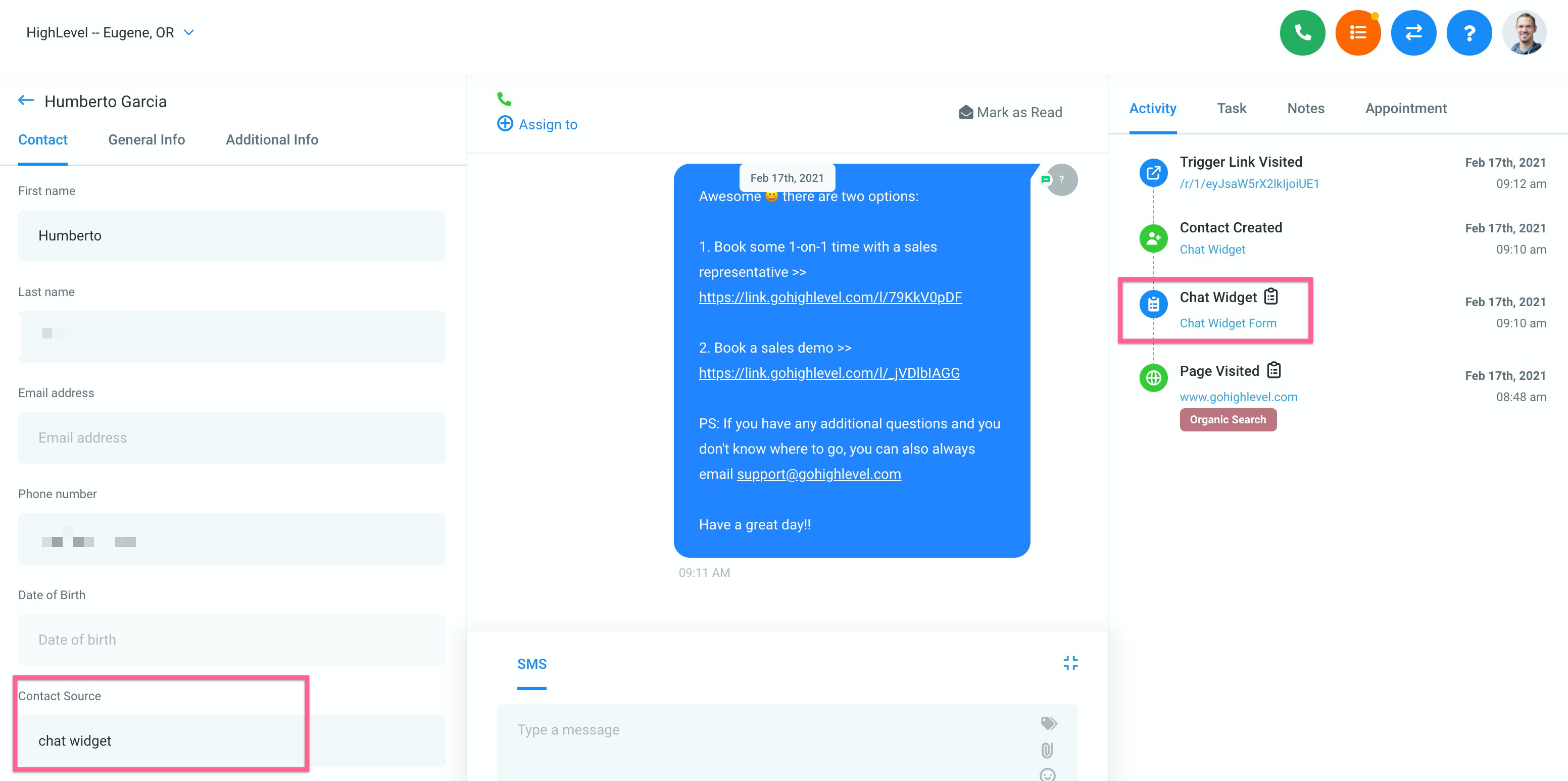
Attribution data appears in two places: on the Contact Detail page under the Activity tab and in the Form Builder’s Submissions view for the widget form. Users navigate to these areas to open the original form submission and read the source field.
03How businesses use chat widget attribution
- Digital marketing agency. The agency opens a client’s contact record, selects the Activity tab, and clicks the clipboard icon beside the chat entry. The displayed form submission shows the source, letting the agency report which ads or SEO efforts generated the chat.
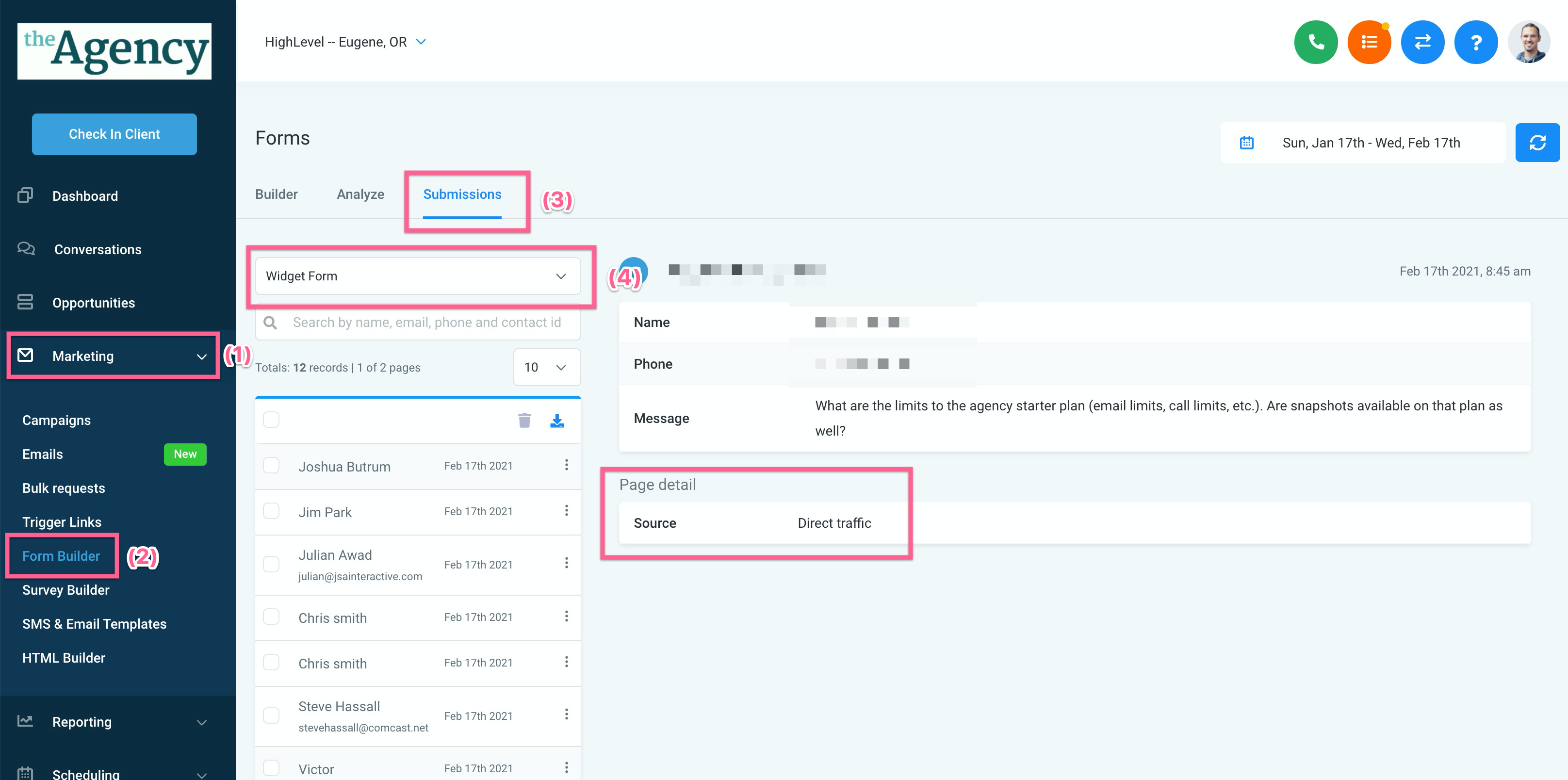
- Ecommerce store. The store’s manager goes to Marketing > Form Builder, opens the Submissions tab, selects the Widget Form from the dropdown, and reviews each submission’s source column to see which traffic channels bring shoppers into live chat.
- Local service business. A local plumber examines the widget form submissions in Form Builder to confirm whether Google searches or direct visits are prompting chat requests, informing their local advertising strategy.
04How to set up and use chat widget attribution in HighLevel
View chat widget source on a contact’s detail page
- Open the Contacts section and locate the contact who started a chat.
- Select the contact to open its Contact Detail page.
- Navigate to the Activity tab to find the chat widget conversation entry.
- Click the clipboard icon next to the entry.
- Read the traffic source displayed in the opened form submission.
View chat widget source in form submissions
- Go to Marketing > Form Builder.
- Select the Submissions tab inside Form Builder.
- Open the Form Selector dropdown.
- Choose the Chat Widget section.
- Pick "Widget Form" to see its submissions and source information.
05What it looks like in HighLevel
06Things to know before you rely on it
- Attribution may not work for some iOS users or any users who enable privacy mode, because the cookie is blocked.
- The feature works for Live Chat widgets placed on non HighLevel websites, including those added via the LeadConnector WordPress widget.
07How it connects to the rest of HighLevel
- Learn how attribution sources are defined in HighLevel Understanding attribution sources
- See how call reporting includes source attribution Call reporting
- Set up Google Ad reporting to compare ad performance with chat sources Google Ad reporting
Michael's take

Most people assume every chat will have a source attached, but iOS privacy settings and privacy mode can strip that data. That surprise shows up as a blank source when you look at the activity feed.
I would begin with checking the contact detail page and the form submissions list to confirm the source appears where expected. If I see gaps, I’ll know those users are likely on iOS or have privacy mode turned on, and I won’t chase a missing number.