
01Who this is for
- Project managers who need to track client references or budgets on each task because custom fields capture data specific to their workflow.
- Agencies that run multiple workstreams and require different information per space as fields can be inherited or kept list specific.
02Custom Fields on tasks, explained
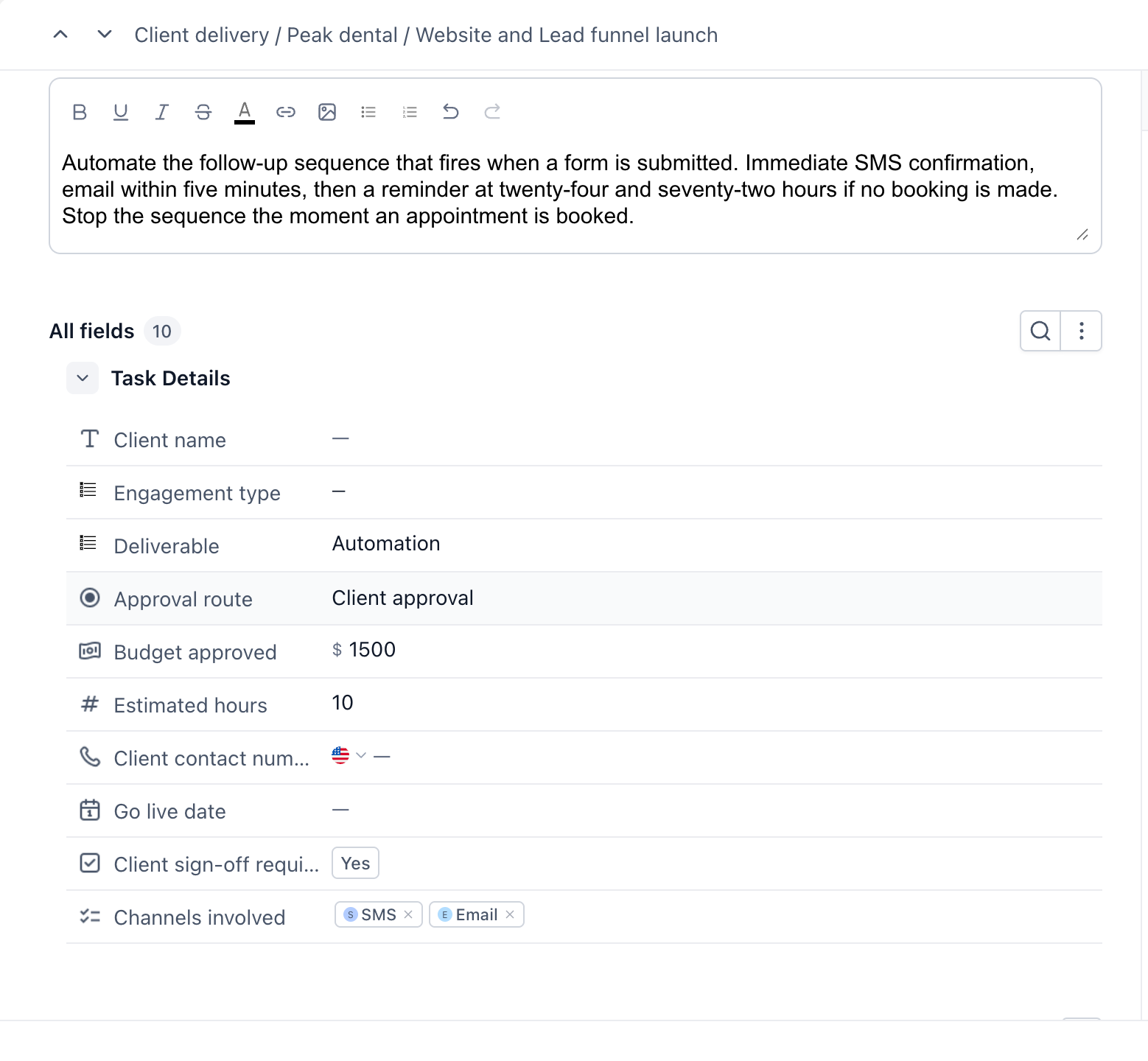
Custom fields are additional data points attached to a task. They appear in the "All fields" section of the task detail panel, with a count indicating how many fields exist for that space. Empty fields show a dash so you can spot missing information at a glance.
Fields are set up at the space, folder or list level. A field defined higher in the hierarchy is inherited by lower levels, while a field created at a lower level stays limited to that level. This lets you share common fields across a workstream while keeping specialized fields local.
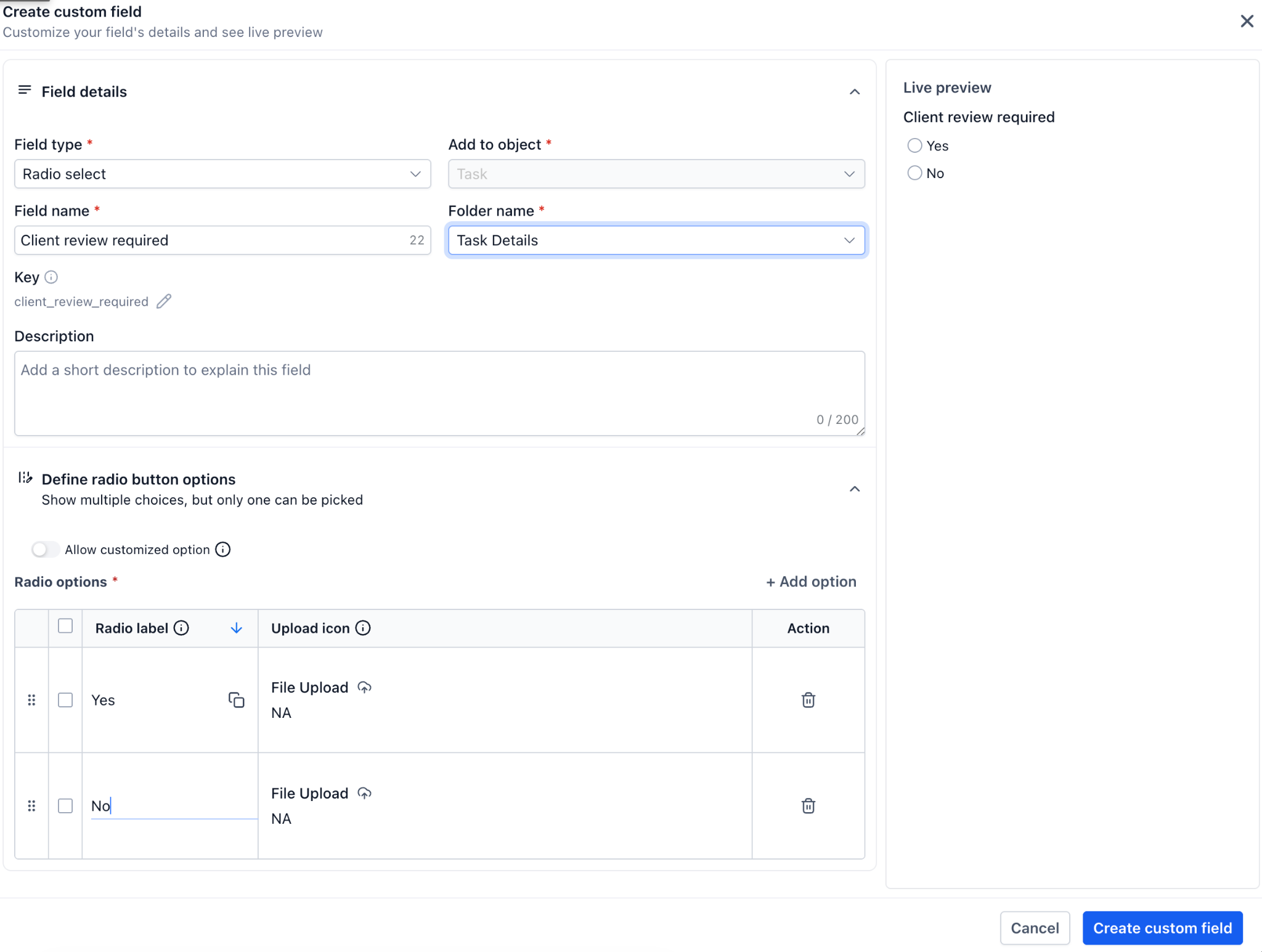
You choose the field type when you create a field, options include single line text, number, monetary, date picker, dropdowns, radio buttons, checkboxes and more. Once saved, the field is available on every task within the selected scope.
03How businesses use Custom Fields on tasks
- Marketing agency. The agency creates a custom field at the space level called "Client reference" using a single line text type. When a new task is opened the team enters the appropriate reference code in the All fields section and saves the task.
- Real estate brokerage. A broker adds a monetary custom field named "Commission" at the folder level. While reviewing a property listing task the agent selects the currency and enters the commission amount then saves the change.
- Software development firm. The firm defines a multi select dropdown called "Tech stack" on a specific list for backend tasks. Developers open a task, pick the relevant technologies from the list, and save the record.
04The numbers and rules that matter
- Project Management is now available to agencies on the $497 plan (per HighLevel's help center, checked November 2026).
05Before you start
- Project Management must be enabled in Agency or Subaccount settings > Labs by toggling on Project Management (available on the $497 plan) (per HighLevel's help center, checked November 2026).
06How to set up and use Custom Fields on tasks in HighLevel
Add a custom field
- Open the Tasks page.
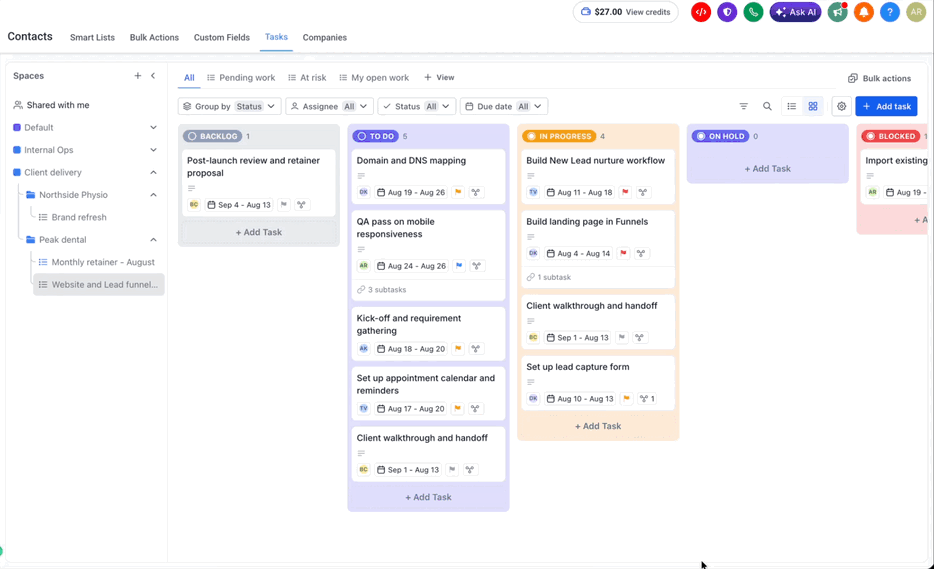
- Select Contacts in the left navigation and then the Tasks tab.
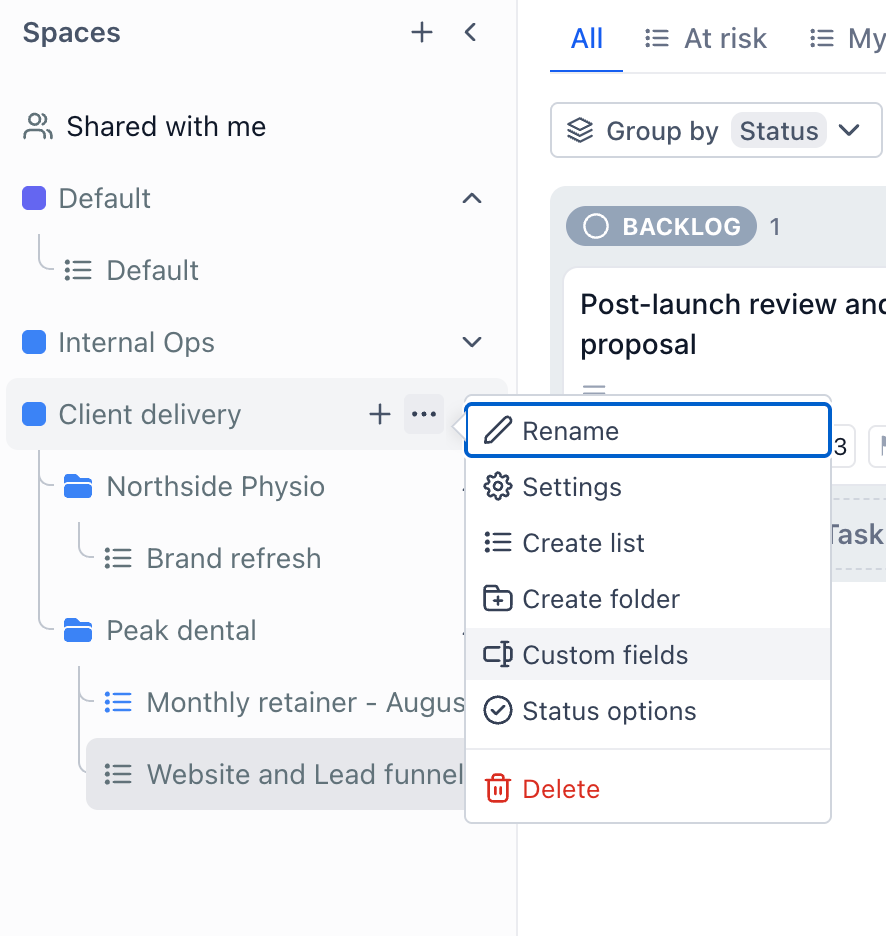
- Locate the desired Space in the left panel.
- Hover over that Space to reveal the options control.
- Click the options control on the Space row.
- Choose the Custom fields entry from the menu.
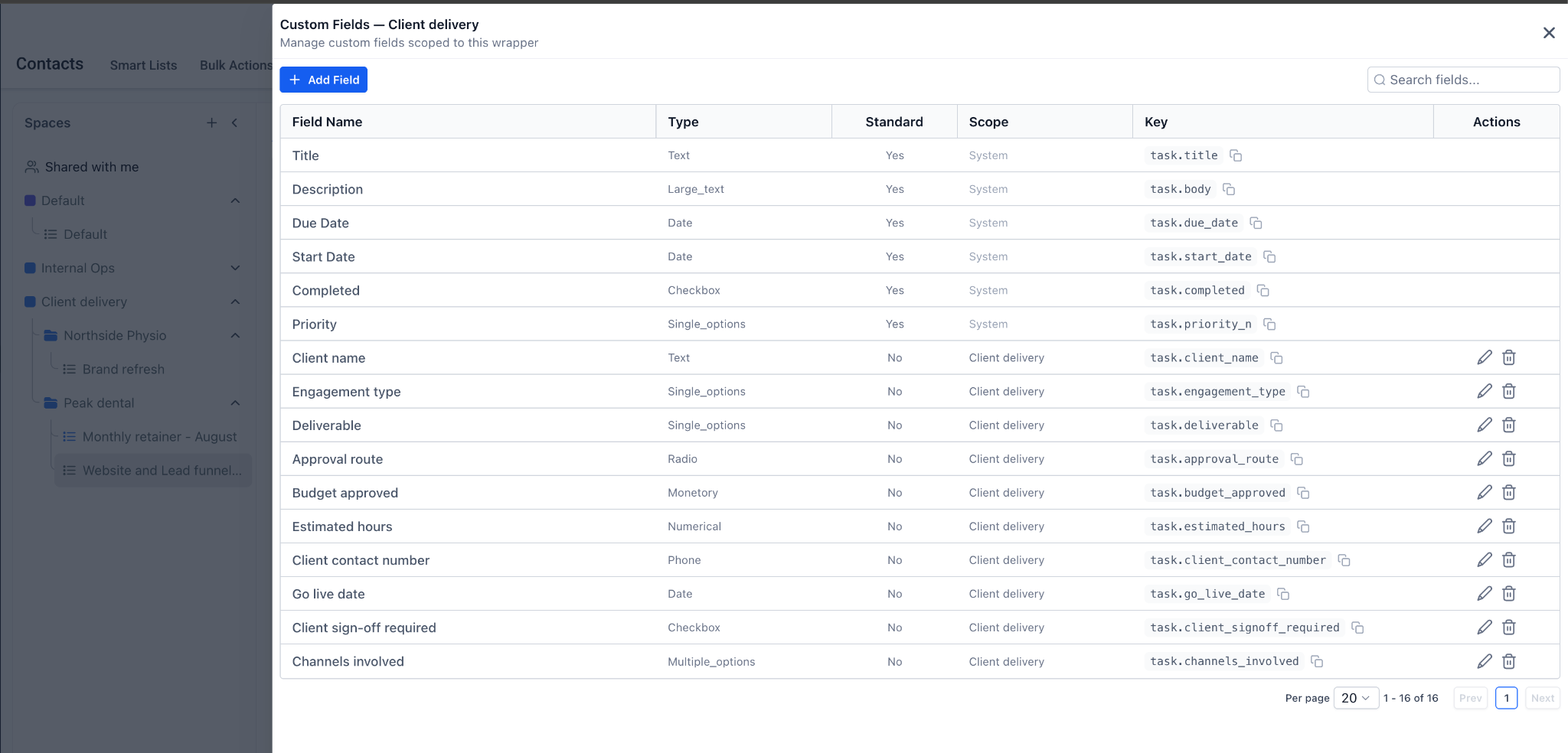
- The custom fields configuration screen for the Space appears.
- Click Add a field to start creating a new field.
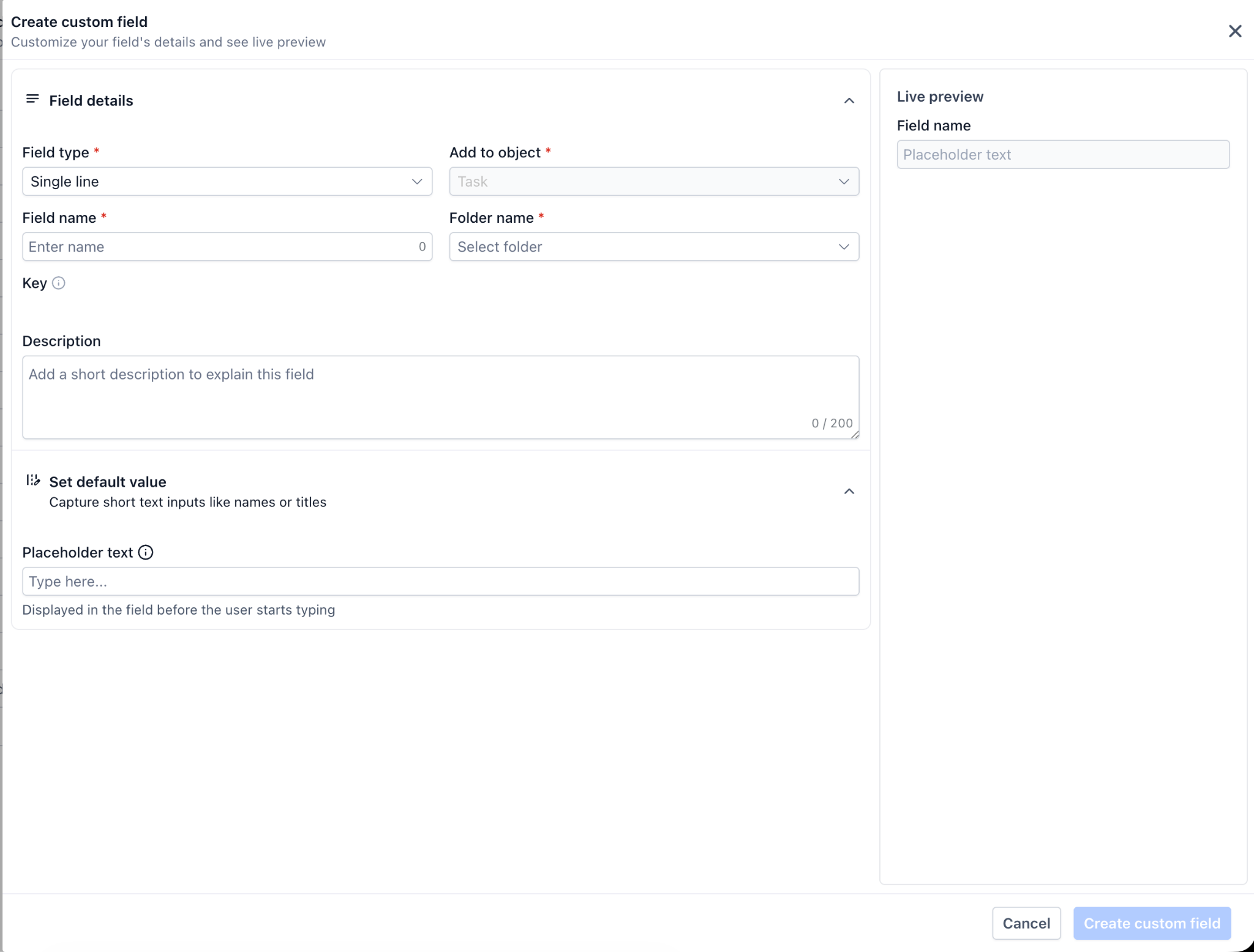
- Select the field type you need and give the field a clear name.
- If the field is a dropdown or radio type, enter the selectable values.
- For a monetary field, choose the appropriate currency.
- Save the new field configuration.
- The field now shows in the All fields section of every task in that Space.
Fill in a custom field on a task
- Open the task by clicking its card to display the detail panel.
- Locate the All fields section, which shows the total number of fields for the Space.
- Enter values into the applicable custom fields; any field left blank will display a dash.
- Click Save to store the entered information, or Cancel to discard changes.
07What it looks like in HighLevel
08Settings that matter
- Custom fields. Controls which additional data points are available on tasks at the chosen hierarchy level.
09Things to know before you rely on it
- Custom fields cannot be marked as required.
- A field added at a higher level appears empty on tasks in lower levels until a value is entered.
- Only fields defined at the space, folder or list level are available; lower level fields do not appear above their scope.
10How it connects to the rest of HighLevel
- Getting started with HighLevel project management provides the broader context for using tasks. Project management intro
- Board views let you filter and group tasks by custom fields for easier navigation. Board views
- Smart lists let you save filtered views that include custom field criteria. Smart lists
Michael's take

Ever wonder if a task can hold the exact info you keep asking for in meetings? Custom Fields let you attach that data right to the task.
If I were setting up a new workflow, I’d start by listing the questions I ask on every ticket. Client name, budget, channel. And turn those into dropdown fields at the Space level. That way the team sees the same fields on every task and you can more easily filter or group for reporting.