
01Who this is for
- Project managers who need to review many tasks at once and apply consistent filters.
- Operations teams that run daily workflows and benefit from a kanban board to move tasks across stages.
02Smart Lists, explained
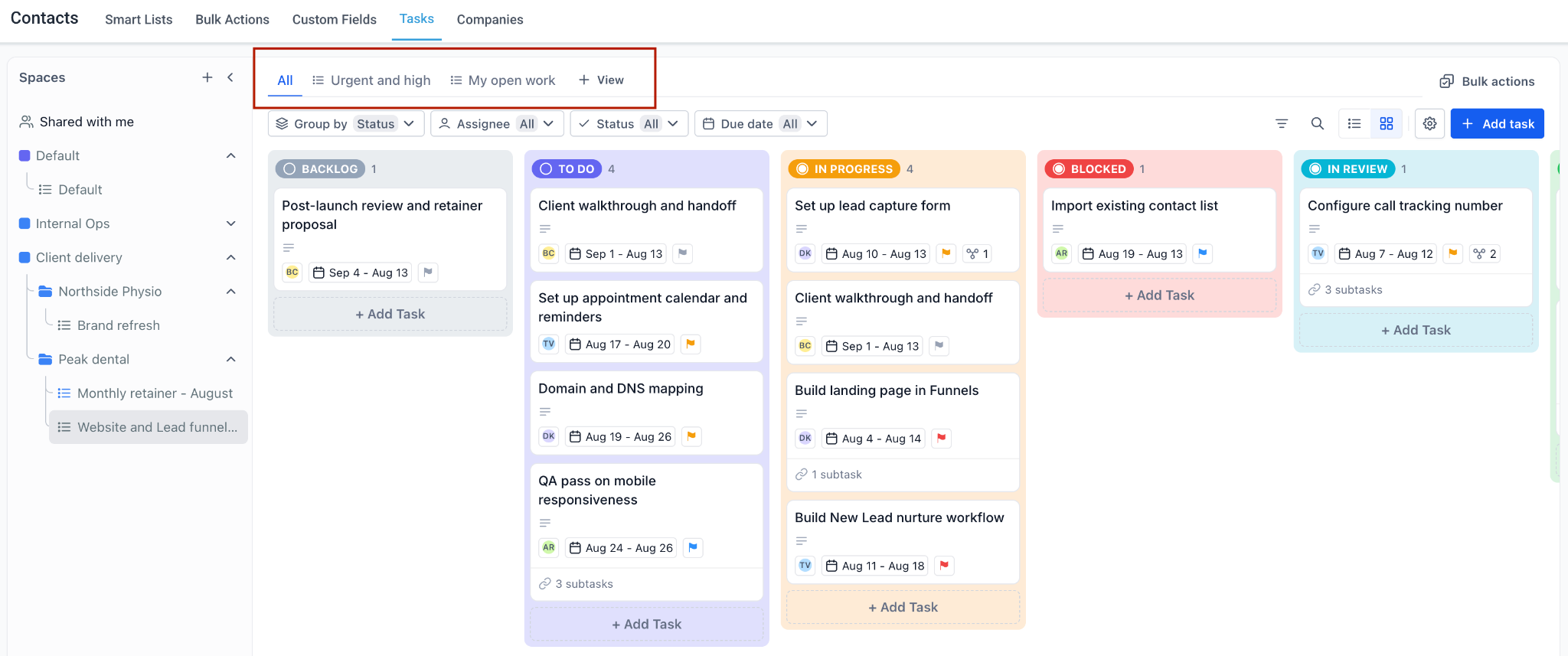
Smart lists are saved configurations that define which task fields are shown, which filter conditions apply, and how tasks are ordered. They do not contain tasks themselves; they act as a lens over the existing tasks in a List. Smart lists appear as tabs above the board, alongside the default "All" tab that shows every task.
You create a smart list either as a List view, where tasks are rows in a table, or as a Kanban view, where tasks are cards grouped into columns. Settings common to both include the smart list name, selected fields, filter conditions, sort field, and sort order. Kanban views add settings for card size, field stacking, empty field visibility, column collapsing, grouping field, and subtask display.
03How businesses use Smart Lists
- Marketing agency. The agency creates a kanban smart list grouped by campaign status to see at a glance which client projects are in planning, creative, or delivery stages. They adjust card size and field stacking to keep the board readable.
- Construction firm. The firm builds a list view smart list that shows tasks filtered to overdue and sorts by due date ascending, allowing supervisors to scan all delayed items in one table and select rows for bulk rescheduling.
- Software development shop. Developers set up a kanban smart list grouped by sprint and choose to collapse subtasks, so they can focus on high level stories while still seeing key subtask information when needed.
04The numbers and rules that matter
- Project Management is now available to agencies on the $497 plan (per HighLevel's help center, checked November 2026).
- Page size control offers 10, 20, 50, or 100 rows per page.
05Before you start
- Project Management must be enabled via Agency or Subaccount settings > Labs and toggled on (per HighLevel's help center, checked November 2026).
- The account must be on the $497 plan to access Project Management (per HighLevel's help center, checked November 2026).
06How to set up and use Smart Lists in HighLevel
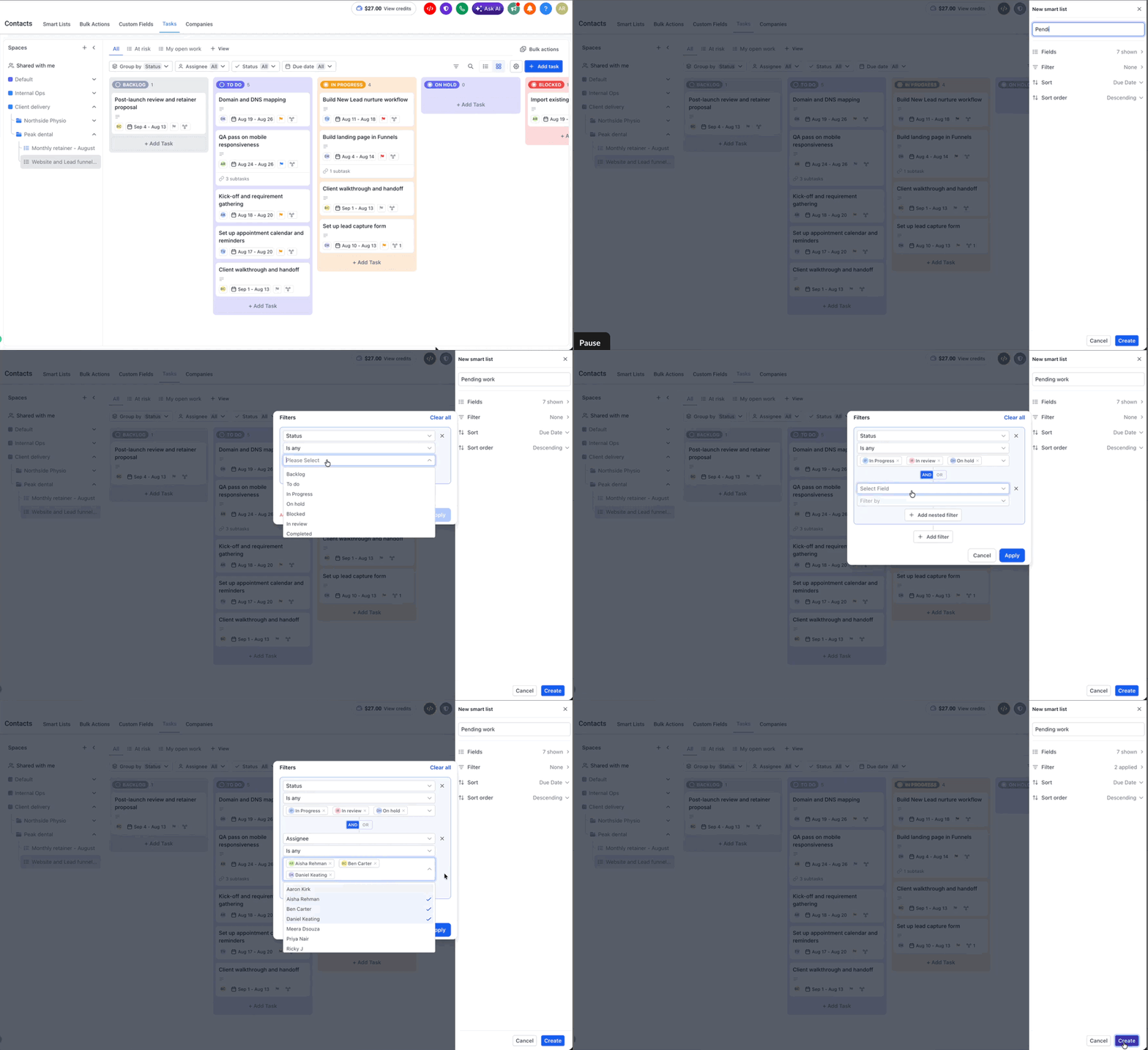
Create a list view smart list
- Open the List you want a view of.
- Click the List in the left panel.
- Apply filter chips in the toolbar so the view already shows roughly what you want.
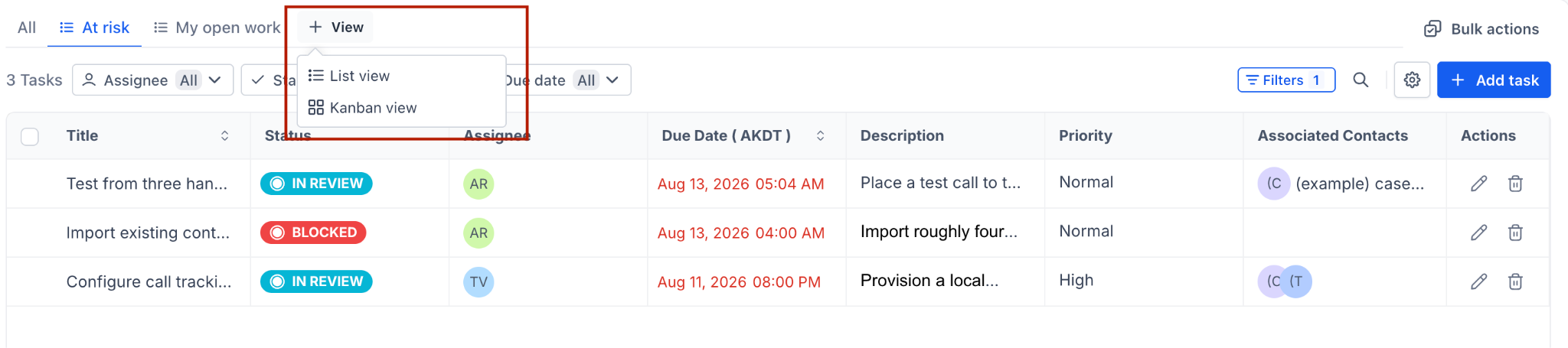
- Click "+ View" and choose "List view".
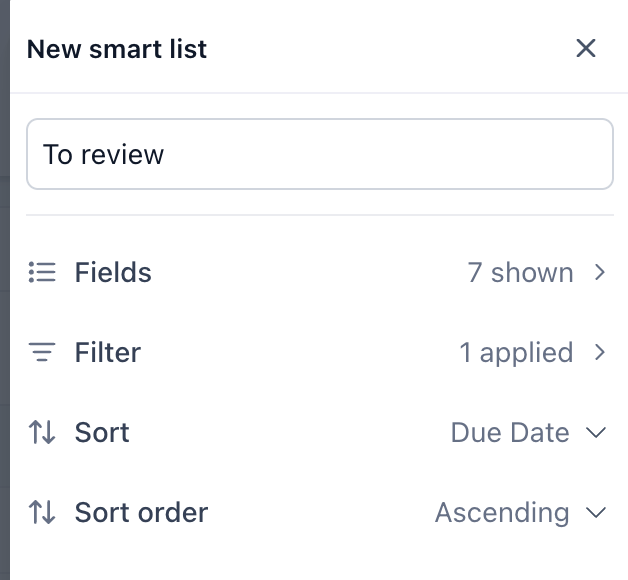
- Enter a name for the smart list.
- Open "Fields" and select the columns to display.
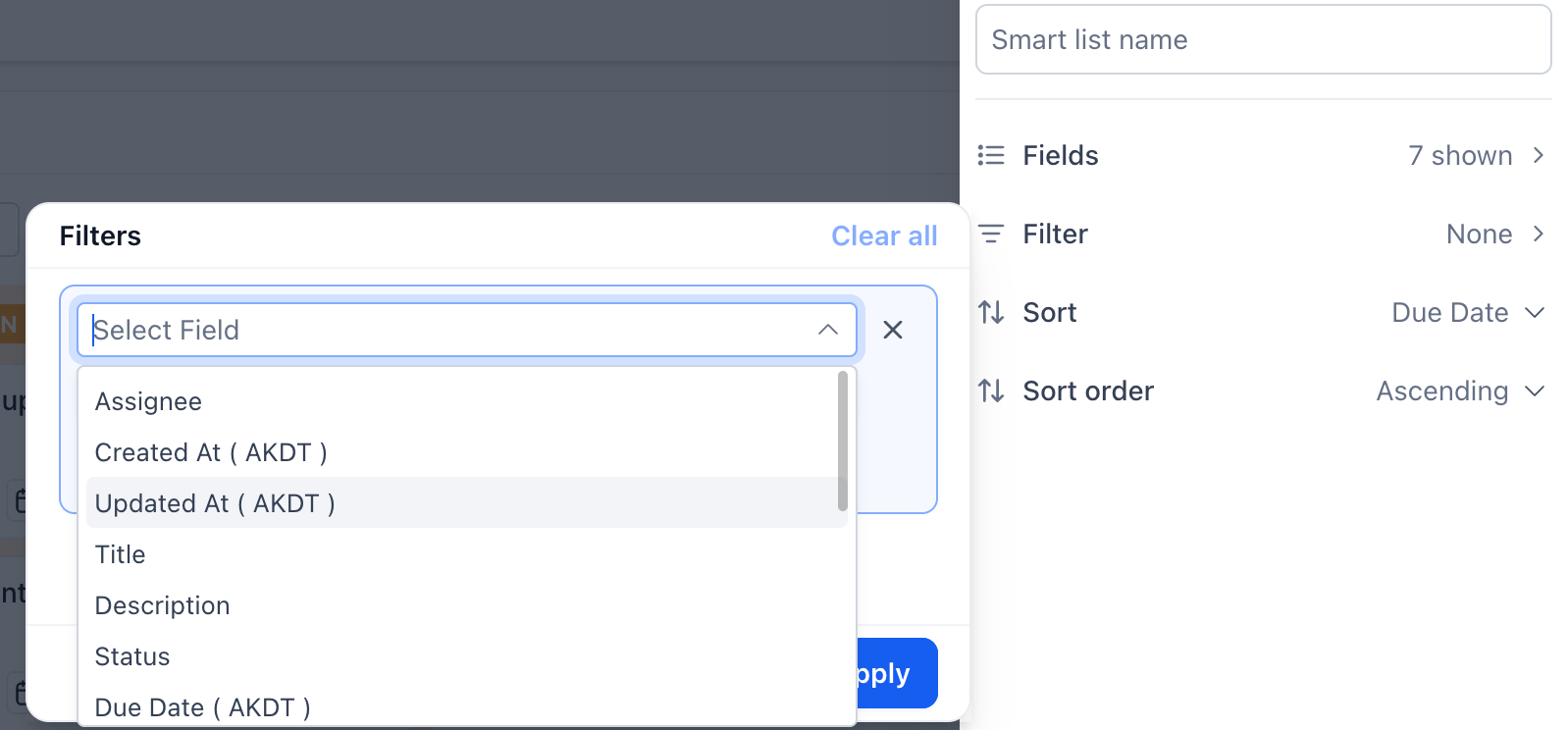
- Open "Filter" to review or adjust the inherited conditions.
- Choose a sort field under "Sort" and pick Ascending or Descending.
- Click "Create" to add the smart list as a new tab.
Create a kanban view smart list
- Click "+ View" and select "Kanban view".
- Enter a name for the smart list.
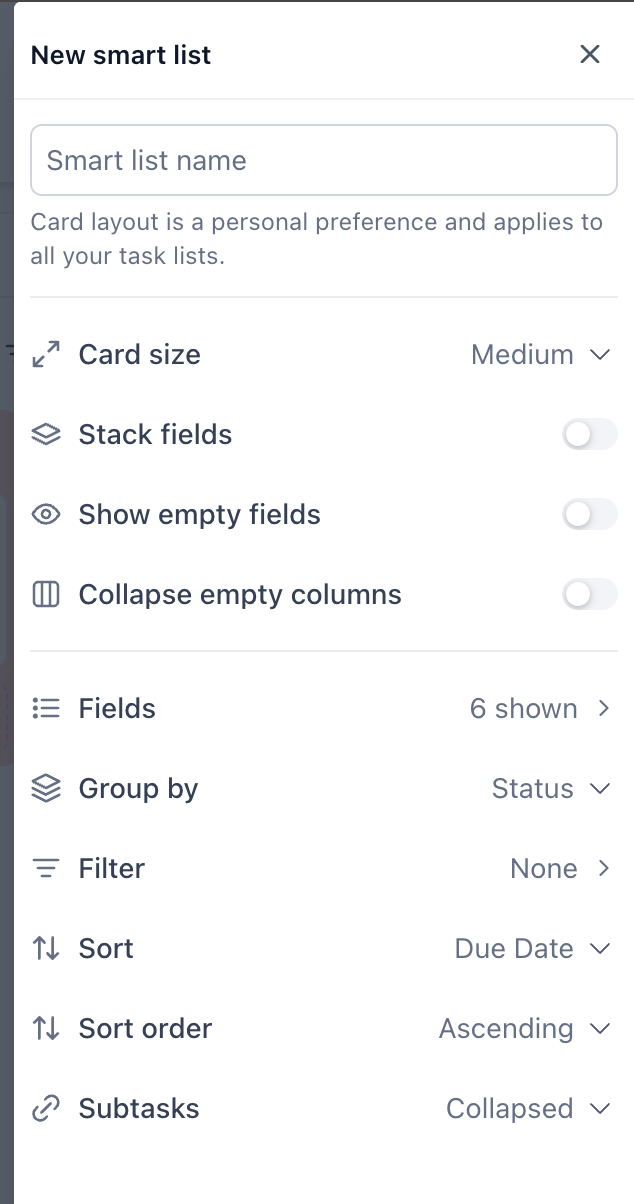
- Choose a Card size and decide whether to stack fields, show empty fields, and collapse empty columns.
- Open "Group by" and pick the field that will form the columns.
- Open "Fields" and select which fields appear on each card.
- Set the "Subtasks" option to collapsed or expanded.
- Define the filter, sort field, and direction as needed.
- Click "Create" to add the kanban smart list as a new tab.
07What it looks like in HighLevel
08Settings that matter
- Smart list name. The label that appears on the tab, used to identify the saved view.
- Fields. Specifies which task attributes are shown as columns in list view or on each card in kanban view.
- Filter. Conditions a task must meet to appear in the smart list.
- Sort. The field used to order tasks within the view.
- Sort order. Controls whether tasks are sorted ascending or descending.
- Card size. Determines the amount of space each kanban card occupies; defaults to medium.
- Stack fields. Places selected fields vertically on a card rather than in a single row.
- Show empty fields. When on, fields without values are displayed on the card; otherwise they are hidden.
- Collapse empty columns. Narrows any column that contains no tasks to keep the board compact.
- Group by. Selects the field that defines the kanban columns; status is the default.
- Subtasks. Controls whether subtasks appear collapsed, expanded, or as separate cards on the kanban board.
09Things to know before you rely on it
- Card layout settings (Card size, Stack fields, Show empty fields, Collapse empty columns) apply to all of your task lists and are not saved per smart list.
- The default "All" tab always shows every task with no filters applied.
- List view pagination offers 10, 20, 50, or 100 rows per page.
- Smart lists do not contain their own tasks; they are only saved views of existing tasks.
- Each smart list has a unique URL that can be shared for direct access.
10How it connects to the rest of HighLevel
- Organize work with spaces, folders, and lists Project organization
- Switching, filtering and bulk actions in board views Board views
- HighLevel pricing and plans Pricing
Michael's take

A smart list feels like a small convenience that can shift the way a team pulls daily data. It stops you from rebuilding the same filter over and over, and lets you hand a link to exactly the view you need.
A marketing agency that runs multiple client campaigns fits the bill. One smart list could show every overdue task across all clients, while a Kanban board could track the current stage of each campaign.