
01Who this is for
- Project managers who need to see work in progress at a glance and rearrange tasks quickly.
- Operations teams that review large sets of tasks to compare dates, priorities, or assignees.
- Agency Founders who want to control which tasks are visible to each team member without affecting others.
02Board (kanban) and list views, explained
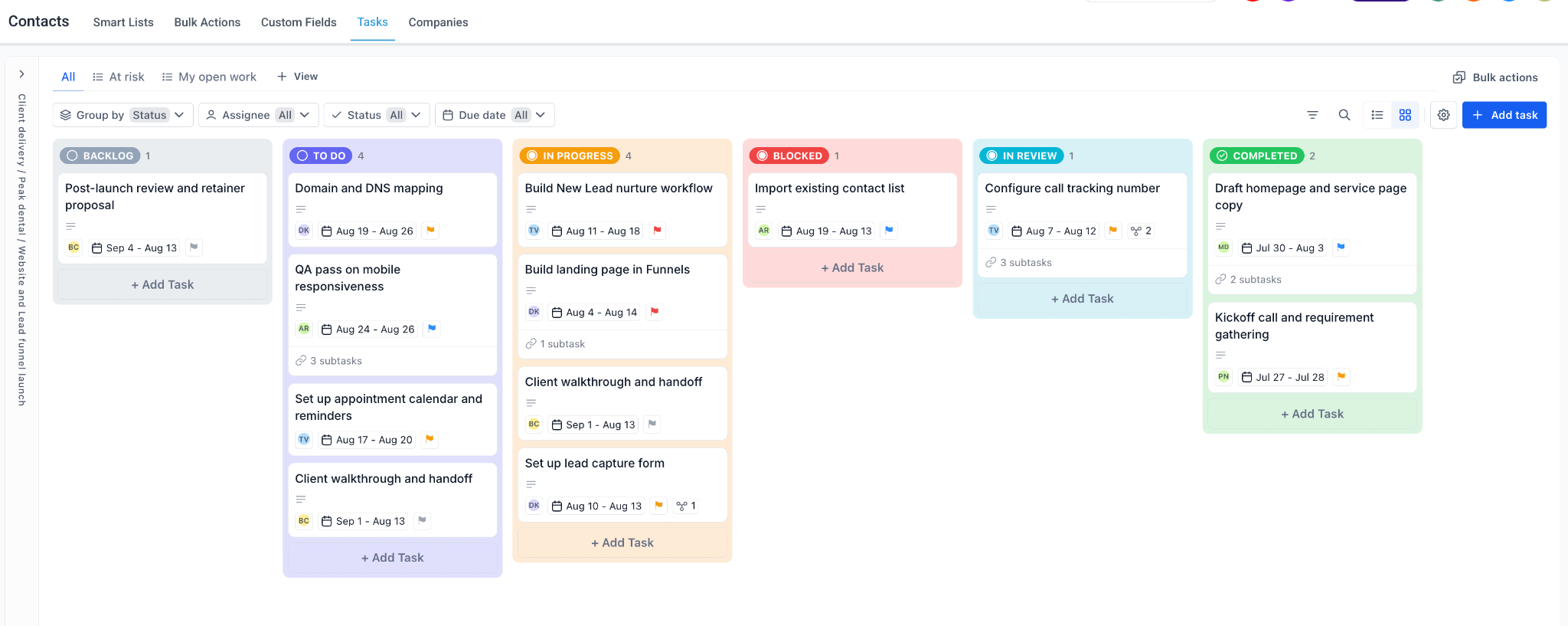
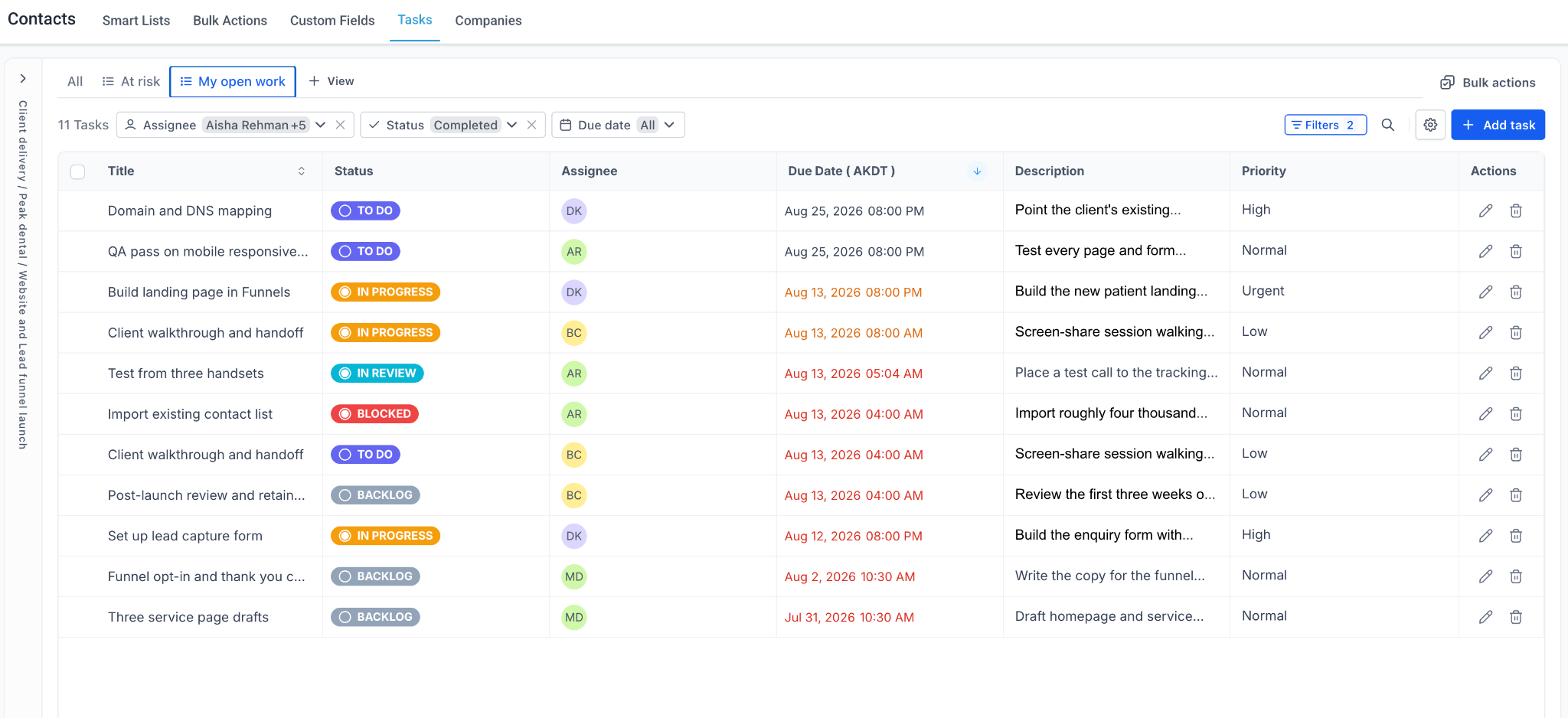
The board feature lets you view tasks either as cards in a Kanban board or as rows in a List. Kanban columns represent status values defined in the Space, while List rows display all task fields side by side. Switching between the two only changes the visual layout; task data stays the same.
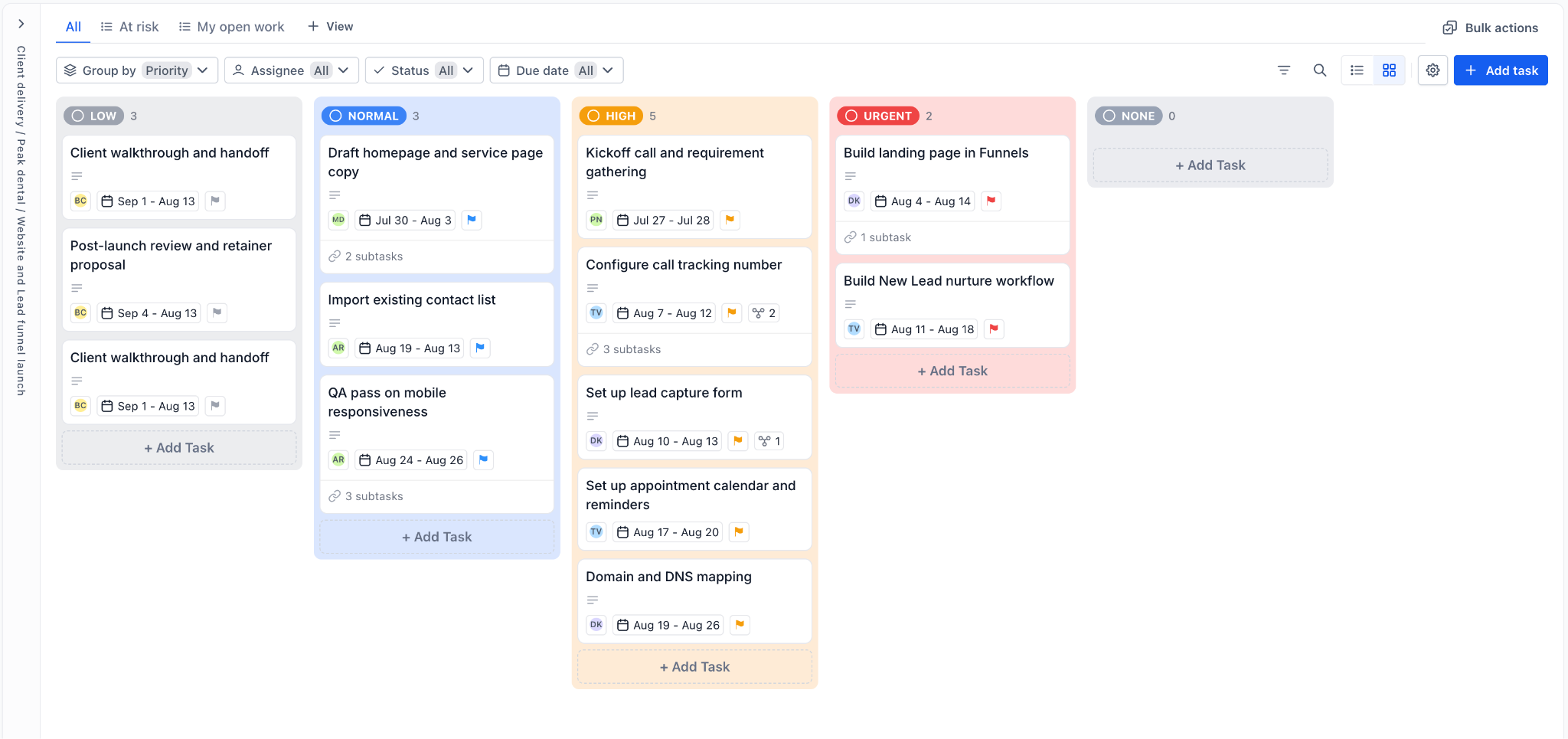
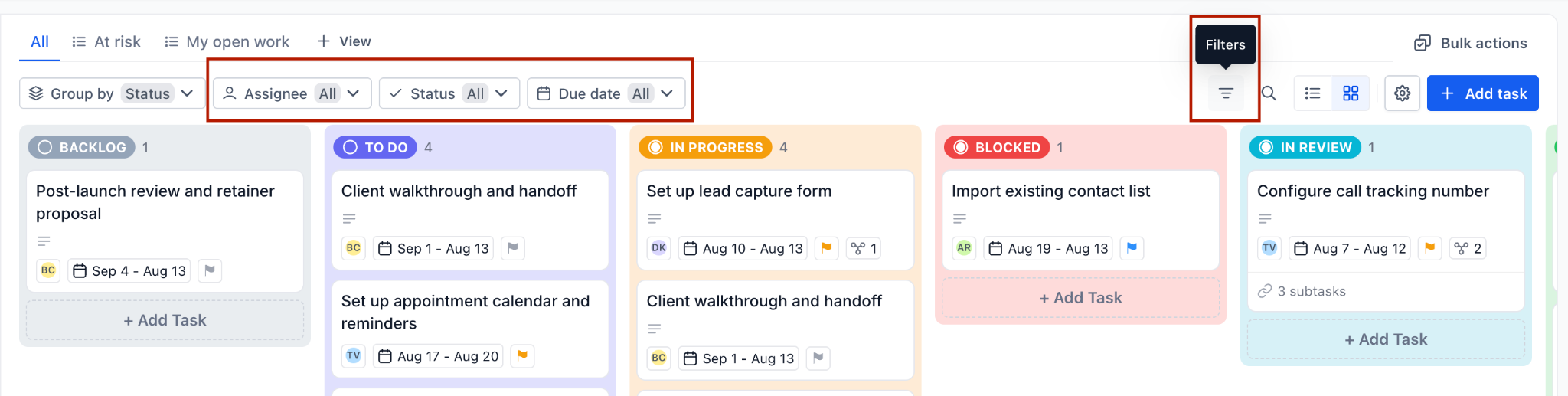
Both views are accessed from the same toolbar. A "Group by" control determines how tasks are divided, by status, assignee, priority, status group, or custom field. Filtering chips let you narrow the display by assignee, status, or due date, and additional filters are added via the Filter button. Bulk actions are available from the toolbar to move tasks to a new status or delete them in groups, and tasks must be selected from List view.
These tools reside in the Project Management module, which must be enabled in Agency or Subaccount settings under Labs. Once activated, the board appears inside any Space that has statuses configured.
03How businesses use board (kanban) and list views
- Marketing agency. The team drags campaign tasks between Kanban columns to mark progress from Draft to Approved. They also filter by due date to focus on upcoming deliverables, and use bulk move to shift all pending items to a new status after a client revision.
- Software development firm. Developers switch to List view to scan all tickets, sort by priority, and apply a bulk delete to close multiple resolved bugs at once. They save a filter set as a smart list to quickly revisit high priority tickets each sprint.
- Cleaning service business. The operations manager groups tasks by assignee to see each crew member’s workload, filters for tasks due today, and uses bulk move to change all "Scheduled" jobs to "In Progress" at the start of the workday.
04The numbers and rules that matter
- Project Management is now available to agencies on the $497 plan (per HighLevel's help center, checked November 2026).
05Before you start
- Project Management must be enabled by toggling it on in Agency or Subaccount settings > Labs.
- The account needs to be on the $497 plan or higher (per HighLevel's help center, checked November 2026).
06How to set up and use board (kanban) and list views in HighLevel
Switching views
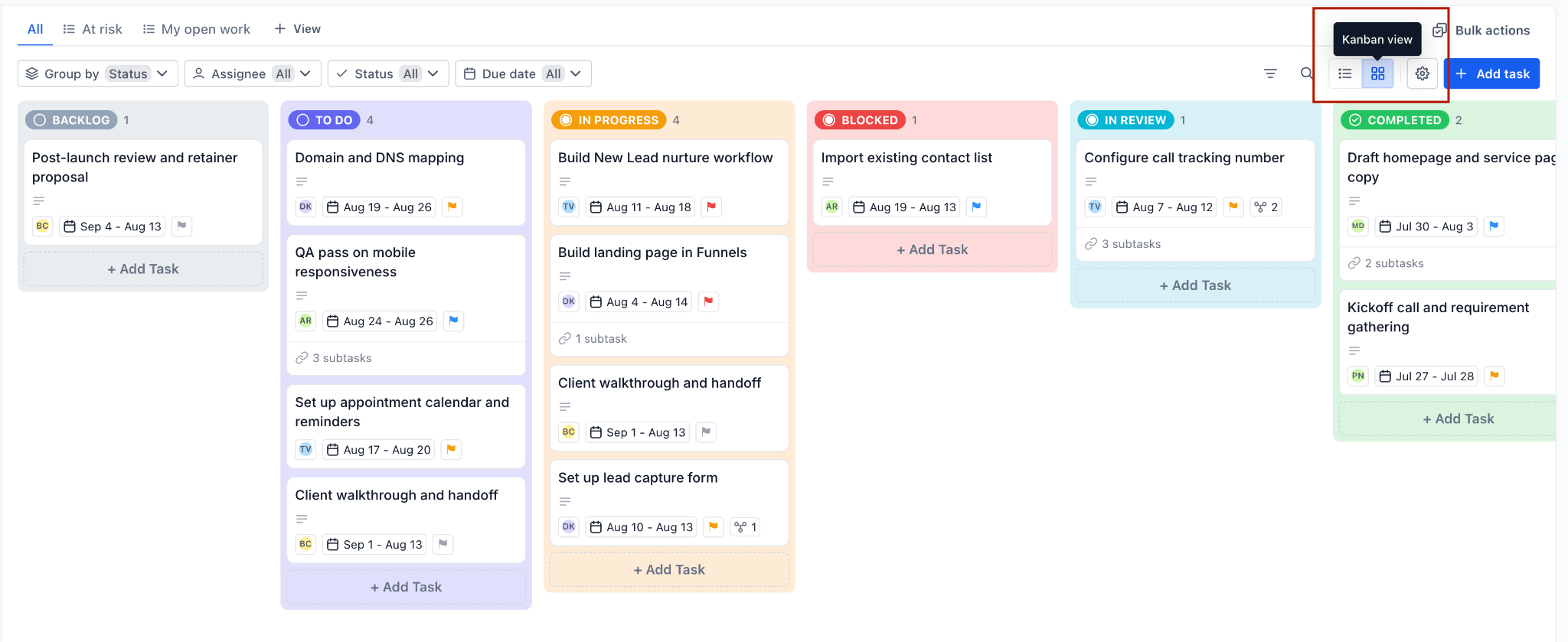
- Open the view menu located in the board toolbar.
- Select either "List view" or "Kanban view" from the options.
- Return to the other layout at any time using the same menu.
Filtering your tasks
- Locate the filter chips beside the Group by control in the toolbar.
- Observe the default Assignee, Status, and Due Date filters set to "All".
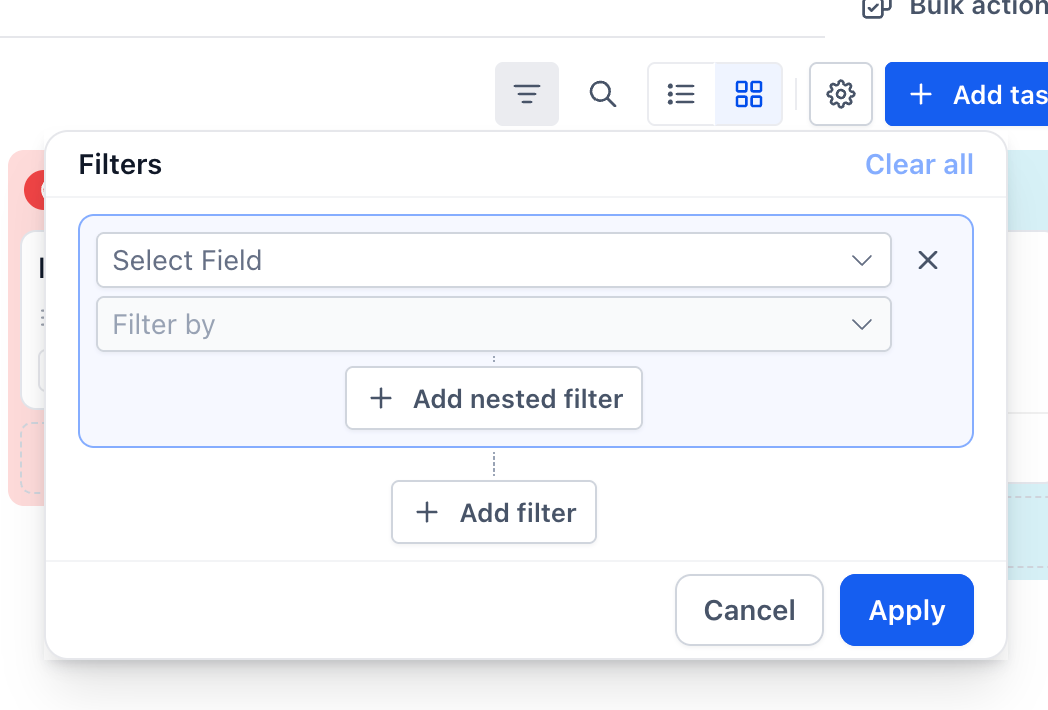
- Click the Filter button on the right side of the window to add additional criteria.
- Clear any applied filter to restore the full task list.
Bulk actions
- Select multiple tasks from List view using the checkboxes.
- Click the Bulk actions control in the toolbar.
- Choose either the Move to option to change status or Delete to remove tasks.
- Monitor the progress of the bulk operation by clicking the Bulk actions button at the top right.
Moving work forward
- In Kanban view, drag a card from one column to another to change the task's status.
Board navigation
- If the board has more columns than fit on screen, scroll sideways to reach the hidden columns.
07What it looks like in HighLevel
08Settings that matter
- Group by. Determines how tasks are organized on the board, such as by status, assignee, priority, status group, or a custom field.
- Filter. Opens a panel that lets you apply criteria like assignee, status, or due date to narrow the displayed tasks.
- Bulk actions. Provides options to move selected tasks to a new status or delete them in groups.
- Project Management toggle. Enables the entire Project Management experience for agencies on the $497 plan (per HighLevel's help center, checked November 2026).
09Things to know before you rely on it
- Only two bulk actions, Move to and Delete, are available in the first phase.
- The board offers just Kanban and List views; Gantt, calendar, or timeline views are not included.
- Empty columns appear when a status has no tasks; this is normal and allows dragging work into them.
10How it connects to the rest of HighLevel
- Getting started with HighLevel project management Project management intro
- Save custom filters as smart lists Smart lists
- HighLevel pricing and plans Pricing
Michael's take

Board (Kanban) and list views feel like a useful convenience for teams that need both a flow view and detailed oversight. Being able to switch between cards and rows without losing data can help adapt to different work moments.