
01Who this is for
- Agency owners who run client projects need a clear view of task responsibility and deadlines.
- Team leads managing internal workflows benefit from seeing priority levels at a glance.
- Freelancers coordinating multiple subtasks can use assignee and date settings to keep work organized.
02Tasks, explained
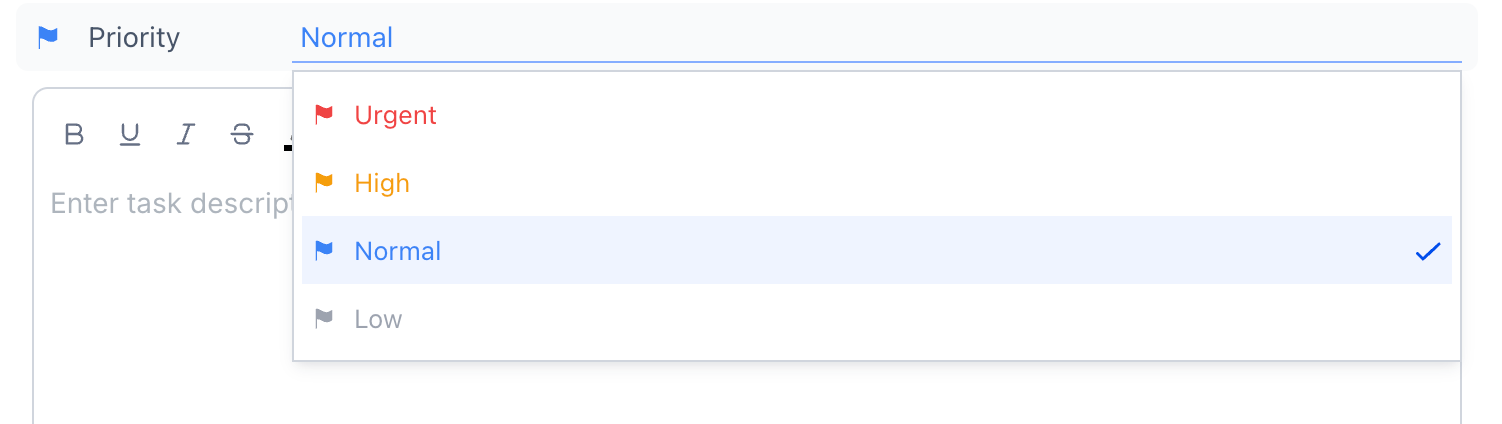
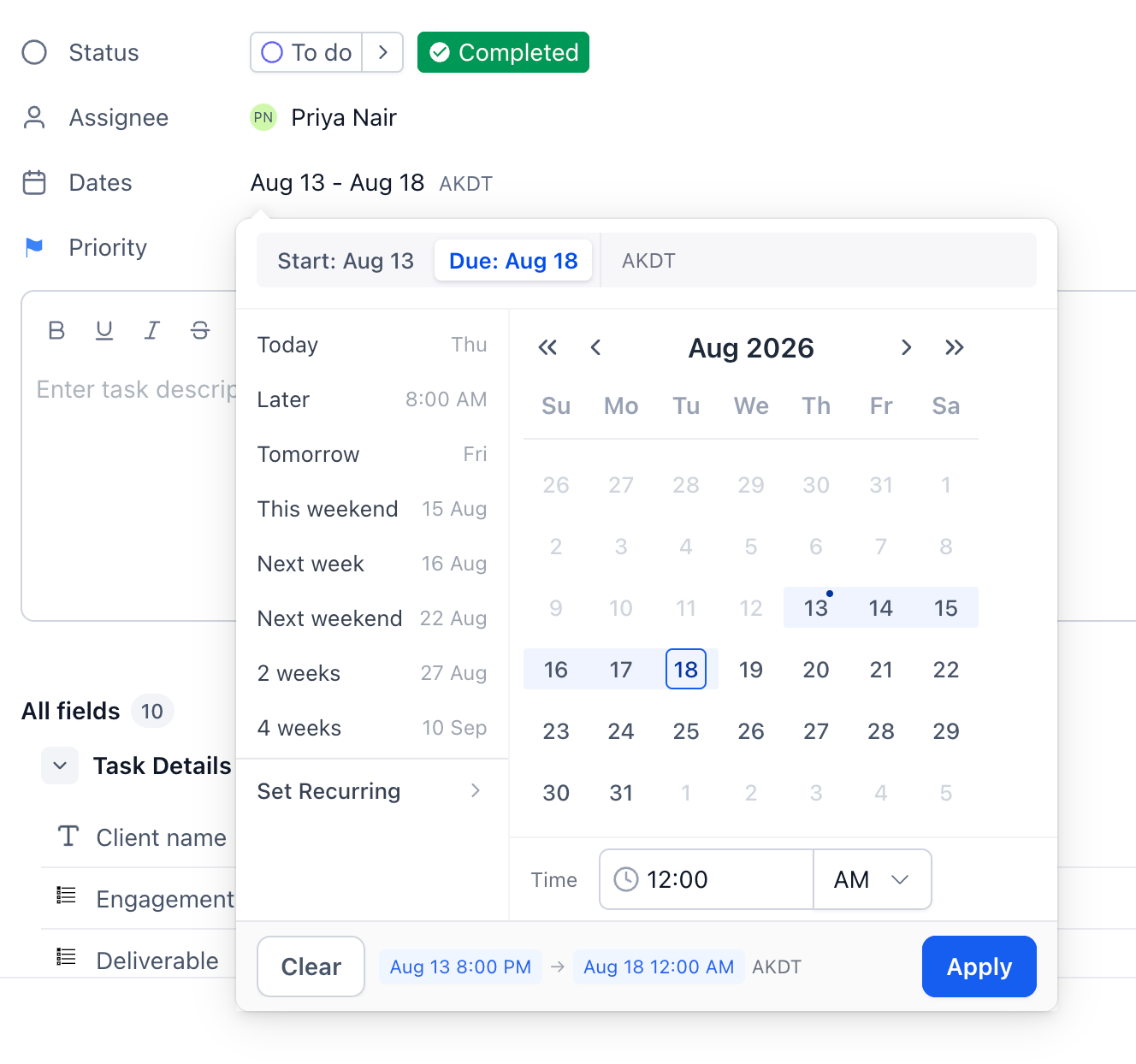
The task properties, Assignee, Priority, and Dates, transform a plain task list into a usable board. An assignee marks the single person who owns the work and triggers a notification. Priority lets you tag a task as Urgent, High, Normal, or Low, helping the team focus on the most critical items. Dates accept either a single due date or a start and end range, displaying the subaccount’s timezone.
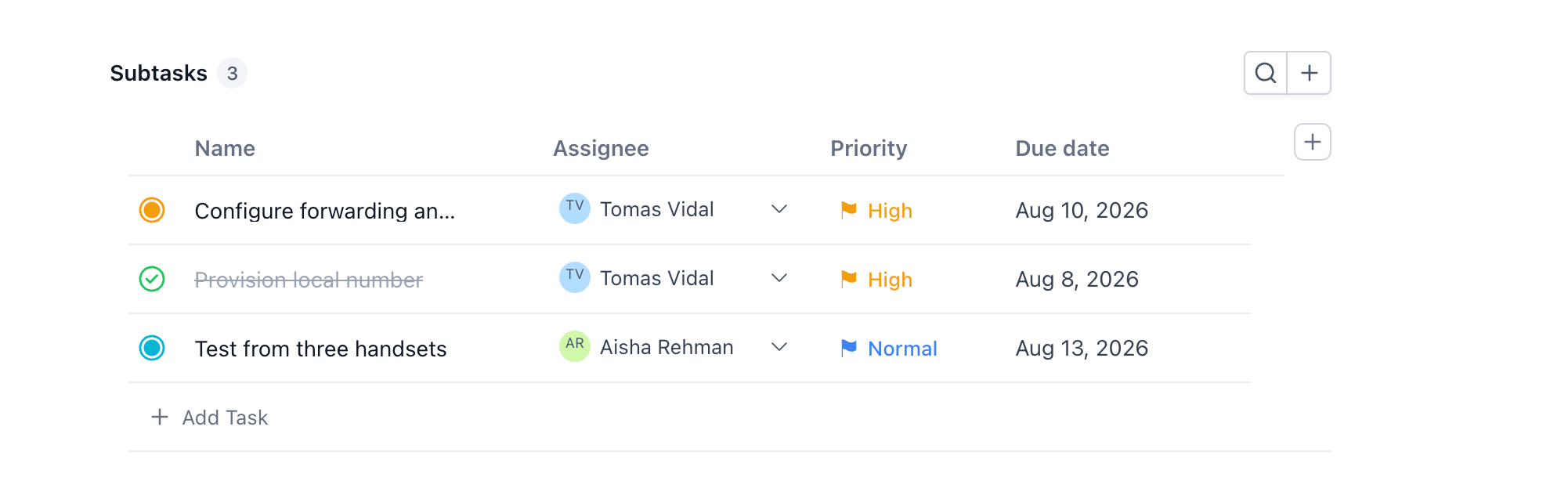
These fields can be filled in when you first create a task or later by opening the task’s detail panel. The assignee list shows only members who have access to the Space, so sharing the Space is required for them to appear. Subtasks are the way to split a parent task among several people because each task can hold only one assignee.
All controls live inside the task composer (for new tasks) or the task detail panel (for existing tasks). The composer shows an "Add assignee" button, a "Priority" drop down, and a "Select date" picker. In the detail view, the properties are labeled "Assignee", "Priority" and "Dates".
03How businesses use assign tasks, set priority, and set dates
- Marketing agency. The agency creates a new campaign task, clicks the Add assignee control, selects the copywriter, chooses High priority, and sets a date range for the two week creative phase. The task then appears on the board with the owner, urgency and schedule.
- Software development team. A developer opens an existing bug ticket, finds the Assignee property, changes it to the teammate who will fix it, updates the Priority to Urgent, and adds a due date. Saving records the changes and notifies the assigned user.
- Event planning firm. The planner creates a venue booking task, uses the Select date control to choose a single date for the event, leaves Priority unset, and assigns the task to the coordinator. The date appears on the card and the coordinator receives a notification.
04The numbers and rules that matter
- $497 plan includes Project Management (per HighLevel's help center, checked November 2026).
05Before you start
- Project Management must be enabled for the agency or subaccount by going to Agency or Subaccount settings > Labs and turning on Project Management.
- The user you want to assign must have been shared into the Space where the task lives.
06How to set up and use assign tasks, set priority, and set dates in HighLevel
Assign task while creating
- Open the inline task composer.
- Click the Add assignee control.
- Select a team member from the list.
- Create the task to save the assignment.
Assign task on existing task
- Click the task card to open its detail panel.
- Find the Assignee property.
- Click the property and choose a person from the list.
- Save the change.
Set priority while creating
- Open the inline task composer.
- Click the Priority control.
- Select one of the four priority levels.
Set priority on existing task
- Open the task detail panel.
- Find the Priority property.
- Choose the desired priority level.
- Save the change.
Set dates while creating
- Open the inline task composer.
- Click the Select date control.
- Pick either a single date or a start and end range.
Set dates on existing task
- Open the task detail panel.
- Click the Dates property.
- Pick a single date, or pick a start and an end date for a range.
- Check the timezone shown beside the dates.
- Save the change.
07What it looks like in HighLevel
08Settings that matter
- Add assignee. Opens the picker that lets you choose the single person responsible for a new task.
- Assignee. Displays the currently assigned owner on an existing task and allows you to change it.
- Priority. Provides a drop down with the four fixed urgency levels: Urgent, High, Normal, Low.
- Select date. Launches the date picker used when creating a task to set a due date or date range.
- Dates. Shows the current date or range on an existing task and lets you edit it.
09Things to know before you rely on it
- A task can have only one assignee; multiple assignees are not supported in this release.
- Priority levels are fixed to Urgent, High, Normal, and Low; custom levels cannot be added.
- Dates accept either a single day or a start to end range; the displayed timezone follows the subaccount setting.
- Project Management is available only on the $497 plan and must be enabled in Labs (per HighLevel's help center, checked November 2026).
10How it connects to the rest of HighLevel
- Get an overview of HighLevel project management features. Project management intro
- Learn how to create tasks and subtasks in HighLevel. Create tasks
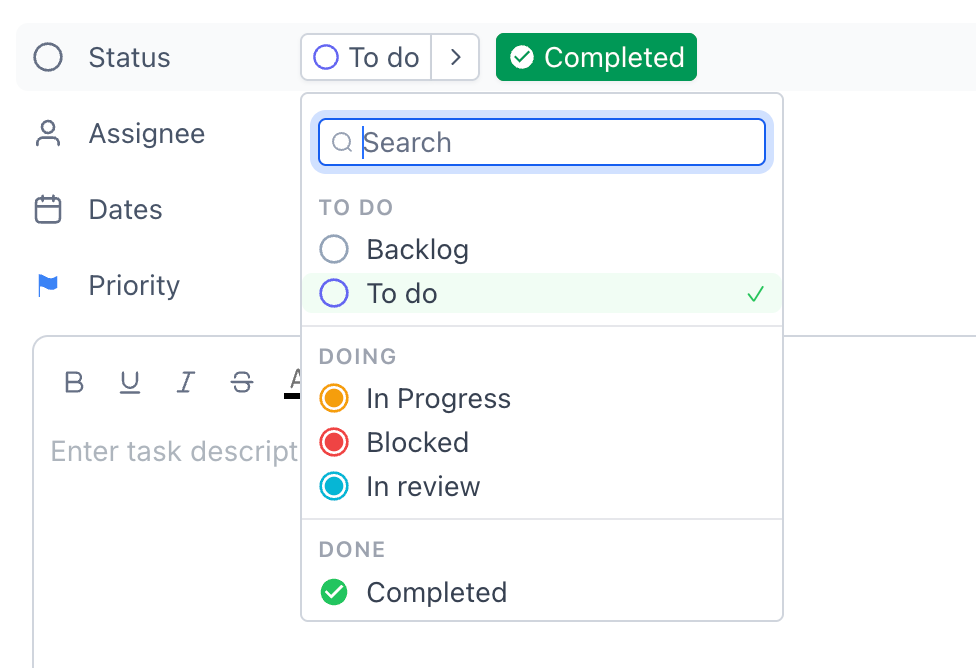
- See how to manage task statuses across your board. Task statuses
- Review HighLevel pricing and plan options. Pricing
Michael's take

Jumping straight into task assignment without a clear owner can leave work floating and unnoticed. Unassigned items become a blind spot for the team and can slip through the cracks.
When each task has an owner, a priority level, and a defined timeframe, the board tells you who is doing what, how urgent it is, and when it needs to be finished. That quick visual alignment helps small teams stay moving without endless status meetings.